
In Bitrix24 tasks, smart search and filters help you quickly sort tasks by assignees, statuses, deadlines, and other parameters. For example, you can select all important tasks or view the ones you assigned.
Bitrix24 plans and pricing
In this article:
- Use search in tasks
- Work with filters by roles and statuses
- Create custom filters
- Search for favorite tasks
Using search in tasks
Smart search helps you quickly find the task you need. Enter a word or part of a word in the search field. Bitrix24 will display matching tasks. For example, if there is a task titled "Prepare sales report for March," you can type "report", "sales", or part of a word like "sale" to see tasks containing this text in their titles or descriptions.
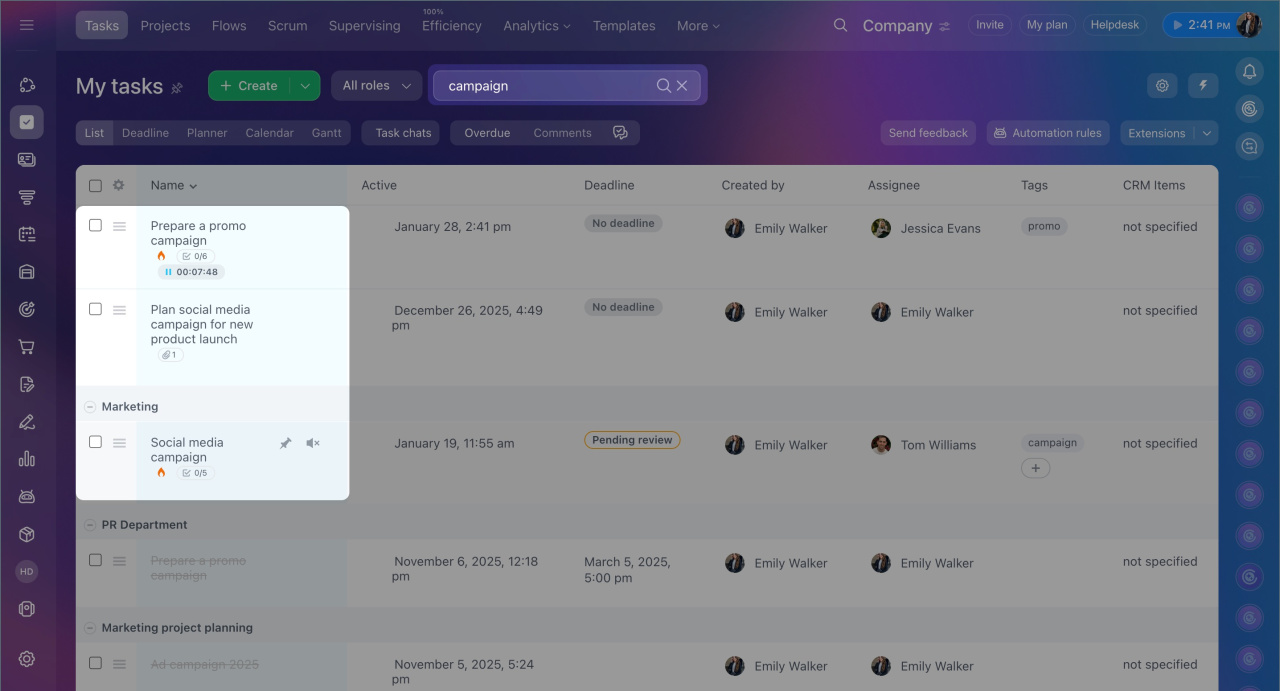
Working with filters by roles and statuses
Tasks include standard filters for roles and statuses. These filters help you quickly find tasks without manually configuring them. For instance, you can view tasks you are working on or have assigned.
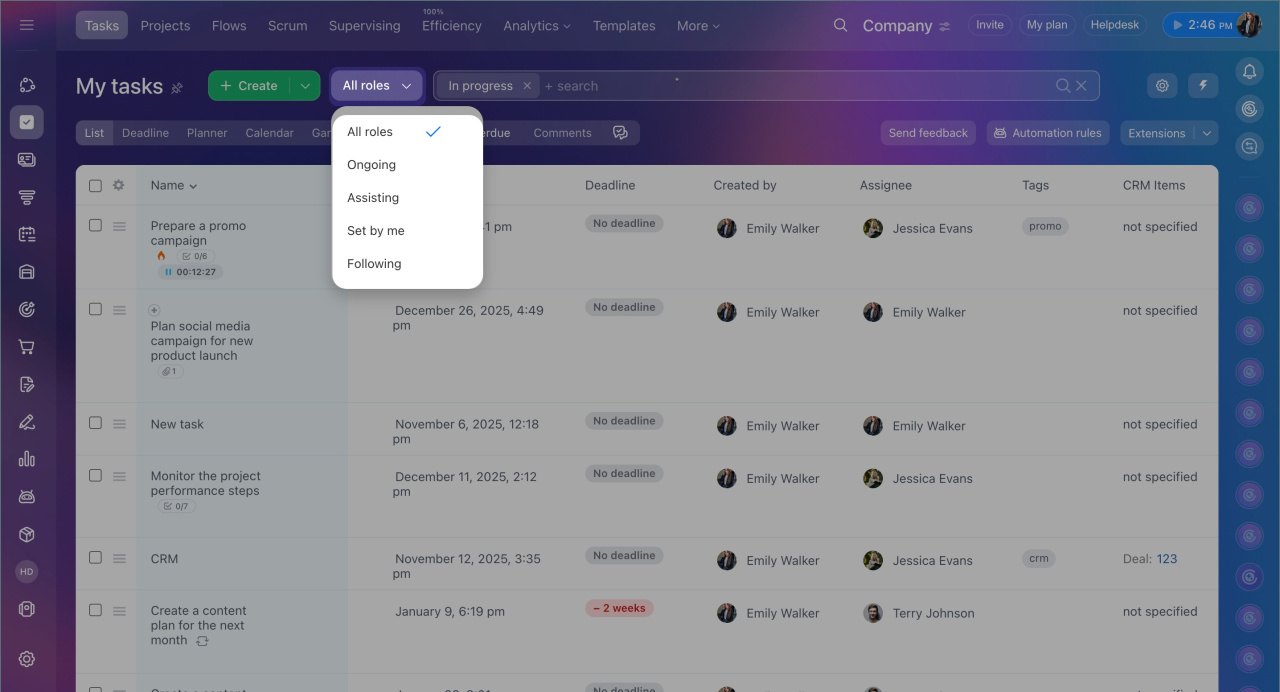
Role filter displays tasks based on your role in them. Select the appropriate role:
- Ongoing — you are the assignee.
- Assisting — you are a participant.
- Set by me — you are the creator.
- Following — you are an observer.
- All roles — any of the above roles.
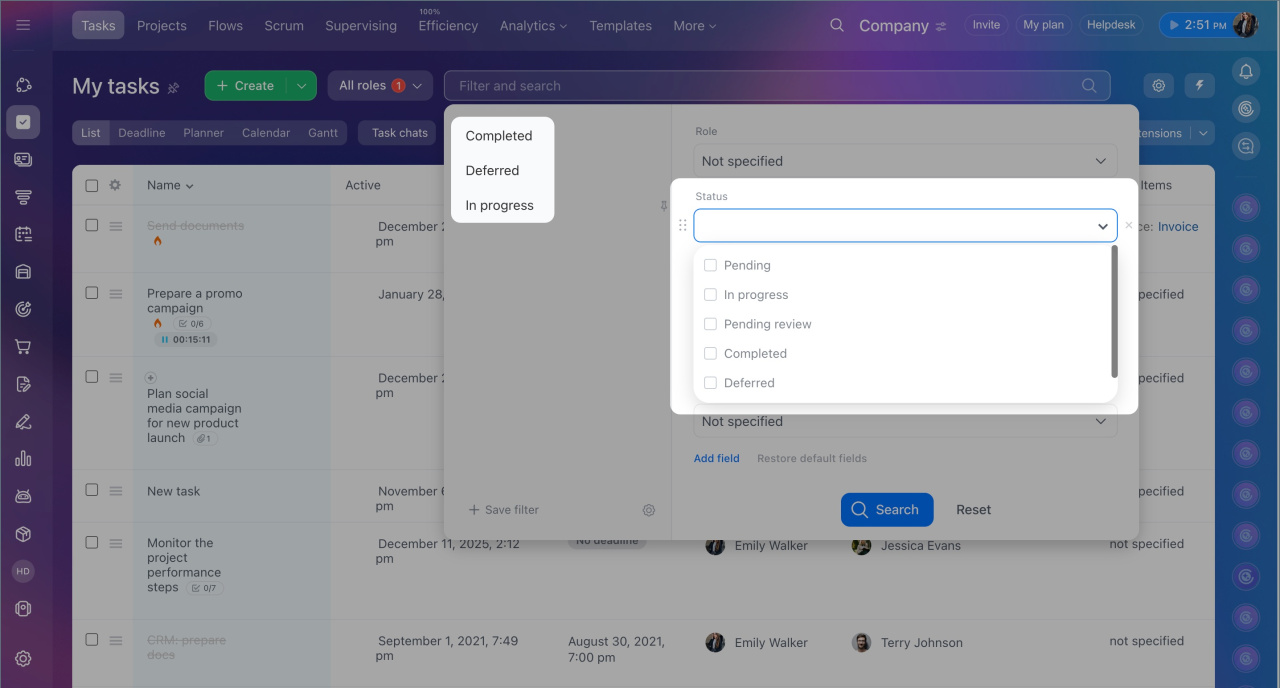
Status filter helps you view tasks at different stages. Select the desired task status:
- In progress — tasks waiting to be done, being worked on, awaiting review, or postponed.
- Completed — tasks that are finished and closed.
- Deferred — tasks temporarily on hold.
- Overdue — tasks with "Waiting to be done" or "In progress" statuses that have passed their deadlines.
- Almost overdue — tasks with "Waiting to be done" or "In progress" statuses whose deadlines are tomorrow.
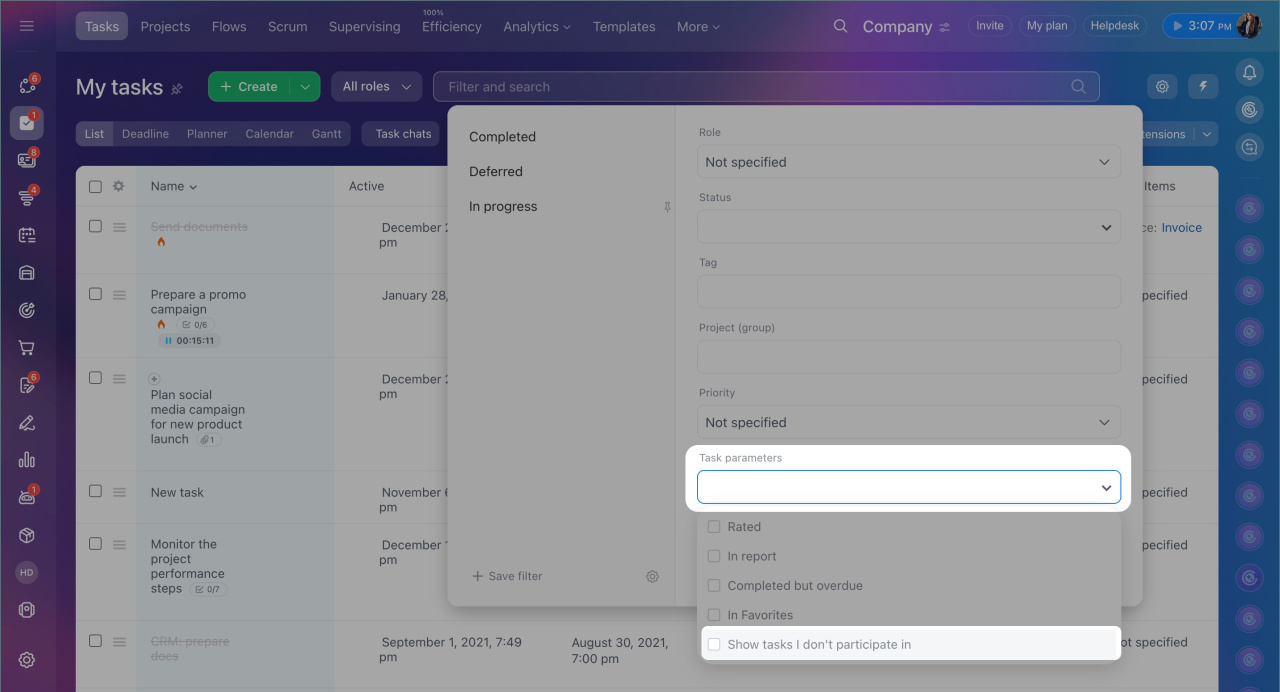
By default, the filter shows only tasks where you are involved as an assignee, participant, creator, or observer. To view tasks of other employees, select the Task parameters field and check the box next to Show tasks I don't participate in:
- Bitrix24 administrator — views all tasks.
- Supervisor — views tasks of their subordinates and those they have access to.
- Employee — views tasks they have access to, such as tasks in groups and projects they participate in.
Creating custom filters
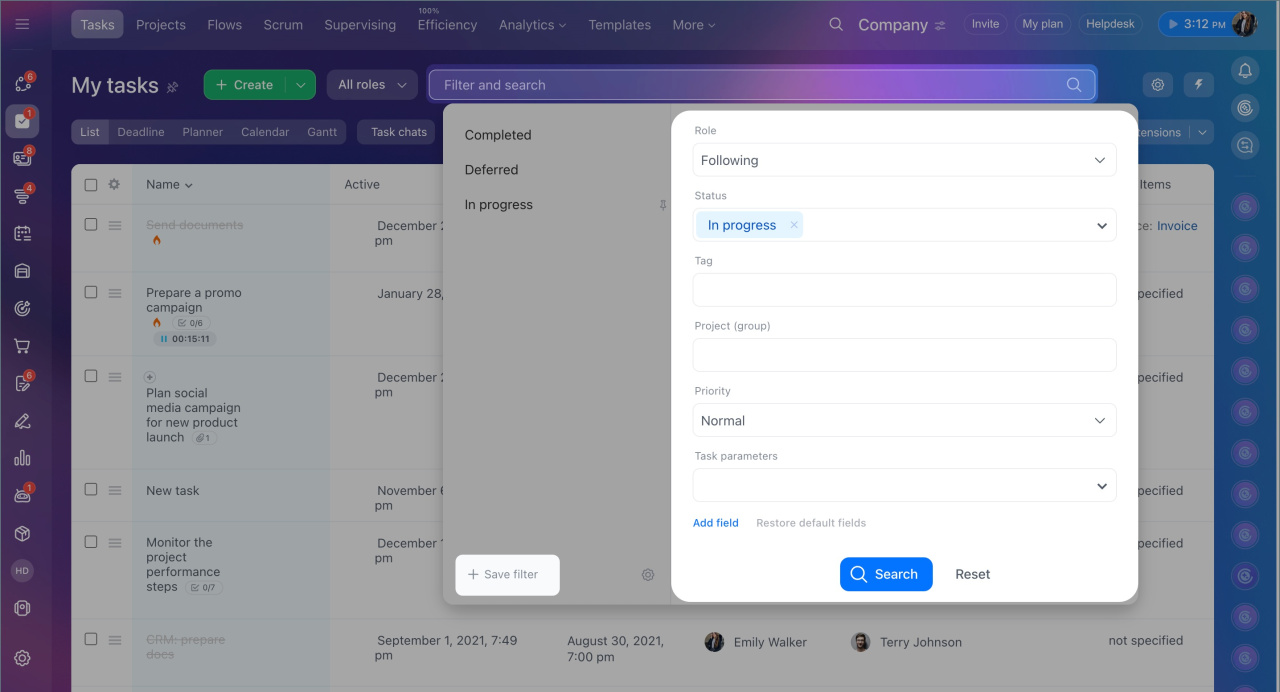
Frequently used filters can be saved to avoid configuring them repeatedly. For example, you can create a filter for tasks of a specific employee completed during the current week.
1. Click Filter + Search.
2. Select the required fields and specify their values. If the field you need is not listed, click Add field and select the ones you want to use.
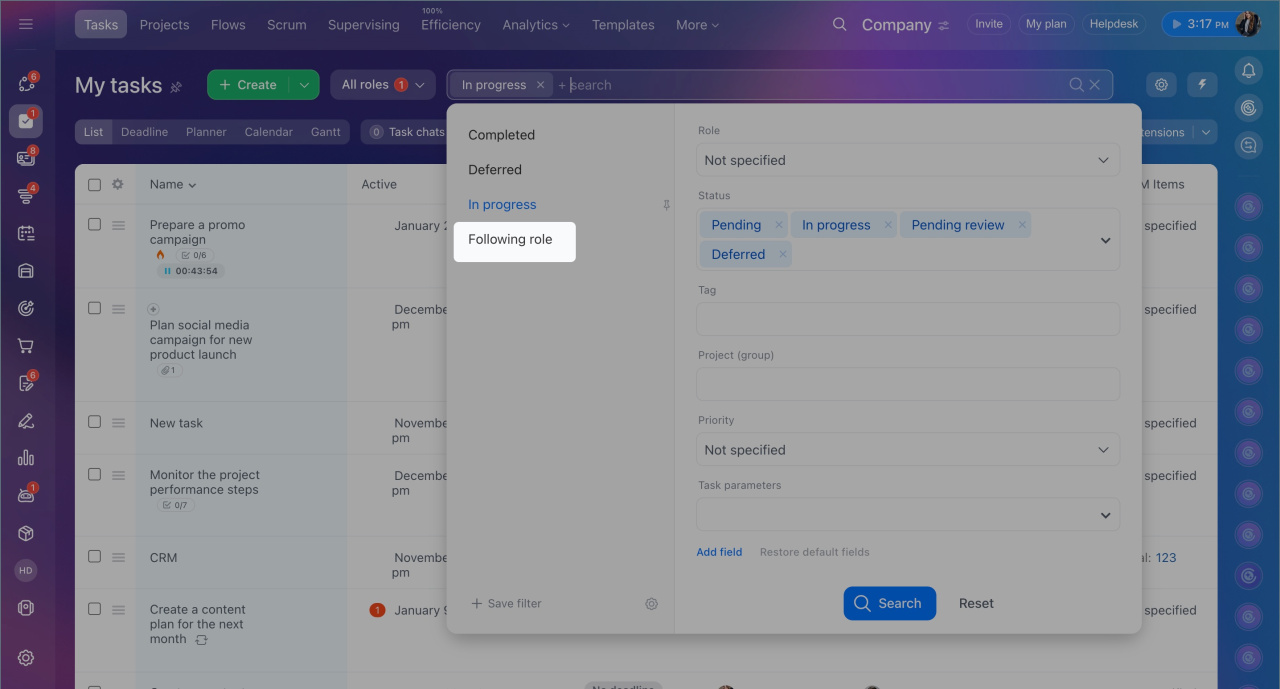
3. Click Save filter.
4. Enter a filter name and click Save.
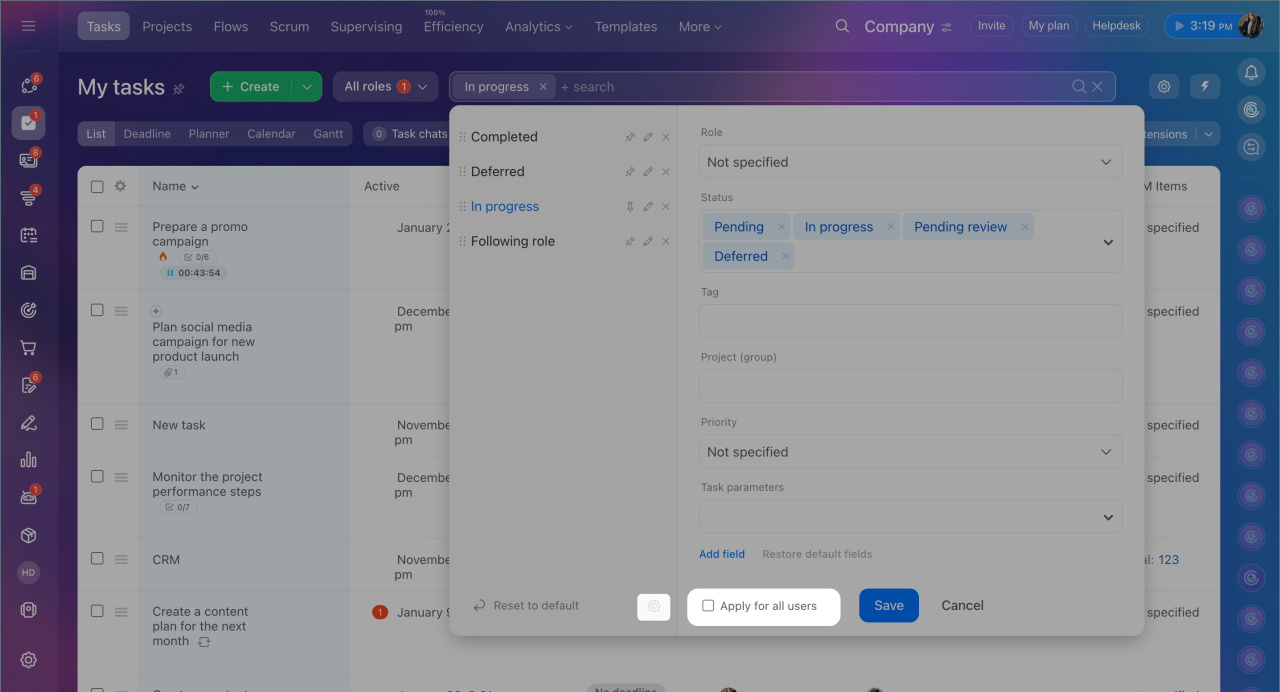
To make filters available to all employees, the Bitrix24 administrator can set them as public. Employees can use these filters but cannot modify or delete them. To do this, click Settings (⚙️) > Apply for all users.
Searching for favorite tasks
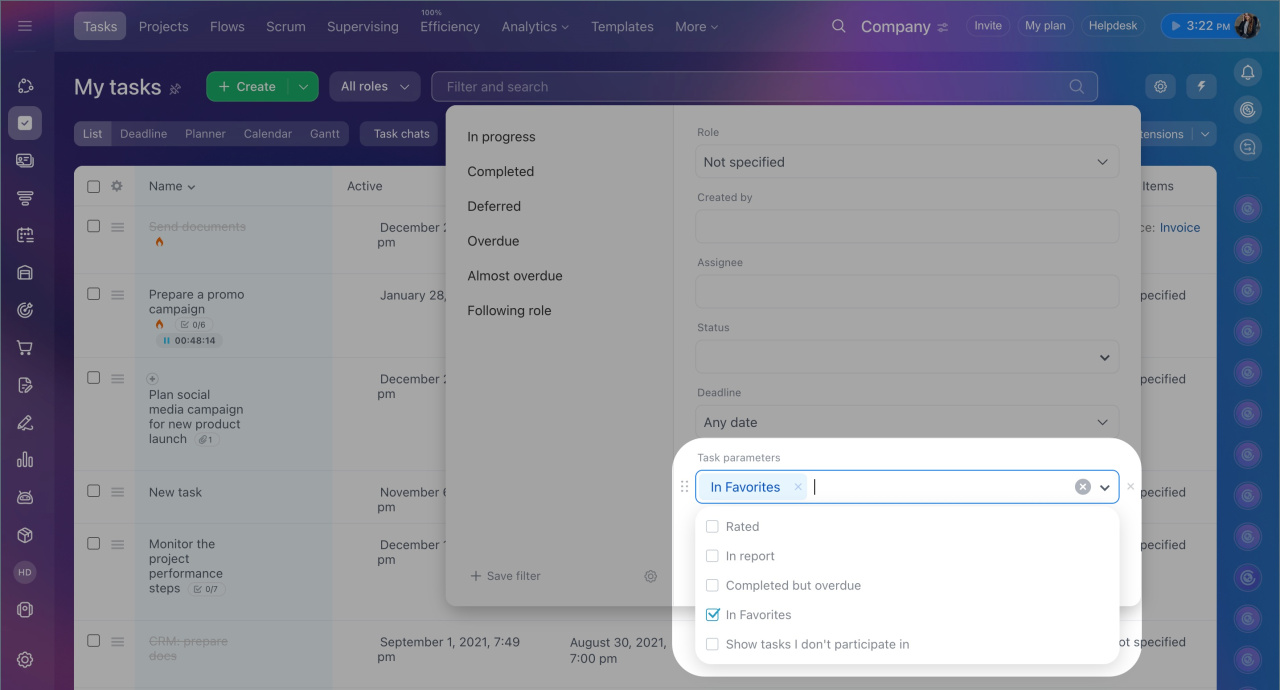
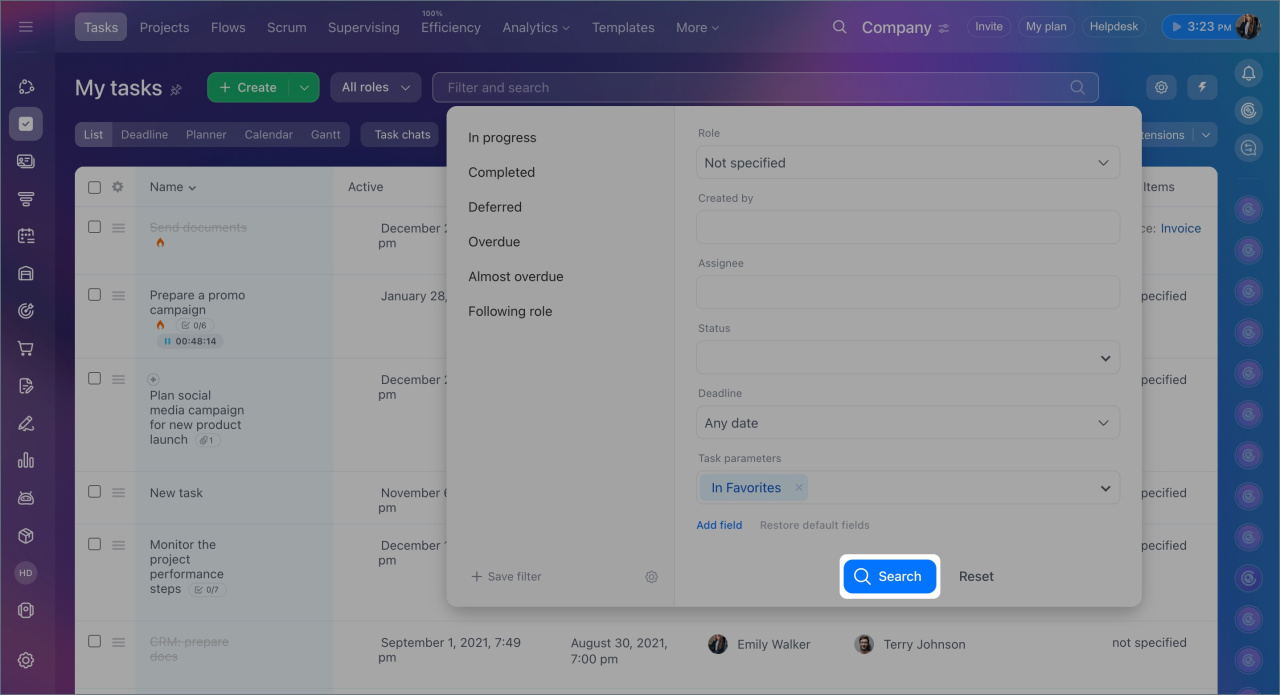
Tasks you have added to favorites can be found using a special filter.
1. Click Filter + Search.
2. In the Task parameters field, check the box next to In favorites.
3. Click Search.
In brief
- Bitrix24 tasks include smart search and filters to quickly sort tasks by assignees, statuses, deadlines, and other parameters.
- Smart search helps you find tasks by a word or part of a word in their titles or descriptions.
- Bitrix24 tasks have standard filters for roles and statuses.
- If standard filters are insufficient, create custom ones and save them for future use.
- Tasks added to favorites can be found using the Task parameters > In favorites filter.
