
In CRM, custom and some system fields can be made required. Employees will not be able to save or move an item until the fields are filled in. In the form, required fields are marked with a red asterisk.
Required fields help ensure that important information, such as a customer's email or delivery address, is not overlooked.
Role-based access permissions in CRM
Required fields apply to all forms of the selected type. For example, if the Phone field is made required in a contact form, it must be filled in for all contacts.
This article explains how to make a field required:
Making a field required in a contact or company form
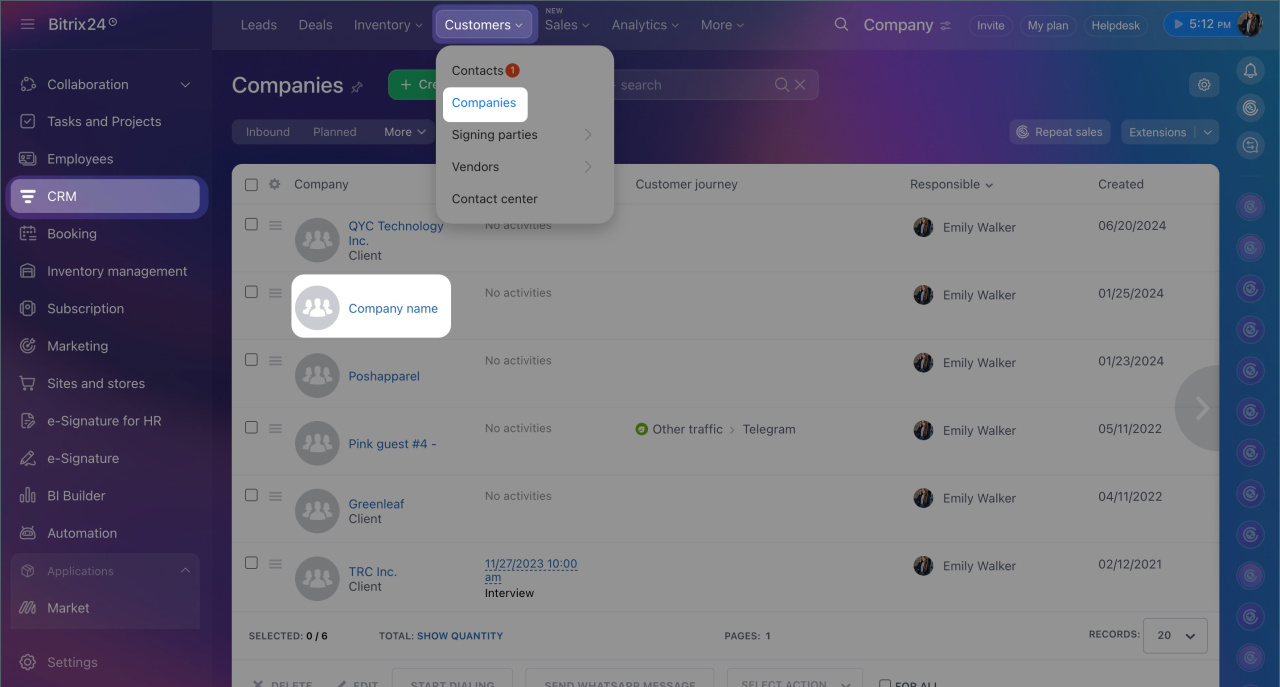
1. Go to CRM > Clients > Contacts or Companies and open the required form.
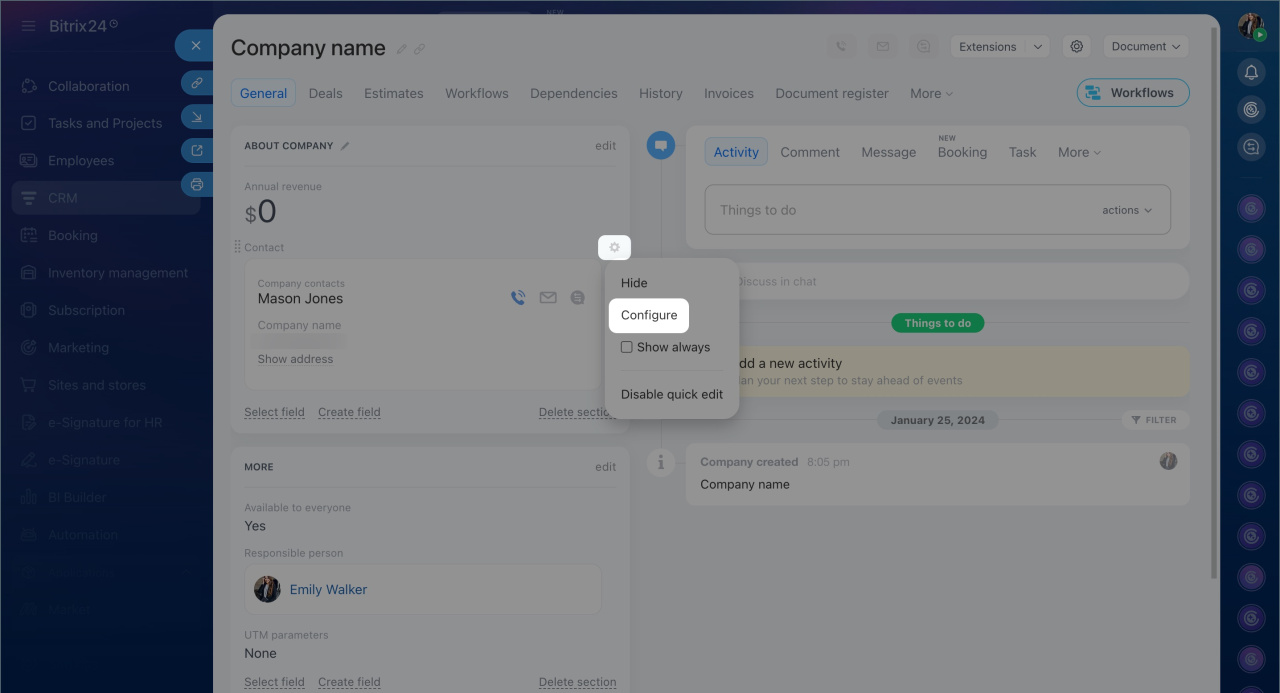
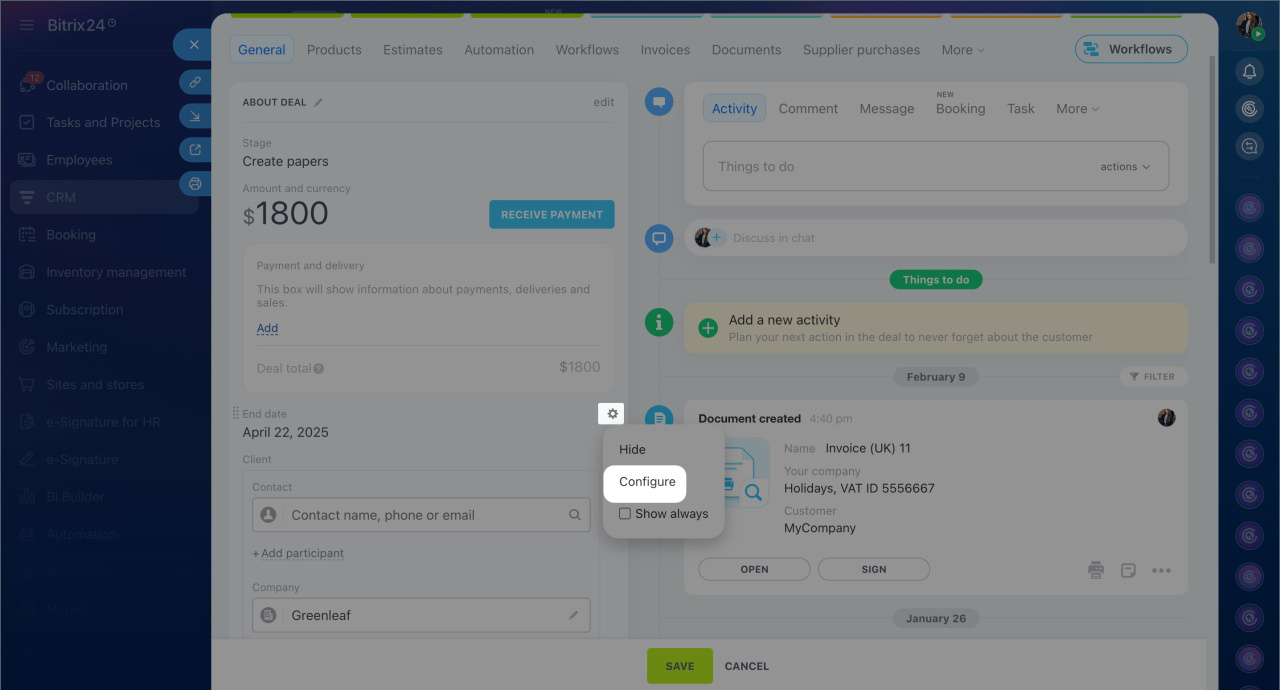
2. Hover over the field you want to make required and click Settings (⚙️) > Configure.
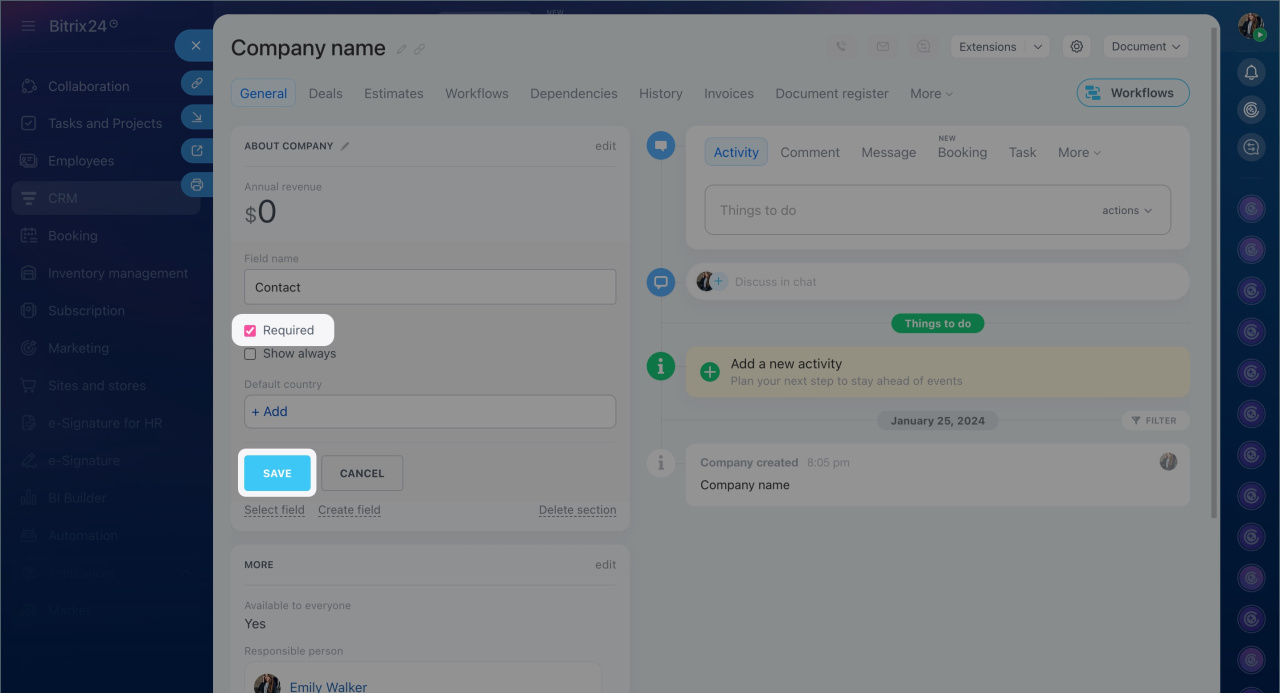
3. Check the box next to Required and save the changes.
Making a field required in items with stages
In leads, deals, invoices, estimates, and smart processes, required fields can be configured for all or specific stages. For example, if the Source field is made required for the In progress stage in a deal, the manager will not be able to move the form to this stage without specifying the source.
Bitrix24 plans and pricing
Required fields in deals and smart processes must be configured separately for each pipeline.
Here’s how to configure a required field using a deal as an example.
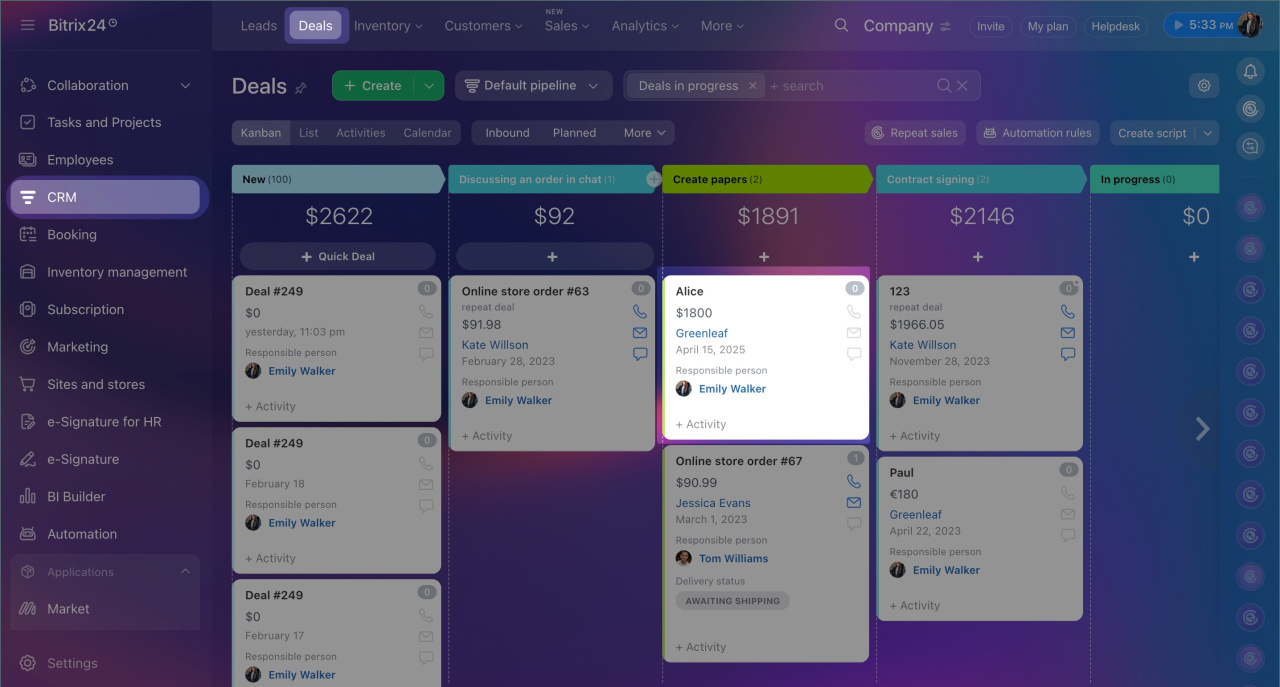
1. Go to CRM > Deals and open the required form.
2. Hover over the field and click Settings (⚙️) > Configure.
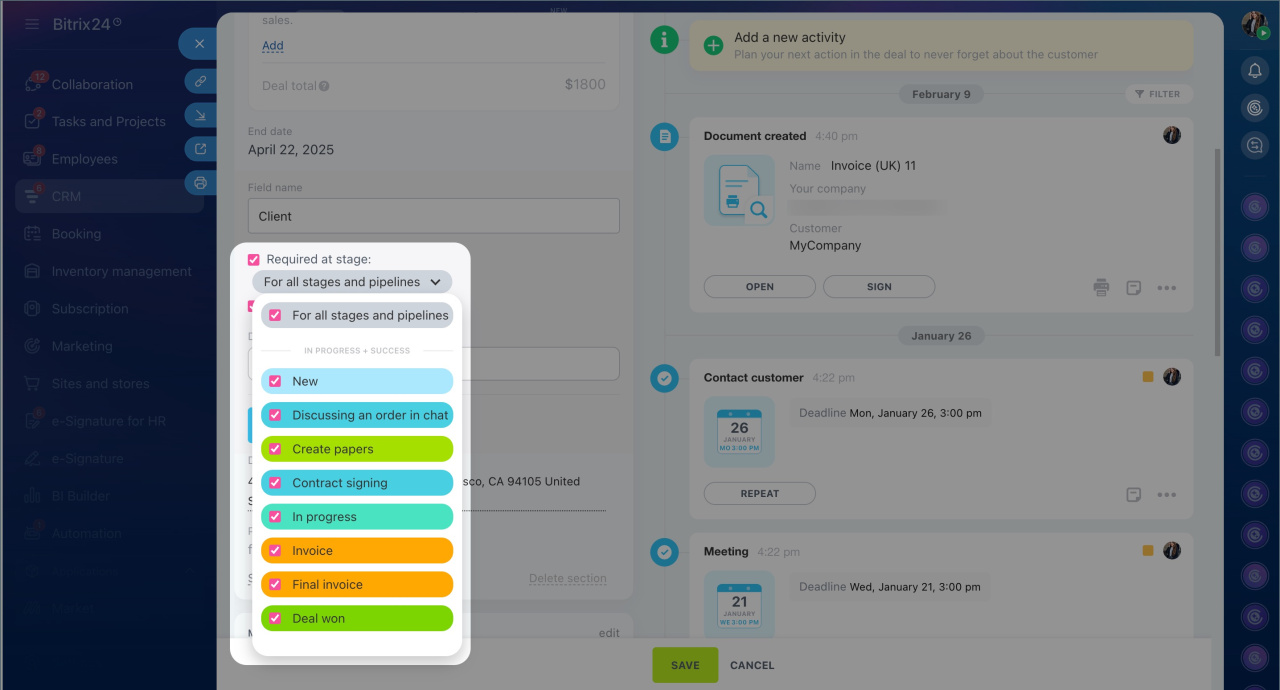
3. Check the box next to Required by stage. The field will become required for all stages and pipelines.
4. To make the field required only for specific stages, click the down arrow next to For all stages and pipelines. Select the required stages and save the changes. This configuration applies only to the pipeline where the form is located.
In brief
- Custom and some system fields in CRM can be made required. Employees cannot save or move an item until these fields are filled in.
- Only a Bitrix24 administrator or employees with permission to edit CRM settings can make a field required.
- Required field settings apply to all forms of the selected item type, such as all leads.
- In leads, deals, invoices, estimates, and smart processes, fields can be made required for all or specific stages.
- Required fields in deals and smart processes must be configured separately for each pipeline.
- To make a field required, open the CRM form, hover over the field, and click Settings (⚙️) > Configure. Check the box next to Required or Required by stage, choose any stages if needed and then save.
