
An invoice is required at the final stage of working with a customer when the deal terms are agreed upon, and it's time to proceed with payment. In Bitrix24, an invoice is a CRM item that stores information about products, amounts, and details.
You can create and send an invoice to a customer directly from the CRM. The document is filled out automatically, without manual data entry.
Bitrix24 plans and pricing
In this article:
Create an invoice
You can create an invoice based on CRM items, such as deals and estimates, or directly from the Invoices section.
Role-based access permissions in CRM
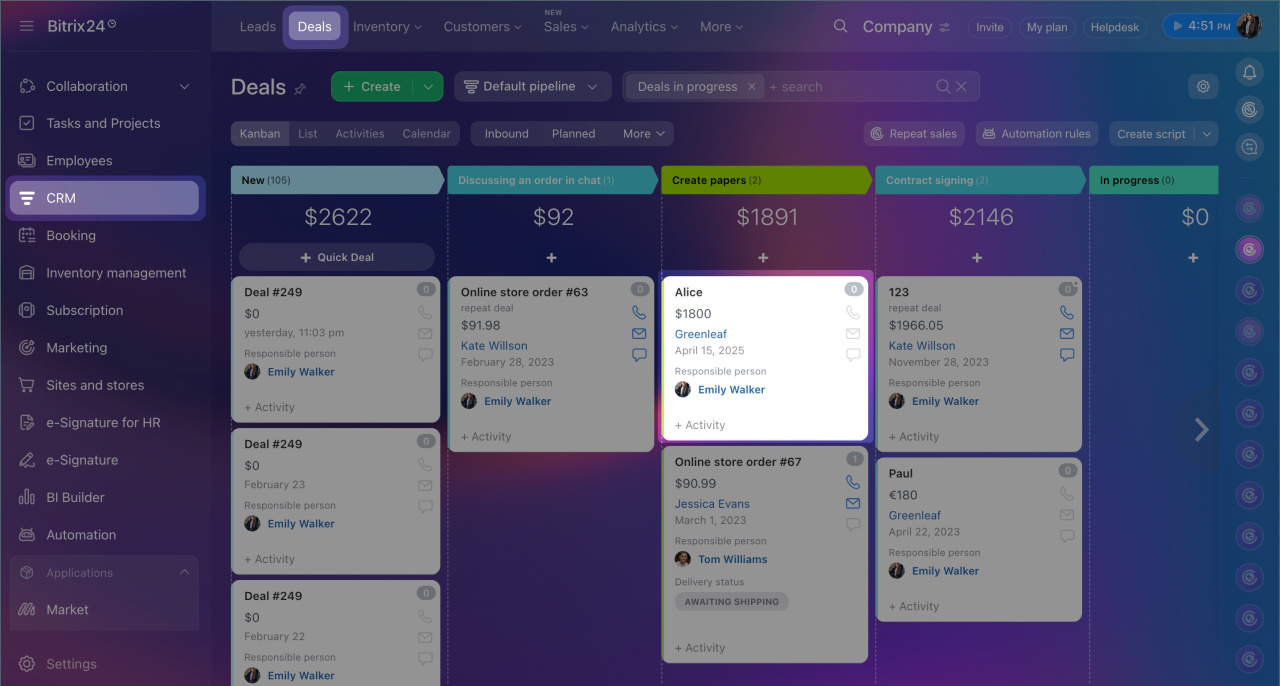
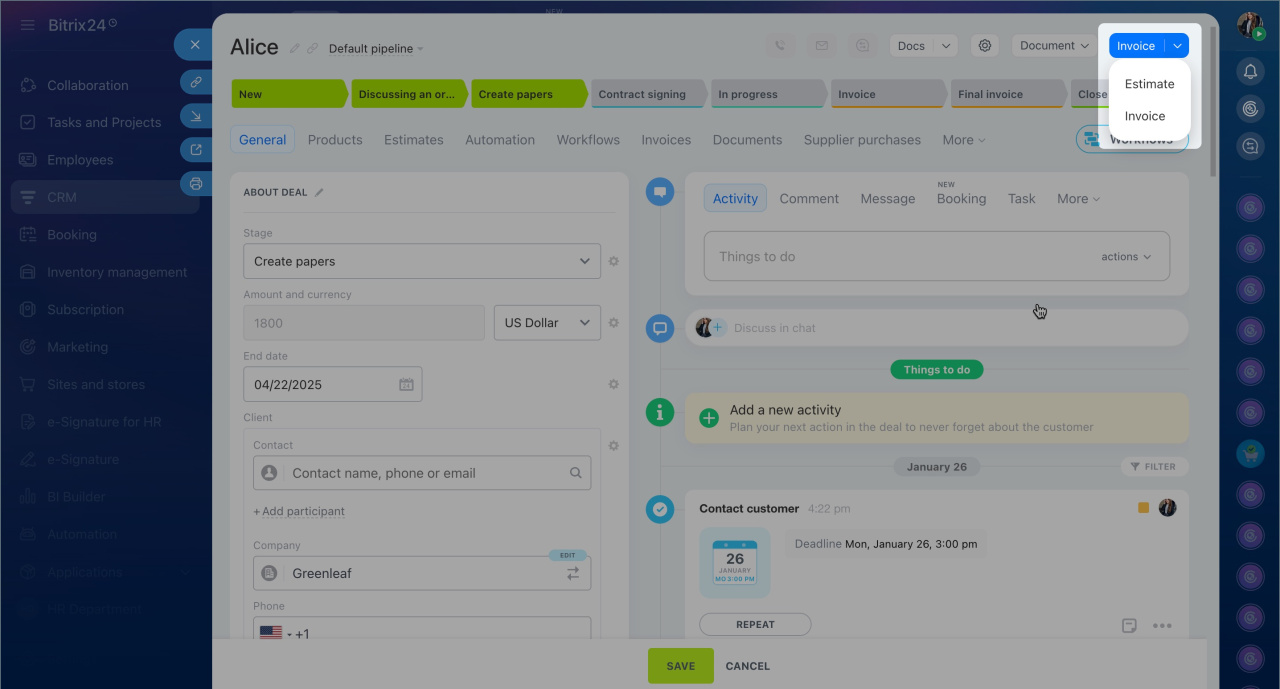
From a deal or estimate form. This method is suitable if you are already working on a deal and want to quickly issue an invoice. For example, after agreeing on terms with the customer, adding products, and finalizing the amount. To avoid creating the invoice manually, generate it directly from the deal form. Customer and product data will automatically transfer to the document.
1. Go to CRM > Deals and open the deal form.
2. Click Invoice in the top-right corner.
3. A CRM invoice item linked to this deal will appear. Data from the deal, such as the customer, products or services, amount, and responsible employee, will automatically transfer.
CRM item form features and settings
From a contact or company form. This method is suitable if you need to issue an invoice without creating a deal, for example, for a one-time service that doesn't need to be tracked in the sales funnel.
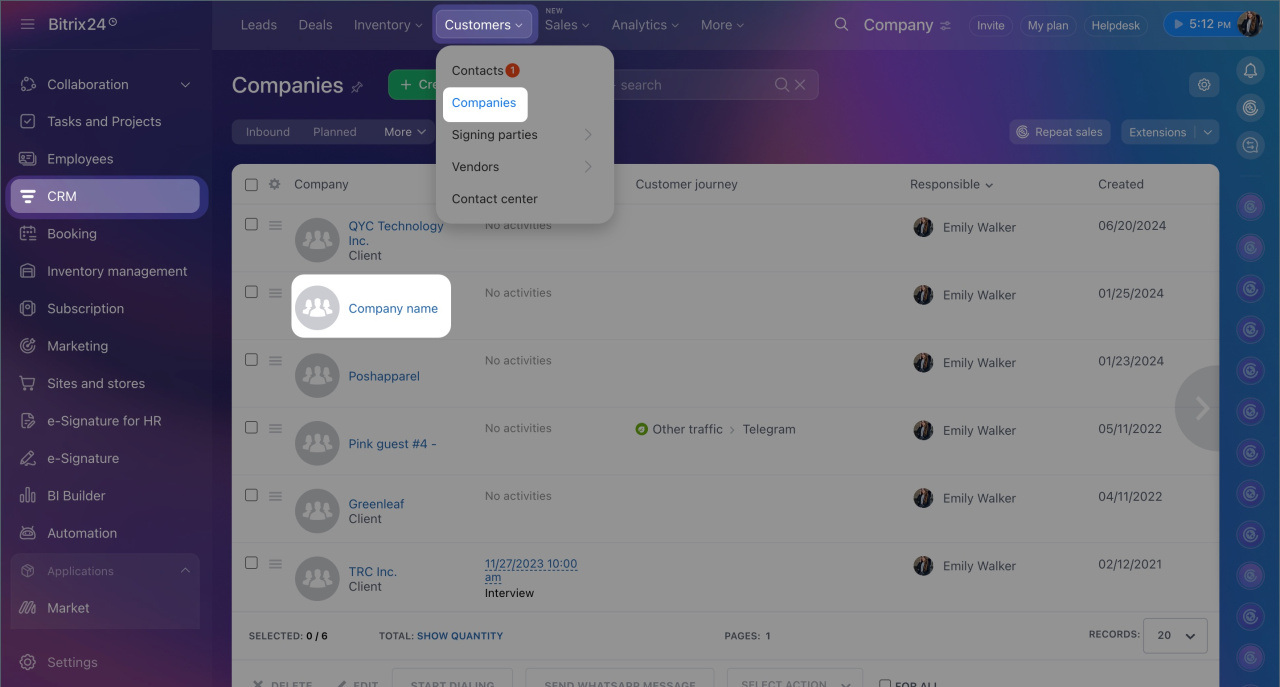
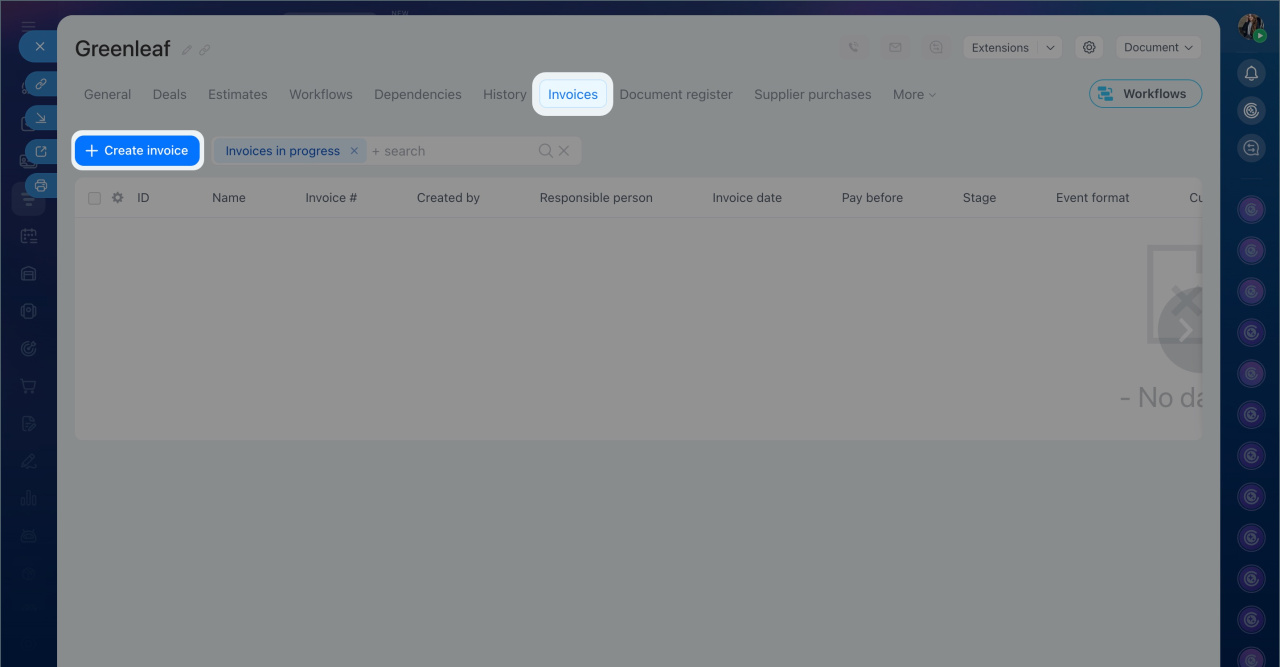
Create an invoice from a company form. The same steps apply to contacts.
1. Go to CRM > Customers > Companies and open the company form.
2. Go to the Invoices tab. Click Create invoice and company data will transfer automatically, and you can manually add products and services.
From the Invoices section. This method is suitable if you are working with the invoice list and want to create a new one without navigating to a deal or client form.
1. Open CRM > Sales > Invoices.
2. Click Create.
3. Fill in the fields in the invoice form. Specify the customer and deal related to the invoice.
4. Save the changes.
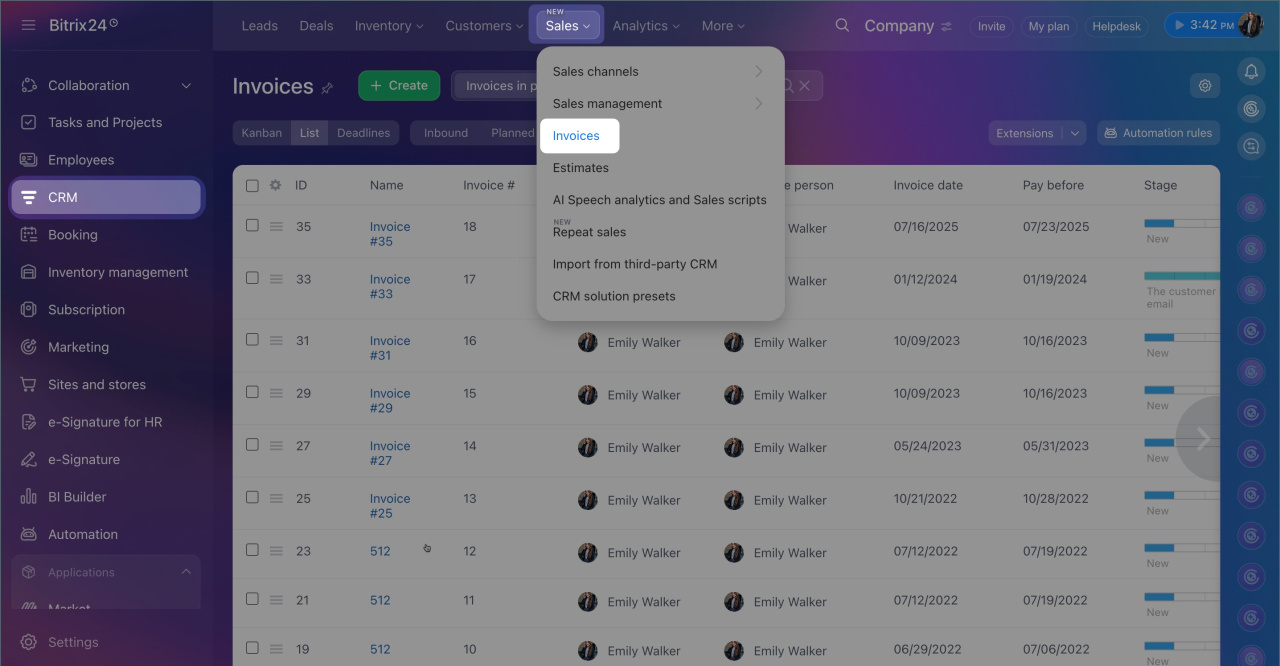
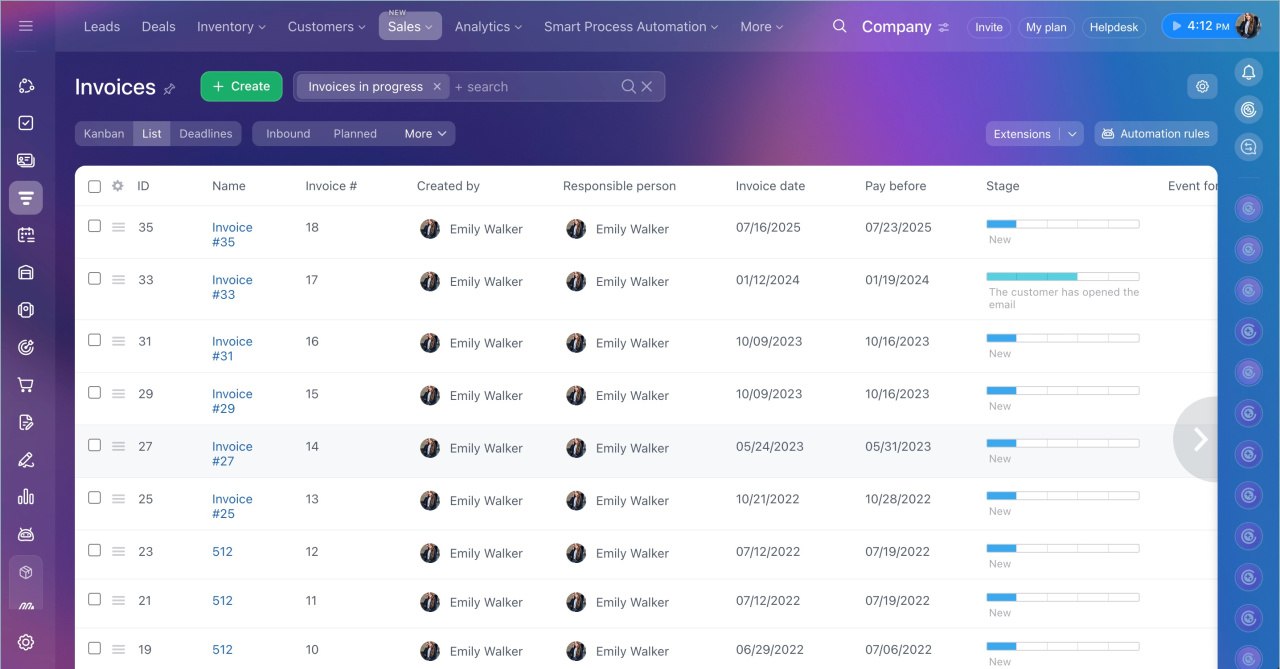
From a deal or estimate form. This method is suitable if you are managing a deal and want to issue an invoice immediately after agreeing with the customer. For example, after a call, you record the amount in the deal and want to issue the invoice right away.
1. Go to CRM > Deals.
2. Next to the relevant deal, click Three dots (...) > Create from source > Invoice > Continue.
After creation, the invoice will appear in the CRM and be linked to this deal. Data from the deal will automatically transfer to the invoice form.
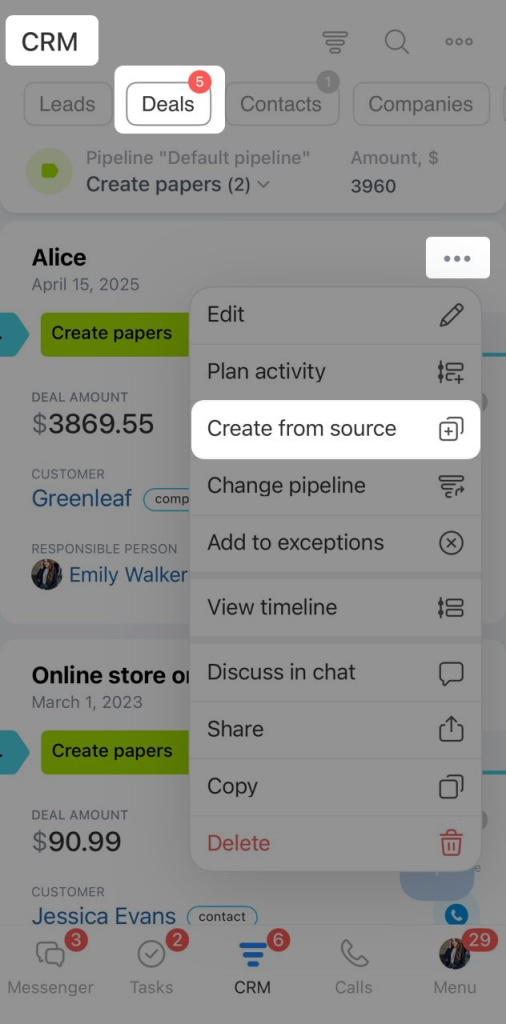
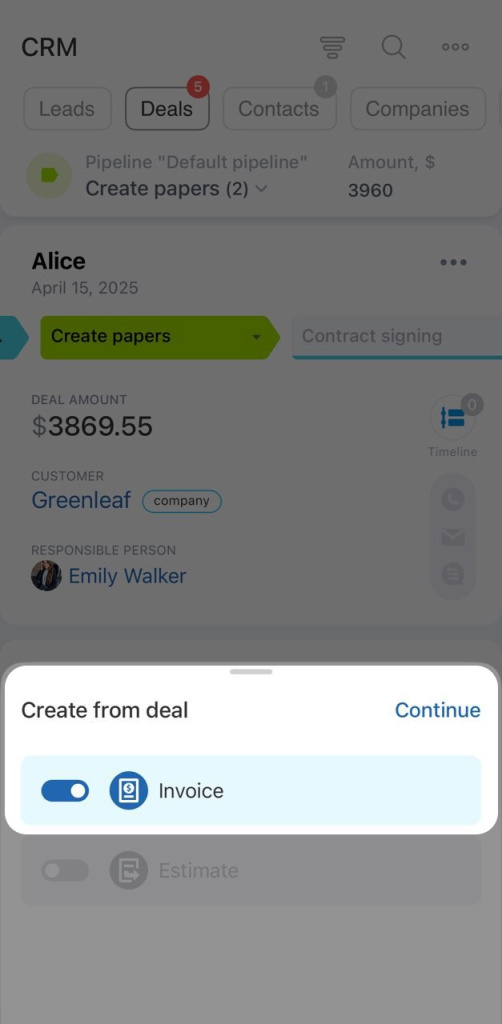
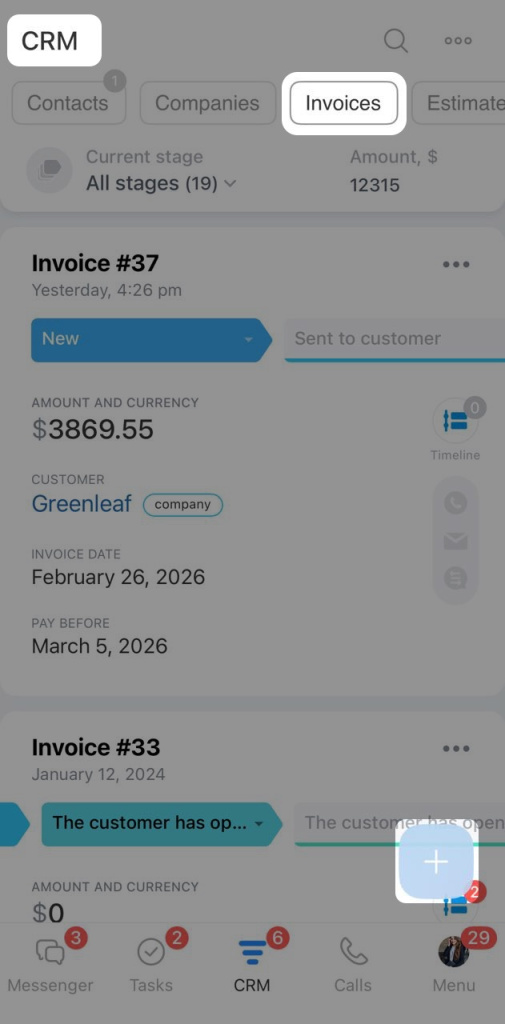
From the Invoices section. This method is suitable if you are working with the invoice list and want to create a new one without navigating to a deal or estimate form.
1. Open the CRM > Invoices section.
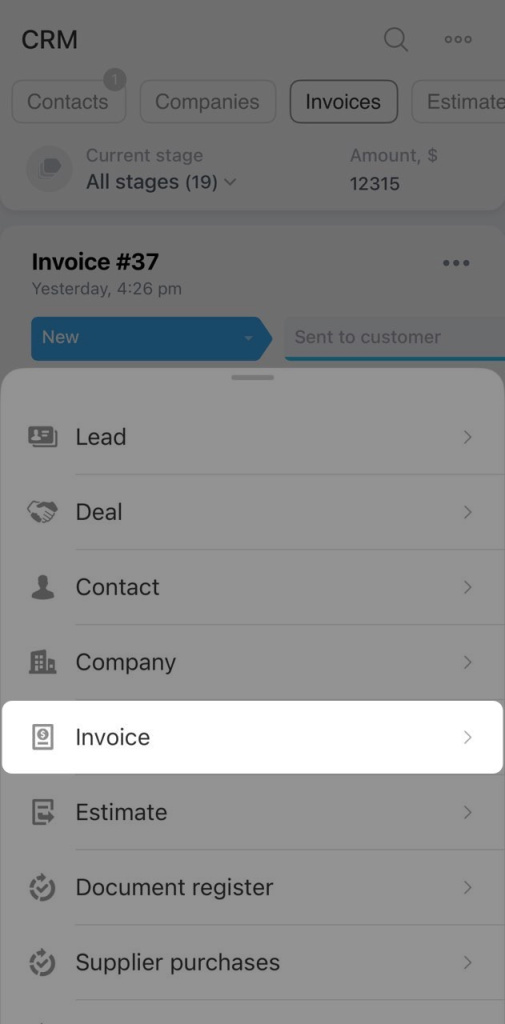
2. Click Plus (+) > Invoice.
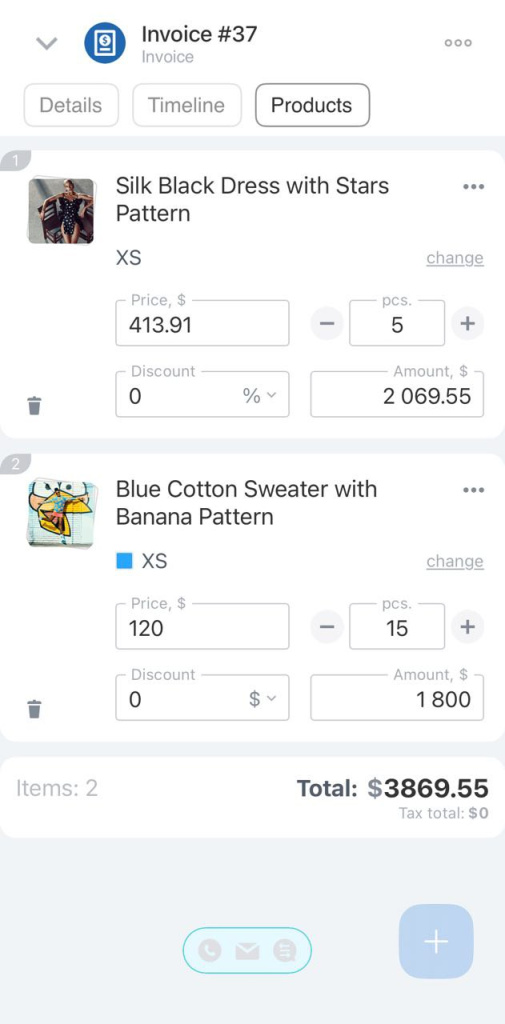
3. Fill in the fields and add products.
4. Click Create.
Send an invoice to a customer
An invoice can be sent directly from its form. To do this, first generate the document using a template. Bitrix24 provides a standard invoice template that can be used immediately without additional setup. If your company has specific document requirements, you can add your own template.
Documents in CRM: Create and send to customers
Create and upload your document template to CRM
Create a document.
1. Go to CRM > Sales > Invoices. Open the invoice you want to base the document on.
2. Click Document and select a template in the top-right corner.
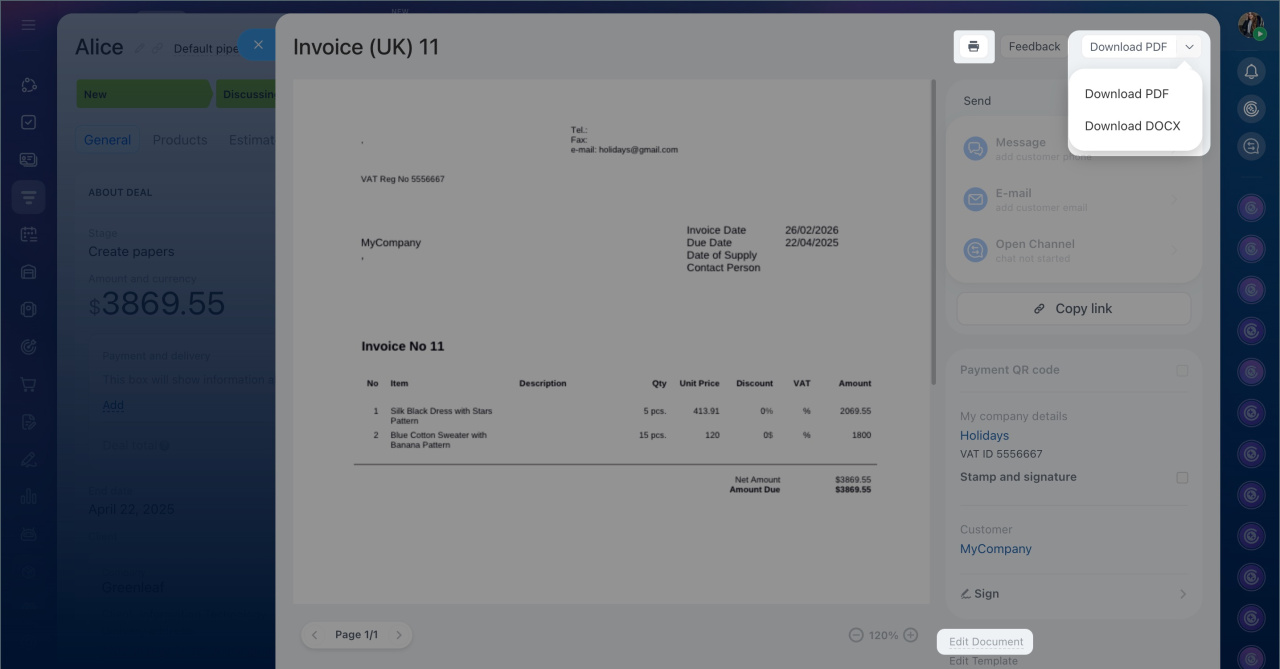
The document is immediately available in docx format. Generating a pdf file takes some time. Once completed, a preview of the document will open.
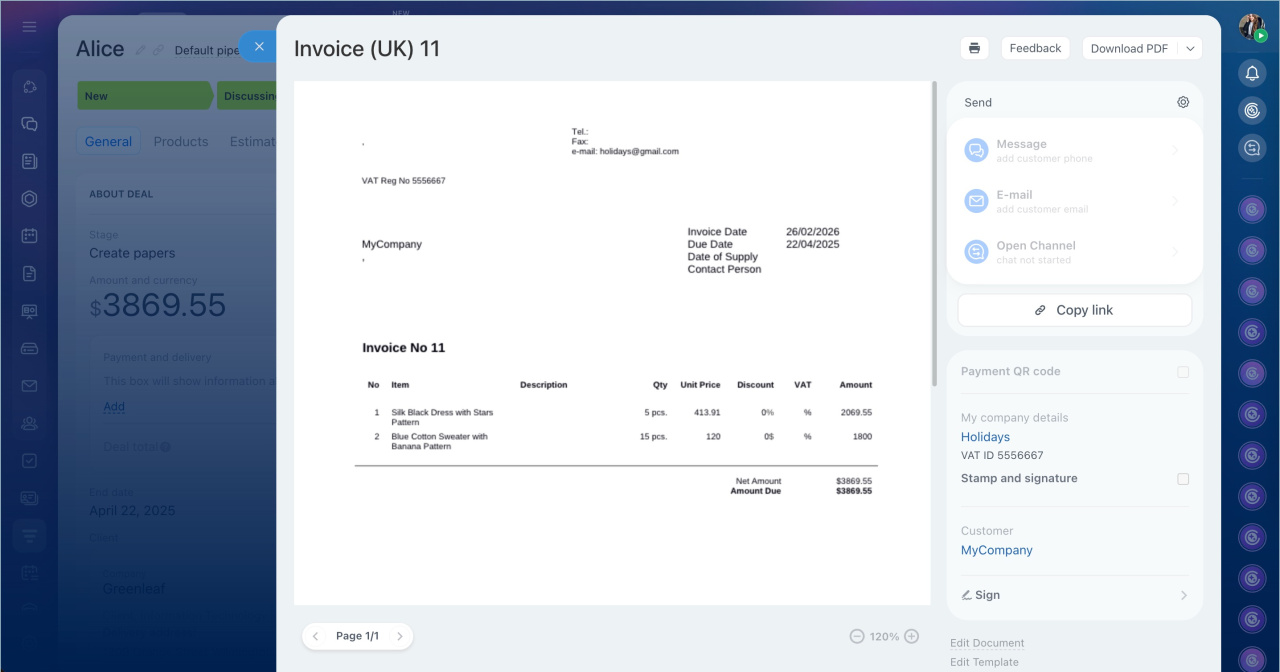
Edit or download the document. If you need to make changes after creating the document, click Edit document, for example, to update details.
The completed document can be:
- Downloaded in docx or pdf format,
- Printed if a hard copy is needed.
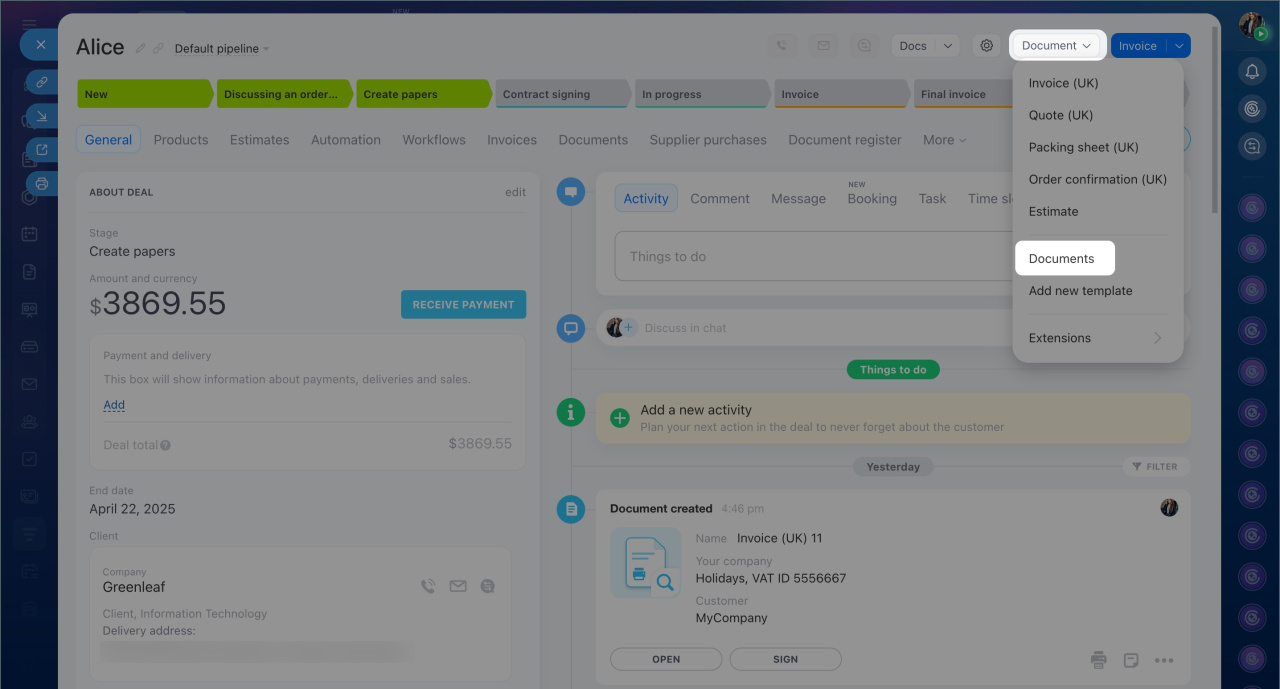
All created documents are saved in the invoice form's timeline, under the History tab, and in the Document > Documents section.
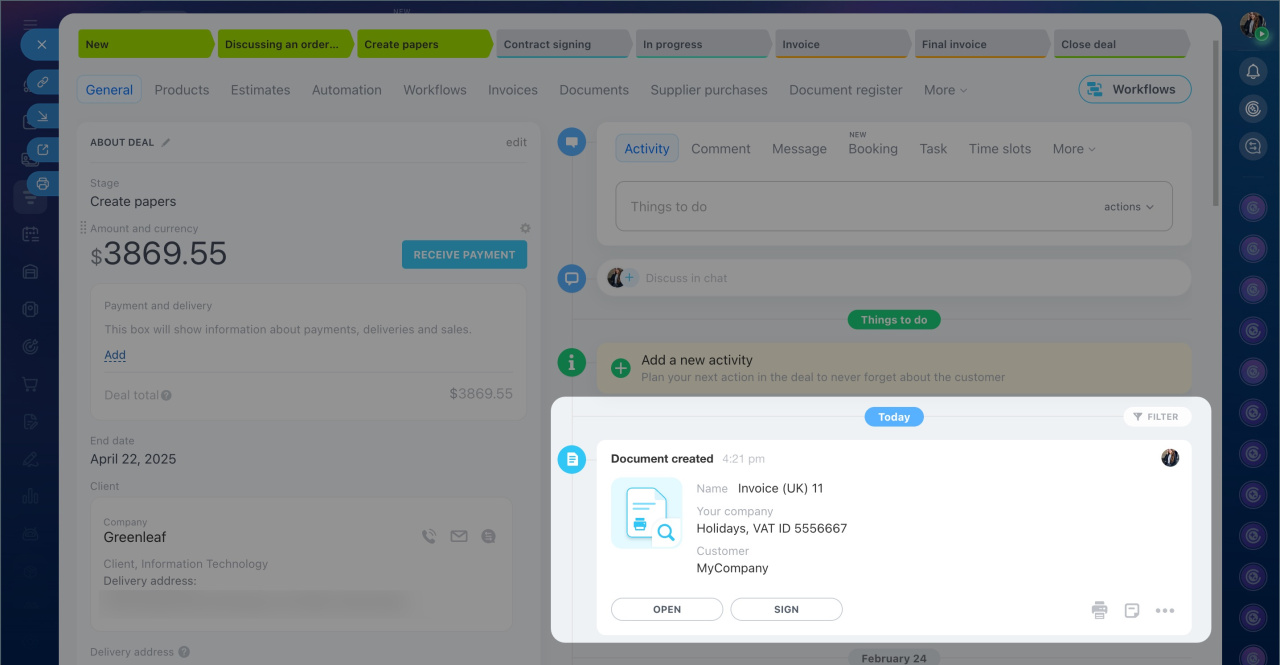 Timeline in the invoice form
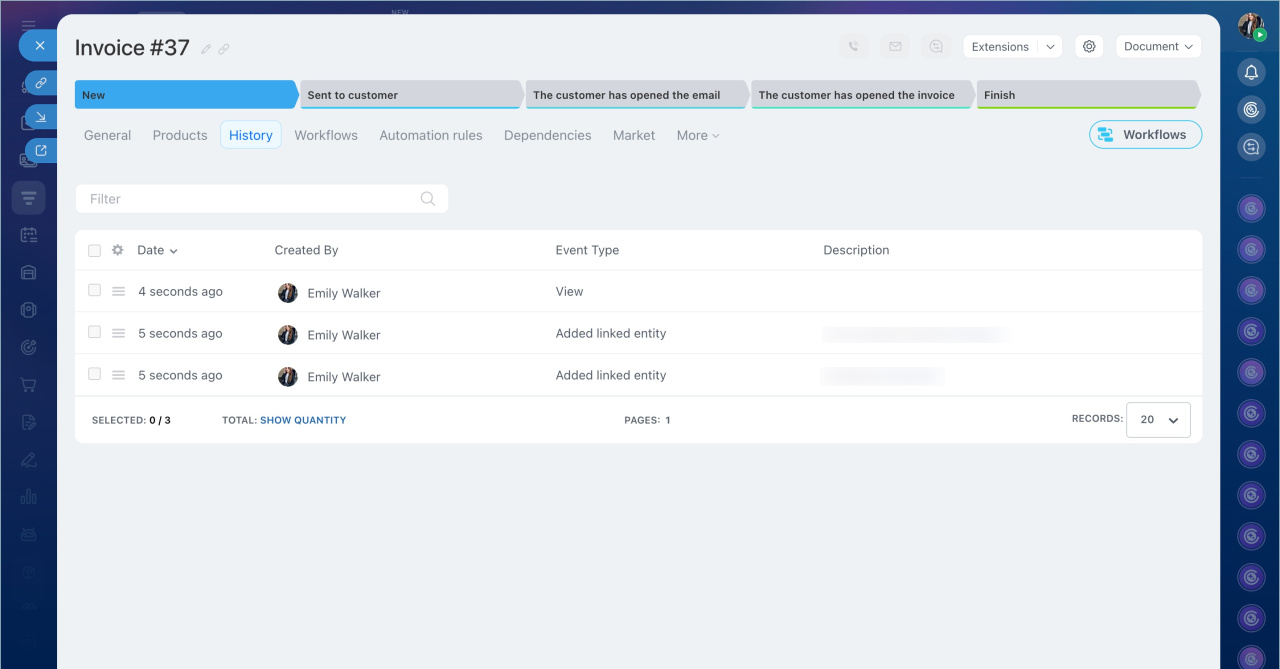 History tab in the invoice form
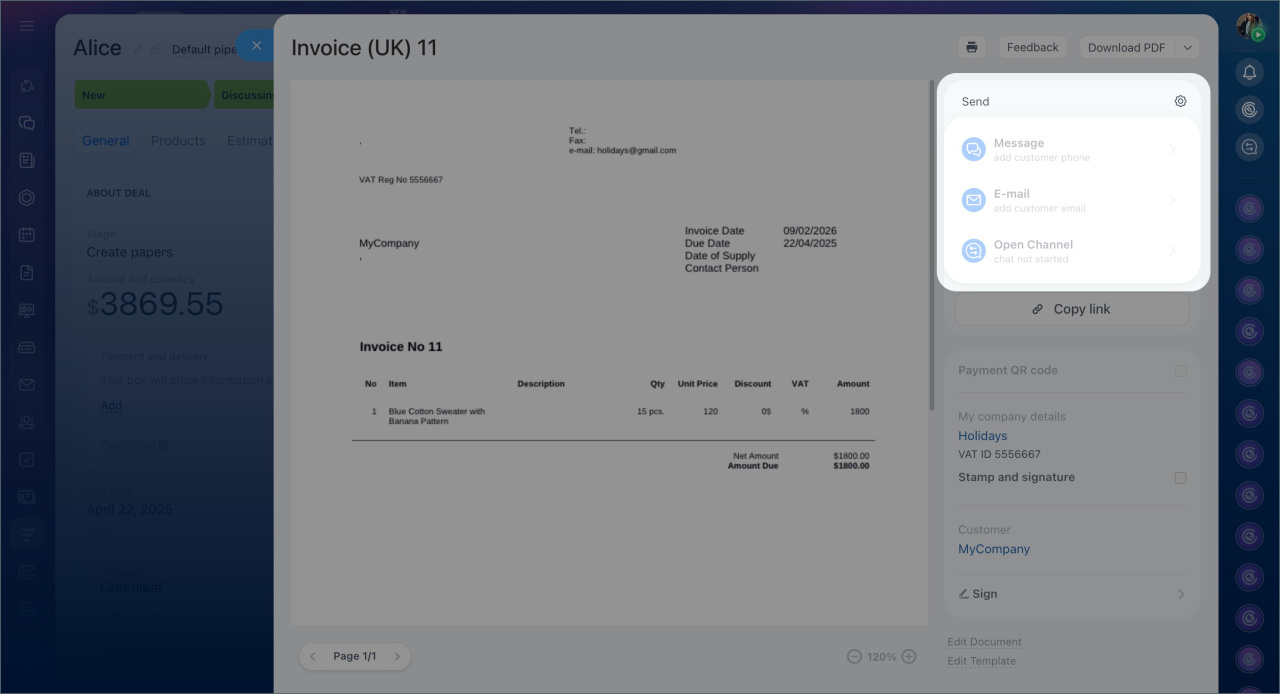
Send the document using one of the following methods:
- Via SMS — if an SMS provider is connected and the customer's phone number is specified. The customer will receive a link to the document.
- Via email — if an email account is connected to Bitrix24 and the customer's email is specified. The customer will receive the document in pdf format.
Connect mailboxes to Bitrix24
How to work with email in CRM - In an open channel chat. You can send a message if the customer has previously contacted you. To send the document, copy the link.
Create and configure Open Channels
You can copy a public link to the document and send it to the customer by any means.
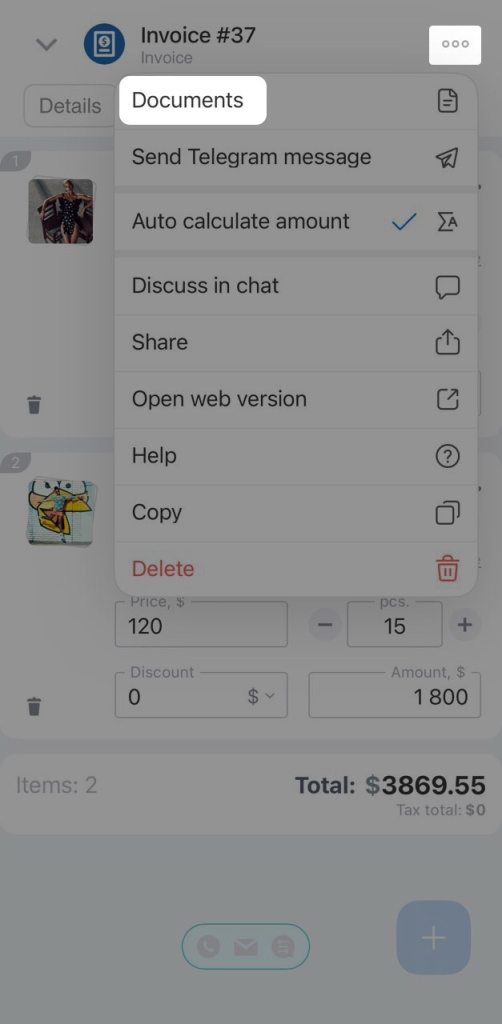
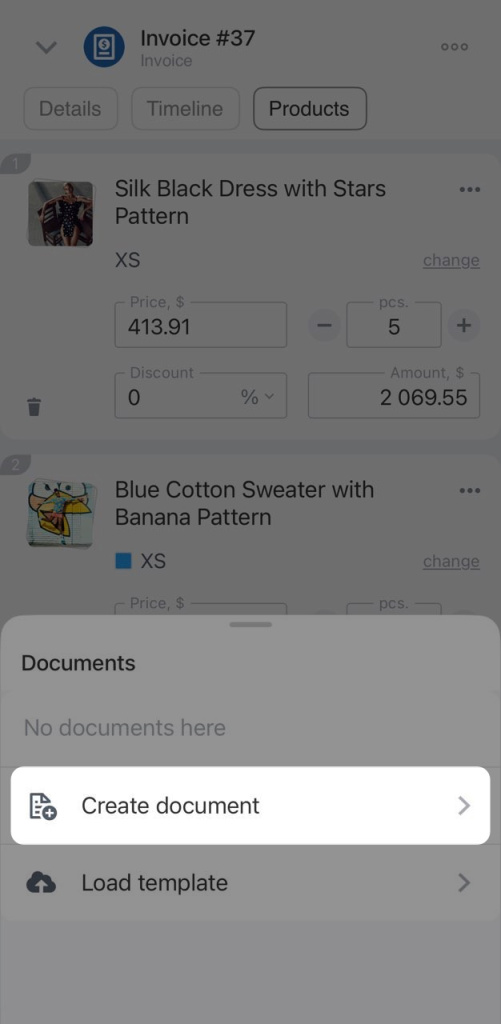
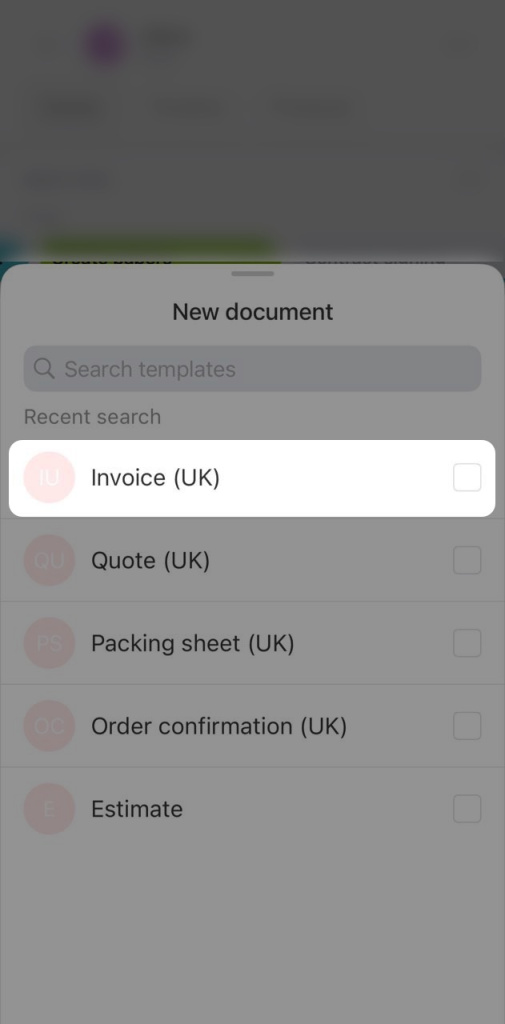
To create a document, in the invoice form, click Three dots (...) > Documents > Create document and select the required template. A new template can only be uploaded in Bitrix24 on a computer.
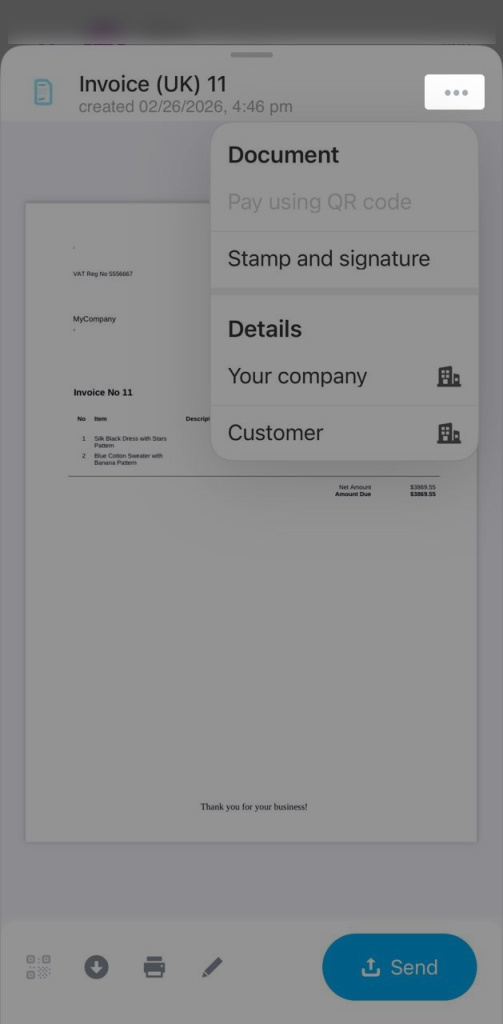
In the document tab, click Three dots (...) to:
- Generate a QR code for payment — for this, your company's banking details must be filled in the CRM
- Add a stamp and signature to the document
- Open the form with your company's details
- Open the customer's form
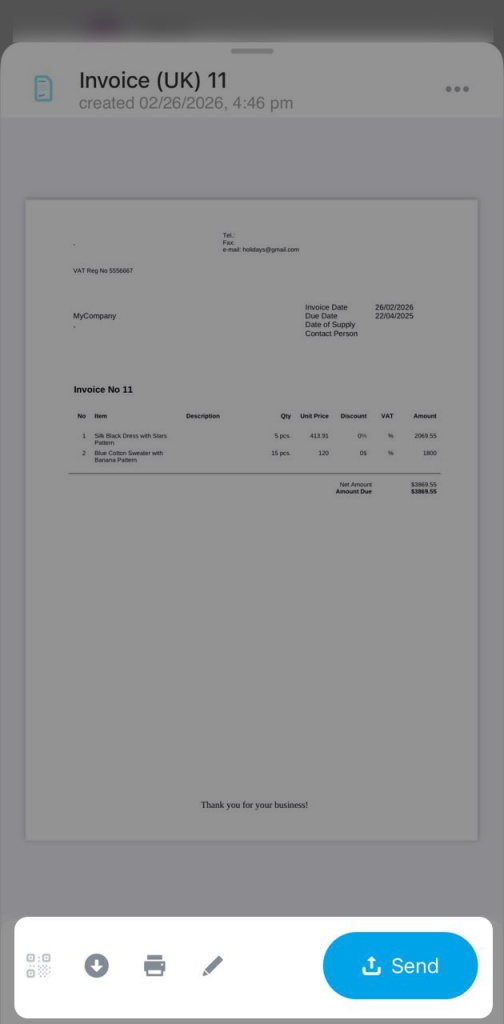
To open the QR code, download, print, or edit the completed document, use the buttons on the bottom panel.
To send the document to the customer, click Send.
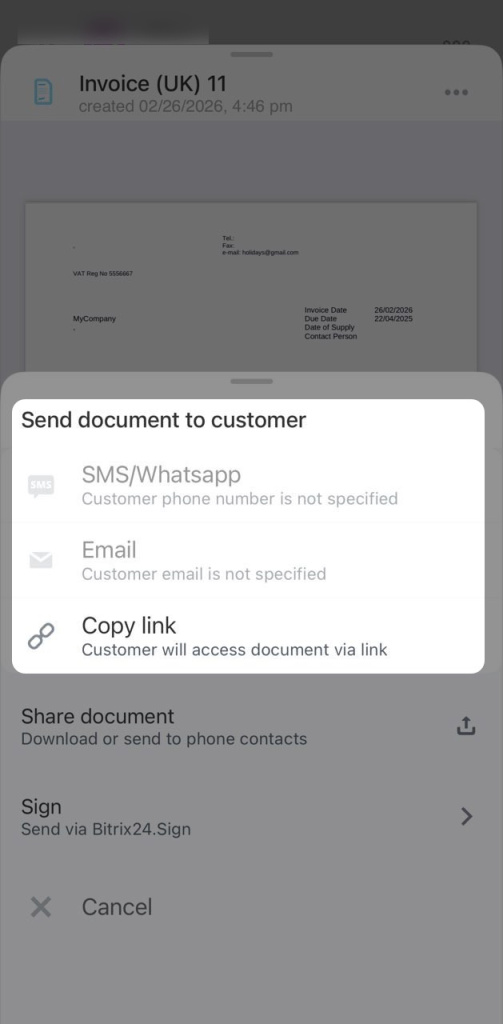
Select the desired sending method:
- Via SMS — if an SMS provider is connected and the customer's phone number is specified. The customer will receive a link to the document.
- Via email — if an email account is connected to Bitrix24 and the customer's email is specified. The customer will receive the document in pdf format.
- Share the document — the file can be sent through any app on your phone, such as a messenger or email.
You can copy a public link to the document and send it to the customer by any means.
Automatically create and send an invoice to a customer
Automation rules and triggers in CRM help automate invoice management — for example, creating a document and sending it to the customer via email.
Automation rules in CRM
Triggers in CRM
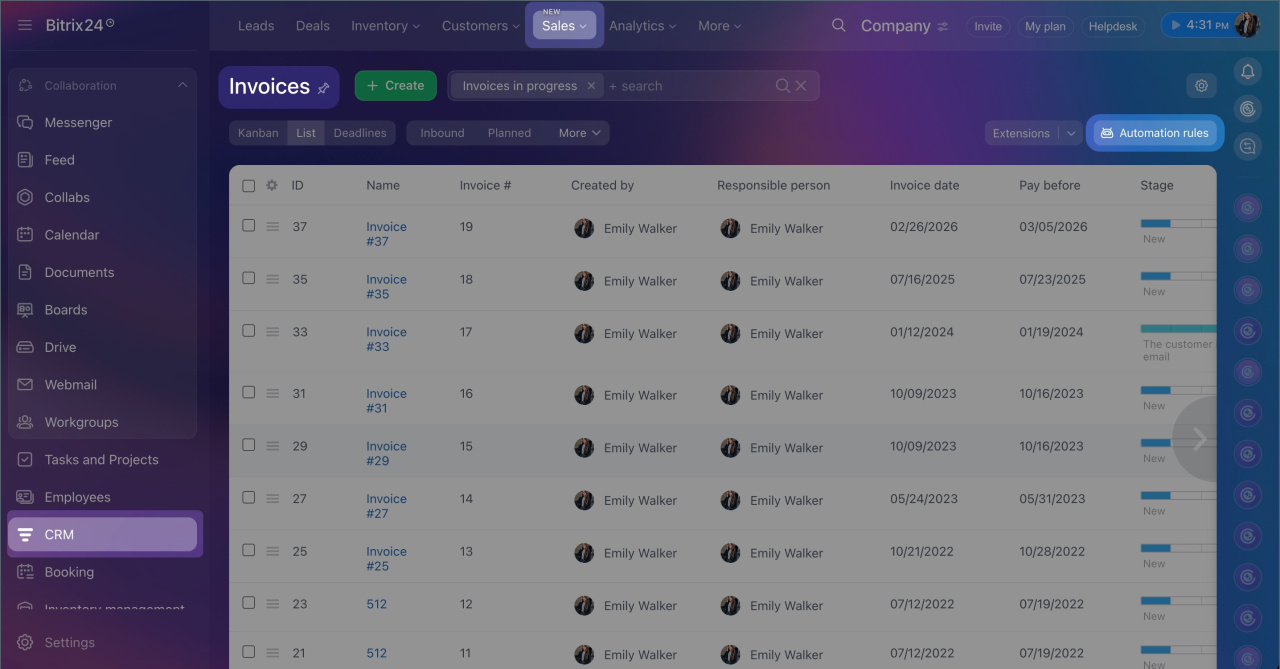
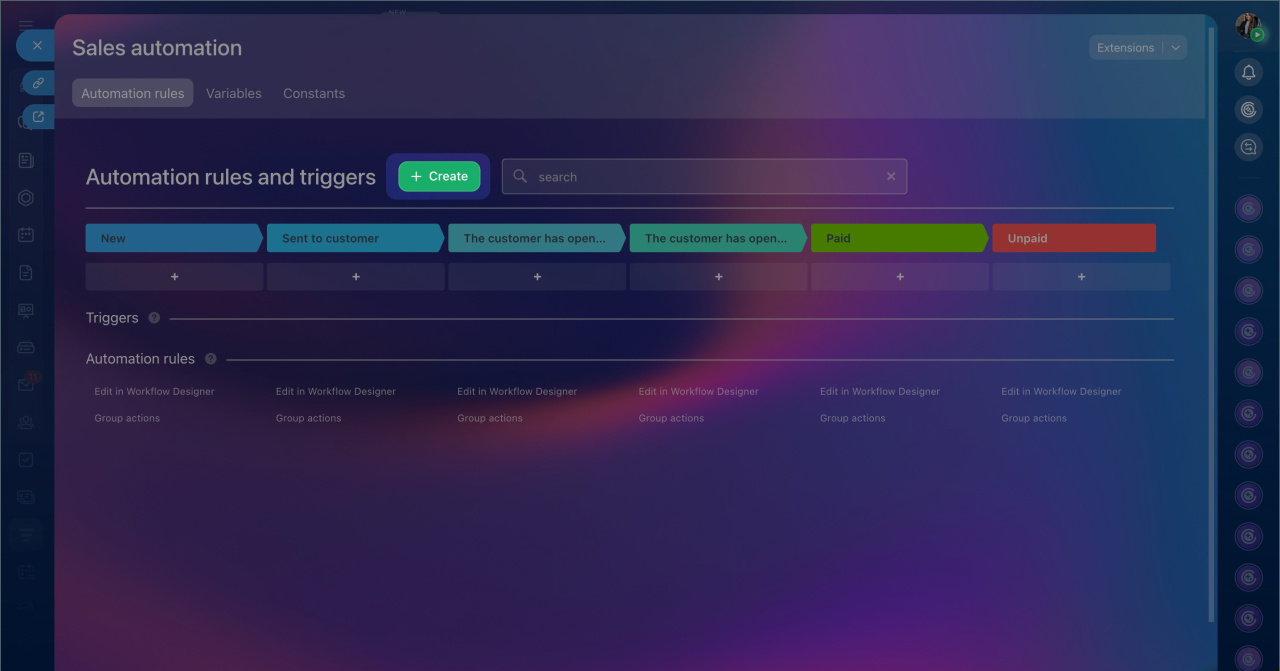
1. Go to CRM > Sales > Invoices.
2. Select Automation rules.
3. Click Create.
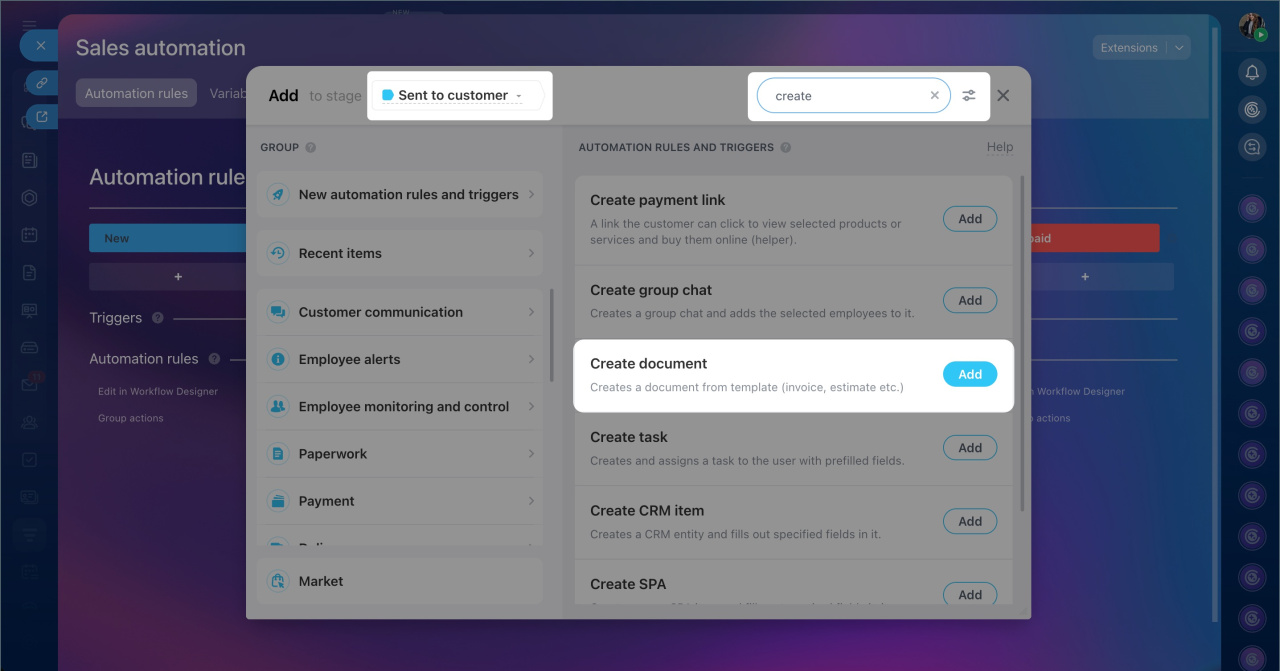
4. Choose the stage where the automation rule should be applied, for example, Sent to customer.
5. Use the search to find the required automation rule or trigger.
6. Click Add.
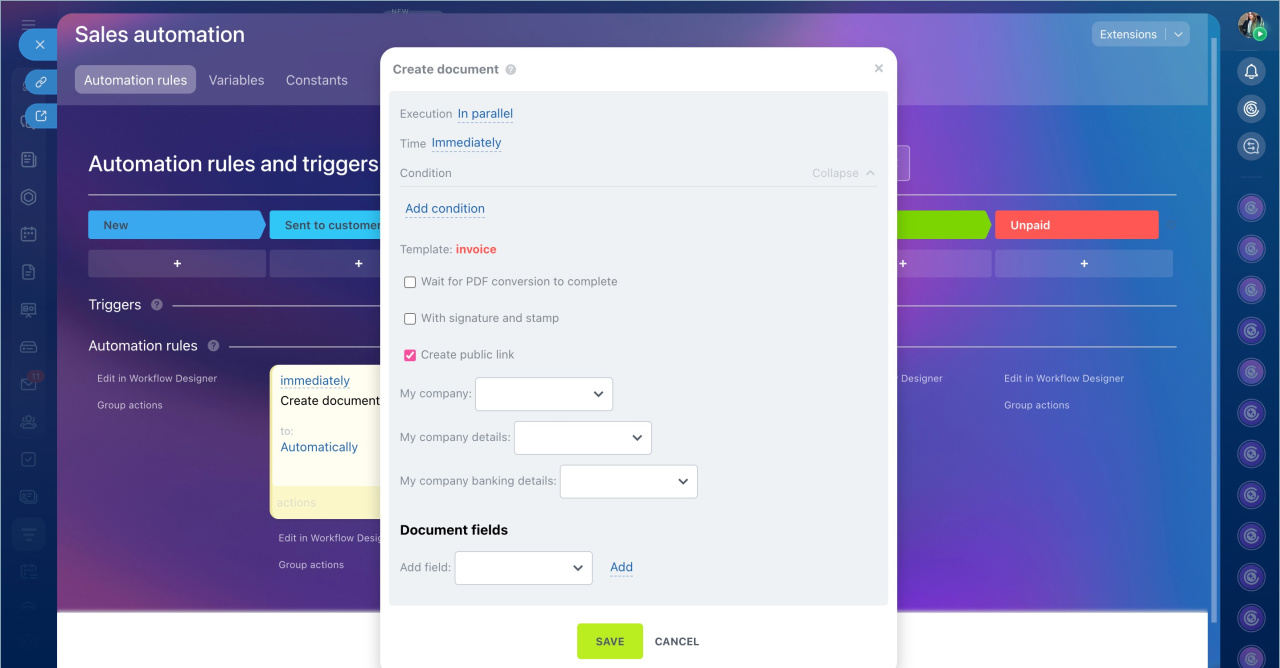
7. Configure and save the automation rules and trigger one by one. Repeat steps 5–10 for each:
- Automation rule Create document — creates a document for the customer and fills it with information from the invoice form: products, amount, details, etc. Select the template for the automation rule to use and your company's details.
Automation rule: Create CRM document
Add company details - Automation rule Send email to customer — sends the invoice created by the Create document automation rule to the customer. In the settings, select the option After the previous automation rule. Specify the subject and text of the email. To attach the invoice created by the previous automation rule, select Create document: pdf file in the File field.
Automation rules: Customer communication - Trigger Track email view — moves the invoice form to the next stage when the customer views the email. The manager can then call the customer to discuss details.
Triggers in CRM: Customer communication
8. Save the changes.
Let's check how the automation rules and trigger work. The manager creates an invoice from a deal. The invoice form moves to the New stage. After verifying the data, they move it to the Sent to customer stage. The first automation rule creates the invoice, and the second sends it to the customer via email.
When the customer opens the email, the trigger moves the form to the Viewed by customer stage. The manager sees this in the CRM and understands that the customer has reviewed the invoice and can be contacted to discuss payment.
In brief
- An invoice in Bitrix24 is required at the final stage of working with a customer when the deal terms are agreed upon, and it's time to proceed with payment.
- You can create an invoice from a deal form, the Invoices section, or based on other CRM items such as an estimate, contact, or company.
- To send an invoice to a customer, generate the document using a template. Use the standard or custom templates for document creation.
- The completed file can be edited, downloaded, printed, or sent directly to the customer.
- Invoice management can be automated using automation rules and triggers: automatically create a document, send it to the customer, and track email views.
