
In Bitrix24 tasks, an employee can be a creator, an assignee, a participant, or an observer. These roles define involvement in a specific task but do not restrict access to changes. If all employees have full access, they can modify or delete tasks, which may lead to errors and delays in work.
Access permissions determine who can edit tasks and templates and who can only assign and complete tasks. This helps avoid accidental changes and maintain order in work.
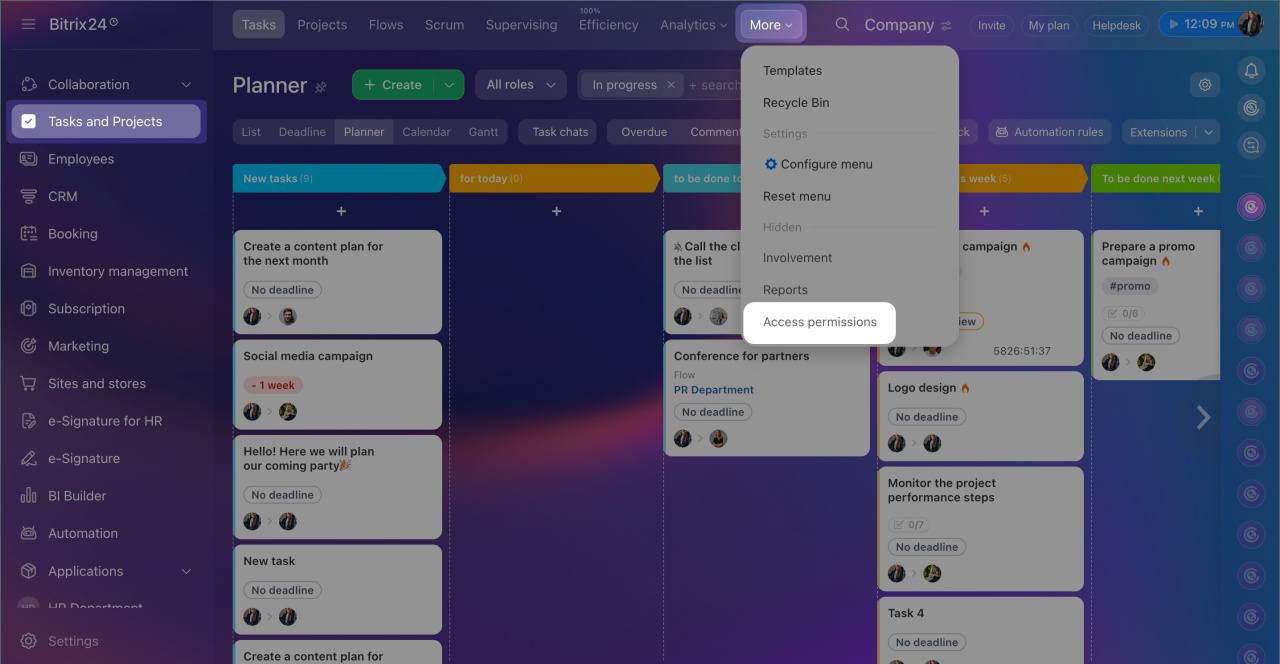
By default, access permissions can be configured by the Bitrix24 administrator, but they can delegate this right to other employees. To configure permissions, go to Tasks and Projects > More > Access Permissions.
Bitrix24 plans and pricing
If you have configured task access permissions and switched to a lower plan, the settings will still work according to the established rules. To modify them, upgrade to the Professional or Enterprise plan.
In this article:
- Select standard roles
- Create and configure custom roles
- Set up access permissions
- Assign roles to employees
Select standard roles
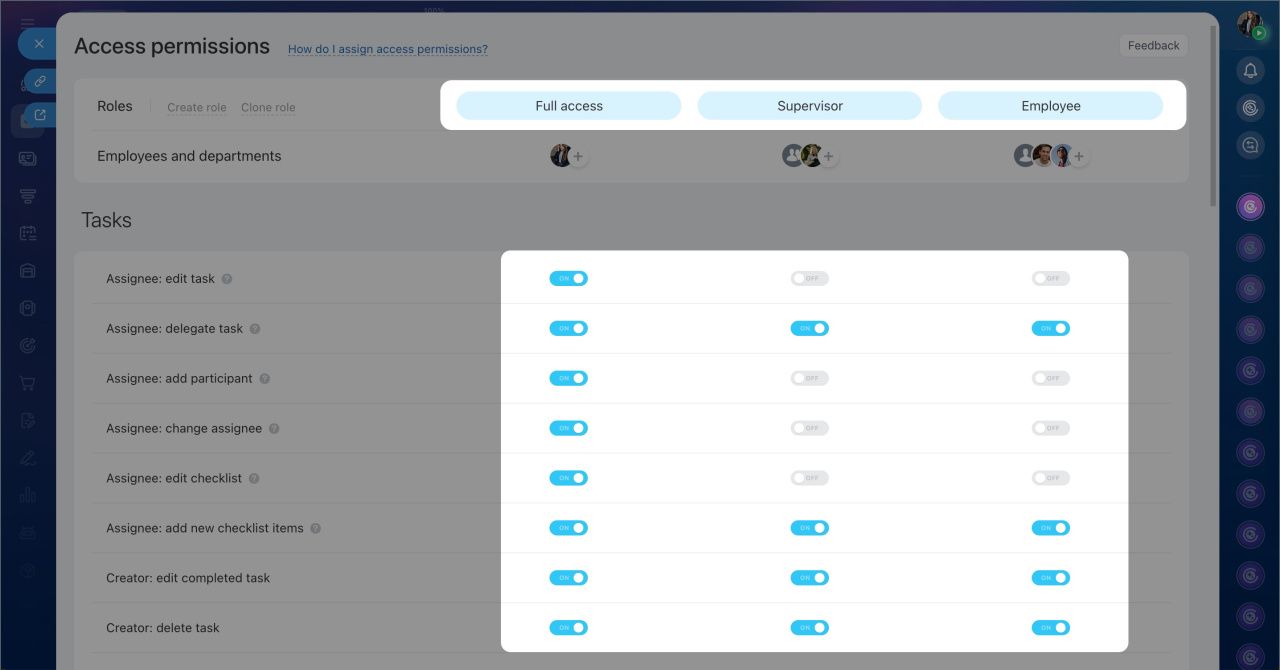
Task access permissions include three roles with predefined rights:
- Full access — by default, this role is assigned only to the Bitrix24 administrator, but they can delegate it to other employees. A user with this role can perform any actions with tasks and manage access permissions.
- Supervisor — this role is automatically assigned to department heads in the company structure. They can manage department tasks but cannot configure roles and access permissions. Supervisors always see their subordinates' tasks, even if this right is disabled in the settings.
- Manager — this role is automatically assigned to all employees. Users work only with their tasks and cannot see colleagues' tasks.
Create and configure custom roles
If standard roles do not meet your needs, you can copy, edit, or create new ones.
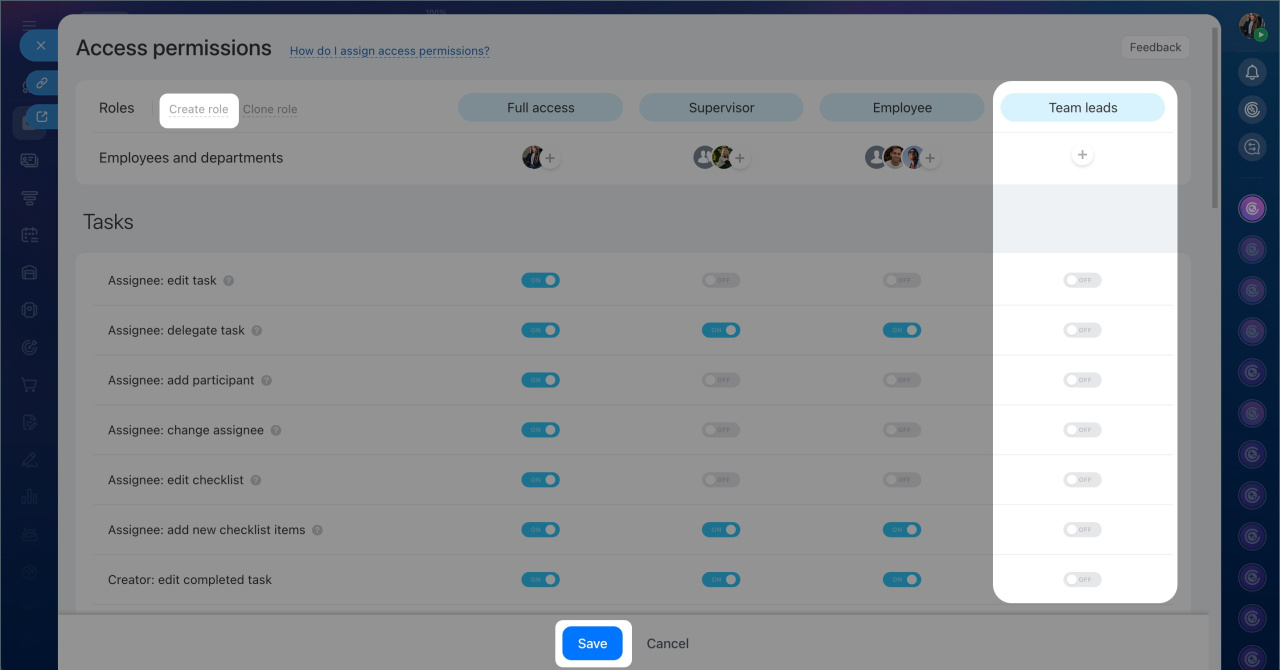
Create a new role. You can create a role from scratch to configure access permissions for your company's processes.
1. Click Create role and specify its name.
2. Configure the required permissions using the toggles.
3. Click Save.
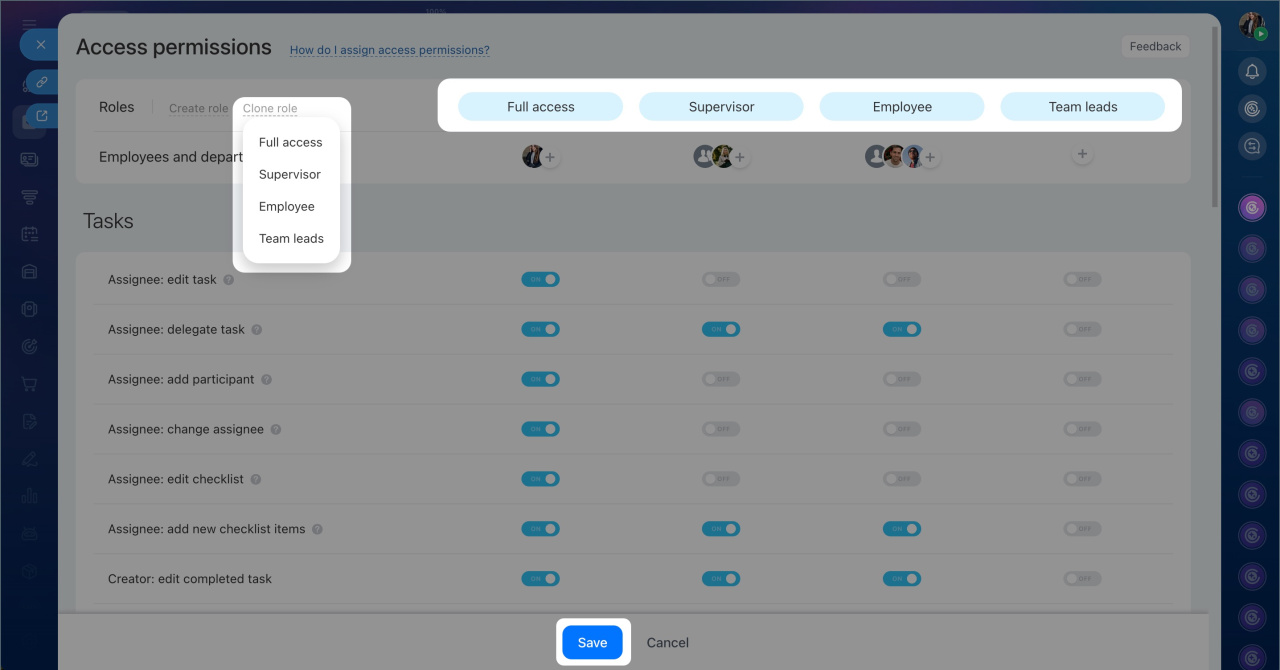
Copy a role. This helps create a new role with similar permissions without setting it up from scratch.
1. Click Clone role and select the desired role from the list.
2. Specify the name of the new role.
3. Configure access permissions and click Save.
Configure access permissions
In each role's settings, you can define permissions for various tools in the Tasks and Projects section.
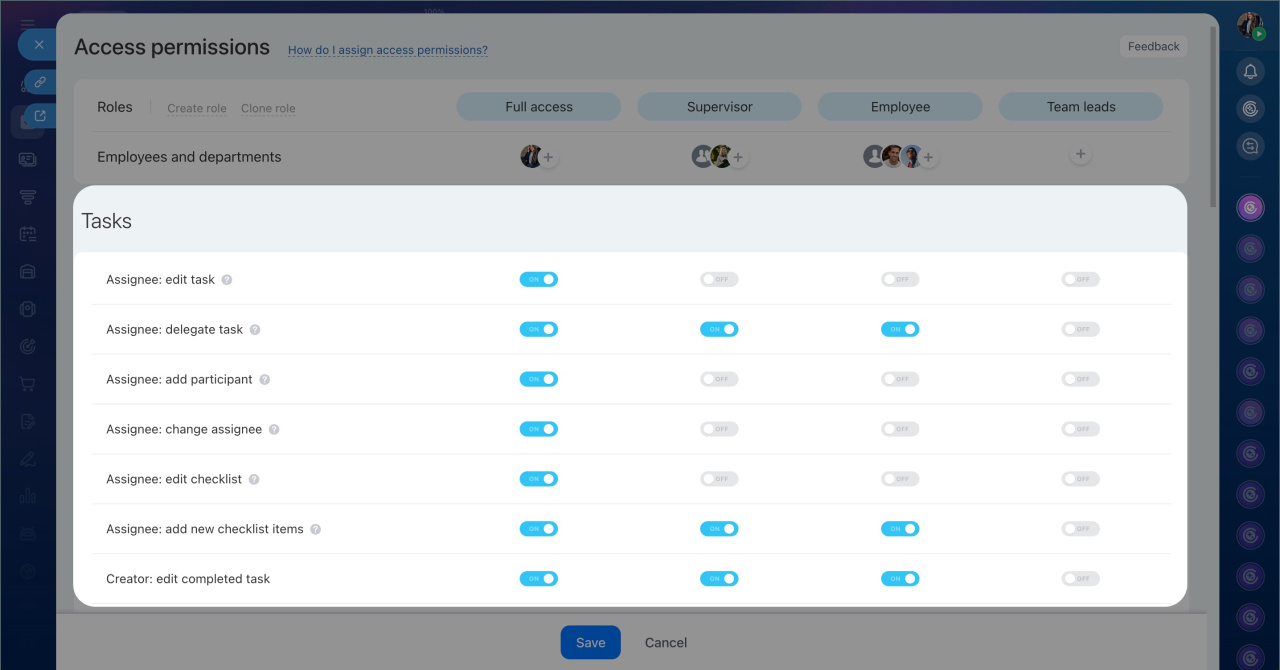
Tasks — permissions define what employees can do with tasks.
Access permissions for workgroups and projects
Permissions for assignees:
- Edit task — change the title, description, deadlines, and other task parameters. Supervisors can always edit their subordinates' tasks, even if this right is disabled in the settings.
- Delegate task — assign them to another employee. Supervisors can always delegate tasks to their subordinates. In other cases, delegation is possible only if the user has the right to assign tasks to those employees.
- Add participant — include additional participants in a task. This requires the right to assign tasks to the selected employee.
- Change assignee — assign another employee. By default, you can select someone from your department. To assign a supervisor or an employee from another department, you need the right to assign tasks to them.
- Edit checklist— modify and delete checklist items. Marking items as completed is possible regardless of this setting.
- Add new checklist items — add new items and edit your own. You cannot modify items added by others.
Permissions for creators:
- Edit completed task — modify a task after the assignee has completed it.
- Delete task — delete tasks created by the employee.
Permissions within your department:
- Assign task to own department's employees — assign tasks to colleagues within the department.
- Assign task to own department's head — assign tasks to the supervisor.
- View all tasks in own department — see tasks of employees and the supervisor. This permission applies to all departments where the user works.
- Edit available tasks in own department— edit department tasks available for viewing.
- Edit available completed tasks in own department — modify completed department tasks available for viewing.
- Delete available tasks in own department — delete department tasks available for viewing.
Permissions for other departments:
- Assign task to other departments' heads — assign tasks to supervisors of other departments.
- Assign task to other departments' employees — assign tasks to employees of other departments.
- View all tasks in other departments — see tasks of employees in other departments without participating in them.
- Edit available tasks in other departments — modify tasks in other departments available for viewing.
- Edit available completed tasks in other departments — modify completed tasks in other departments available for viewing.
- Delete available tasks in other departments — delete tasks of colleagues in other departments available for viewing.
General permissions:
- Export accessible tasks — export a list of accessible tasks to a file.
- Import tasks — upload tasks to Bitrix24 from a file.
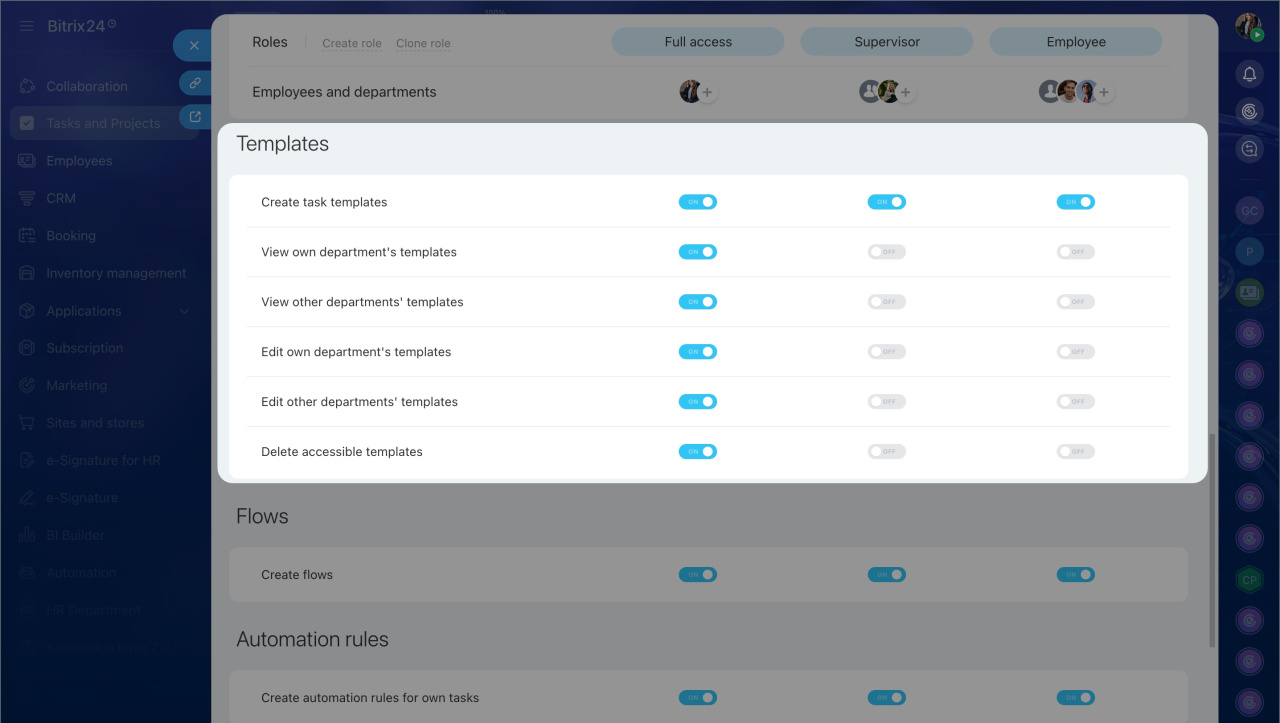
Task templates — permissions define what employees can do with templates. This helps maintain a unified work standard and protect templates from accidental changes.
Task templates
- Create task templates — create new templates with the required settings.
- View all templates in your department — see templates created by department employees.
- View all templates in other departments — see templates of colleagues in other departments.
- Edit templates in your department — modify templates of colleagues in your department.
- Edit templates in other departments — modify templates in other departments available for viewing.
- Delete templates with access — delete templates available for viewing.
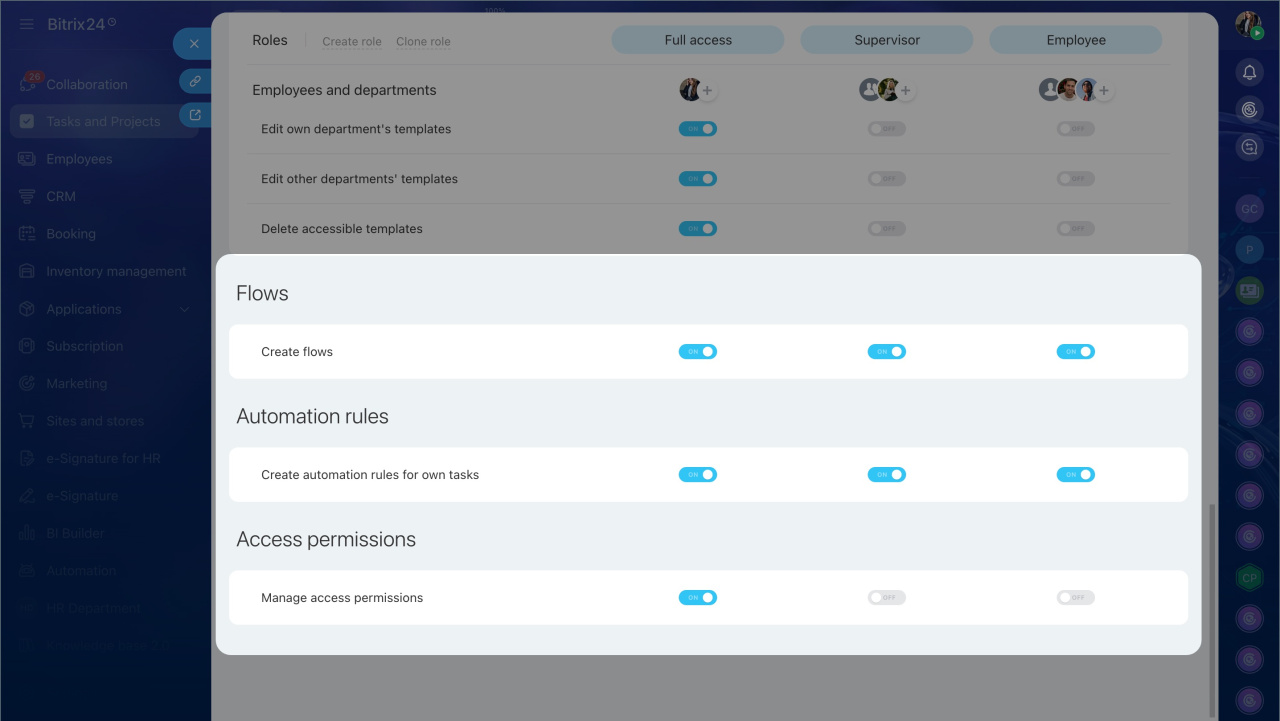
Flows — used to collect similar tasks from different employees in one place. Access permissions settings define who can create new flows, usually supervisors or employees responsible for organizing processes.
Bitrix24 Flows: getting started
Automation rules — automate actions in personal tasks, such as sending notifications or creating tasks. By default, any employee can configure automation rules, but this permission can be restricted if necessary. This helps avoid confusion and unnecessary automated actions in tasks.
Automation rules and triggers: how to automate task management
Access permissions — define who can modify task access settings. By default, this is available only to the Bitrix24 administrator, but they can delegate this right to other employees.
Assign roles to employees
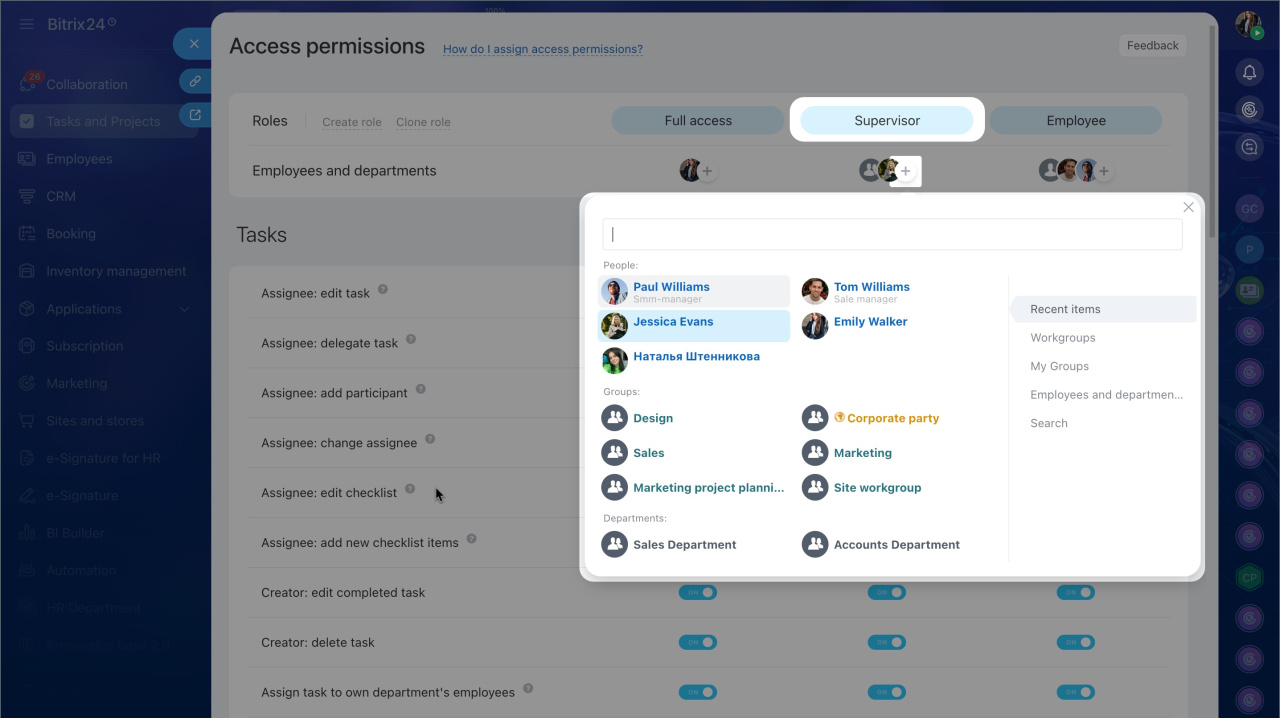
Click the Plus (+) icon next to the role name. Choose who to assign this role to:
- Recent — displays employees, departments, and groups you have searched for in any Bitrix24 section.
- Groups — predefined user groups that cannot be modified, such as Supervisors, Deputies, etc.
- My groups — select a group or project.
- Employees and departments — select a user or department from the company structure.
- Search — find any employee by entering their name in the search bar.
Summary
- Access permissions define who can manage tasks, templates, flows, and automation rules, and who can only assign and complete tasks.
- By default, access permissions can be configured by the Bitrix24 administrator, but they can delegate this right to other employees.
- Separate task access permissions apply in groups and projects.
- By default, there are three roles in the permissions settings: Full access, Supervisor, and Manager.
- If standard roles do not meet your needs, you can copy, edit, or create new ones.
- If a user has multiple roles with different permission levels, the one granting more capabilities applies.
