
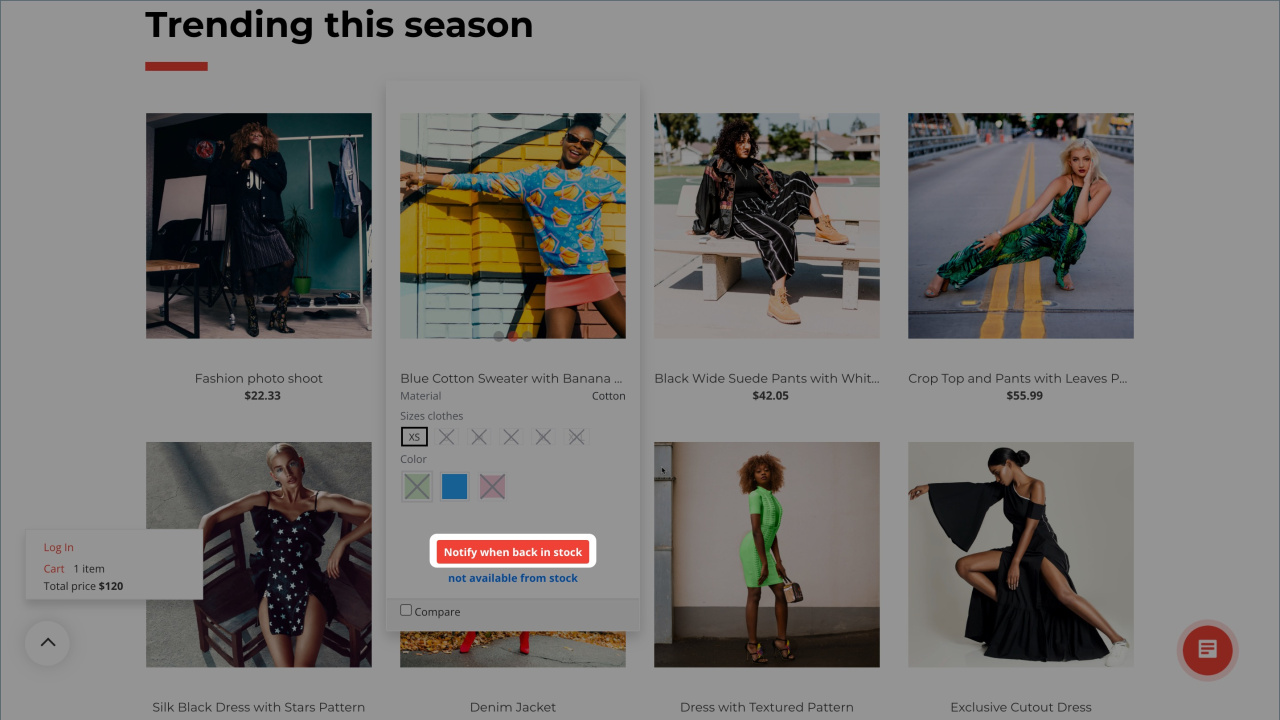
Product subscriptions help you keep potential buyers when a product is out of stock. On the product page, customers see the Notify when back in stock button. They enter their email address and get a notification when the product becomes available again. This helps you avoid lost sales and understand real demand for a product.
Configure access permissions to Inventory Management
Product subscriptions are not available in the CRM + Online Store template.
In this article:
Enable product subscriptions
To let customers subscribe to out-of-stock products, update settings in two places: Inventory management and products and Catalog settings.
Step 1. Update settings in Inventory management and products
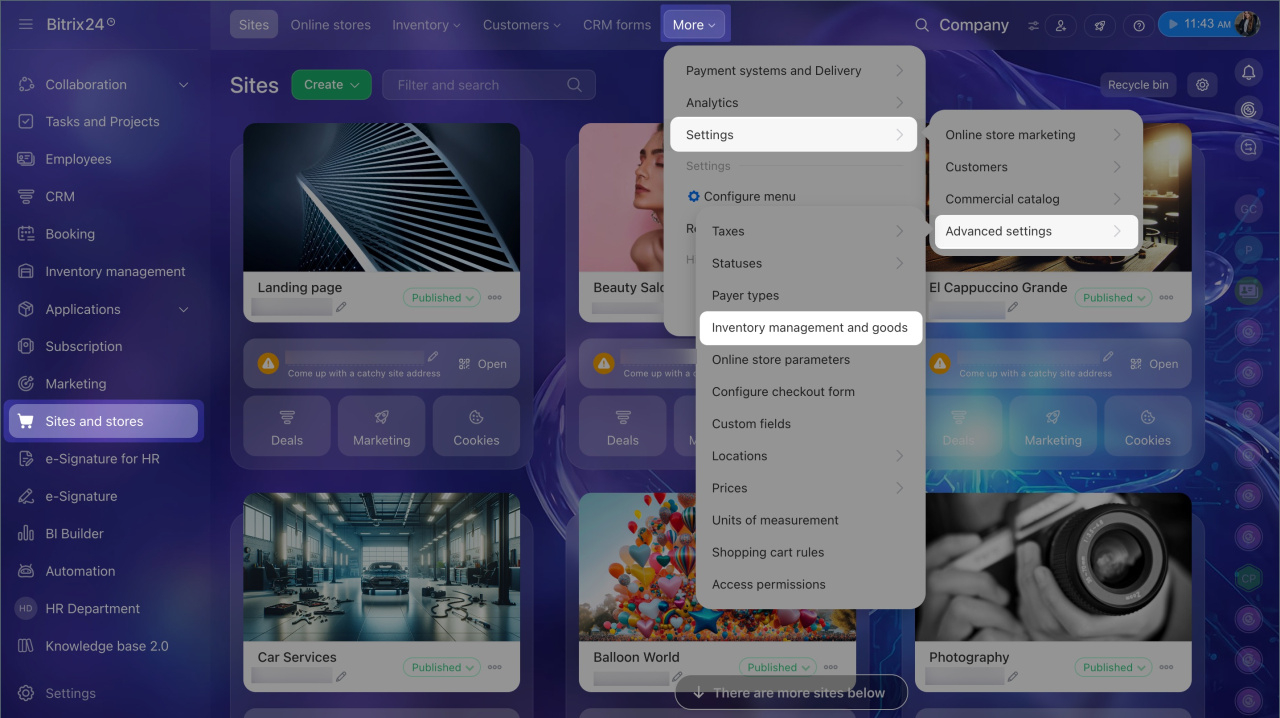
1. Go to Sites and stores > More > Settings > Advanced settings > Inventory management and products.
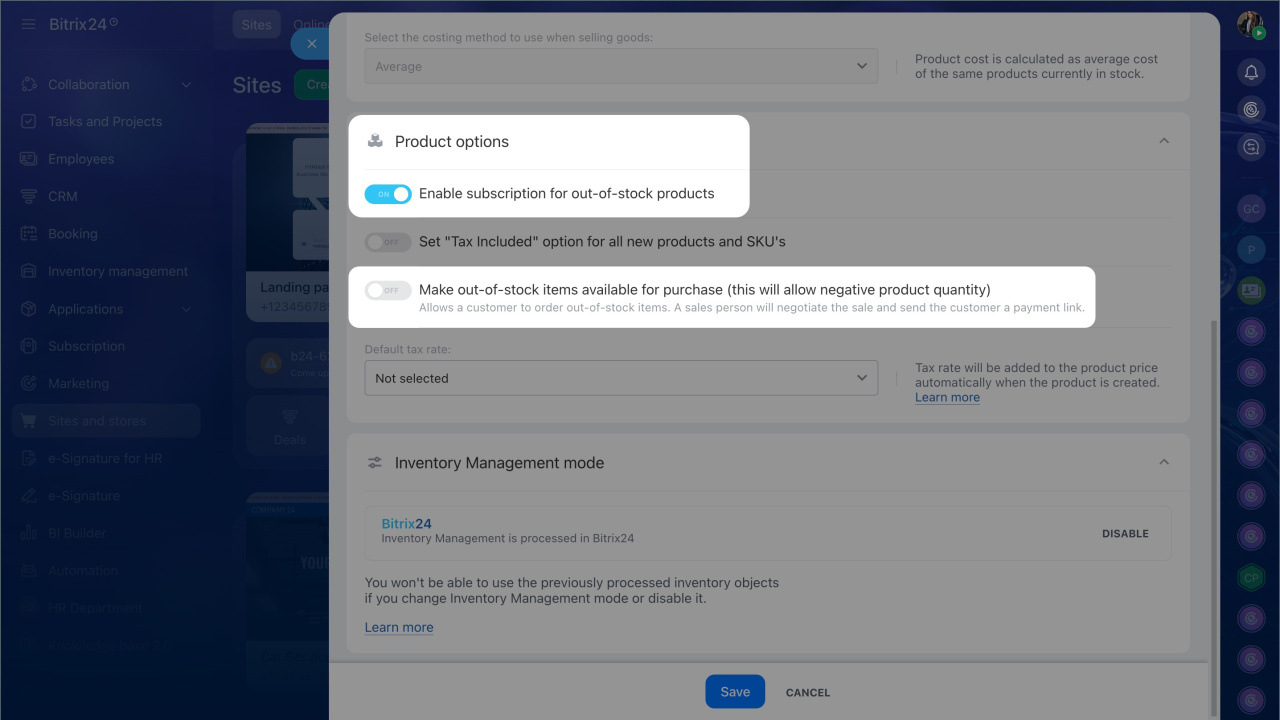
2. Turn on Enable subscription for out-of-stock products.
3. Turn off Make out-of-stock items available for purchase. Otherwise, customers will be able to place an order, and the Notify when back in stock button will not appear.
Inventory management settings
4. Click Save.
Step 2. Update Catalog settings
1. Go to Sites and stores > Stores.
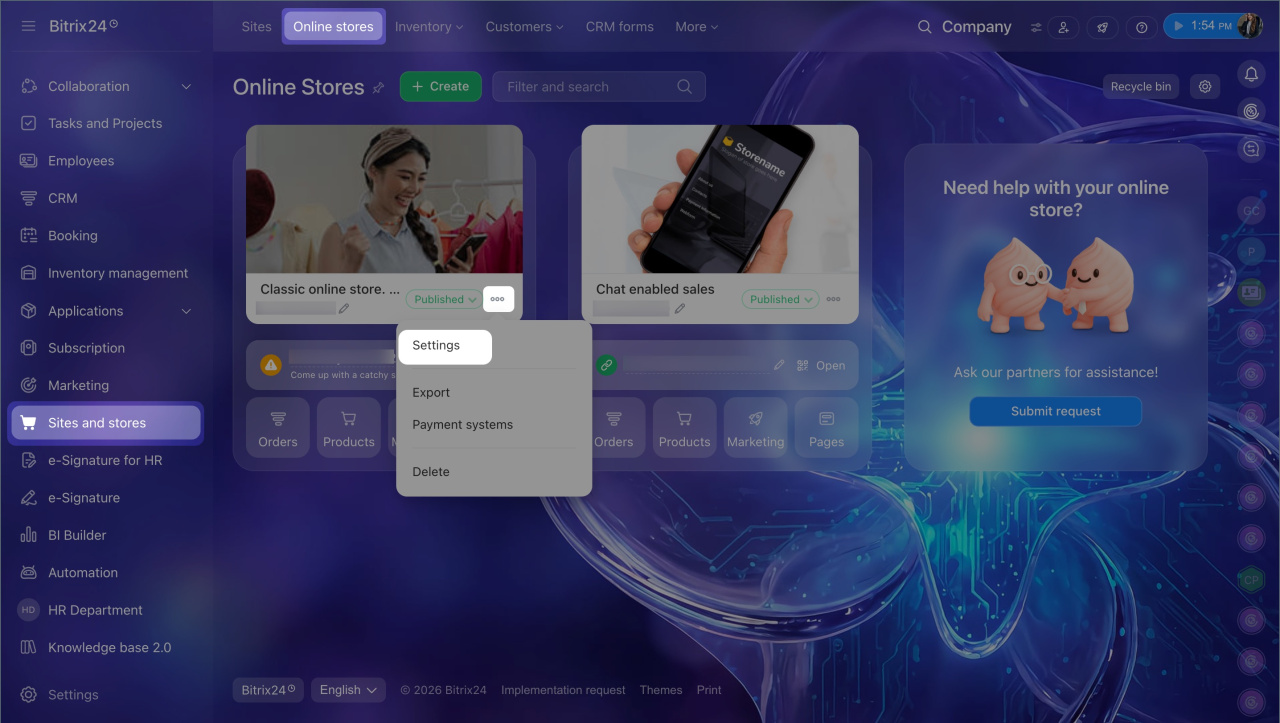
2. Select the store you need and click Three dots (...) > Settings.
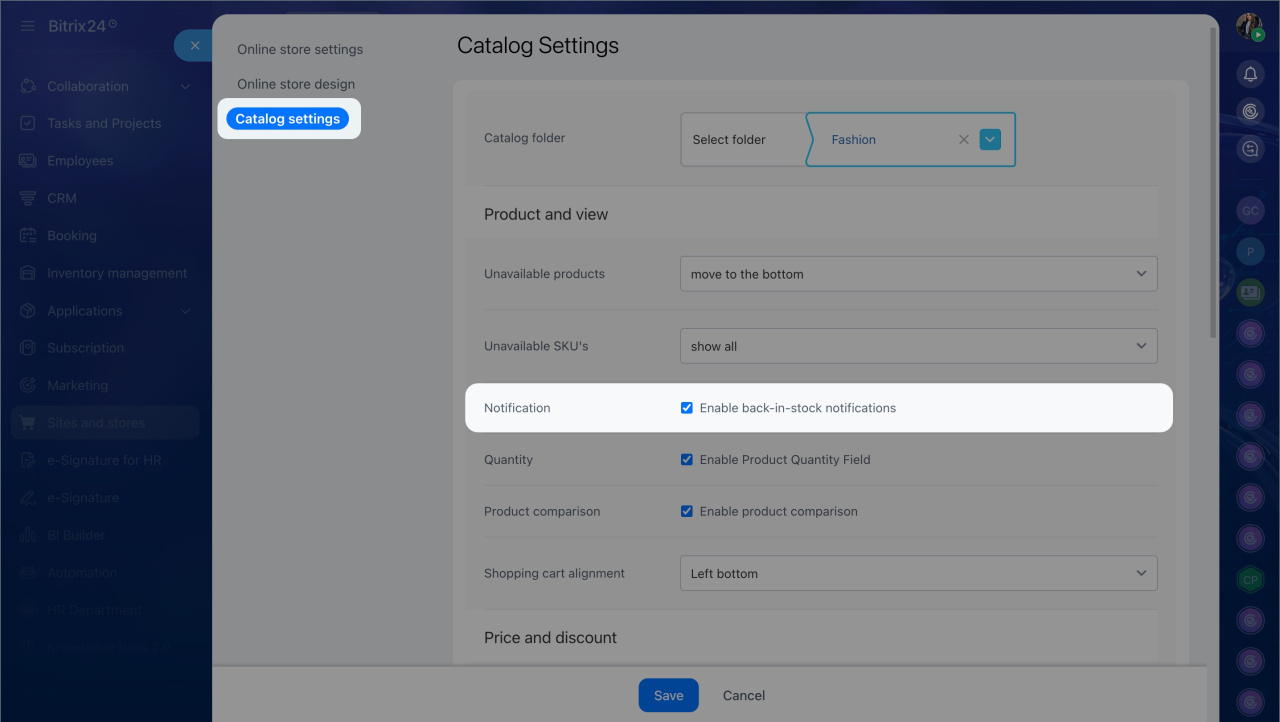
3. Turn on Enable back-in-stock notifications.
4. Save your changes.
Catalog settings
Step 3. Check that the Notify when back in stock button appears on the site
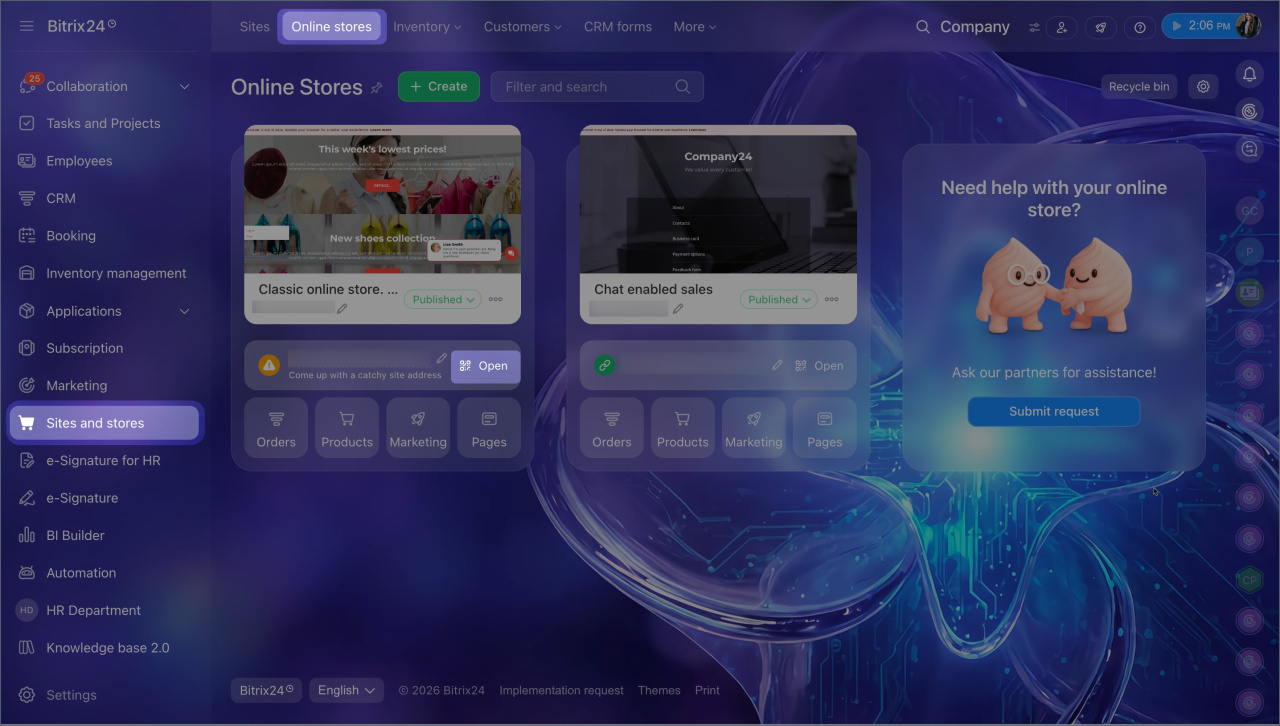
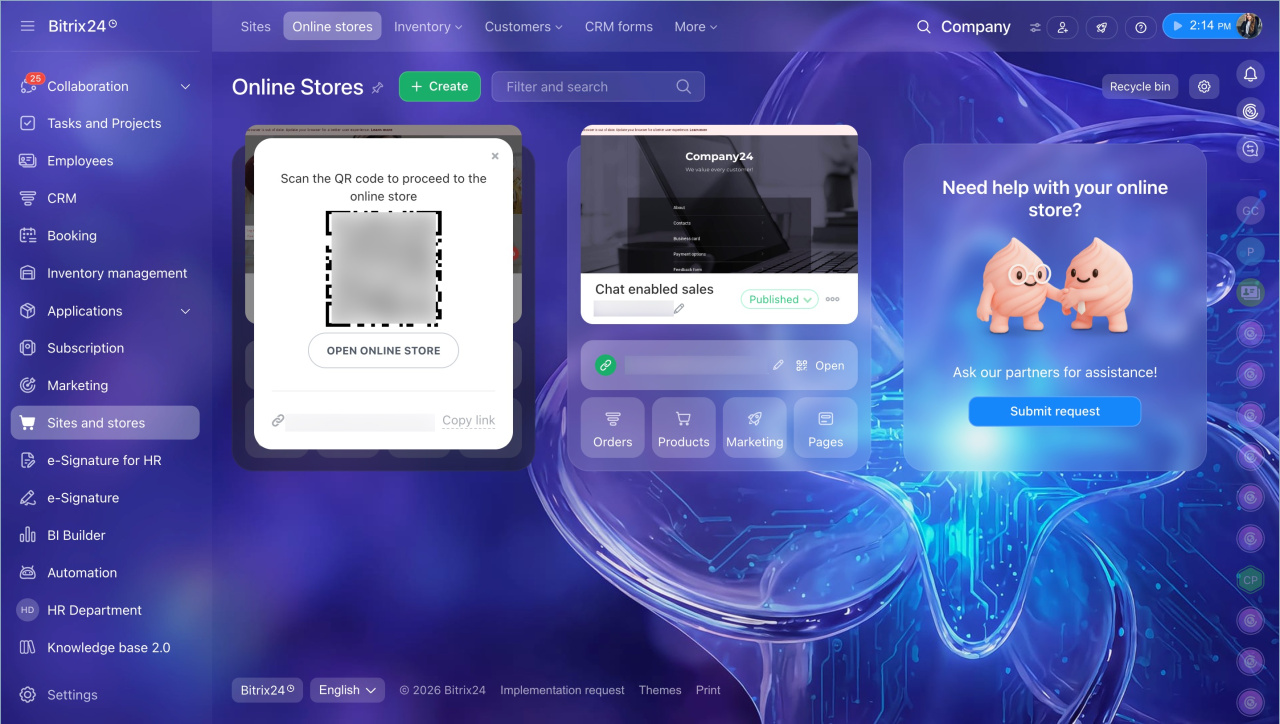
1. Go to Sites and stores > Stores.
2. Click Open next to the store address.
3. Open any out-of-stock product. On the product details page, you will see the Notify when back in stock button.
Create a detailed product page
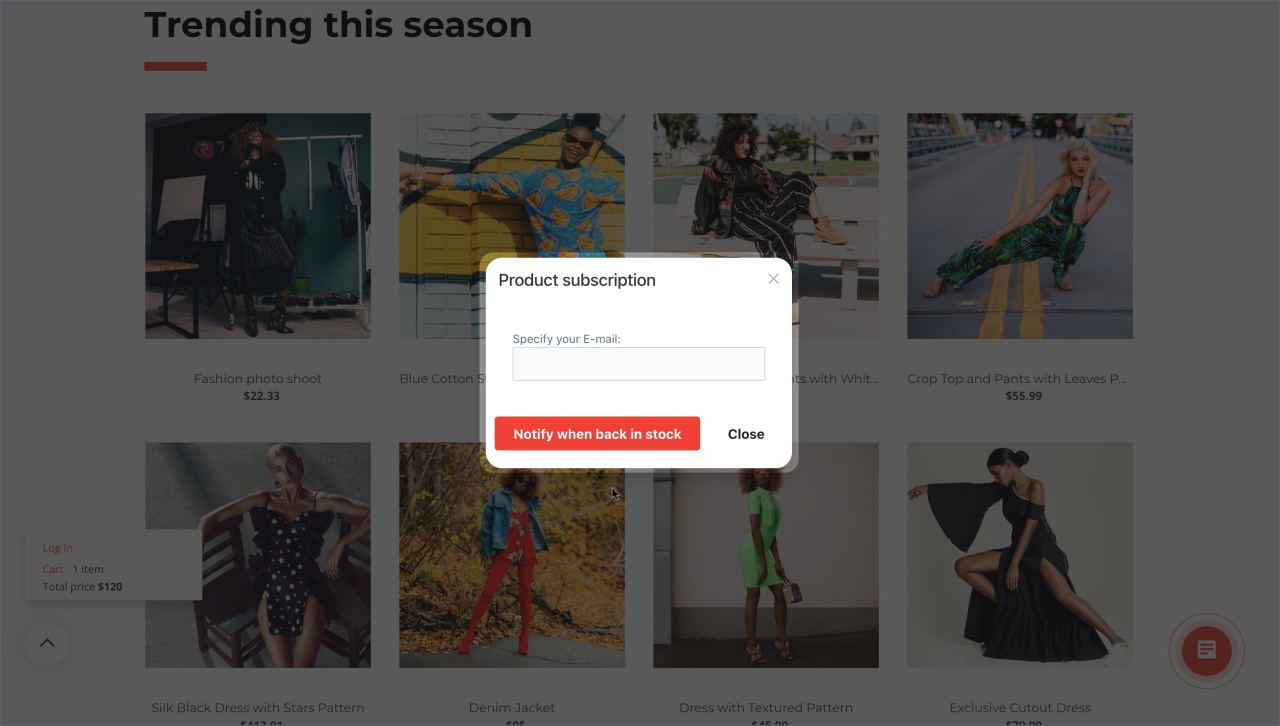
4. If a customer is signed in to their account on the store site and clicks Notify when back in stock, they will see a confirmation message. If they are not signed in, a window will open and ask for their email address.
When the product is back in stock, the customer gets an email. After they place an order, the subscription is removed automatically.
Find the subscription list
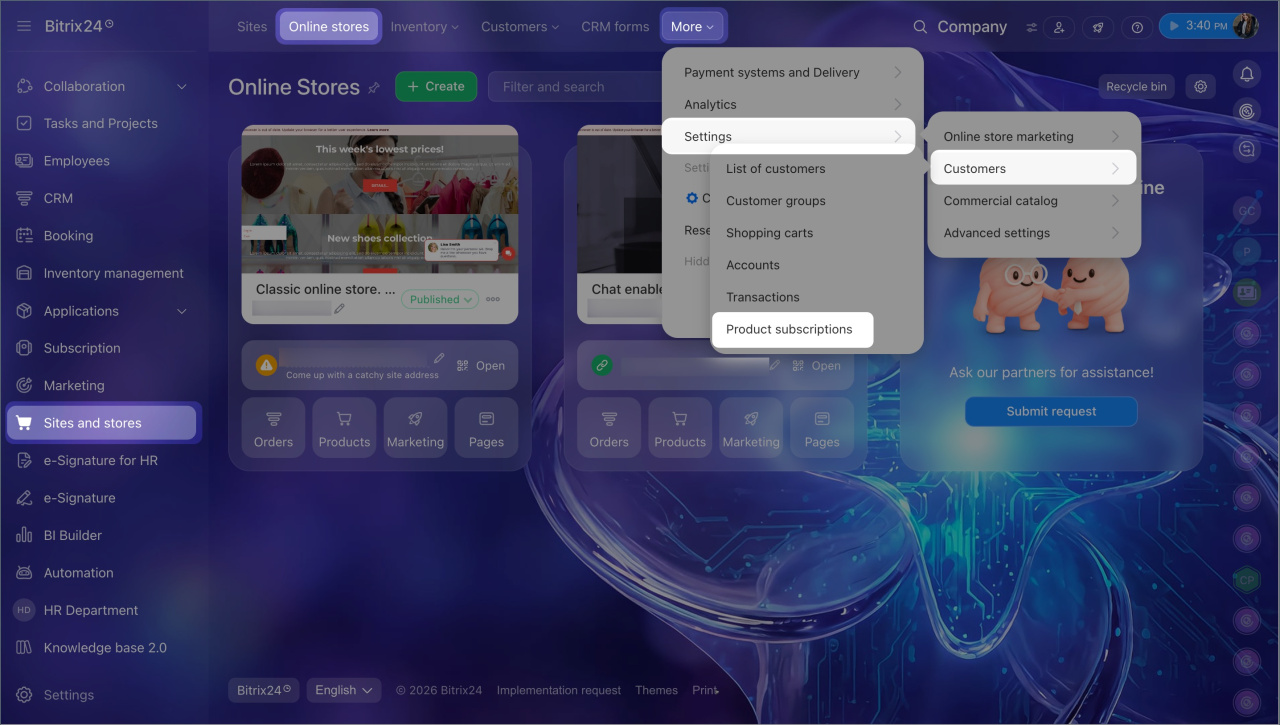
Go to Sites and stores > More > Settings > Customers > Product subscriptions.
This section shows the subscription date, customer email, product name, and other details. You can also filter the list by values such as subscription date and product ID.
In brief
- Product subscriptions let customers get notified when out-of-stock products become available again.
- Bitrix24 administrators and employees with permission to edit site content settings and out-of-stock product sale settings can enable subscriptions.
- To enable subscriptions, update settings in two places: Inventory management and products and Catalog settings.
- In Inventory management and products, turn on Enable subscription for out-of-stock products and turn off Make out-of-stock items available for purchase.
- In Catalog settings, turn on Enable back-in-stock notifications.
- The Notify when back in stock button appears on the product details page for out-of-stock items.
- When the product is back in stock, the customer gets an email. After they place an order, the subscription is removed automatically.
- You can find the subscription list at Sites and stores > More > Settings > Customers > Product subscriptions.