
When you create a Bitrix24 account, it gets a default address like b24‑aokwy2.bitrix24.com. This address can be difficult to remember or share, so you may want to change it.
Bitrix24 pricing page
Change your Bitrix24 address
Only Bitrix24 administrators can change the account address.
- First change: Available once on any plan.
- Additional changes: Available on the Professional, and Enterprise plans through Bitrix24 Support.
Contact Bitrix24 Support
To change the account address:
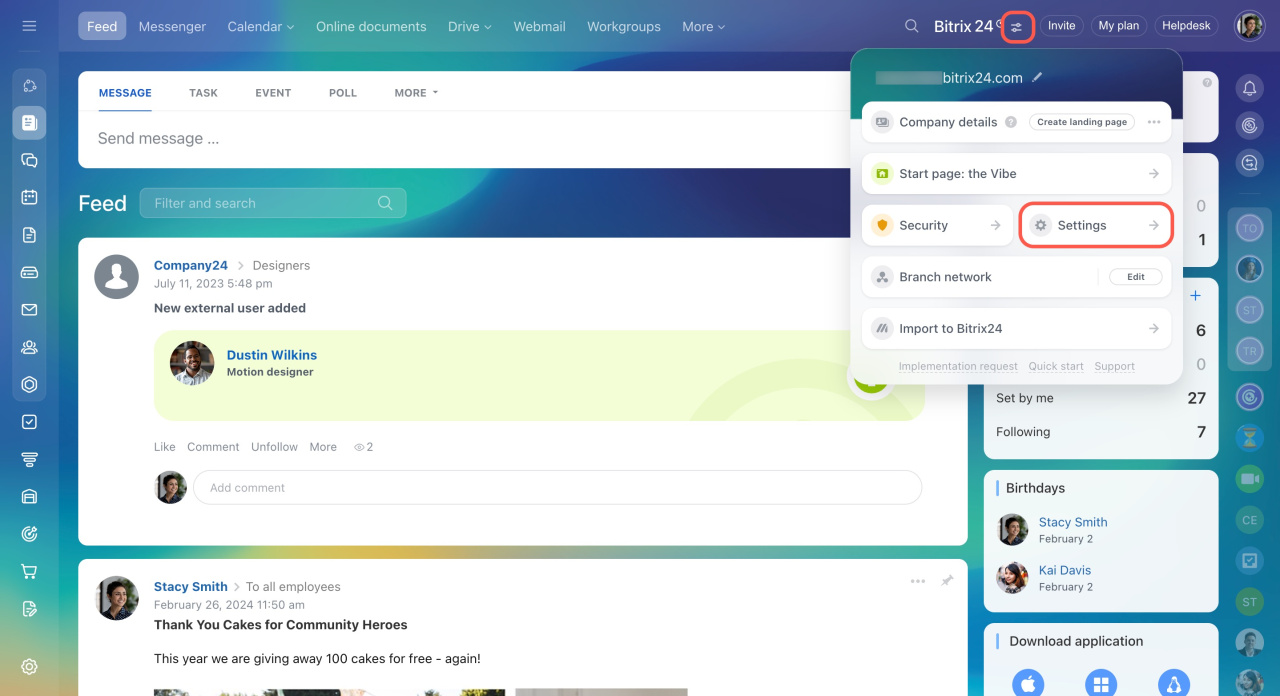
- Click the icon next to the company logo.
- Select Settings.
- Open the My Bitrix24 tab.
- Go to Bitrix24 address.
- Click Create address.
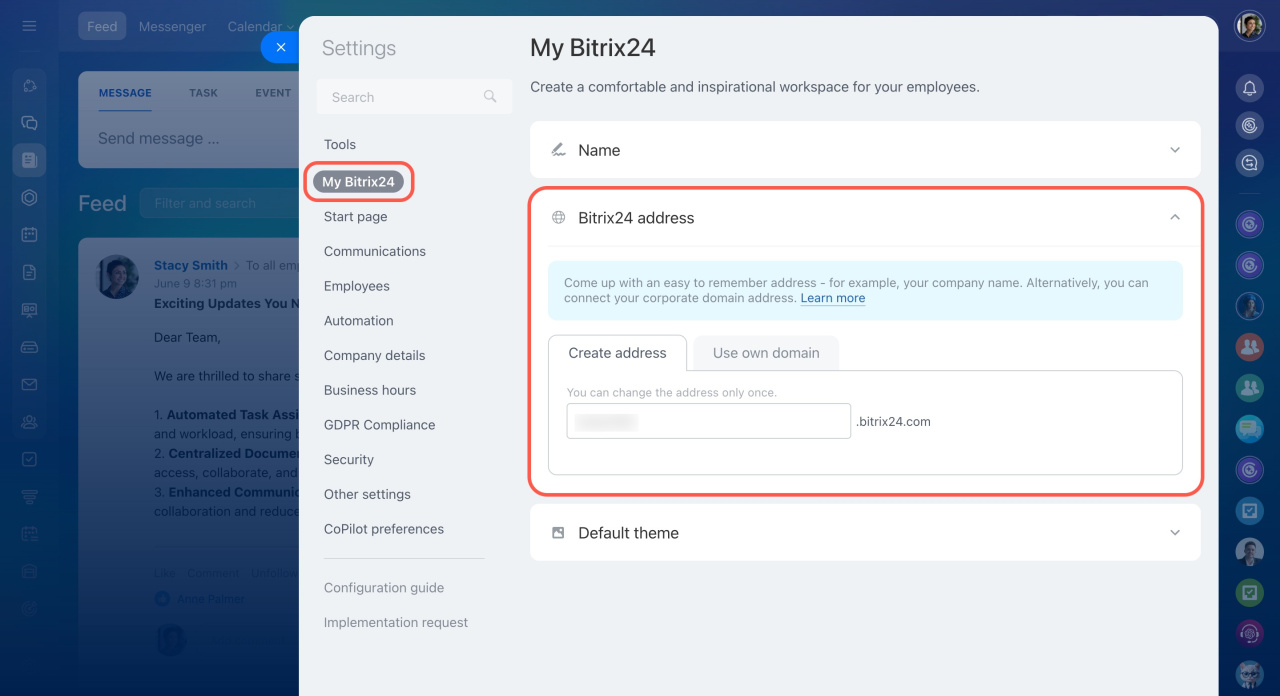
You can use your company name in the address, for example: mycompany.bitrix24.com.
Connect your own domain
You can connect your own domain to Bitrix24, for example, example.com instead of mycompany.bitrix24.com. Only the Bitrix24 administrator can connect a custom domain on Professional and higher plans.
example.com, Bitrix24 receives control over the domain settings.
To keep full control over your main domain, use a third-level domain such as crm.example.com. This allows you to continue using the main domain for your website, email, and other services.
Configure DNS records
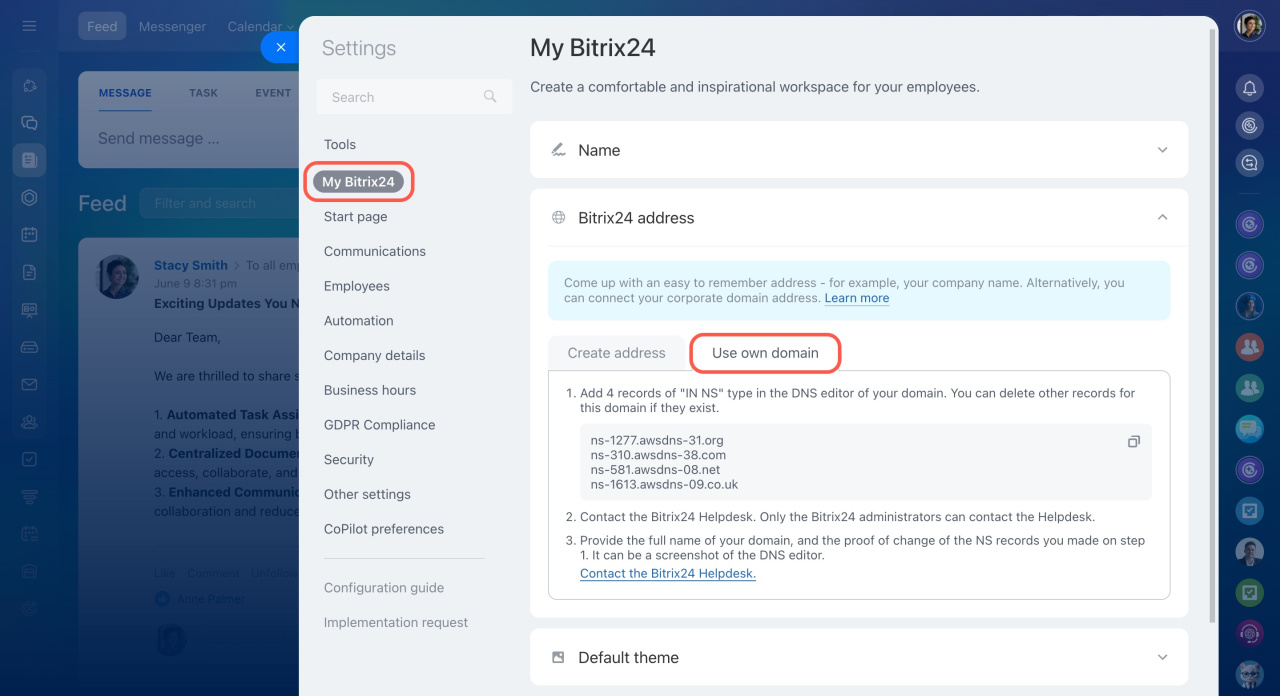
To connect your domain, add these four NS records in your domain DNS settings:
- ns-1277.awsdns-31.org.
- ns-310.awsdns-38.com.
- ns-581.awsdns-08.net.
- ns-1613.awsdns-09.co.uk.
If other records already exist for this domain, you can remove them.
After you update the DNS records, send the following to Bitrix24 Support:
- Your full domain name.
- Proof that you updated the NS records, such as a screenshot of the DNS settings.
What to do after changing the domain
After you connect the new domain:
- Reconnect Open Channels
- Reinstall website widgets, including live chat, CRM forms, and callback widgets
- Recreate application webhooks
- Log in again to the Bitrix24 application to restore Drive synchronization
Your data storage region will stay the same after the domain change. The rules and limitations of that region will still apply, including:
- Personal data regulations.
- Available payment methods.
- Pricing and currencies.
- Partner support.
Bitrix24 provides a free SSL certificate for the new domain. The certificate renews automatically.