
Every day, employees use Feed to discuss different topics. Use search and filters to quickly find the messages you need.
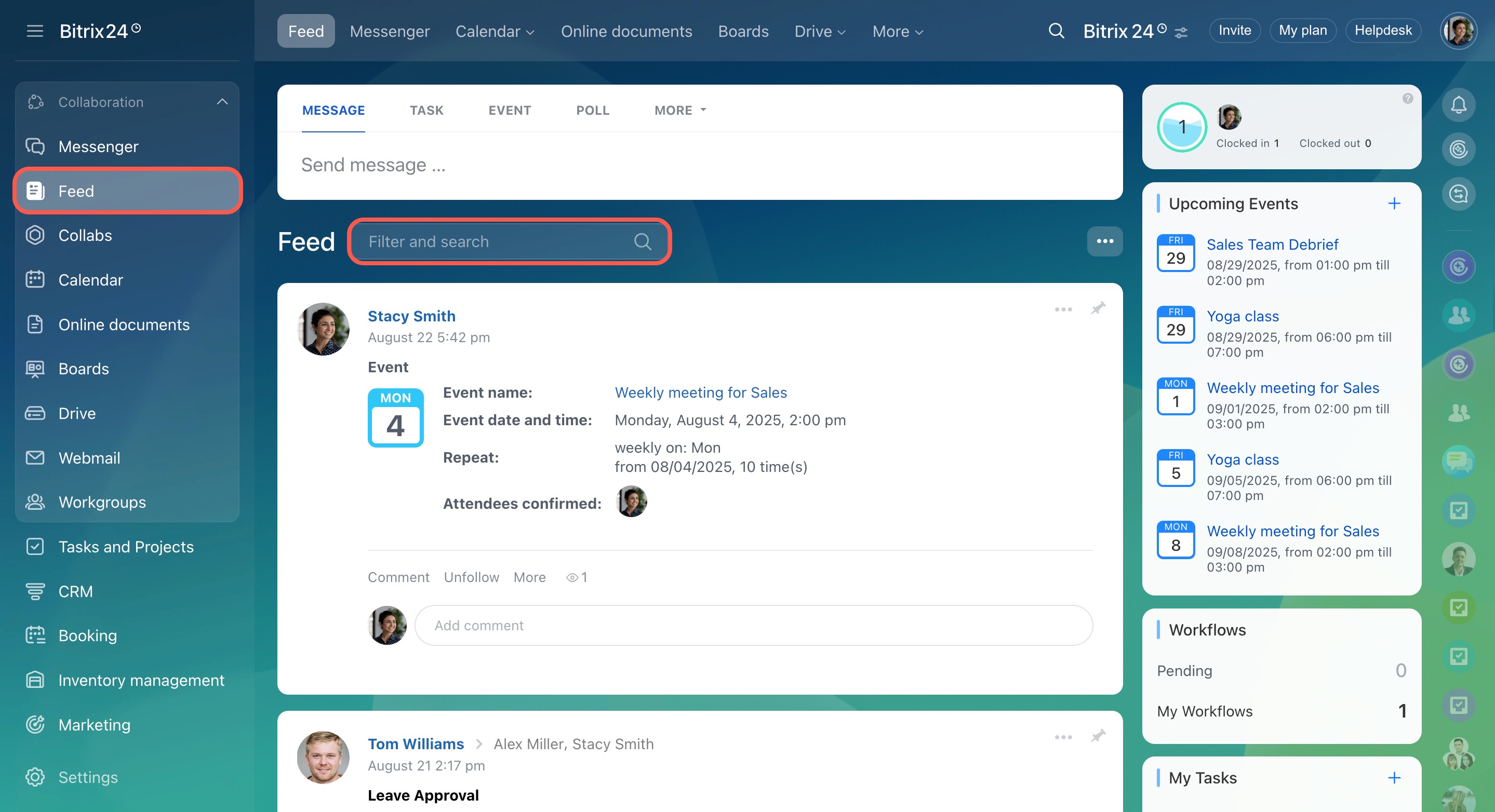
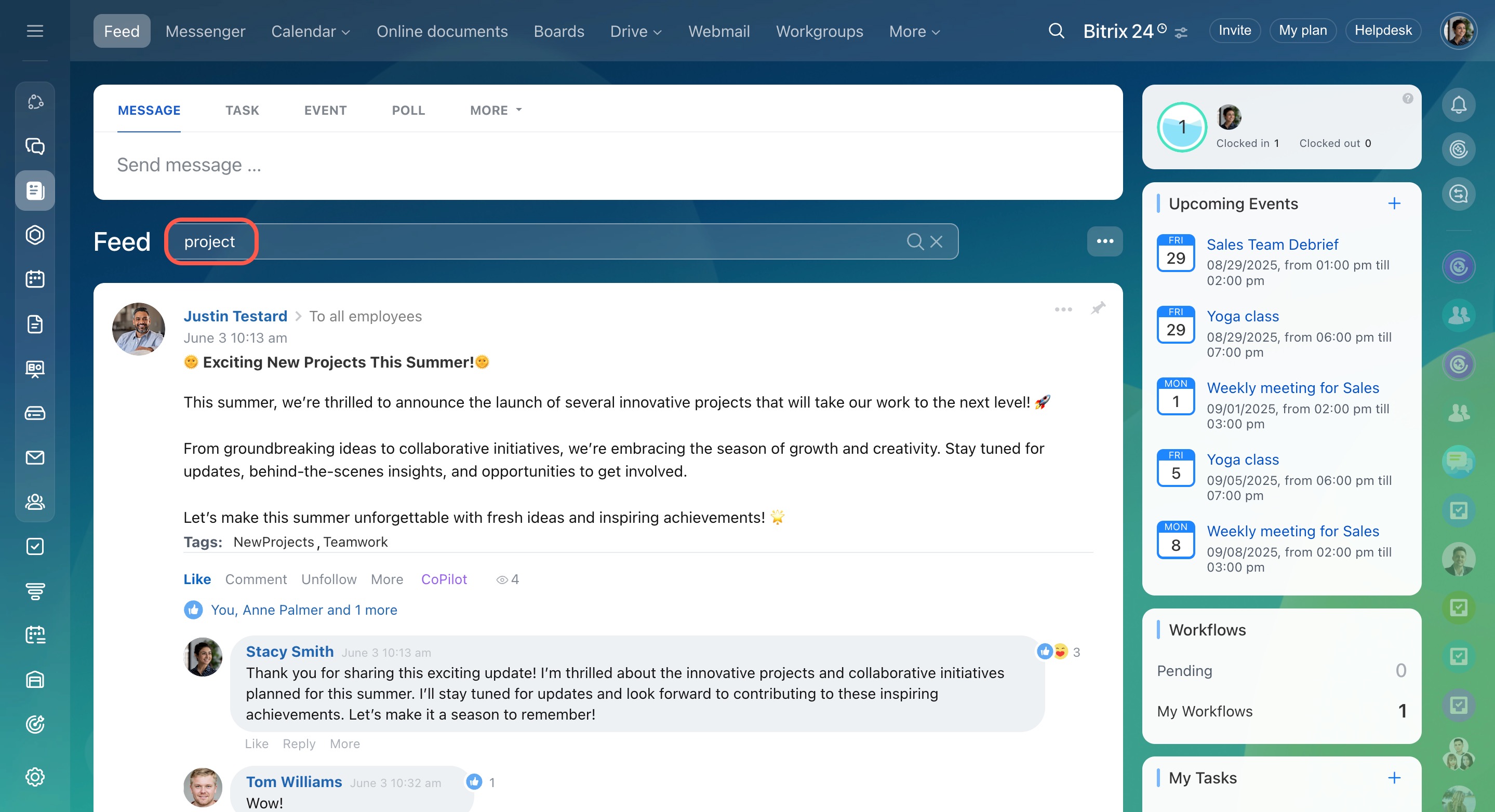
Search by keyword
You can search Feed by keyword. Enter a word or part of a word in the search bar. If it appears in the topic, message text, or comments, the message appears in the search results.
Use preset filters
Click the search bar to open preset filters on the left and search for messages.
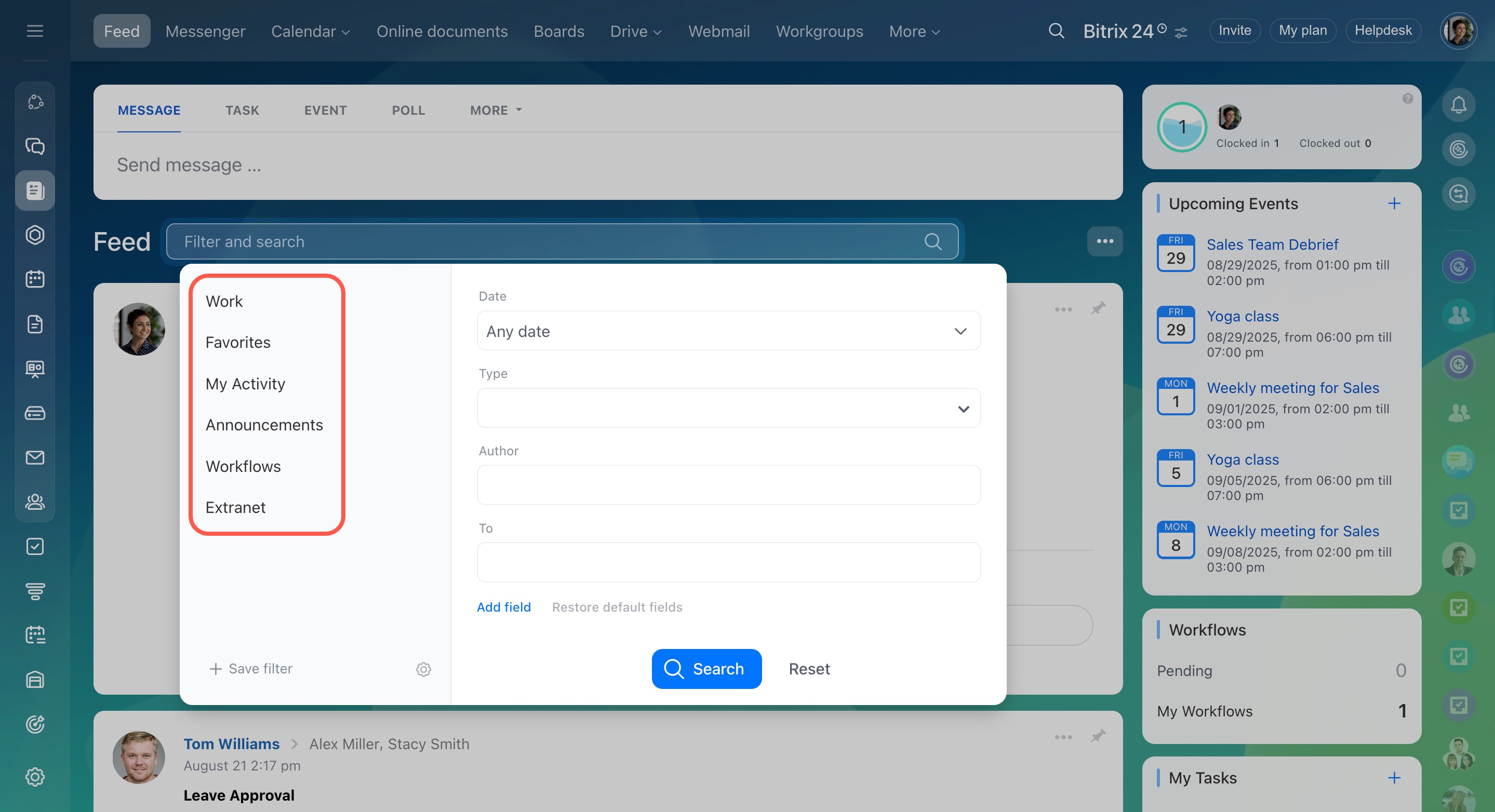
The table below describes the default filters.
| Filter | Description |
|---|---|
| Work | Shows posts about work reports, work time management, and tasks. |
| Favorites |
Shows messages added to favorites. Pin and add Feed posts to favorites |
| My activity | Shows messages you created. |
| Announcements |
Shows announcement messages only. Create announcements in Feed |
| Workflows | Shows all workflows created in Feed. |
| Extranet | Shows messages sent to external users. |
Filter messages by field
You can also use the fields on the right to refine your search results.

Click Add field to select more fields.

The table below describes each field.
| Field | Description |
|---|---|
| Date | Select a date or date range to find posts created on a specific date or during a specific period. |
| Type | Filter messages by type: posts, announcements, appreciations, or polls. |
| Author | Select a user to find messages created by that user. |
| To | Select a user to filter messages by recipient. |
| Favorites | Find all posts you added to favorites. |
| Tag | Enter a tag added to messages. |
| Extranet | Choose whether to show messages addressed to external users. |
Create custom filters
In addition to standard filters, you can create a custom filter with your own settings.
- Set field values on the right.
- Click + Save Filter under the list of filters.
- Enter the filter name on the left.
- Click Save at the bottom of the section.


To manage filters, click the gear (⚙️) under the filter list. Then, pin, edit, or delete filters using the corresponding buttons.

Account administrators can save configured filters for all account users. To do this, turn on .

In brief
The Search and filter section in Feed helps you find the messages you need. You can:
- Search Feed by keyword.
- Apply standard filters on the left.
- Enter values in the fields on the right.
- Create a custom filter with your own settings.