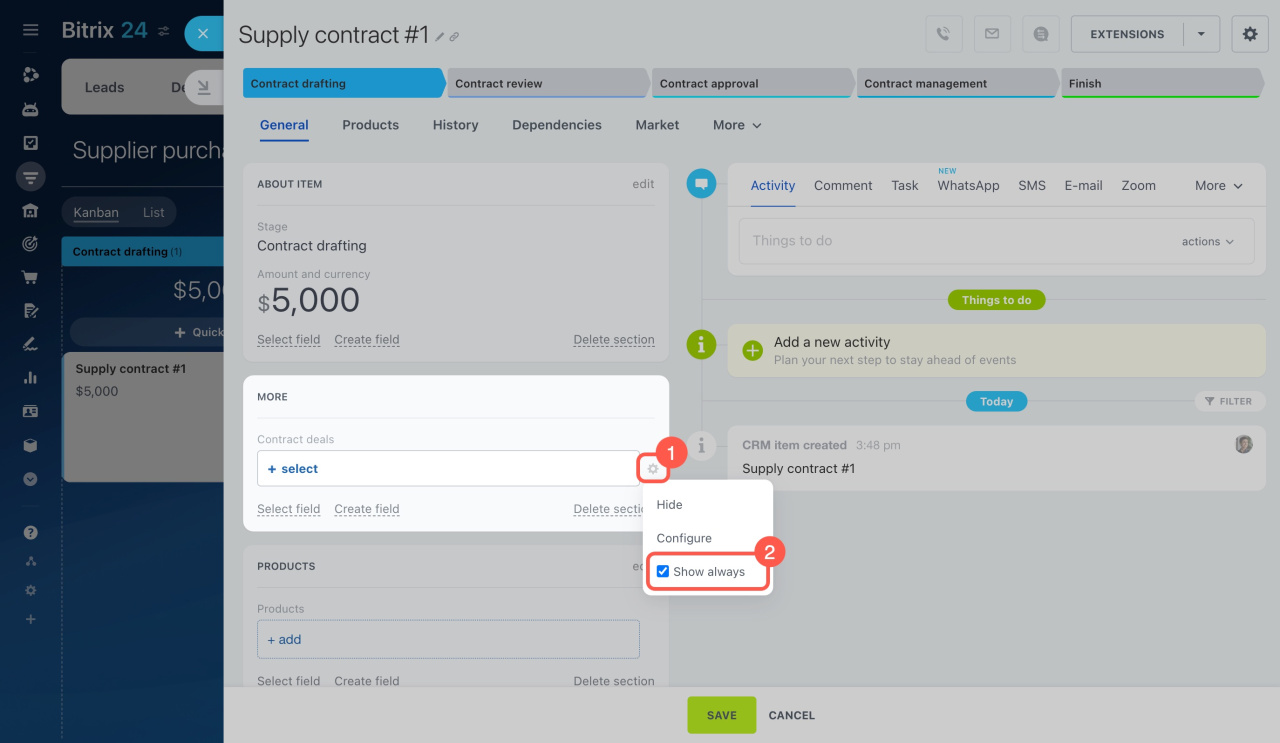
Consider an example of using a Smart Process Automation (SPA) in a company that repairs cars and sells parts. The company doesn't manufacture parts but buys them form factory suppliers. We'll use SPA to manage contracts with manufacturers, separating customer and supplier interactions.
Create and configure a new SPA
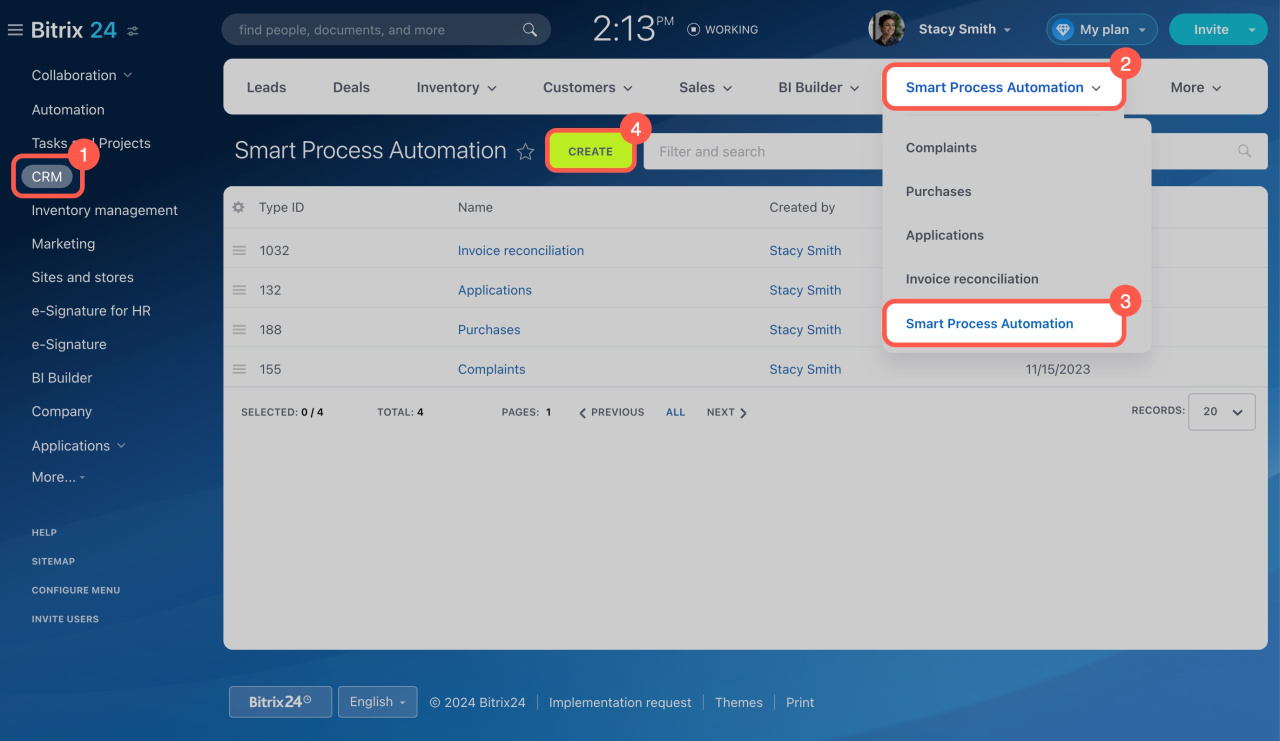
To create a new SPA, go to CRM > Smart Process Automation > Smart Process Automation > Create.
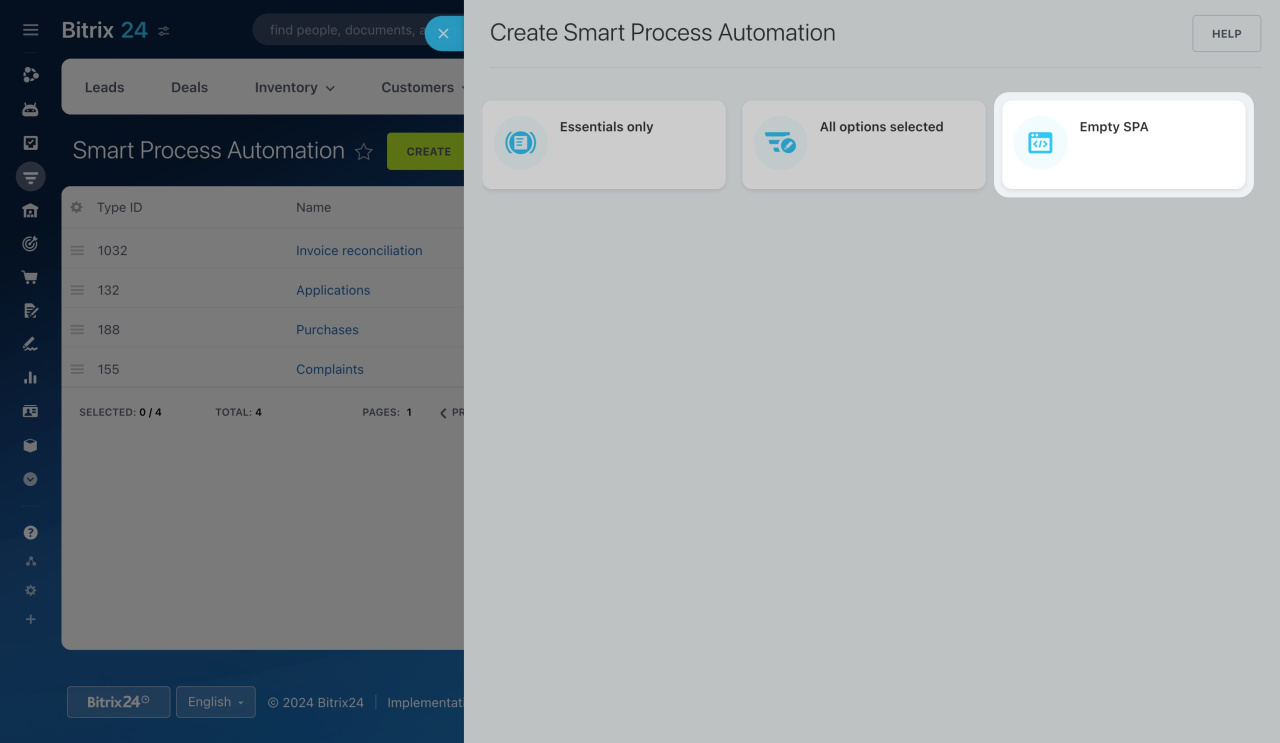
Select the Empty SPA template to set up the parameters you want.
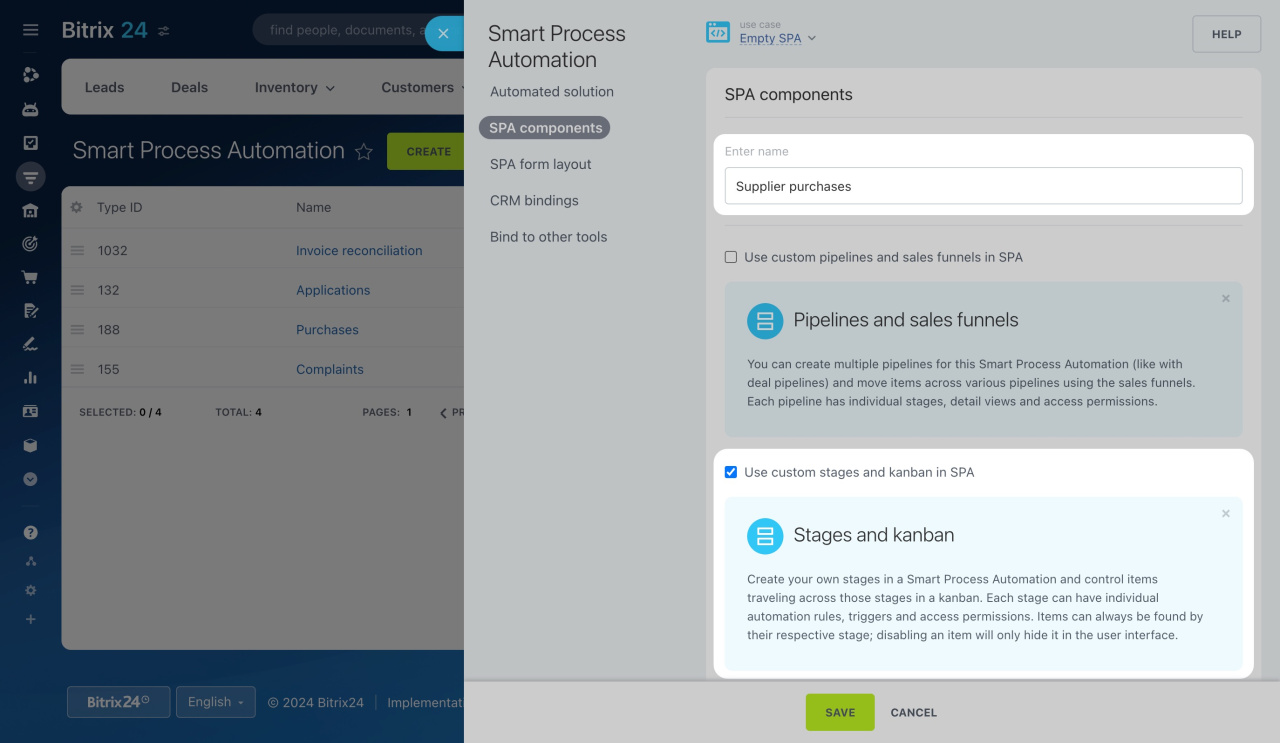
Specify a name for the Smart Process Automation and select tools. For our example, we'll use custom stages and kanban to manage contracts with manufacturers.
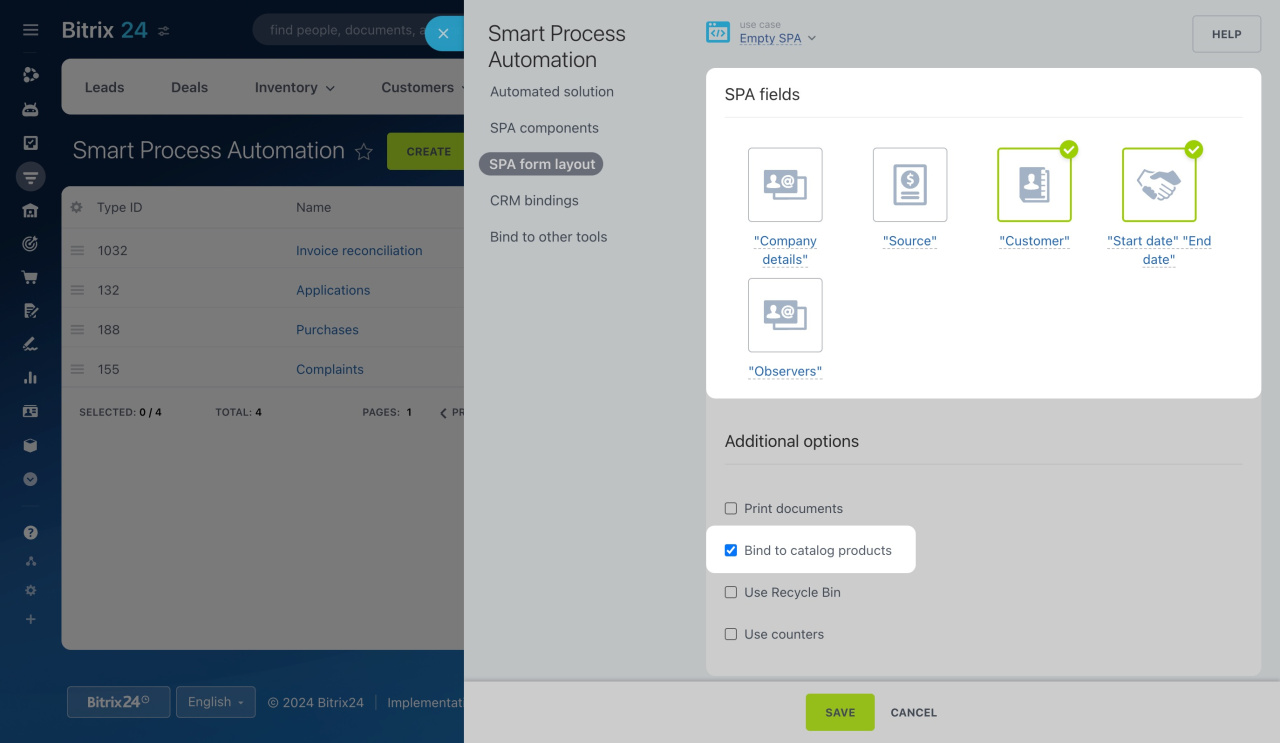
Then add the "Customer" and "Start date/End date" for the SPA form to specify the supplier and contract term. Enable the Bind to catalog products option to list products delivered under the contract.
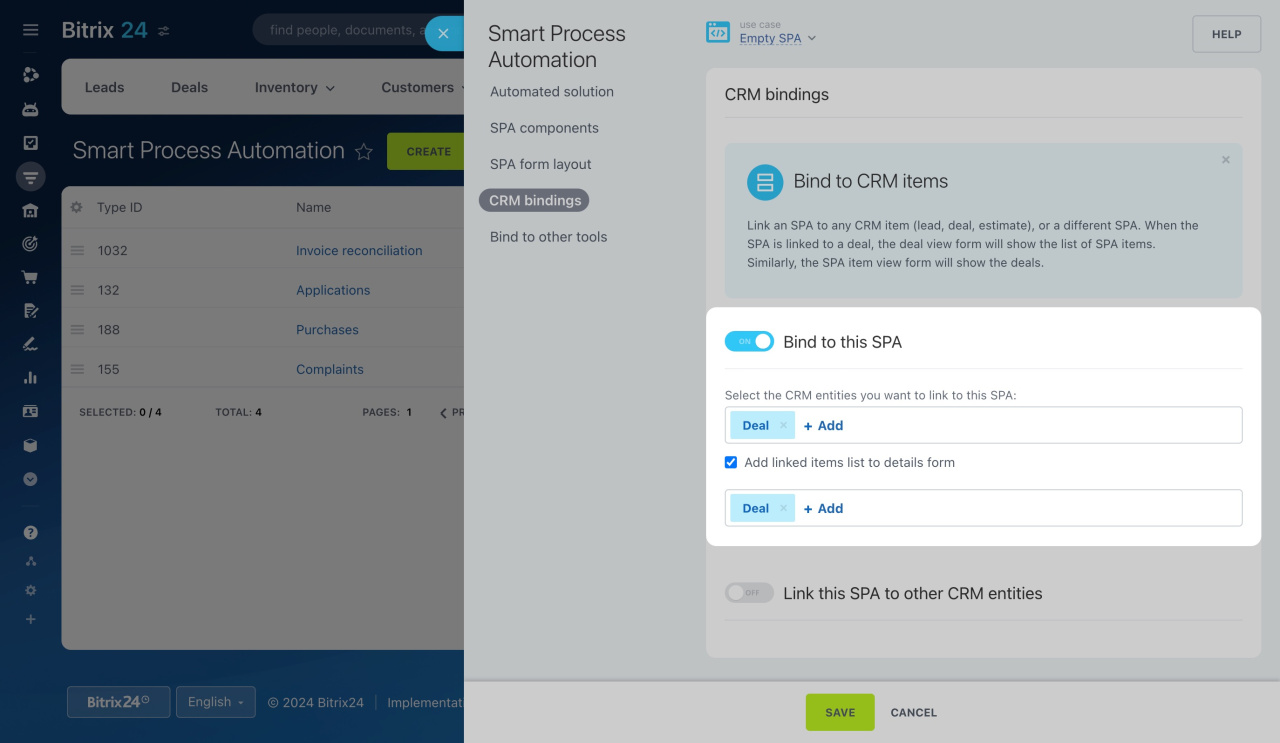
Link deals to the SPA to specify which are related to the contract.
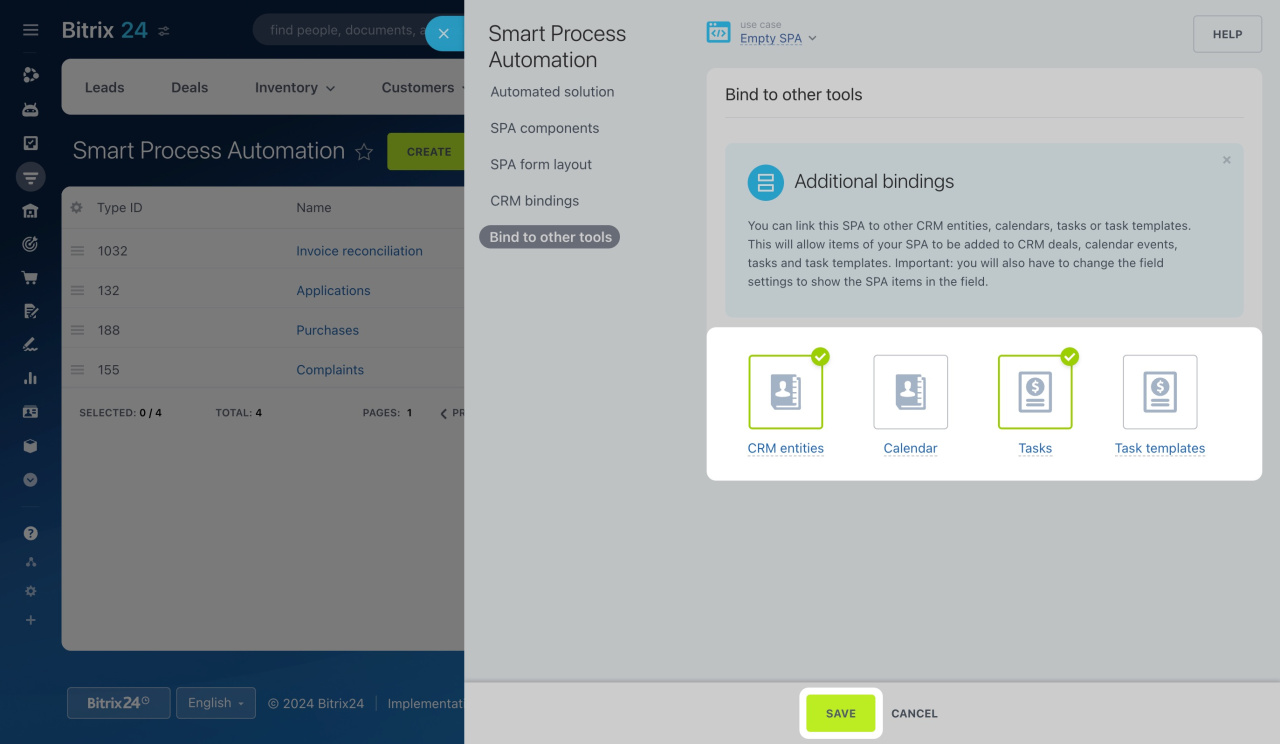
Link the SPA to tasks to specify its items in contract renegotiation tasks. Once done, save the settings.
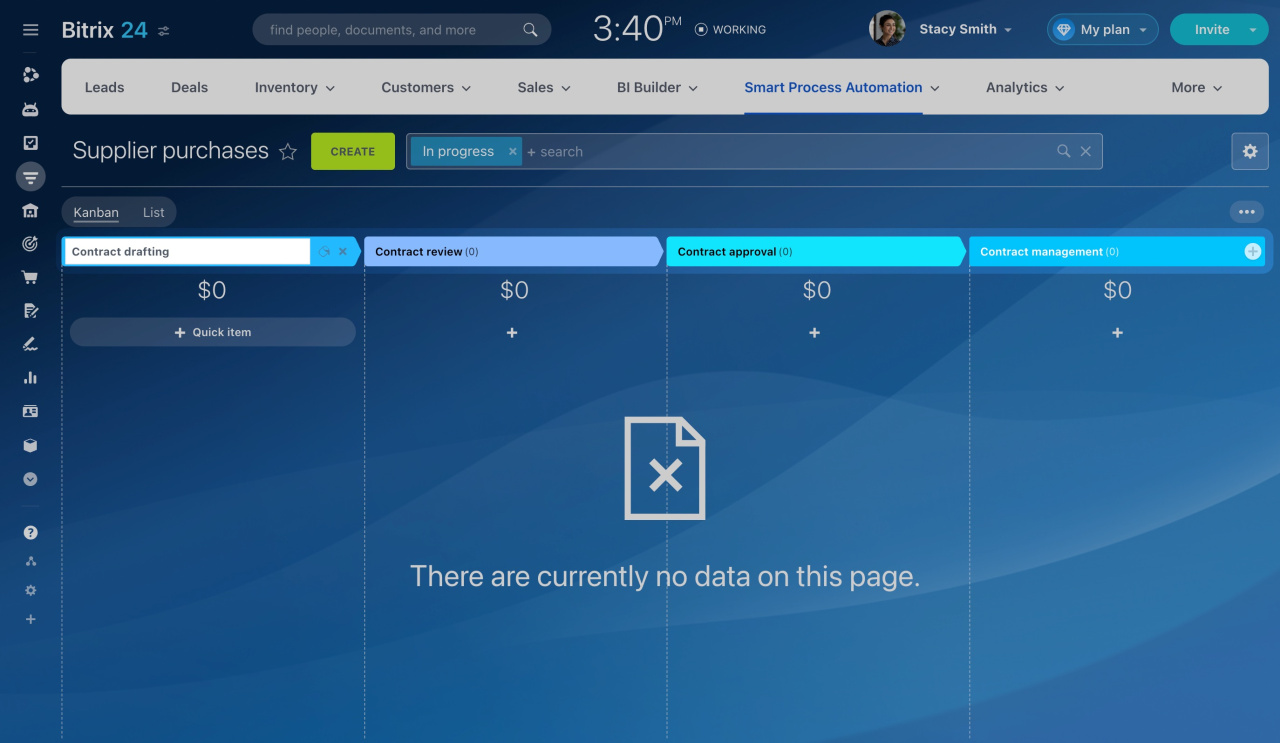
Go to the SPA and set up the stages.
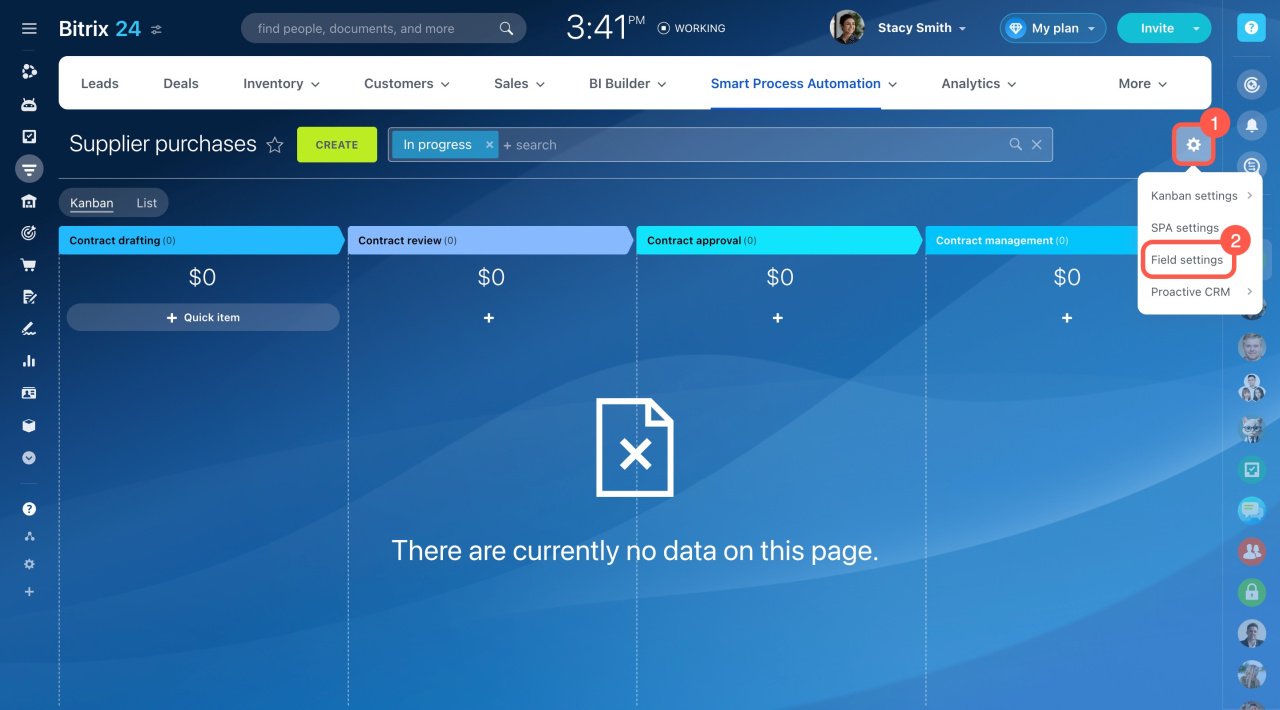
Create a field to track multiple deals within a contract:
- Click the gear button (⚙️).
- Select Field settings.
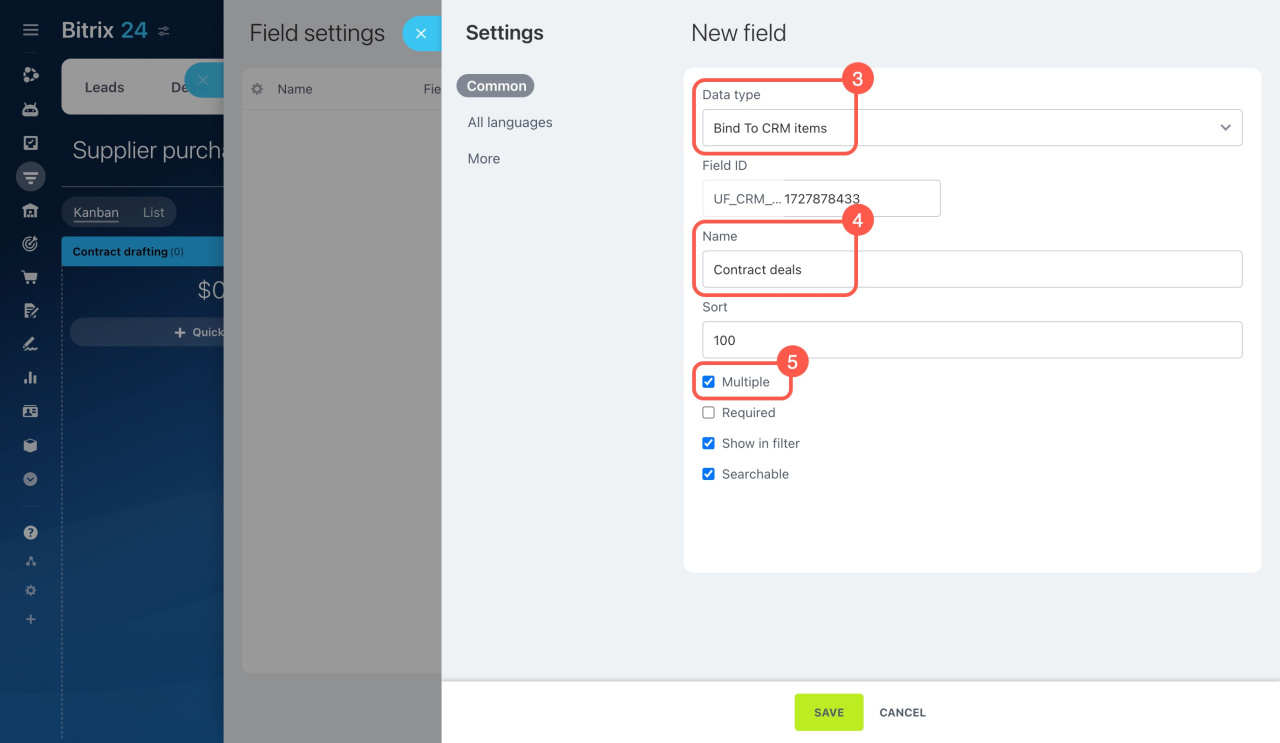
- Click Create in the top right corner.
- Select the Bind to CRM Items type.
- Specify the field name and enable the Multiple option.
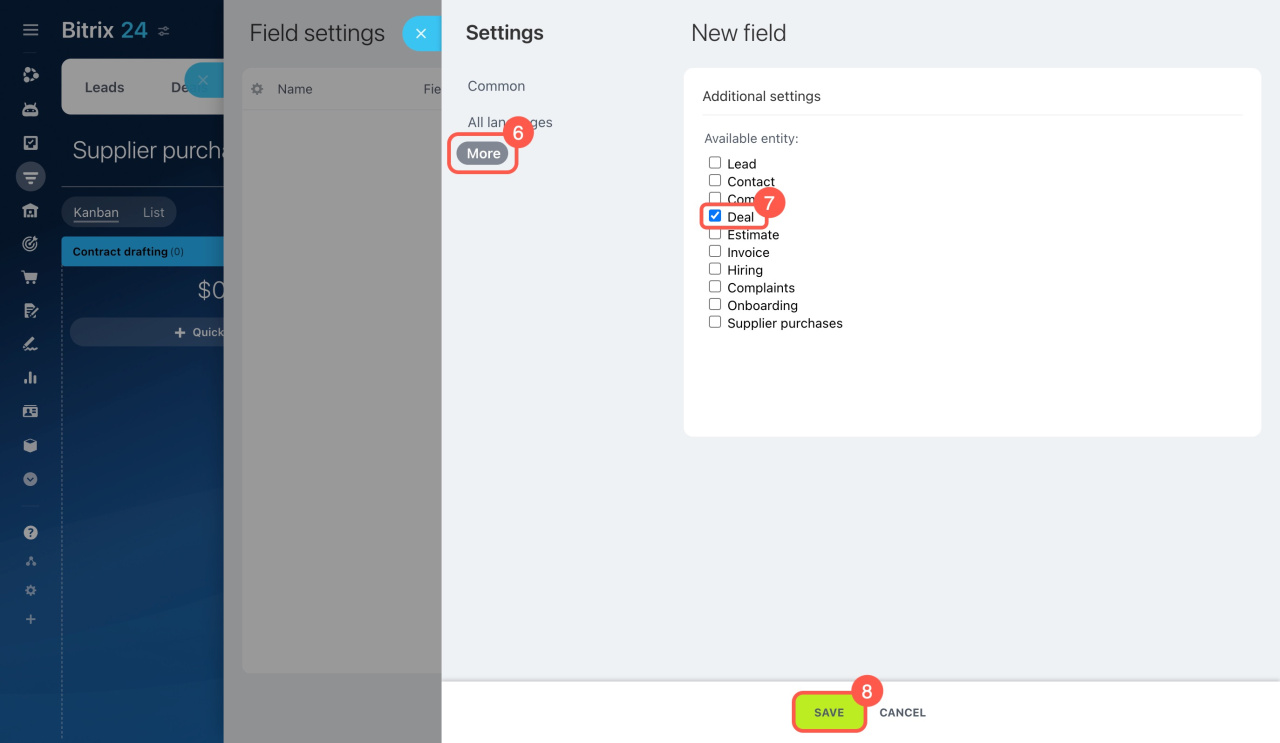
- In the More tab, select the Deals.
- Save the field.
Custom fields in invoices and Smart Process Automation
Configure fields in kanban form view
Add and manage SPA items
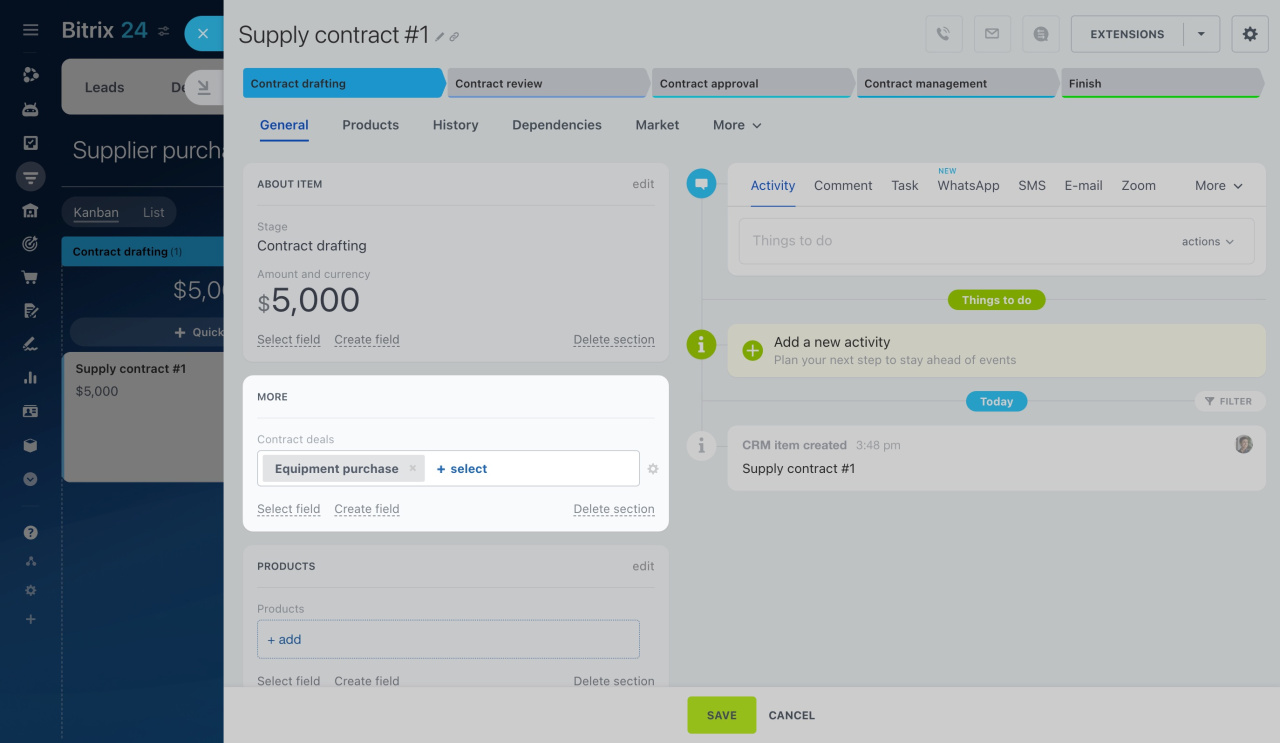
Go to the SPA and click + Quick item under the first stage name to add a new supply contract. When customers make a purchase, select the related deals in the contract form to track the total number of deals in each contract.
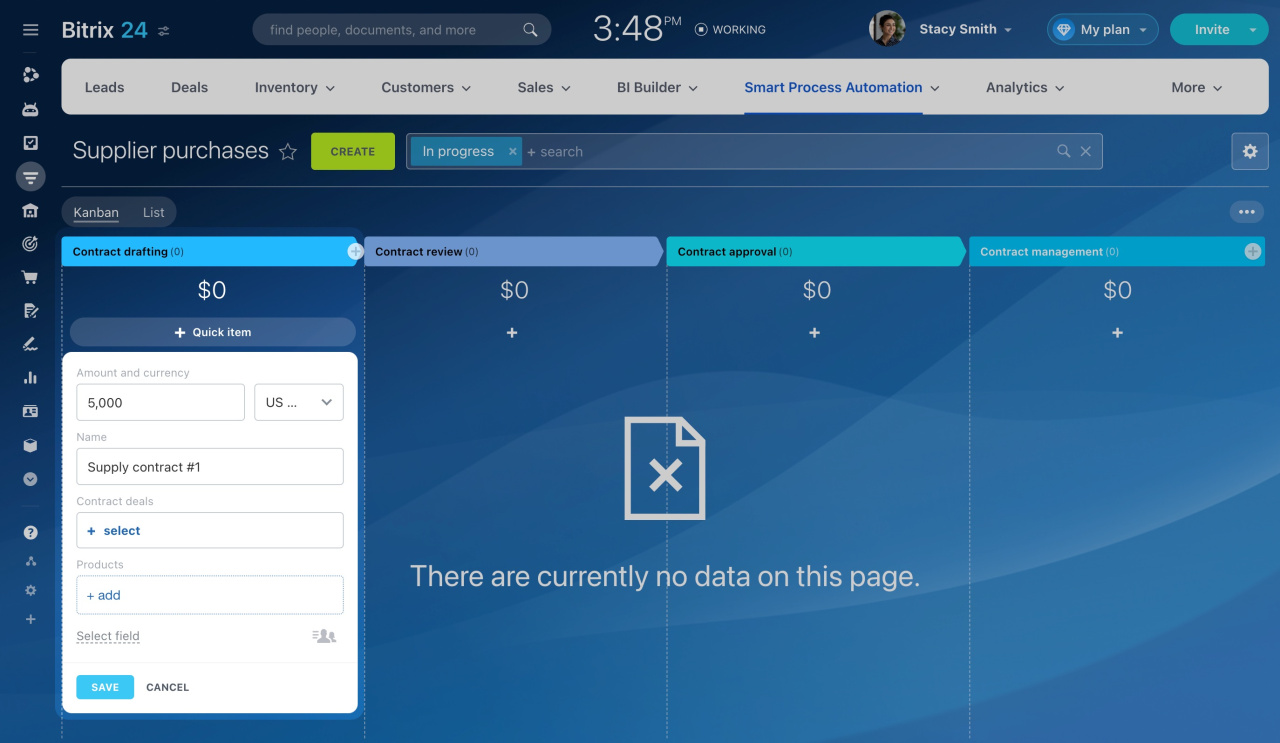
To set up the visibility of empty fields, use the Show always option.
CRM entity form