
A newsfeed helps you share company updates, industry news, and useful content. It keeps visitors engaged and improves search visibility. You can add a newsfeed to your Bitrix24 site and update it automatically.
In this article:
Create and configure a news source
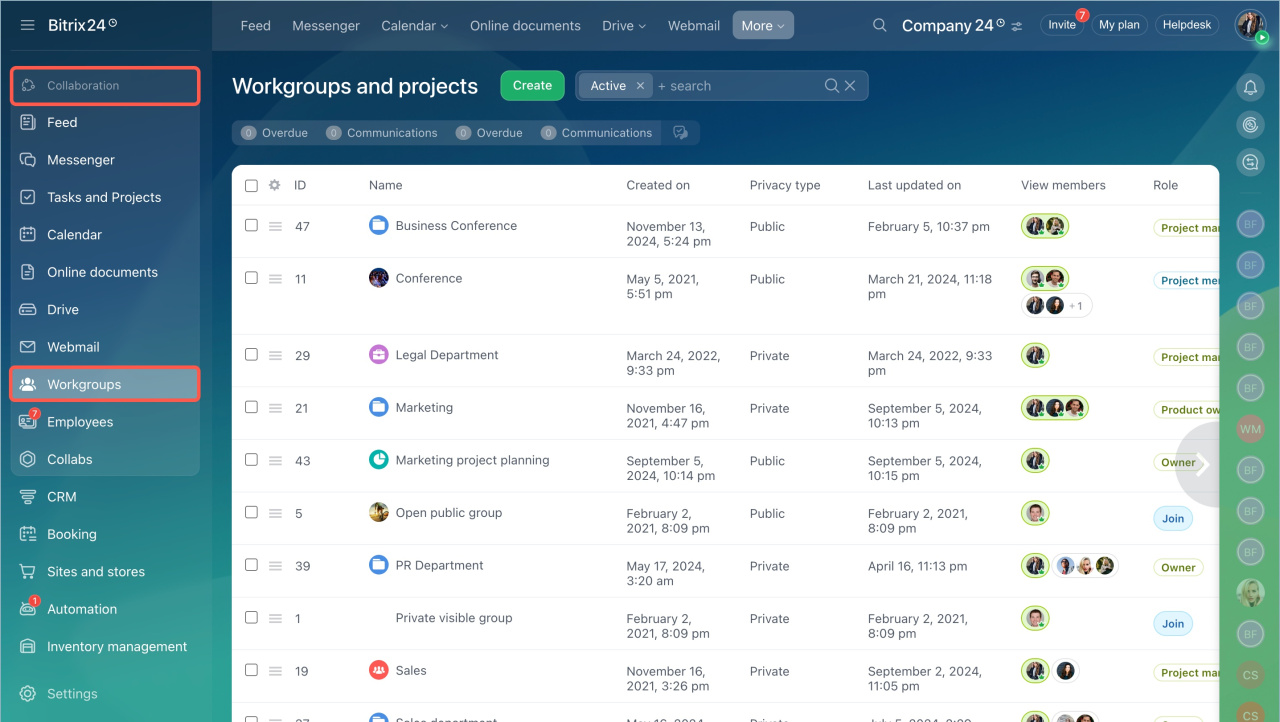
1. Create a workgroup for news
- Go to Collaboration > Workgroups.
- Open an existing workgroup or create a new one.
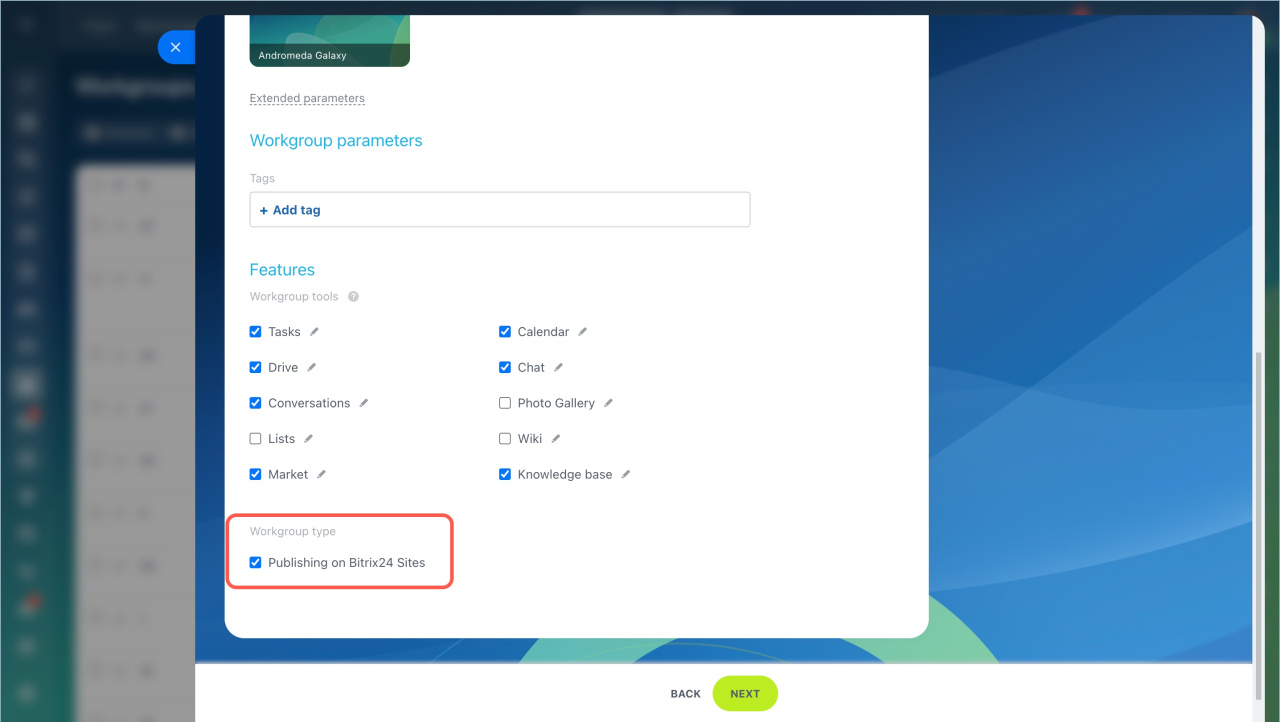
- On the Features tab, click Extended parameters.
- Enable Publishing on Bitrix24 Sites.
Create a workgroup and a project
2. Publish news in the workgroup
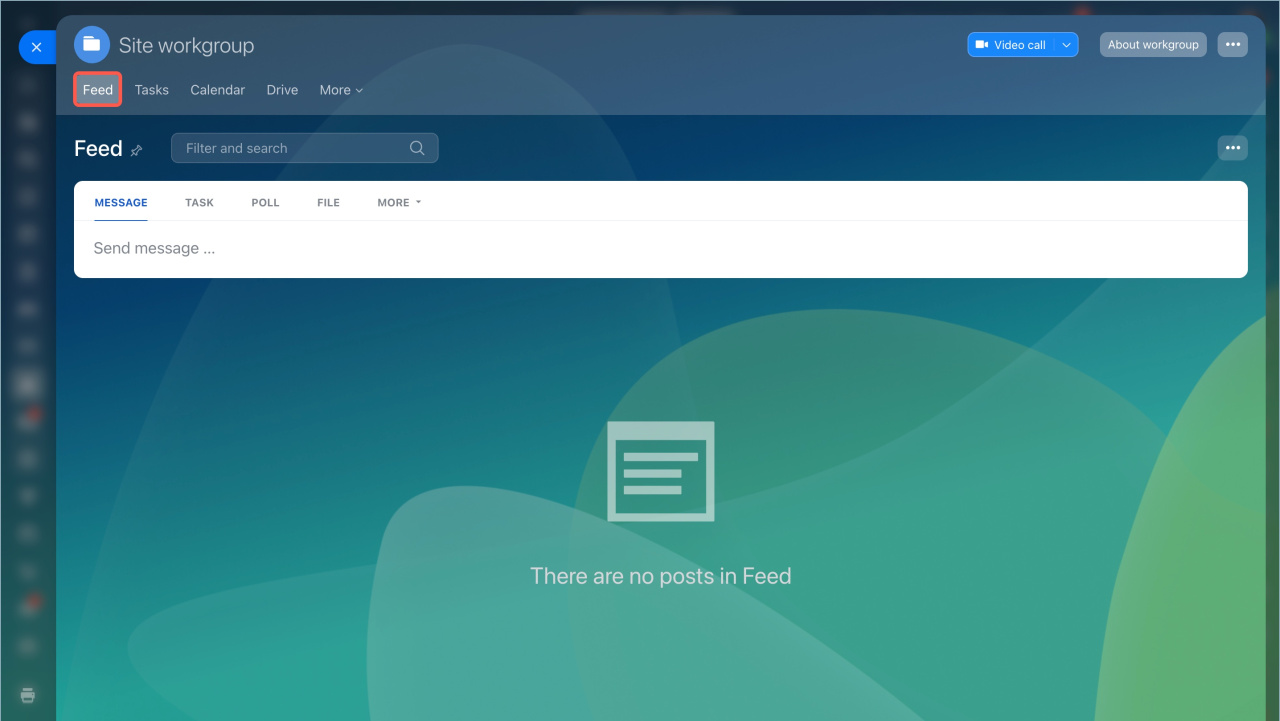
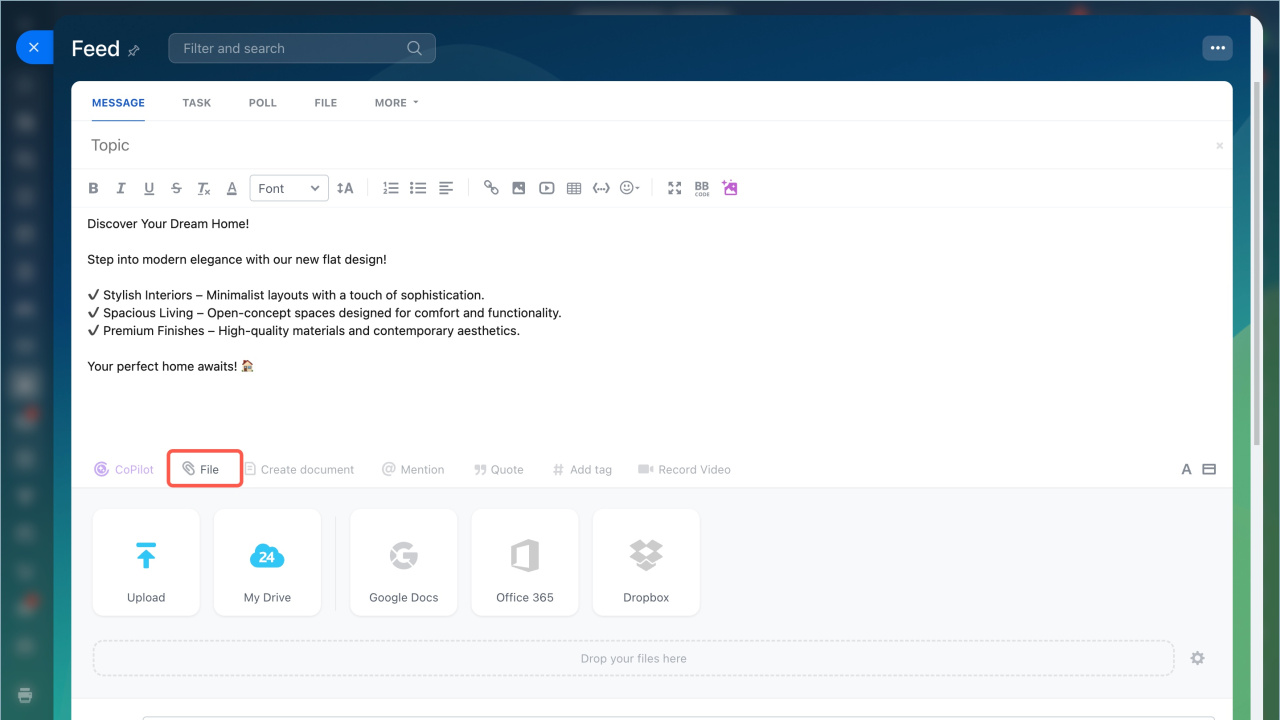
- Open the workgroup and go to Feed > Message > Send message.
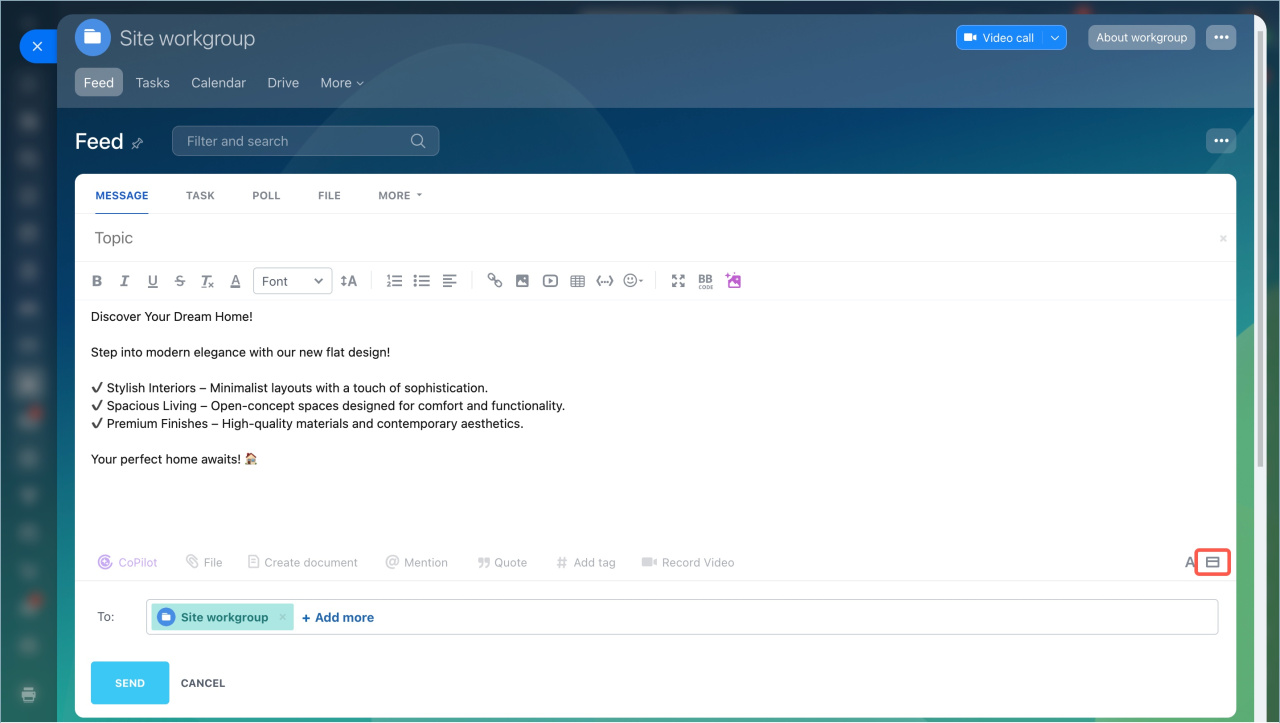
- Click the
 icon to add a title field.
 - Enter the title and text.
- Click File > Upload to add an image.
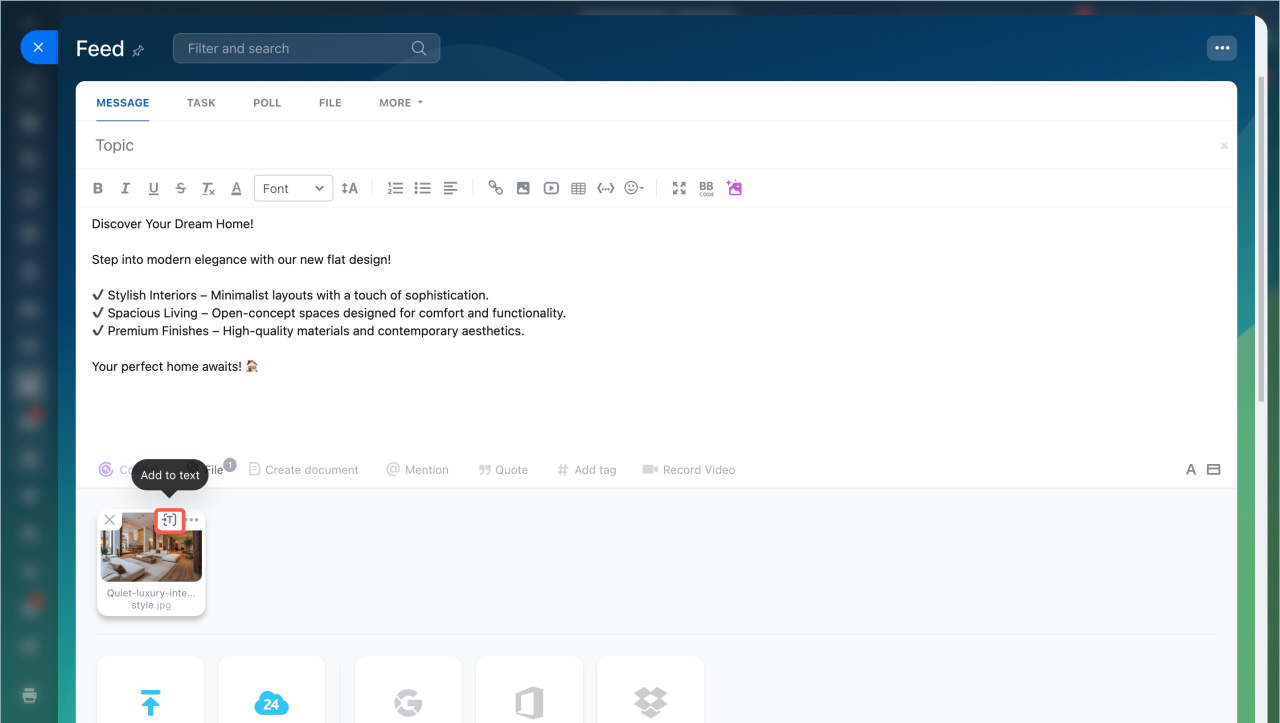
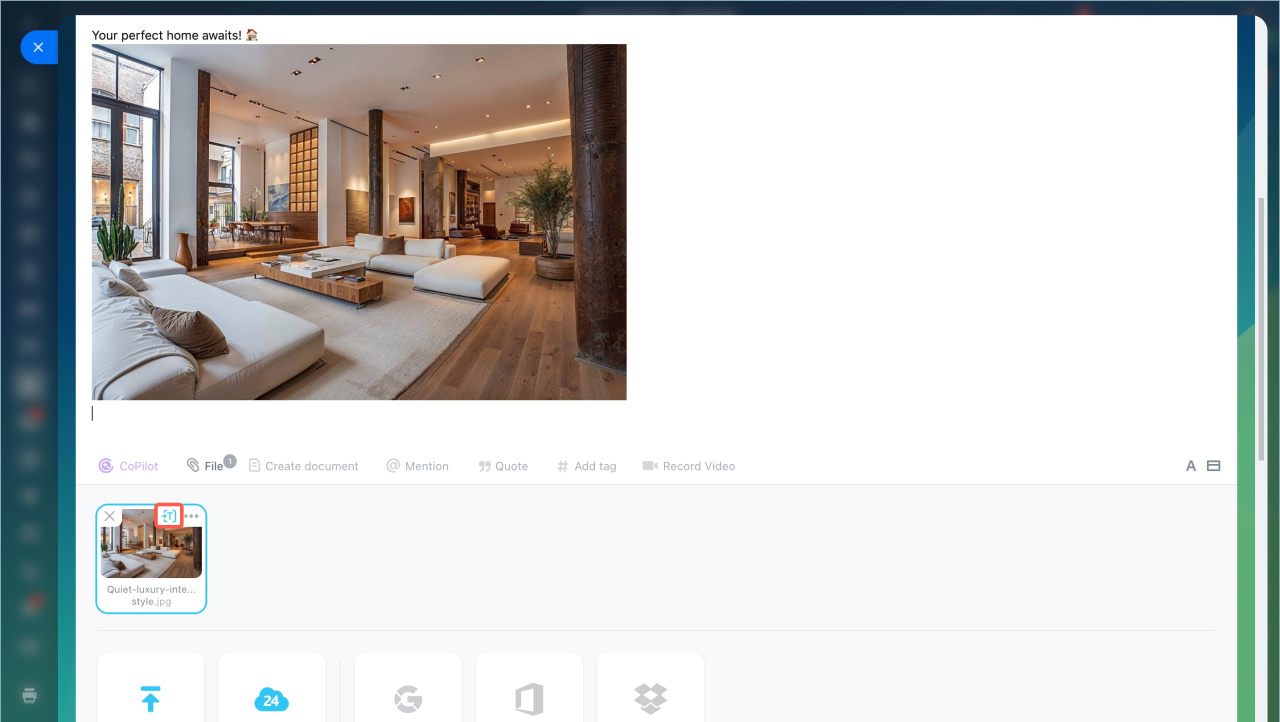
- Insert the image into the text so it appears in the site newsfeed. Hover over the image and click
 .
. - Click Send.
Add a newsfeed block to your site
1. Add the block
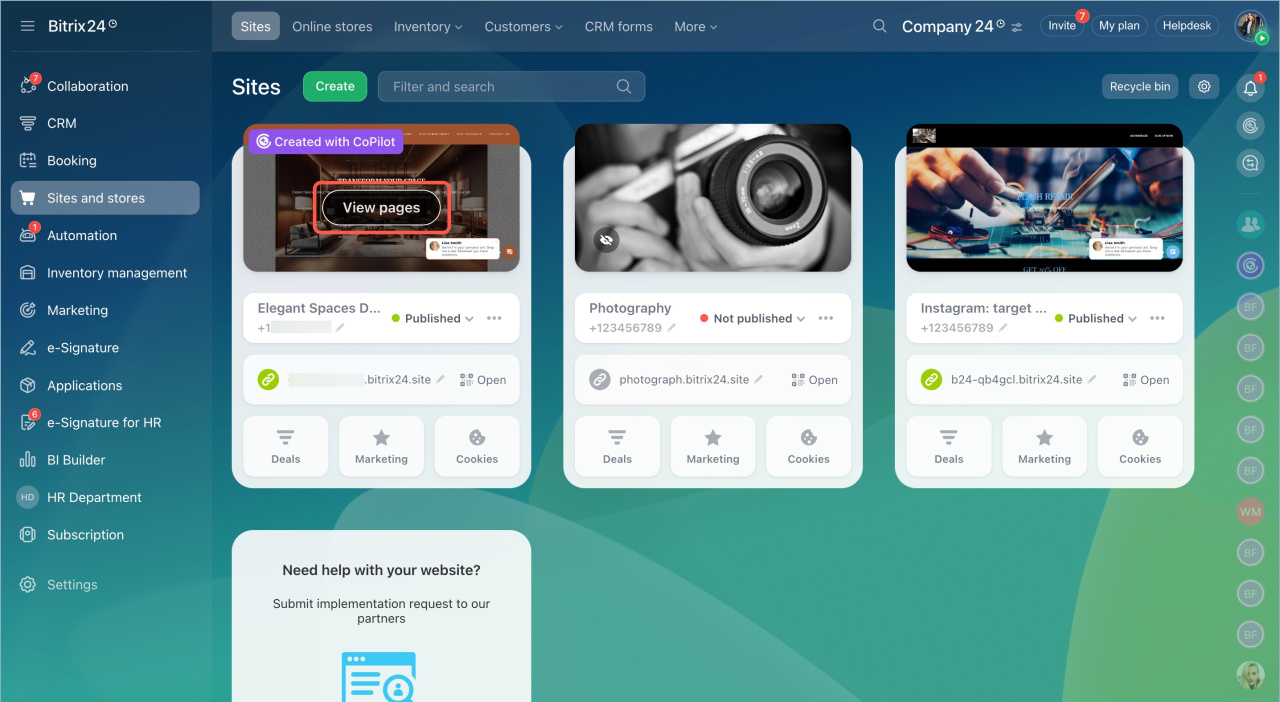
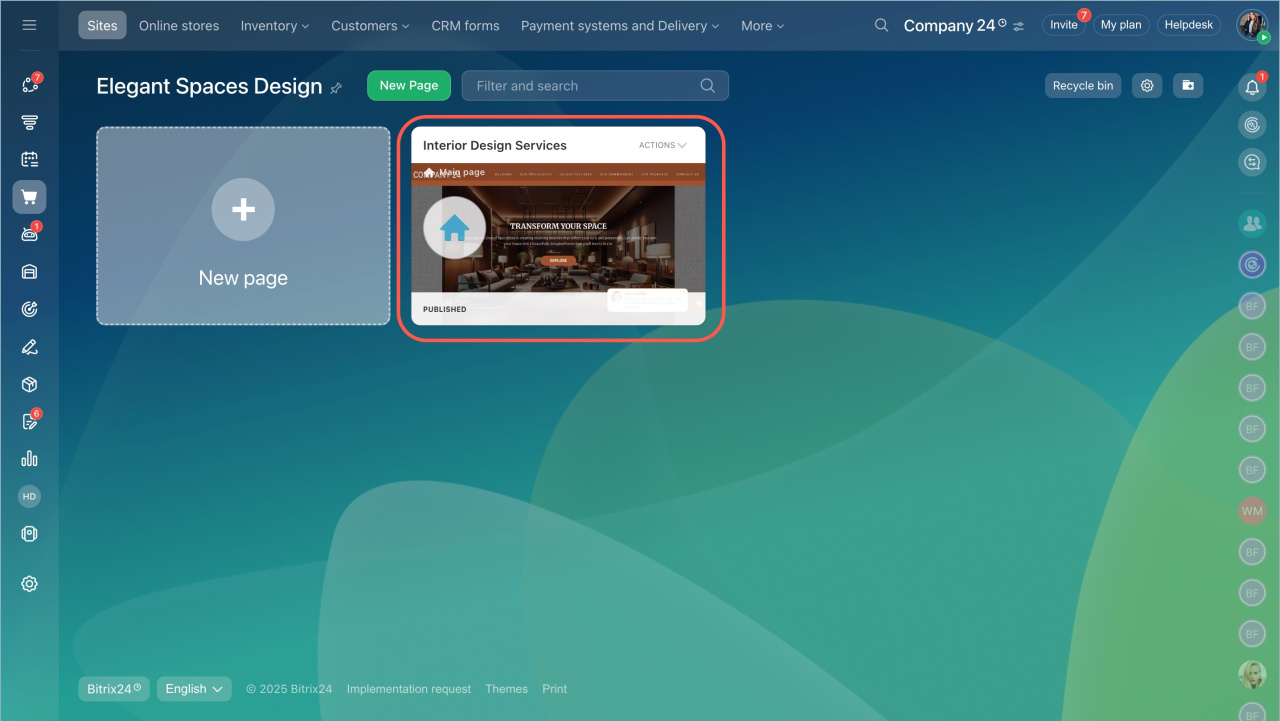
- Go to Sites and stores > Sites.
- Hover over the site and click View pages.
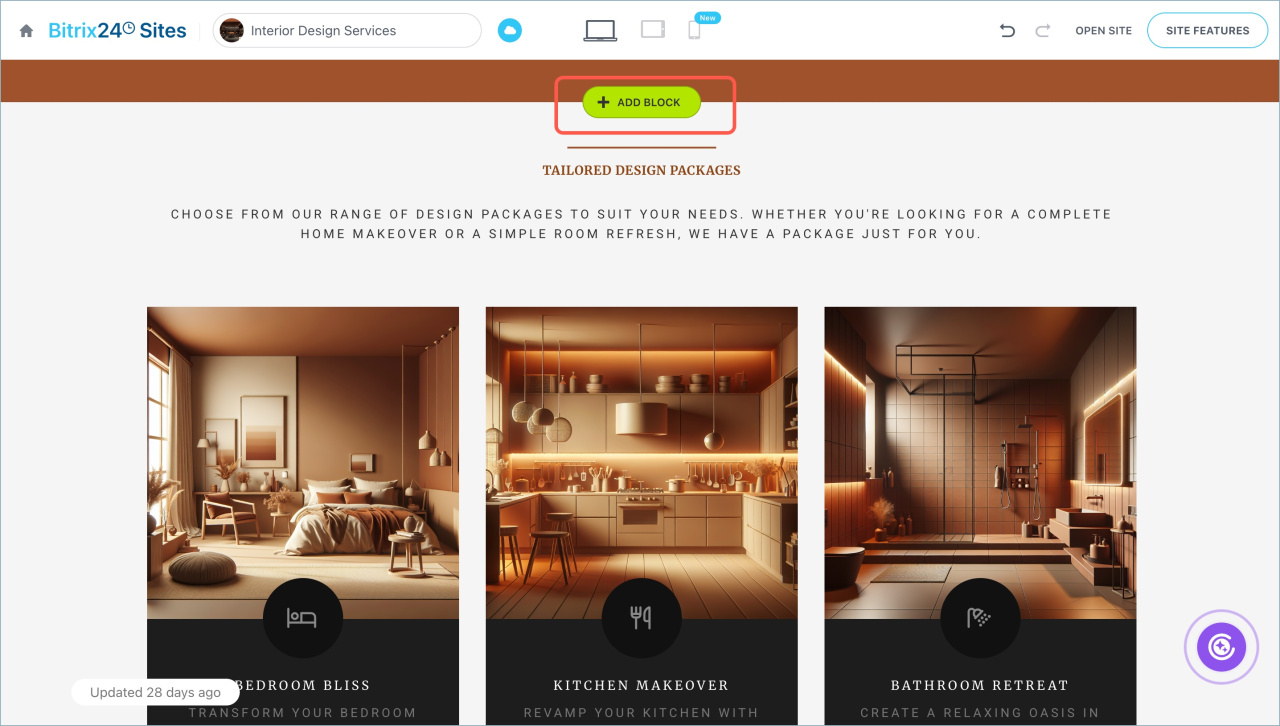
- Click Add block.
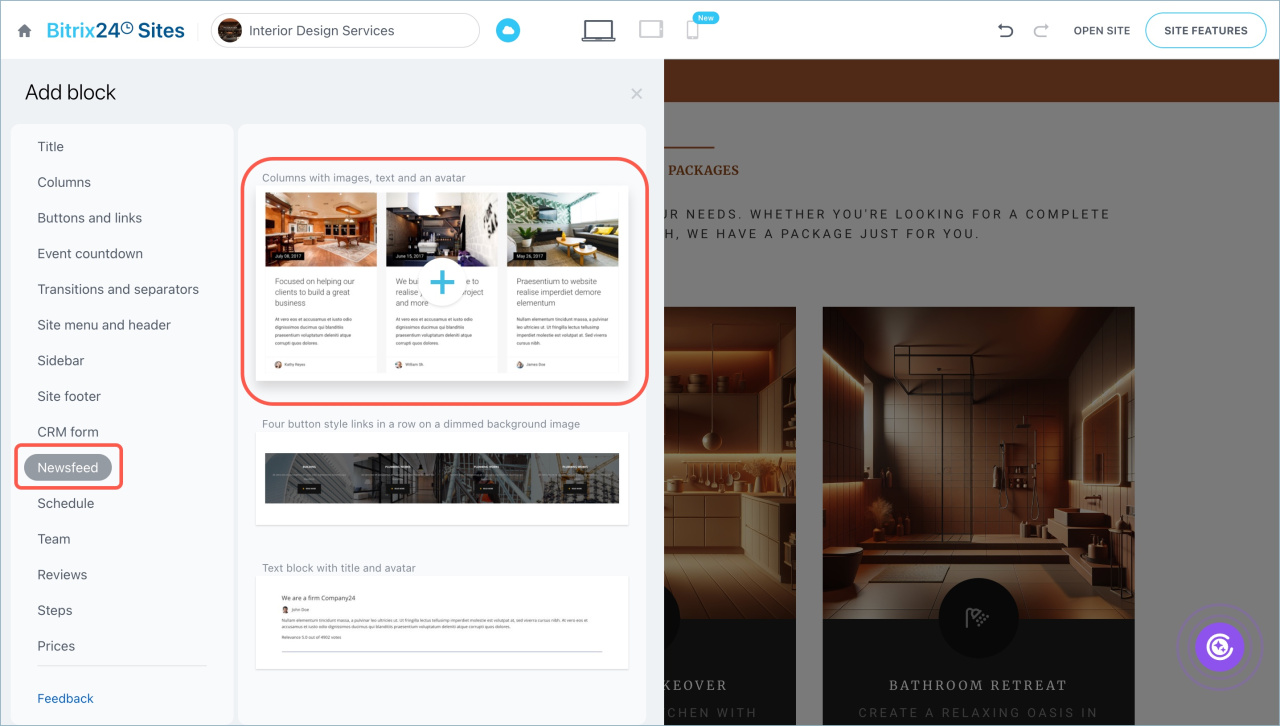
- Open the Newsfeed section and choose a block.
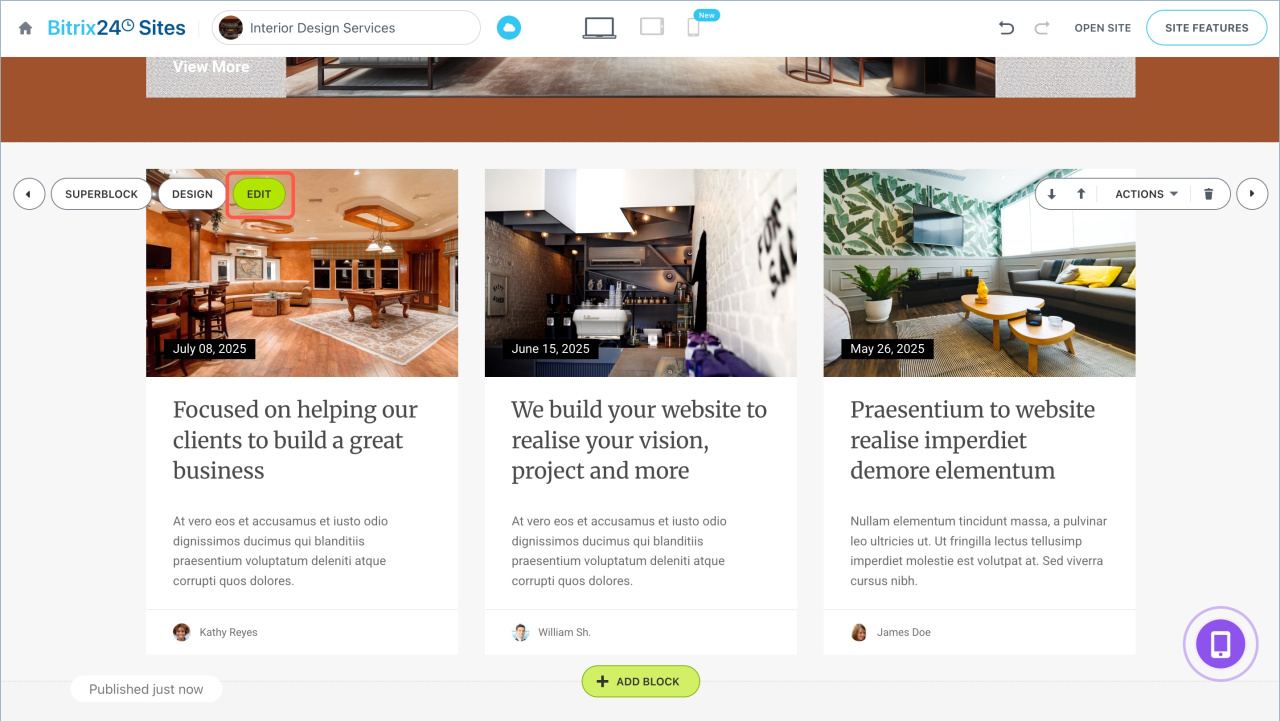
- Click Edit.
2. Link the block to a workgroup
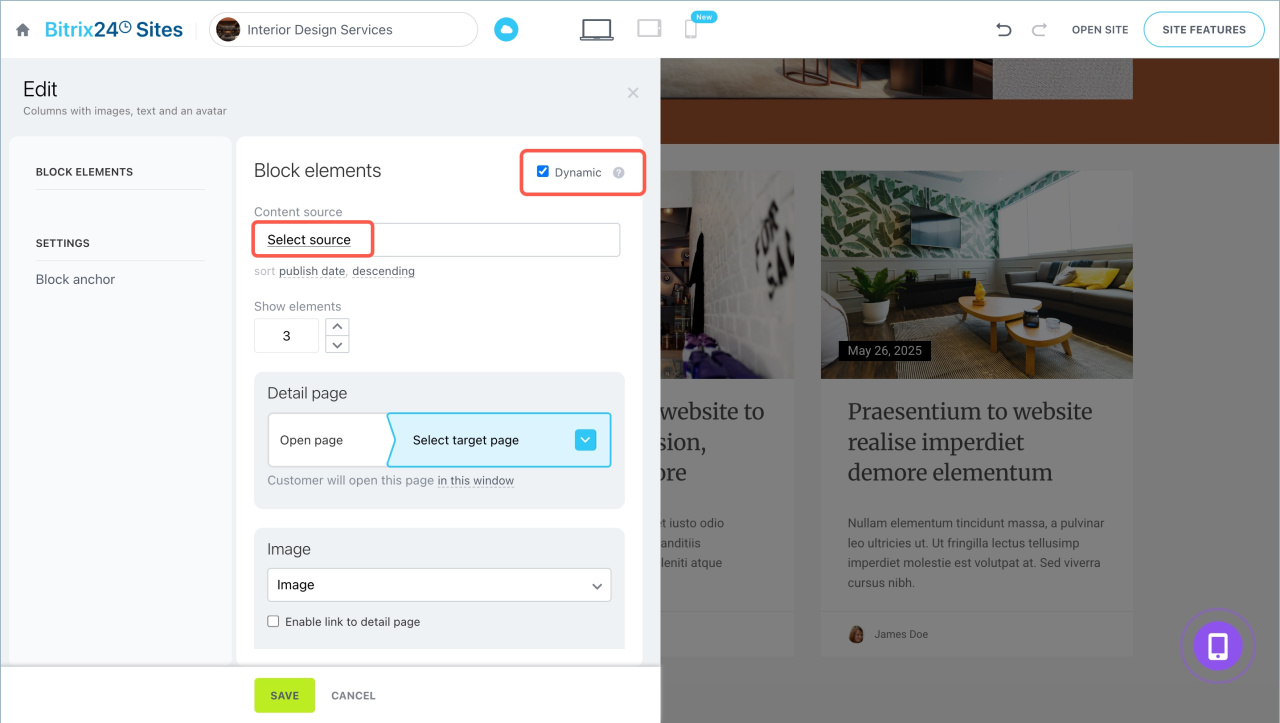
- Enable Dynamic to publish posts automatically.
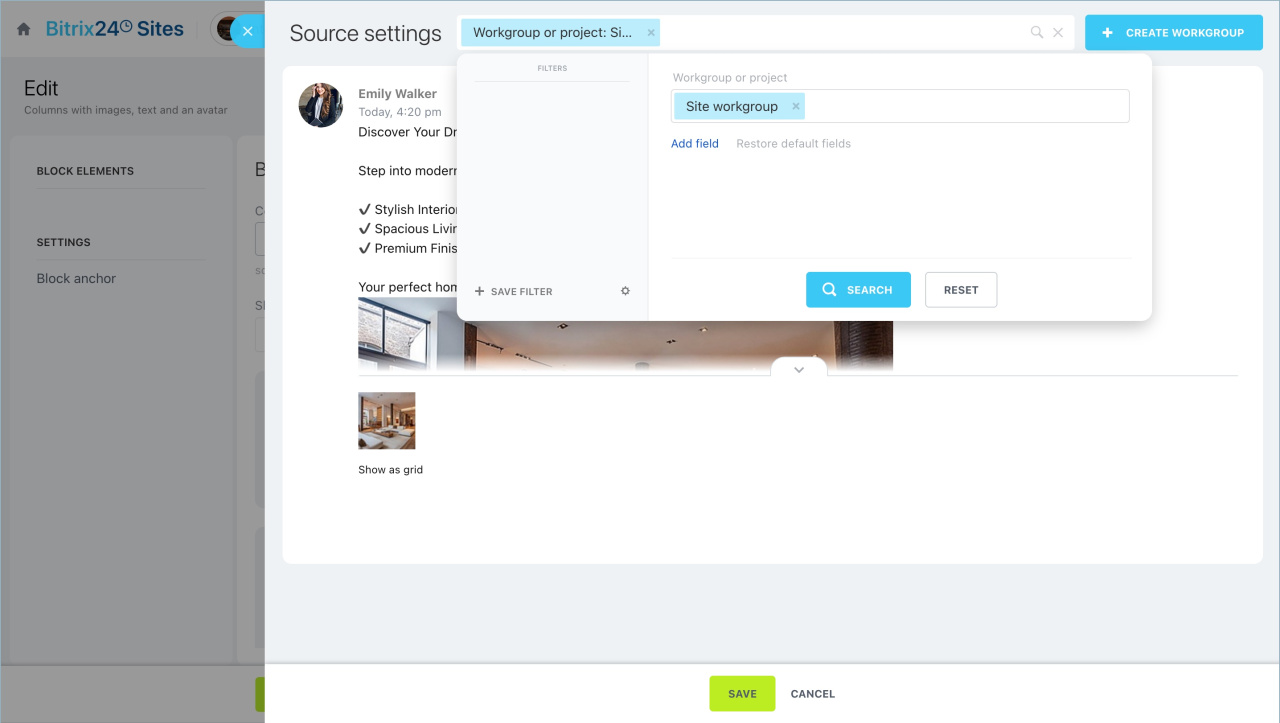
- Click Select source > Filter.
- Choose the workgroup and click Save.
3. Configure display settings
Set the number of items in Show elements.
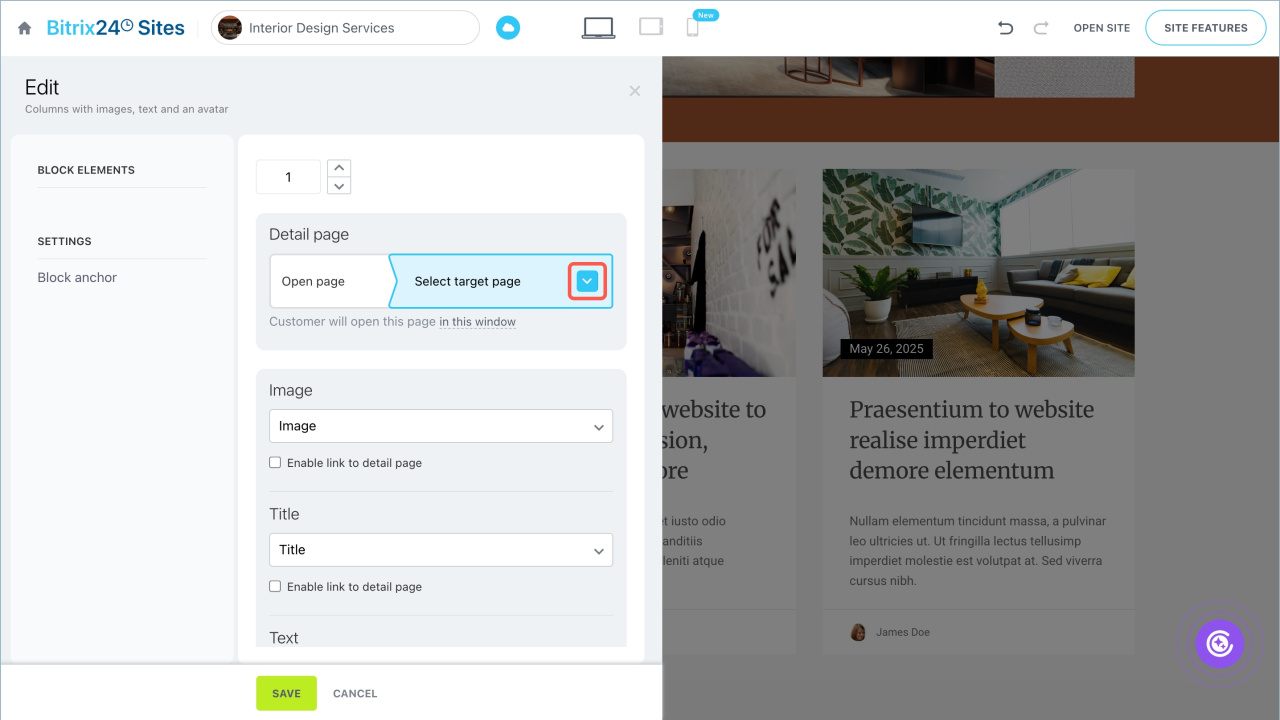
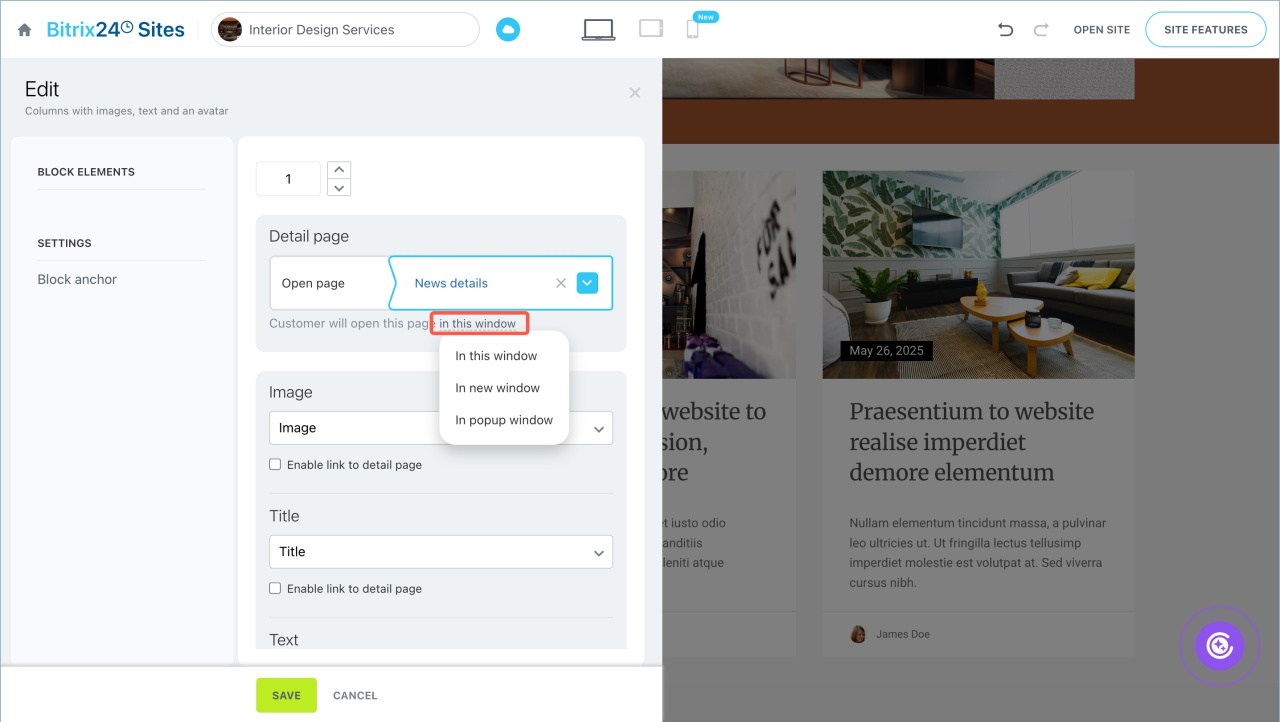
Configure the detailed page:
- Choose the target page.
- Select how it opens: same window, new window, or pop-up.
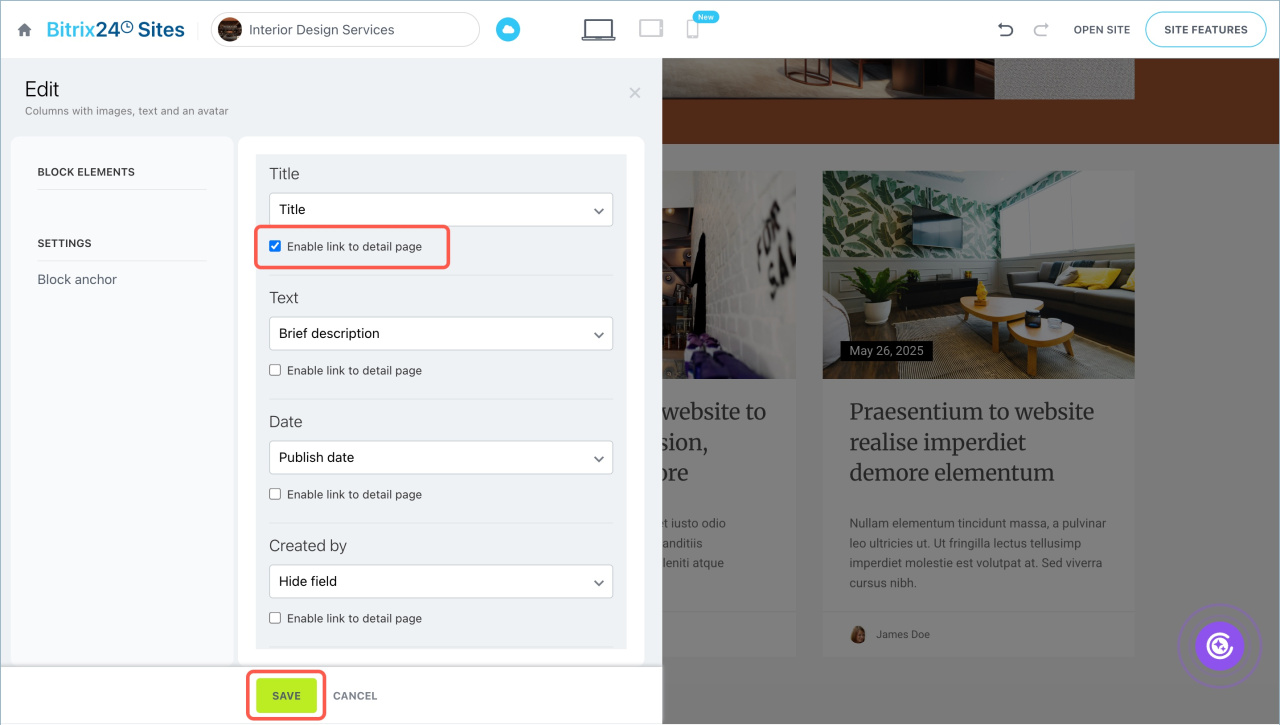
4. Customize content fields
Choose what to display in the news block:
- Subtitle
- Title
- Text — if the news includes images, select Short description for proper image display
- Link
- Image
To make elements clickable, enable Make a link to the detailed page under the field.
5. Republish the site
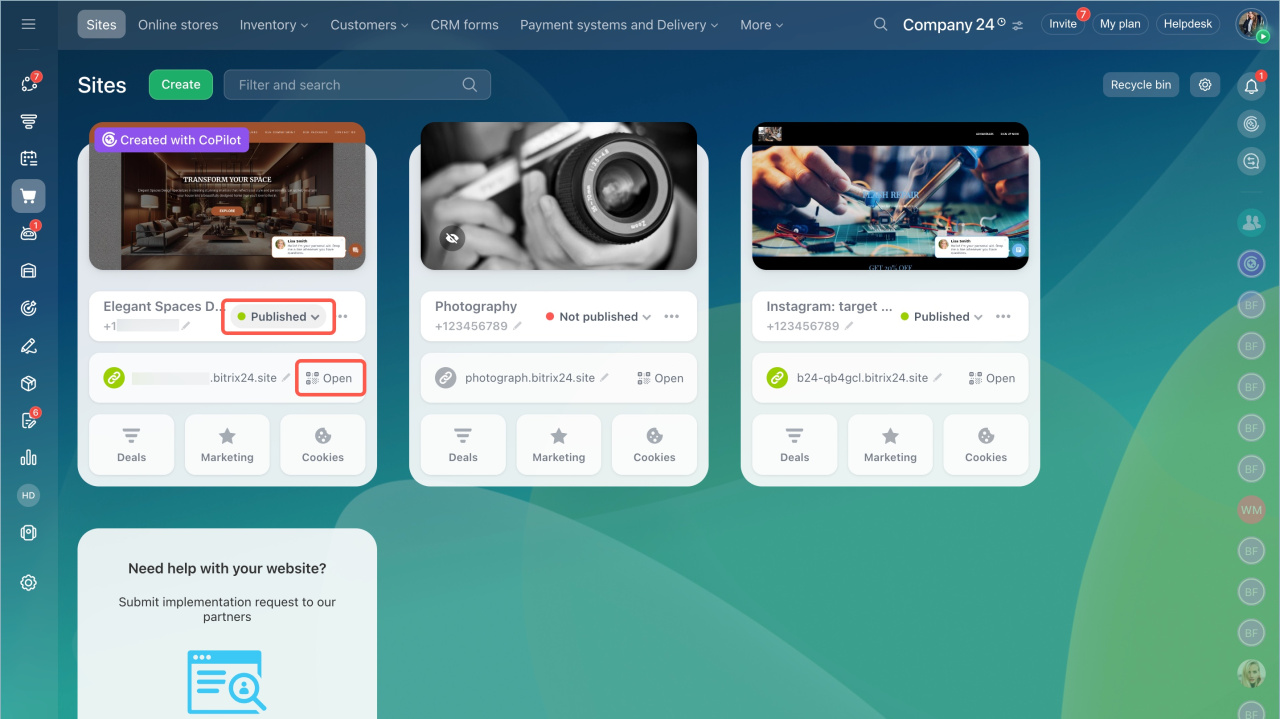
Click the  icon next to the site status. Unpublish and publish the site again.
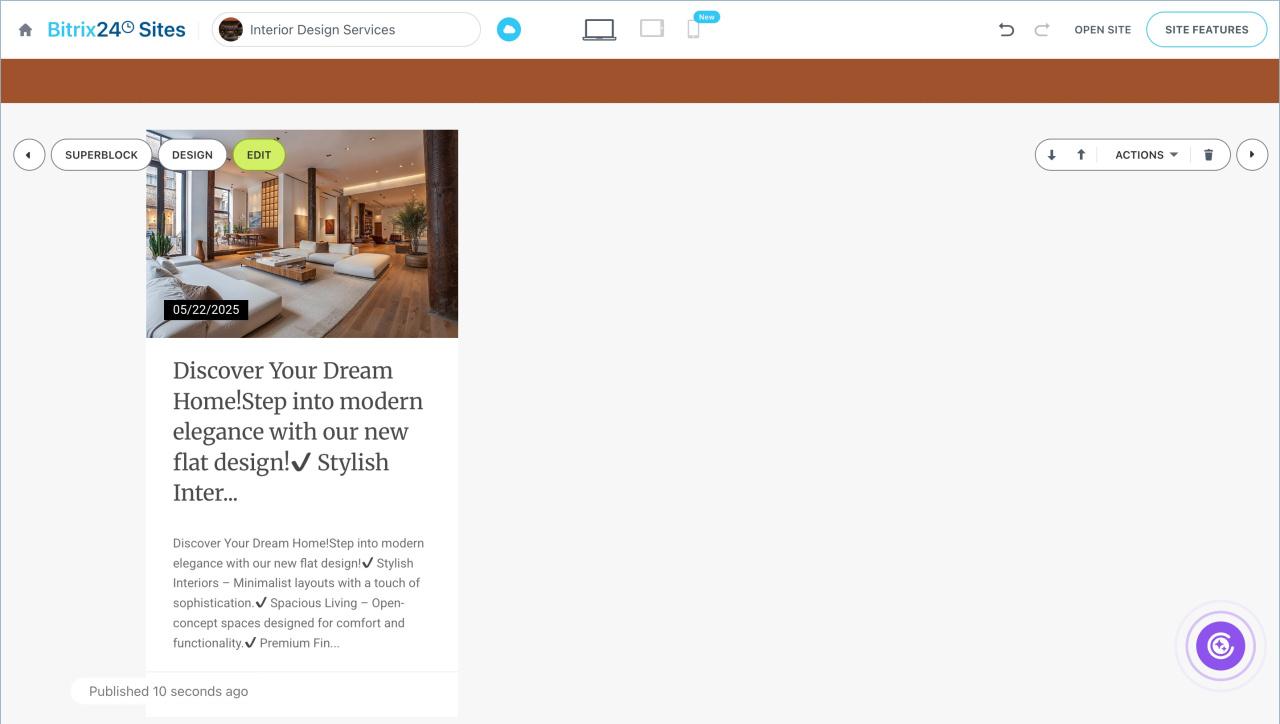
Open the site to check the newsfeed. Click the button under a post to view the full article.
In brief
- Add a newsfeed to share updates and content.
- Create or select a workgroup with Publishing on Bitrix24 Sites enabled.
- Publish posts in the workgroup. Add images inside the text.
- Add a newsfeed block to your site.
- Enable Dynamic and select the workgroup as the source.
- Choose which fields to display.
- Set up a detailed page for full posts.
- Republish the site to apply changes.