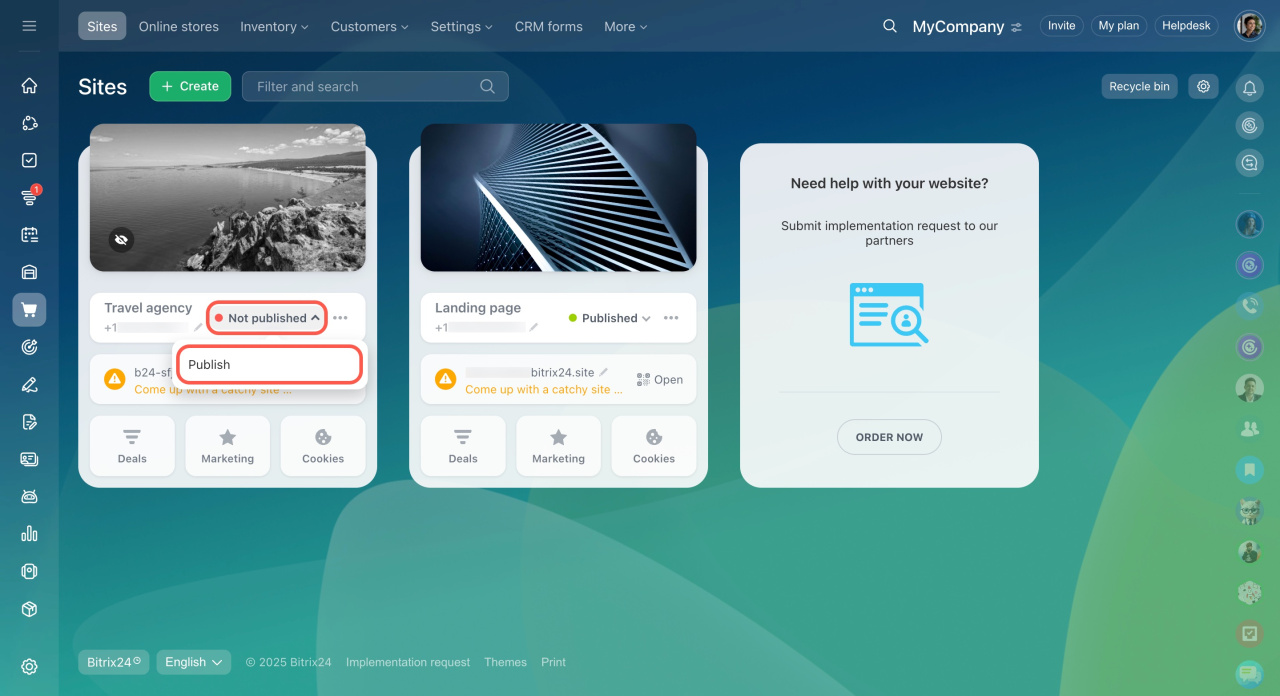
Add a Google Maps block to your site so customers can easily find your location.
To add the block:
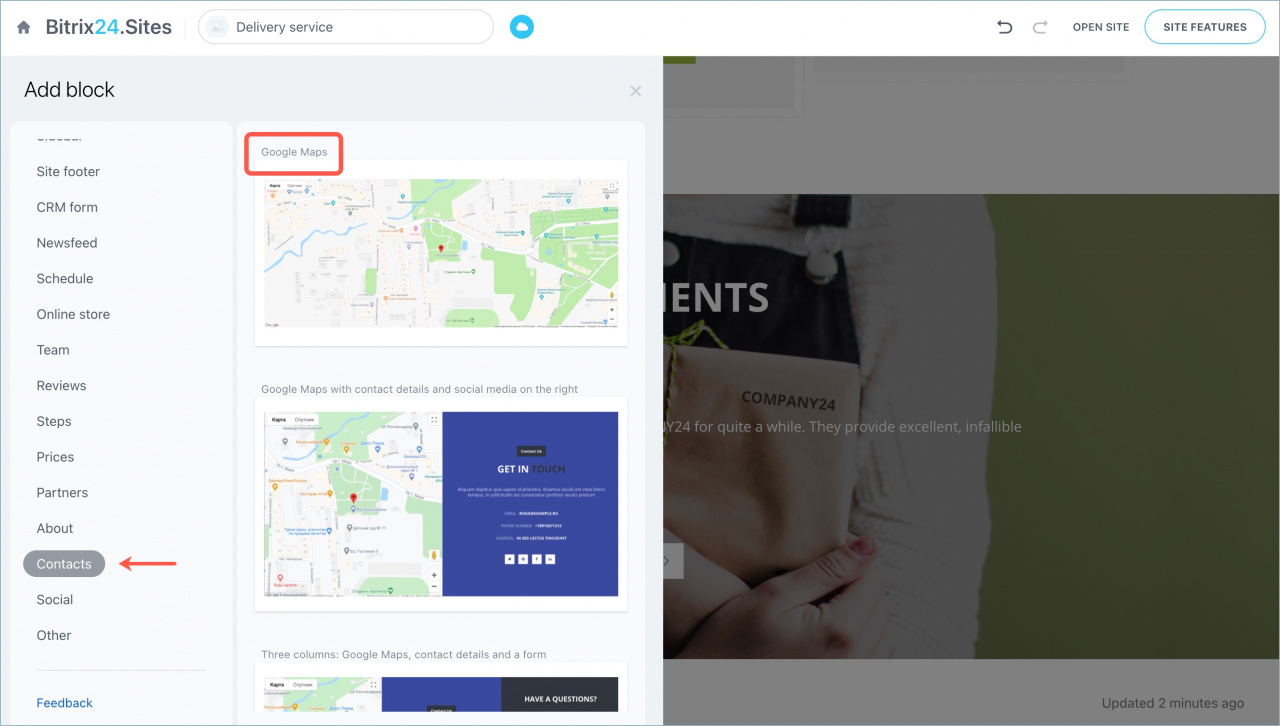
- Click Add block > Contacts > Google Maps.
To update the location:
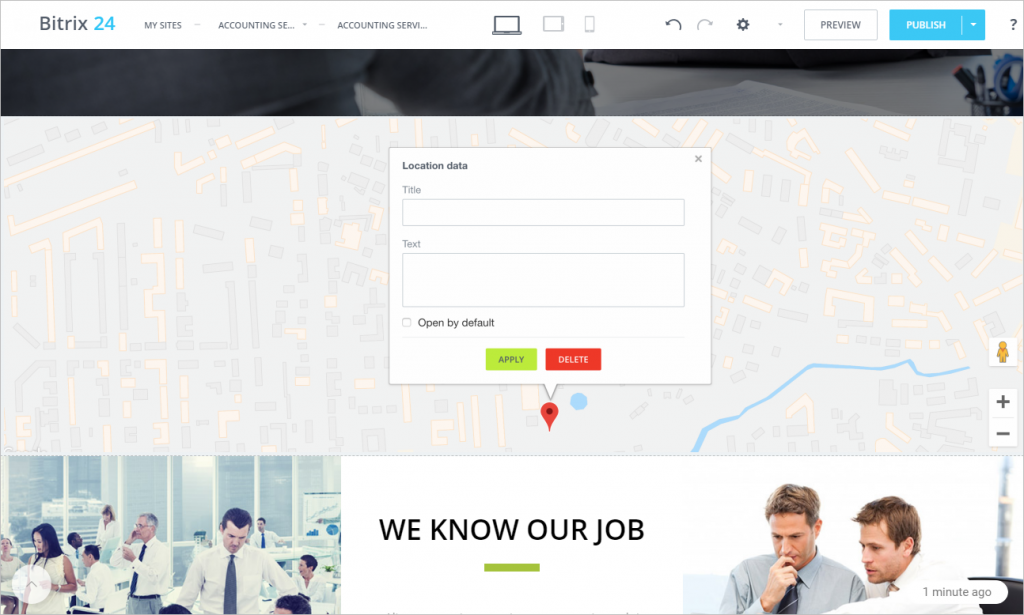
- Click anywhere on the map.
- Enter a Title and Text.
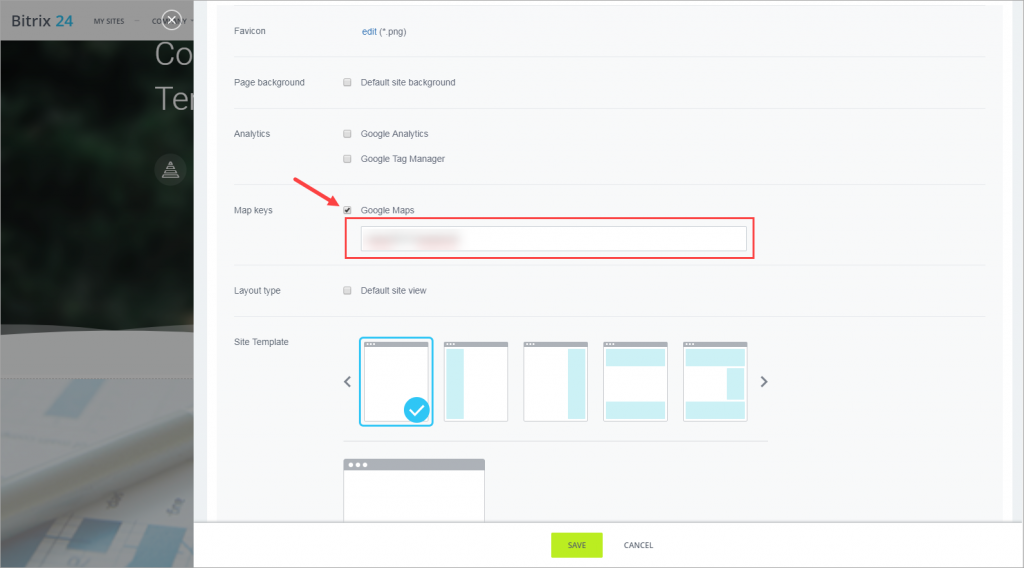
To use Google Maps in Bitrix24, you need an API key. Enter it in Site preferences.
Get a Google Maps API key
- Go to the Get an API Key page and click Go to Console.
- Create a Google payment account.
- Select your country.
- Accept the Terms of Service.
- Click Continue.
- API usage is billed separately at Google Maps Platform pricing.
- Complete the form and add a payment method.
- Click Start my free trial.
- Google may charge $1 to verify your card. This amount is refunded.
- Select the Maps service.
- In the Enable your APIs window, click Enable.
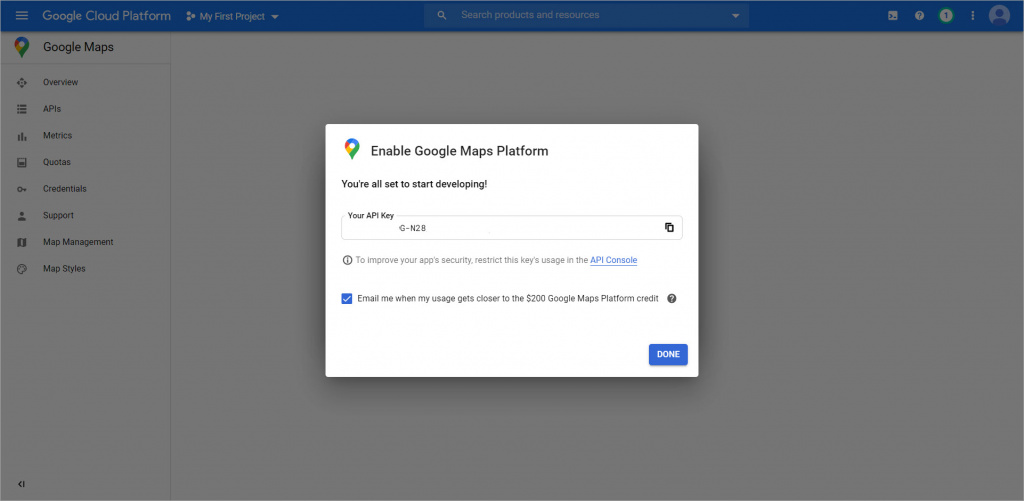
- Copy the API key and paste it into the Site preferences section in your Bitrix24 site.
You can manage your API keys in the Google Cloud Console.
If you already have a Google payment account
- Go to the Get an API Key page and click Go to Console.
- Select Maps JavaScript API.
- Click Enable.
- Open the menu > APIs & Services > Credentials.
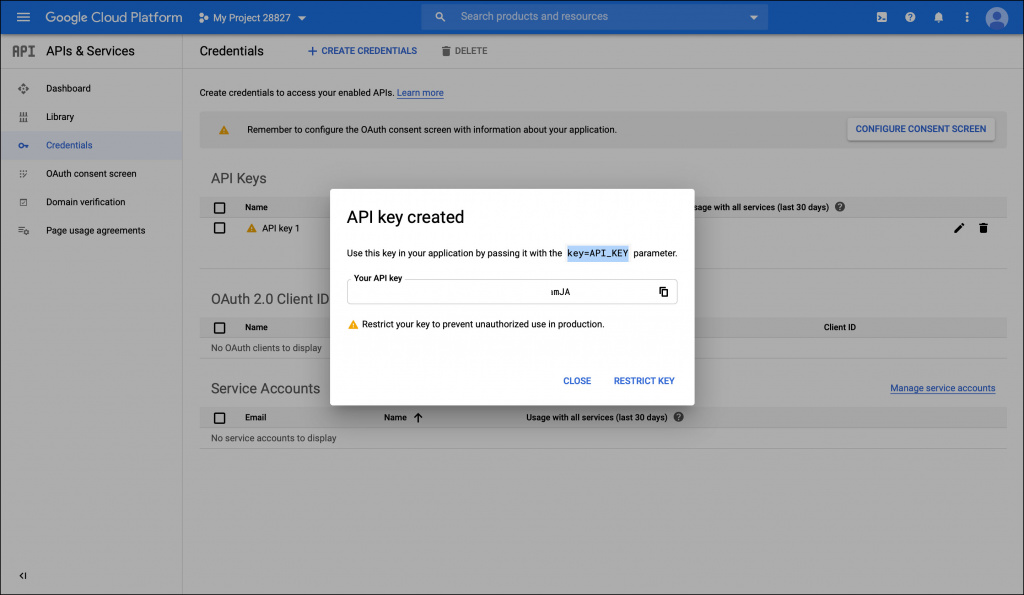
- Click Create credentials > API key.
- Copy the API key and use it in your site.
If changes don’t appear
Changes are saved automatically. If you don’t see updates:
- Click the arrow next to the site status.
- Unpublish the site.
- Publish it again.