
Task results help capture important information like agreements, stages, and outcomes. A dedicated block allows you to collect text reports, files, and links so the team doesn’t lose details, and the creator can monitor progress and approve work faster.
For example, a designer can add results, such as logo sketches, and describe which options to consider. Once approved, they can attach the final design. The creator will see everything in one block and can approve the work.
In this articlе:
Restrict task completion without a result
You can configure a task so the assignee cannot complete it without a report. This ensures the work is truly done and allows you to evaluate the outcome. However, the following users can complete the task at any time without a report:
- Account administrator
- The creator and the supervisor
- Supervisors and participants
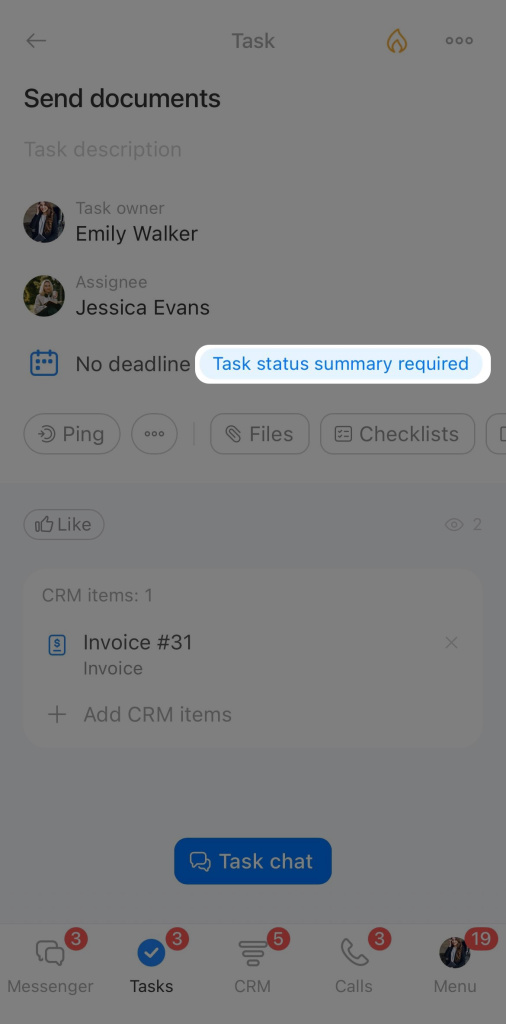
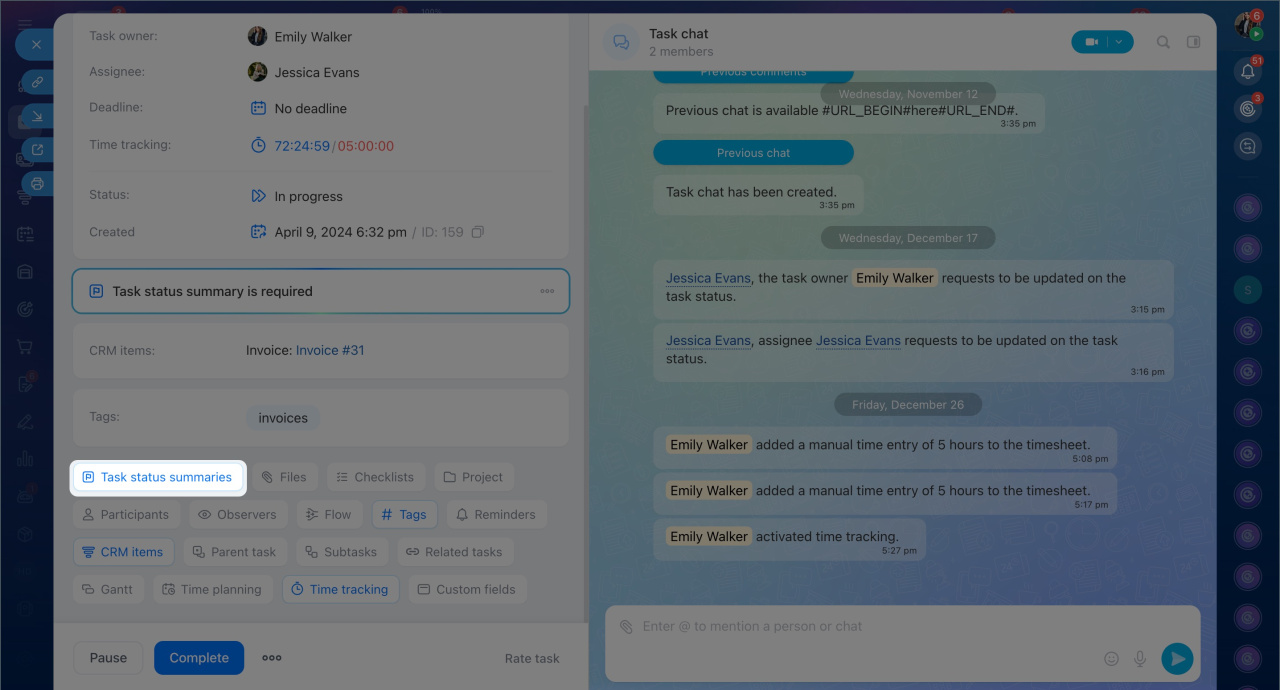
Once configured, the Task status summary is required block will appear in the task form. Any participant can add a report to this block, which is enough for the assignee to complete the task.
Check task upon completion
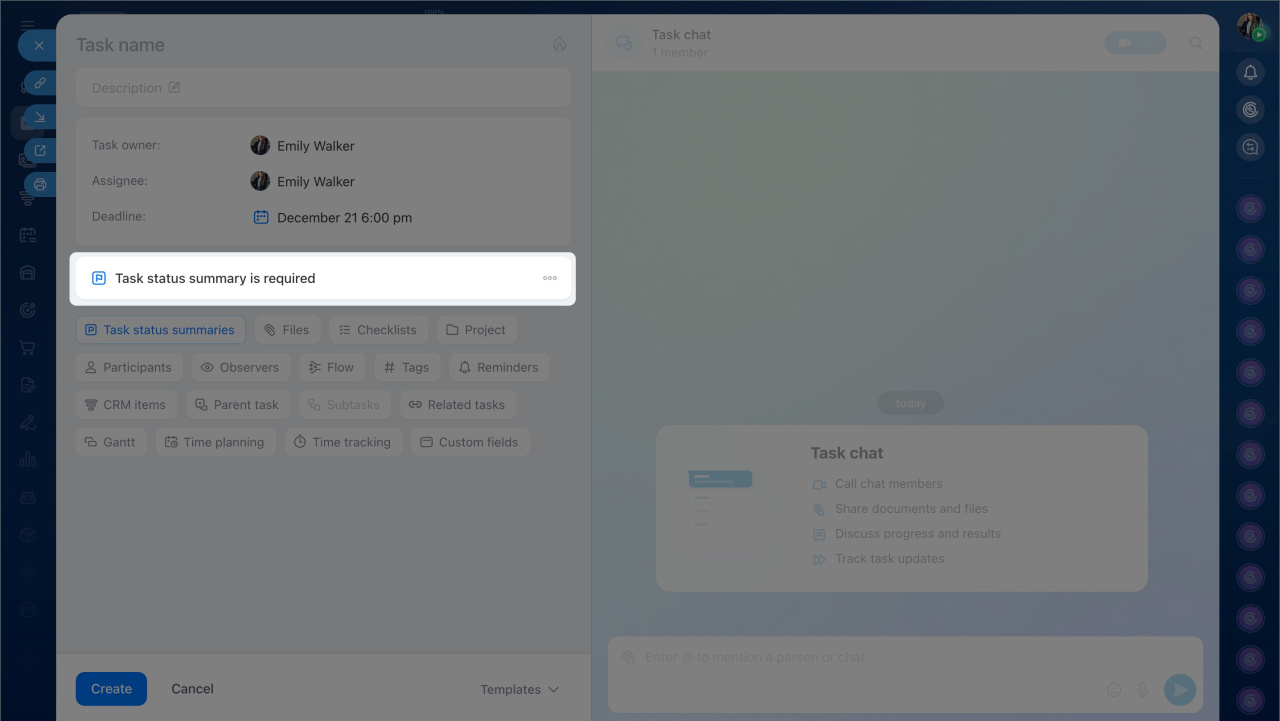
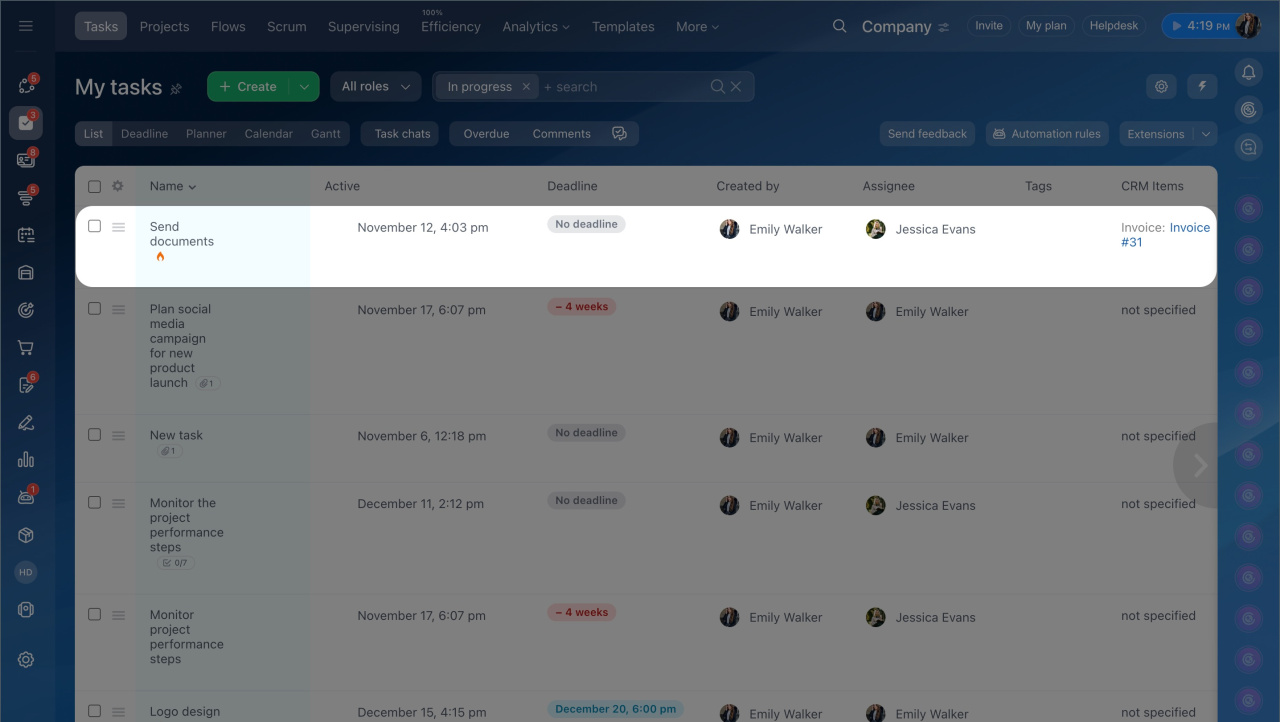
You can enable mandatory reporting when creating or editing a task.
Go to the Tasks and Projects section > Tasks.
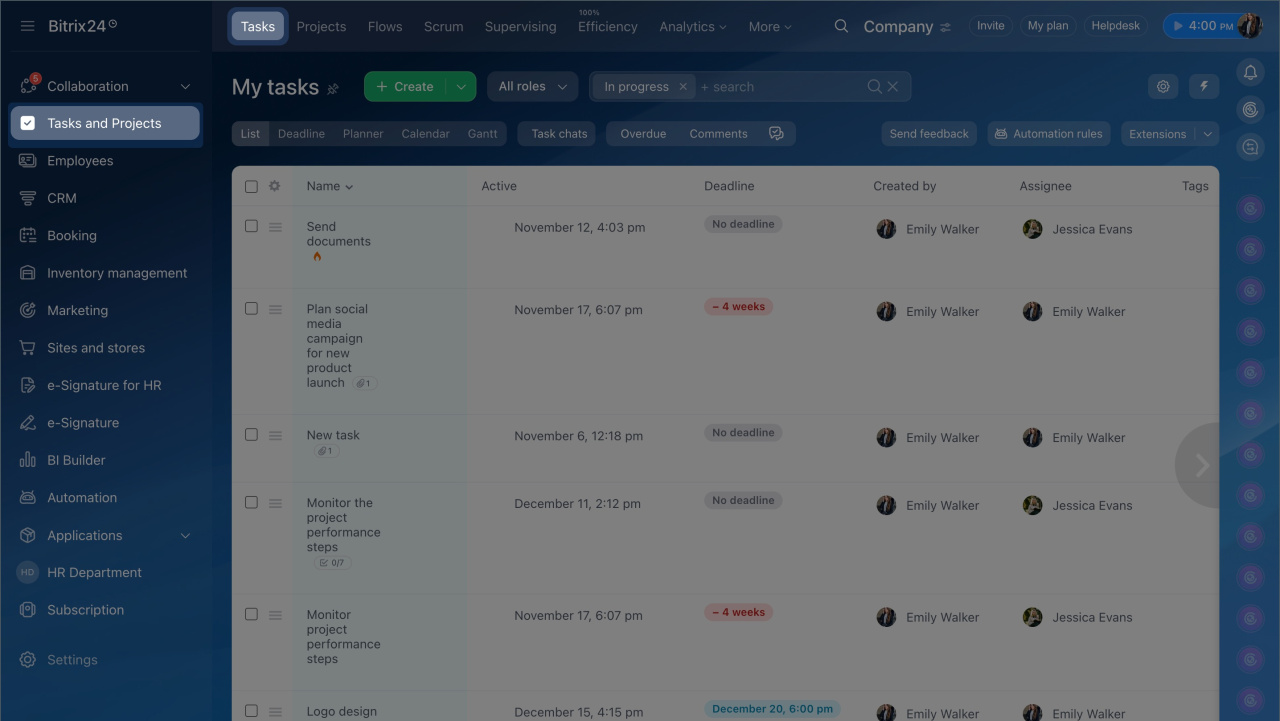
When creating a task.
- Click the Create button > Detailed form.
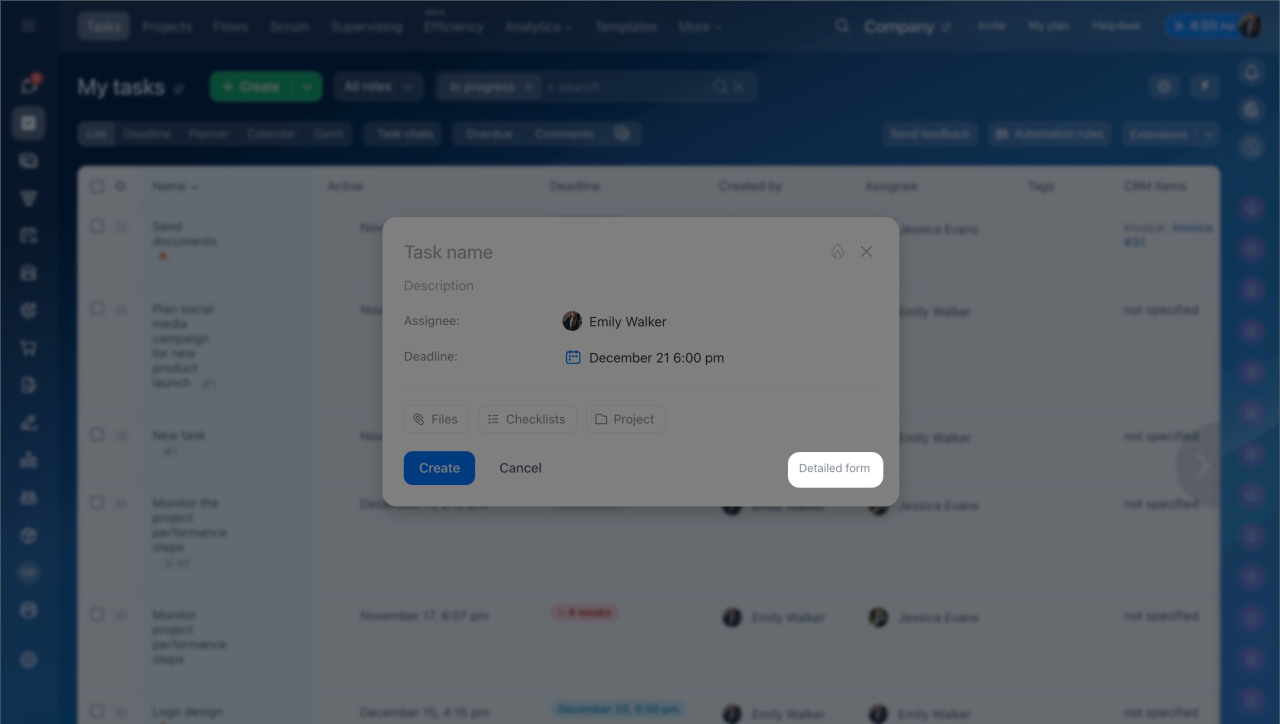
- Specify task parameters: title, description, deadline, etc.
- Click Task status summaries > Create.
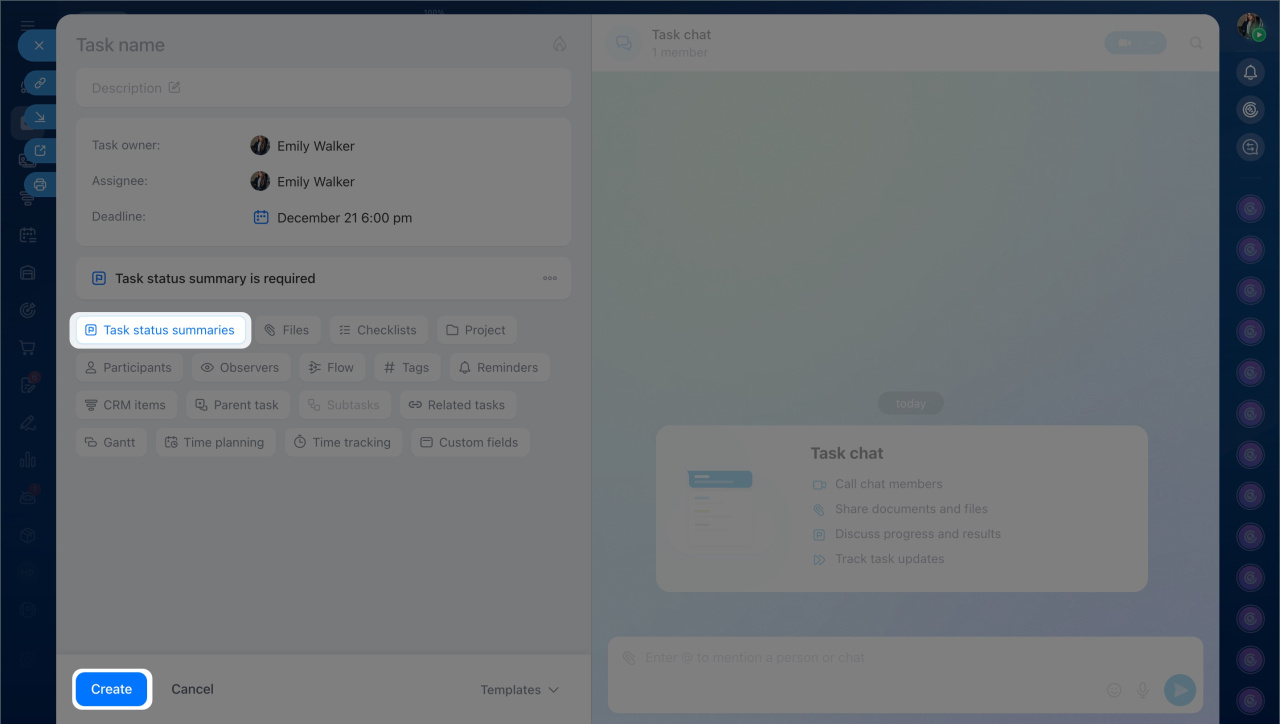
When editing a task.
- Open the task form.
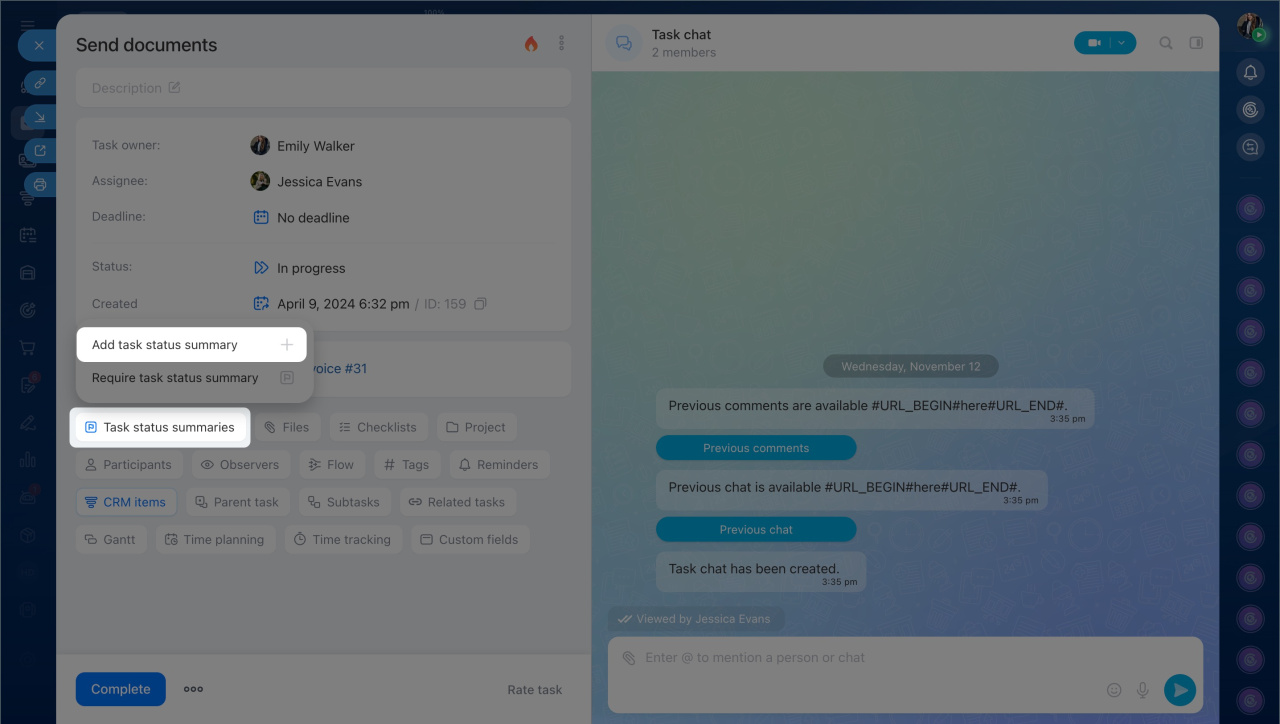
- Click Task status summaries > Add task status summary.
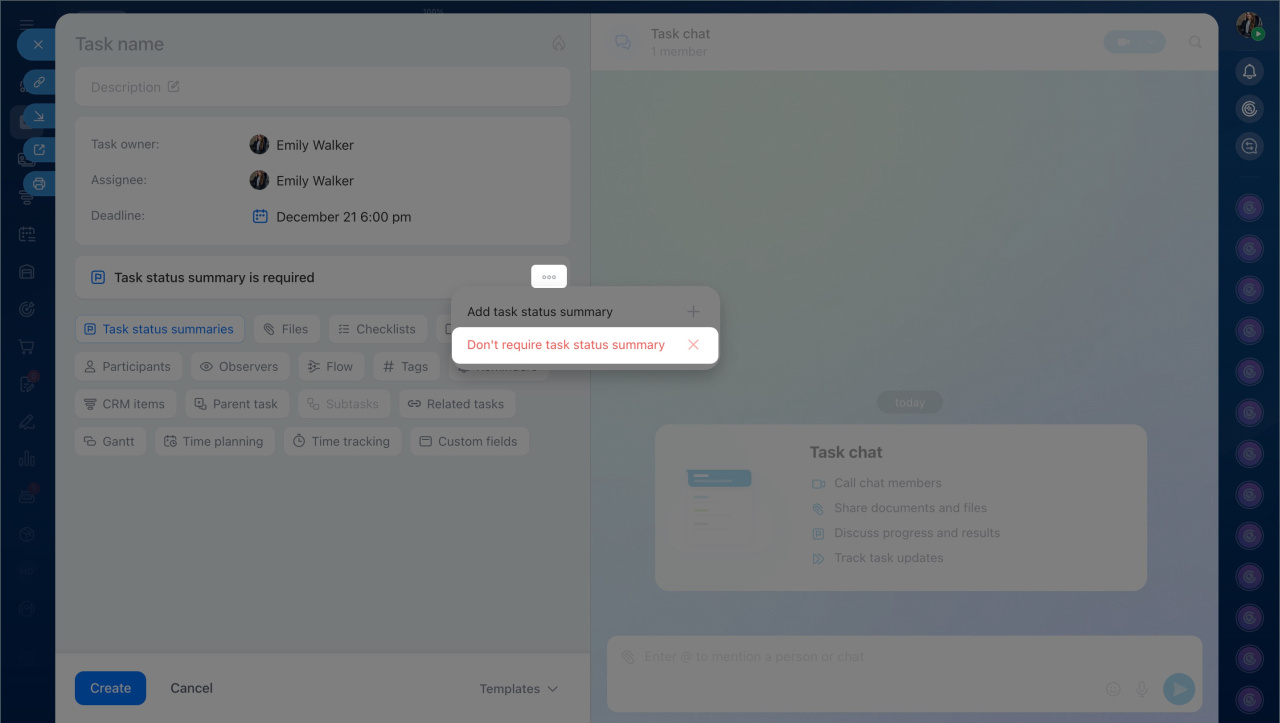
- To cancel obligatory reporting, click Result required block, then Three dots (...) > Don't require task status summary.
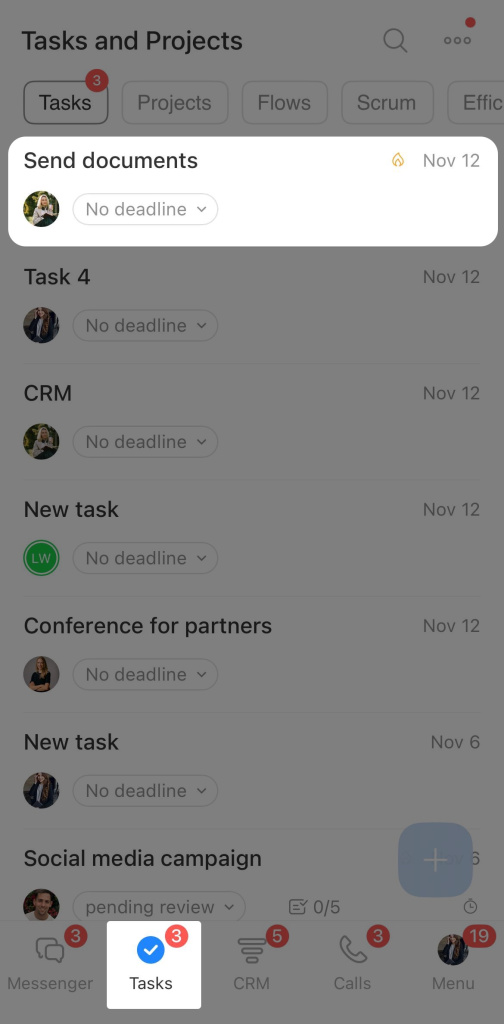
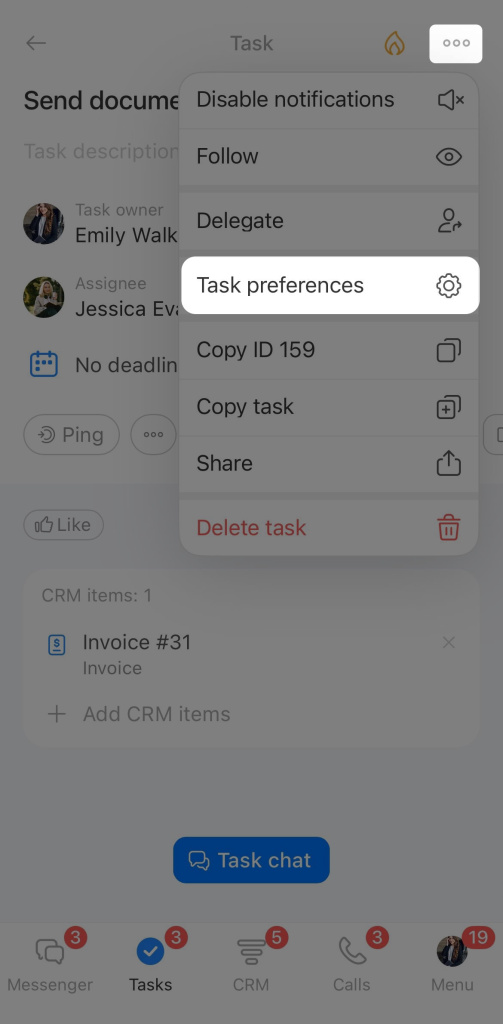
In the Bitrix24 mobile app, mandatory reporting can only be enabled when editing a task. To request a result for a new task, create it first, then open it for configuration.
- Go to Tasks and open the form.
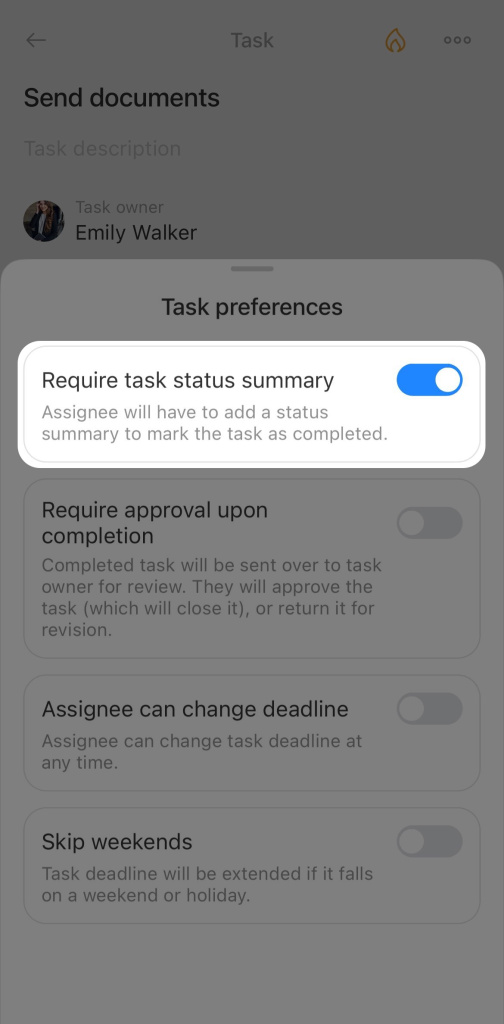
- Tap Three dots (...) > Task preferences (⚙️)
- Enable the Require task status summary option. To cancel obligatory reporting, disable the option.
Add a result to a task
Typically, the task creator requests a result in the form of a text or a file. If a report is not required, participants can independently record important details in the task form. This makes it easier to share information with colleagues and maintain order in tasks.
You can add a report using the Task status summary is required block or the task chat.
Task status summary is required block
- Click Task status summaries > Add task status summary.
- Click the paper clip icon to attach a file.
- Click Send.
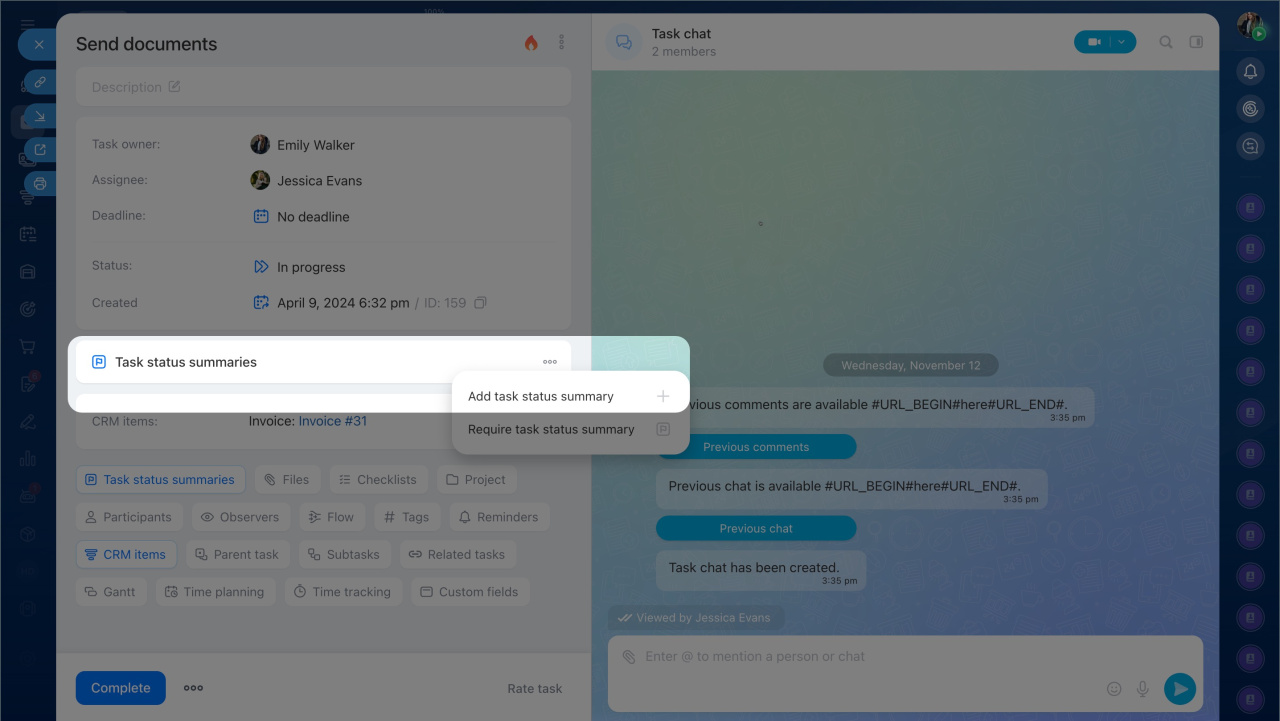
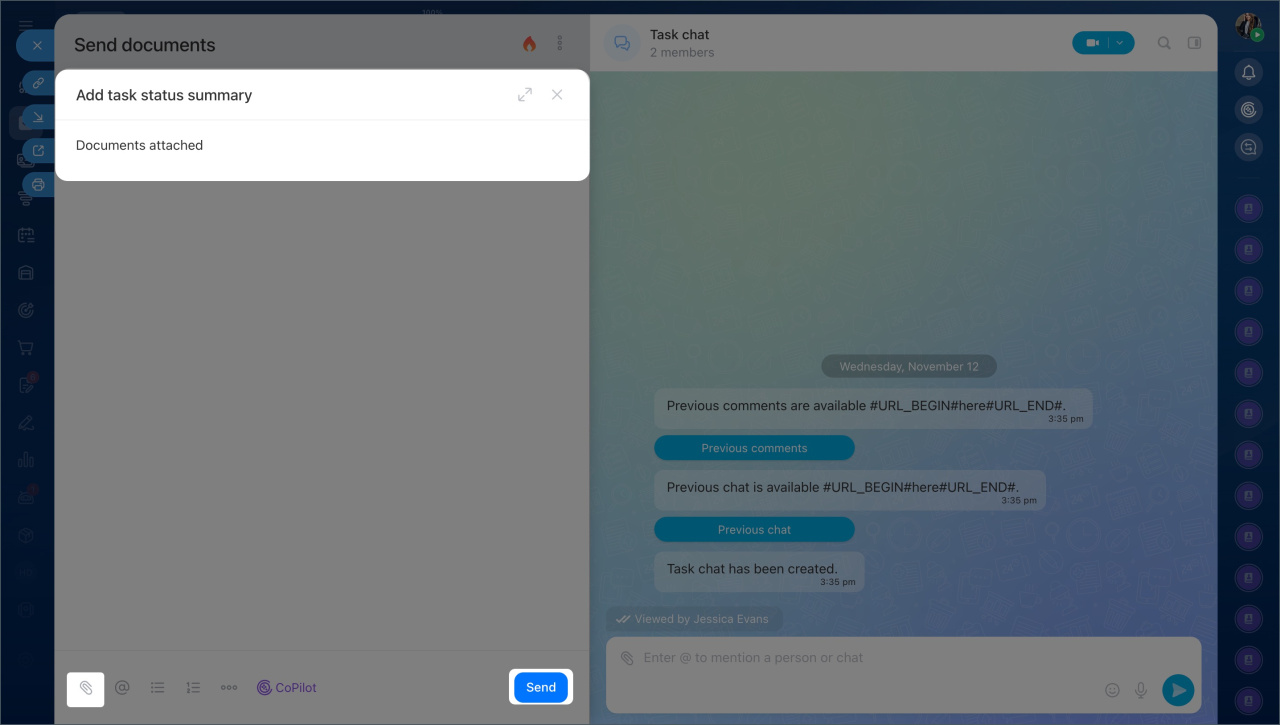
If the creator did not request a report, the Result required block will not appear in the task form.
- Click the Task status summaries button to record important information.
- Click Add task status summary for an additional entry. There is no limit to the number of entries.
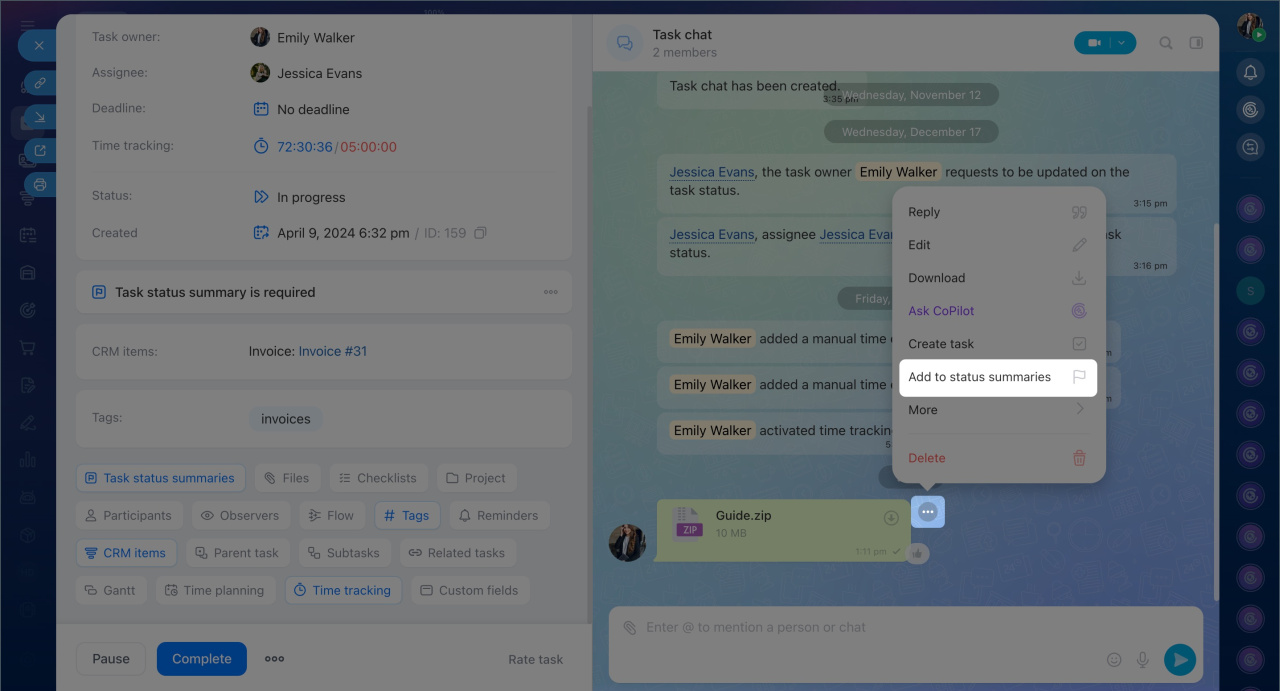
In the task chat.
- Send a message with the report in the task chat.
- Hover over the message and click Three dots > Add to status summaries.
The original version of the message is saved in the results. If you later edit it, the report will remain unchanged.
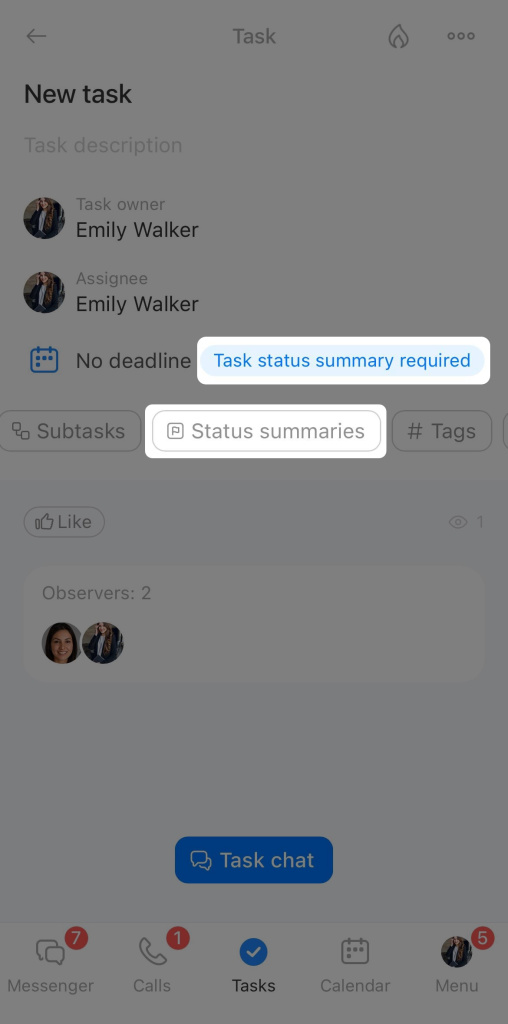
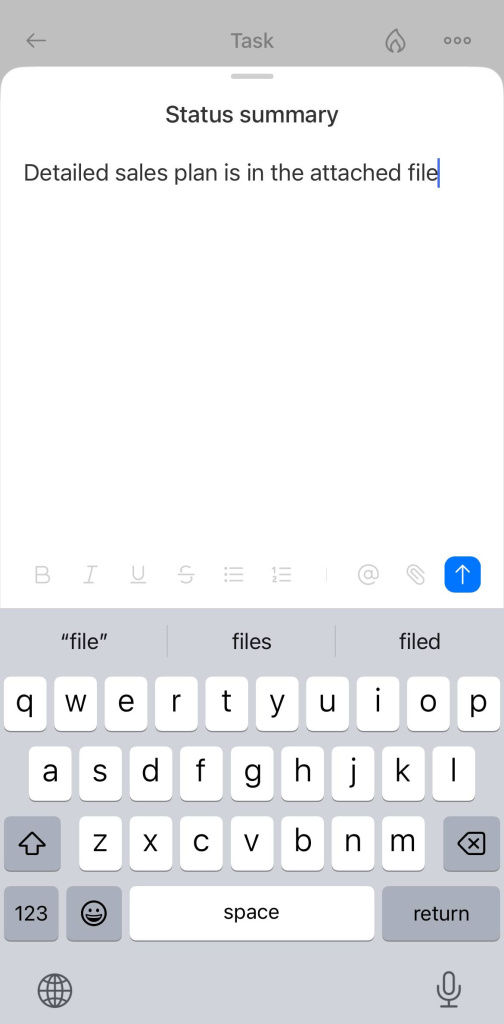
You can add a report using the Task status summaries button or the task chat.
Task status summaries button
- Open the task and scroll down the parameters list and tap the Task status summaries button.
- Attach files, and send the result.
Using the task chat.
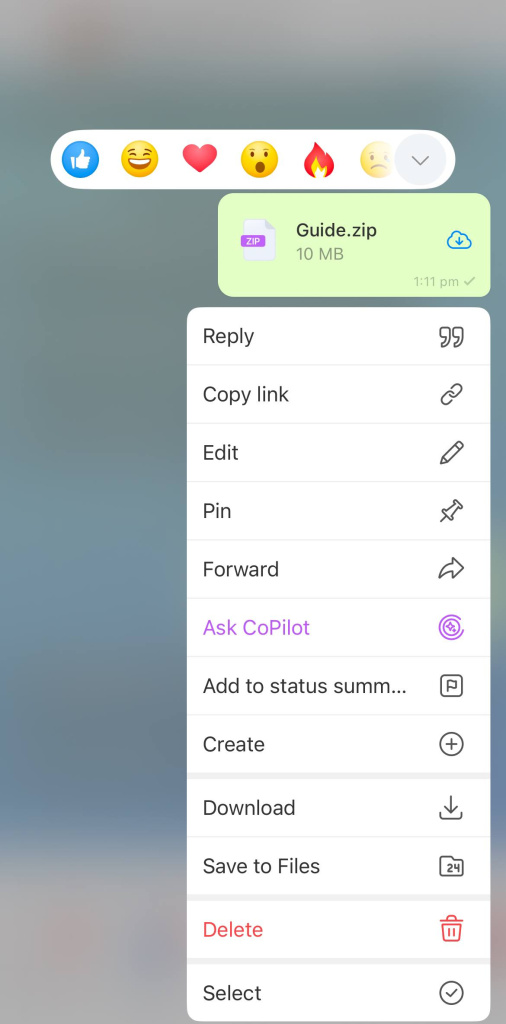
- Send a message in the chat and hold it to open the context menu.
- Tap Task status summaries.
The original version of the message is saved in the results. If you later edit it, the report will remain unchanged.
View and edit task results
Results are saved in the task form. All participants can view others' reports and edit their own. The creator can delete any report from the results.
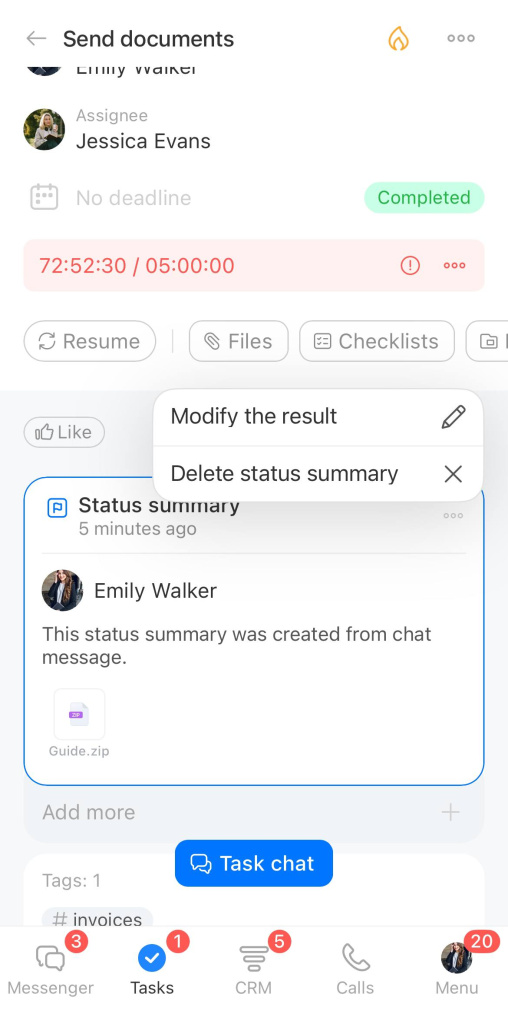
To edit or delete a report, click the Three dots (...) next to the report title and select the action.
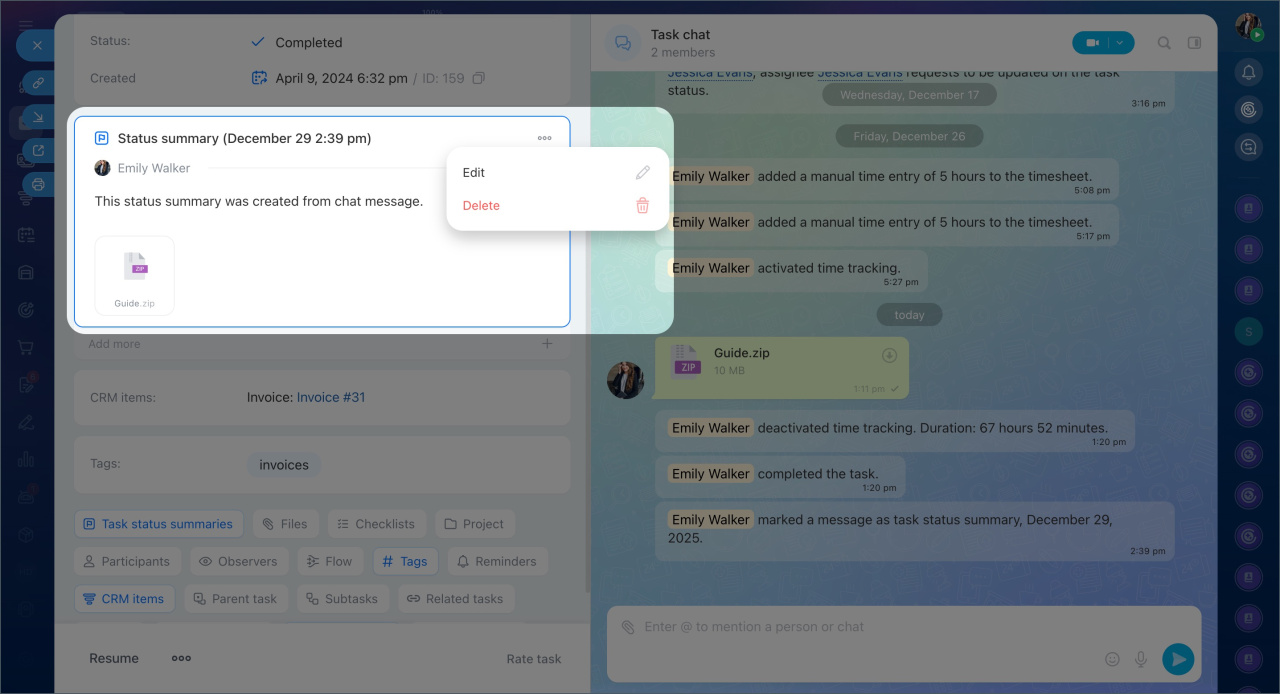
- To edit or delete a report, click the Three dots (...) next to its title and select the desired action.
- Click Add more to add an additional report. There is no limit to the number of reports.
- Click Show more results to access the report list and open the one you need.
In brief
- Task results help document important information like agreements, intermediate stages, and outcomes. A dedicated section allows you to collect text reports, files, and links.
- To request an obligatory report when creating a task, switch to the detailed form and click Task status summary. This block will appear in the form. Without completing it, the assignee cannot close the task.
- To add a report in this block, click plus, write the text, attach documents, and click Send.
- To add a result using the task chat, send a message, click Three dots (...) > Add task summary status.
- If a report is not required, participants can independently document important details in the task. To add a result, click the Results button. For additional entries, click Add more results. There is no limit to the number of entries.
- Click Show more results to view all reports.
- To edit or delete a report, click the Three dots (...) next to its title and select the action.
- You can add, view, edit, and delete results in Bitrix24 on both the desktop and mobile app.
