
Two-factor authentication adds an extra layer of security to your Bitrix24 account. In addition to your login and password, you must confirm your identity using a second method. Without this step, no one can access your account, even if they know your password.
We updated the two-factor authentication process to make it simpler and more secure. Previously, verification required codes from third-party authenticator apps. Now you can confirm sign-in using the Bitrix24 mobile app or a one-time SMS code.
Each user enables two-factor authentication individually. Administrators can require two-factor authentication for the entire company. When required, employees must set it up within the specified time frame.
If you enabled two-factor authentication but cannot access the mobile app, use an alternative login method described in Log in to Bitrix24 without the mobile app.
If you currently use the older method with special applications, we recommend switching to the new version.
Set up two-factor authentication
Enable two-factor authentication. The setup process is the same for employees and administrators. To begin, install the Bitrix24 mobile app and sign in.
Bitrix24 mobile app
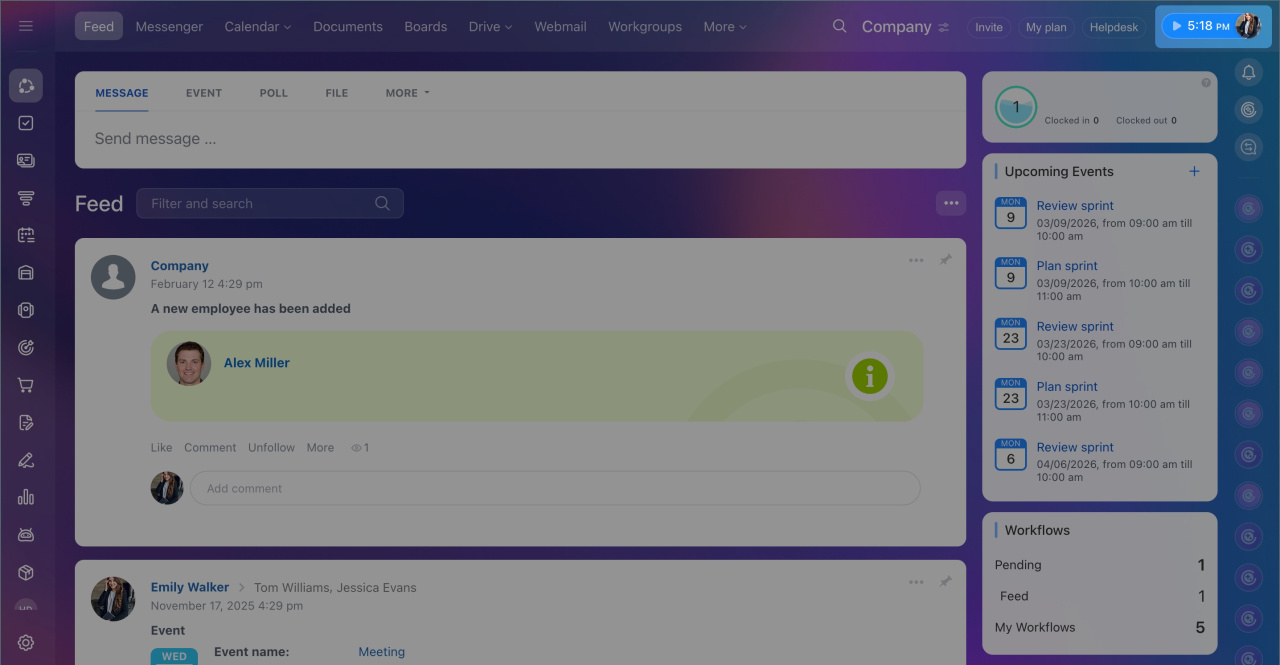
1. Click your photo in the top-right corner.
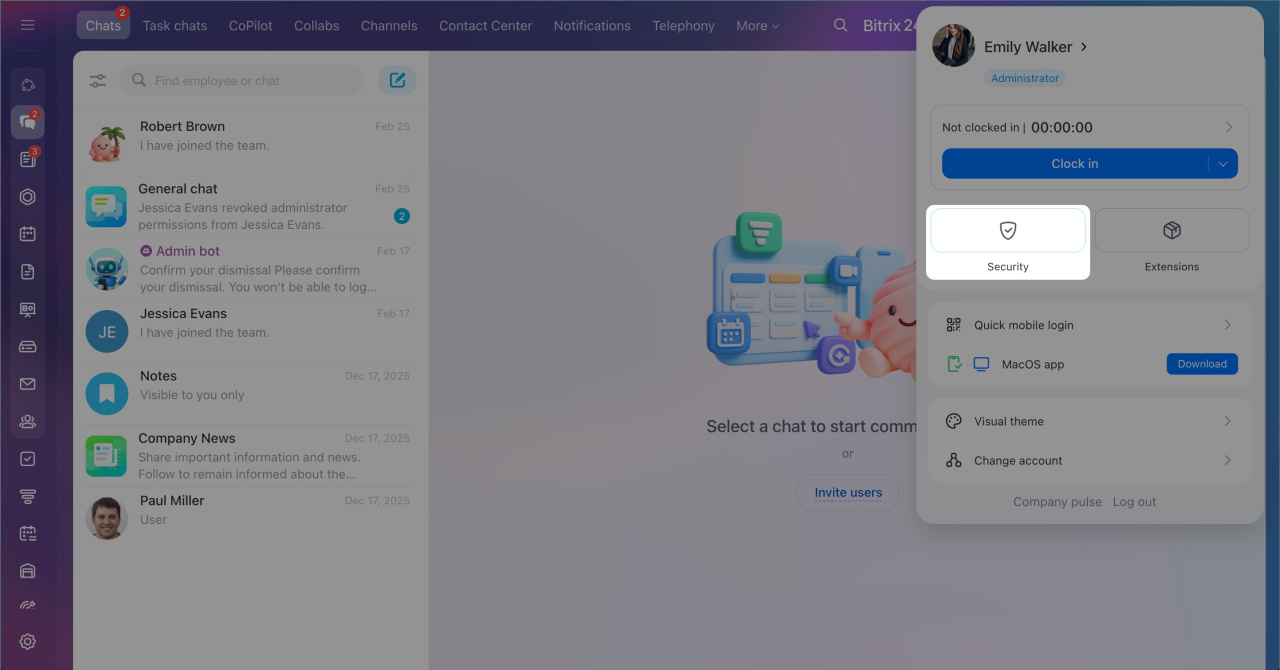
2. Select Security.
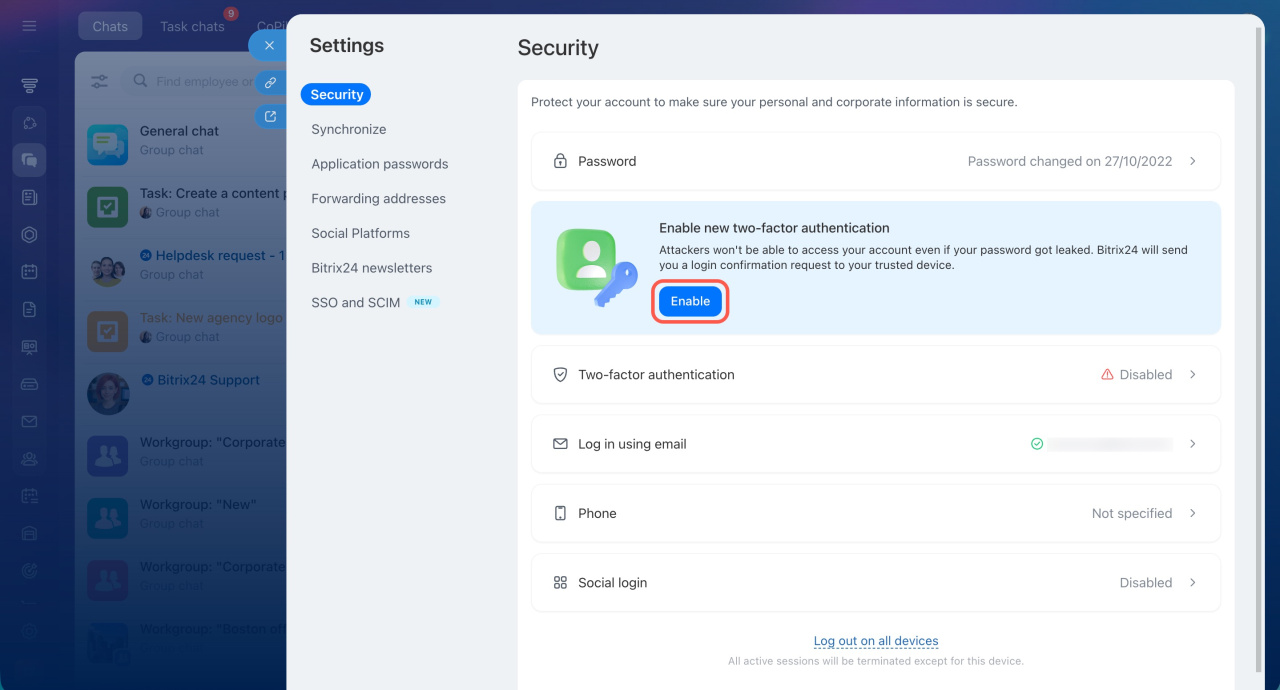
3. Click Enable.
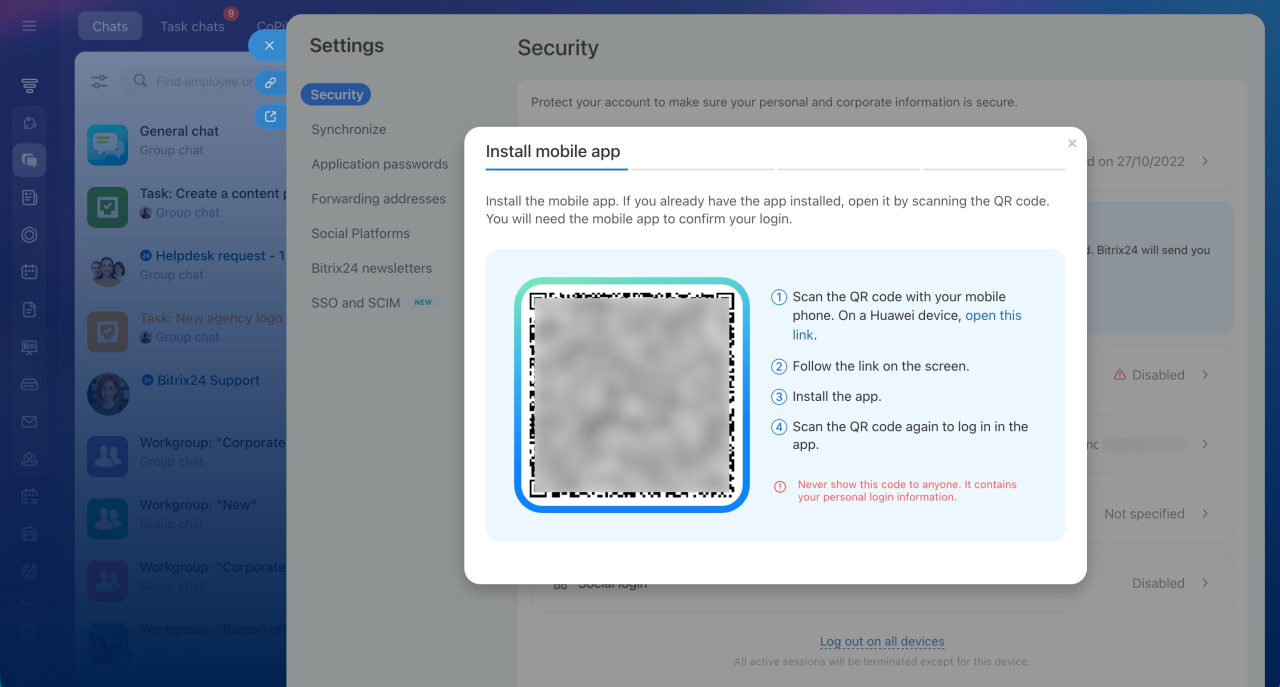
4. Point your smartphone camera at the QR code and follow the link on the screen.
5. In the mobile app, tap Done to finish setup.
6. On your computer, click Continue.
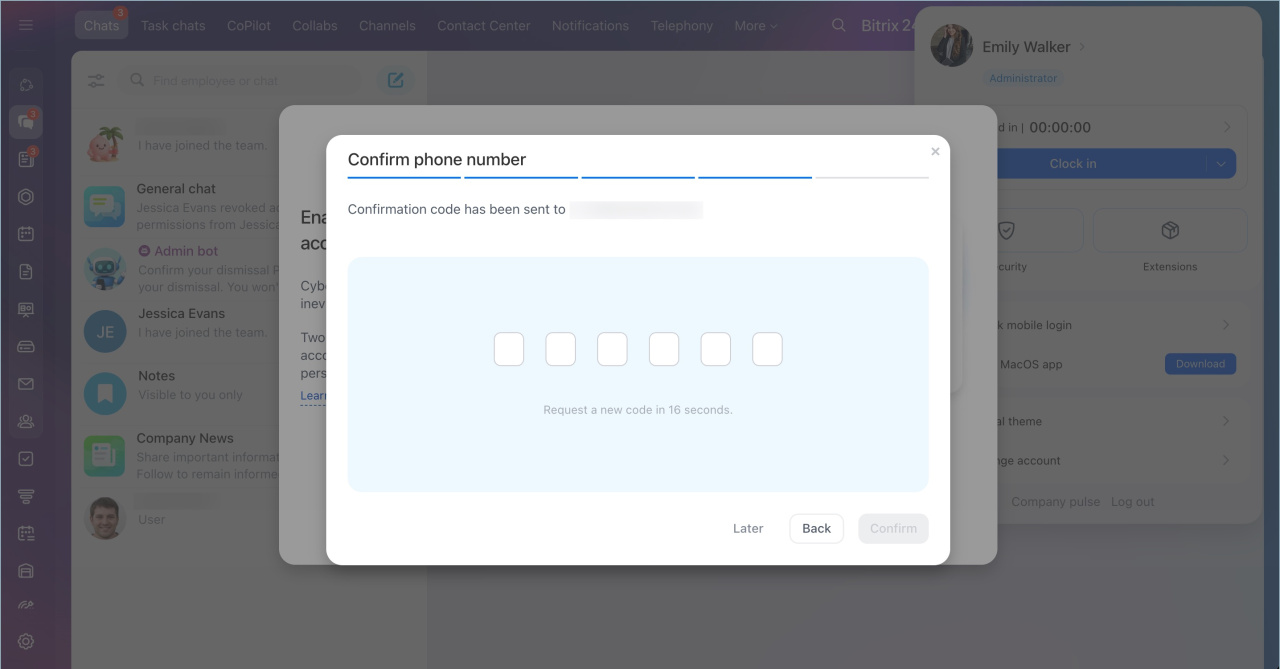
7. Enter your phone number. You can use it to sign in via SMS if you lose access to the mobile app.
8. Click Continue.
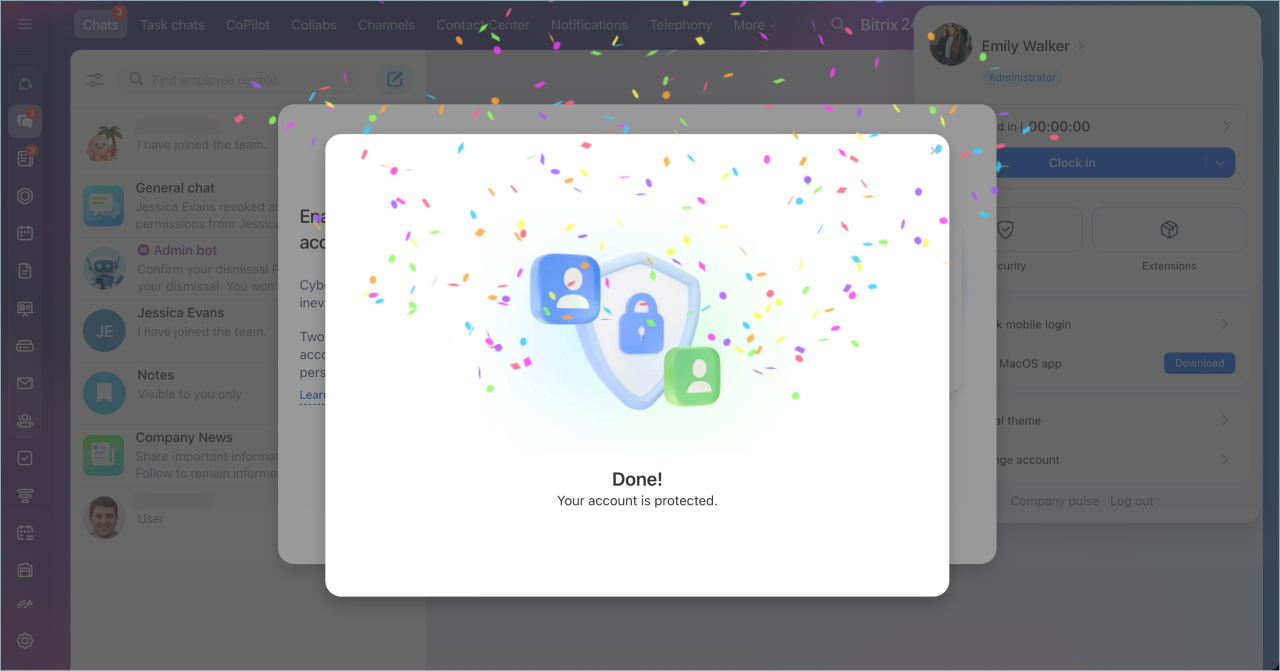
9. Enter the SMS verification code.
After setup, save your recovery codes. You will need them if you cannot confirm sign-in through the mobile app.
Where to find recovery codes
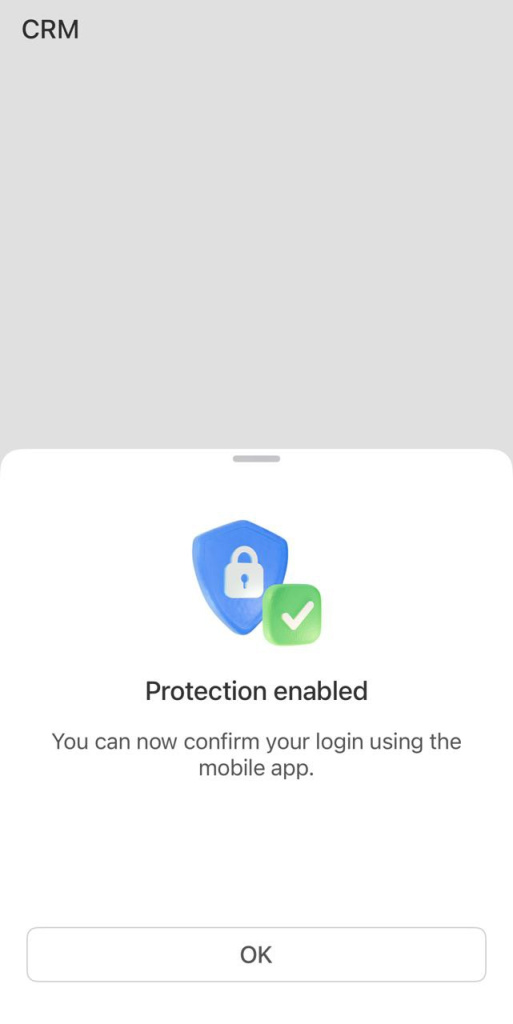
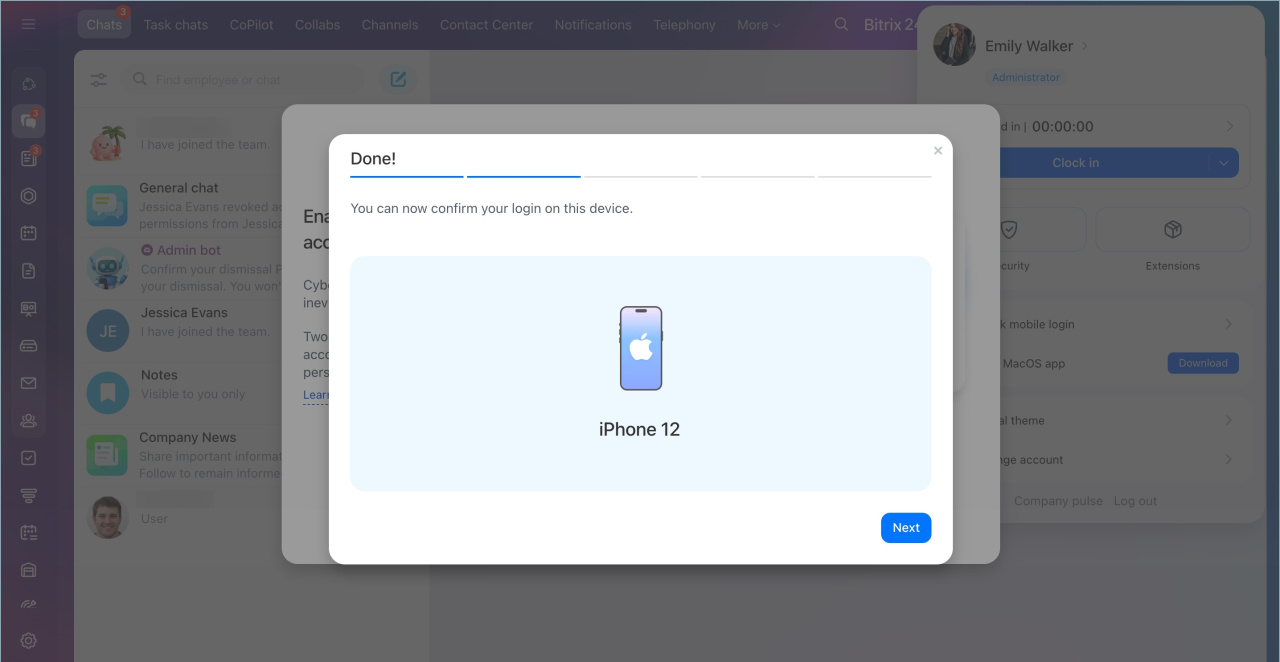 The device you used to confirm your Bitrix24 login is called a trusted device. You can change it at any time.
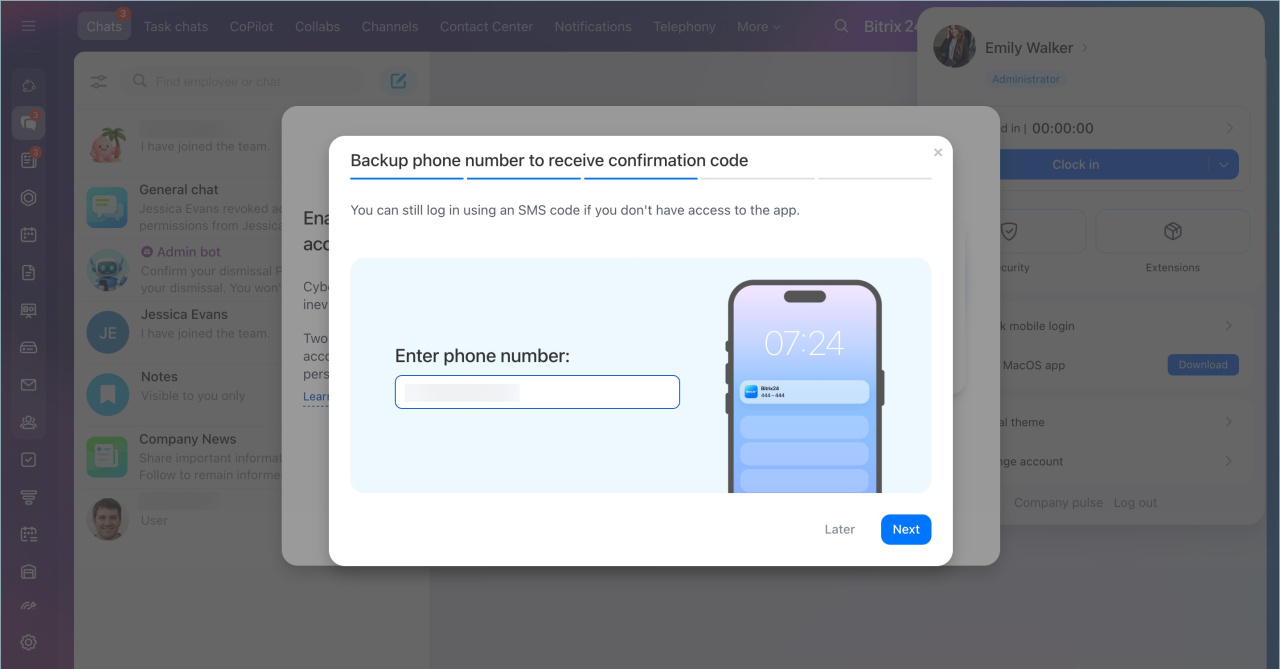
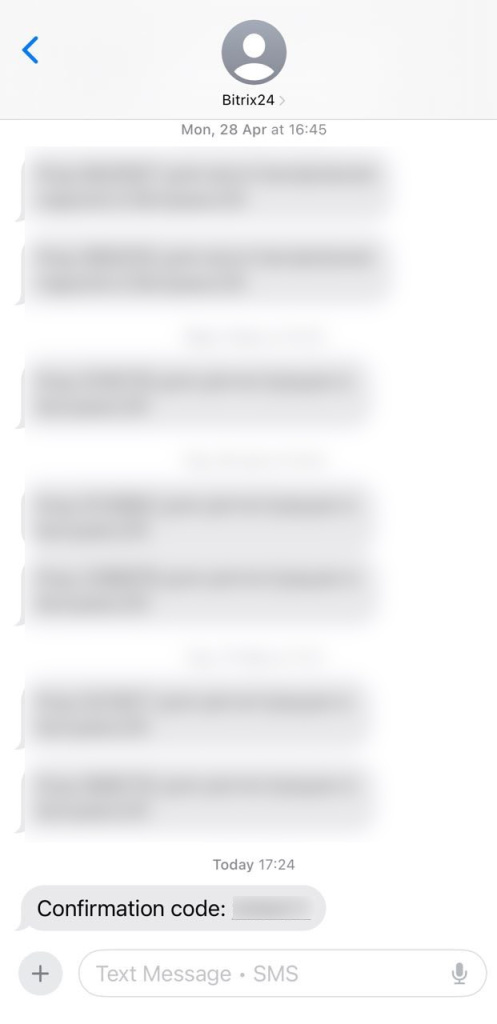
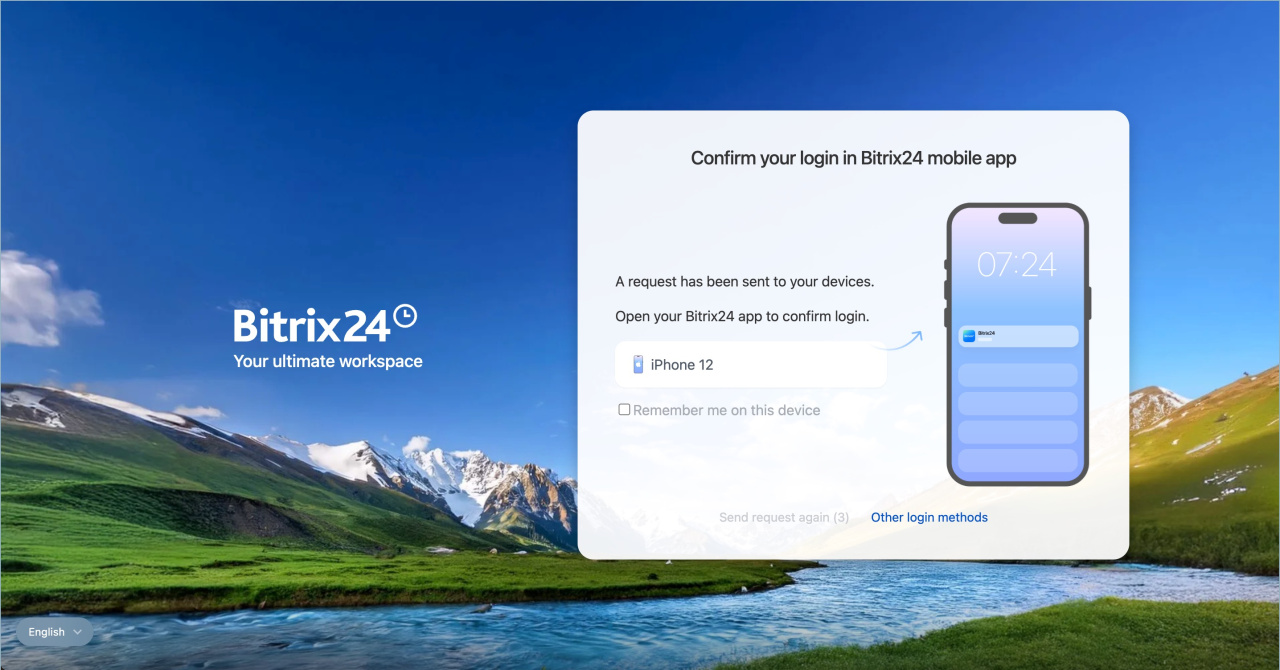
From now on, when you sign in to Bitrix24, enter your login and password, then confirm the sign-in request in the mobile app.
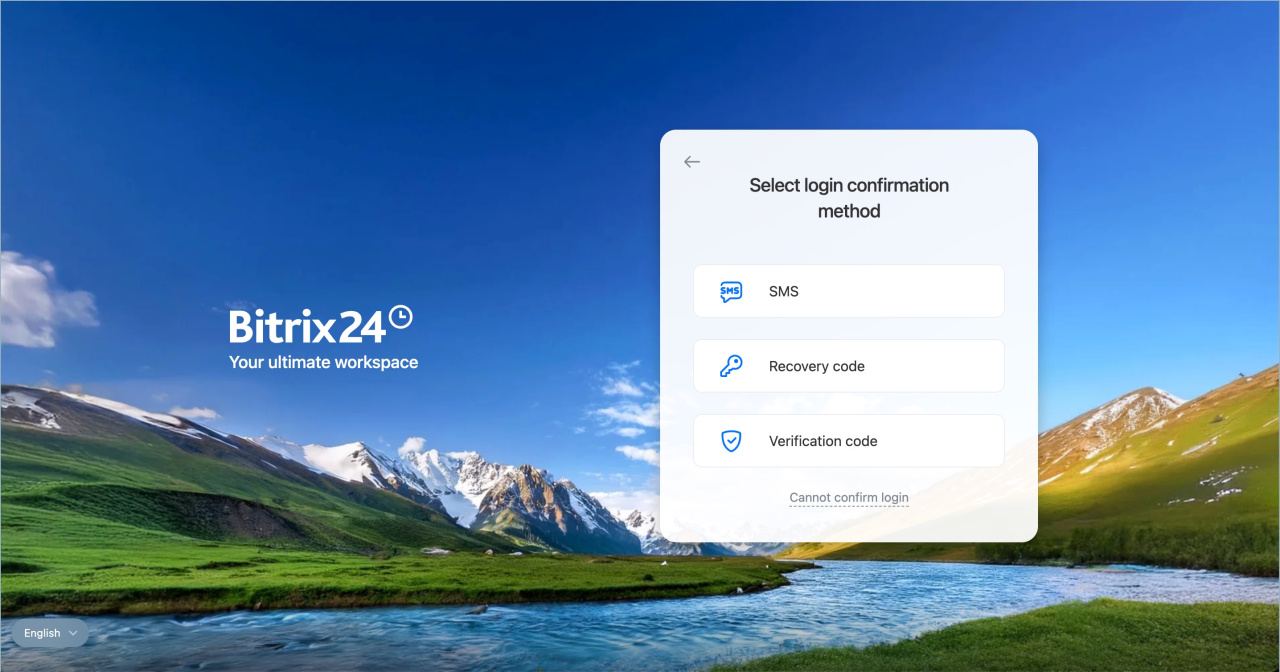
Save recovery codes. Recovery codes allow you to sign in if you lose access to your mobile device or cannot receive SMS messages. Save them immediately after enabling two-factor authentication.
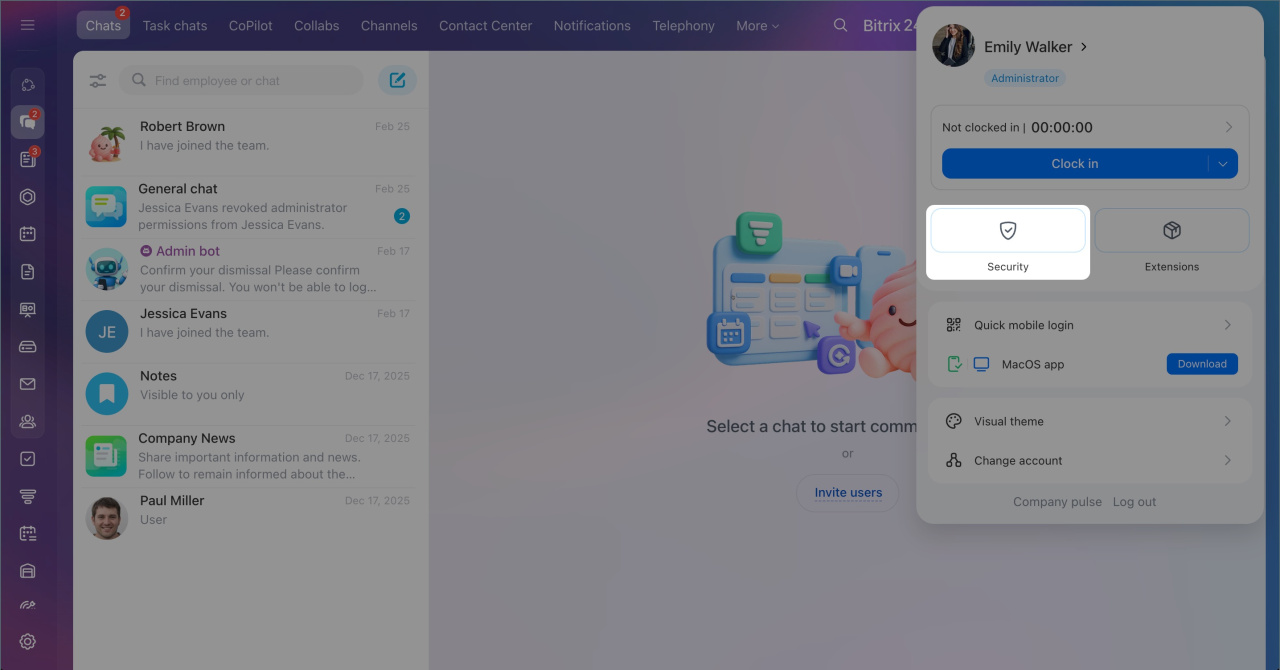
1. Click your photo in the top-right corner.
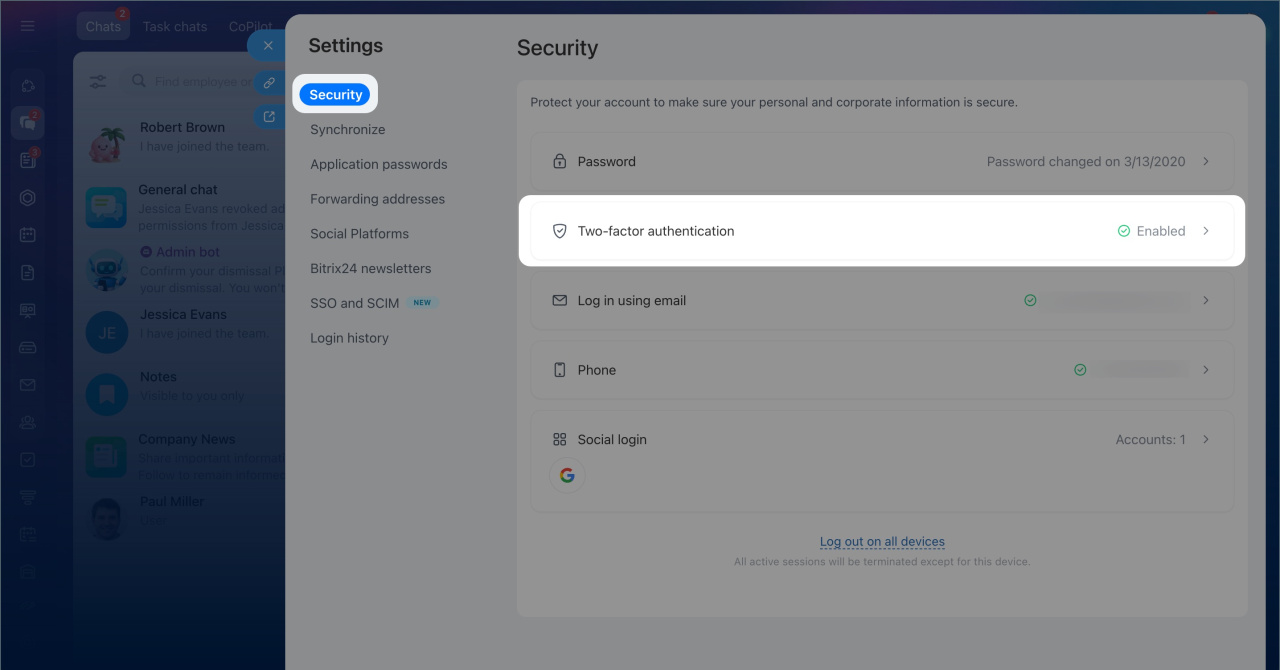
2. Select Security.
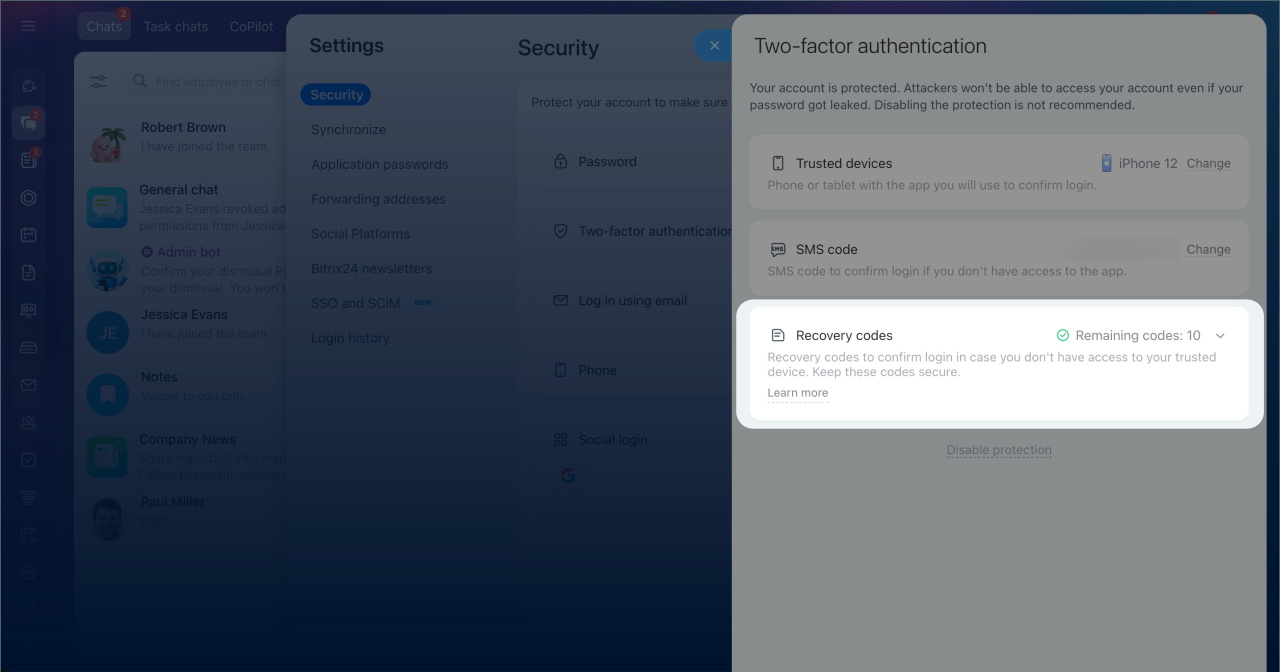
3. Click Two-factor authentication.
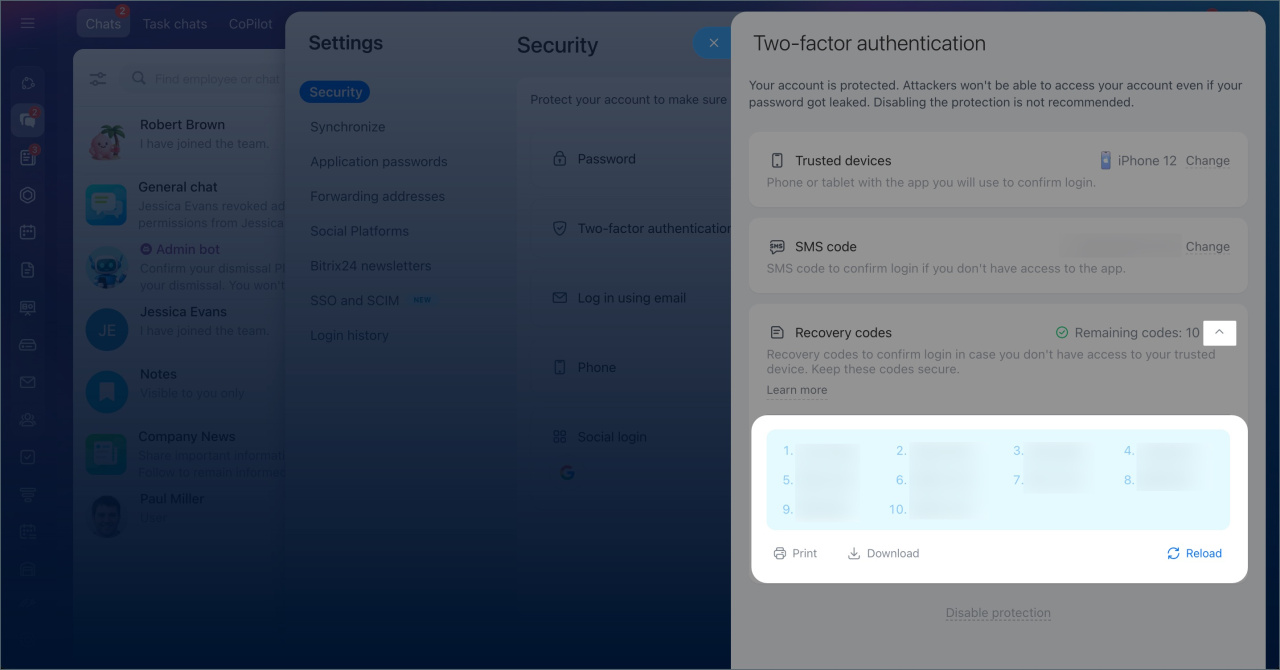
4. Click the arrow in the Recovery codes section.
5. Print or save the codes.
Make two-factor authentication obligatory for all employees
To make two-factor authentication mandatory, the administrator must first enable it for their own account.
Set up two-factor authentication for your account
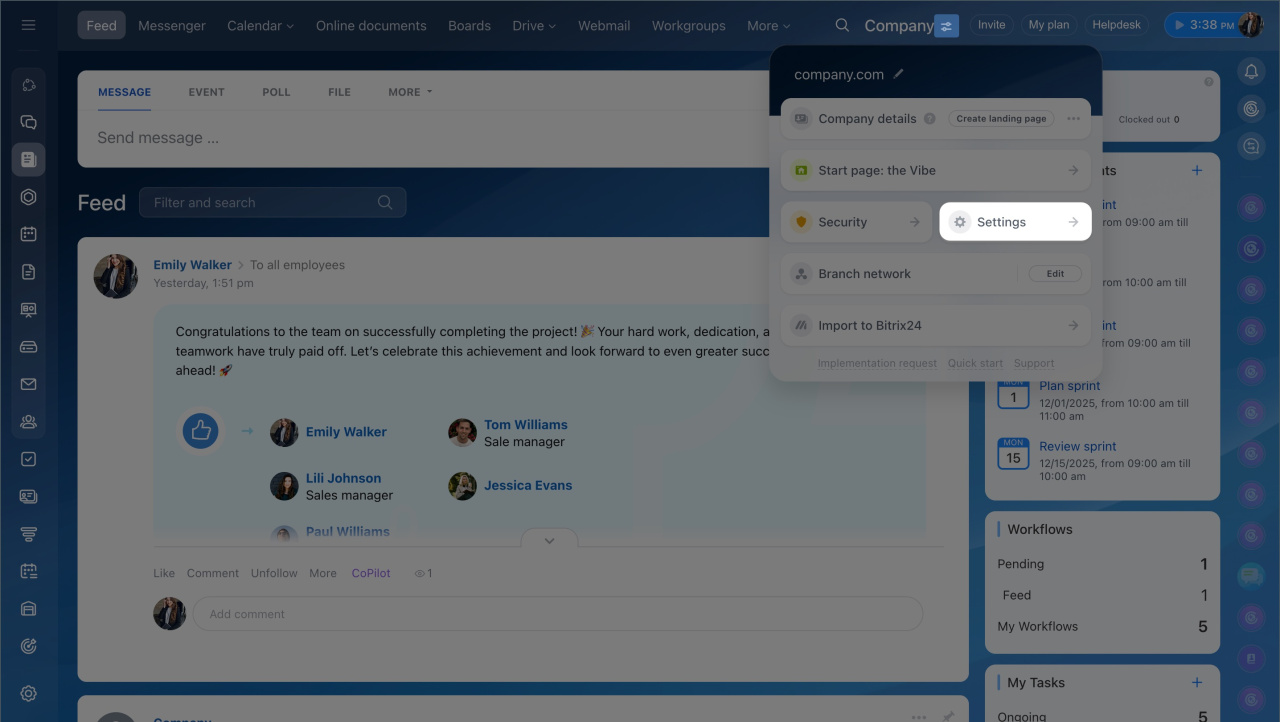
To enforce protection:
1. Go to Settings (⚙️) Bitrix24.
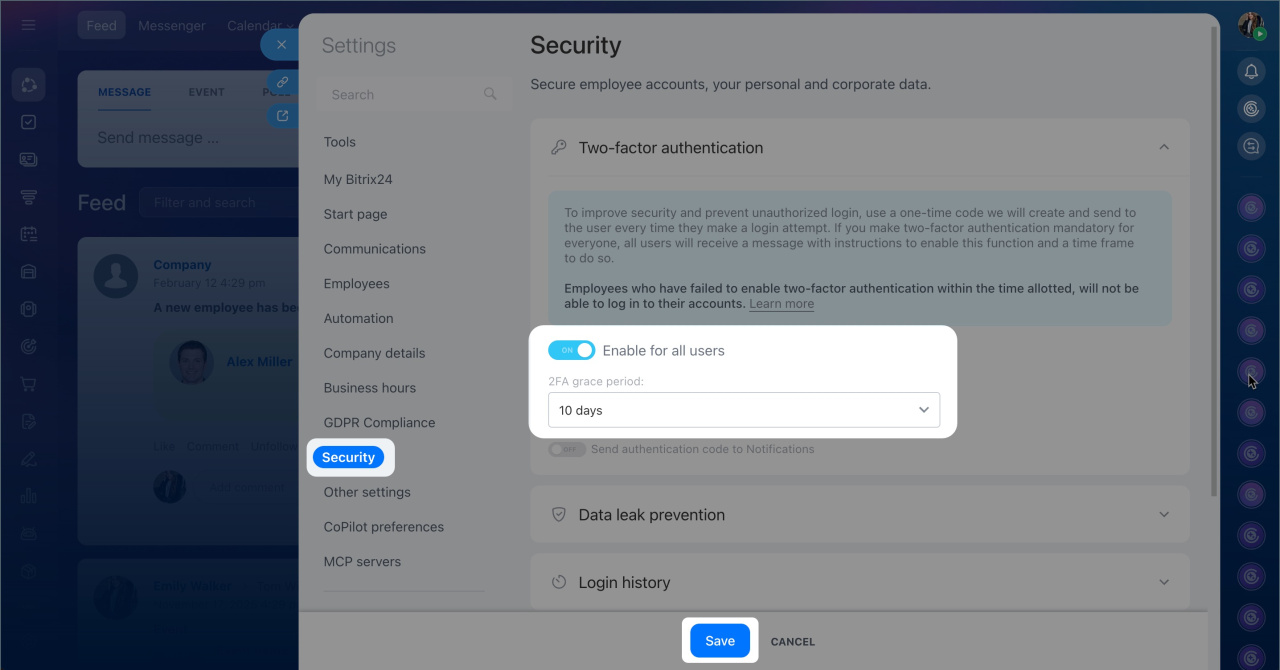
2. Select Security > Two-factor authentication.
3. Turn on Enable for the entire company.
4. Set the time frame within which users must enable two-factor authentication for their accounts.
5. Save the changes.
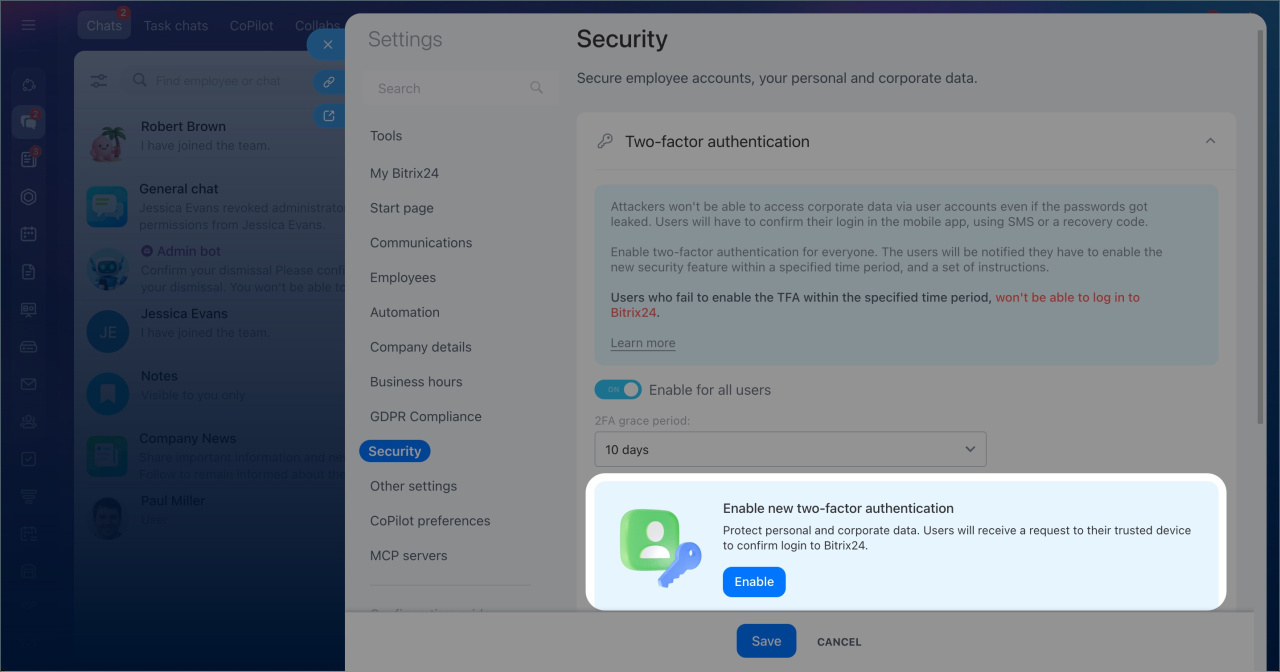
If you currently use codes from third-party authenticator apps:
1. Go to Bitrix24 Settings (⚙️).
2. Select Security > Two-factor authentication.
3. Click Enable.
You can then set up the new two-factor authentication method and require two-factor authentication for your company.
In brief:
- Two-factor authentication protects your Bitrix24 account with an additional verification step. Along with your login and password, you confirm sign-in using the Bitrix24 mobile app or an SMS code.
- Previously, login verification worked through codes from special applications. Now, you can use the Bitrix24 mobile app or a one-time SMS code.
- Each user enables two-factor authentication individually.
- Administrators can require two-factor authentication for the entire company and set a deadline for setup.
- To set up two-factor authentication, install the Bitrix24 mobile app and log in. On your computer, go to your profile and select Security > Enable.
- After enabling two-factor authentication, download and store your recovery codes. They allow access to your account if you lose your mobile device or cannot receive verification codes.
