
In the product catalog, you often need to quickly update dozens or hundreds of items at once: increase prices, deactivate out-of-stock products, or refresh data from a supplier spreadsheet.
In Bitrix24, update a group of products at once or upload changes from a file. This saves time compared to manual edits.
In this article:
Apply group actions to products
Group actions quickly update multiple products. Use this option when all selected products need the same change. For example, increase prices by 10% for an entire category or deactivate all out-of-stock products.
Each group action changes only one parameter at a time.
Only a Bitrix24 administrator or an employee with permission to view and edit products can modify products. A separate permission is required to edit prices.
Inventory access permissions
Changes cannot be undone. Review selected products and parameters before saving.
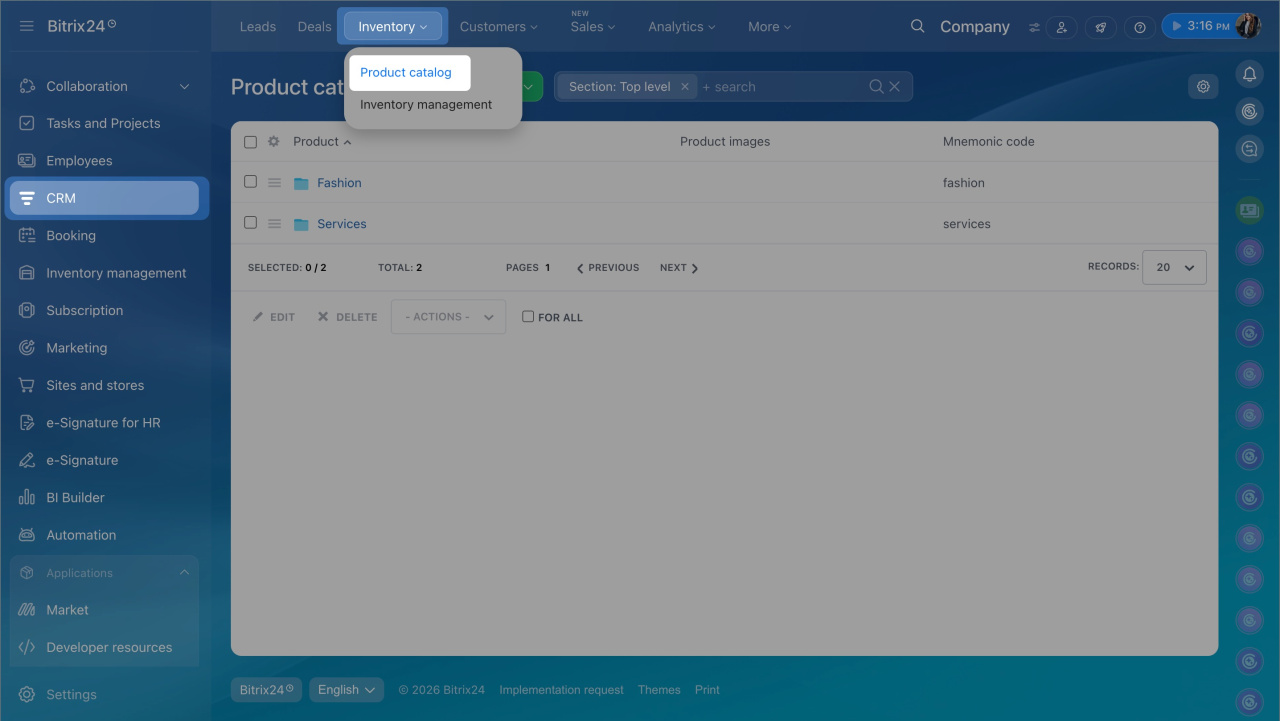
1. Go to CRM > Inventory > Product catalog.
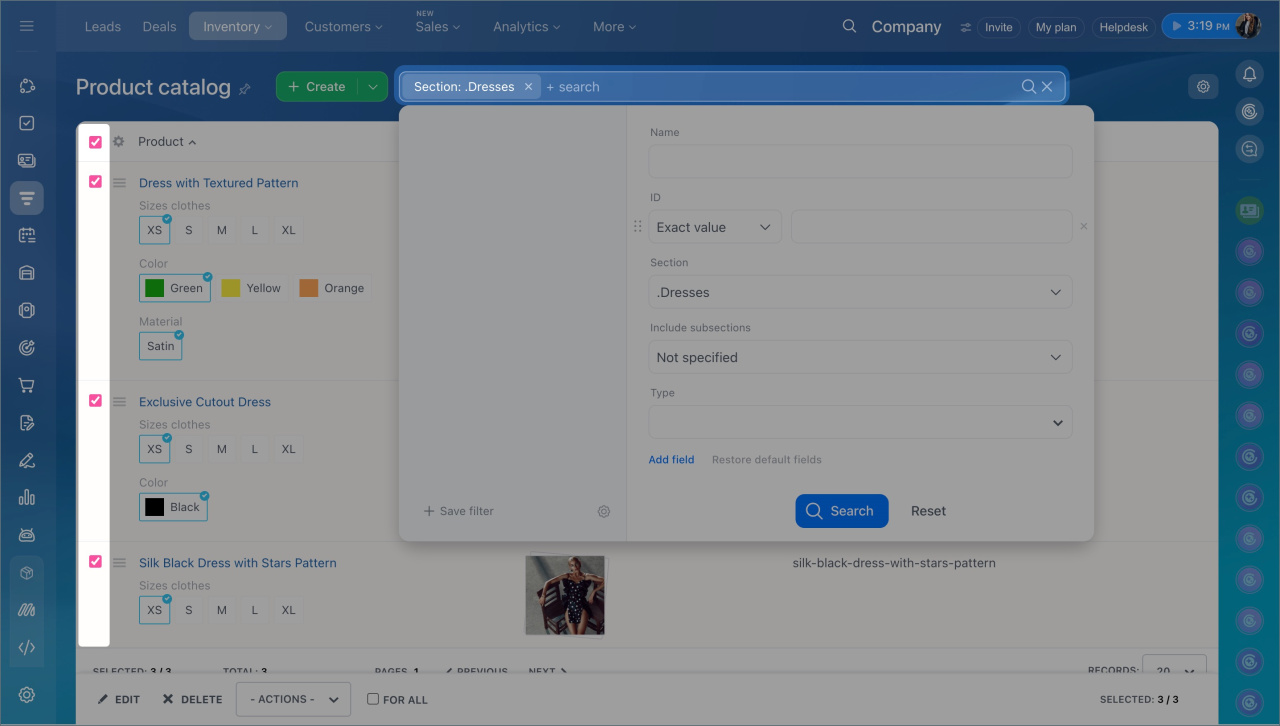
2. Select the products to update. Use the filter to quickly find items if the list is long.
Filters in CRM
3. To update all filtered products, select For all. The action will apply to all products that match the filter, even if they are not displayed on the page.
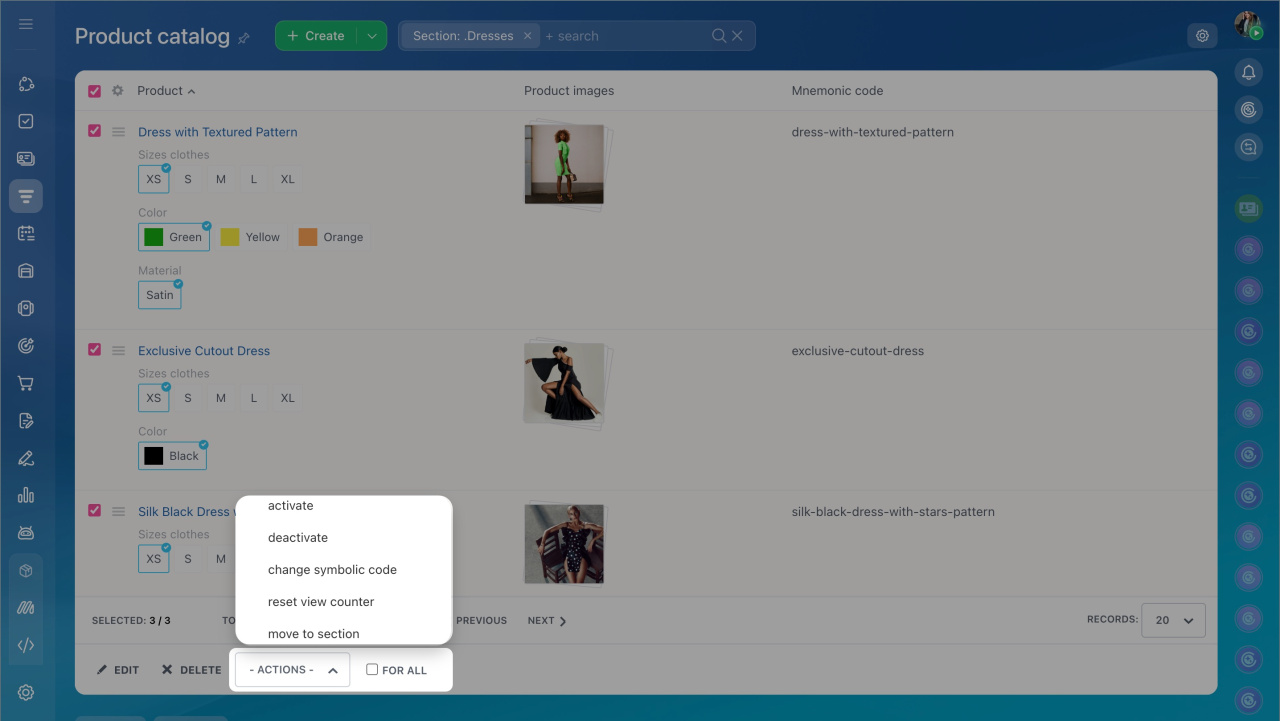
4. At the bottom of the page, click Actions. Available options:
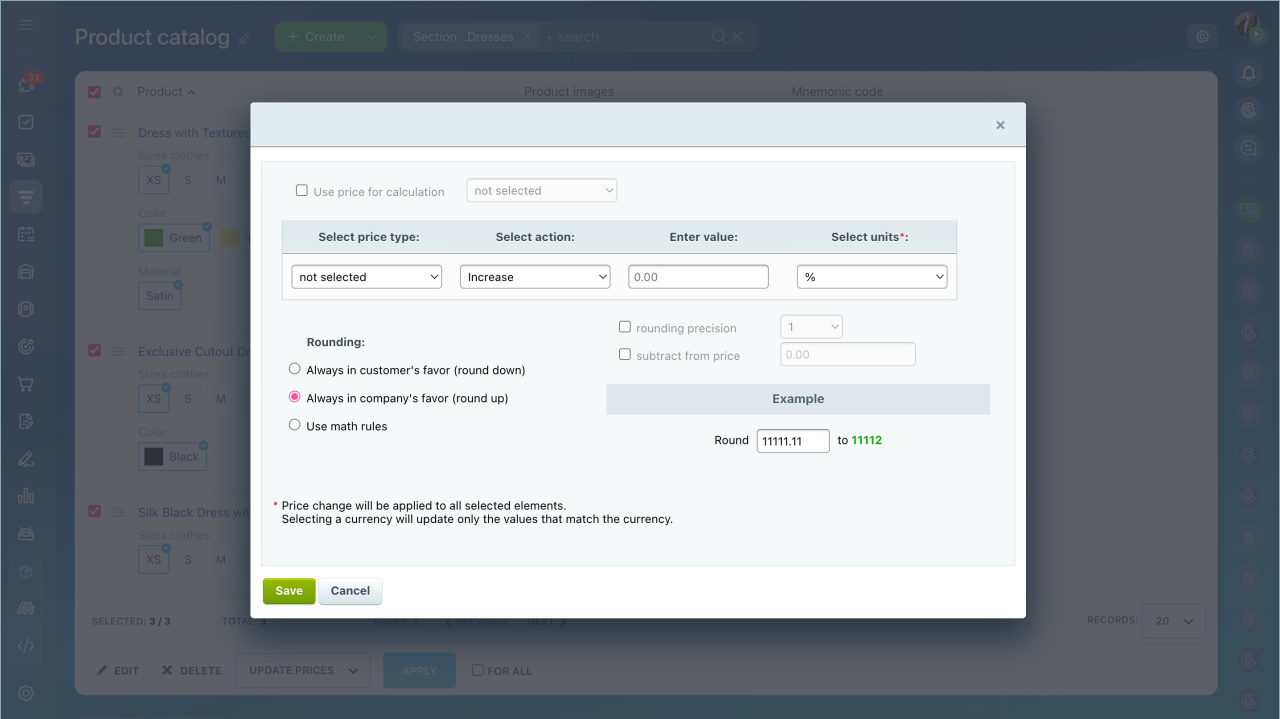
- Edit prices — updates prices for selected products. Increase or decrease values, apply a percentage or fixed amount, and configure rounding.
- Activate or deactivate — enables or disables products. Useful for temporarily hiding out-of-stock items.
- Edit product parameters — updates one field for all selected products. After selecting the action, choose the parameter. Update weight, unit of measure, VAT, available quantity, purchase price, product visibility, and other fields.
- Move to section — moves products to another catalog section.
- Add section link — adds a product to an additional section without removing it from the current one.
- Convert product or service — changes the item type. For example, convert a product to a service or vice versa.
- Reset view counter — resets the number of views. Useful before starting an advertising campaign.
- Edit symbolic code — updates the symbolic code of products.
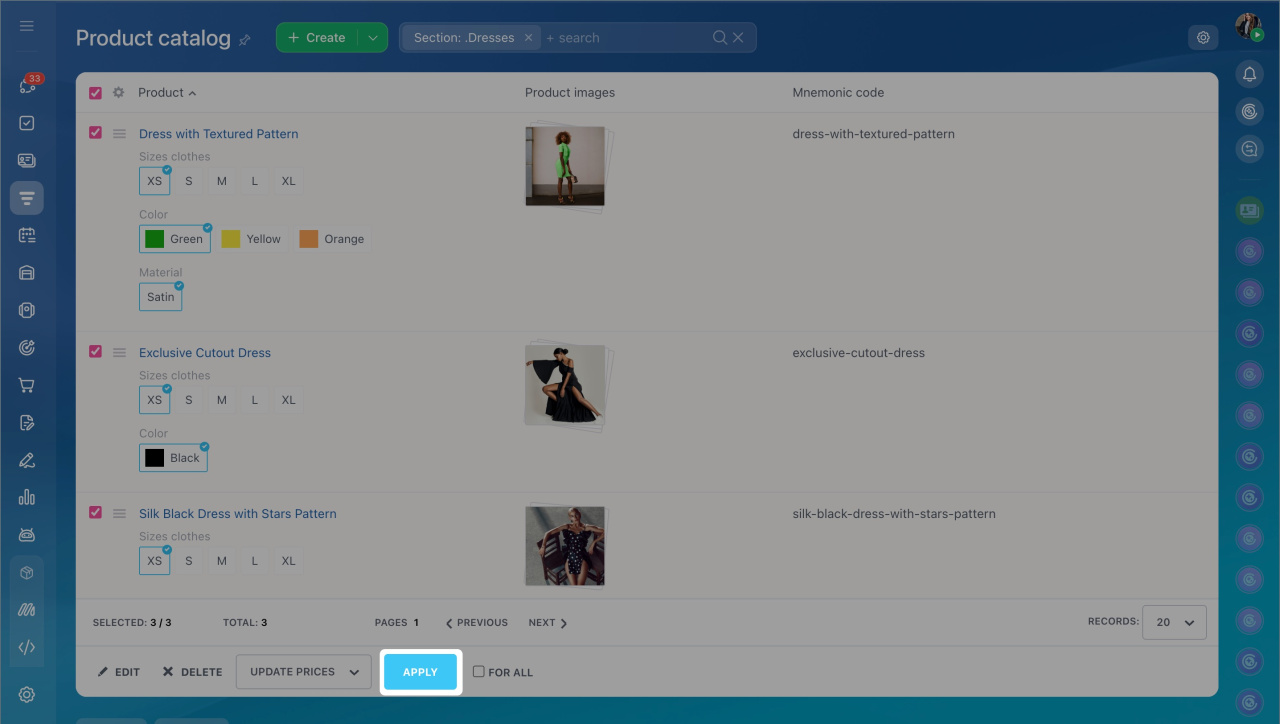
5. Select an action, for example Edit prices, and click Apply.
6. Configure the action settings. For example, select the price type and specify how much to increase or decrease the value.
7. Click Save.
Update products via import
Import works best when products require different updates. For example, update the price for one product, material and unit of measure for another, and weight and VAT for a third.
Only a Bitrix24 administrator or an employee with permission to view the catalog and import or export products can perform import and export.
Inventory access permissions
Import updates only standard products without variations.
Product and variant properties
Import cannot be undone. Check the spreadsheet before uploading.
Prepare the file. First select the products to update and export them to a file.
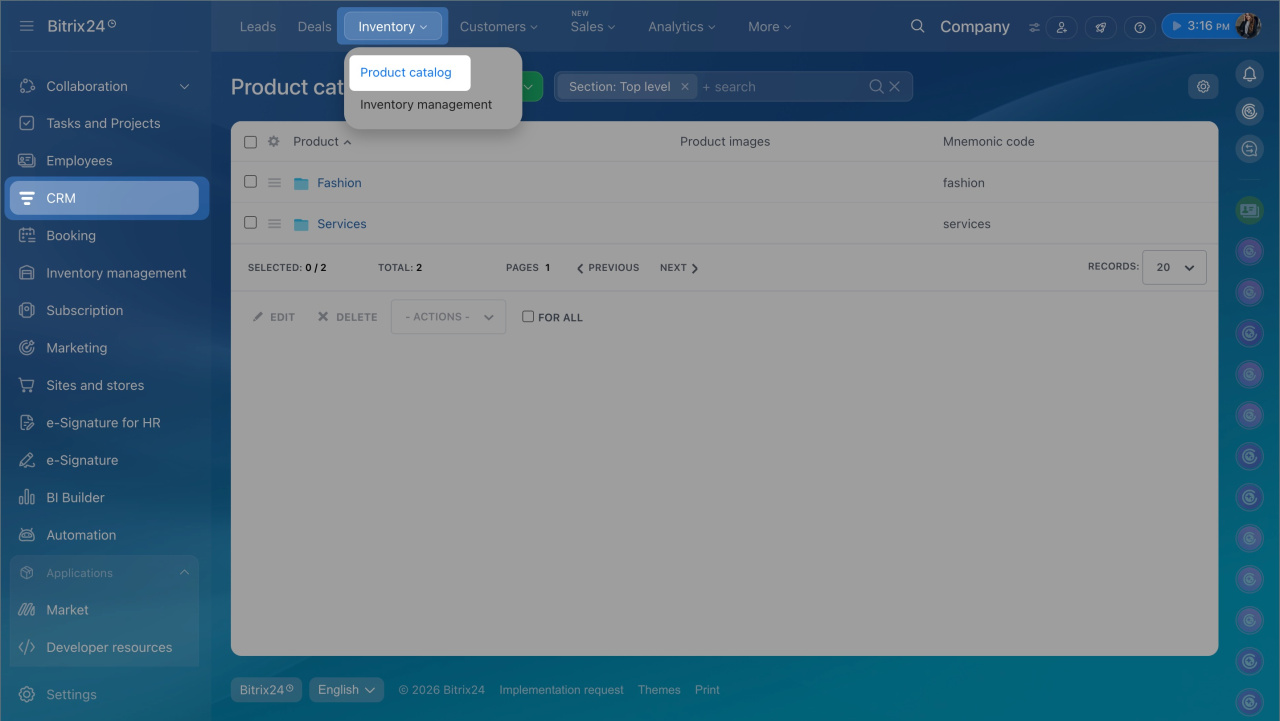
1. Go to CRM > Products and Inventory > Product catalog.
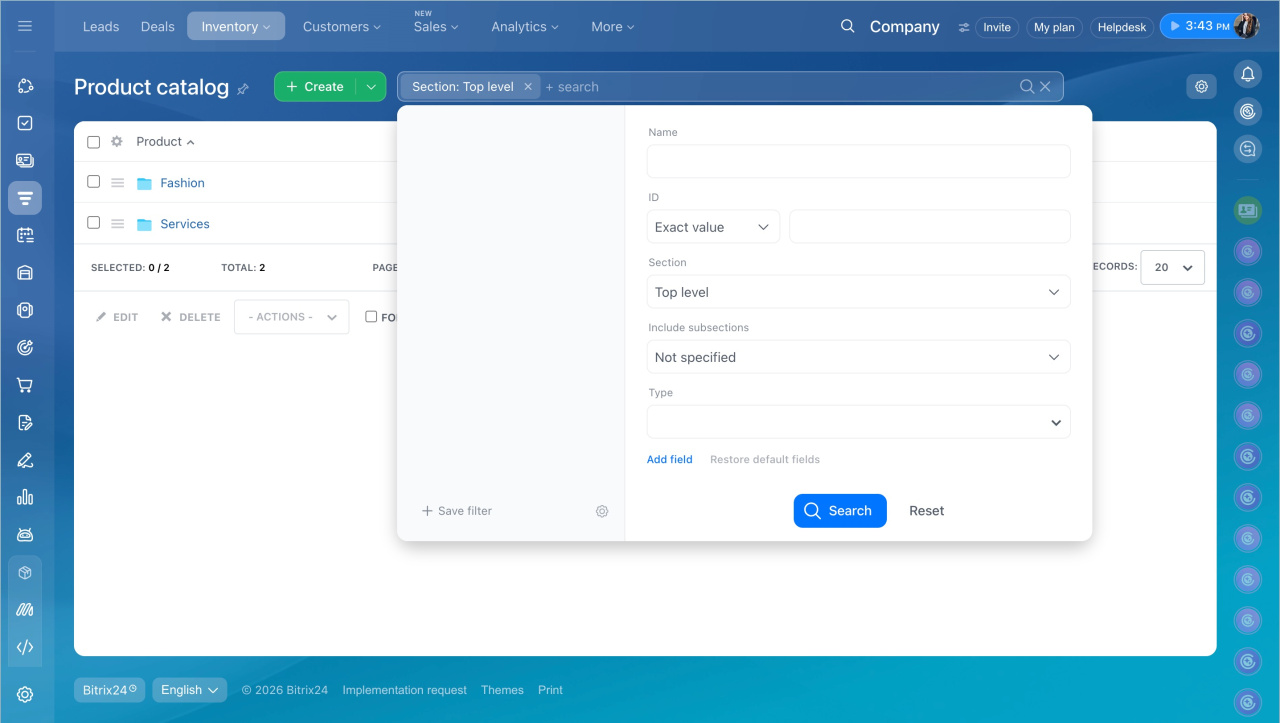
2. To update only part of the catalog, configure the filter and click Search.
Filters in CRM
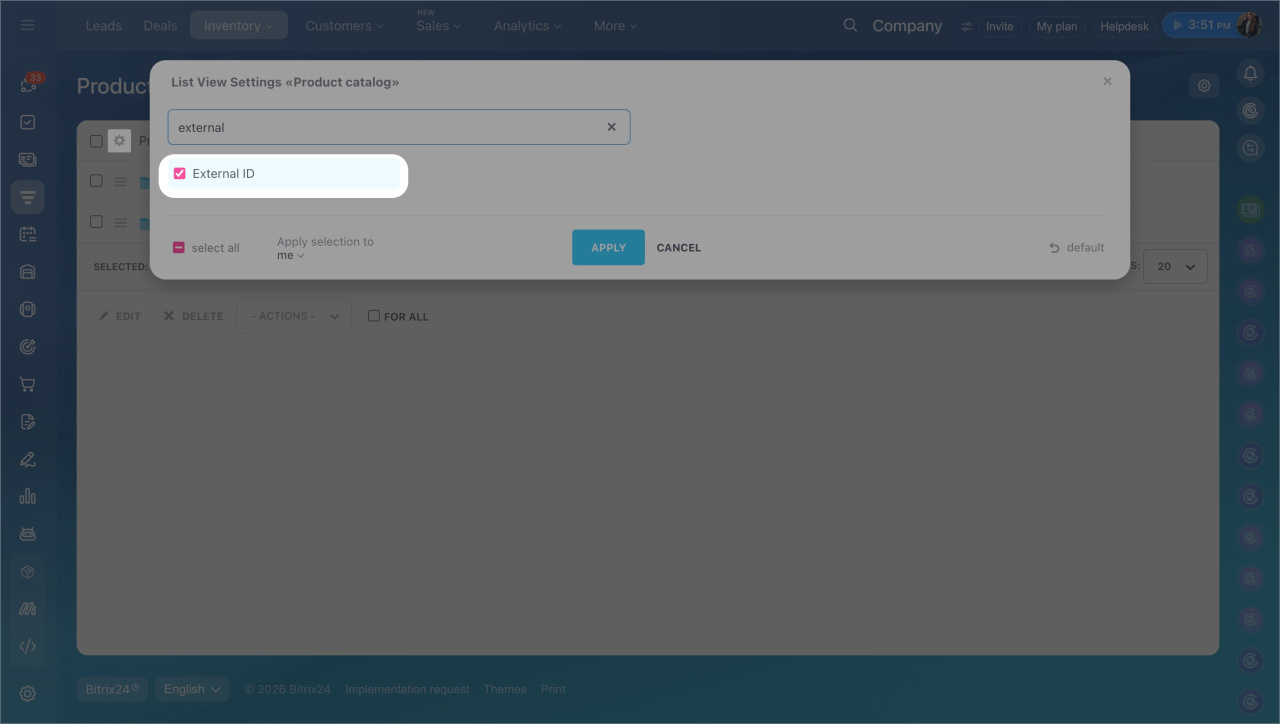
3. In the upper left corner, click Settings (⚙️) and make sure to include the External code field. This is the unique product identifier required to update existing products.
Export only the required fields to avoid unnecessary data in the file. For example, to update prices, export only Product, External code, and Price. Click Apply.
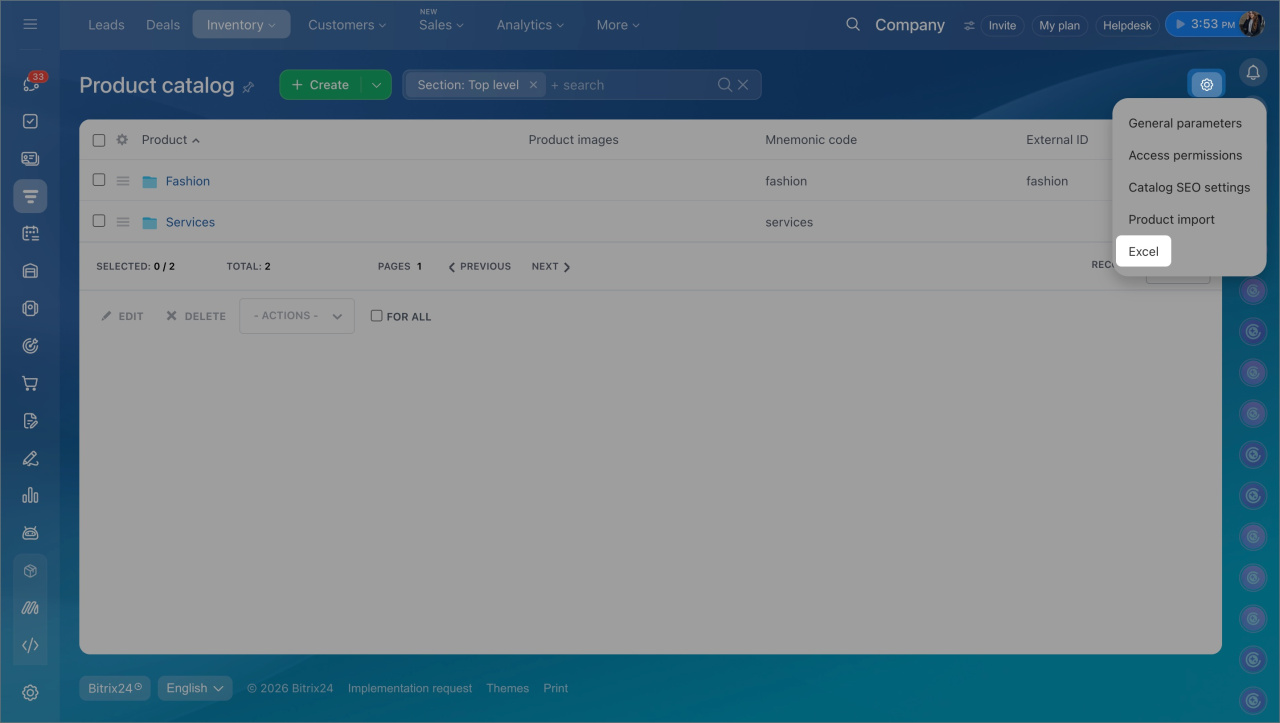
4. Then in the upper right corner click Settings (⚙️) > Excel — the file will download to your computer.
Edit the data. Open the xlsx file and update the required fields.
Before importing, check the file:
- If the External code matches a product in the catalog, Bitrix24 updates that product.
- If the External code is empty, Bitrix24 creates a new product.
After editing, save the file in csv format — this format is required for import. In Excel, select File > Save as and choose csv format.
Upload the file. When the file is ready, upload it back to Bitrix24.
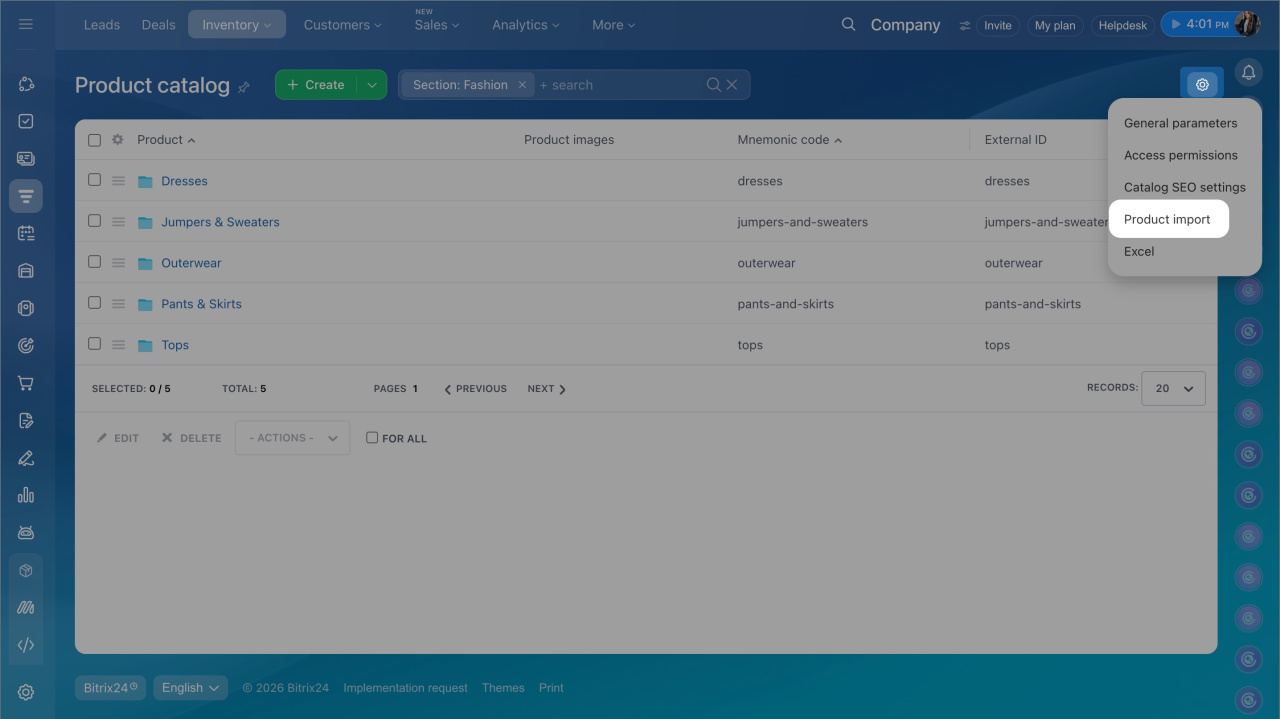
In the product catalog, click Settings (⚙️) > Import products. Upload the file and start the import.
Product import
Prices in deals, invoices, estimates, leads, and SPAs do not update automatically. If the product is already added to a CRM item, remove it and add it again to apply new values.
In brief
- Update products in the Bitrix24 catalog in two ways: group actions or import.
- Use group actions when the same change is required for multiple products. For example, increase prices, deactivate products, or move them to another section.
- Use import when standard products without variations require different updates based on a spreadsheet.
- For group editing, open the product catalog, select items, click Actions, choose the action, configure parameters, and save changes.
- To update via import, export products to a file, edit the data, save the file in csv format, and upload it via Settings (⚙️) > Import products. Use the External code field to update existing products.
- Changes from group actions and import cannot be undone automatically. Review data before saving or uploading the file.
- Prices in deals, invoices, estimates, leads, and SPAs do not update automatically. If a product is already added to a CRM item, remove it and add it again.
