
Inventory management in Bitrix24 helps you track products in your warehouse. It records receipts, sales, transfers, and write-offs, and updates data in real time.
If you already use inventory management in another service, you can move your data to Bitrix24. Your product catalog imports automatically, so you do not need to recreate it or fill out product cards by hand.
Bitrix24 plans and pricing
A Bitrix24 administrator or an employee with product import permissions can transfer data from other inventory management services.
Configure import and export permissions
Prerequisites for data migration
To transfer data from another service, install an app from Bitrix24 Market. Apps are available for migrations from MoySklad, Zoho Inventory, and QuickBooks Inventory.
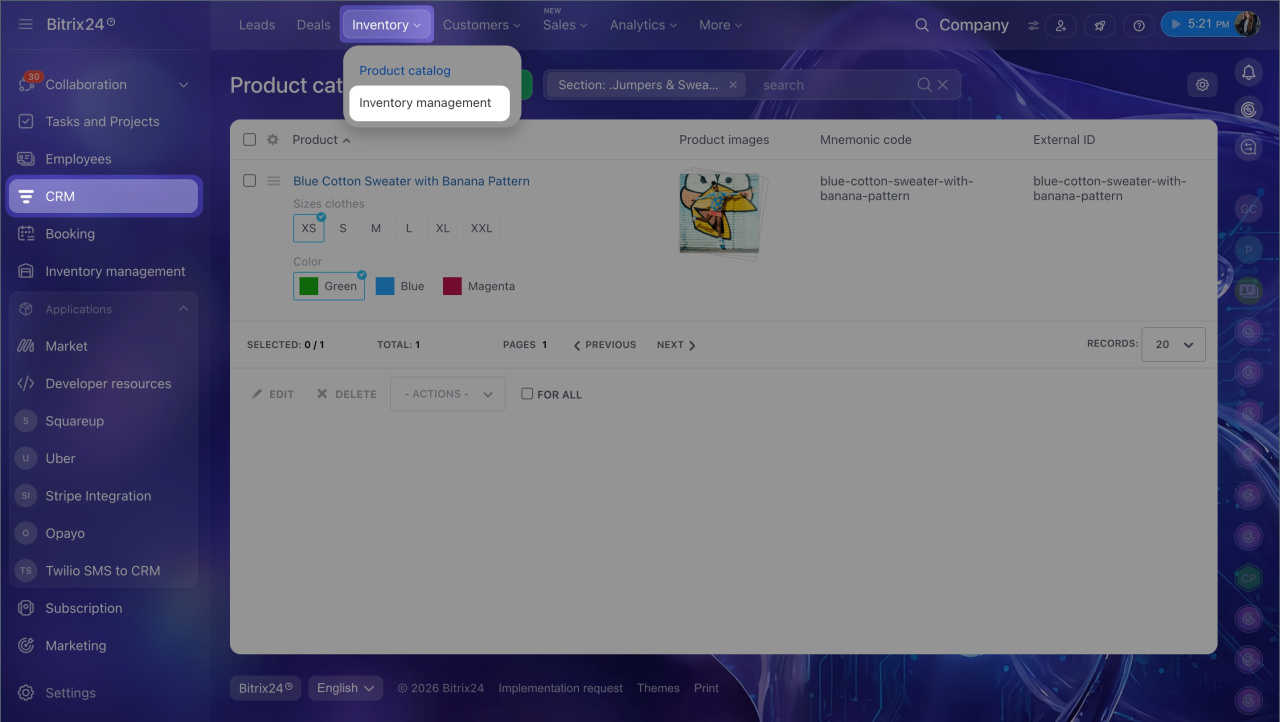
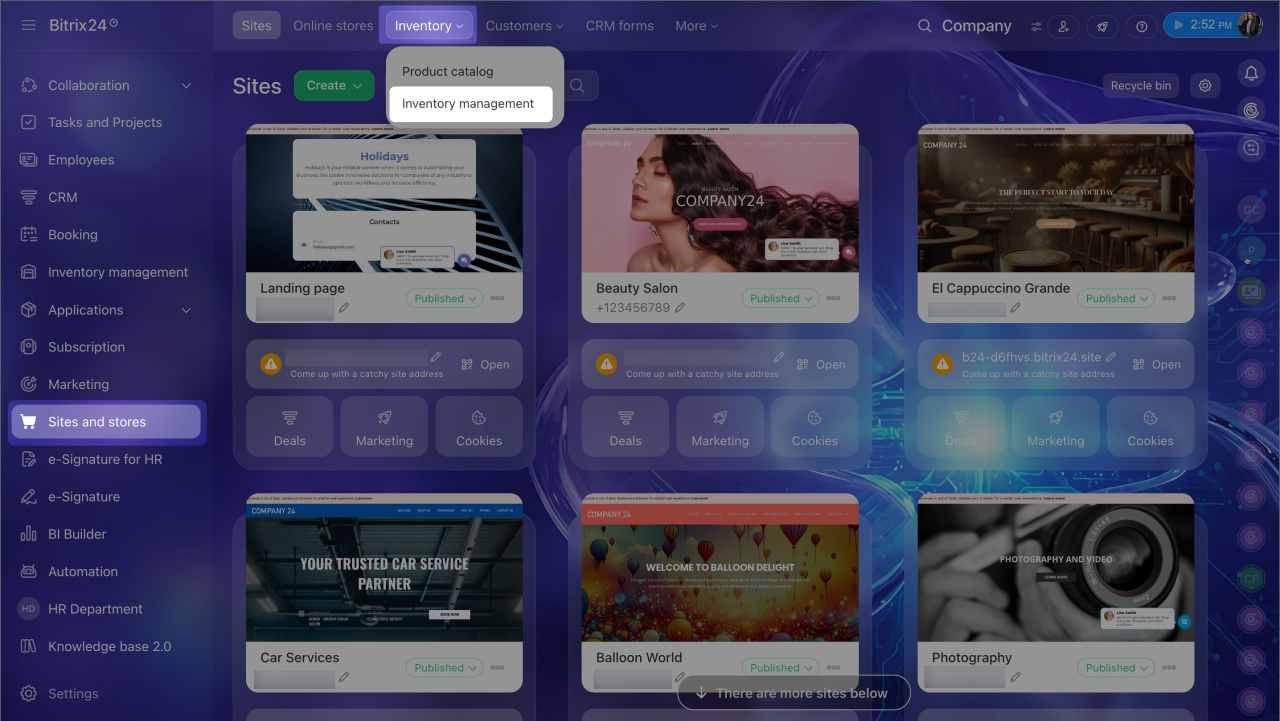
These apps work only when inventory management is enabled in Bitrix24. You can find inventory management in two sections: CRM and Sites and Stores.
If inventory management is not enabled:
1. Go to CRM or Sites and Stores > Inventory > Inventory Management.
2. In the Inventory management in Bitrix24 window, click Select.
3. Choose a costing method: average cost or FIFO.
Calculate product total cost by average cost method
Calculate product cost using FIFO
4. Click Enable inventory management.
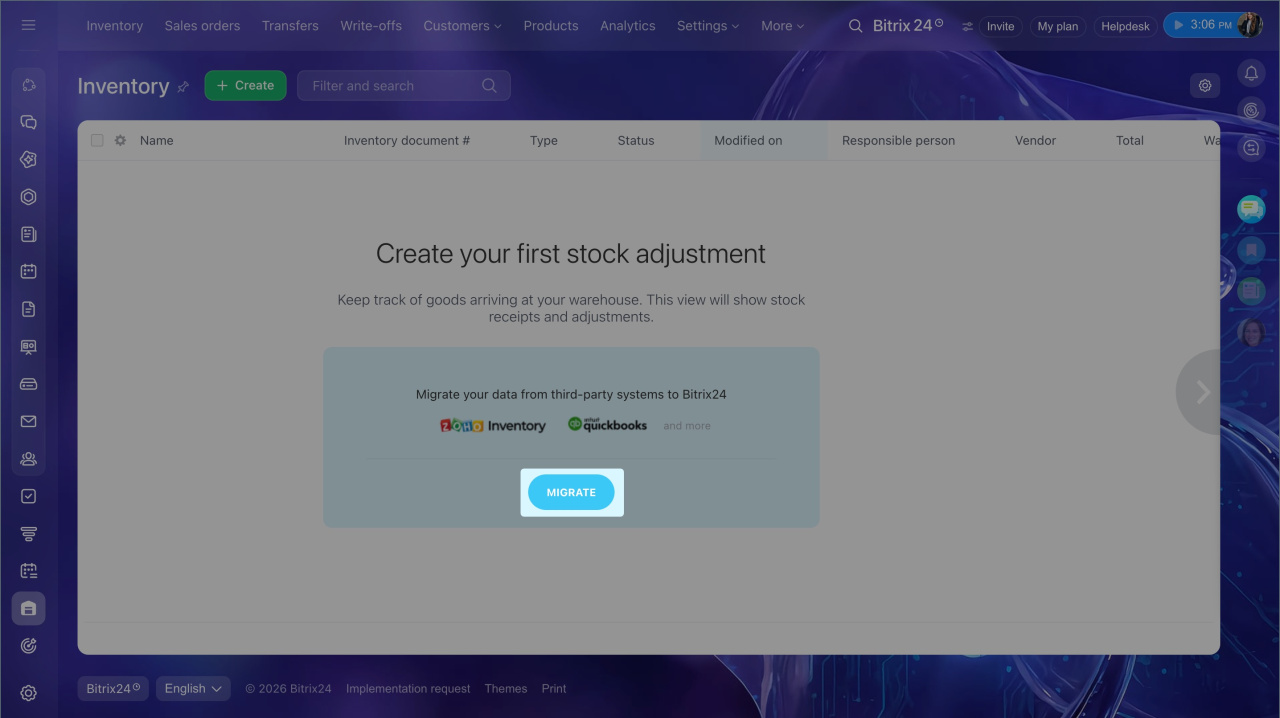
5. After you enable it, click Migrate. Bitrix24 Market will open.
If inventory management is already enabled:
1. Go to CRM or Sites and Stores > Inventory Management.
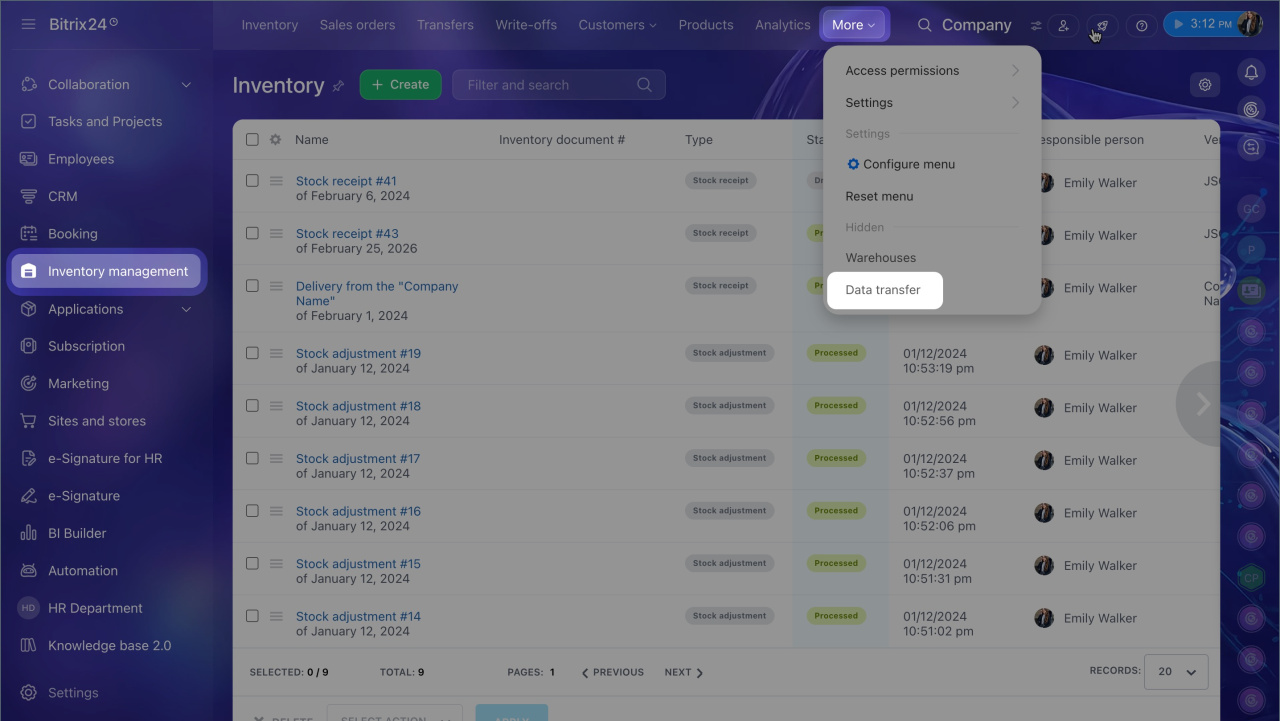
2. In inventory management, click More > Data migration. Bitrix24 Market will open.
How migration apps work
Choose the app for the inventory service you are moving from. Each app has its own supported data and limits.
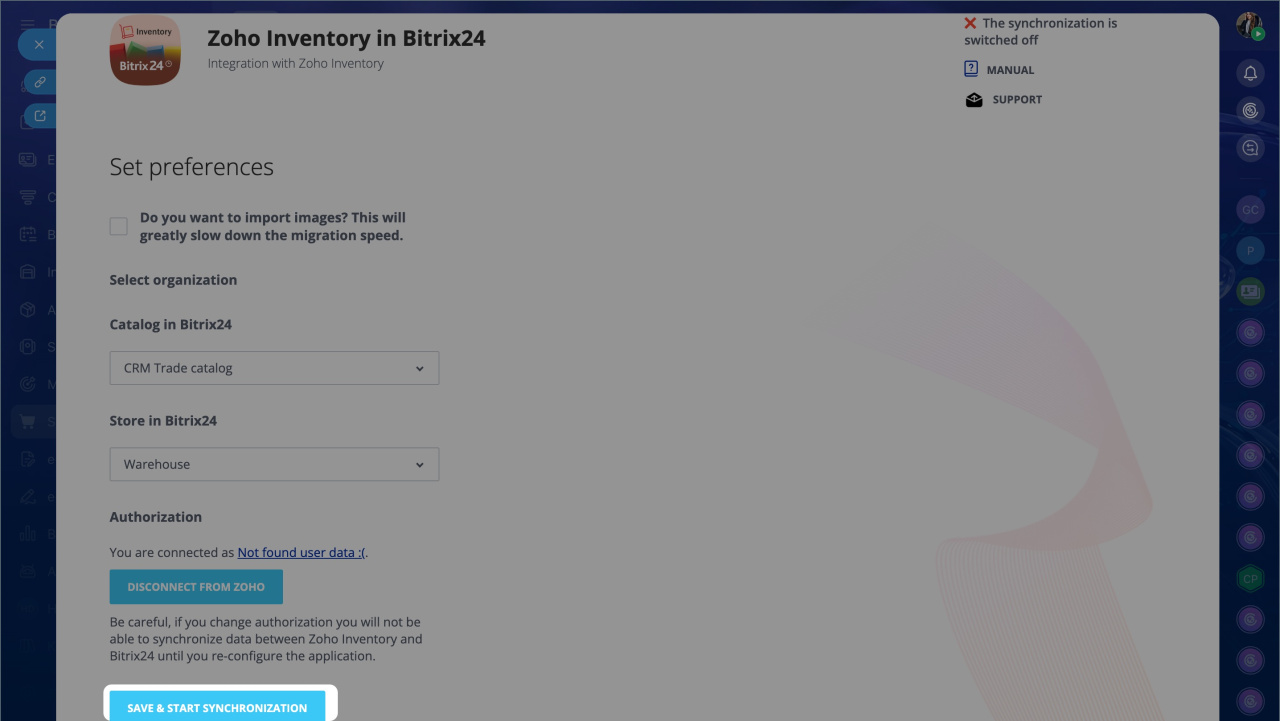
Zoho Inventory. Data transferred from Zoho Inventory:
- Product name, description, status, unit of measure, creation date, and last modified date
- Product dimensions and weight
- Composition, including whether the product consists of multiple individual products
- Quantity tracking status
- Currency and purchase price
- Stock balance and reserved quantity
What to know:
- You can start migration only if the base currency in Bitrix24 matches the store currency in Zoho Inventory.
Add and customize currencies in CRM - The app imports only products that have the Sales Information block filled out, such as base price per unit and tax rate.
- It transfers products from all Zoho Inventory warehouses into one Bitrix24 warehouse.
- It imports only the main product image.
- It imports only whether tax is included in the price. Other tax details do not transfer.
- Units of measure do not transfer automatically. Before you start the import, add the same units of measure to Bitrix24 that you use in Zoho Inventory. The names must match exactly. For example, if Zoho Inventory uses Pieces, Bitrix24 must also use Pieces.
Add units of measurement in CRM - After import, the app creates a stock adjustment document with only the products that are currently in stock.
QuickBooks Inventory. Data transferred from QuickBooks:
- Products and services
- Categories
What to know:
- The app does not import product bundles or images.
- After import, it creates a stock adjustment document with only the products that are currently in stock.
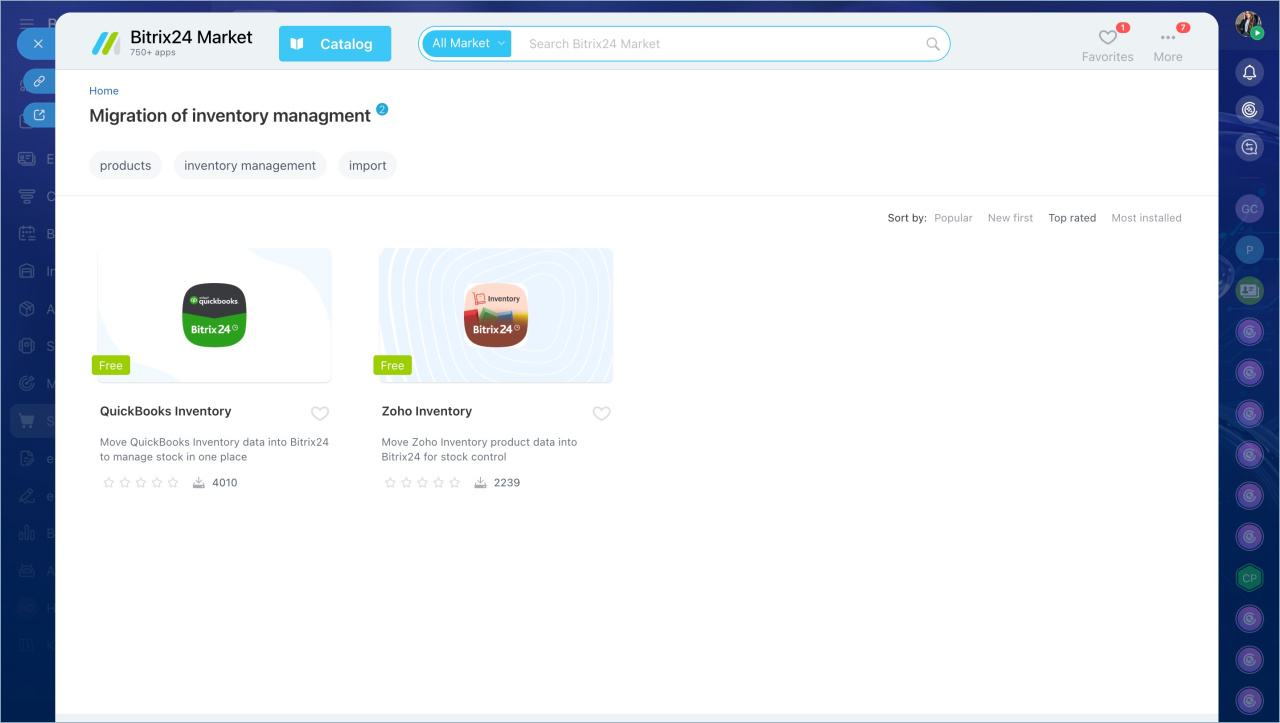
Migrate data to Bitrix24 Inventory management
Find and install Bitrix24 Market applications
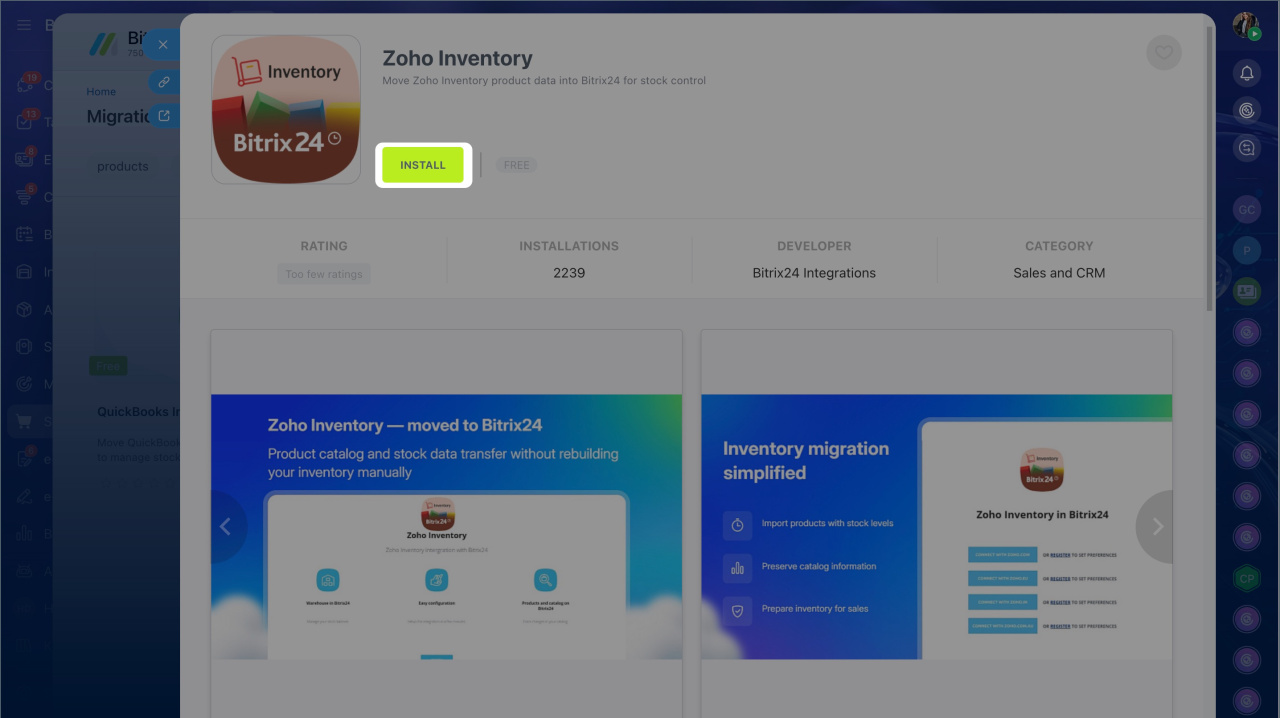
1. In Bitrix24 Market, select the app.
2. Click Install.
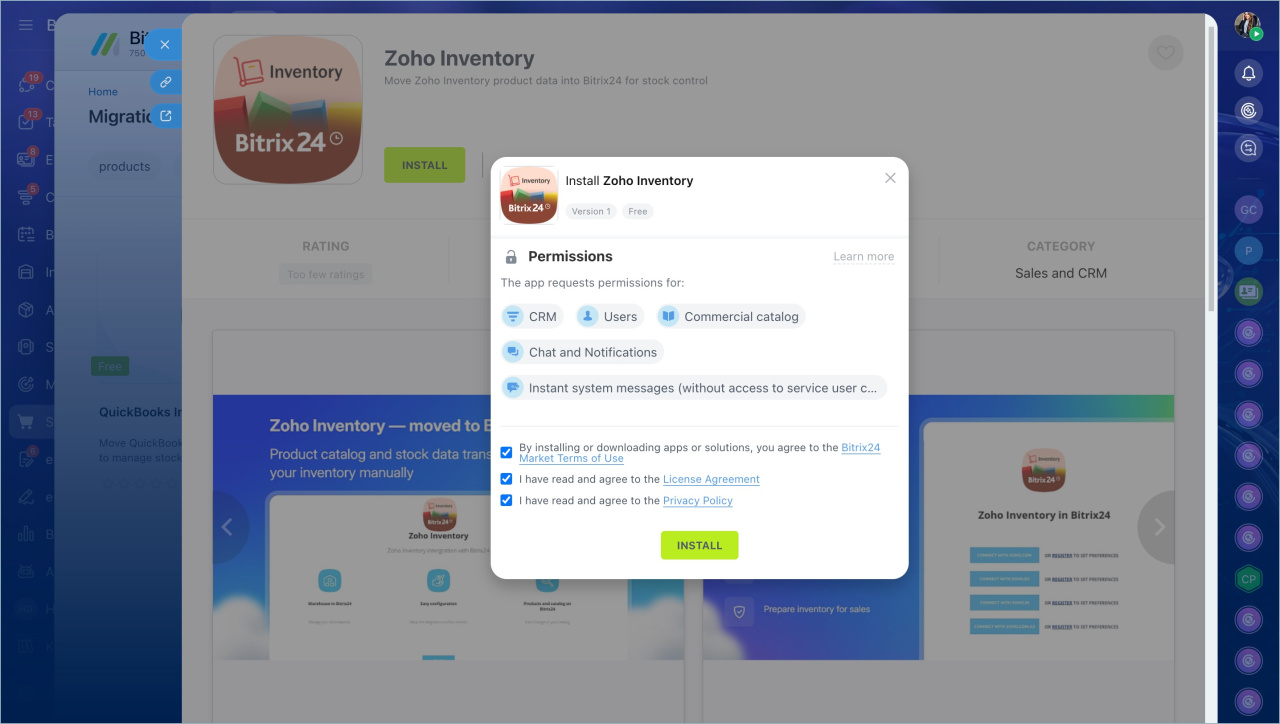
3. Accept the Terms of use and click Install.
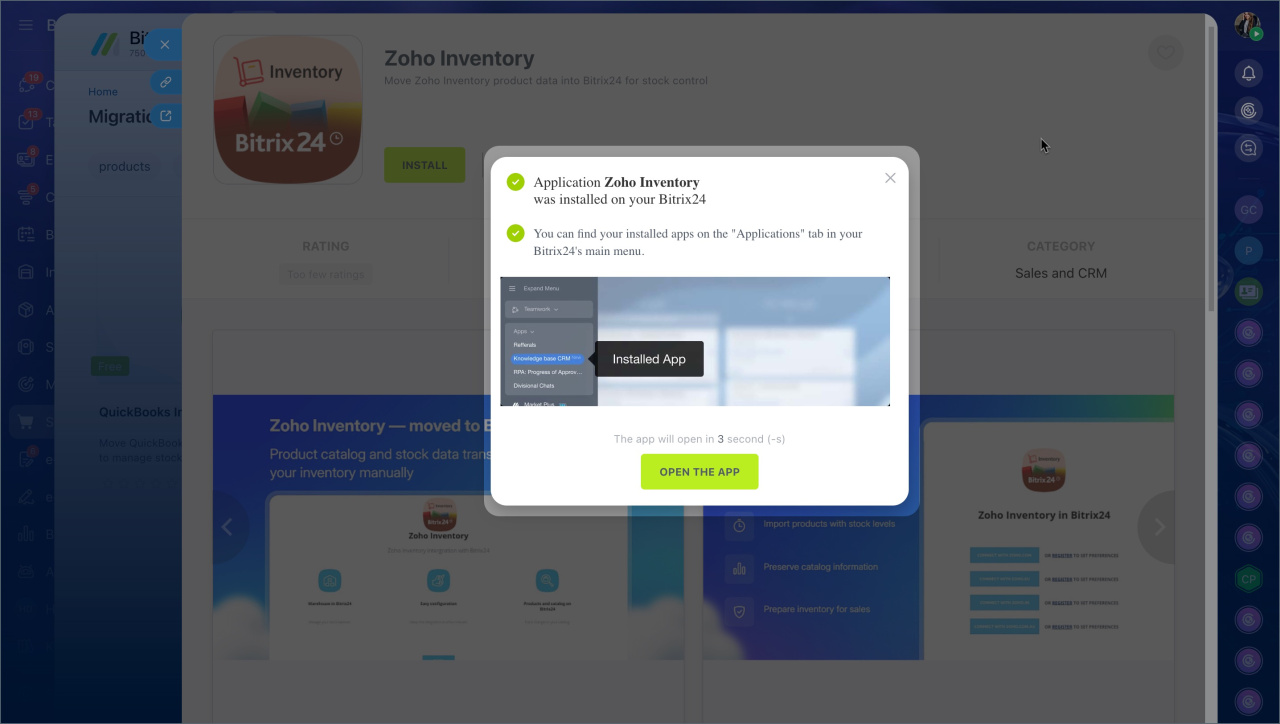
4. Click Open app or wait for it to open automatically.
5. Enter your login and password and click Save.
6. Click Start migration. Migration time depends on the number of products. The process runs in the background, so you can close the page and return later to check the status.
When the import is complete, products will be added to the catalog and a posted stock adjustment document will appear in inventory management.
If the product limit on your Bitrix24 plan is reached during migration, the import will stop. In that case, enable demo mode for your Bitrix24 plan.
Free 15-day trial
In brief
- If you use Inventory management in another service, you can automatically transfer your product catalog to Bitrix24.
- To transfer data, enable Inventory management in Bitrix24, install an app from Bitrix24 Market, and import your data.
- If Inventory management is not enabled, go to CRM or Sites and Stores > Inventory > Inventory Management, enable Inventory management, and click Migrate.
- If Inventory management is already enabled, go to CRM or Sites and Stores > Inventory Management > More > Data transfer.
- Bitrix24 Market has apps for migrating data from Zoho Inventory and QuickBooks Inventory.