
Vendors are companies or individuals that supply products. In Inventory Management, you can store all vendor details in one place, including contact information, addresses, and company details. This makes it easier to find vendor contacts, communicate with them, and track deliveries.
- View the Inventory Management documents section
- Create and edit stock receipt documents
- View, add, and edit contacts, companies, and vendors. Configure access permissions to Inventory Management
Role-based access permissions in CRM
In this article:
Add a vendor to a stock receipt
A stock receipt shows which products arrived and which vendor supplied them. When you fill out the document, you can choose an existing vendor or create a new one. In Inventory Management, vendors are based on contacts and companies. Their details are stored in CRM item forms.
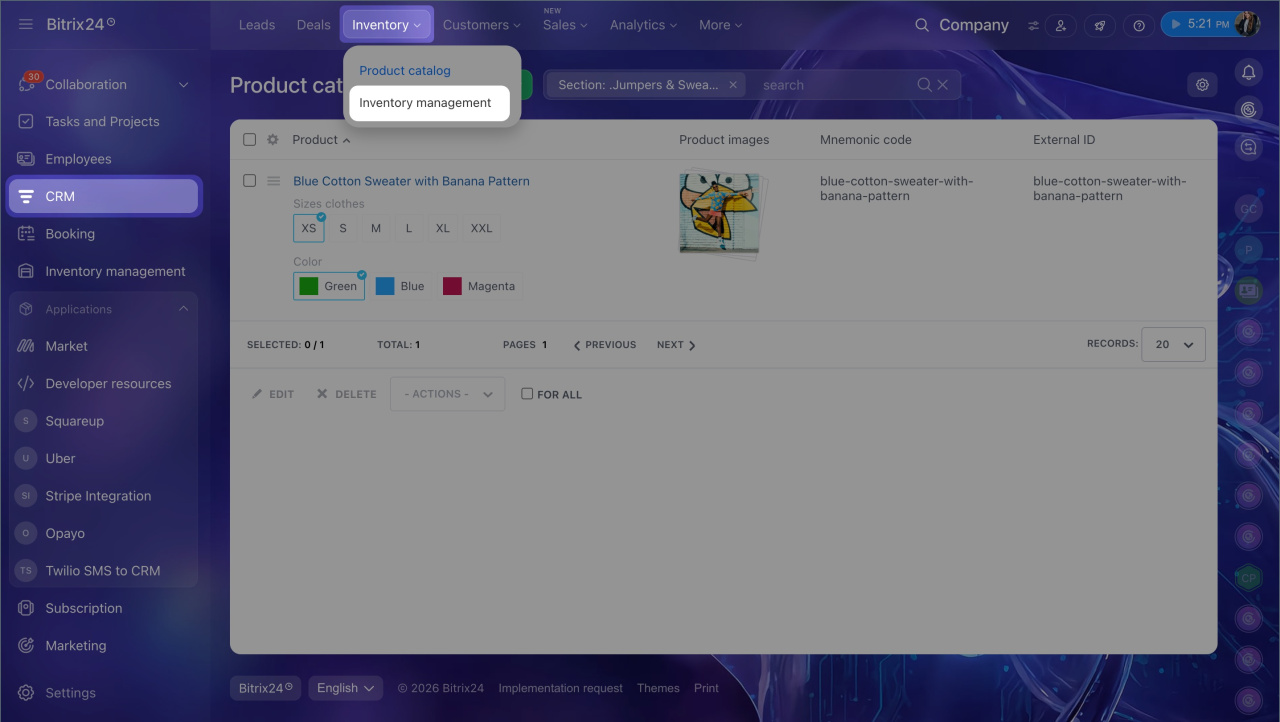
1. Go to CRM > Inventory > Inventory Management.
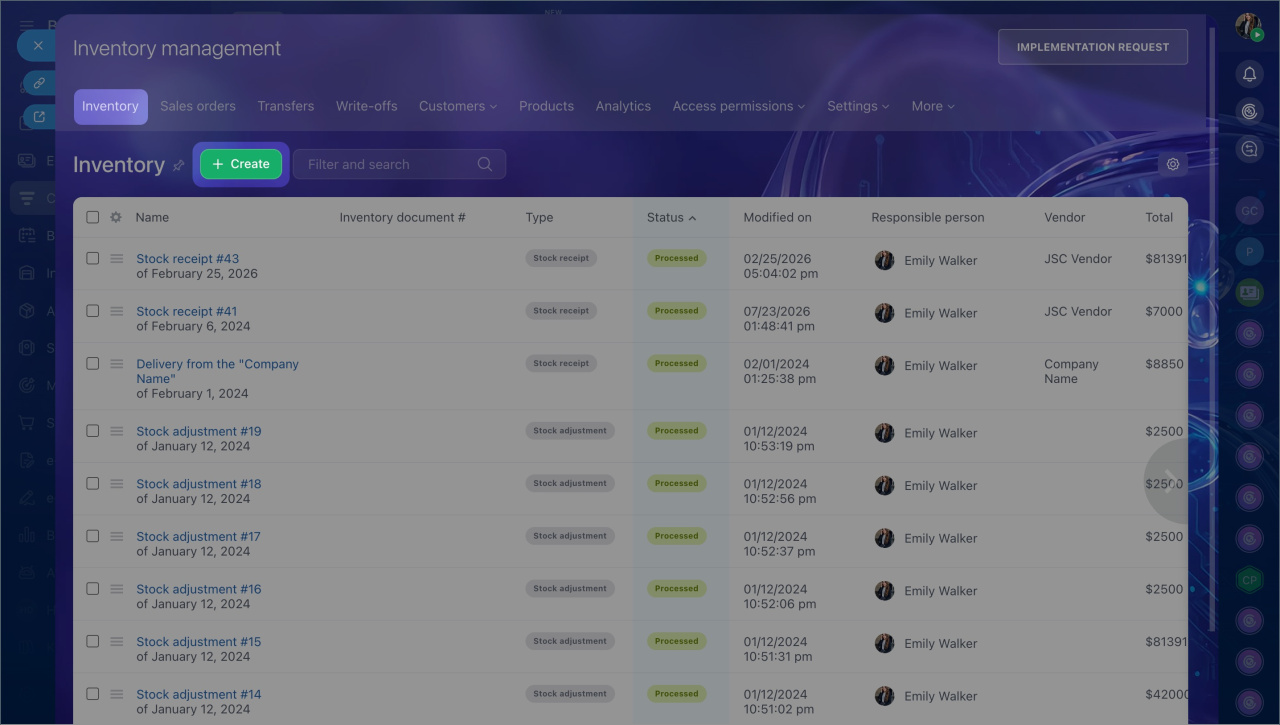
2. In the Inventory tab, click Create. The stock receipt form will open.
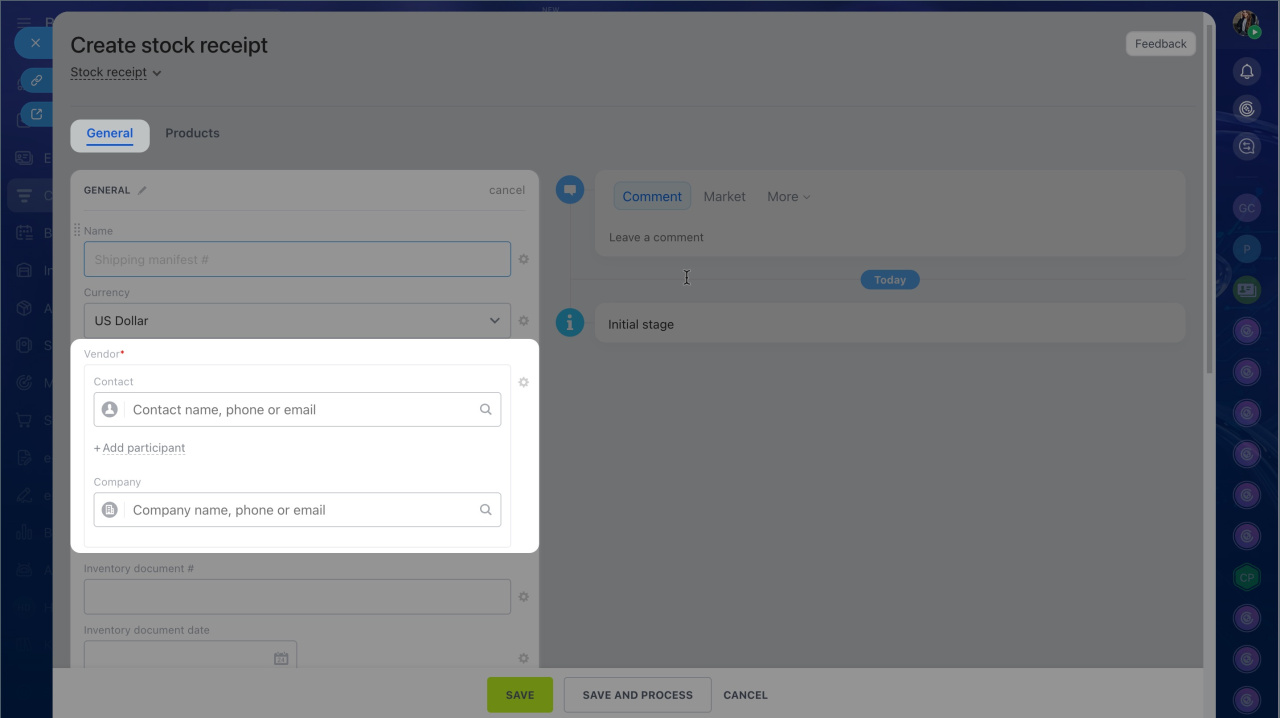
3. In the form, open the General tab and find the Vendor field. You can select an existing company or contact, or create a new one. The same way as the Client field in CRM.
Client field in CRM item form
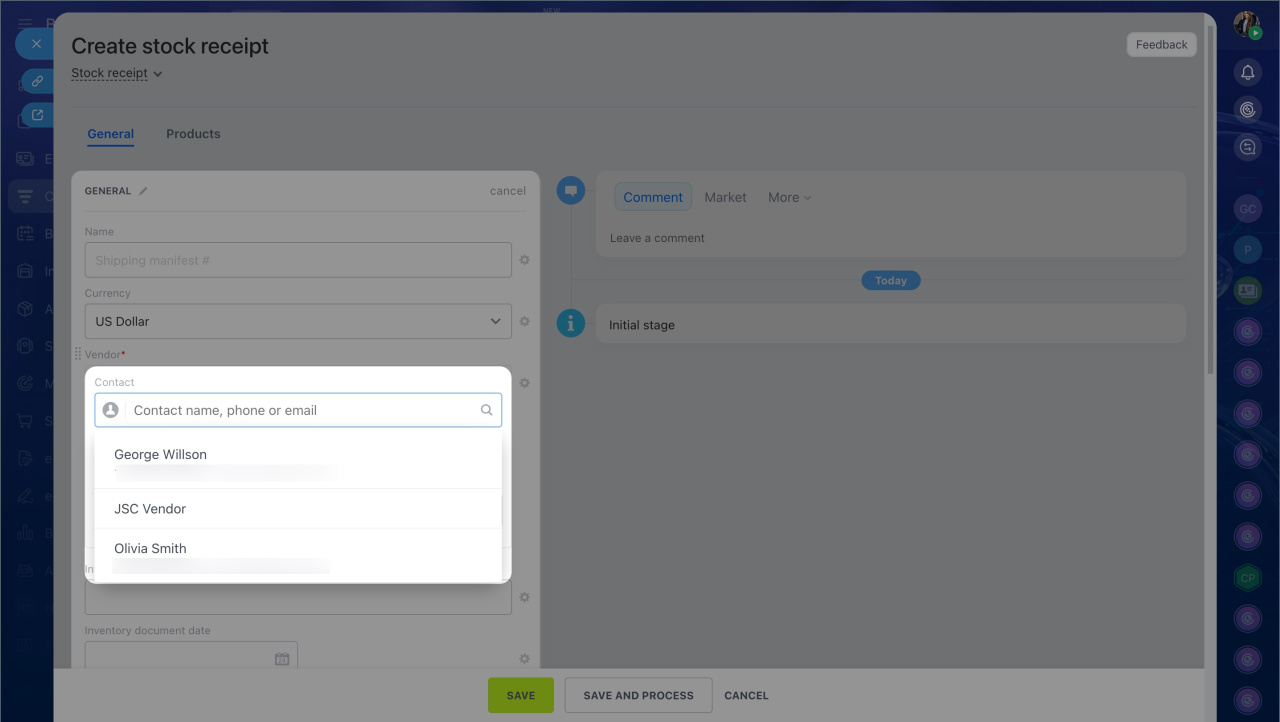
Select an existing vendor. If the vendor already exists, start typing the company name or contact name in the Vendor field and select the right option from the list.
Create a new vendor.
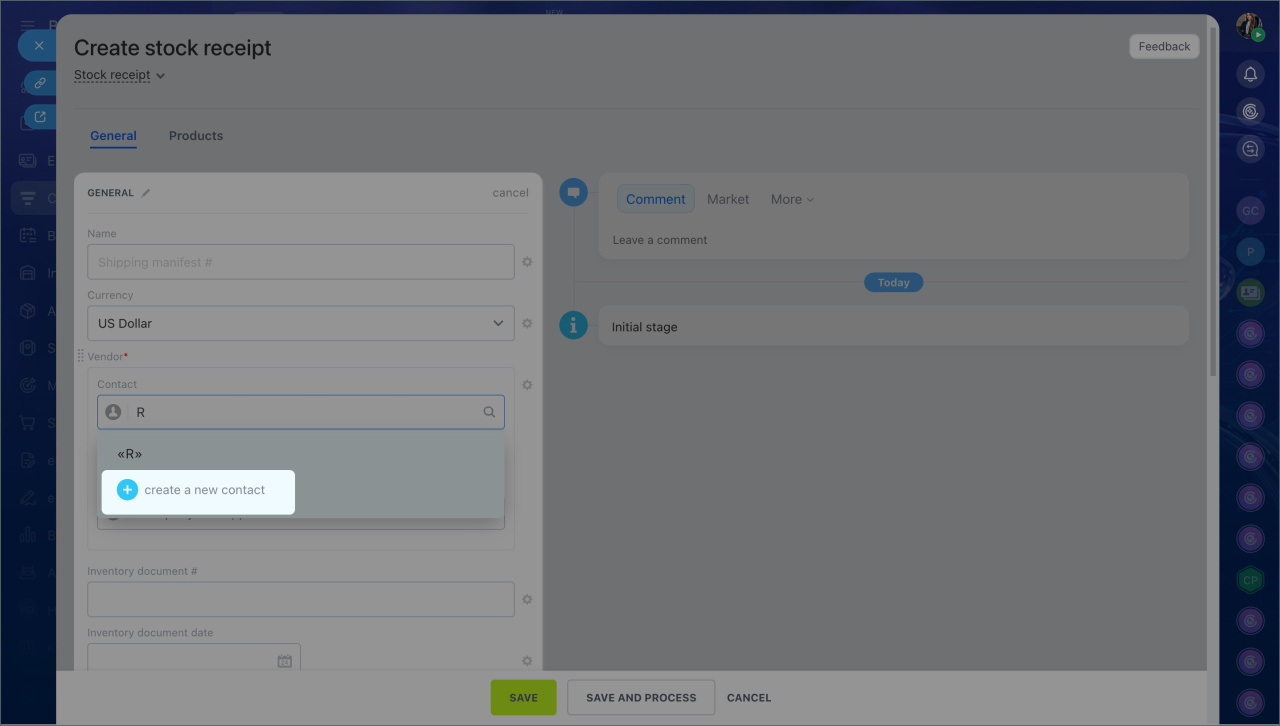
1. Enter the company name or the representative's name.
2. Click Create new contact or Create new company.
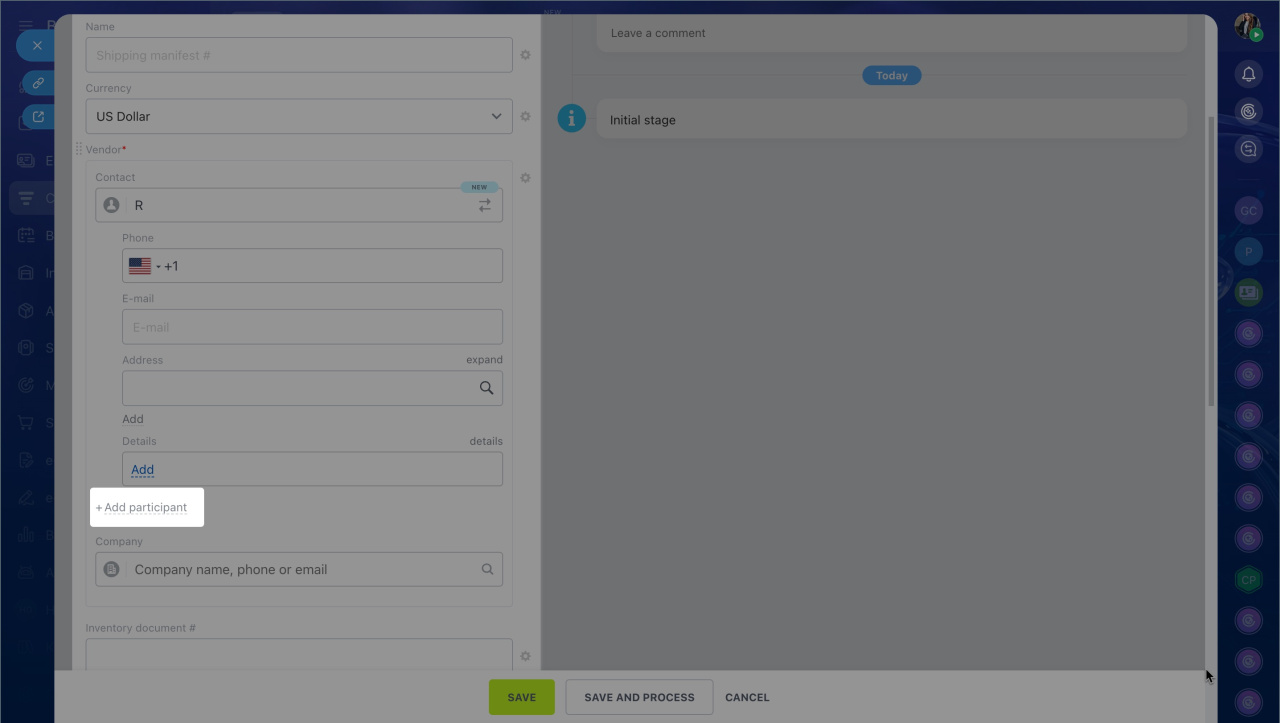
3. Fill in the phone number, email, address, and company details.
4. If the vendor has several representatives, such as a director and an accountant, click Add participant and enter the additional contacts.
5. Complete the remaining fields in the stock receipt and save your changes.
Create a stock receipt
Find the vendor list
You can find the vendor list in both CRM and Inventory management. There, you can open a vendor record, view details, or add a new vendor.
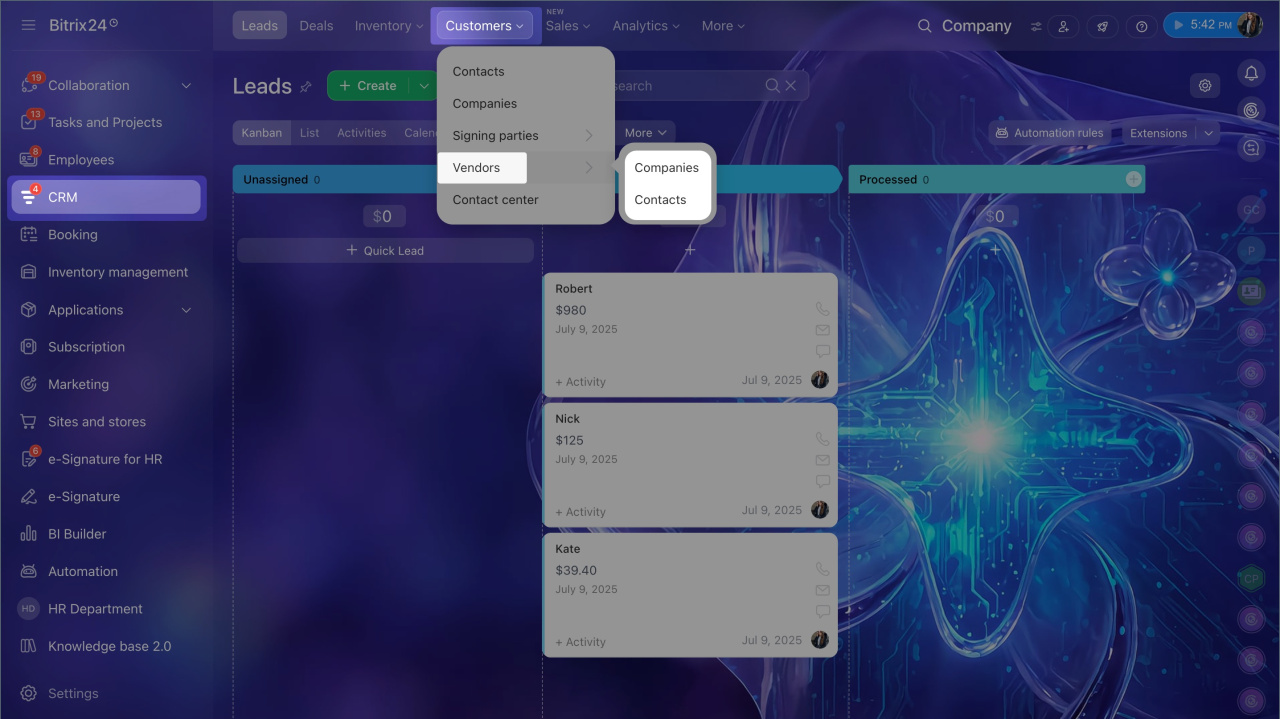
CRM. Go to CRM > Customers > Vendors > Companies or Contacts.
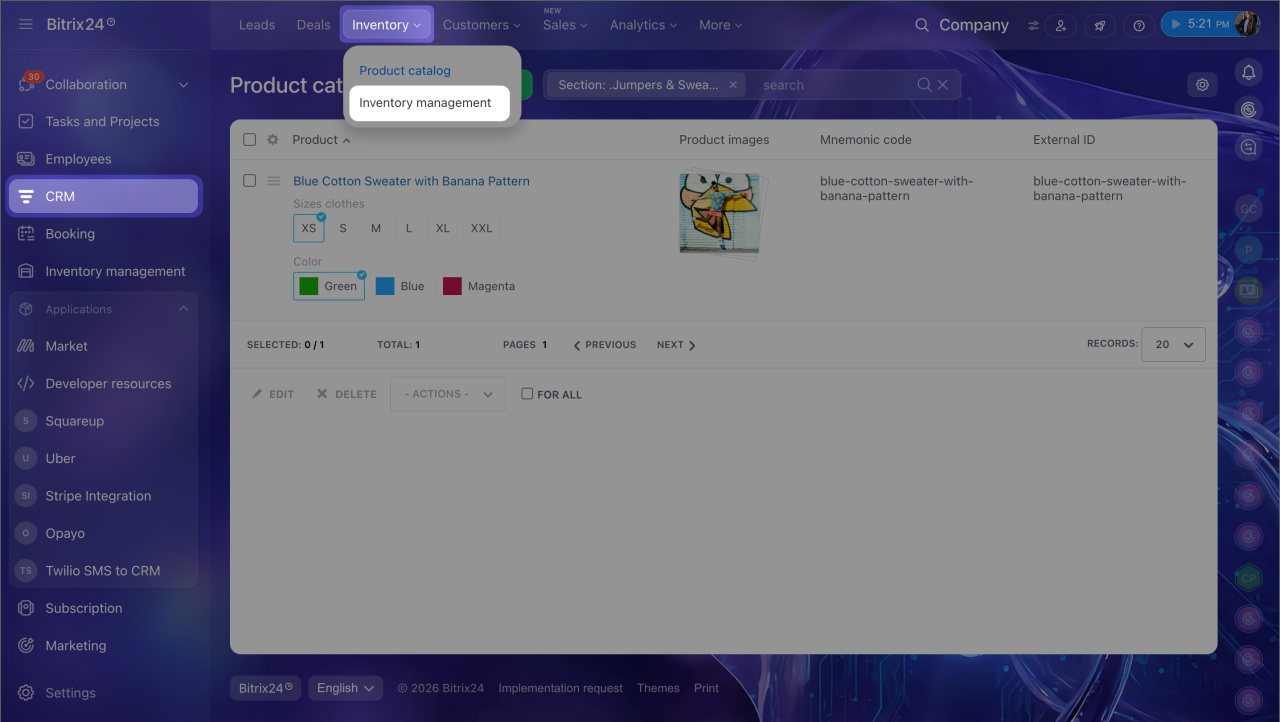
Inventory management. Go to CRM > Inventory > Inventory management > Customers > Vendors > Companies or Contacts.
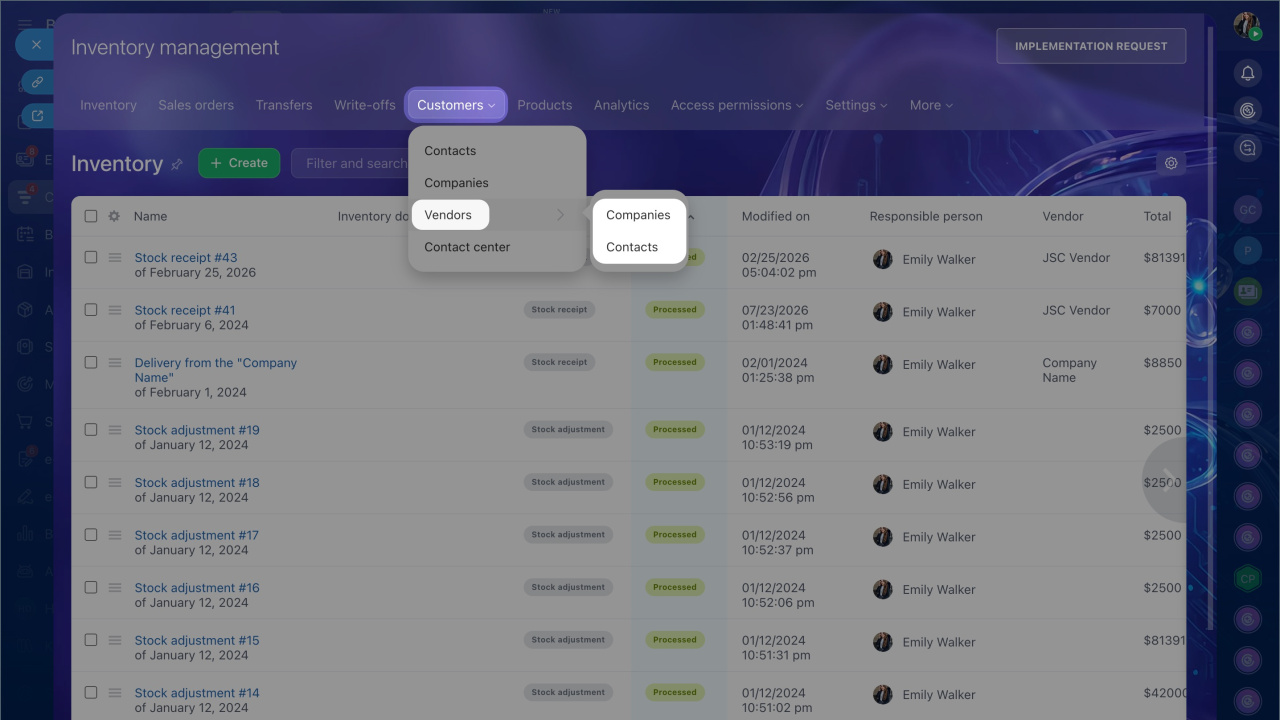
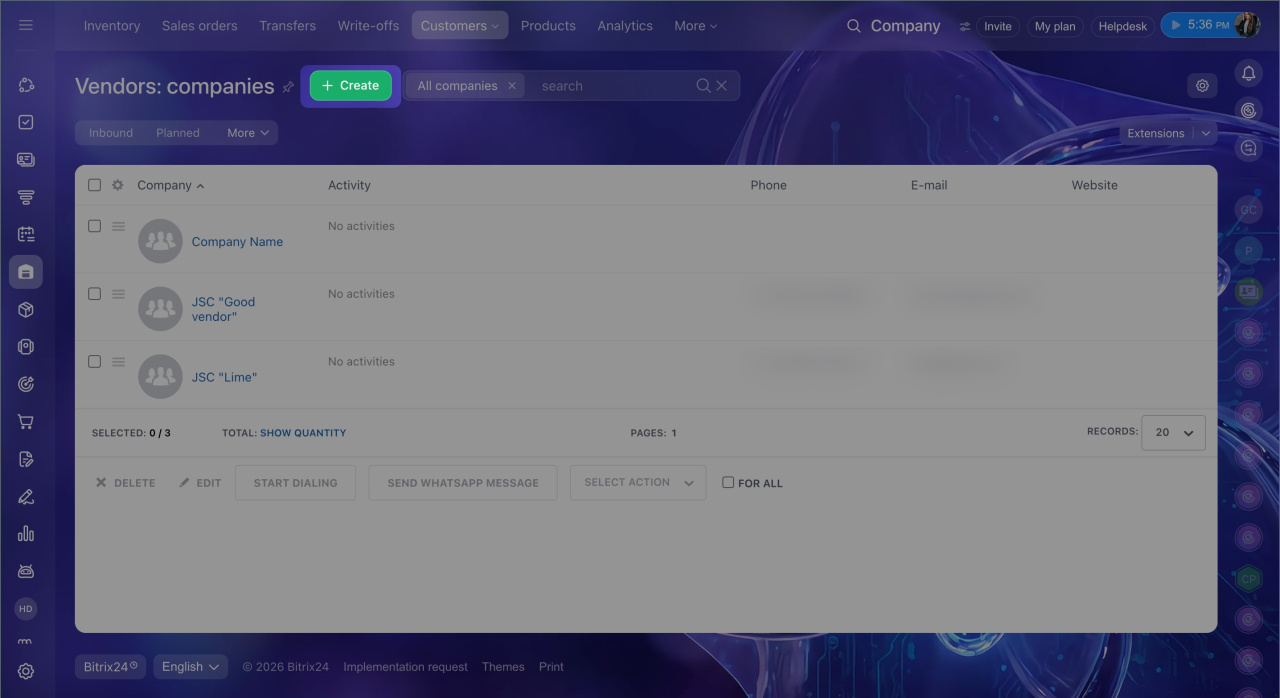
Click Create in the Companies or Contacts section to add a new vendor. Fill out the form with the name, phone number, and other details.
Companies
Contacts
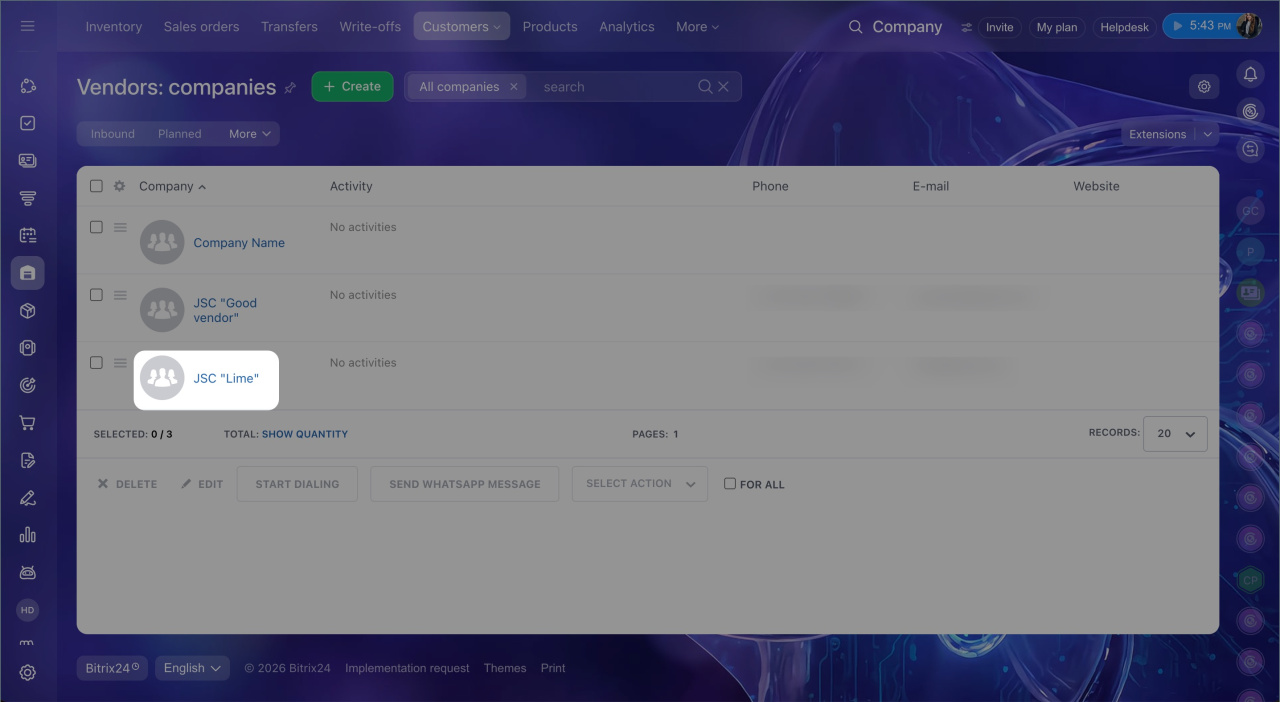
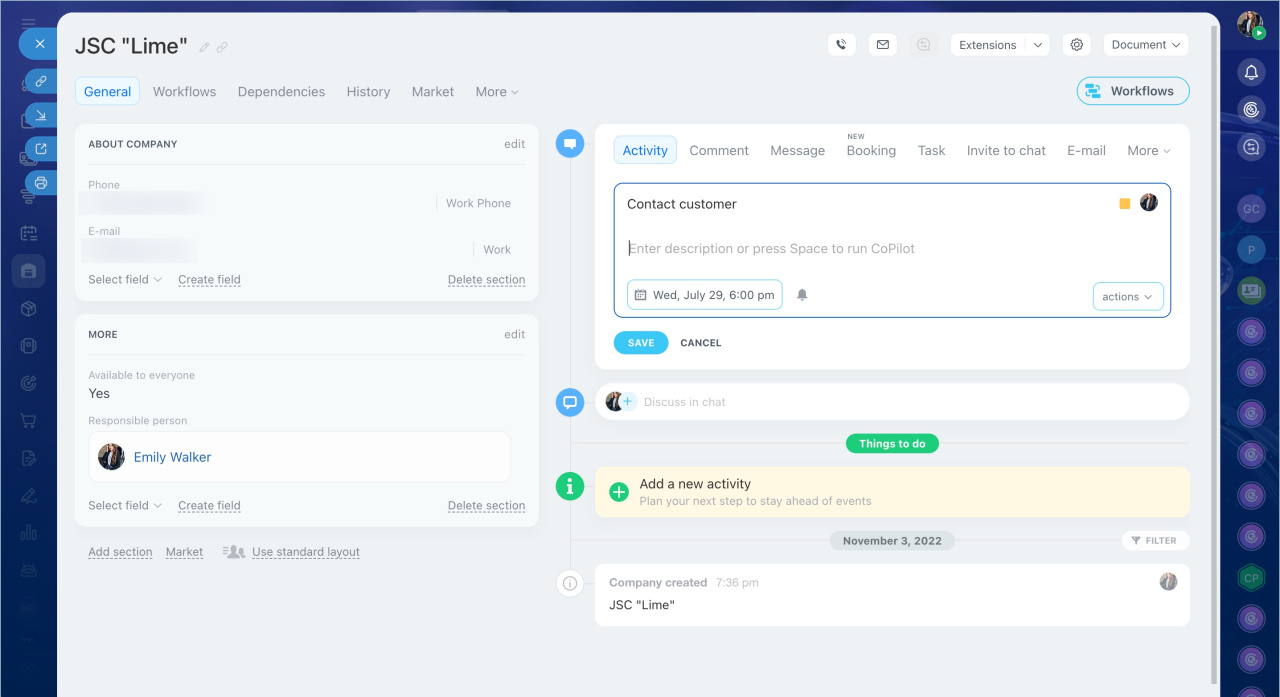
Click a contact or company to open the record and view the vendor's details. From there, you can make a call, send an email, or schedule an activity.
For example, if a delivery is delayed, a manager can send an email from the record, confirm the reason for the delay, agree on a new delivery date, and then create a call reminder. Calls, emails, activities, and other events appear in the Timeline. This helps you review the full communication history or hand off the work to another employee.
CRM item form: features and settings
Timeline in CRM item form
In brief
- Vendors are companies or individuals that supply products. In Inventory Management, you can store all vendor details, including contact information, addresses, and company details.
- Vendors are based on contacts and companies, and their details are stored in CRM item forms.
- You can add a vendor directly in a stock receipt. Choose an existing vendor or create a new one on the spot.
- You can find the vendor list in CRM > Clients > Vendors or in the Inventory Management (documents) section.
- From a vendor record, you can call, send an email, or schedule an activity. The full communication history is stored in the Timeline.