
As your company grows, tasks get bigger and more complex. One goal may no longer fit into a single step or stay under one person's control. If a task is hard to plan, assign, or review, break it into smaller parts.
This helps you:
- Plan large workloads more accurately
- Spot bottlenecks early
- Split responsibility clearly
- See what drives the final result
In Bitrix24, you can break down tasks in two ways — through subtasks and checklists.
In this article:
When to break down a task
Break down a task when the workload is too large for one task. In that case, it becomes hard to:
- Set realistic deadlines
- Track current progress
- Split work between people
- Catch delays early
Decomposition turns one large goal into a set of clear actions. You can complete, review, and close each action separately.
A task is large and lasts a long time. For example, launching a website involves more than one step. You may need to build a prototype, create the design, prepare the layout, add content, and publish the site. Breaking the work down helps you track each stage and see what is in progress right now, instead of relying on one general status.
One goal includes several stages. For example, preparing a client report may include gathering data, checking figures, formatting a presentation, and approving the final version. If you do not record each stage, it is easy to miss a step or remember it too late.
Different employees or departments work on the task. For example, a company wants to open a new branch. One task cannot cover everything: hiring, onboarding, training, document prep, and approval of the first sales plan.
Without decomposition, a task becomes hard to manage. The workload is too large, the sequence is unclear, and deadlines keep moving. Decomposition adds structure. Each activity gets its own task, assignee, and deadline. Tasks can run in parallel, and the manager can see overall progress without collecting separate updates.
When to use subtasks
Use subtasks when one goal has several independent parts, and each part needs its own result. Each part becomes a separate task with its own assignee and deadline. Subtasks help you see who owns each part, what stage the work is in, and where delays happen.
Use subtasks when:
- Different employees or teams work on the task
- Each part needs a separate measurable result
- Stages take different amounts of time and need different deadlines
- Each part must be reviewed separately from the parent task
For example, organizing a company event may include choosing a venue, approving the menu, ordering decorations, and preparing the program. Each of these can be a subtask under one shared goal.
How to create a subtask:
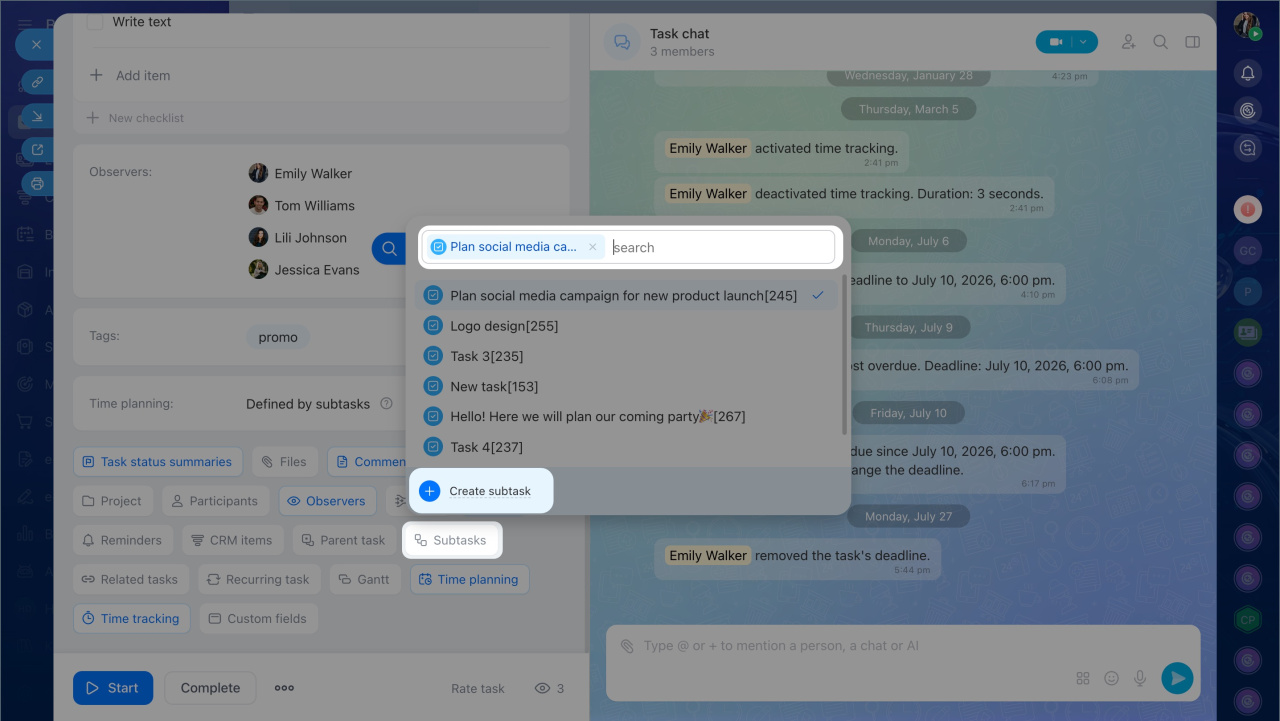
1. Go to Tasks and Projects > Tasks and open the task form.
2. Click Subtasks and create a new task. If the task already exists, select it from the list.
3. Fill in the required fields: name, description, assignee, and deadlines.
4. Click Create.
Create a task
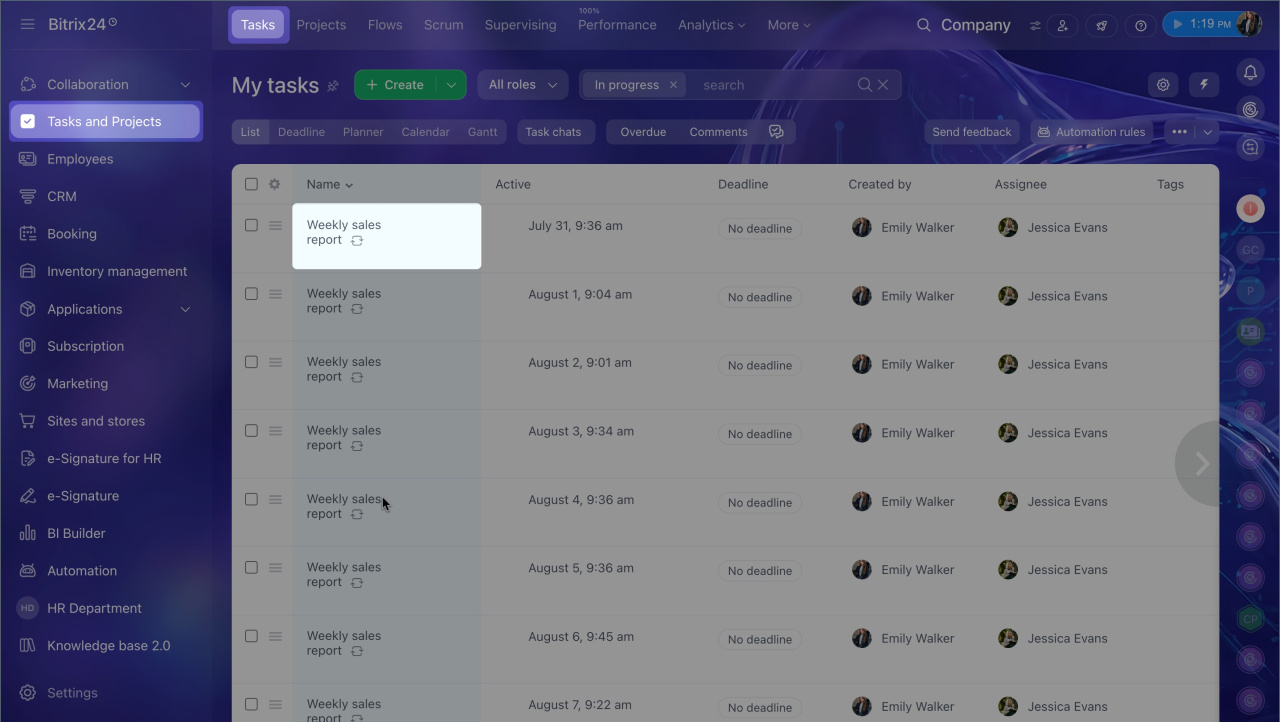
The parent task form shows all subtasks. To open that block quickly, click Subtasks. A subtask form shows only its parent task.
When to add checklists
A checklist works well when one person or a small team handles a task with several small actions that lead to one result.
In this case, creating a separate subtask for every action adds extra complexity. A checklist lets you list all steps and quickly see what is done and what has not started yet.
For example, the task "Prepare a social media post" may include:
- Write the copy
- Choose an image
- Schedule the post
- Check the final display
All of these actions lead to one result: a published post. A checklist is enough.
How to add a checklist in the task form:
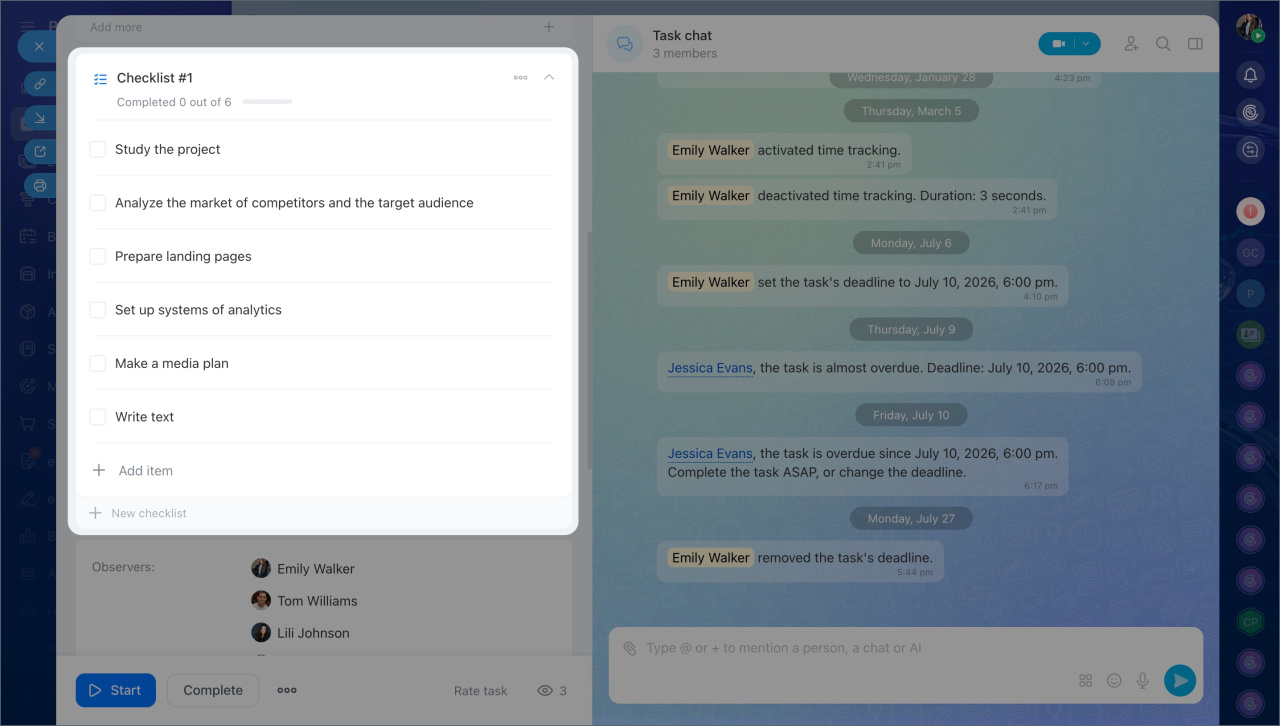
1. Click Checklists.
2. Add checklist items and describe what needs to be done.
3. If teammates need to help with specific items, assign co-executors. Select an employee. For example, a designer can prepare the image, a marketer can review the copy, and the main assignee can oversee publication and stay responsible for the final result.
CoPilot in Tasks
In brief
- As your company grows, tasks get bigger and more complex. If a task is hard to plan, assign, or review, break it into smaller parts.
- Break down a task when it is large, consists of several stages, or involves different employees.
- Subtasks work best when one goal has several independent parts, each with its own result. Each part becomes a separate task with its own assignee and deadline.
- To create a subtask, go to Tasks and Projects > Tasks and open the task form. Add a subtask and fill in the key fields — assignee, deadlines, and description.
- A checklist works well when one person or a small team handles a task with several small actions that lead to one result.
- To add a checklist, open the task form, click Checklists, add items, and assign co-executors for specific actions if needed.