
Every company has recurring work. An accountant submits monthly reports. HR tracks probation periods. A marketer prepares a campaign report. A team lead runs weekly planning meetings.
When people create these tasks by hand, things get missed. Someone forgets a reminder. A deadline is wrong. Required files are not attached. This leads to delays, errors, and lost time.
Recurring tasks fix that. You set them up once, and Bitrix24 creates them automatically on a schedule with the right assignee and deadlines. Even when employees are busy with other projects, new tasks appear on time. No one has to remember to create them manually.
For example, a marketer can automatically receive the task "Create advertising report" every month. A supervisor can confirm that the task was assigned, check the deadline, and update the assignee or due date in advance. Work stays on track without manual follow-ups.
Recurring tasks do more than automate routine work. They make your operations more predictable and easier to manage.
- Nothing gets missed. Even when someone is busy, Bitrix24 creates the task on time and sends a reminder.
- Processes stay on schedule. Supervisors do not need to assign the same tasks over and over.
- Teams spend less time on routine work. Fewer manual steps leave more time for important tasks.
- Work stays organized. Recurring tasks help teams complete assignments on time and avoid last-minute rushes.
When to automate task creation
Automating recurring tasks helps you avoid missed work and keep processes predictable. Bitrix24 creates tasks from a template with the selected participants and repeat schedule. Supervisors do not need to remind employees about repeated work, and employees receive tasks on time with clear instructions.
Recurring tasks are useful anytime the same work happens on a regular schedule. You may want to automate task creation if any of these apply.
A task repeats on a schedule — daily, weekly, or monthly. For example:
- Sales: "Review open deals in CRM" every Friday.
- Marketing: "Prepare advertising report" on the first business day of the month.
- Office management: "Order office supplies and consumables" once a month.
You need regular quality or readiness checks. Recurring inspections, preventive maintenance, and audits. For example:
- Production: "Inspect equipment and record maintenance results" every two weeks.
- IT: "Check system backups" every Saturday.
You cannot afford to miss communications or requests. When incoming requests are constant and easy to overlook. For example:
- Customer service: "Review unresolved inquiries and summarize the week" every Friday.
- HR: "Review new employee onboarding results" every Monday.
You need to keep documents and templates up to date. Rules change and internal policies are updated. For example, a task for the legal team: "Review and update contract templates" once every three months.
You need to reconcile data from different systems. This helps keep reports accurate and gives supervisors a reliable view of operations. For example, a task for the finance team: "Reconcile account balances and cash flow" every week.
How recurring tasks work
You set up a recurring task once. Add the description, due date, assignee, repeat rules, and any other details. After that, Bitrix24 creates tasks automatically on your schedule: daily, weekly, monthly, or yearly.
Bitrix24 copies the structure of the original task, including checklists, files, subtasks, and participants. This helps teams work at a steady pace, reduces manual reminders from supervisors, and keeps processes running without interruption.
For example, in production, the task "Inspect equipment and update the maintenance log" can appear automatically every two weeks. The employee completes it in Bitrix24, and the supervisor can review the full inspection history without using spreadsheets or manual tracking.
Set up a recurring task
In a recurring task, you define the schedule, assignee, deadline, and other settings. After that, Bitrix24 creates new tasks automatically based on those settings.
Main settings. Fill in the basic task fields such as the title, description, and assignee. Add more details if needed, such as files, checklists, and reminders. Every new task created from this setup will include these settings.
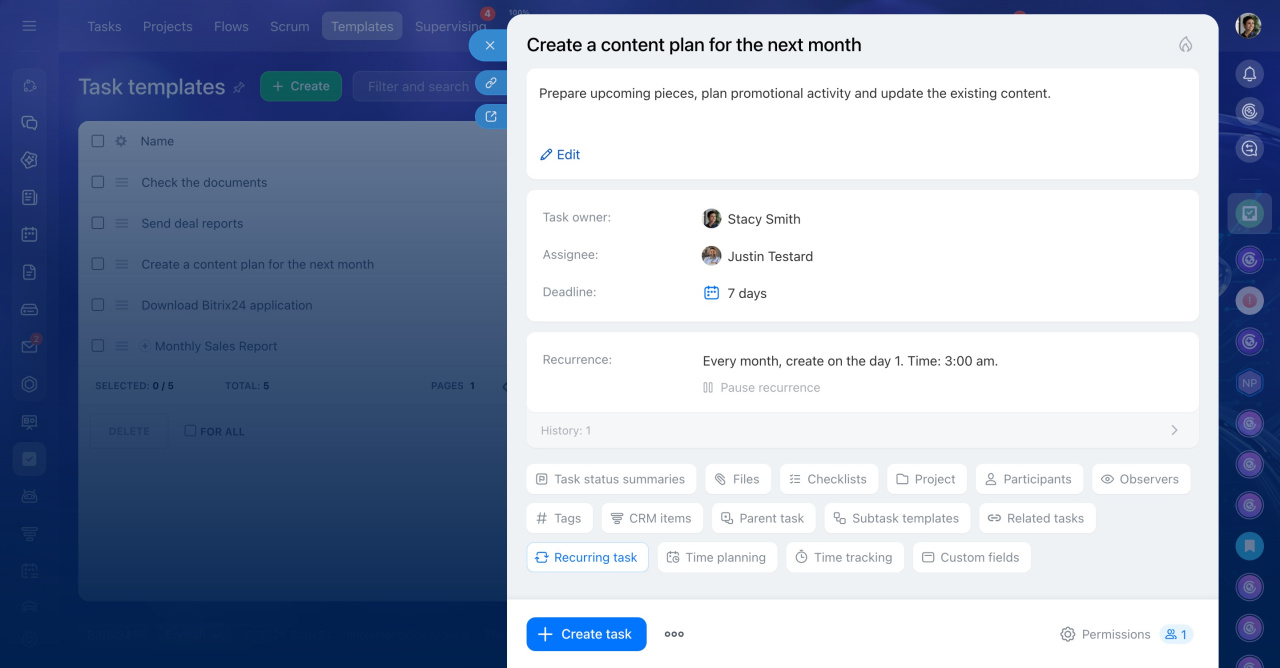
Repeat settings. Choose how often Bitrix24 should create the task:
- Repeat frequency — daily, weekly, monthly, or yearly. For example, a sales manager can automatically receive the task "Check new CRM requests" every week.
- Interval — the gap between repeats, such as every other day, every two weeks, or every two months. For example, a supervisor can receive the task "Review department tasks" every two weeks for regular planning and oversight.
- Specific days — choose a date or day of the week, such as every Wednesday, the 20th of each month, or April 15.
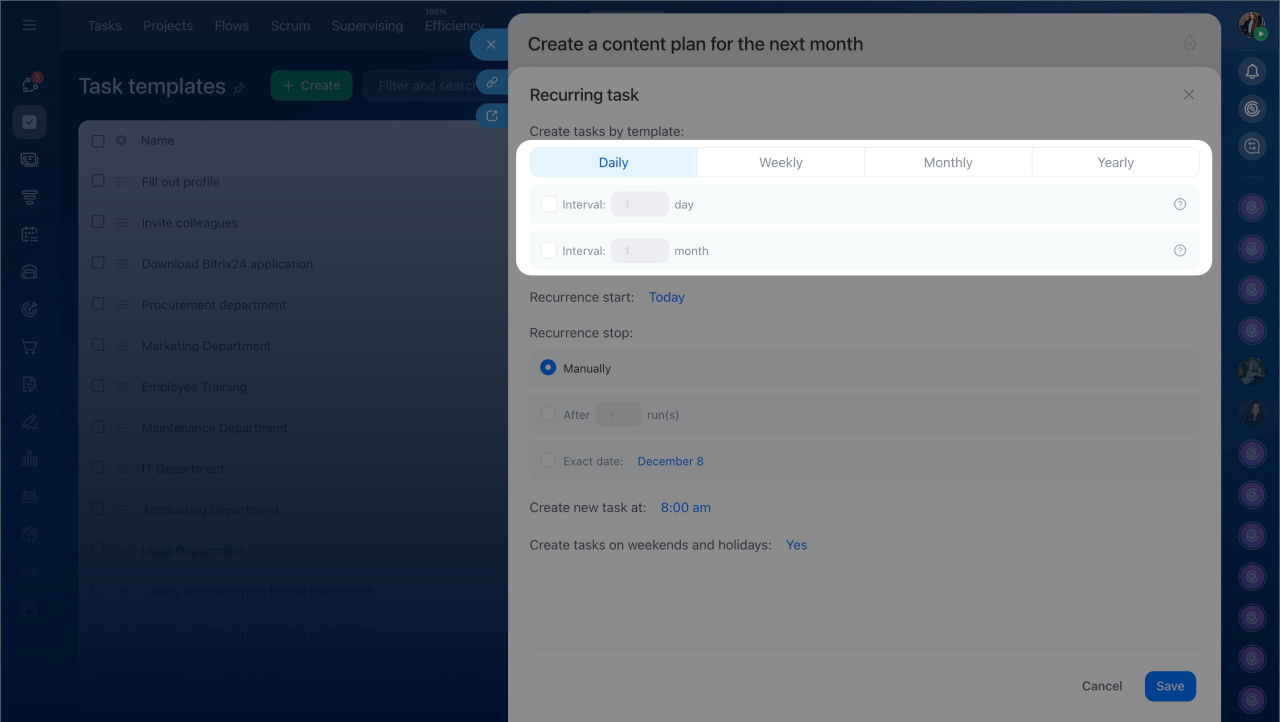
Repeat start date. By default, recurring tasks start right after setup. You can also choose a future start date. For example, a marketer plans to launch a new advertising campaign on November 1 and sets up the task «Check creatives and ad copy» to start on that date. No tasks will appear until November 1 arrives — they will begin creating on schedule. This is useful when you want to plan ahead without keeping track of the start date yourself.
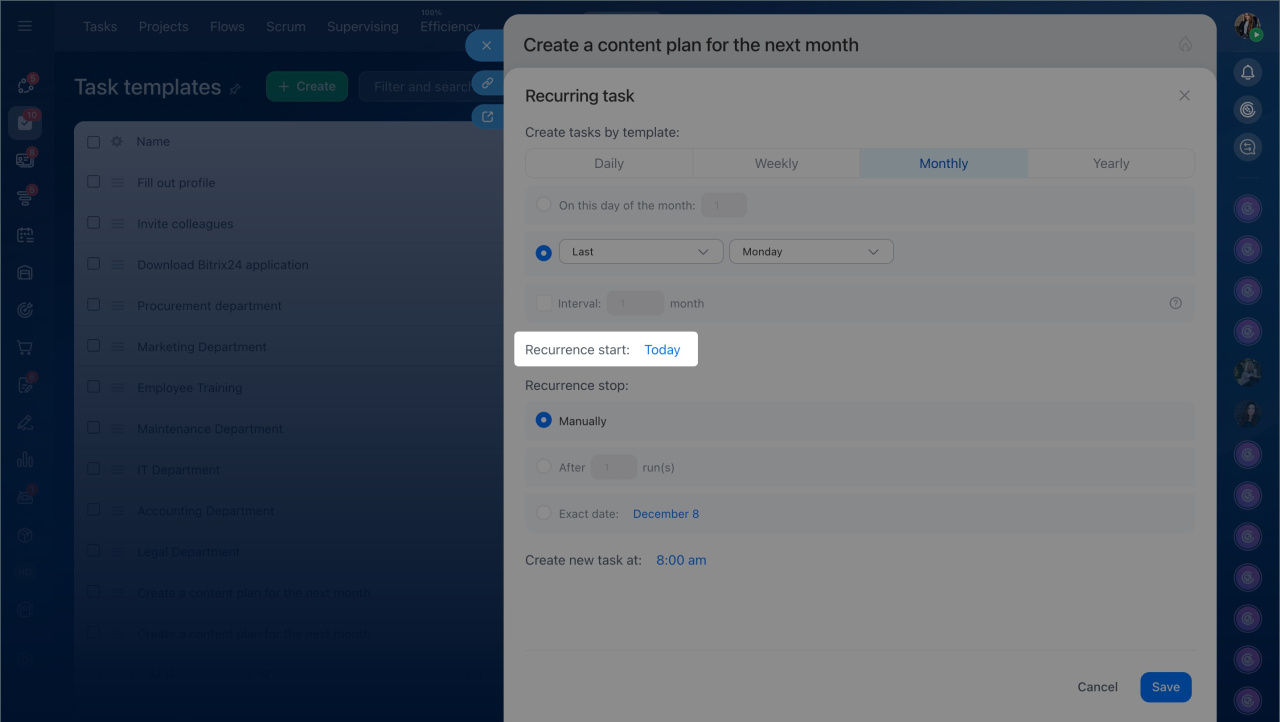
End date. If tasks are only needed until a certain point, you can set a date to stop repeating. This keeps your task list relevant and avoids unnecessary creation. You can end recurring tasks based on several conditions:
- By date. For example, if reporting is only needed through the end of the year, set December 31.
- By number of repeats. For example, a marketing promotion runs for three weeks — set three repeats and tasks will stop automatically.
- No end date. For ongoing processes, tasks will continue to be created automatically until you stop the repeats manually.
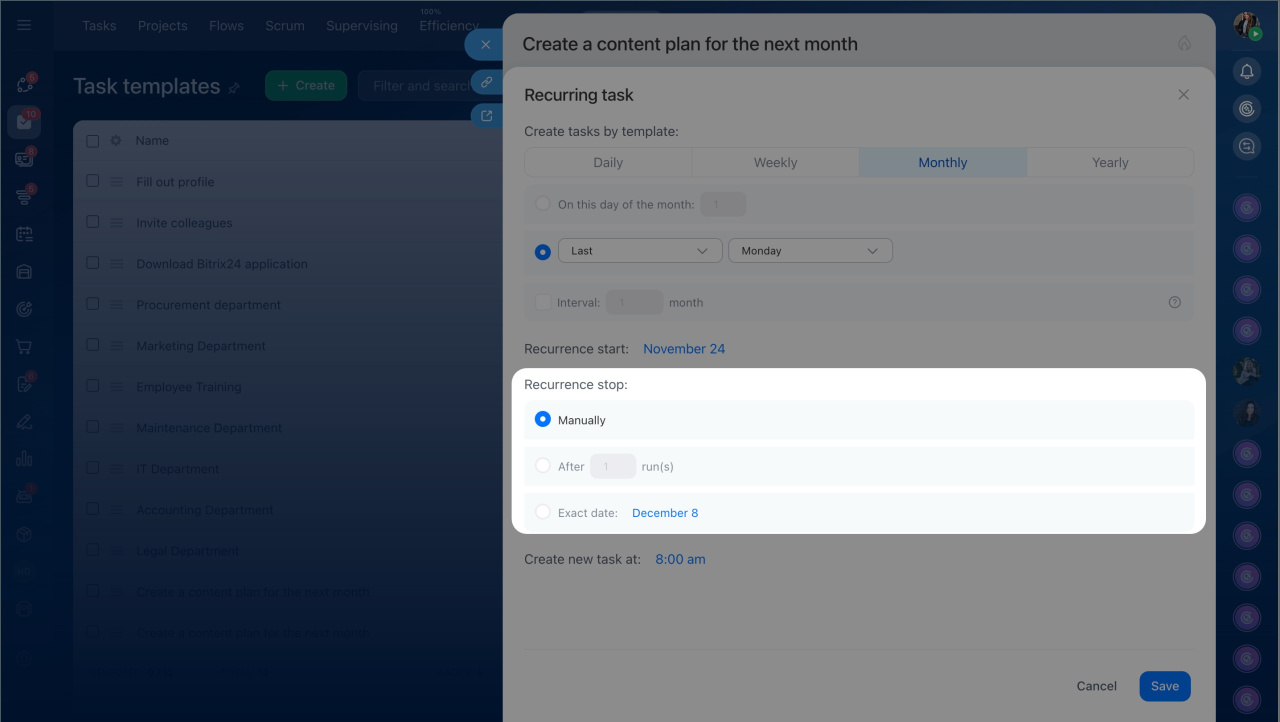
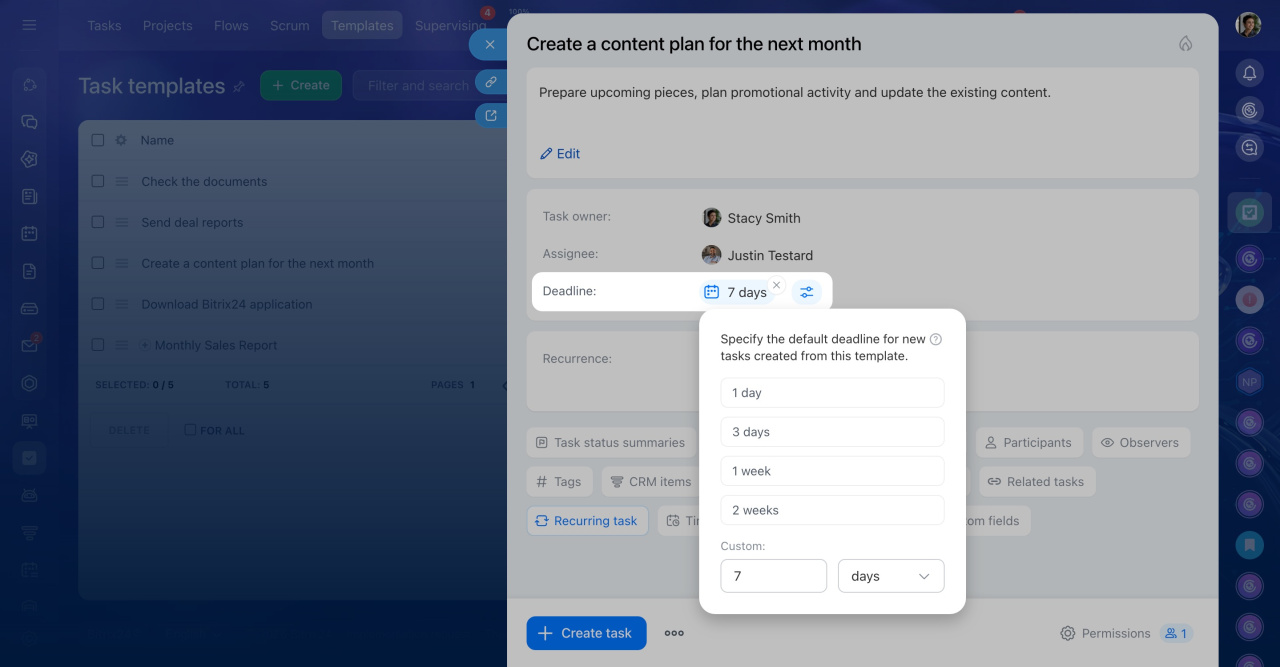
Task deadline. Set how much time after creation the task should be completed. The assignee immediately sees when the work is due. For example, for the task "Prepare sales report," you can set a deadline of two days after creation. The manager sees the exact date in the task card and can plan their time to finish the report without rushing.
After a recurring task is created, Bitrix24 automatically saves a template with all conditions and details: description, participants, files, checklists, and schedule. The template ensures new tasks are created correctly based on your settings. You can edit it at any time:
- Change the schedule or remove repeats.
- Update the task settings: description, deadlines, participants, and other details.
This is useful when working conditions change, a process is temporarily paused, or you need to add new materials.
For example, in a marketing team, the template for "Review advertising campaigns" can be deleted during a slow season. When the next active period begins, recurring tasks are set up again and created automatically on schedule.
In accounting, the template «Submit reports» is updated at the start of the year when report deadlines change or new document forms are added. This ensures tasks are created with accurate deadlines and files, so the accountant does not miss any reporting due to outdated information.
Recurring tasks
In brief
- Recurring tasks help automate repeated processes. New tasks appear on schedule without manual creation or reminders.
- Each recurring task is created from a template where you set all required parameters once: assignee, deadlines, checklists, files, and other details.
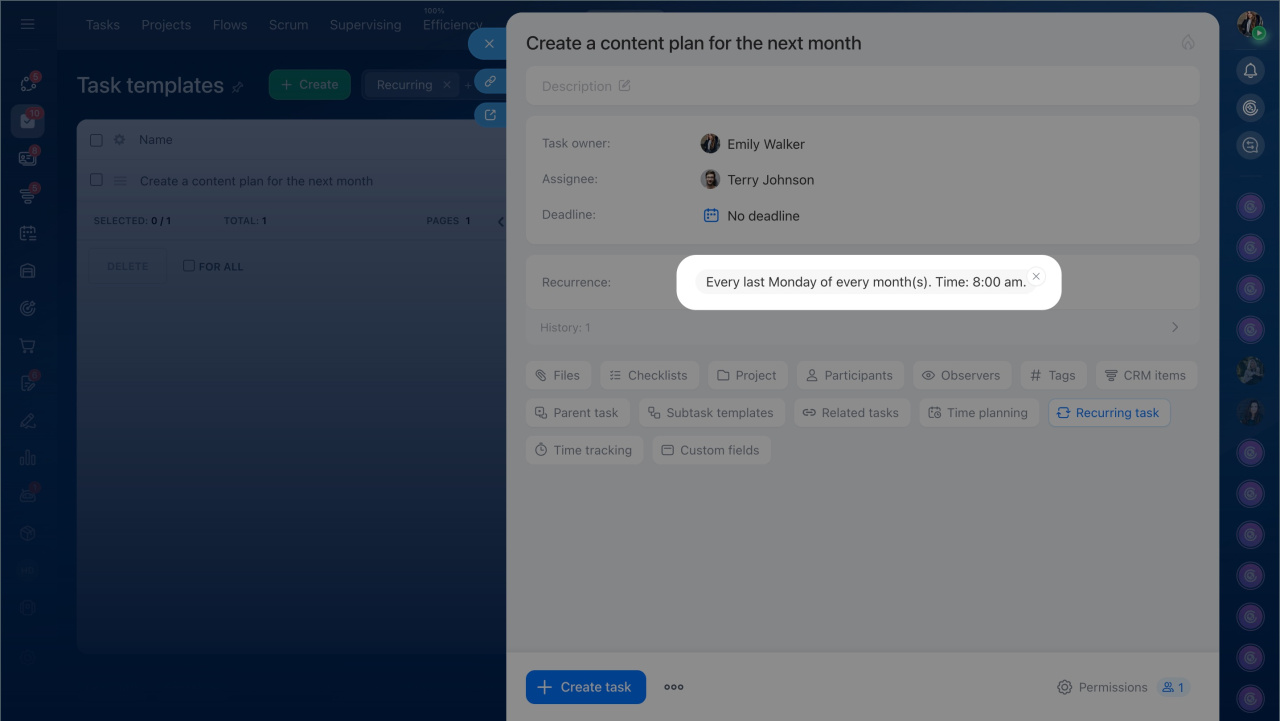
- You can choose how often tasks are created: daily, weekly, monthly, or on a specific date. Settings include a start date, end date, repeat interval, and creation time.
- The template can be updated or paused. For example, if deadlines or frequency change, or if you need to add new materials.