
Many companies have recurring tasks, such as preparing reports, approving contracts, or reviewing ad copy. Creating each task manually takes time and increases the risk of mistakes. You might forget to attach a file, set a deadline, or add a checklist step.
Task templates help prevent these mistakes. Set up a task once and save it as a template. Your team can then use it to create new tasks with the same instructions, deadlines, and other details. This saves time and helps keep work consistent.
Here's how task templates help:
- Supervisors can assign tasks with less effort. Templates already include the required steps, deadlines, and documents. Supervisors don't have to enter the same details or check every task from scratch.
- Employees get clear instructions. Each task includes what needs to be done, the steps to follow, and the deadline. Files, links, and instructions are all in one place, so employees can start working without asking for missing details.
- New employees can get started faster. Templates include step-by-step instructions, required documents, and who's responsible, so new employees can handle unfamiliar tasks on their own.
For example, when an HR department onboards a new employee, it needs to collect documents, set up access, and prepare equipment. An "Employee onboarding" task template brings these steps together in one task. It includes a checklist, instructions, document links, and assigned employees. The HR specialist can follow the steps without having to remember every detail.
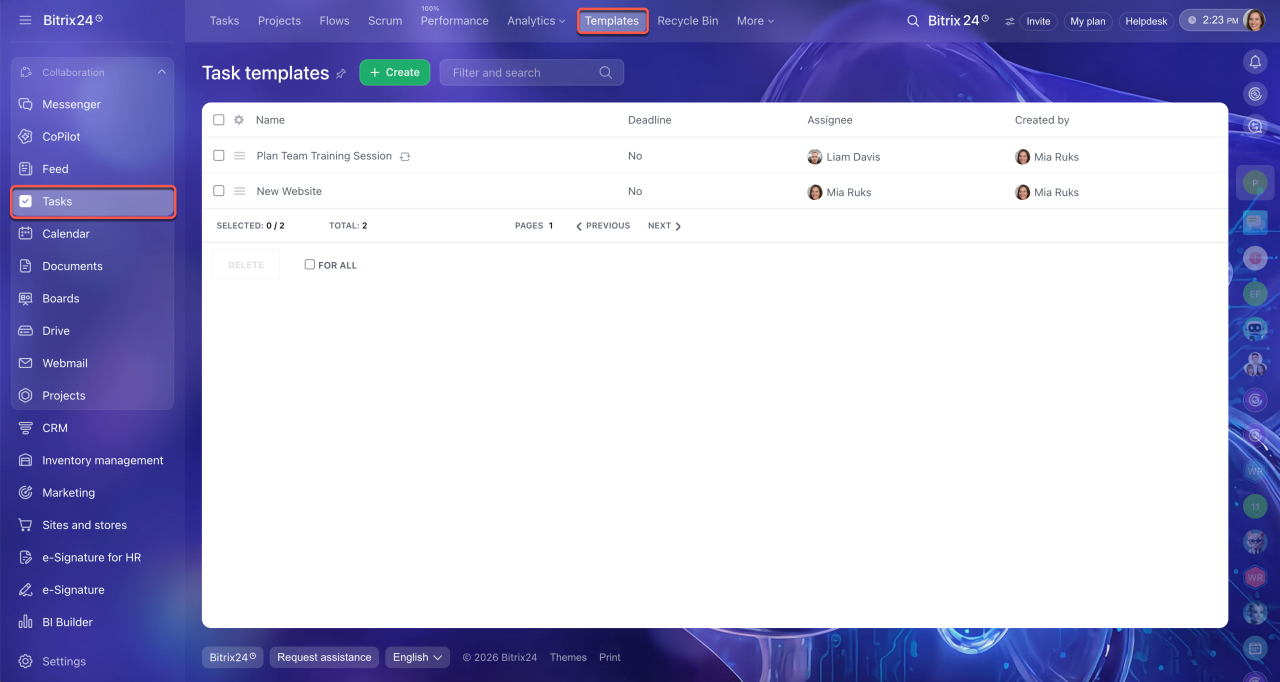
To create task templates or view existing ones, go to Tasks > Templates.
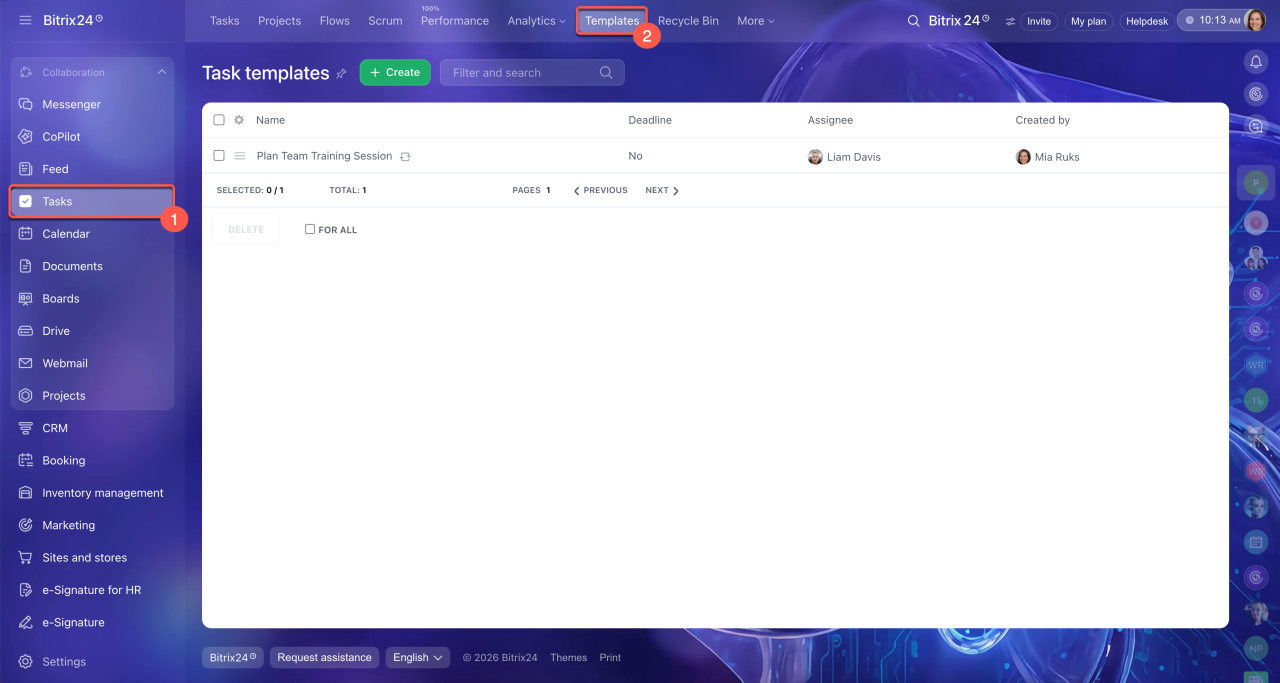
Work with templates
Create a template. A template is a blueprint where you add the task structure, roles, deadlines, and required materials in advance.
What to include in a template
Create a task from a template. You can do this in three ways:
- When creating a new task, click the Templates block in the task form and select the template you need.
- From an existing task, open the task, click
 next to its name, and select Create using template. Find the template you need and click Menu (≡) > Create task using template next to it. Bitrix24 creates a new task.
- From the Templates section, go to Tasks > Templates. Find the template you need and click Menu (≡) > Create task using template next to it.
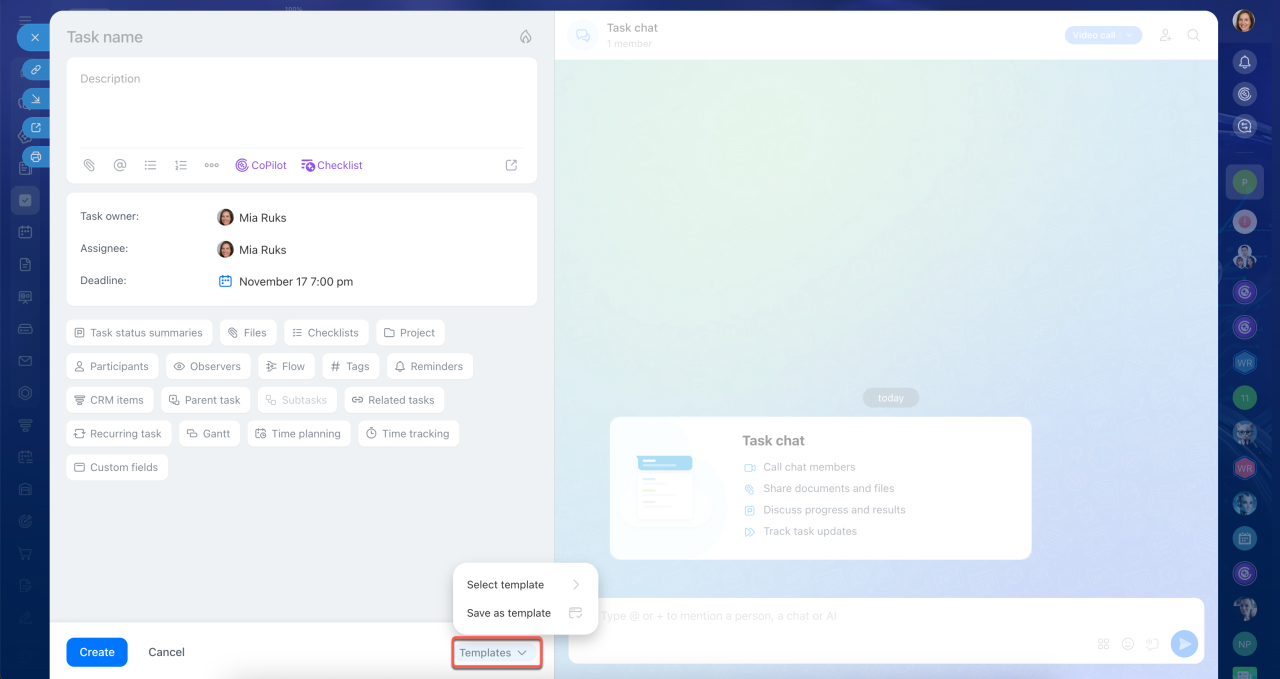 Selecting a template when creating a new task
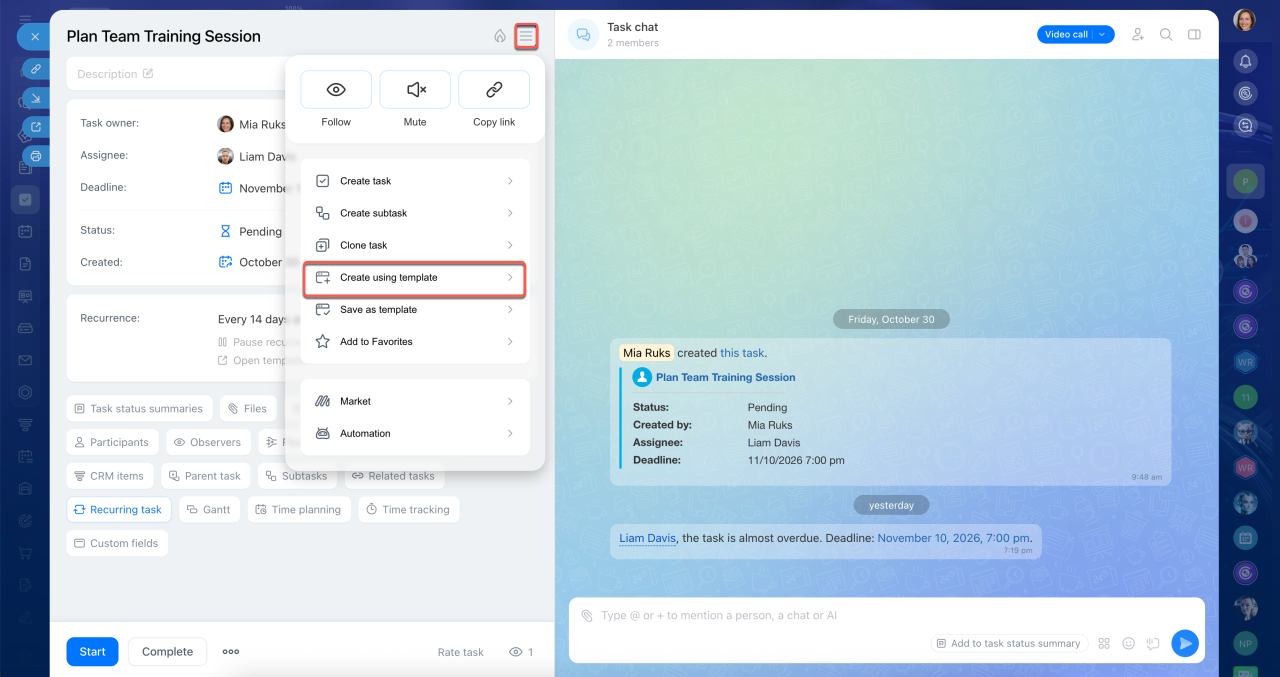
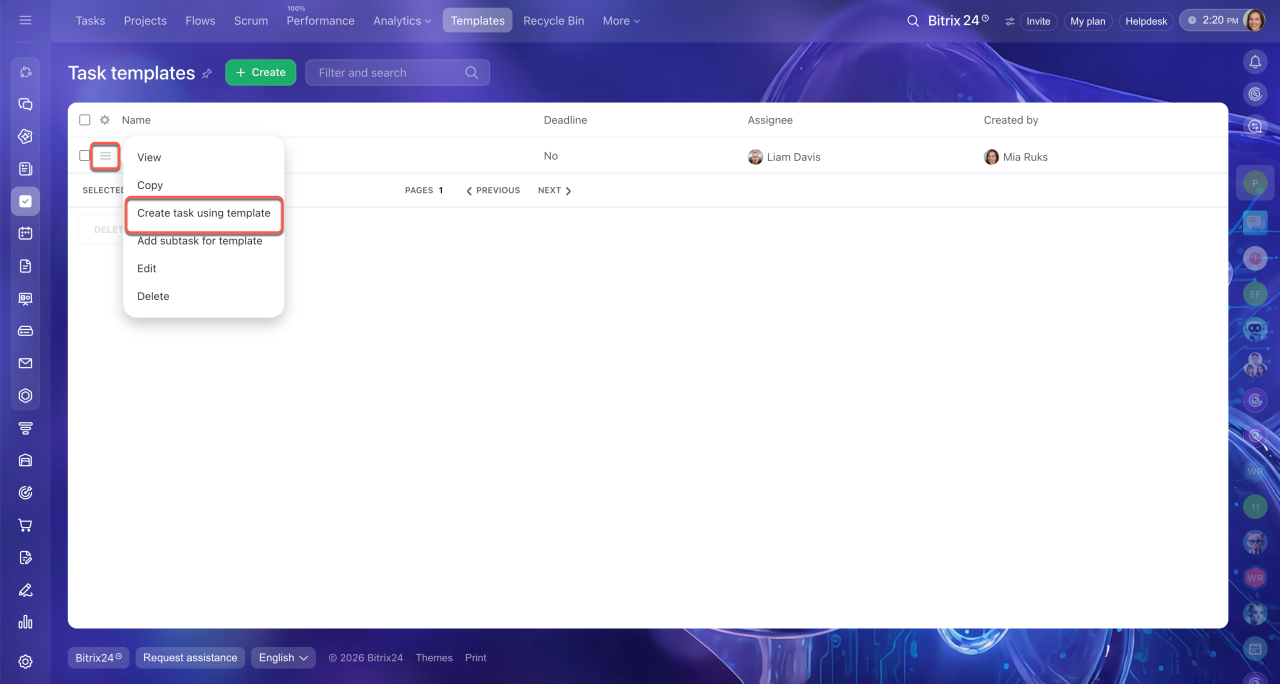 Opening the template list from an existing task and creating a task from a template in the list
 Selecting a template from the full list
When you create a task from a template, Bitrix24 automatically copies its contents, including the name, description, checklists, files, and other details. You can change any of these before assigning the task. For example, you can choose a different assignee, update the description or deadline, or link the task to a CRM item. To use updated settings for future tasks, edit the template. You can change it at any time.
Here are some examples of how to use task templates:
- A sales manager uses the "Prepare a proposal for a client" template and assigns the task to the employee handling the deal. The files and task structure are already in place. The manager only needs to link the relevant CRM item.
- An HR specialist uses the "New employee setup" template. The task includes a checklist with all the required steps: sign documents, provide equipment, set up email, and add the employee to the department chat. Each step has an assigned employee. When a new employee joins the company, the HR specialist adds their name to the task description and assigns the task to the supervisor.
- A sales manager creates a task from the "Contract review" template. It already includes the assignee (a lawyer), the review deadline, a checklist, and an observer (the department head). The manager only needs to attach the contract and link the relevant CRM item. The lawyer then has the information needed to start the review.
What to include in a template
Add all the details you want to include in every task created from the template.
Here are the key settings to consider when creating a task template.
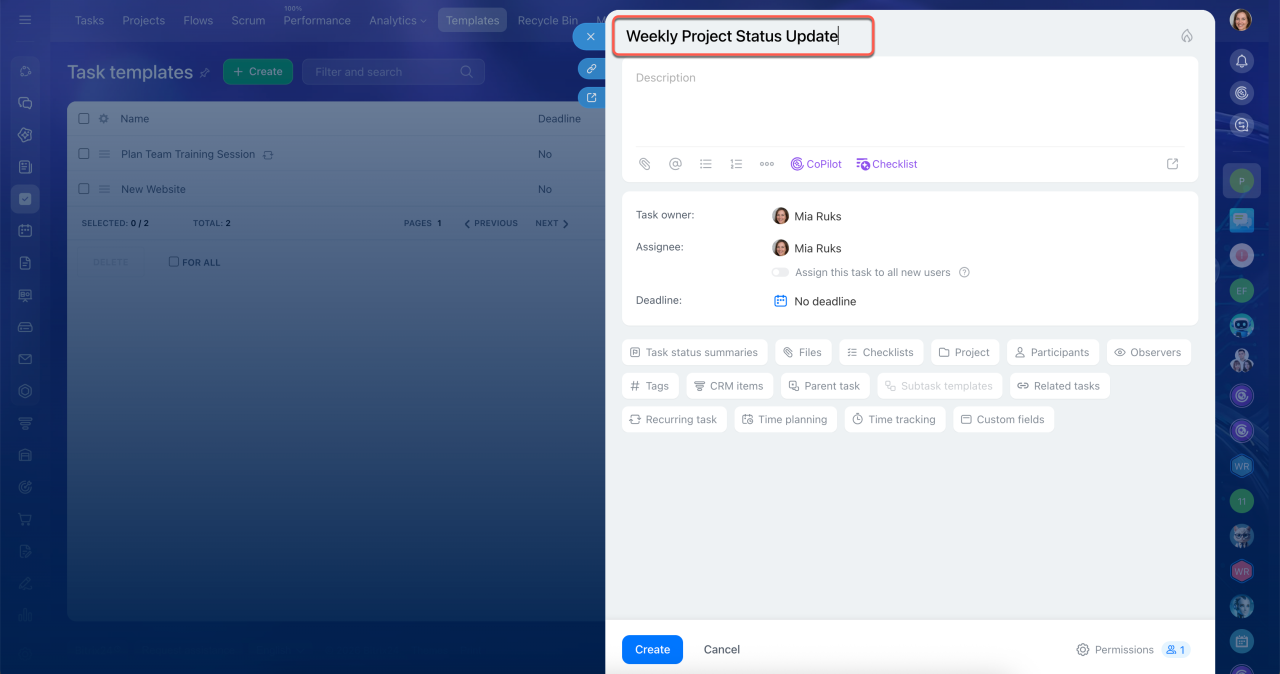
Name. Give the task a clear, descriptive name so employees can understand what it's about without opening it. For example, use "Review onboarding instructions to get started" instead of just "Instructions."
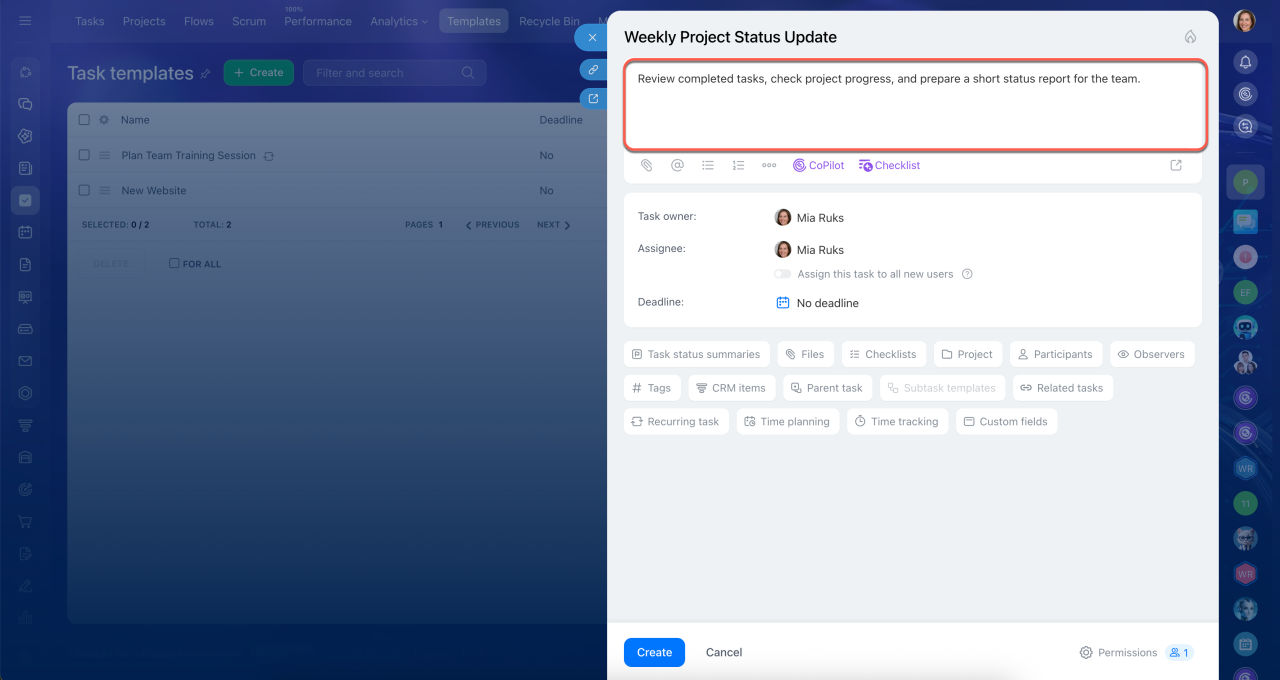
Description. Add a general work plan or a checklist of steps to follow. The template provides the basic structure, while employees can add details specific to each task.
For example, in the "Review onboarding instructions to get started" template, outline which knowledge base sections to review and which tests to complete. When creating a task from this template, the supervisor adds links to the relevant documents and specific assignments.
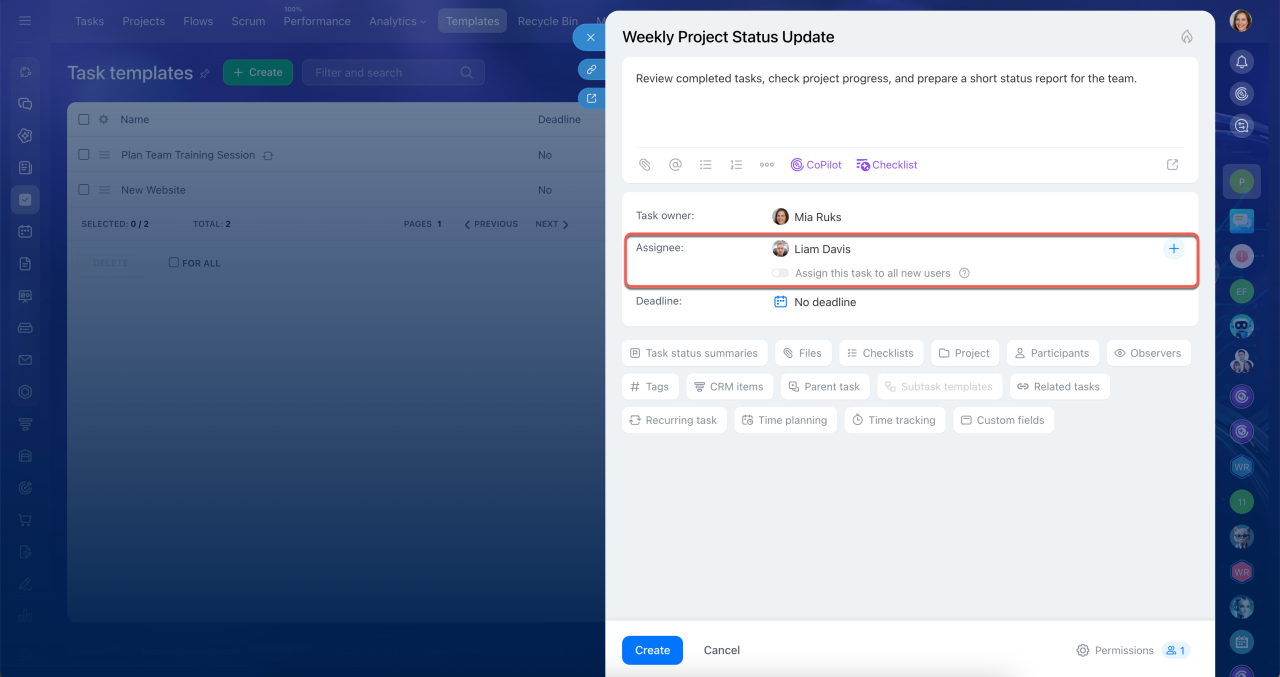
Assignee. Specify the responsible person in the template so tasks are assigned to a specific person immediately. If needed, change the assignee before assigning the task. This doesn't change the template.
Use the "Assign this task to all new users" option in templates for onboarding or orientation. It automatically creates a task for each new employee, so no manual assignment is required.
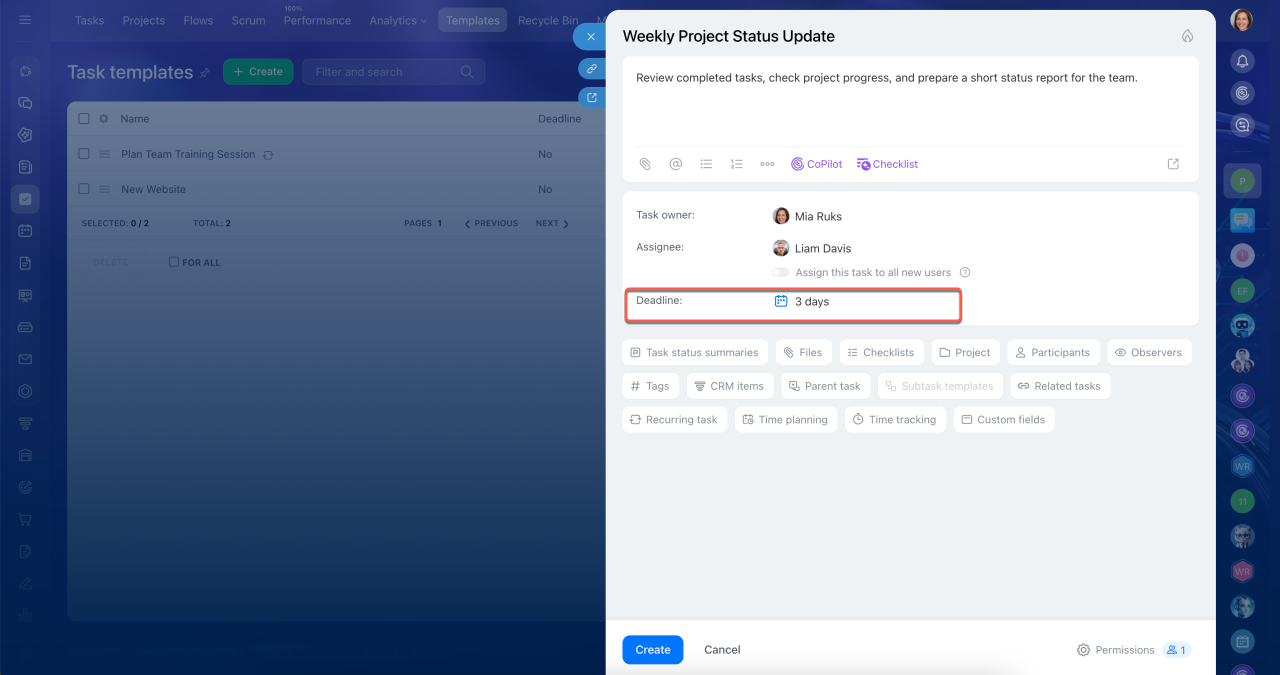
Deadline. Set how long employees have to complete a task after it's created. For example, in the "Walk the new employee through the instructions" template, set the deadline to two days after task creation. In the "Prepare a contract for the client" template, set a three-day deadline to allow time to review the documents with the legal team and the supervisor.
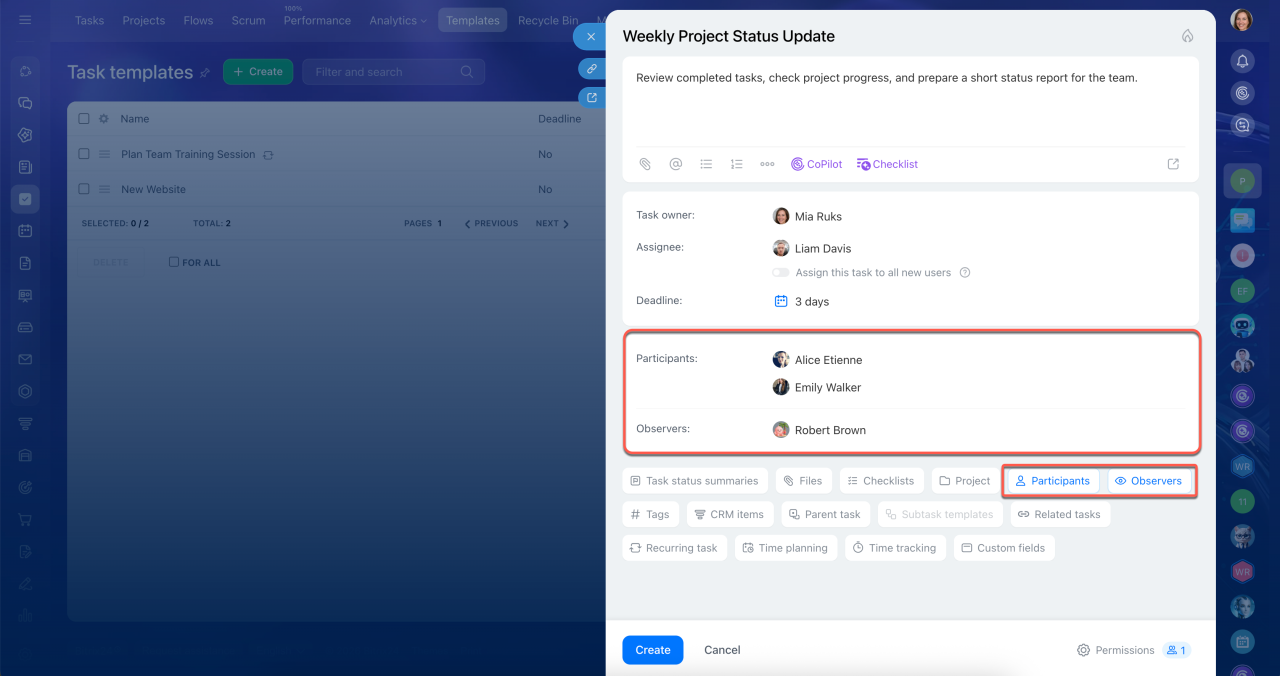
Observers and participants. Add employees who will work on or follow the task. Participants help the responsible person complete the task, while observers can monitor progress and step in when needed. For example, in the "Prepare a client presentation" task, add a designer as a participant to help prepare the slides and the department head as an observer to track progress.
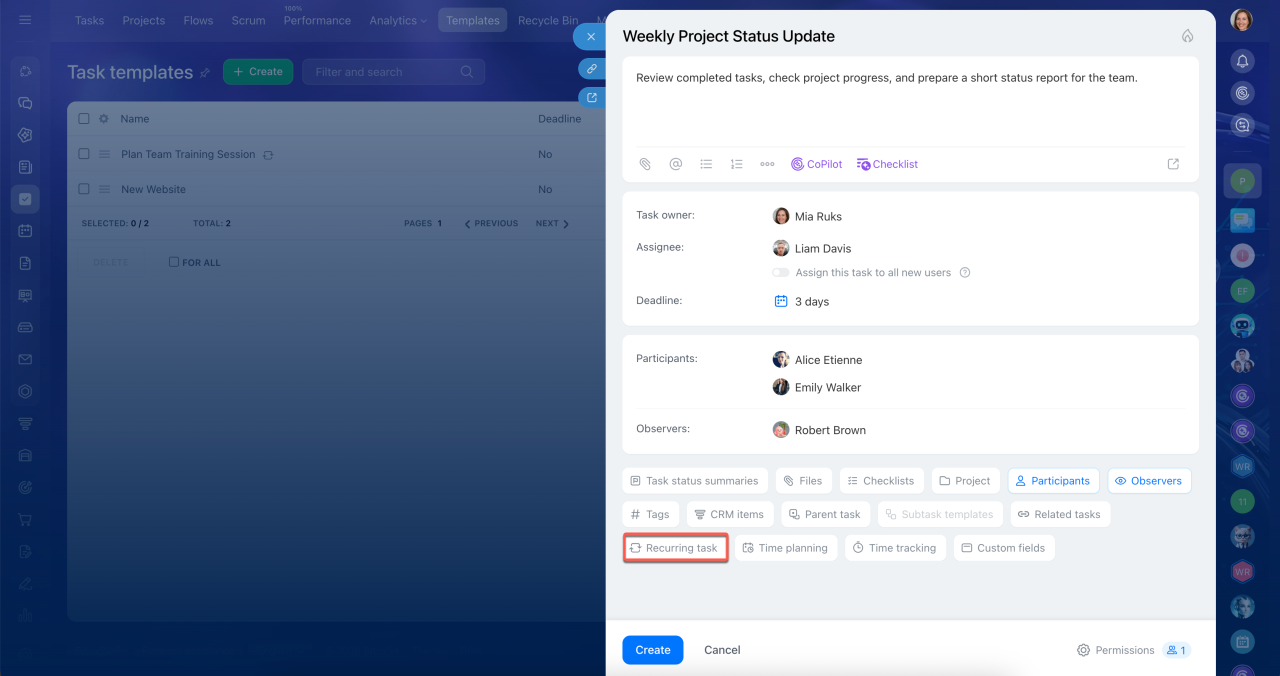
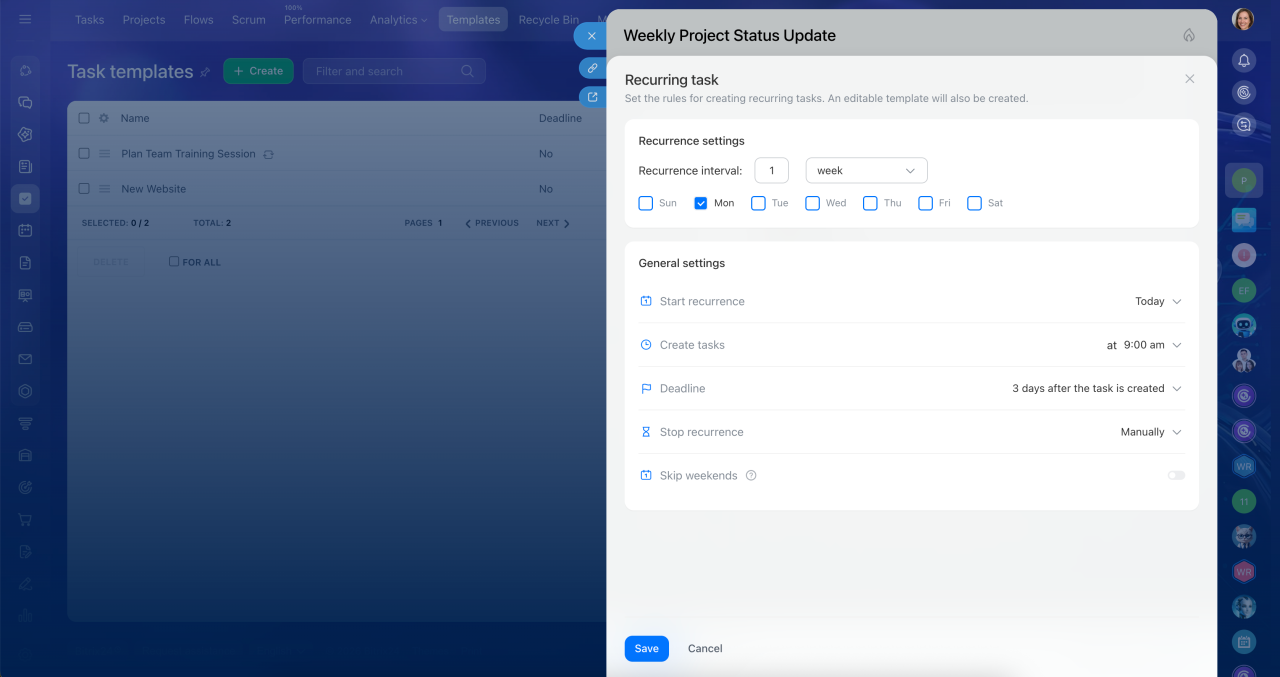
Recurring task. Use this option to create tasks from the template on a regular schedule. Set how often tasks should repeat, and Bitrix24 will create them automatically. For example, you can set up the "Order office supplies" template to create a task every two weeks with a list of items to check and order.
Recurring tasks
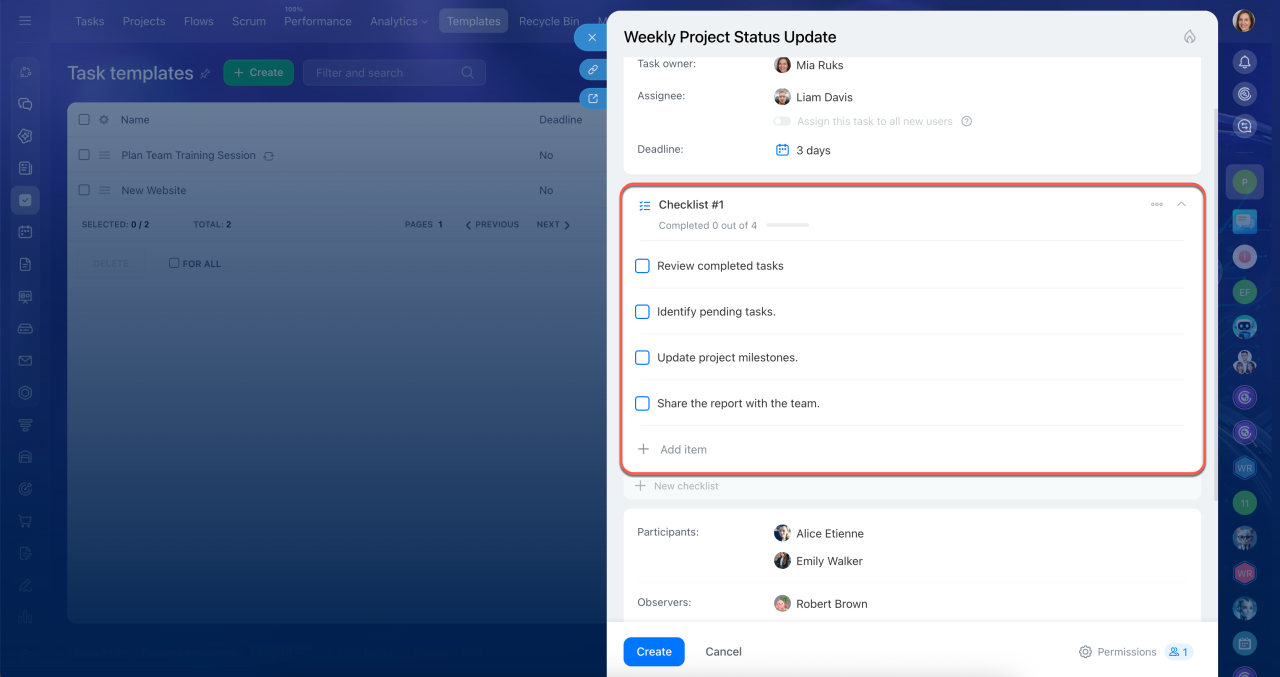
Checklists. Checklists help structure the task template and divide work among participants. Use them when a task has several sequential steps or when you need to specify who is responsible for each step. For example, in the "Prepare a marketing newsletter" template, the checklist can show the stages of material approval. In the "Organize an event" task, add subitems and assign a responsible person to each step.
Checklists in tasks
In brief
- Task templates help you quickly create tasks with predefined roles, deadlines, checklists, files, and other settings.
- Templates help supervisors create tasks consistently and ensure employees follow the same process.
- Templates save employees time and reduce the need to ask for additional instructions.
- For new hires, templates make it easier to get started because they include the necessary instructions and steps.
- You can create and view templates in Tasks > Templates.
- When you create a task from a template, Bitrix24 uses its predefined settings, including the name, description, files, checklists, assignees, and deadlines. You can change these settings in the task or the template if needed.
- For tasks that repeat regularly, set up recurrence in the template. Bitrix24 will automatically create tasks on schedule.