
Employees often have dozens of tasks with different priorities, deadlines, and dependencies on colleagues. With so much to manage, it's easy to lose track of what needs attention first. Important tasks may get delayed, and deadlines can slip.
To stay organized and focus on what matters most, decide which tasks to complete today and which to schedule for later.
In this article:
Set priorities
When deciding which tasks to work on first, consider their priority and deadlines.
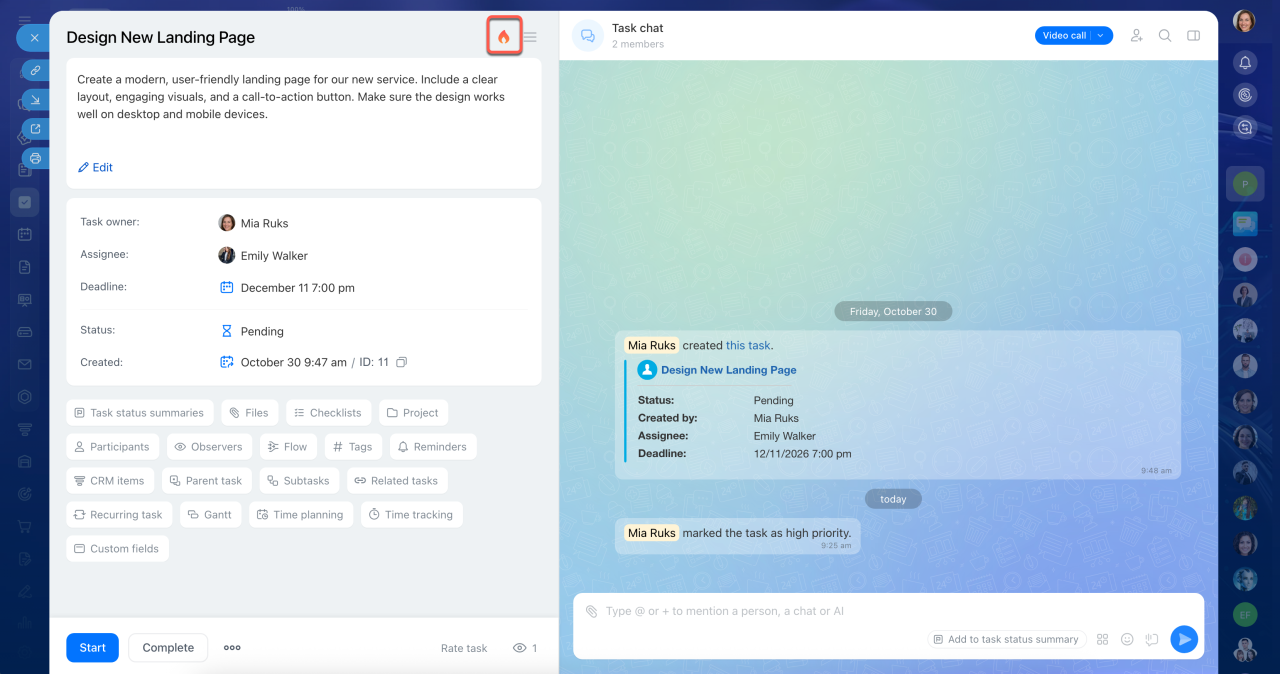
Priority. The  icon next to a task name indicates that the task is marked as high priority. These tasks may need your attention first because they can affect your team's work. The icon appears in all task views, making high-priority tasks easy to identify.
You might mark a task as high priority if it is:
- Critical to a project — a launch or the next stage of work depends on it.
- Important for the current week — other work can't move forward until it's completed.
- Closely monitored by a supervisor — the task requires extra attention.
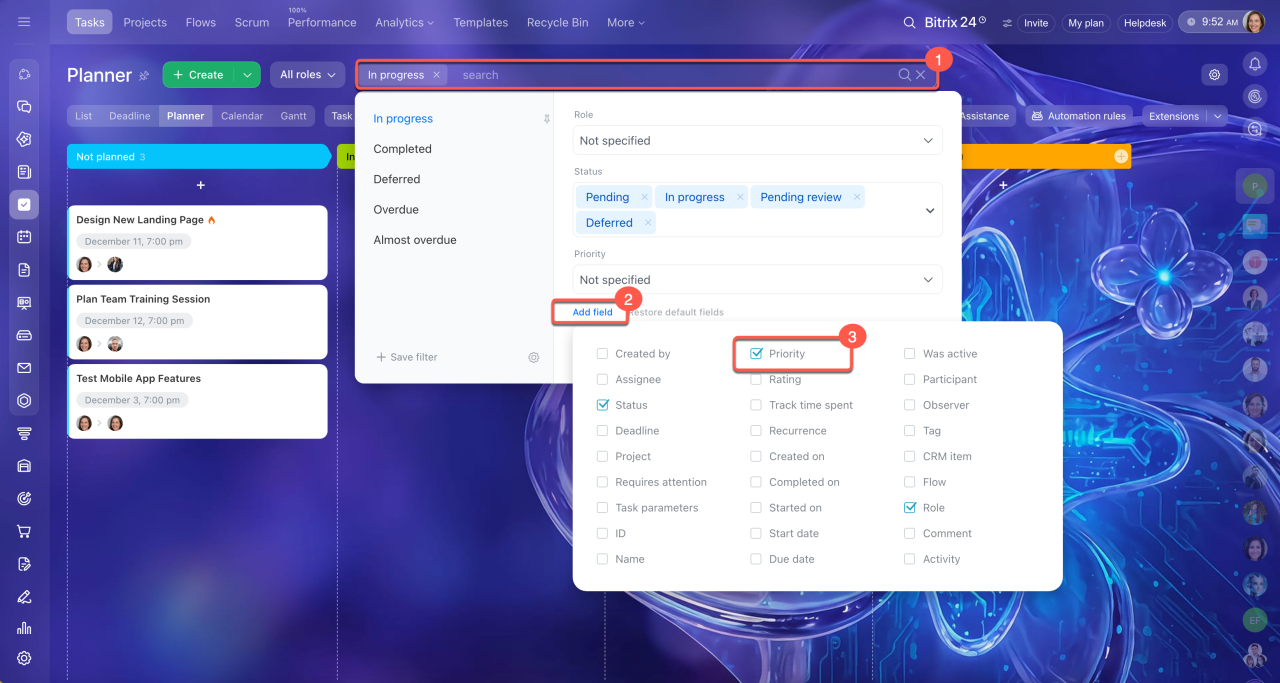
To quickly find high-priority tasks, use the Priority filter. Bitrix24 shows only tasks marked with the icon.
1–2. Click Filter + Search > Add field.
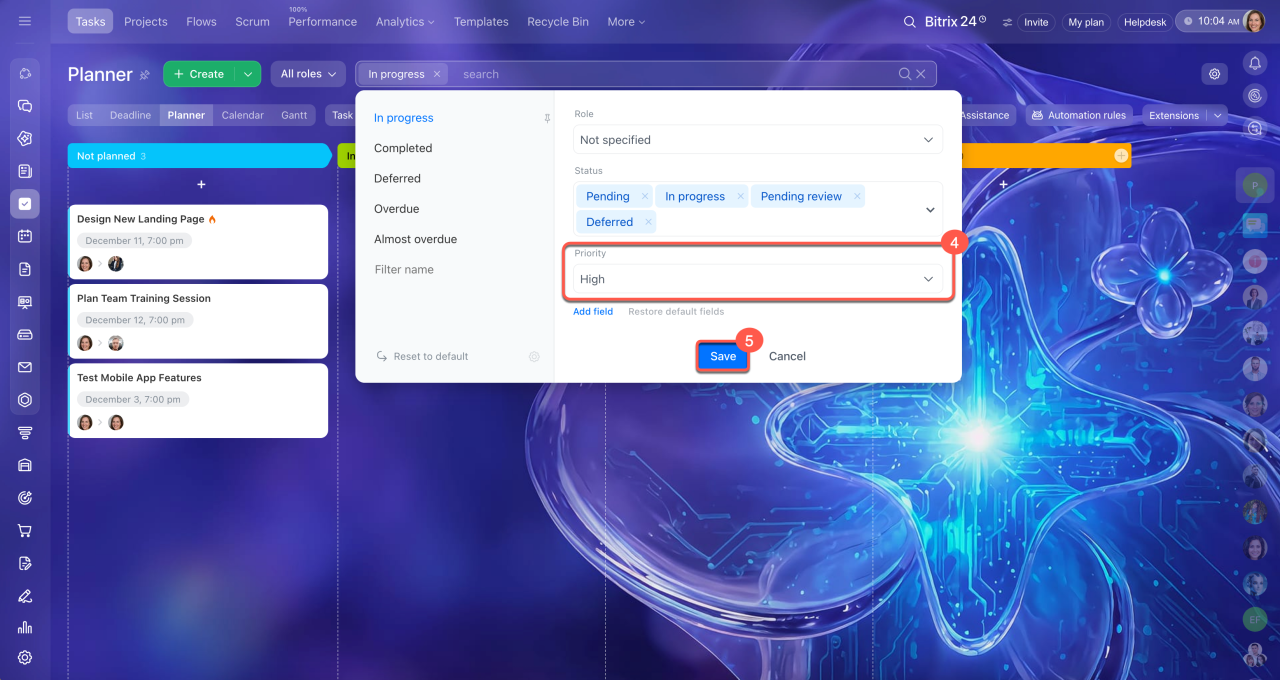
3–4. Select the Priority field and choose Yes.
5. Click Search.
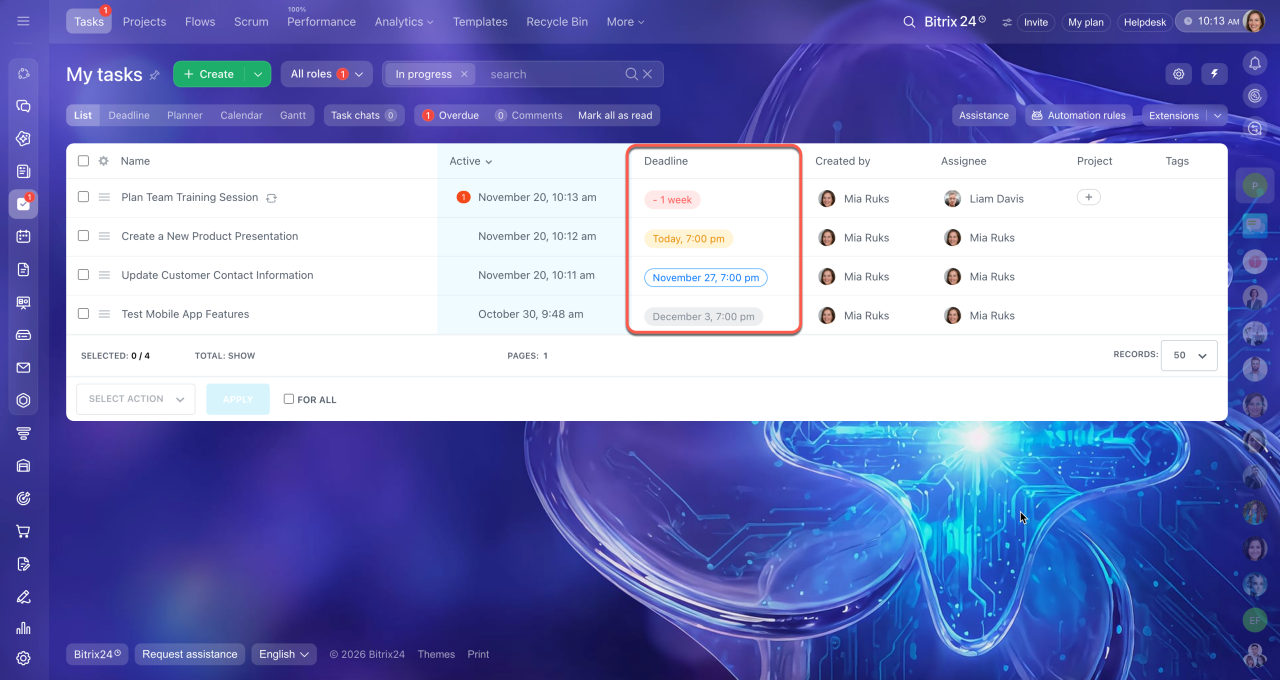
Deadline. A task can be important even without the icon if its deadline is approaching. The deadline color helps you quickly assess the situation and identify which tasks need attention first:
- Red — the task is overdue; complete it first
- Orange — the deadline is today; complete the task to avoid a delay
- Green — the deadline is tomorrow; you can schedule the work
- Blue — the deadline is within the next two weeks; there's no urgency yet
- Gray — no deadline is set or it's more than two weeks away
- White — the task is deferred
Work in a convenient view mode
Bitrix24 offers several modes for working with tasks. Each one serves a different purpose: quickly reviewing a list, tracking deadlines, planning your time, or working step by step. Choose the mode that helps you stay focused and avoid missing anything important:
- List
- Deadlines
- Planner
- Calendar
- Gantt
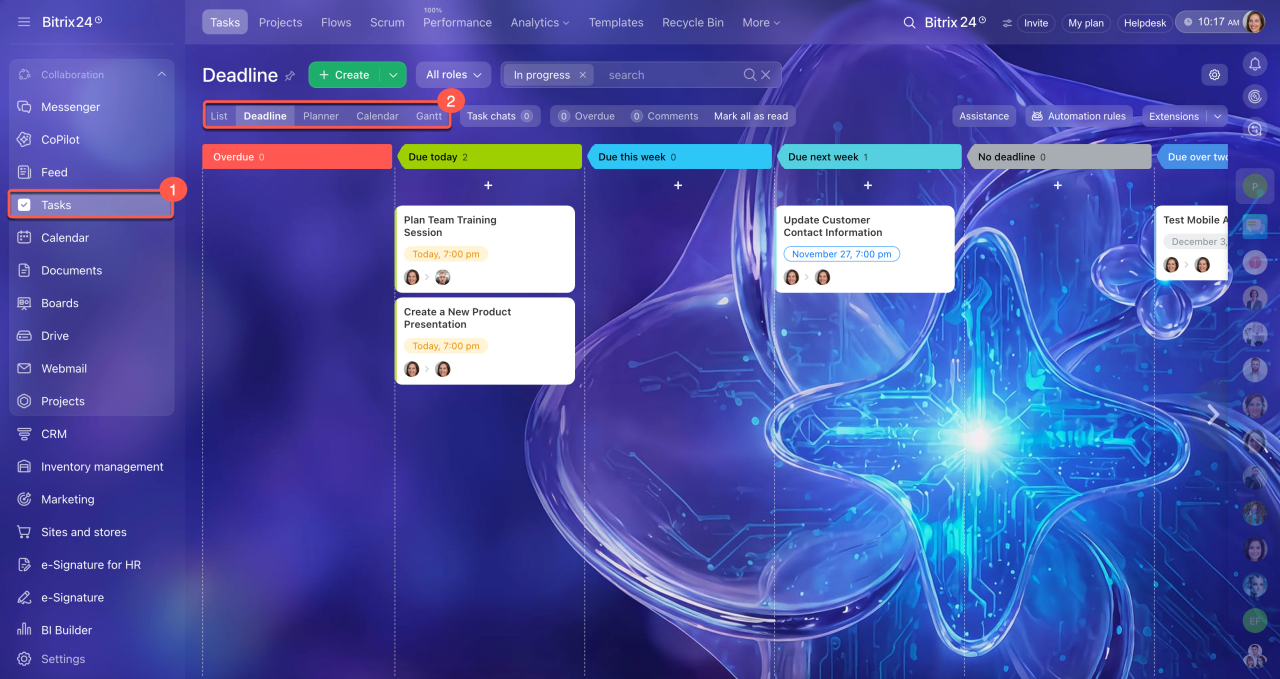
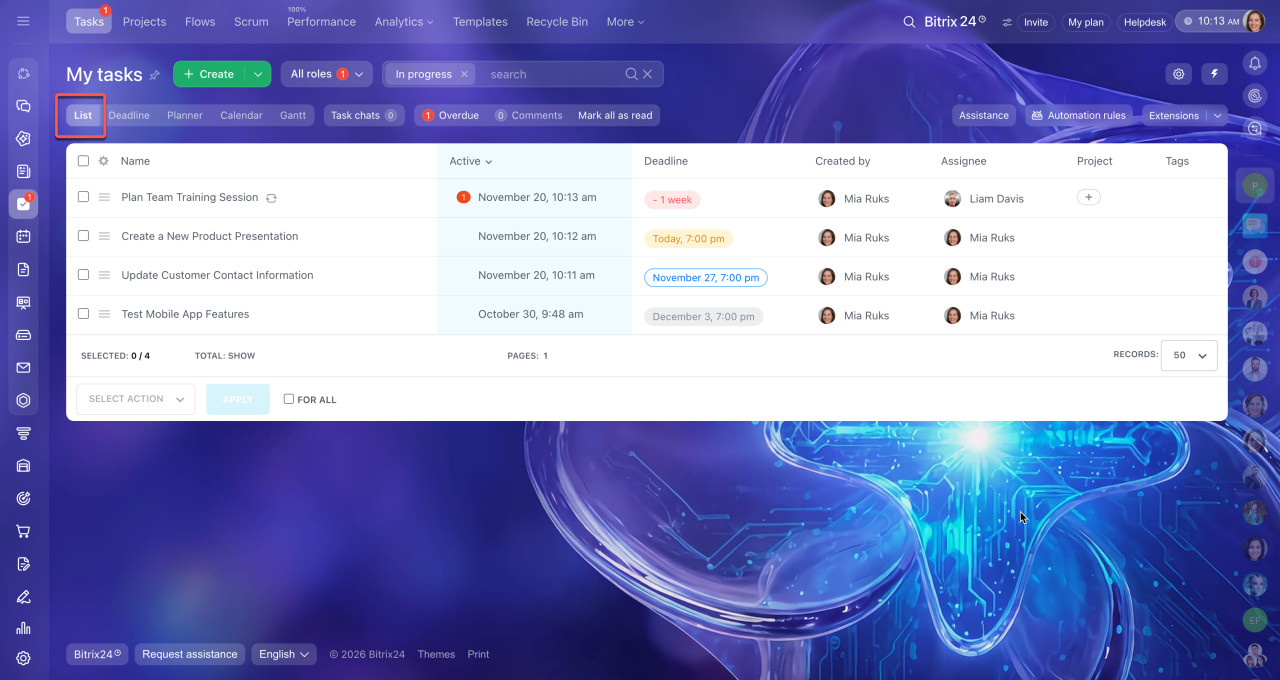
List — for a quick overview. Use this mode to quickly review your tasks and find the one you need. You can update several tasks at once — for example, add an observer or complete several tasks in one action.
List view in tasks
By default, the list includes these columns:
- Name
- Activity
- Deadline
- Creator
- Assignee
- Project
- Tags
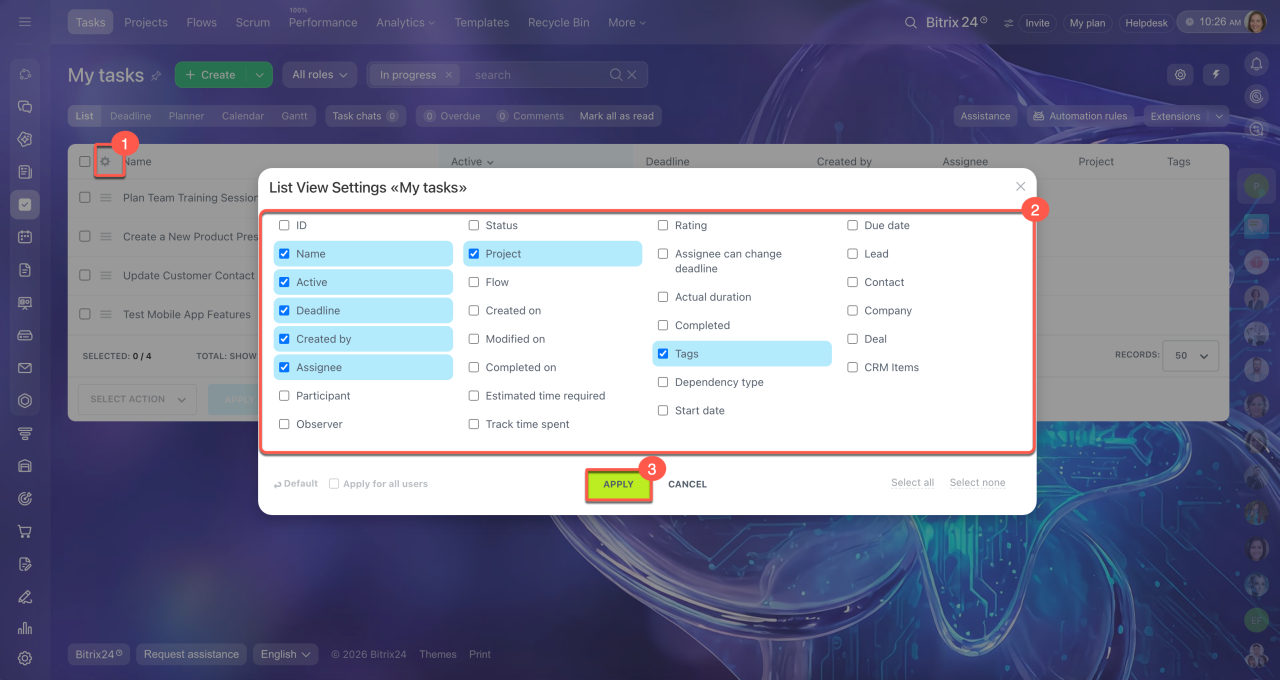
You can add other columns, such as the modification date or time spent on a task. To do this:
- Click Settings (⚙️) in the upper-left corner of the table.
- Select the fields you want to add.
- Click Apply.
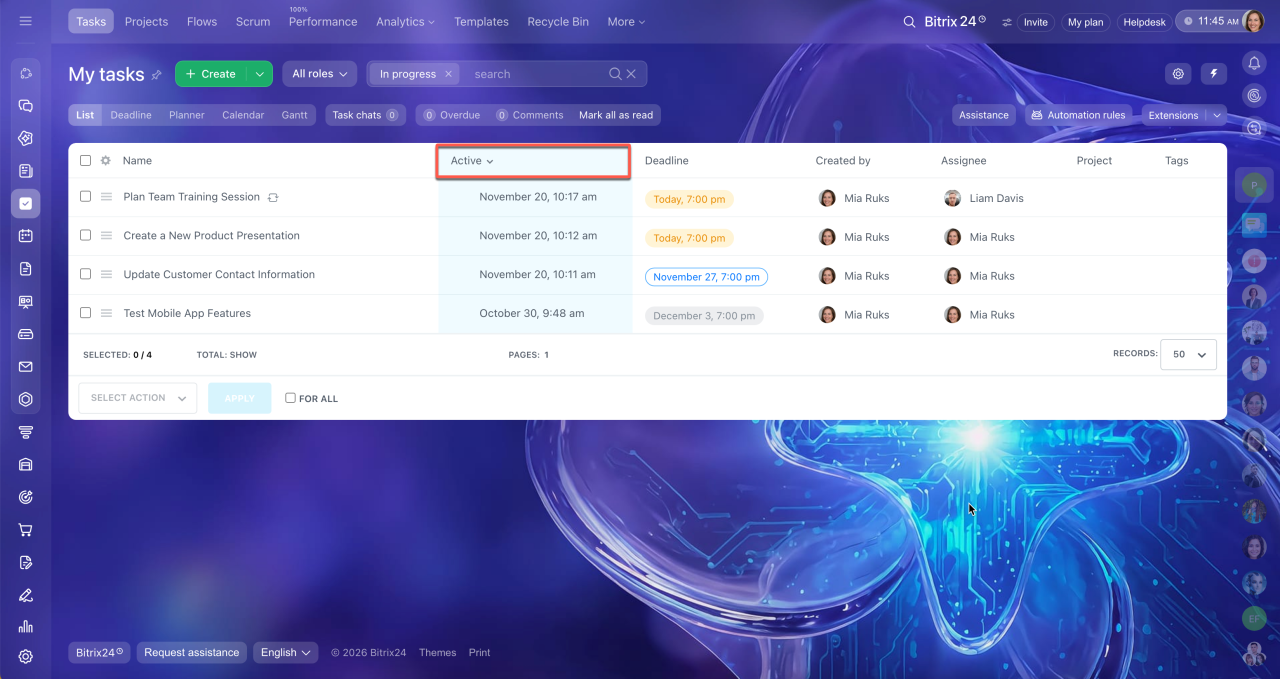
To track tasks more easily, sort the list by recent changes. Click the Activity column name. Tasks with recent changes appear at the top, including new comments, files, or status updates. For example, a marketing specialist sorts the task list to see where colleagues added new comments or files.
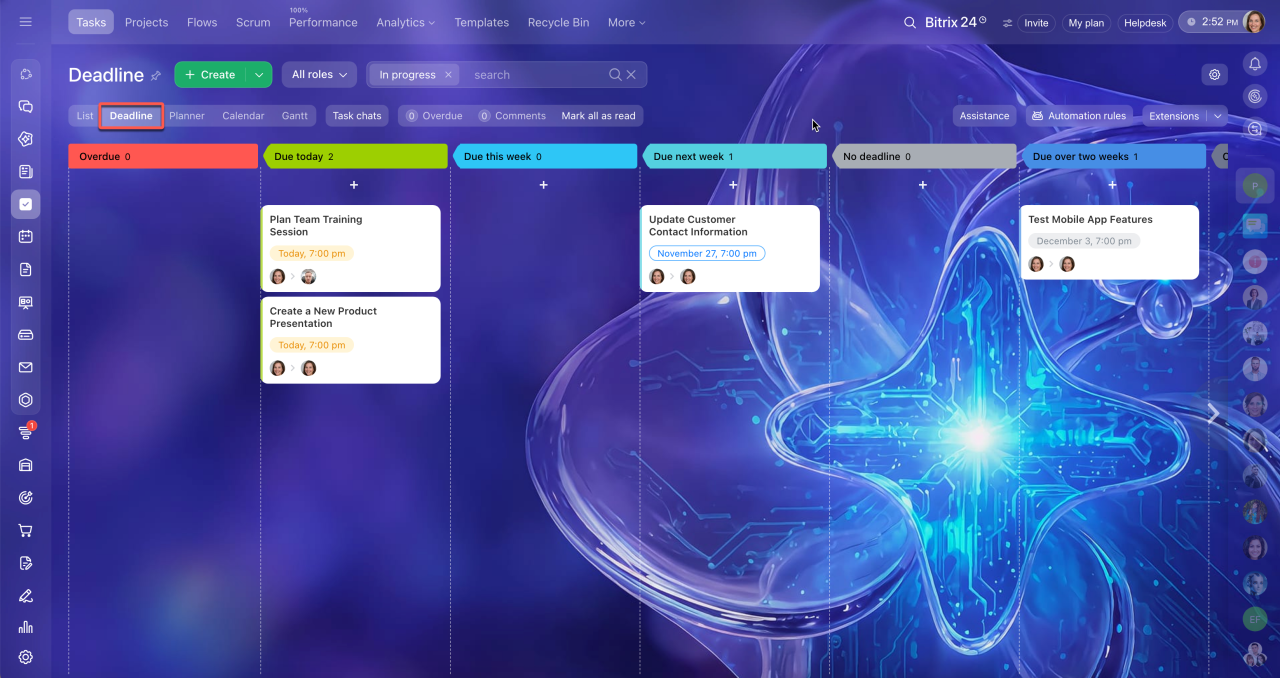
Deadlines — to keep due dates under control. This is a kanban board with columns and cards, where tasks are automatically sorted into stages:
- Overdue
- For today
- This week
- Next week
- More than two weeks
- No deadline
- Completed
The Deadlines mode helps you avoid missing due dates and plan your worktime. You can immediately see which tasks to start today, which have later deadlines, and which are already overdue.
Deadline view in Tasks
For example, an engineer opens Deadlines mode in the morning. The Overdue column contains a task to update the equipment schematic that wasn't completed yesterday, so the engineer handles it first. The For today column includes reviewing technical calculations and sending them for approval, so the engineer handles that task next.
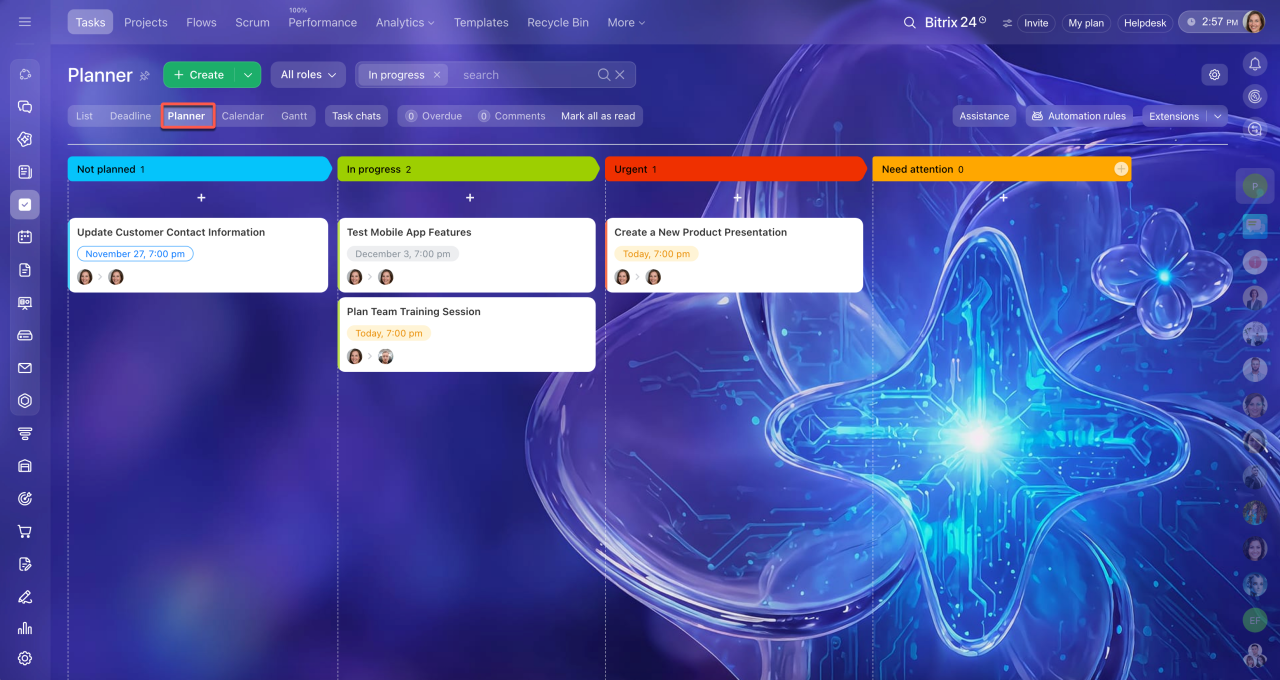
Planner — personal task organization. This is your personal kanban board, where you create columns and move tasks between them.
In Planner mode, you can create your own task workflow, customize columns to suit your needs, and see how tasks move through your process. This makes it easier to manage your workload without keeping everything in mind.
For example, a content editor tracks publications in Planner mode:
- In progress — texts currently being prepared
- Waiting for feedback — materials sent for revisions
- Done — published articles
This helps the editor see what is currently in progress, where input from colleagues is needed, and what is already complete.
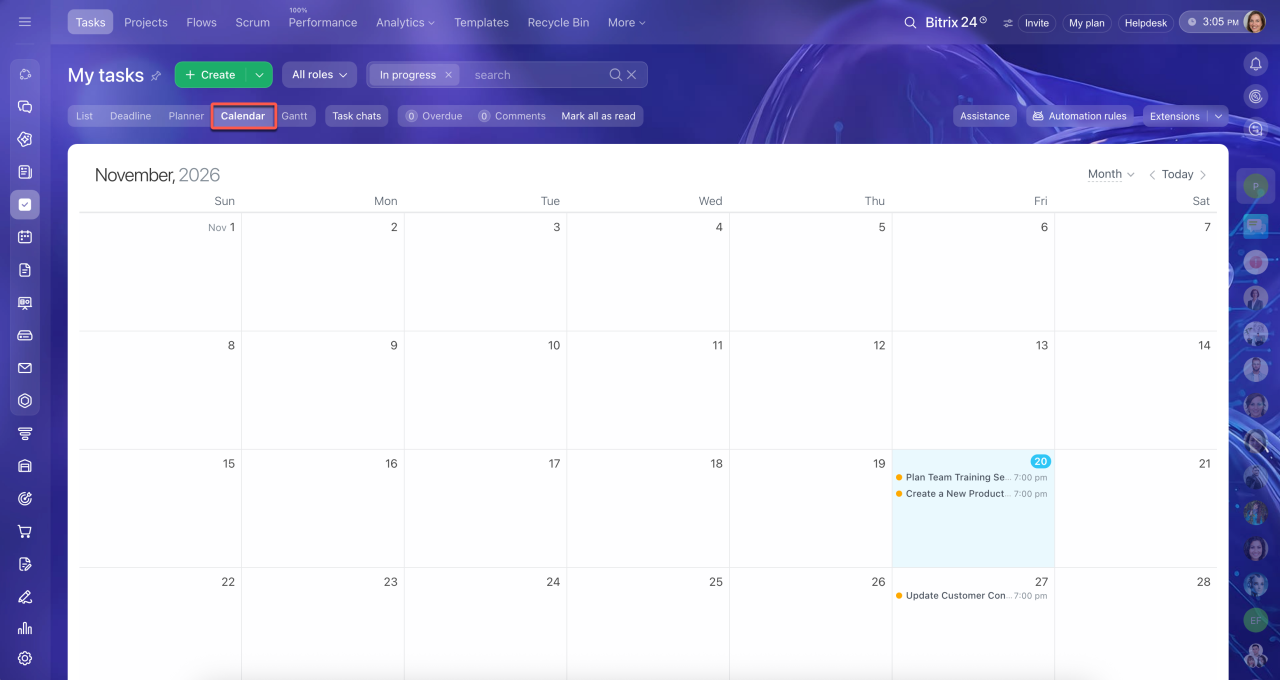
Calendar — for planning your time. Switch to this view when you need to plan tasks by time. It displays tasks by day, week, or month, helps you distribute your workload evenly, and shows available days. For example, a sales manager checks the calendar and sees that three client tasks are due tomorrow, so it's better not to take on new tasks that day.
Calendar view in Tasks
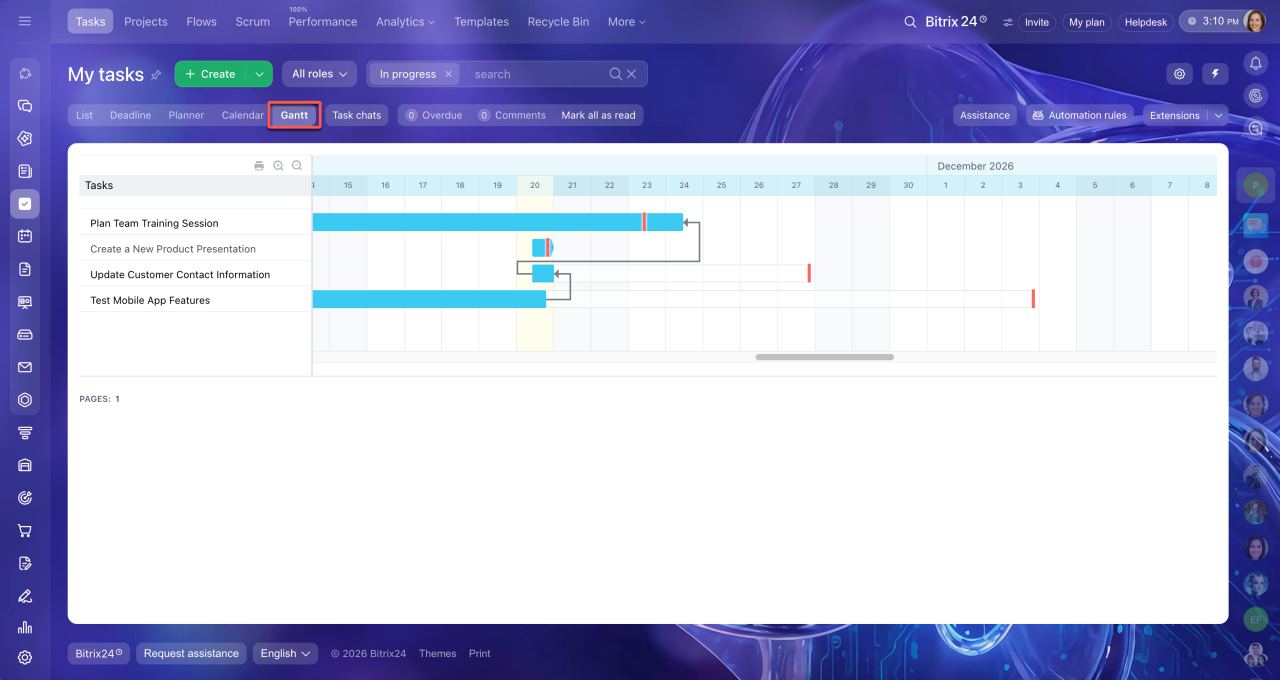
Gantt chart — for tasks that depend on each other. Use this view to plan work with interdependent tasks and flexible deadlines. It works well in industries where work stages follow a strict sequence. You can't build a house without a blueprint or launch sales on a site before building the site.
Gantt chart
For example, a project owner opens the chart and sees that the design must be approved first, then printing must be ordered, and then delivery must be arranged. If the deadline for the first task changes, Bitrix24 automatically shifts the deadlines for all following tasks.
Check counters
Counters are a focus mode tool in Bitrix24. They are more than notifications: they show which tasks have changed and where your input is needed. Check counters throughout the day to stay up to date and respond to changes on time.
You can see counters:
- In the side menu, next to the Tasks section name.
- In the top panel of the Tasks section, where they show the total number of changes that need attention.
- On the Task chats and Comments tabs, so you don't miss discussions and task updates.
- In the role filter.
- On each task next to its name, so you can see where updates or delays have appeared.
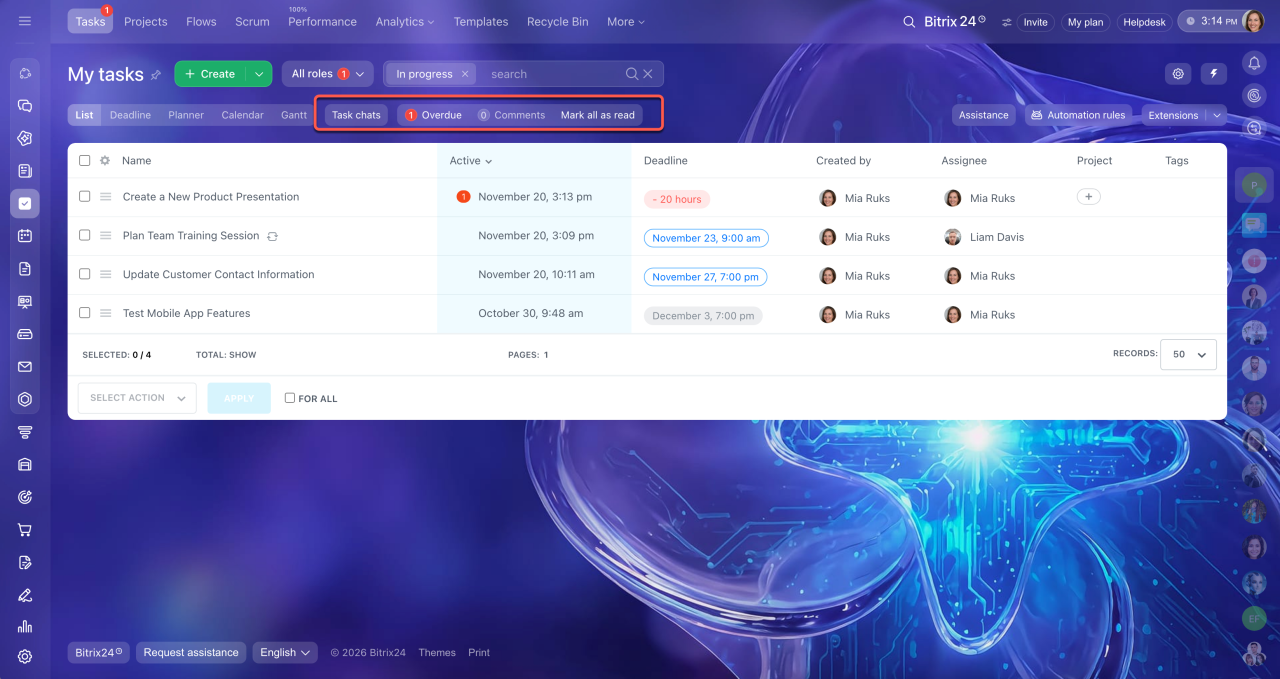
To track updates for each task more effectively, pay attention to the counter color:
- Red — the task is overdue; complete it first. The counter disappears after you change the deadline or close the task.
- Green — the task has updates, such as comments, files, or a changed description. Open the task to view the changes, and the counter resets automatically.
- Gray — notifications for the task are turned off, but you can still see the number of updates.
How to work with counters:
- Check the overall counters in the top panel regularly so you don't miss changes.
- Close tasks with red counters first to prevent delays from accumulating.
- Respond to green counters: reply to colleagues, clarify details, and upload the files you need.
Use filters
As your task list grows, it's easy to lose track of tasks. Filters help you focus on what matters by displaying only tasks that match your selected conditions.
Search and filters in Tasks
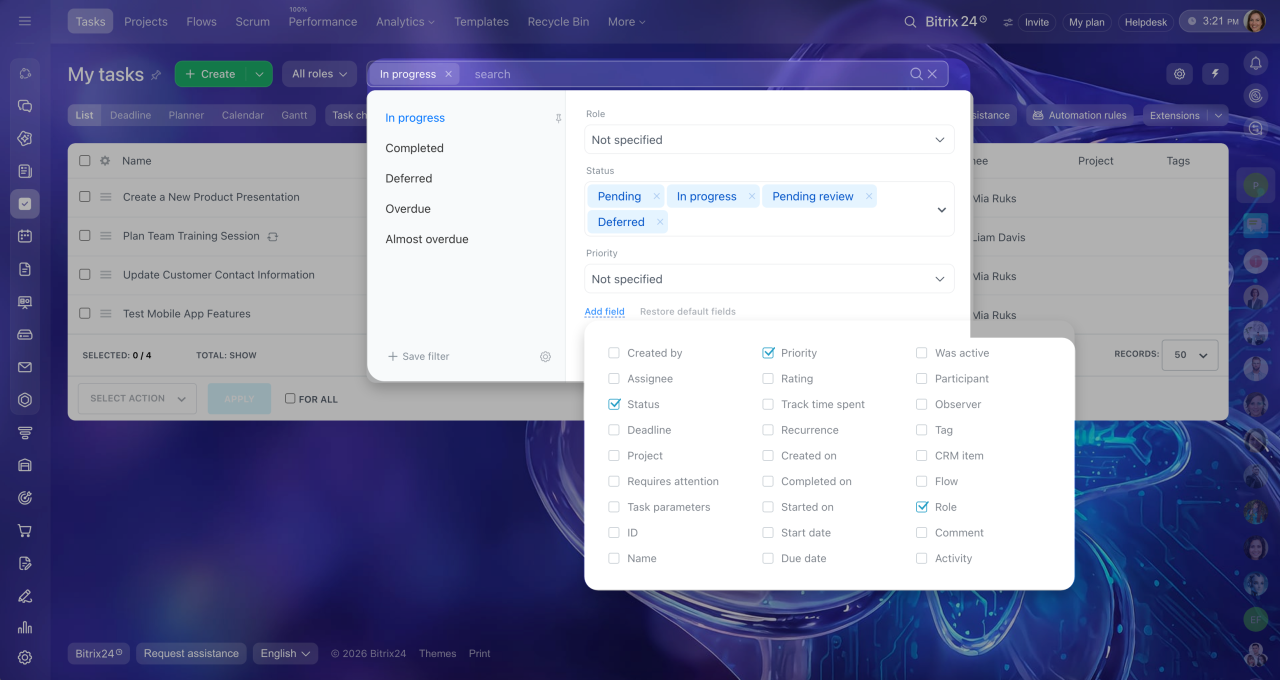
Preset filters. These filters help you view tasks that are:
- In progress
- Completed
- Deferred
- Overdue
- Almost overdue
Filters help you quickly assess the current state of your tasks, spot delays in time, and plan your workload.
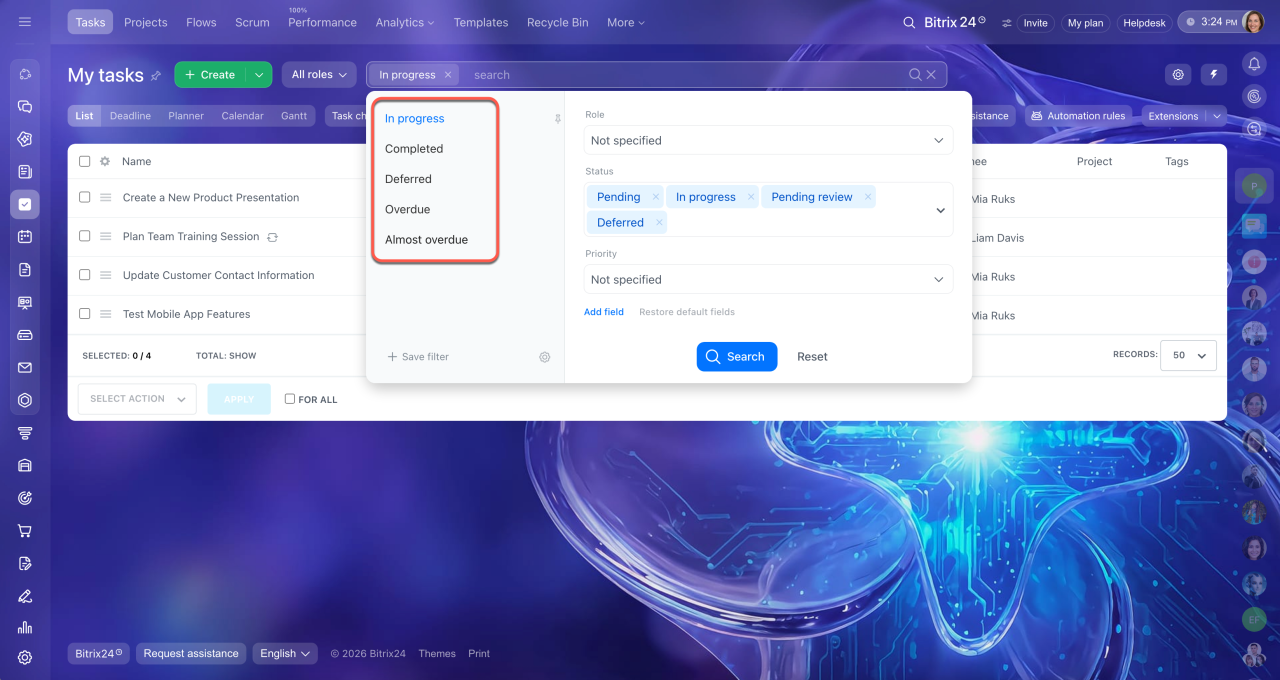
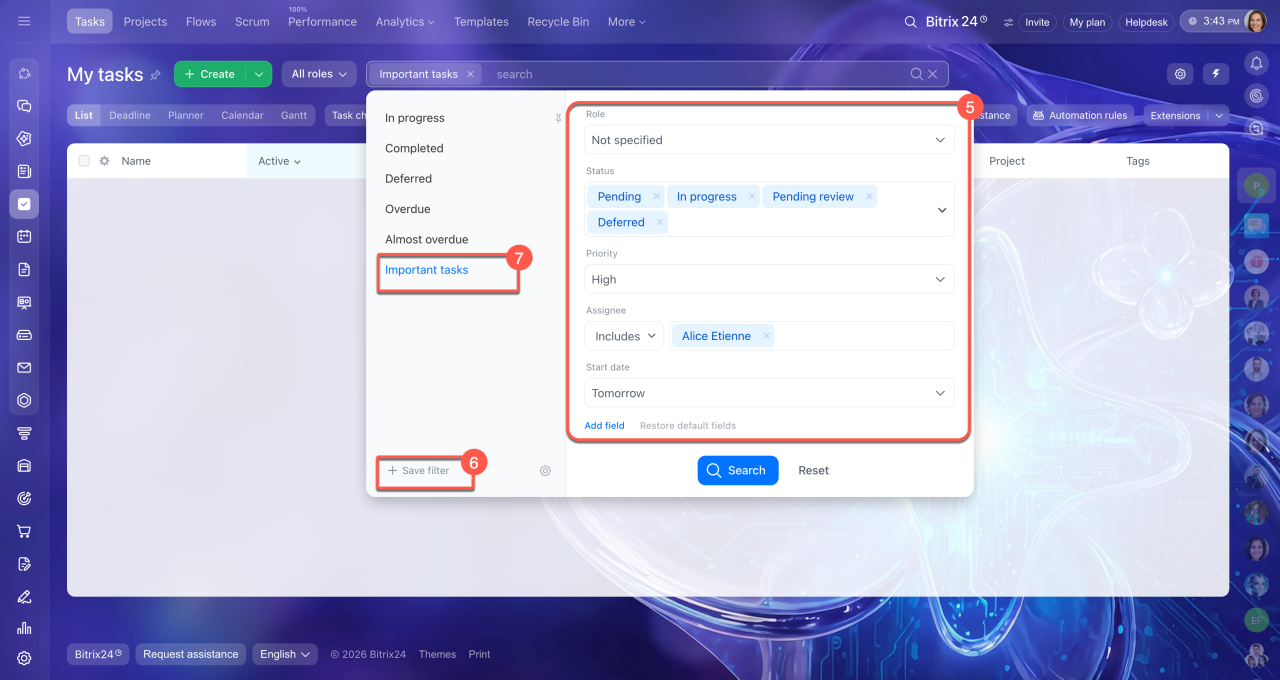
Custom filters. If preset filters aren't enough, create your own filters to fit your tasks and workflows.
You can use a filter once or save it if you regularly search for the same set of tasks. When creating a filter, you can combine several parameters, such as deadline and status or deadline and priority.
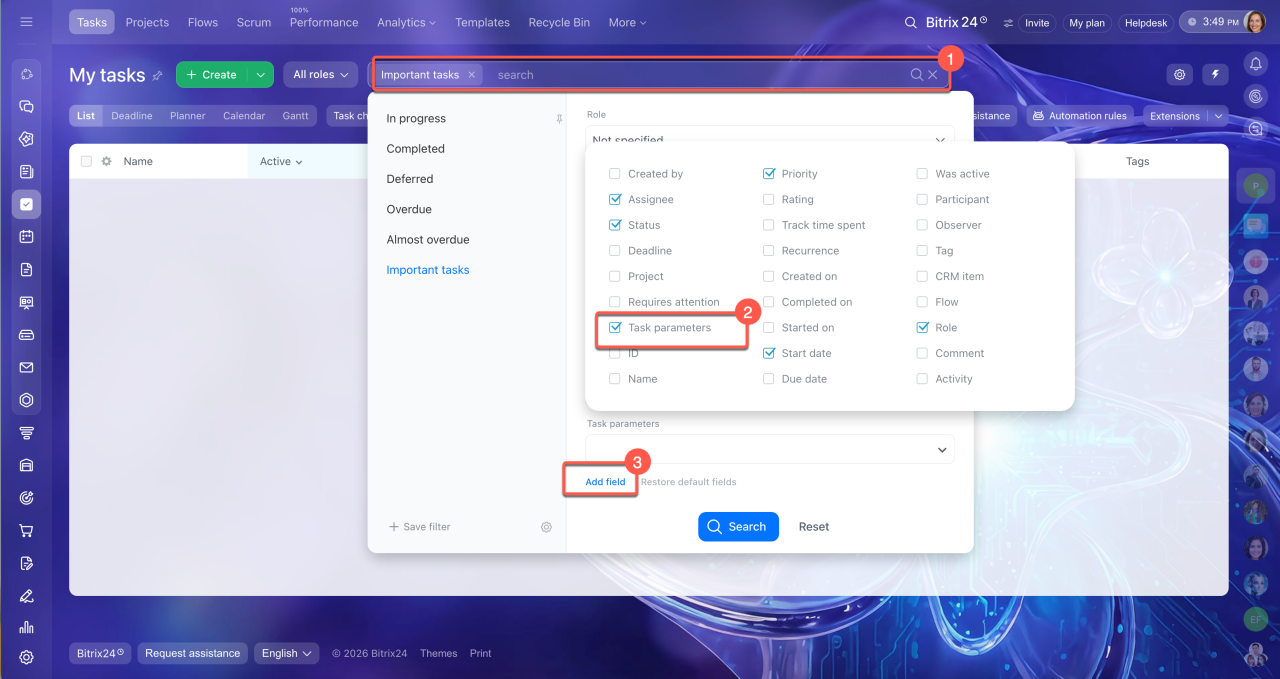
To create your own filter:
1–2. Click Filter + Search > Add field.
3. Select the fields you need.
4. Specify field values.
5–6. Click Save filter and name it if you want to use it again later.
7. Click Search to view tasks that match the parameters you set.
For example, at the start of the week, you may want to plan your priorities. Enable the "Urgent tasks for the week" filter to display only important tasks. The remaining tasks are temporarily hidden, so you can focus on your work. After you complete the urgent tasks, turn off the filter to restore the full list.
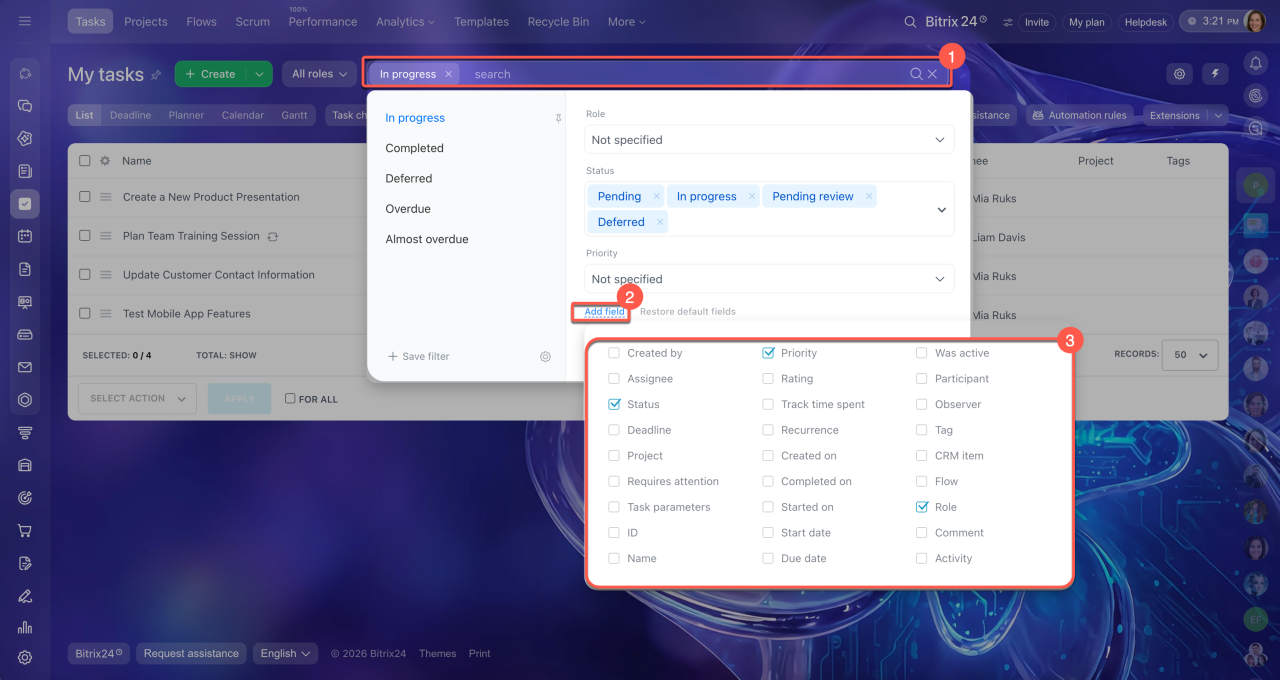
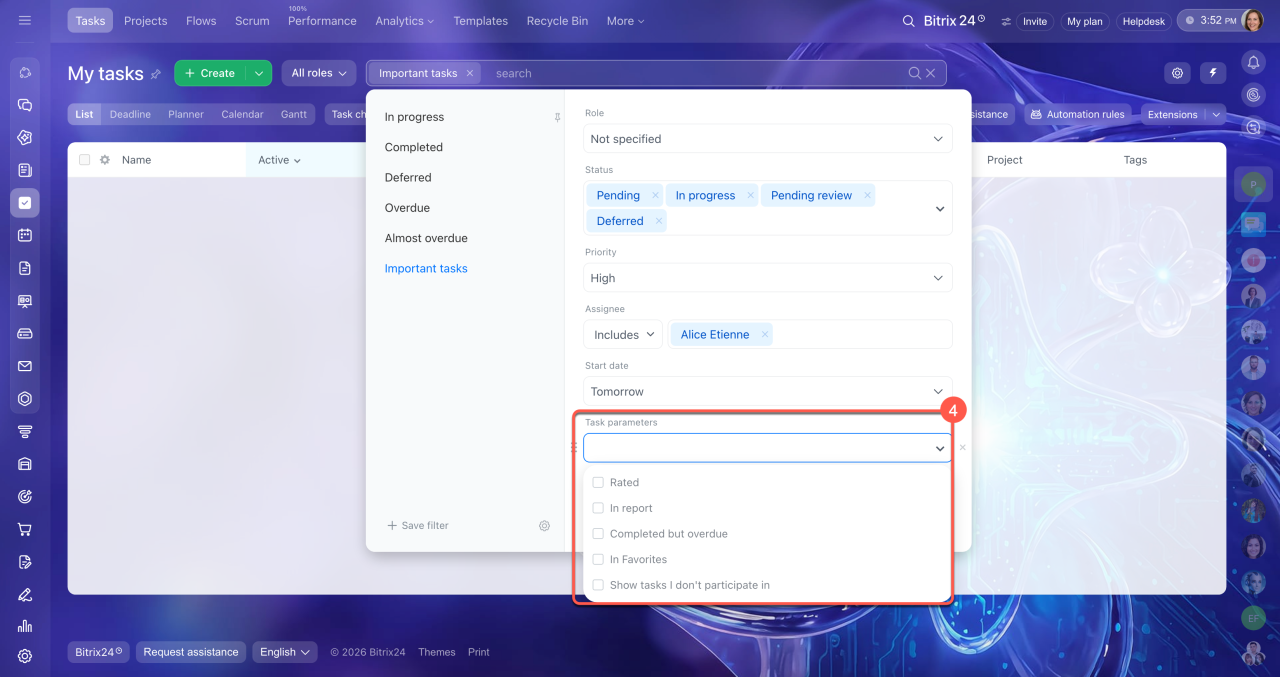
To view all tasks in Bitrix24 or find favorite or rated tasks, go to Filter + Search > Add field > Task parameters and select the option you need:
- Show tasks I don't participate in — allows administrators to view all tasks in Bitrix24, including those they don't participate in.
- In favorites — shows tasks you've added to your favorites for quick access.
- Rated tasks — shows tasks with positive or negative ratings so you can review the results.
View tasks by role
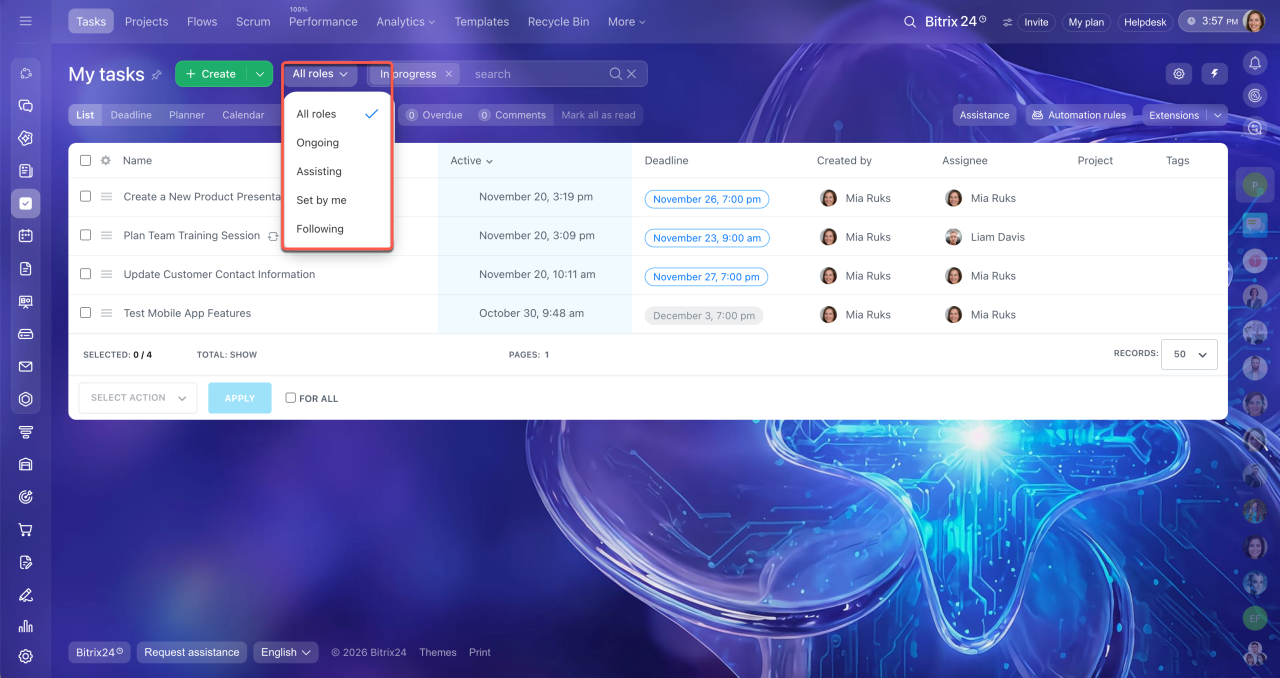
Roles help you organize tasks based on your involvement. You can focus on the tasks relevant to you without searching through the entire list.
Click All roles and select the role you need:
- Ongoing — tasks where you are the assignee. Check them in the morning to plan your day and set priorities.
- Assisting — tasks where you are a participant. Check them regularly to keep track of approaching deadlines and see when colleagues need your help.
- Set by me — tasks you assigned to others. Check them daily to monitor progress.
- Following — tasks where you are an observer. Use this view to stay informed about work you're not directly involved in.
Group tasks with tags
Tags help you organize tasks by topic and find related tasks quickly. This is useful when you work on multiple projects and want to see related tasks in one list. For example, you can use tags to group tasks for a specific client or mark urgent tasks, even if they belong to different projects.
You can find tasks by tag in two ways:
- Open Filter + search, add the Tag field, and enter the tag name. The list will show only tasks with that tag.
- Click a tag in the task form to open a list of tasks with the same tag.
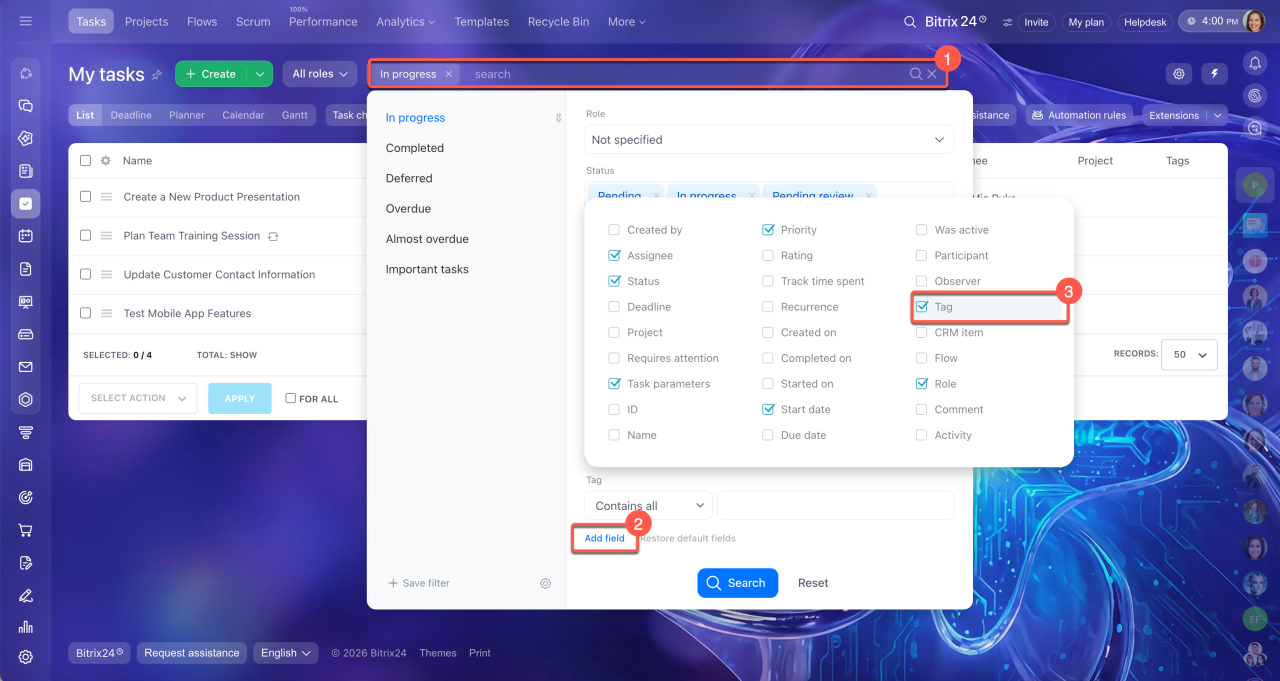 Tags in the task filter
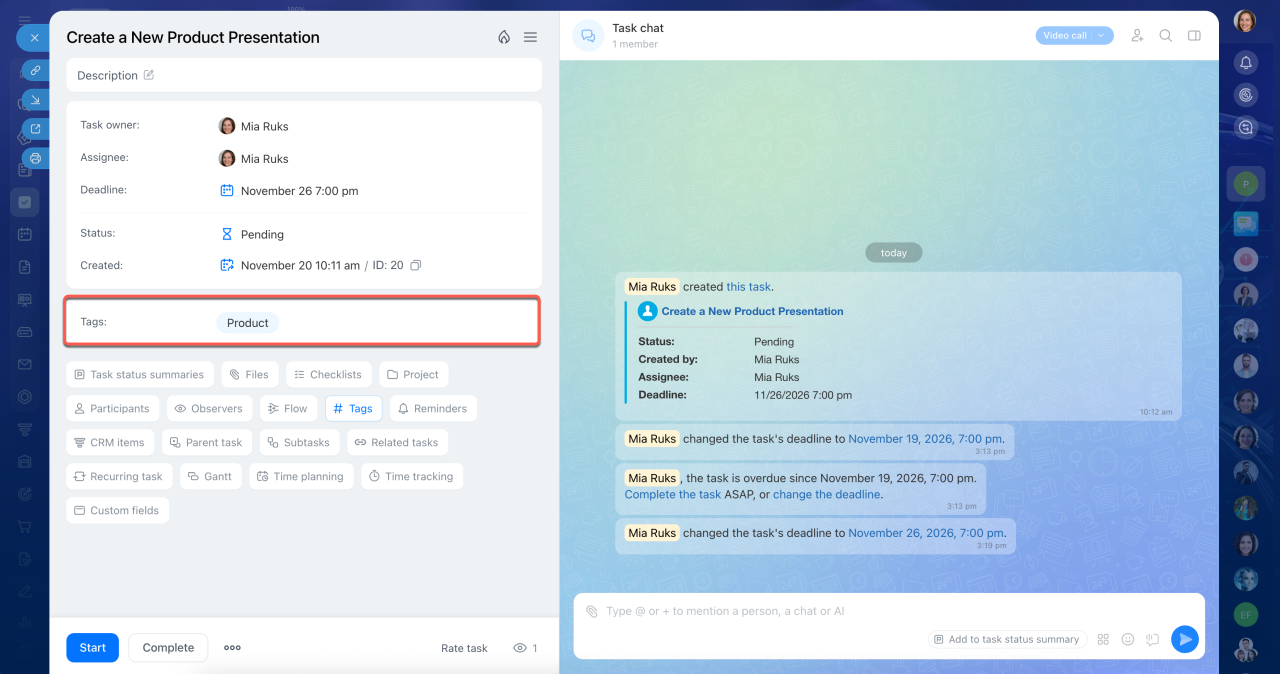 Tag in the task form
For example, in the morning, select the Urgent tag to see tasks that need your attention today. In the afternoon, switch to the Clients tag to focus on client-related tasks.
Respond to task changes and reminders
When several employees work on tasks, timely responses to updates help keep work moving. Colleagues can see the latest changes and spend less time asking for progress updates.
Bitrix24 helps you keep track of task activity. You can see what changed, who made the update, and the task's current status.
Counters and notifications. When someone updates a task, such as changing the deadline, attaching a file, or completing a checklist item, Bitrix24 notifies you. A system message appears in the task chat, showing who made the change and what was updated. Counters appear in the Tasks and Task chats sections, and a notification appears in the top-right corner.
Each task participant receives notifications and sees counters based on their role:
- Assignees and participants receive notifications about all changes to tasks they're involved in.
- Task creators receive notifications about key events, such as when a task is completed, a checklist is finished, or a result is attached.
- Observers receive notifications about task events, such as status changes or task completion. By default, notifications are muted for observers. You can turn on notifications to stay informed about task updates.
Employees also receive a notification and see a counter when someone mentions them in a task chat.
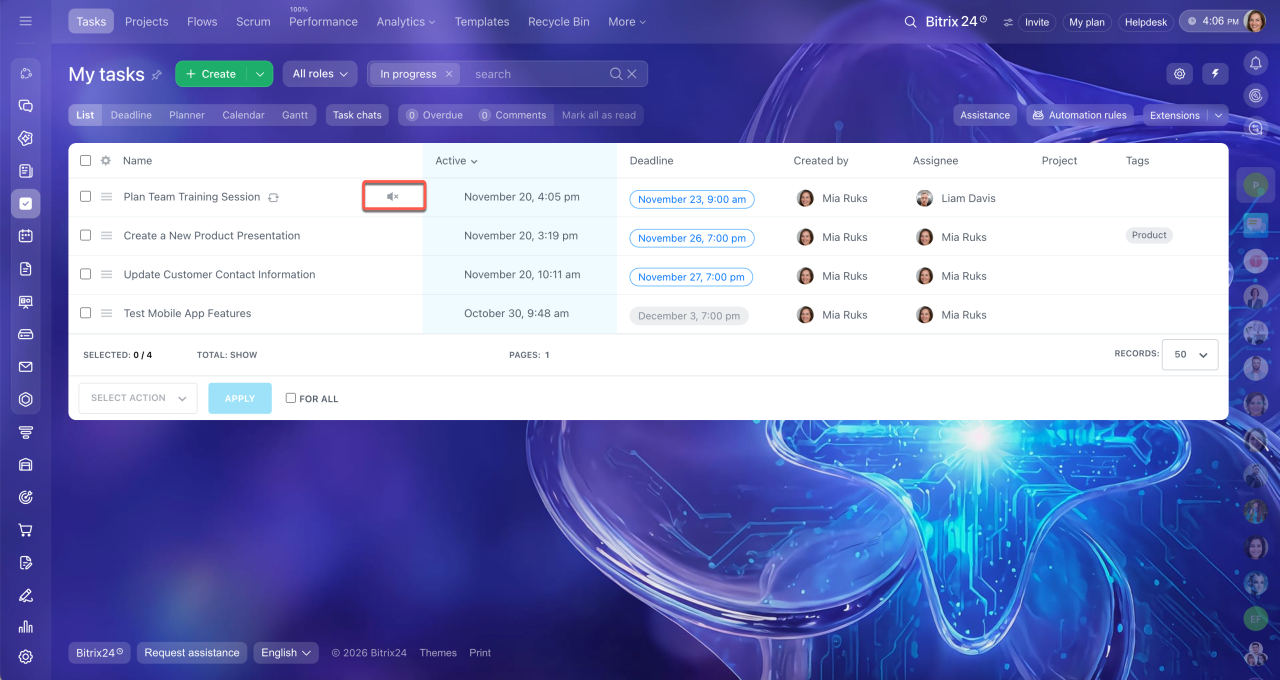 Mute mode in a task for an observer
To keep track of task updates:
- Check counters in Tasks or on the Tasks tab in Messenger. They show the total number of new events and highlight tasks with updates.
- Open the task chat list to review new messages and updates.
Reminders. A colleague can set a task reminder for you so you don't forget about it. Reminders appear in the Notifications section. They aren't posted in the task chat and are visible only to you.
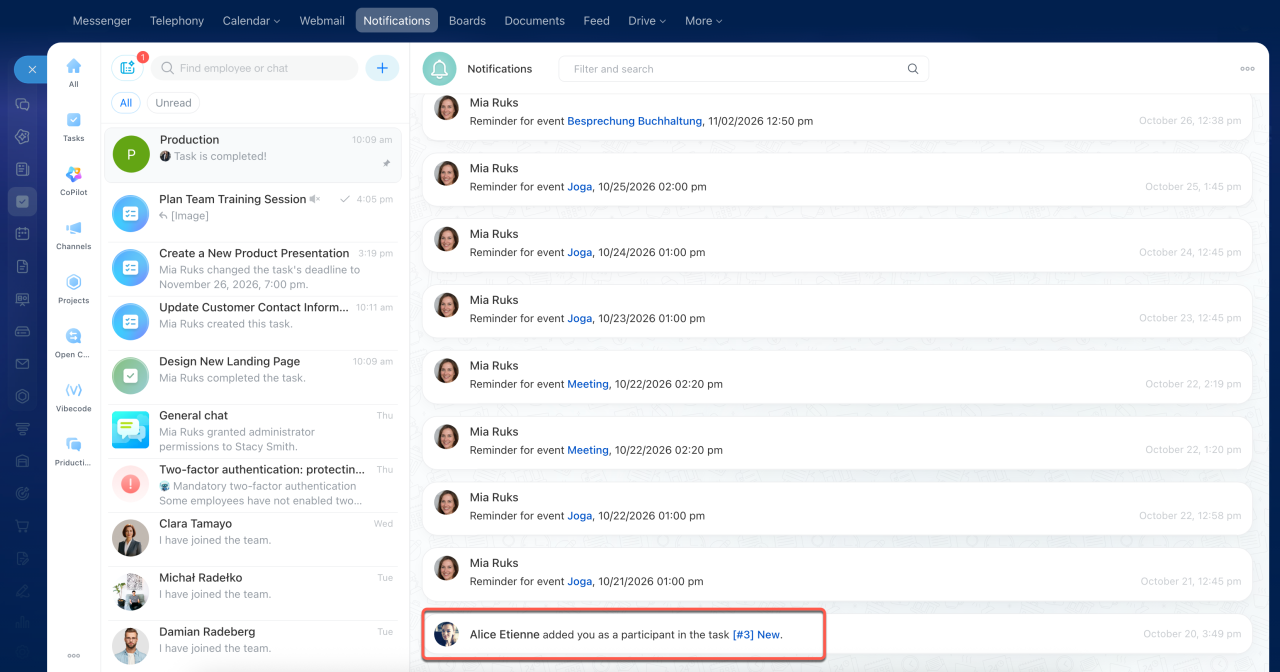
In brief
- When you have many tasks, prioritize your work. Decide what needs to be done today and what can wait until later.
- Consider both the task's priority and deadline when deciding what to work on first.
- Bitrix24 offers several task views: List, Deadlines, Planner, Calendar, and Gantt. Choose the view that best fits your workflow.
- Check counters throughout the day to stay informed about task updates. Counter colors help you identify overdue tasks and new activity.
- Use filters to find specific tasks and focus on what matters most.
- View tasks by role: Ongoing, Assisting, Set by me, or Following.
- Use tags to group related tasks and find them quickly, even across different projects.
- Use counters and notifications to keep track of changes, and reminders to follow up on tasks when needed.