
Projects work best when a team shares one goal and needs to complete several related steps to reach it. These steps can happen one after another or at the same time. They often take a while and involve people from different teams.
For example, a company is launching an online store website. The team needs to agree on the site structure with the client, prepare the design, build the pages, add catalog content, set up payment and delivery, and test everything before launch. Since all of this leads to one outcome, it makes sense to manage it as a project.
In Bitrix24, a project is a shared workspace for the team. Team members can create tasks, discuss work in public and private chats, hold meetings, work with files, and track overall progress. Everything stays in one place, so it is easier to keep context and coordinate work.
In this article:
How a project differs from a task
A task helps organize one specific assignment. It has an assignee, a deadline, and a clear result.
A project brings together several related tasks that support one shared goal. Project work usually takes longer, includes multiple stages, and involves a team. Some tasks can run in parallel, while others depend on each other.
For example, preparing a conference agenda is a task. The result is a finished event program.
Hosting an annual partner conference is a project. It includes finding a venue, inviting speakers, opening registration, preparing promotional materials, setting up a live stream, and running the event. Different employees handle different parts, but everyone works toward the same result.
In a project, the team can see not only individual assignments but the full scope of work:
- Which tasks are complete
- What employees are working on now
- Which stages have not started yet
- Where current files are stored
- What decisions the team has made
- Which meetings are scheduled and what agreements were recorded
When to use a project
Create a project when the work has one shared goal and several related stages.
A project is useful when:
- Multiple employees or departments contribute to the result
- There are many tasks and they get lost among other assignments
- Several stages happen at the same time
- The team needs shared files, discussions, and meetings
- It is important to track overall progress
- A client or contractor needs to be involved
For example, when launching a website, the designer prepares mockups, the developer builds the pages, the content manager fills the catalog, and the payments specialist connects the payment system. A project brings these tasks together, so the team can track progress across the full launch, not just one part of it.
If employees are working on unrelated assignments with no shared goal, separate tasks are enough.
Get started with a project
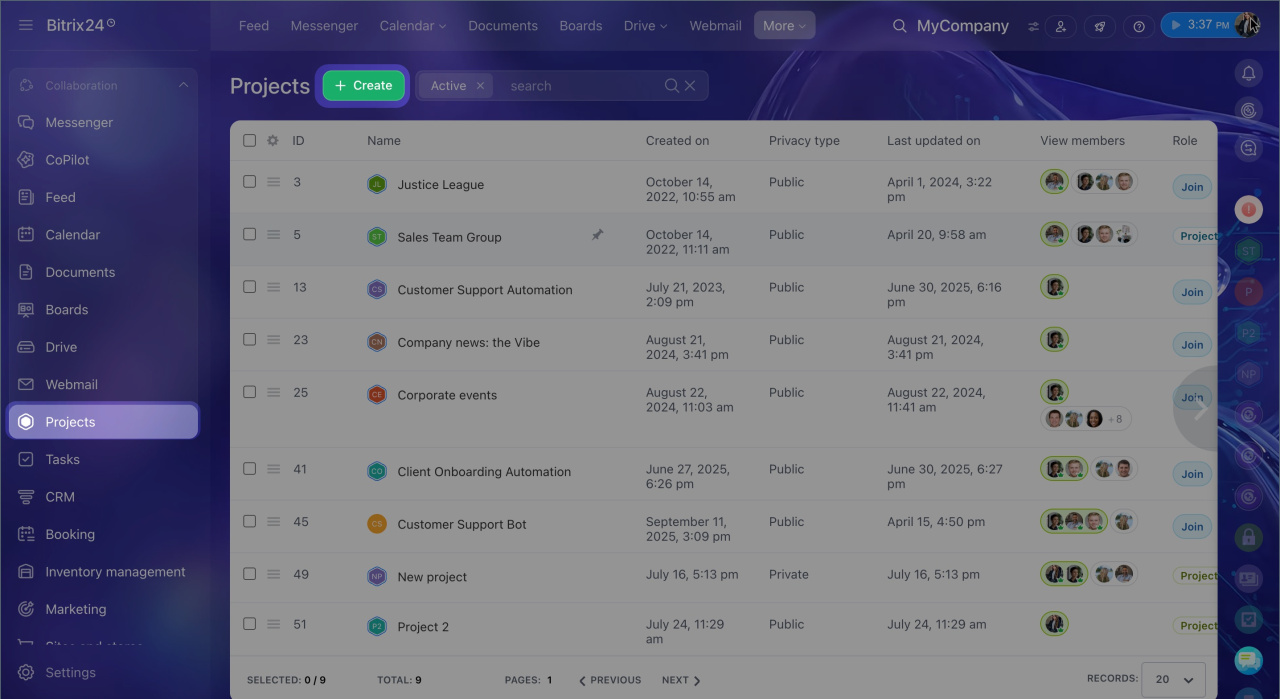
Any employee can create a project. Open the Projects section and click Create.
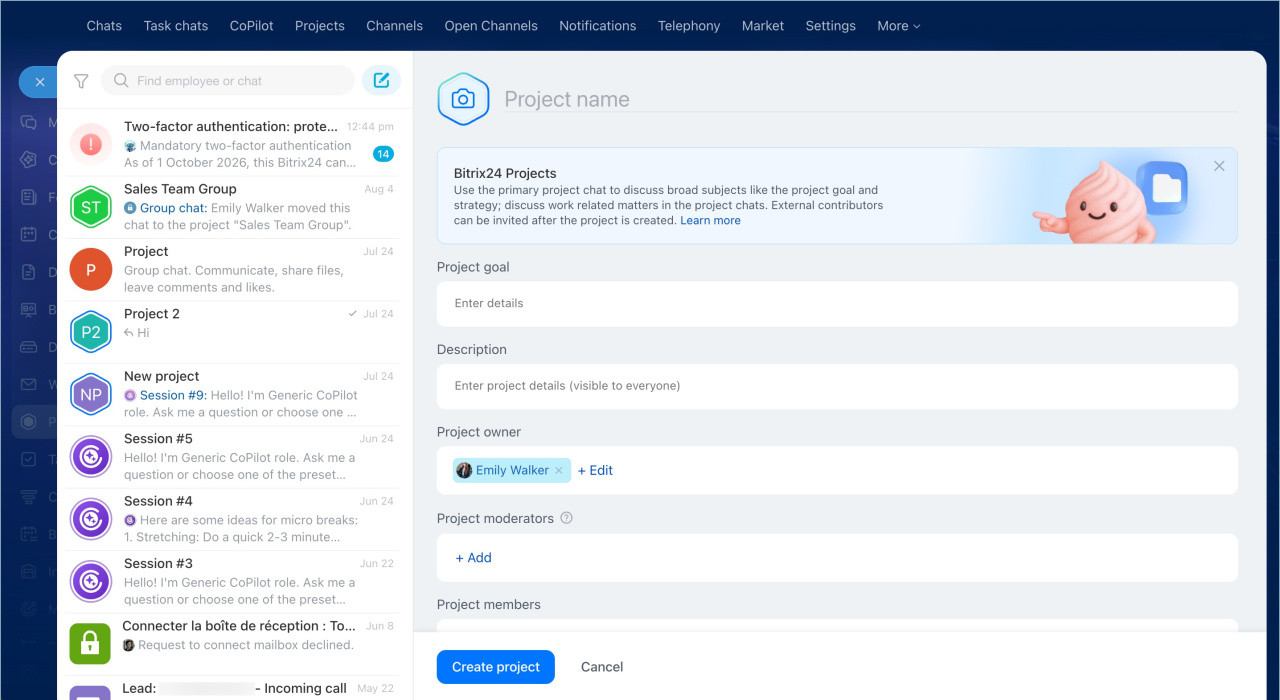
Enter a name, add members, and choose the project type:
- Public project: visible to all employees, and anyone can join
- Private project: employees can join by invitation only
Choose a name that reflects the outcome. "New website" describes a topic, but not the goal. "Launch the e-commerce website" gives more context because it shows the result and the general direction of the work.
Break a project into tasks
Split the project into clear deliverables that you can assign to team members. For a website launch, do not create one task called "Build the website." Break the work into stages instead:
- Approve the site structure
- Prepare the design
- Build the pages
- Fill the catalog
- Set up payment and delivery
- Test the site before launch
Each task should have a clear result, an owner, and a deadline. This helps employees understand what they need to do. It also helps managers see who owns each part of the project.
If a stage is too large, split it into subtasks. For example, the task "Fill the catalog" can include subtasks for photos, descriptions, and prices.
To add a new task directly in a project, create it from the project card and click Add task.
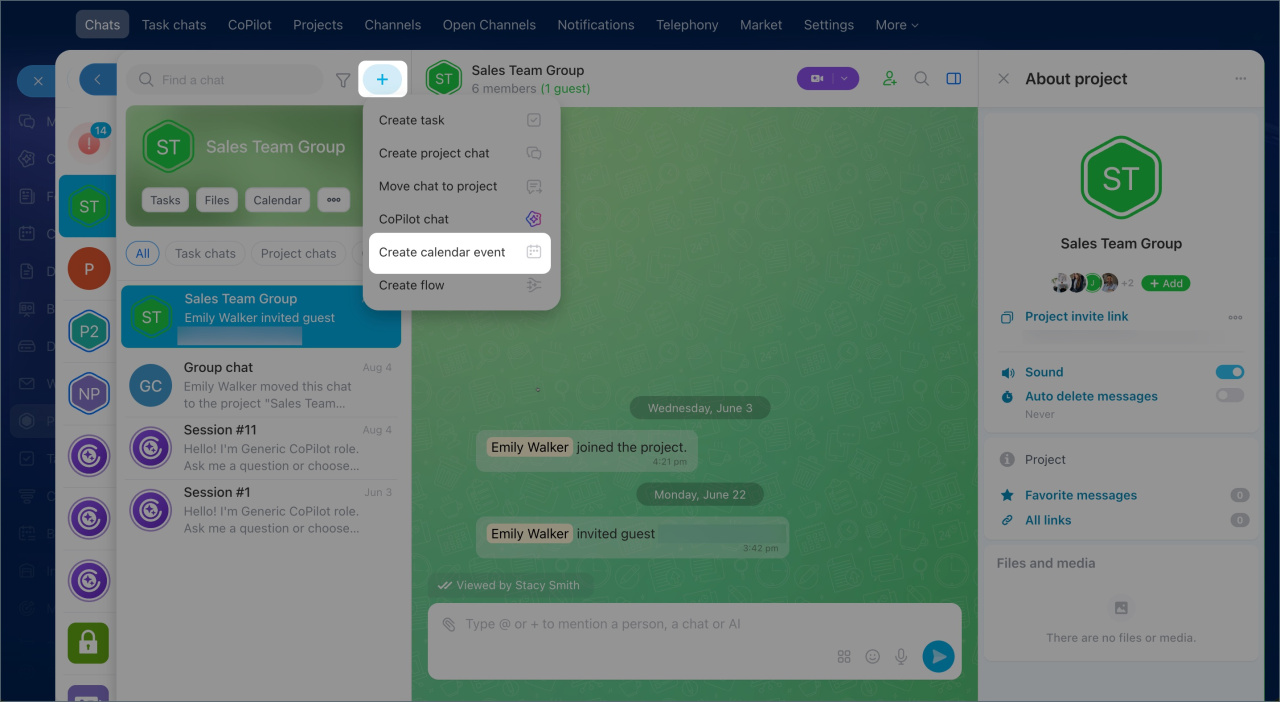
You can also link an existing task to a project. This is helpful if work started before the project was created and you now want to keep everything in one place.
What's included in a project
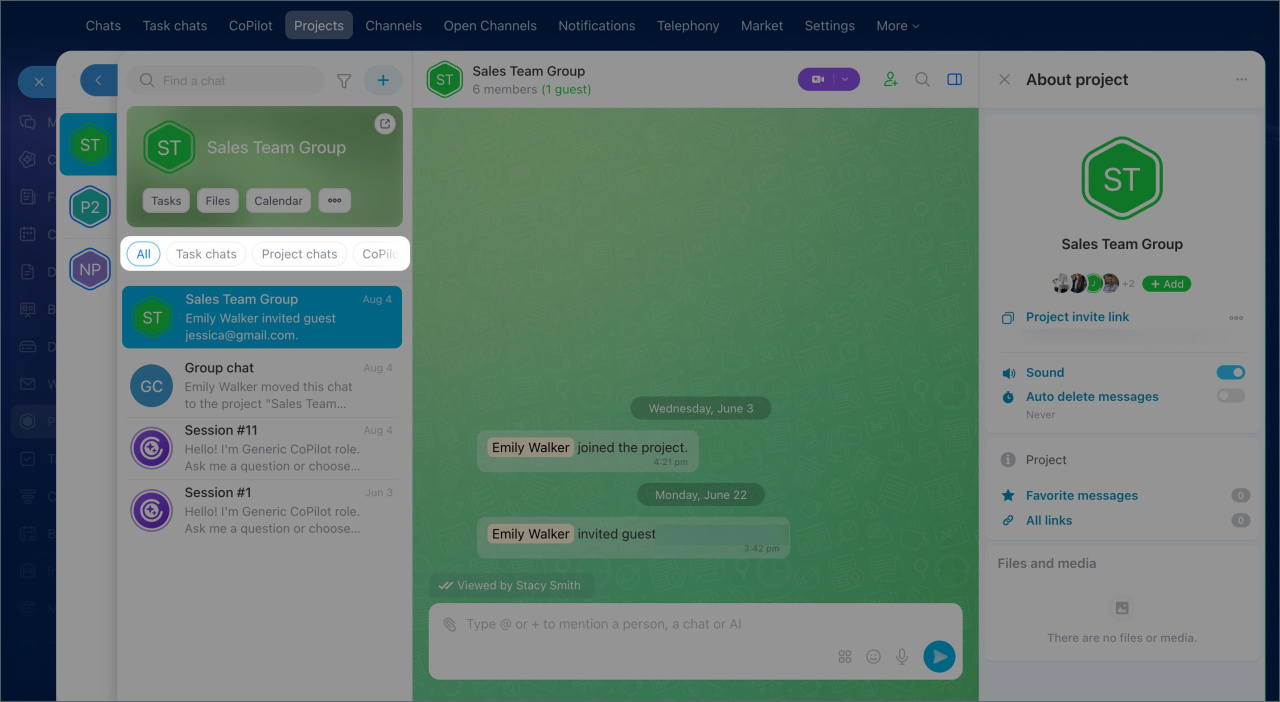
A project is a shared workspace for your team. It brings together tasks, chats, meetings, files, and an AI assistant. Your team can work in one place instead of switching between tools or rebuilding context.
A project includes:
- Tasks and subtasks
- The main project chat
- Public and private chats
- Task chats
- Calendar and meetings
- Files and docs
Tasks and subtasks help you turn a project goal into clear deliverables. Each task has an assignee, a deadline, and an expected result. If a phase is too large, you can split it into subtasks and assign them to different employees. This helps everyone understand ownership and makes it easier for a supervisor to track progress.
The main project chat is best for general updates. Use it to notify the team about deadline changes, discuss new client requirements, or make decisions that affect everyone.
Public and private chats help teams discuss specific workstreams. Designers can review layouts, while developers can focus on technical details without distracting other project members.
Task chats are best for specific assignments. They keep questions, interim results, files, and decisions in one place. If a new assignment comes up in the main chat or a group chat, create a task directly from the message so nothing gets lost.
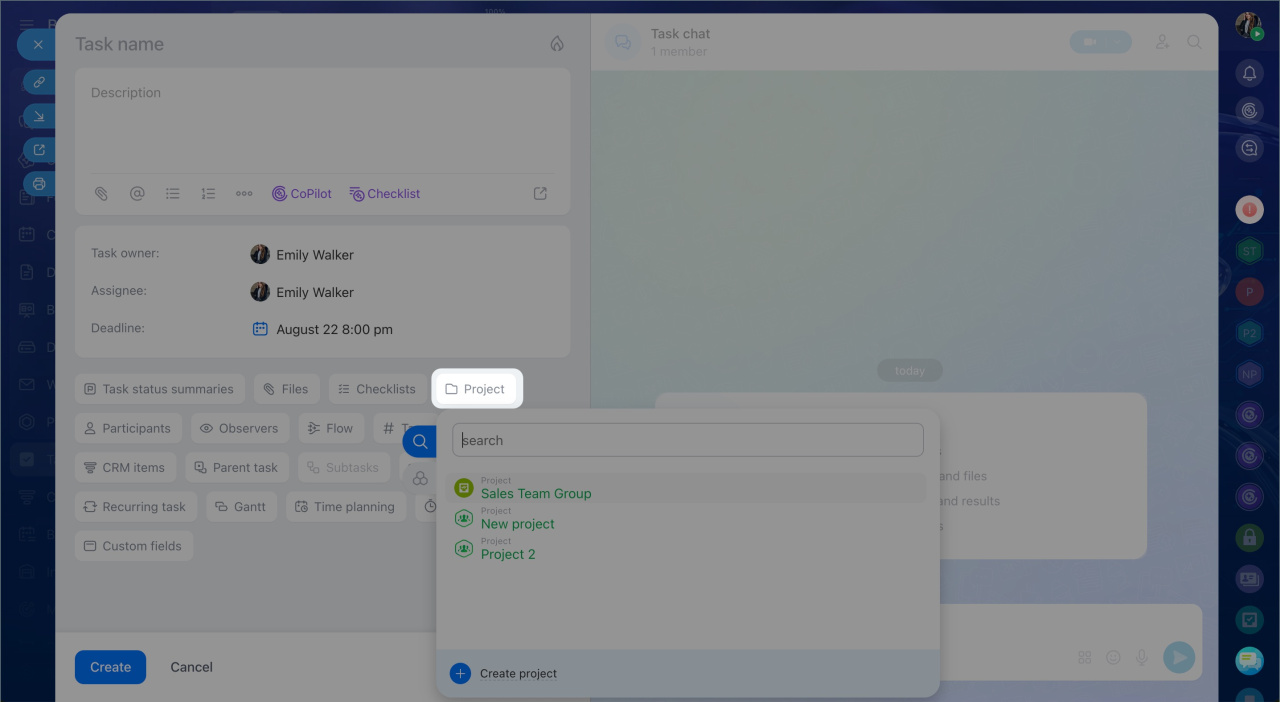
Calendar and meetings help the team plan shared events. A meeting created in the project is added to each participant's calendar automatically, so you do not need to invite people one by one.
Each meeting has its own chat. The team can discuss the agenda in advance, share materials, and continue the conversation afterward. The meeting chat stays in the project, so participants can go back to it and review decisions at any time.
Files and docs stored in the project give the team access to the latest materials and make information easy to find.
Work with clients and contractors
You can invite a guest to a project, such as a client, contractor, vendor, or partner who does not have a Bitrix24 account in your organization. A guest can chat with the team, work on tasks, and join project meetings. They do not get access to the rest of your company's information.
This lets your team and external participants work in the same space instead of juggling email, messengers, and task tools.
A company that is building a website for a clothing store invites the client's representative to the project. The client can follow progress, join layout discussions, and take part in meetings. The designer attaches a new layout version to the task, and the client leaves feedback in the same place. The team sees the comments right away and does not need to search through old messages for the latest file.
You can set guest access based on their role in the project. For example:
- Let them view only the tasks they participate in
- Give access to all project tasks if the client needs full visibility
- Prevent them from deleting tasks
- Open chat history so a new member can catch up quickly.
In brief
- A task focuses on one result. A project supports a shared goal with several related stages.
- Create a project when several people are involved, the number of tasks grows, and overall progress matters.
- Break the project into clear tasks. Each task should have a result, a responsible person, and a deadline.
- Use the project chat for general questions. Keep details and work results inside the task.
- Create assignments from the project card so they appear in the shared list right away.
- A project keeps tasks, discussions, files, and meetings in one place. Your team always sees current information and spends less time searching and catching up.