
New assignments often come up in chats, Feed discussions, meetings, or while you work on a document.
In Bitrix24, you do not need to open the Tasks section every time. You can create a task or open a related item right from the tool you are already using. This helps you stay in context, capture decisions faster, and switch between sections less often.
In this article:
Create a task from a chat
Assignments often come up in personal and group chats. Someone may ask you to prepare a document, review a layout, or contact a client. If you wait too long, the assignment can get lost in the conversation.
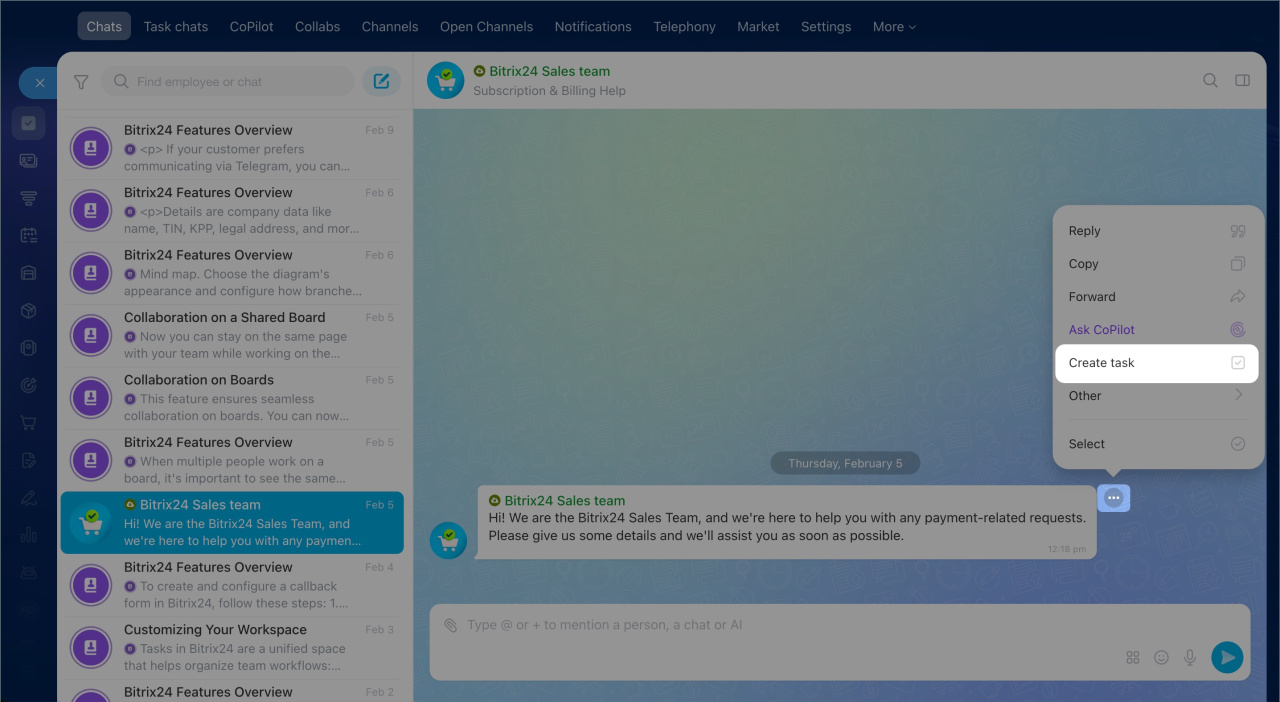
You can create a task from any message in a personal or group chat. You do not need to open the Tasks section and enter everything again. Bitrix24 creates the task where the assignment first appeared and keeps a link to the original message, so you can return to the discussion at any time.
Create tasks from a chat when:
- A clear assignment appears in the conversation
- You want to track it right away without leaving the chat
- You want to keep the link between the task and the message
Examples:
Prepare an estimate. A manager discusses new deal terms with a colleague. In the chat, someone writes: "Prepare three delivery options for the client." The manager creates a task from that message and assigns it right away. There is no need to open the Tasks section, copy the text, or repeat the details.
Fix a bug on the site. A tester posts in the development group chat that the feedback form stopped working after an update. The team lead creates a task directly from the message and assigns it. The team can keep discussing the issue while the task is already in progress.
Create a task from the Feed
Teams use the Feed to share updates, discuss work, and exchange ideas. Specific assignments often come out of these discussions. If no one captures them right away, they can get lost among other posts and comments.
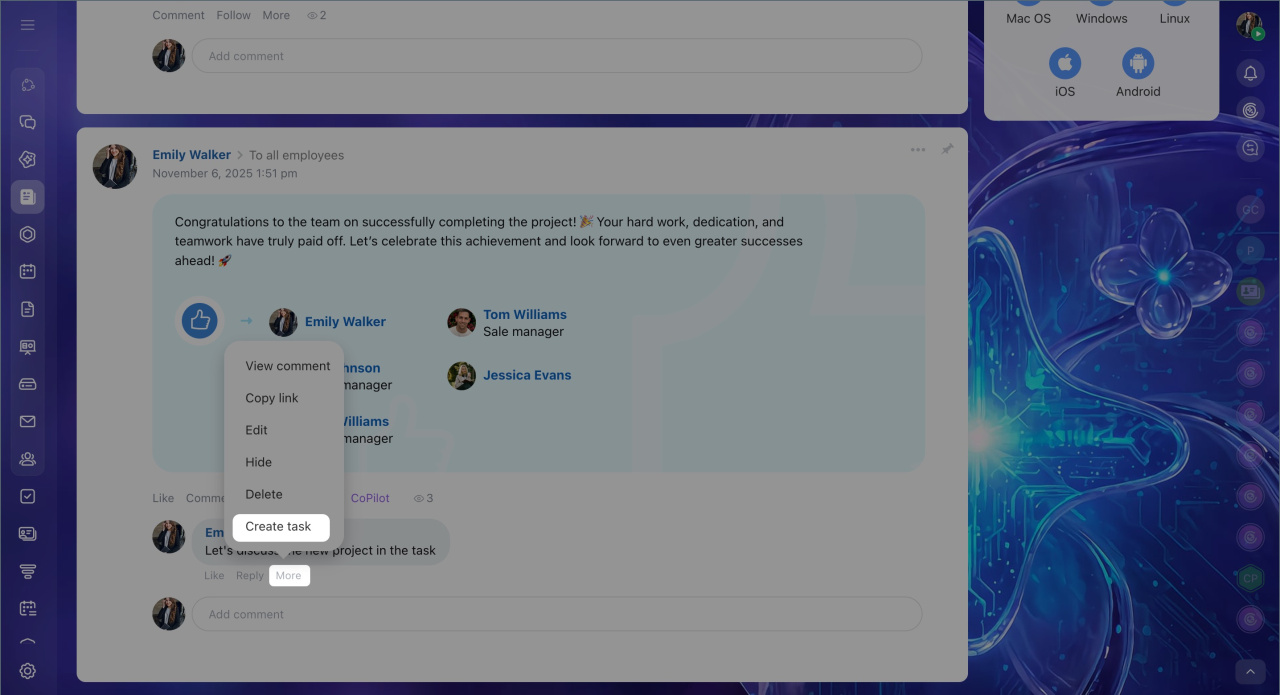
You can create a task from any post or comment in the Feed. The message text goes into the task description, and Bitrix24 keeps a link to the original post.
Convert a Feed post into a task
Create tasks from the activity stream when:
- A specific assignment comes up in a discussion and needs tracking right away
- You want to keep the link between the task and its context
- A manager wants to create a task during a discussion without interrupting it
Examples:
Collect ideas to improve customer service. A supervisor posts in the Feed and asks the team for ideas. A manager leaves a useful suggestion in the comments. The supervisor creates a task on the spot and assigns it to an owner. The discussion continues, and the work is already under control.
Update client workflow guidelines. At a general meeting, the team agrees to rewrite the guidelines. Someone posts the summary in the Feed. The supervisor creates a task directly from that post, so the assignment stays connected to the discussion.
Create a meeting from a task
Sometimes a chat discussion is not enough, and task participants need to talk directly. In that case, you do not need to switch to another tool.
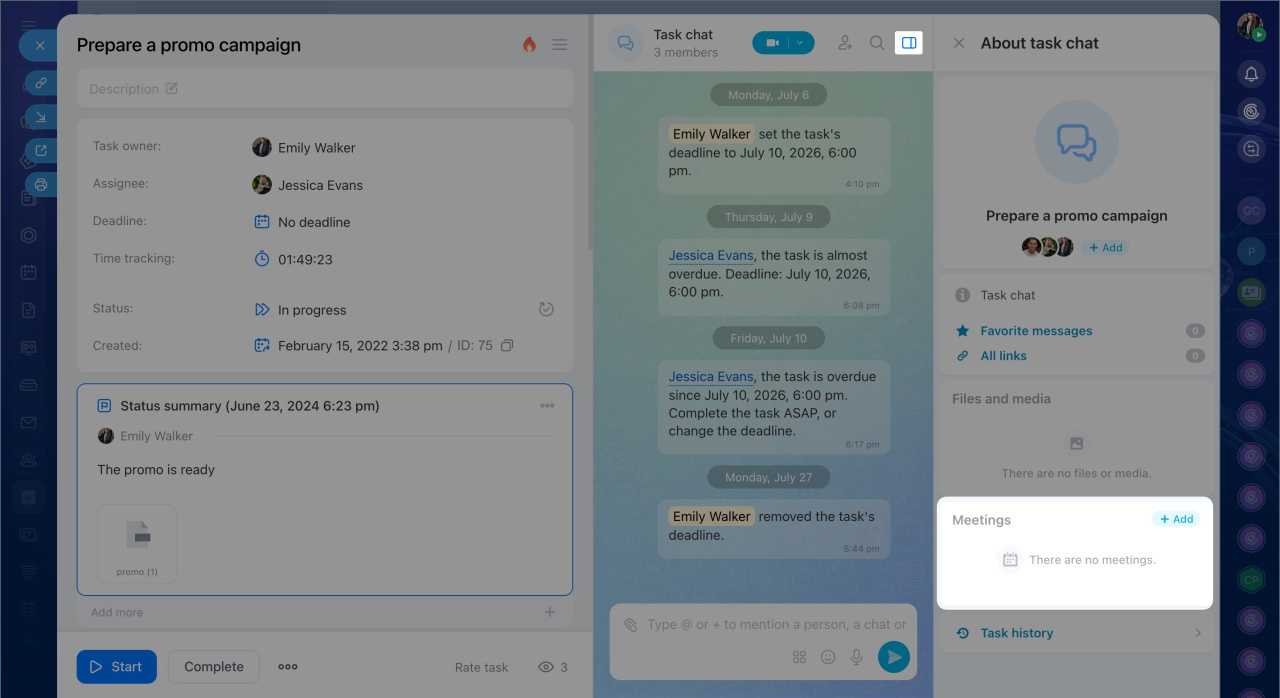
For a quick conversation, you can start a call from the task chat. If you need to schedule a time or set up a recurring call, create a meeting from the task chat. Participants are added automatically.
FAQ: New tasks in Bitrix24
Create meetings from a task when:
- A question in the chat is easier to resolve by voice
- You need to bring task participants together quickly
- You want to keep meeting results in the task
Examples:
Approve a budget for an ad campaign. A marketer and a CFO cannot agree on the numbers in the chat. The supervisor right-clicks a message in the task chat and creates a meeting. All participants get an invitation, and they resolve the issue by voice the same day. After the call, the supervisor records the results in the task chat.
Prepare a product launch plan. The team has worked on a task for several weeks. The supervisor decides to bring everyone together to align and assign next steps. They create a meeting in the task chat, and participants receive invitations automatically.
Create a task from a board
Teams use boards to collect ideas, build diagrams, and plan projects. Once the work structure is ready, individual stages need to be assigned and tracked.
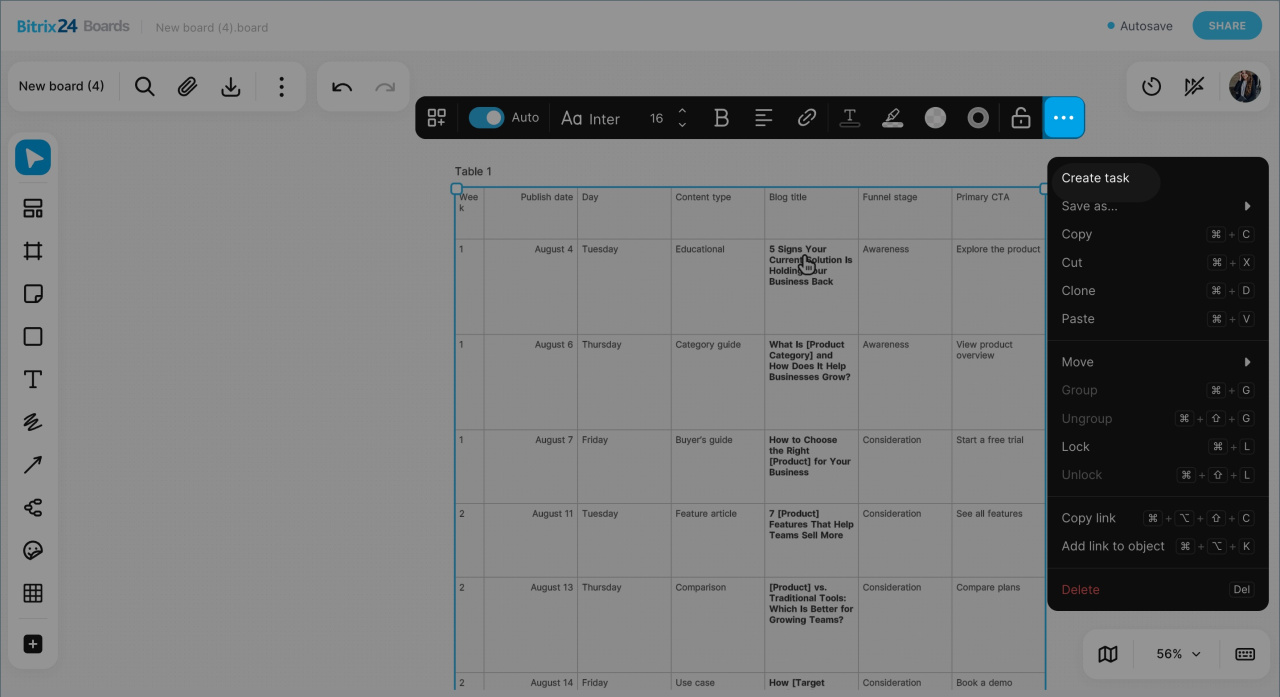
You can create a task from any object on the board. There is no need to move project stages into the Tasks section manually — they turn into assignments right where the team discussed and planned them.
To create a task, click the three dots (...) next to an element and select Create task.
Create tasks from a board when:
- After a brainstorm, you are ready to move from ideas to execution
- The team has broken a project into stages and is ready to assign responsibility
- You want to keep the link between the project plan and the tasks in progress
Examples:
Launch a new corporate website. The team builds the project structure on a board: design, development, content, and testing. Once the plan is approved, the supervisor creates tasks directly from board objects and assigns owners. The team does not need to re-enter project stages into tasks — work starts right after planning.
Prepare an annual conference. Organizers map out the preparation on a board: find a venue, approve the agenda, invite speakers, launch registration. After the discussion, each stage becomes a separate task. The board remains the big picture of the project, while team members work from their individual tasks.
Open a task from a document
Documents are often opened separately from a task — to review a contract, update instructions, or check a technical specification. Meanwhile, the discussion, deadlines, and responsible people are all in the task.
If a document is used in a task, the document card displays a link to the related task. You do not need to search for it manually — you can open the task directly from the document.
Use the connection between documents and tasks when:
- You need to quickly open the task related to a document
- You want to check deadlines, assignees, or the discussion for a document
- One document is used across multiple workflows
Examples:
Approve a contract with a client. A lawyer opens a contract to review the latest edits. In the document form, they see a link to the approval task and open it right away. The task shows the responsible person, the deadline, and the full discussion history — no need to search manually or ask colleagues for a status update.
Update employee instructions. An editor opens a document and notices that some information is outdated. Through the linked task, they quickly navigate to the discussion, check which comments have already been addressed, and see the deadline for the new version.
In brief
- Tasks in Bitrix24 are connected to other tools — chats, the Feed, meetings, documents, and boards.
- You can create new tasks right where an assignment first appeared — no need to open the Tasks section.
- The link between a task and the original message, discussion, or document helps preserve the work context.
- If task participants need to talk, you can organize a meeting directly from the task.
- Work stays connected to the tool where it started — agreements are easy to find, and information does not need to be moved manually.