
When a team works on a task, information often gets scattered. Questions happen in direct messages. Files are shared in chats or saved to a drive. Approvals happen over email. This makes it hard for a new team member to catch up. They need to search through different chats and files to find the full picture. As a result, it is often unclear what decisions were made and what stage the task is in.
In Bitrix24, all task-related work stays in one place. Discussions, calls, meetings, and files are all connected to the task. You can also communicate with clients, contractors, and other external participants right inside the task. Nothing gets lost. Your team can quickly find the information they need, and supervisors can review the task history and current status at any time.
Task discussions: a chat for the whole team
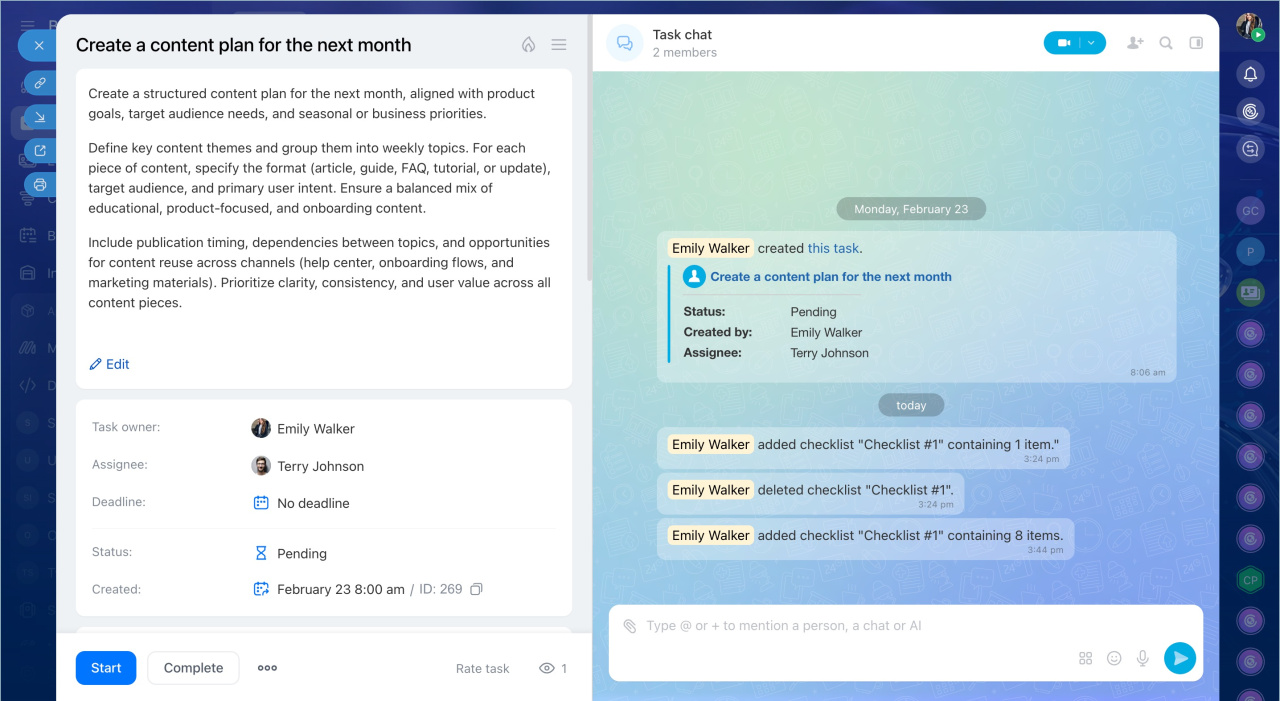
The task chat is the main space for communication and task updates. It stores participant messages and system notifications about changes. The chat history shows what decisions were made and where the work stands. New participants can get up to speed quickly, supervisors can check status at any time, and the team always has the latest information.
In the task chat, you can:
- Ask questions and clarify details during the work.
- Add participants to the task.
- Mention colleagues so they get notified right away and can respond faster.
- Share task results and mark them as deliverables.
- Attach files such as documents, mockups, and spreadsheets. Everything stays in one place.
- Track activity, such as who changed the deadline, updated the status, or added a message.
- Pin important messages and save them to Favorites for quick access later.
For example, a manager reviews website copy with a copywriter and designer. All edits and versions are discussed in the task chat. When a client asks for an update, no one has to piece the history together from memory. Everything is already in the chat.
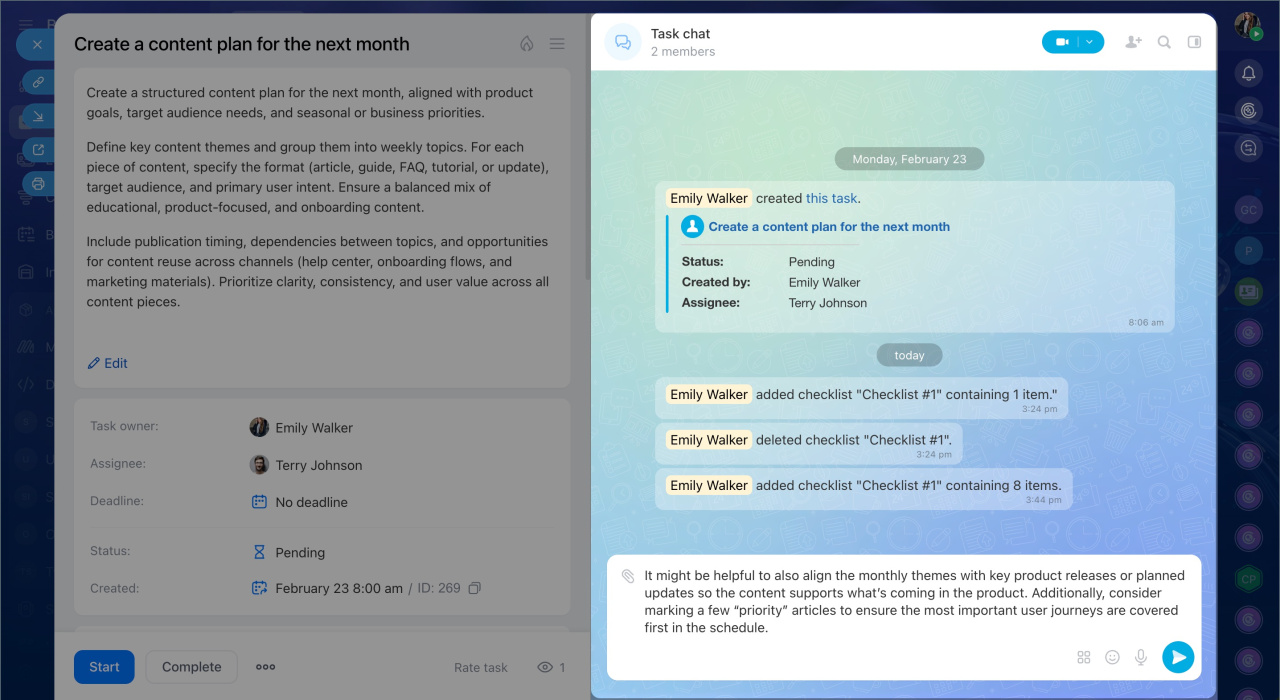
External participants. You can invite external participants to the task chat, such as clients, contractors, or freelancers. A guest gets access only to that task. They can view the discussion, post in the chat, and track updates through email notifications. They cannot access any other company data.
For example, a design agency is building a website for a client. The client is added to the task as a guest. They can review the discussion, leave comments in the chat, and receive email notifications. Client communication and internal team discussion stay in one place.
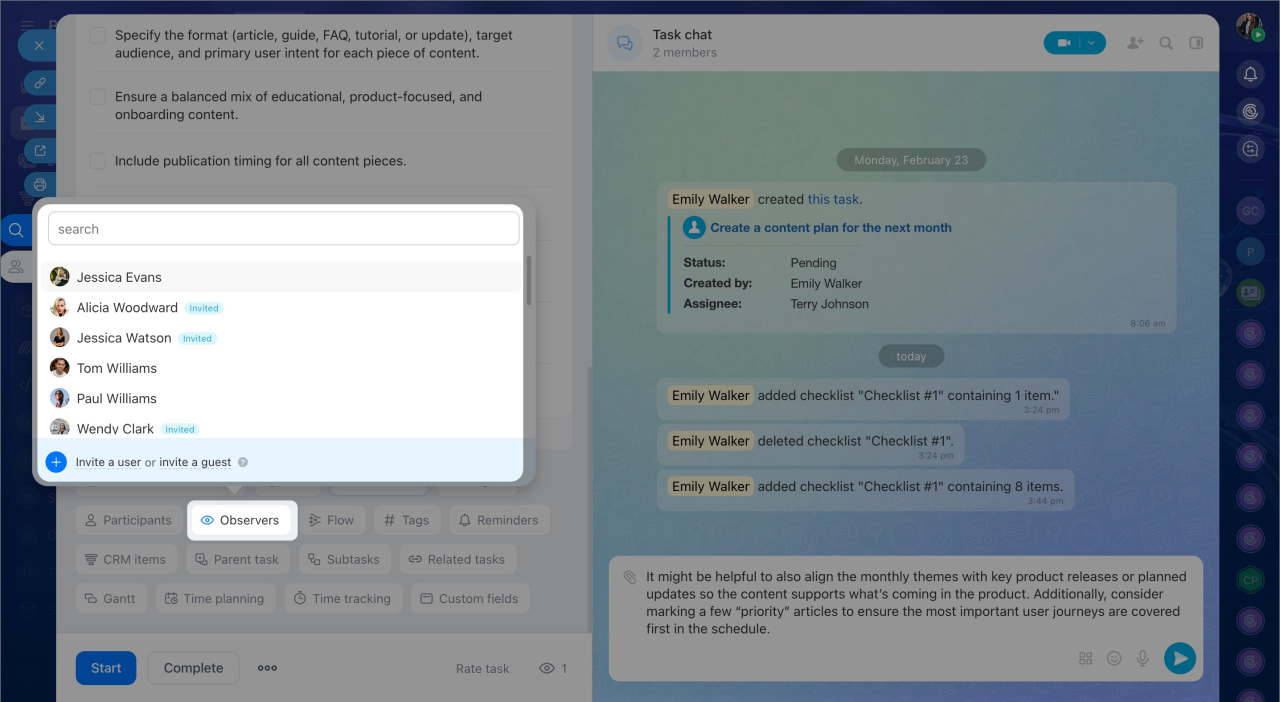
AI in the chat. CoPilot is available in the task chat. Type @ and select it from the list. You can ask it to summarize the discussion, suggest ideas, or answer a question. The reply appears directly in the chat and is visible to all participants.
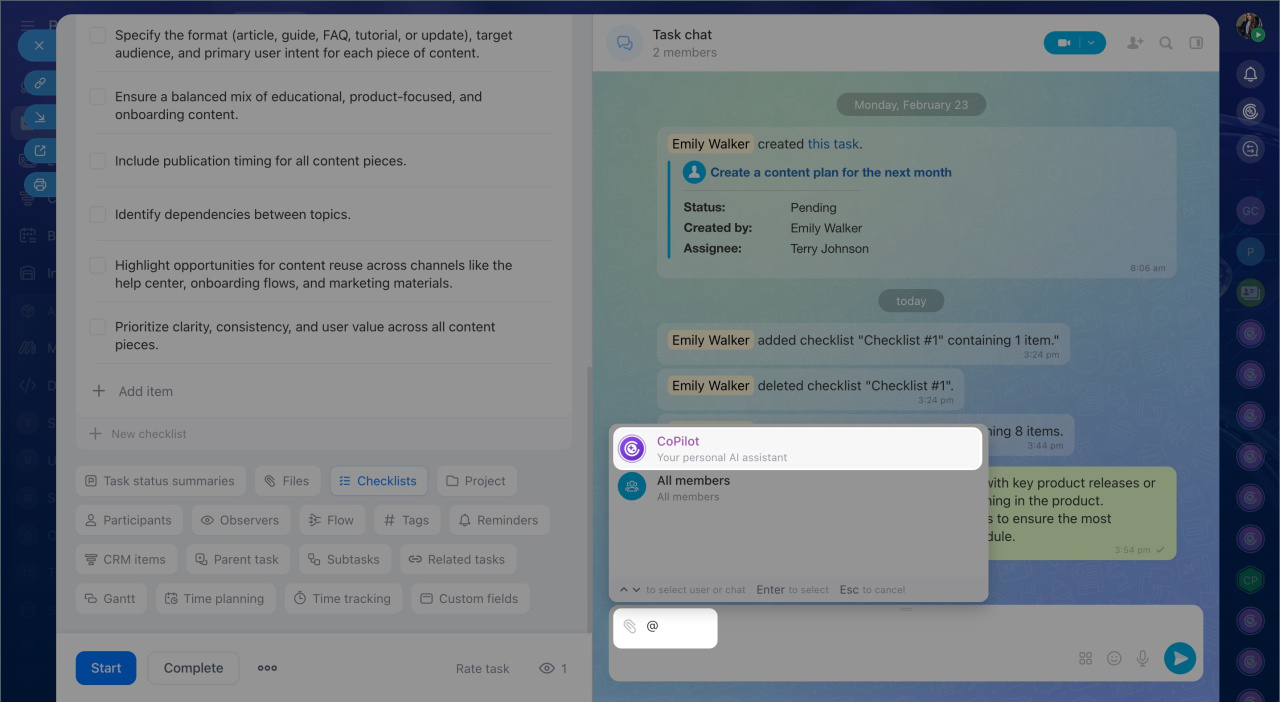
Task chats. If you work with many tasks, you can track all discussions in the Task chats section. It works much like Messenger. On the left, you see a list of tasks with the latest messages. On the right, you see the chat for the selected task. Tasks with new messages and comments move to the top, so you can quickly spot updates and see where a reply is needed.
This is useful for:
- Supervisors who need to review updates across many tasks
- Assignees who want to track all task updates in one place
- Observers who need to stay informed about changes
You can open the task chats list in Tasks and projects > Task chats or Messenger > Task chats
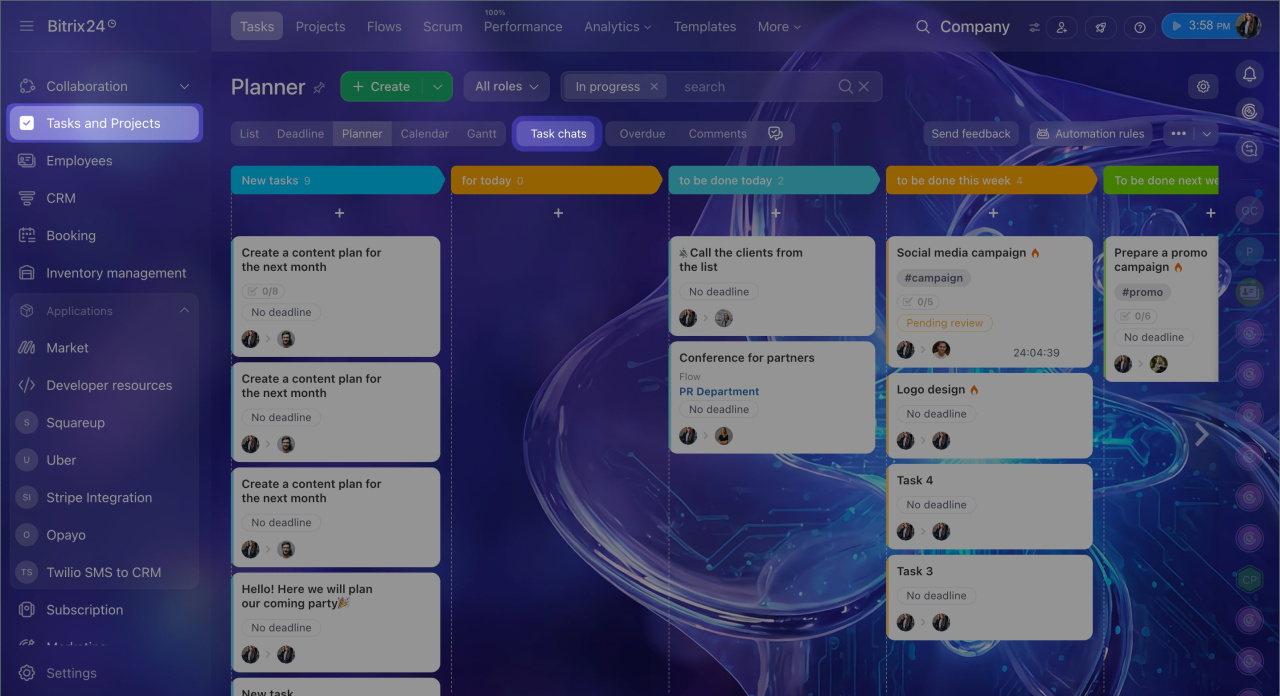
Task chats in the Tasks section
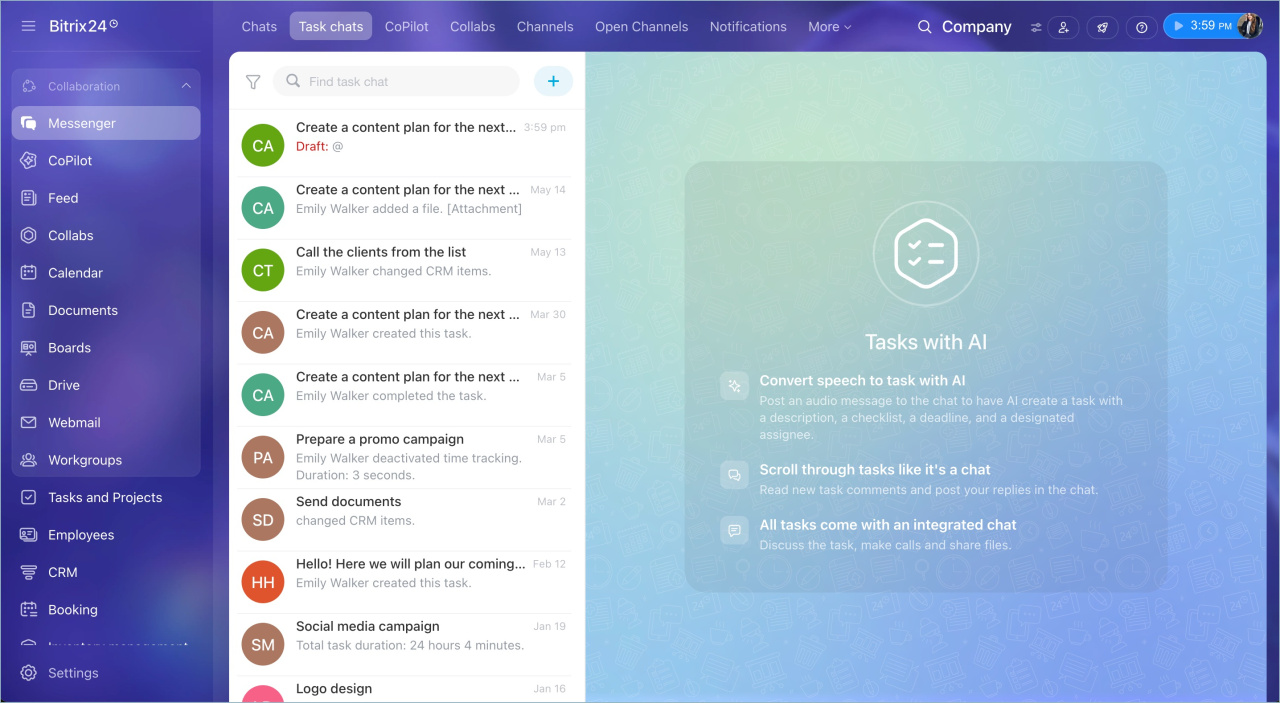
Task chats in Messenger
Notifications and counters for new messages
Each task participant gets notifications based on their role. New messages and task updates are marked with counters, so you can quickly see where action is needed.
What each participant receives:
- Assignees and co-assignees get notifications for all changes in their tasks.
- Creators get notifications about important events, such as when a task is completed, a checklist item is finished, or a result is attached.
- Observers get notifications about task status changes, such as when a task is created or completed.
If someone is mentioned in the chat, they get a notification regardless of their role.
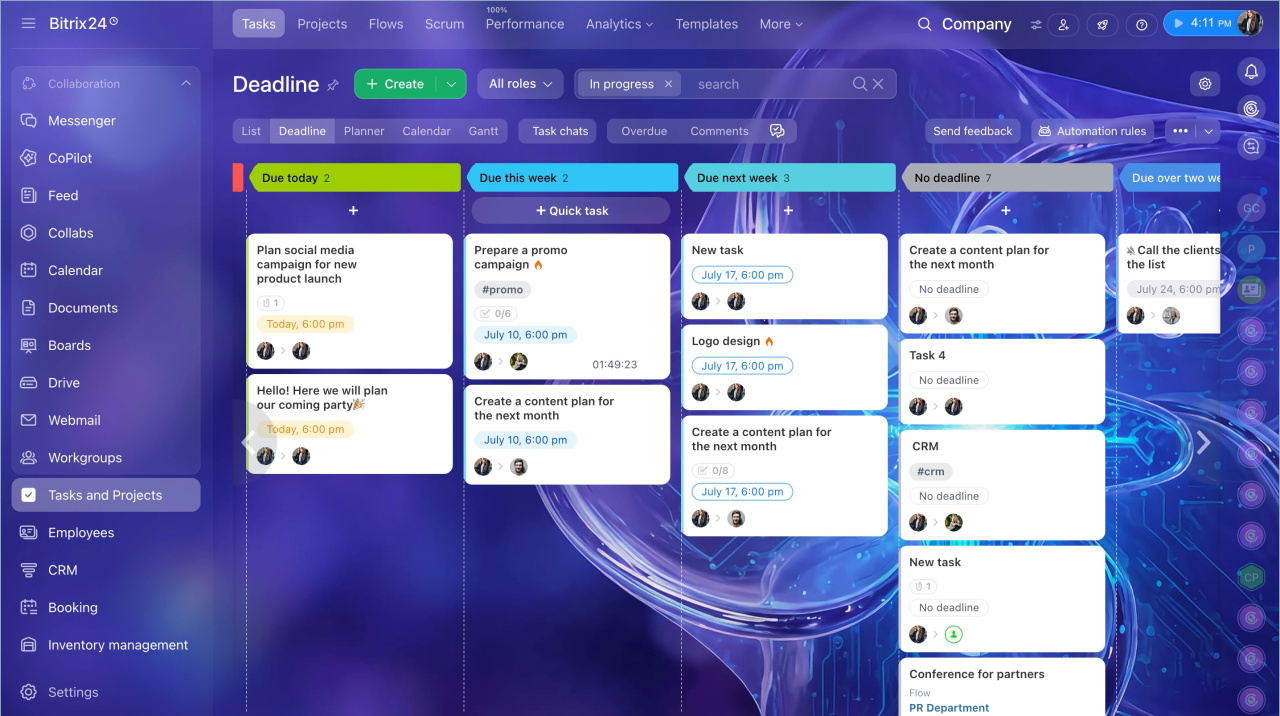
Calls: when chat is not enough
Sometimes it is easier to talk than type. In Bitrix24, you can start an audio or video call directly from the task chat without switching to another section. After the call, you can post the results in the task chat right away so nothing is lost. CoPilot Follow-Up is available in video calls. It automatically creates a transcript and a short call summary.
CoPilot Follow-Up: AI-powered speech analytics for video calls
For example, a team cannot agree on a mockup in chat because everyone reads the task differently. They start a video call from the task chat, turn on CoPilot Follow-Up, and resolve everything in ten minutes. The call summary is added to the chat automatically.
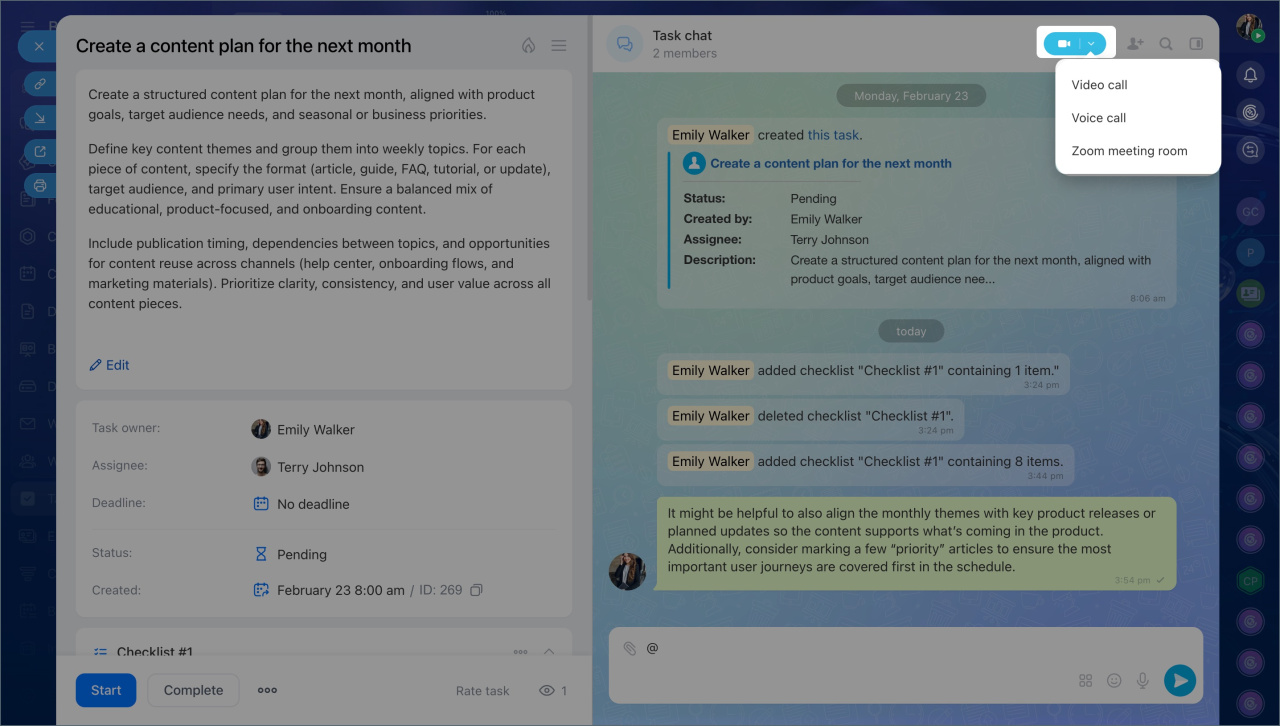
Meetings: schedule directly from the task
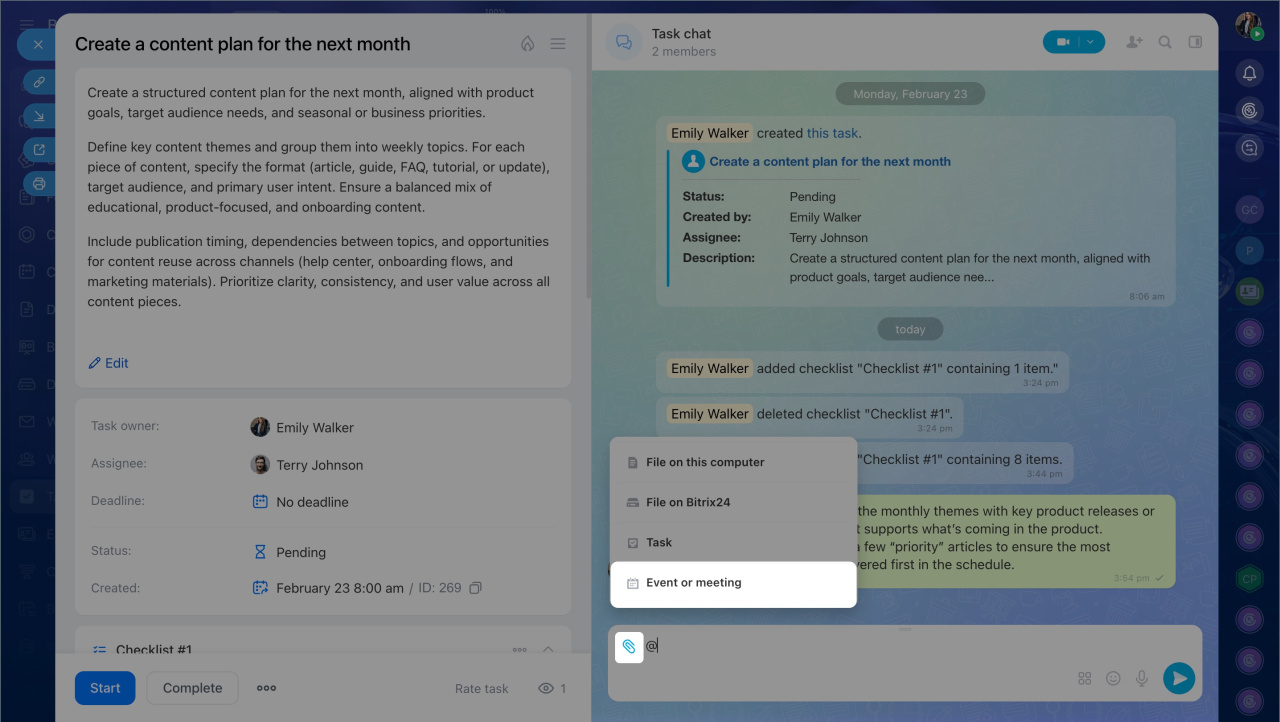
Sometimes it makes sense to hold a meeting to bring participants up to speed before a task starts or to review progress along the way. You can create a meeting directly from the task chat. Click the paperclip icon and select Meeting. The event is linked to the task and participants receive an invitation.
For example, a designer sends the final mockup, but the developer and manager have questions. Instead of a long back-and-forth in chat, they schedule a meeting directly from the task chat. All three join, review the mockup, and leave with a clear plan.
In brief
- All task communication — discussions, calls, meetings, and file sharing — happens directly in the task, not scattered across chats and emails.
- Discuss questions in the task chat instead of direct messages so the decision history stays in context and is accessible to all participants.
- You can invite external participants to a task — clients, contractors, or freelancers. They communicate in the same chat and receive email notifications, but cannot access any other company data.
- The Task chats section brings all active discussions into one list, just like a messenger.
- Notifications about important events are sent to each participant based on the role, and counters show where action is needed.
- Audio and video calls can be started directly from the task chat. CoPilot Follow-Up is available for group video calls and automatically creates a transcript and a short summary.
- A meeting can be created directly from a chat message without opening the calendar.