
Import and export help you move task lists in and out of Bitrix24.
Import lets you upload a ready-made list of tasks from a spreadsheet, another service, or another Bitrix24 account. You do not need to create tasks one by one. Your team keeps deadlines, assignees, and descriptions, and can start work right away.
Export lets you save a task list to a separate file. You can use it to prepare a report or share information with a contractor who does not work in Bitrix24.
In this article:
When to use task import
Import helps you bring a ready-made task list with deadlines, assignees, and descriptions into Bitrix24.
Move data from another service. If your company already manages tasks in another service, you may not want to recreate them one by one in Bitrix24. If the current service already includes task names, descriptions, assignees, and deadlines, you can import that data into Bitrix24 and start working right away.
Start a large project. A manager may prepare tasks in a spreadsheet and assign deadlines and owners in advance. Import helps you move that plan into Bitrix24 at once, so your team does not need to build a long task list manually before work starts.
Import tasks into Bitrix24
By default, all employees can import tasks. A Bitrix24 administrator can limit this permission in the access settings.
Configure access permissions in tasks
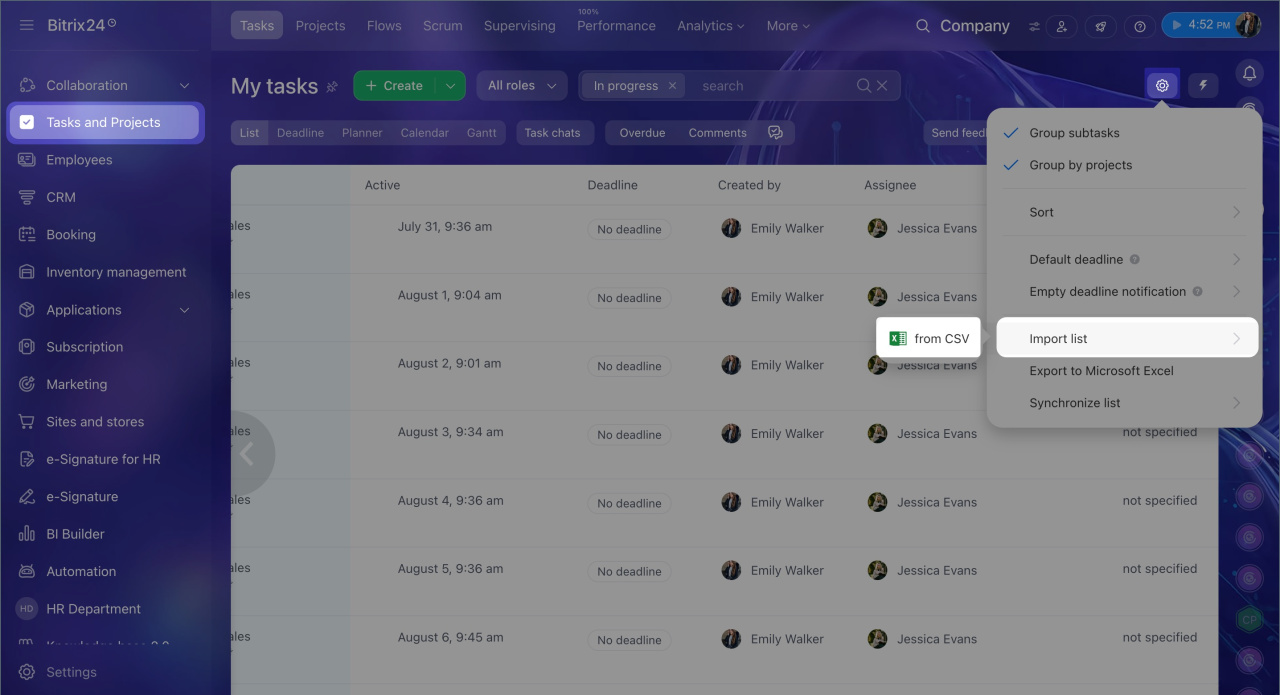
1. Go to Tasks and projects and select the List view.
2. In the top-right corner, open Settings (⚙️) > Import list > from CSV.
- If you exported tasks from another service or prepared them in a spreadsheet, download and prepare the CSV file.
- If you exported tasks from another Bitrix24 account, the file is ready to upload.
How to import tasks into Bitrix24
When to use task export
Export is useful when you need to:
- Save project history to a file
- Prepare a report
- Review team workload
- Share data with people who do not work in Bitrix24.
Save project history. When a project is complete, you may want to keep the task list in a separate file. This makes it easy to review what was done, when it was done, and who was responsible. For example, you may need to rebuild the project timeline before starting a new phase several months later.
Prepare a report. A manager may need a task list for a department or project. Export helps you save it to a file and review tasks by deadline, assignee, or status. For example, you can check which tasks the team completed during the month and which ones are still in progress.
Review team workload. After export, you can see who has too many tasks, where overdue items are building up, and which tasks have been in progress the longest. For example, this can help before a team meeting when a manager plans new work and wants to see who is already overloaded.
Share data with people who do not work in Bitrix24. Sometimes someone outside Bitrix24 needs the task list. For example, you may need to send a contractor the tasks for their part of a project. Export helps you quickly create a file with the relevant tasks.
Export tasks from Bitrix24
Export saves the task list from Bitrix24 to an Excel file. Task chats are not included.
To export tasks:
1. Go to Tasks and projects > Tasks.
2. If needed, click Filter + Search and enter your criteria, or apply a saved filter. For example, if you only need tasks that are currently active, click In progress.
Search and filters in Tasks
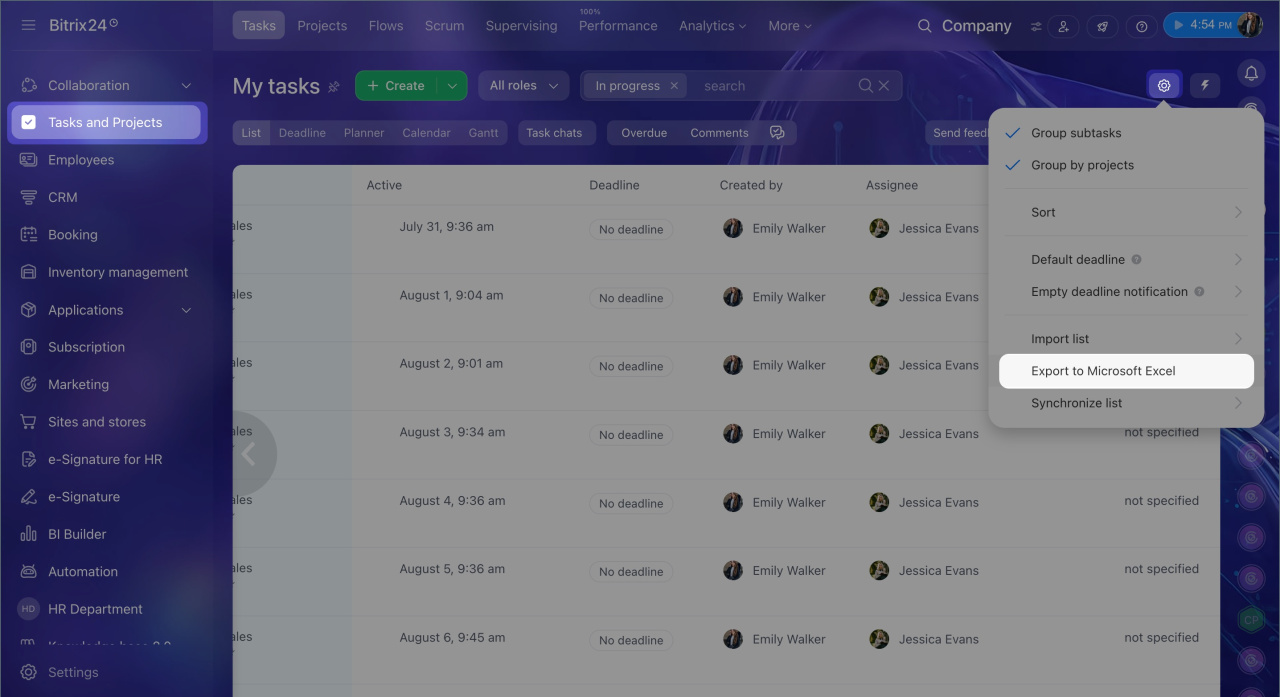
3. Open Settings (⚙️) > Export to Microsoft Excel.
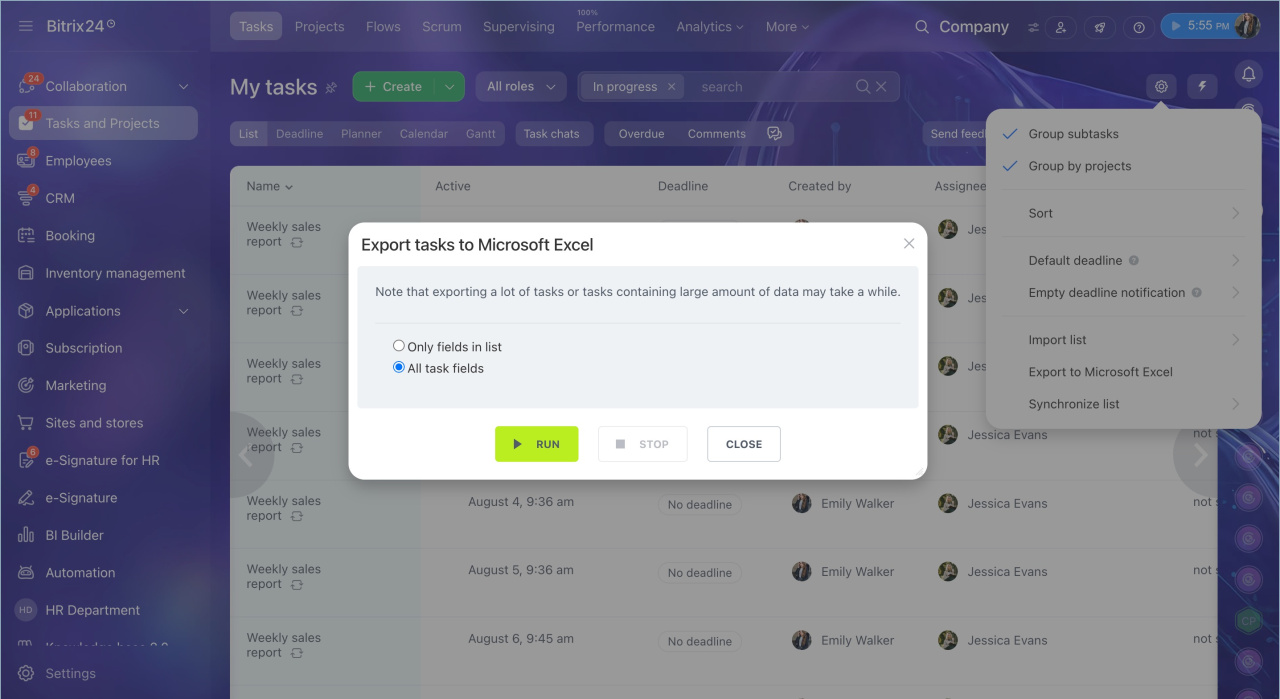
4. Choose which fields to export:
- Only fields from the list — the file includes only the fields currently shown in the task list
- All fields — the file includes all task list fields in Bitrix24.
5. Click Run. Export starts. The more tasks you have, the longer it takes.
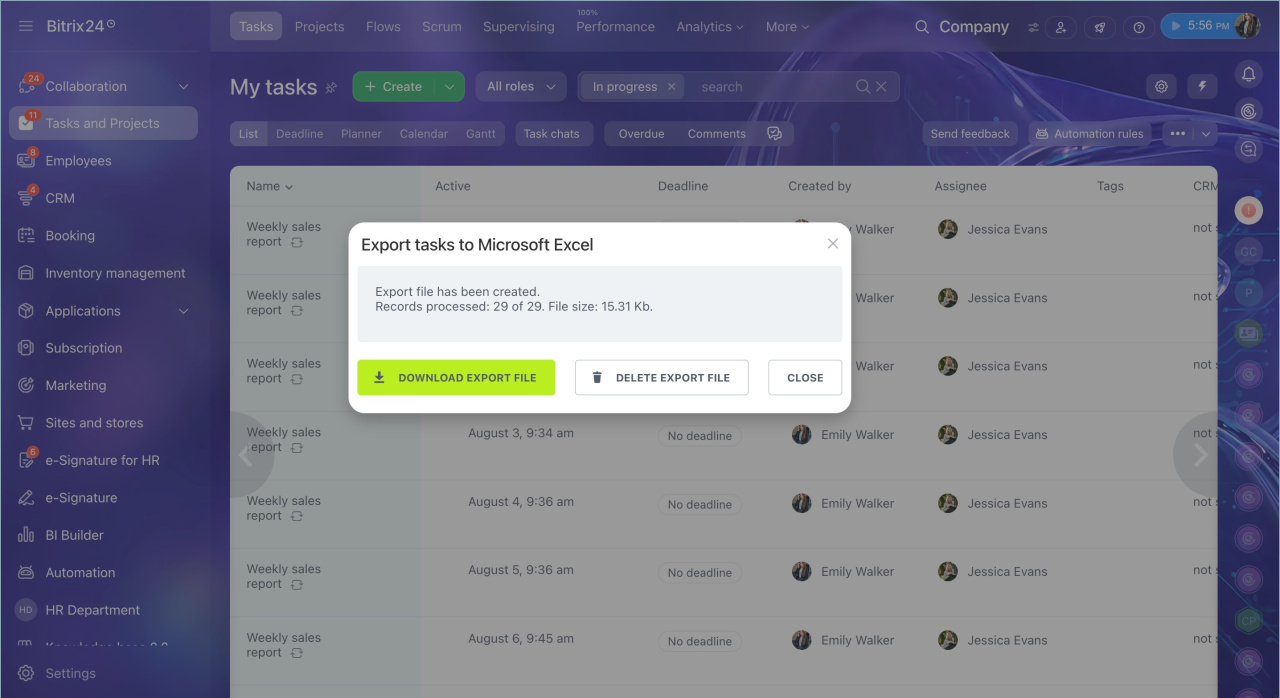
6. Click Download export file to save the spreadsheet to your computer.
In brief
- Task import lets you move a ready-made task list into Bitrix24 from a spreadsheet, another service, or another Bitrix24 account without creating tasks one by one.
- Export is useful when you need to save project history, prepare a report, review team workload, or share data with people who do not work in Bitrix24.
- To import, go to Tasks and projects, select the List view, and open Settings (⚙️) > Import list > from CSV. If the tasks are from another Bitrix24 account, the file is ready to upload. If they are from another service or spreadsheet, prepare the file first.
- To export, go to Tasks and projects > Tasks, filter tasks if needed, then open Settings (⚙️) > Export to Microsoft Excel, choose the fields, and click Run. When export is complete, click Download export file.