
Tasks in Bitrix24 come with standard fields like title, description, assignee, and deadline. But most teams also need to track their own data.
Custom fields fix the information. You can add the exact fields your business needs right in the task form. The same task can support different workflows for different departments.
In this article:
When to use custom fields
Use custom fields when standard task fields do not give your team enough structure.
Task data needs a clear format. A construction company may need to record a site address. A legal team may need a contract number. If employees choose where to enter this data on their own, task structure quickly becomes inconsistent. Custom fields give everyone the same format.
Different team members need different details. A manager may need to see the project budget. The assignee may need the site address. A supervisor may need the approval status. Custom fields keep all of this in one task form, so each person can find what they need.
You need data for both work and reporting. When tasks include structured data such as department, budget, or request type, supervisors can filter tasks by any of these values. Without custom fields, this information gets buried in the description or is not saved at all.
Field types available in tasks
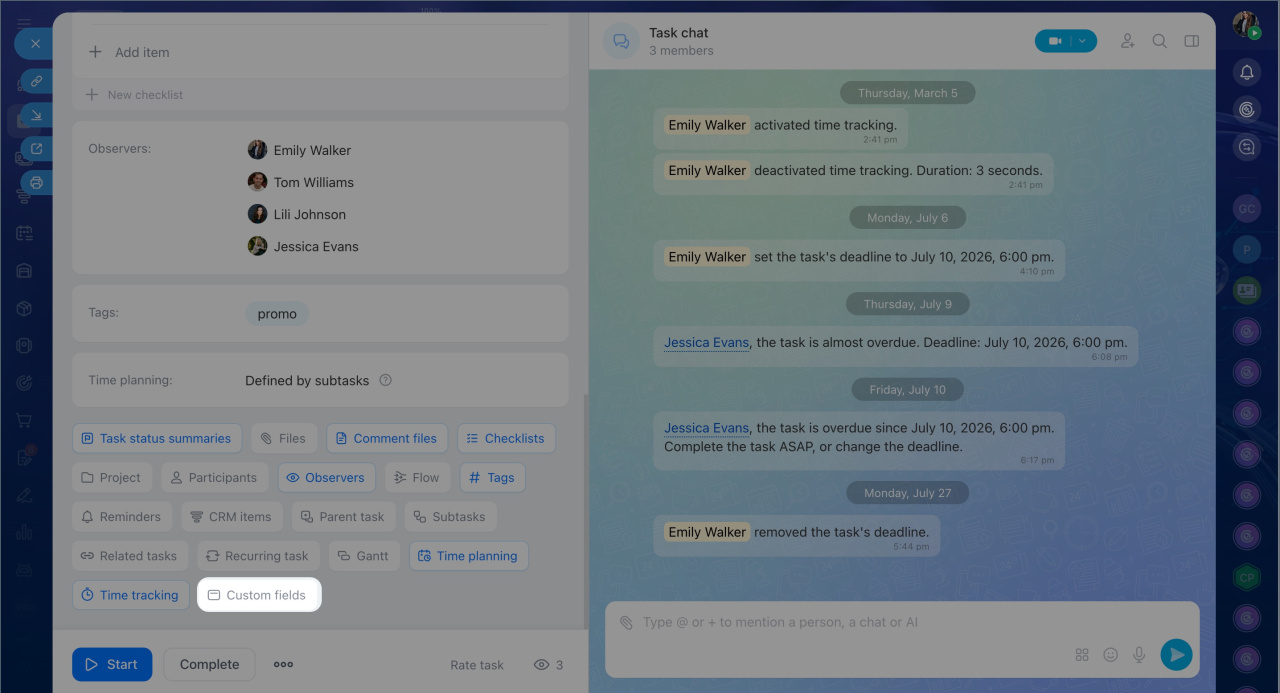
A Bitrix24 administrator can add custom fields. Open the task form and click Custom fields > Add field.
Custom fields for tasks
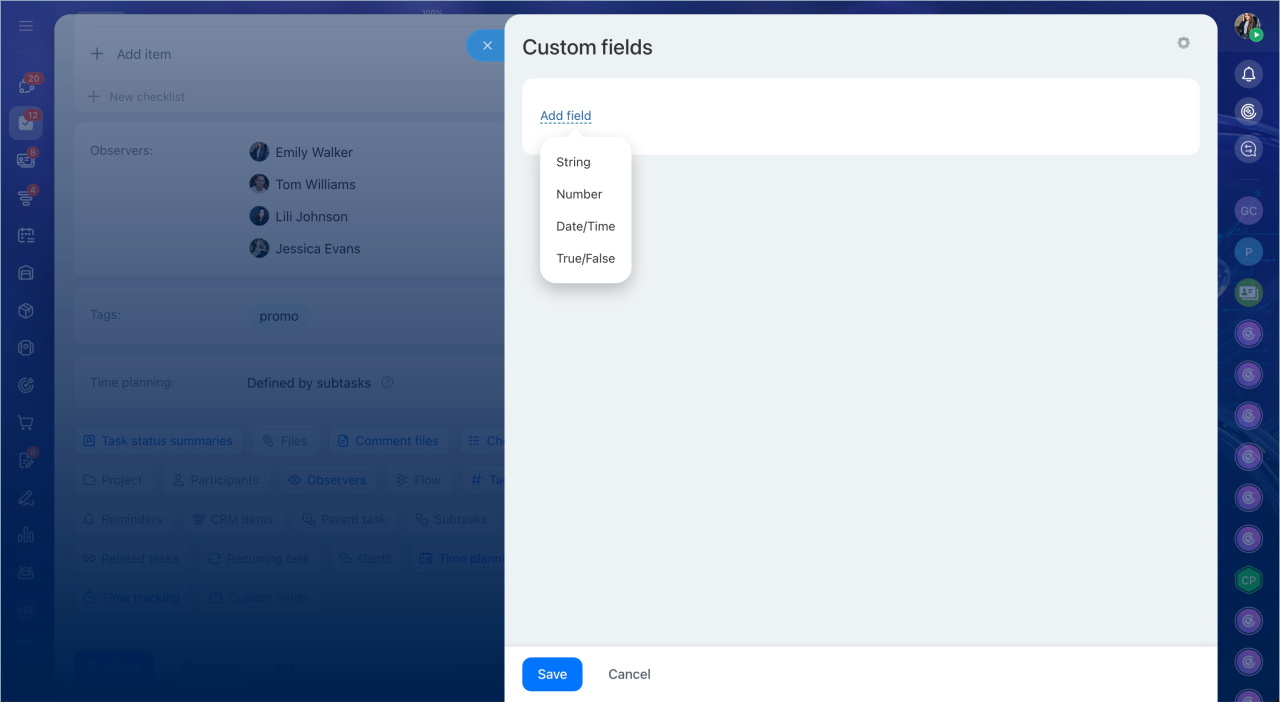
Bitrix24 offers four field types:
- String
- Number
- Date and time
- Yes/No.
You can also make String, Number, and Date and time fields required or multiple.
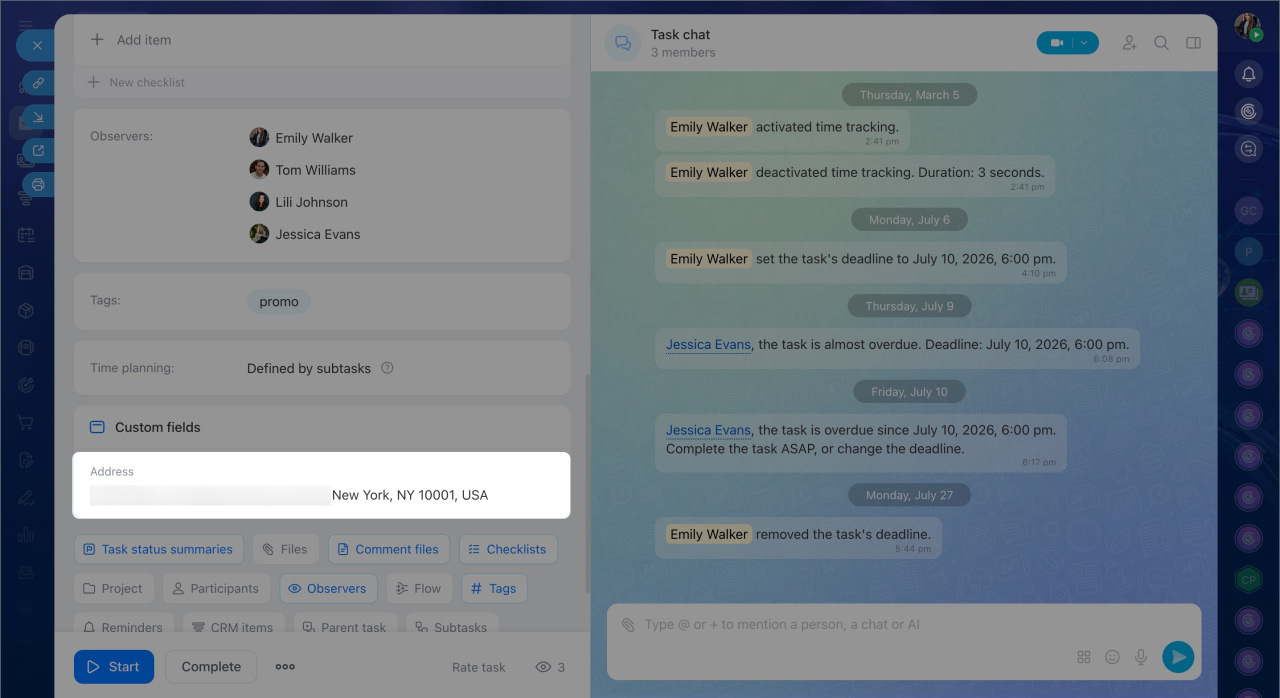
String. The most flexible field type. Use it for any text you want to store separately from the description, such as a contract number, product SKU, or site address.
Example: Real estate agents often manage many listings at the same time. If a client calls and asks for a showing in an hour, the agent can open the task and see the address right away in a dedicated field. There is no need to search through messages or ask a coworker.
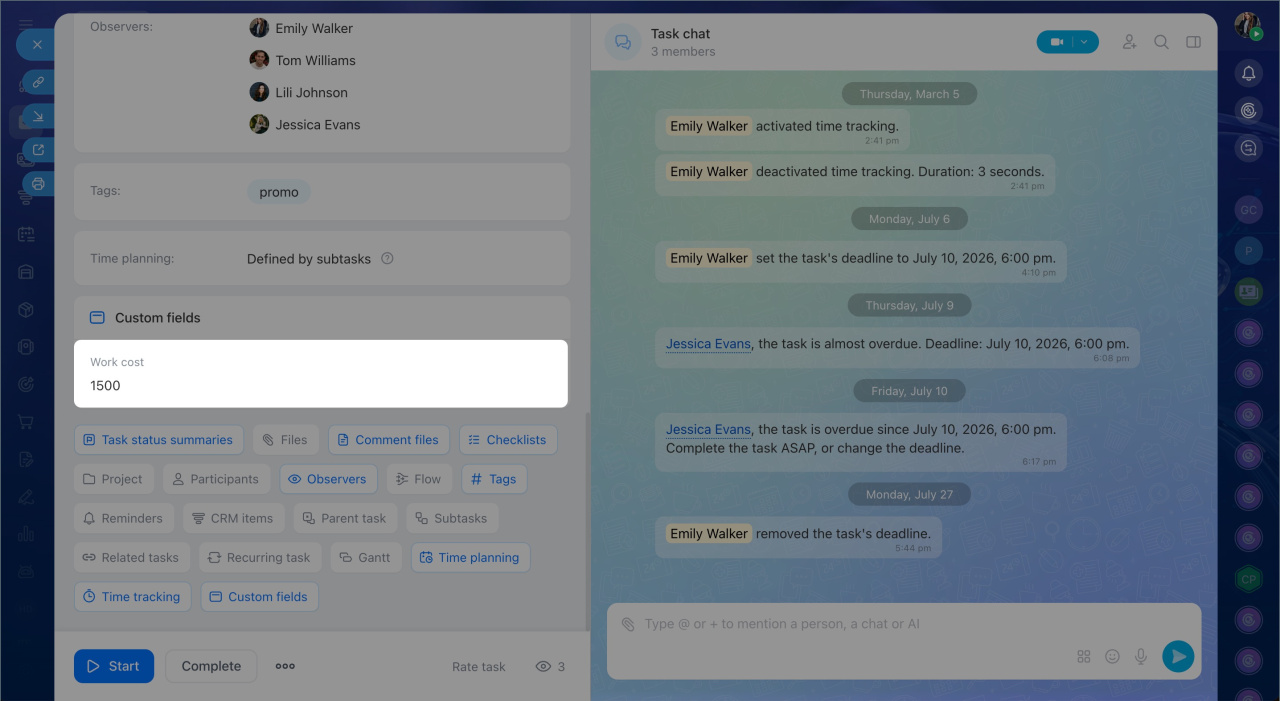
Number. For values you need to compare, filter, or total. This includes project budgets, equipment counts, and site square footage. A number field works better than a description when you need to use the data later in filters or reports.
Example: In a sales team, each estimate task includes a Client budget field. The manager fills it in after the first call. The sales lead can then filter tasks by budget and focus on the highest-value opportunities.
Date and time. For dates related to the work itself, not the task deadline. These are two different things. The deadline shows when the task must be completed. A custom date field stores a business date, such as when a contract expires, when work is scheduled, or when the next maintenance visit is due.
Example: An engineer gets a task to arrange equipment maintenance. The task deadline is March 10, which means the visit must be confirmed and the documents must be ready by that date. The Maintenance date field shows March 15, which is the actual service date. A supervisor can filter tasks by Maintenance date and review all scheduled visits for the month.
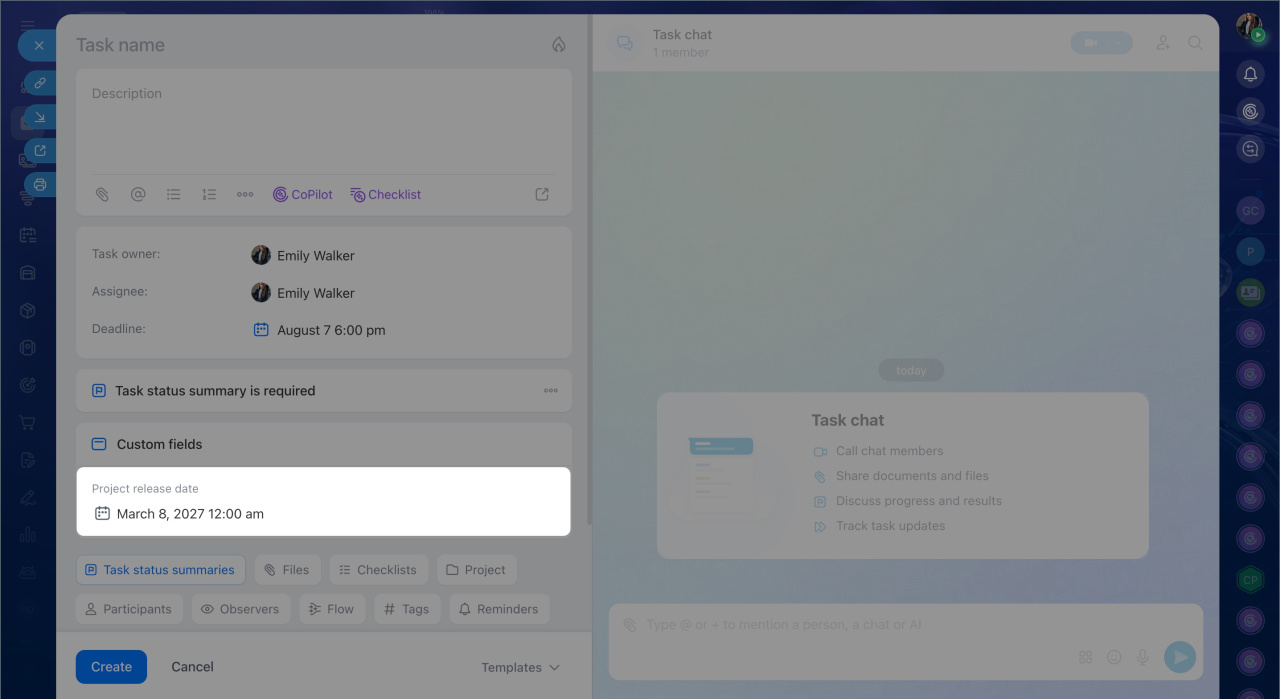
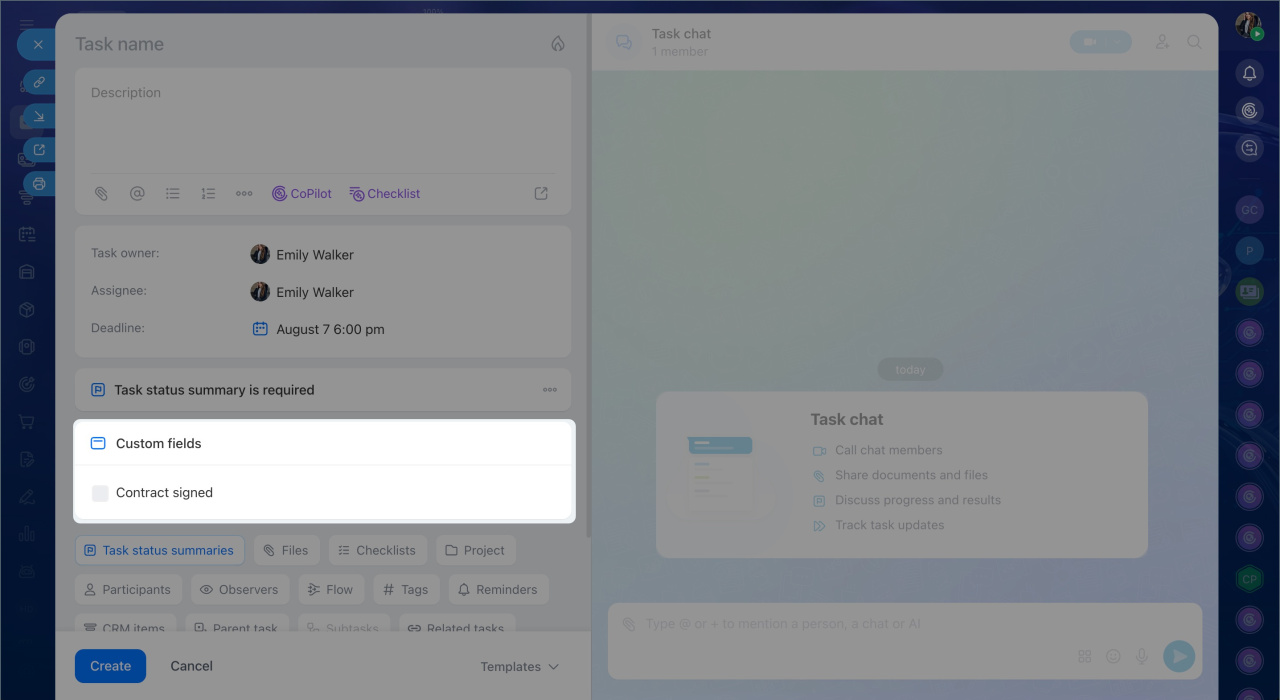
Yes/No. For simple status checks, such as contract signed, brief approved, or report received. These fields help both assignees and supervisors. The assignee can quickly see whether work can begin. The supervisor can filter tasks by status and find items still waiting for approval or signature.
Example: A designer is preparing banners for an ad campaign. Before work starts, the brief must be approved. The Brief approved field is set to Yes. The designer opens the task and knows they can begin right away. There is no need to check chat history or ask a manager. A supervisor can filter tasks by Brief approved and see campaigns still waiting for client confirmation.
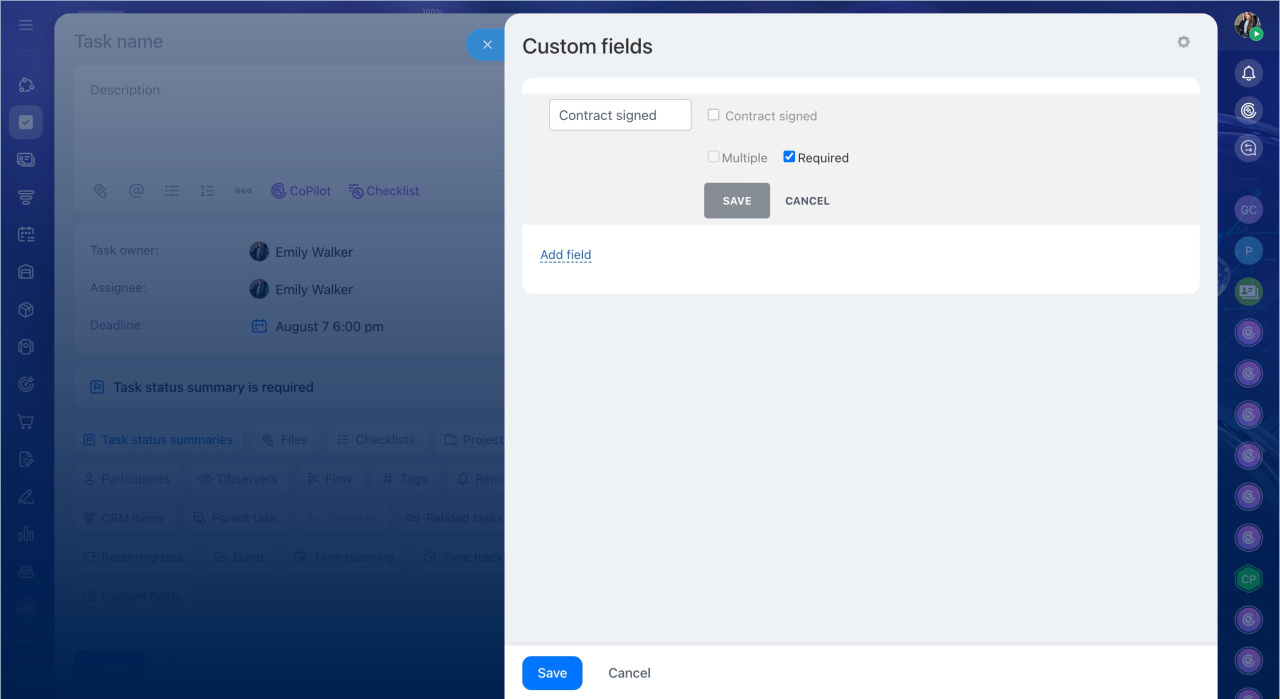
Required field. A required field prevents users from creating a task without key information.
If a value is critical, do not rely on employees to remember it. Mark the field as required. Bitrix24 will not save the task until the field is filled in.
Examples:
- Prepare an estimate — a manager assigns a task to a sales specialist. Without a deal number and client name, the specialist cannot prepare the documents. The Deal number and Client fields are required, so the task always includes the needed information.
- Prepare court documents — a lawyer receives tasks from different managers. The Case number field is required, so every task includes the details needed to start work right away.
To make a field required, mark the Required option when creating it. Bitrix24 will show a warning until the field is filled in.
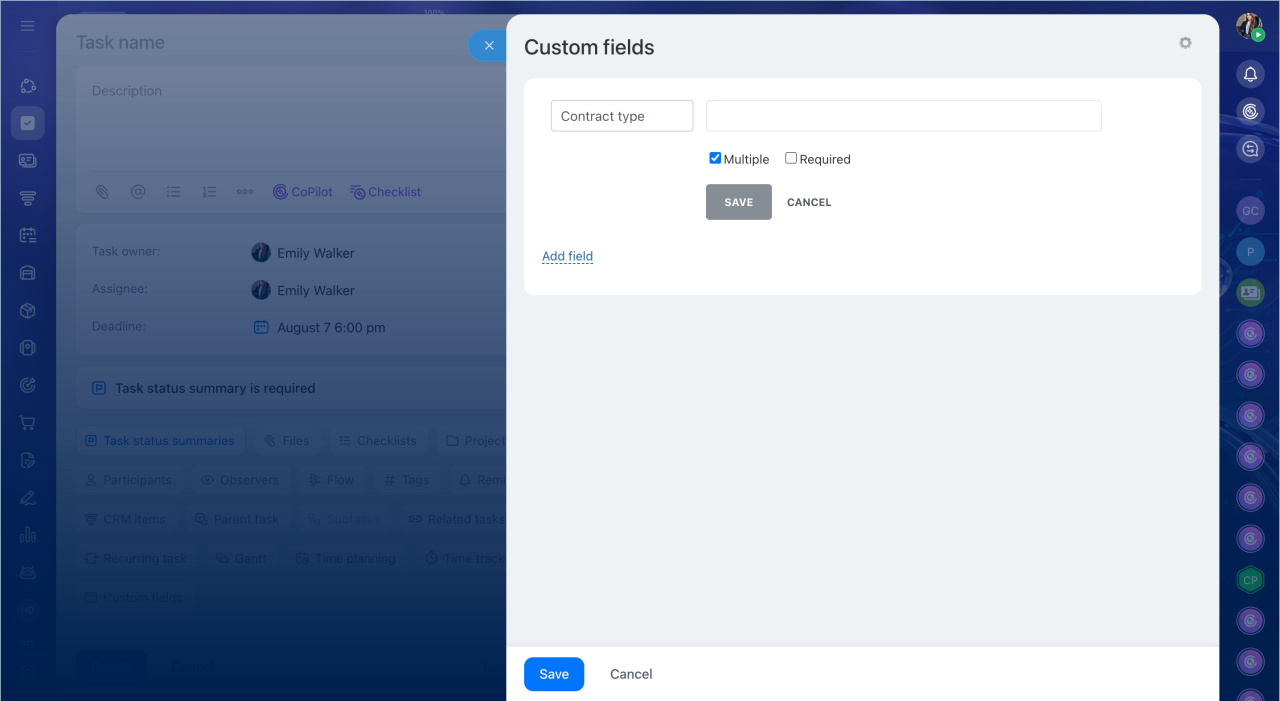
Multiple field. It allows storing more than one value of the same type.
By default, a field holds one value. If there may be several values of the same type, make the field multiple so employees can add as many values as needed.
Examples:
- Service equipment on site — an engineer visits a server room for scheduled maintenance. All inspected device serial numbers need to be recorded. In a multiple Serial number field, the engineer can add every number without listing them in the description or creating separate fields for each device.
- Prepare a document package for a deal — a lawyer is processing documents for a major client involving several contracts. In a multiple Contract number field, all related contracts can be entered. When documents for a specific contract are needed later, the number is easy to find using a filter.
To make a field multiple, mark the Multiple option when creating it.
How custom fields improve task organization
Once fields are created, a task becomes more than an assignment — it becomes a structured process card. Every team uses the same tasks but fills them with data that fits their own workflows.
For example:
- A construction company stores the site address, cost of work, and act signing status in the task
- A legal team stores the contract number, client tax ID, and contract expiration date
- A service department stores equipment serial numbers and the next maintenance date.
The task structure stays consistent across the whole team. Every employee fills in the same fields in the same place. No one has to decide where to write the contract number or site address — the field is already there, ready to be filled in.
Supervisors can view all data in a clear format and filter tasks by any field — for example, to find all tasks related to a specific contract or to see which sites still have an unsigned act.
In brief
- Custom fields add the data your business needs directly to tasks, such as contract numbers, site addresses, and budgets.
- A Bitrix24 administrator can add fields, and they appear across all tasks immediately.
- Bitrix24 offers four field types: String for text, Number for numeric values, Date and time for business-relevant dates, and Yes/No for statuses.
- A required field prevents a task from being saved without key data, building control into the creation process.
- A multiple field supports several values of the same type, such as multiple sites, serial numbers, or addresses.
- Field data is available in filters and reports, making it easy to search and group tasks.