
Tasks in Bitrix24 help you stay organized. All assignments and deadlines are in one place, so you do not need to search through chats or keep everything in your head.
Why tasks are useful for assignees:
- Clear instructions — you always know what needs to be done.
- Deadlines stay visible — Bitrix24 reminds you when a deadline is coming up.
- One workspace — discussions, files, and comments stay inside the task.
- No extra reports — the supervisor can track progress without asking for updates.
- Clear results — the full work history and outcome stay in the task.
- Mobile access — you can discuss tasks, check off checklist items, and attach photos from your phone. This is especially helpful for field employees and anyone who often works outside the office.
In this article:
Work with the task form
You can find all your tasks in Tasks and Projects > Tasks. It does not matter where a task comes from. It appears here automatically. You do not need to search message threads or remember who sent it.
The task form shows what needs to be done, when it is due, and who is responsible. It includes everything you need to work on the task: the description, files, checklist items, comments, and activity history.
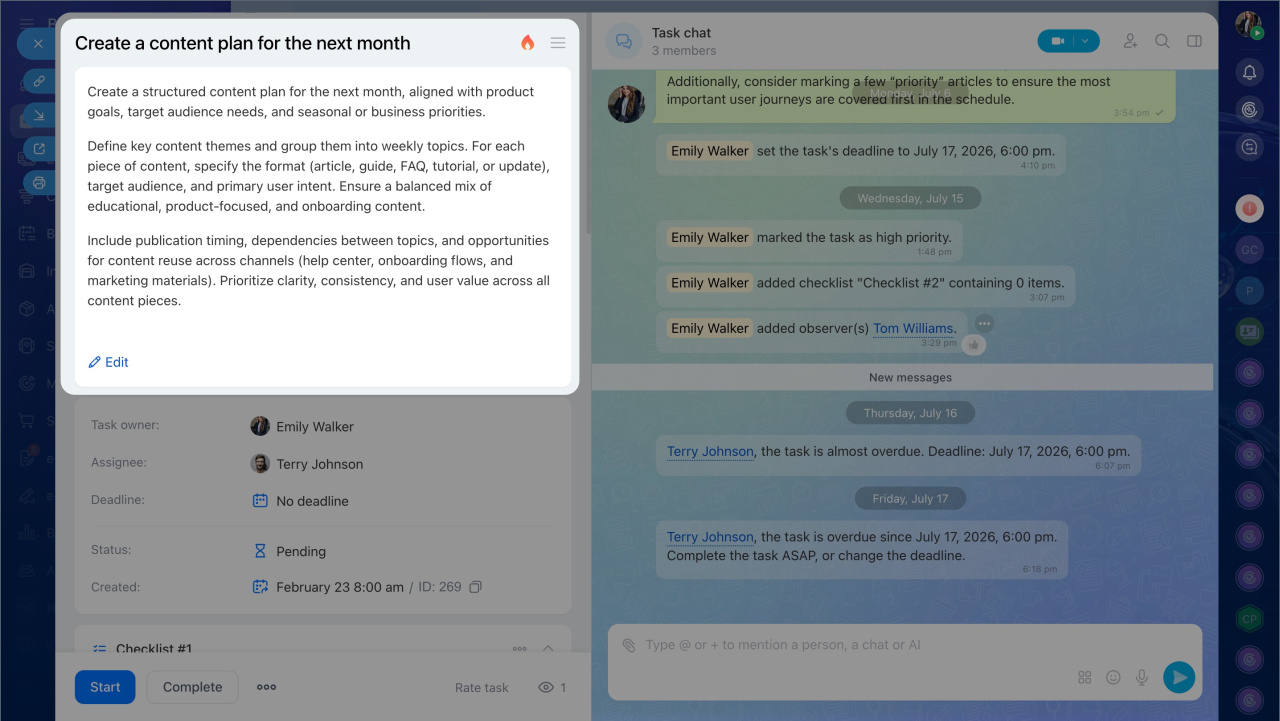
Title. It is a short summary of the task. It helps you quickly understand what the task is about. For example, if the title says "Prepare a sales report," the expected result is a finished document, not just collected data.
Priority. The icon next to the title shows whether the task has high priority. Start with these tasks first.
Description. It explains what needs to be done and what the final result should look like. Read it carefully to avoid rework. If anything is unclear, ask the creator in the task chat.
Creator. This is the person who created the task and will review the result. If you have questions, contact them in the task chat.
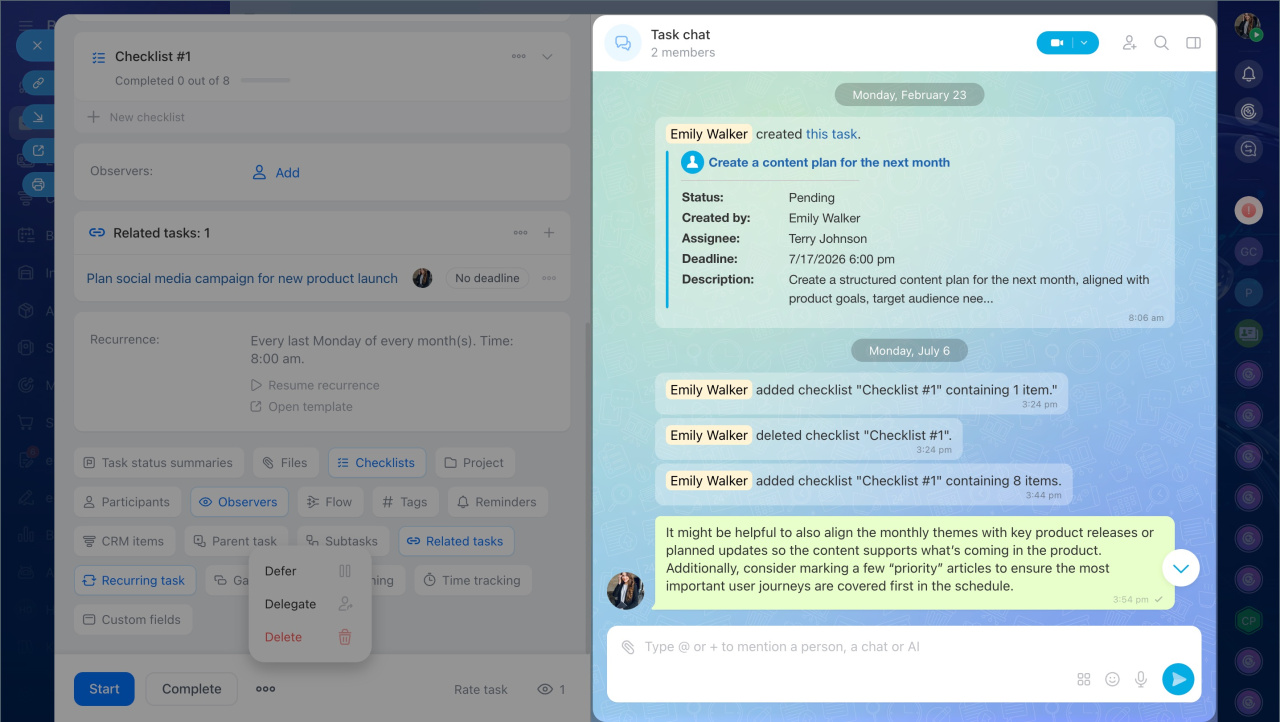
Assignee.This is the person who accepts the task and is responsible for completing it on time. If needed, the assignee can delegate the task to another employee. To do this, click Three dots (...) > Delegate.
Deadline. It is the date and time when the task must be completed. If you cannot meet it, do not wait until the task becomes overdue. Write in the task chat and discuss a new deadline.
The creator can move the deadline. The assignee can move it only if task settings allow it. If you change the deadline, add a reason in the chat so the supervisor can see it right away.
Status shows the current stage of the task. You can change it with the buttons in the task form. This helps the team understand the progress without extra messages.
- Pending — all new tasks start with this status. When you click Start, the task moves to In progress. If time tracking is enabled, a timer starts automatically.
- In progress — work on the task is underway. If time tracking is enabled and you need to pause, for example while waiting for materials, click Pause. The timer stops and the task returns to Pending.
- Deferred — click Three dots (...) > Defer if the task does not need action yet. For example, you are waiting for a decision or another task to be completed first. The task leaves the active list but stays in your task list.
- Pending review — if creator control is enabled, clicking Complete moves the task to Pending review. The creator then reviews the result and either accepts it or sends it back for changes.
- Completed — the task is finished and closed. If creator control is not enabled, the task moves to this status as soon as you click Complete.
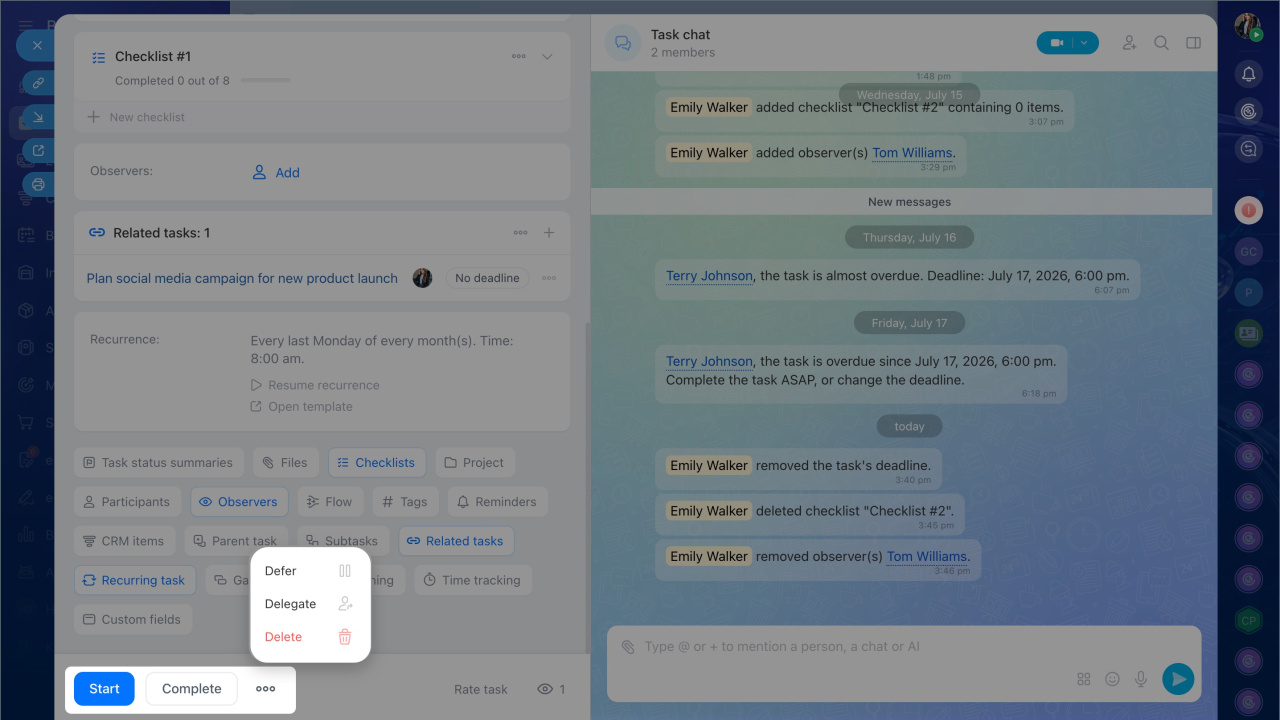
Task chat. Use the task chat to discuss details and make decisions. You can ask questions, agree on next steps, mention colleagues, and attach files. All messages stay in the task, so you can always go back and review the full history.
System messages also appear in the chat. They show who changed the deadline, updated the status, added a comment, or uploaded a file. This gives you a full timeline from task creation to completion.
Files. You can add files to a task in the Files section or in the task chat. This keeps all related materials in one place.
The creator can attach source materials such as a client brief or a spreadsheet. You can also add files while you work, such as a draft for review.
If a file was added from Bitrix24 Drive and shared for collaborative editing, it can be edited directly from the task or from the shared file list. Changes are saved automatically.
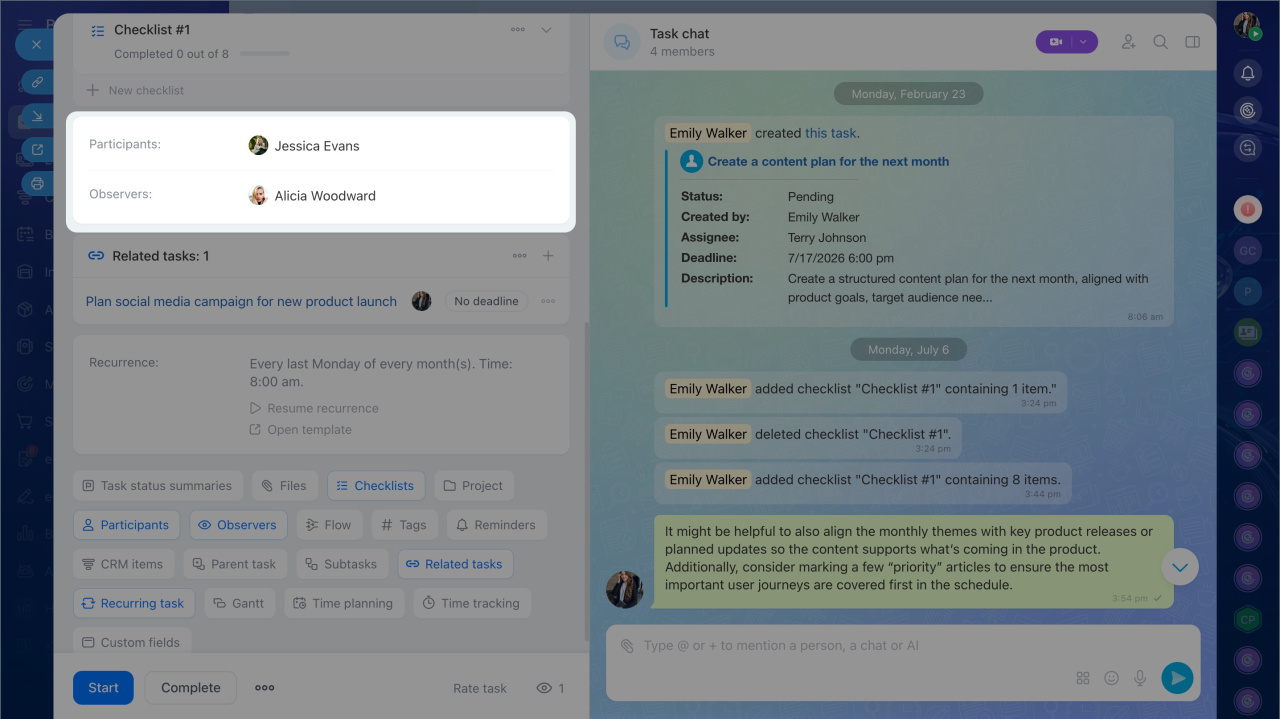
Co-assignees. These are colleagues who help complete the task. There can be several of them, each handling their part of the work, but the main assignee remains responsible for the overall result.
For example, a manager assigns you the task "Prepare a client presentation." The task has two co-assignees: a designer who creates the slides and an analyst who prepares the data. The presentation must be assembled and sent to the client by the deadline, and the assignee is responsible for making that happen.
Observers. These are colleagues who are kept informed about the task. They do not work on it, but need to know how it is progressing. For example, a manager may be an observer on a presentation task to track progress and step in for review when it is ready.
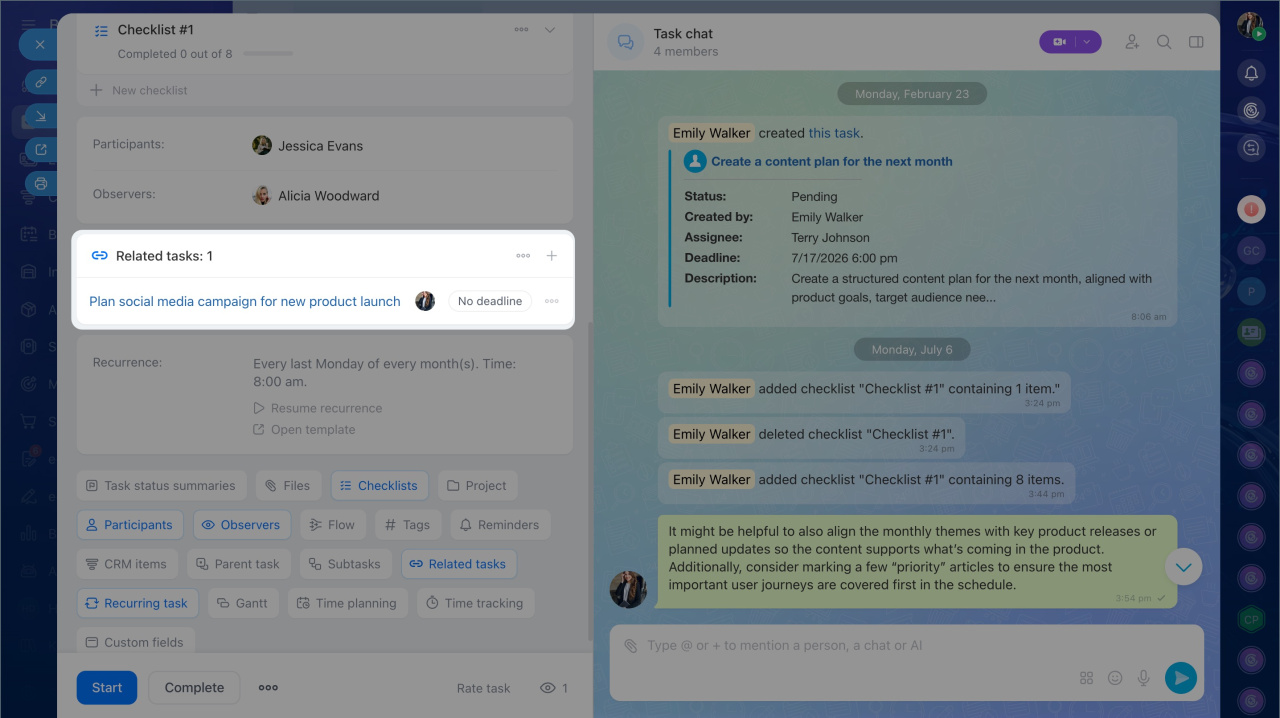
Related tasks. A task can be linked to a project, a deal, or another task. This helps you see the context and maintain connections between processes. For example, if a task is related to a client, link it to the CRM record so you can quickly open the client card or find related documents without searching manually.
Handle large or unclear tasks
Sometimes a task feels too large or is written in a way that makes it hard to know where to start. Do not waste time guessing. Bitrix24 has tools that can help you break things down and move forward with confidence.
Checklist. It helps you complete a task step by step or verify that the result meets the requirements.
Use the checklist as a plan. Break the task into steps so you can move through them in order: prepare materials → review with colleagues → check the final version.
If the creator added a checklist, just follow the steps. If there is no checklist, add one yourself as your working plan. For example, a designer working on "Client Presentation" checks off items like "gather content," "create layout," and "send for approval."
Use the checklist as a quality check. After finishing the task, go through the checklist to make sure everything is in order:
- Documents are formatted using the template
- All files are attached
- Deadlines are set
- Colleagues have been notified
This helps you avoid missing anything and submit the task without revisions.
Additional checklist features:
- You can add a link or file to each item, such as a template, instructions, or mockup.
- You can assign a co-assignee or observer if someone is responsible for a specific step. For example, the designer handles "prepare the mockup" and the marketer is tagged in "review the content."
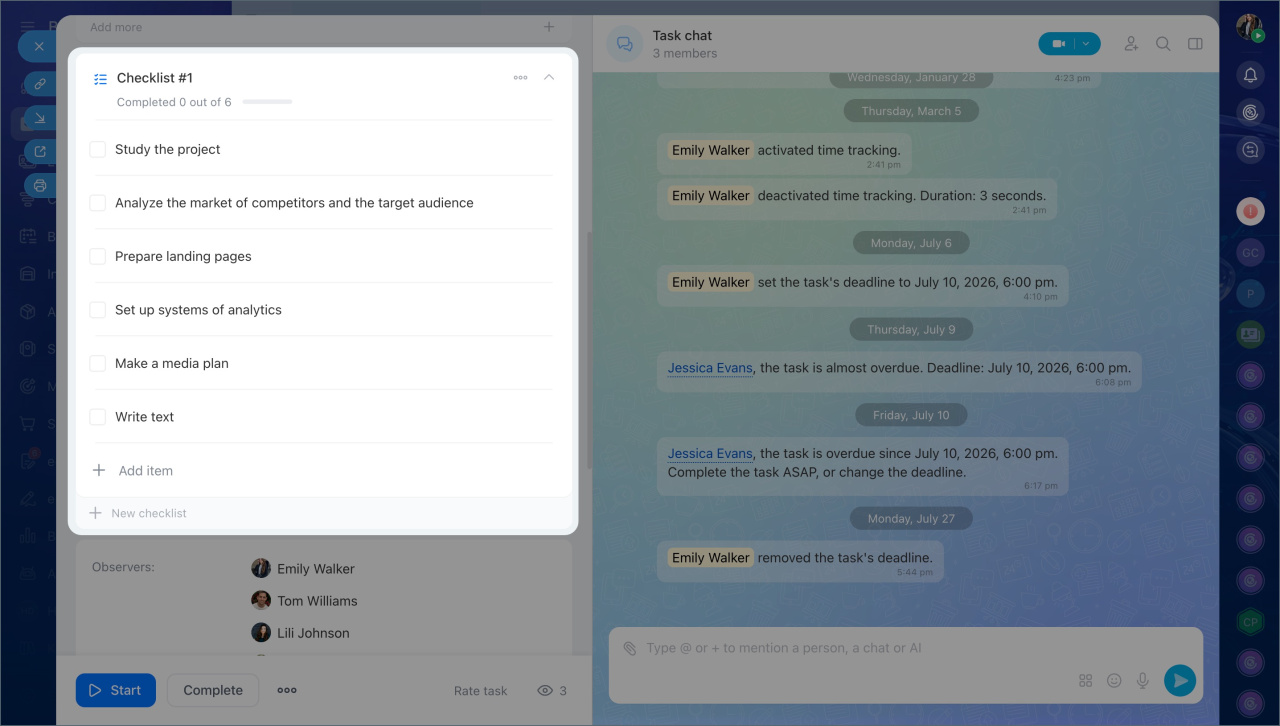
Checklists are useful in many scenarios:
- Document preparation — collect signatures, verify details, send to the archive
- Marketing — prepare the mockup, hand it off for layout, review the text after edits
- Event planning — book the venue, send invitations, check the equipment
- HR tasks — grant access, schedule a meeting, give a tour to a new employee
Collaborate without losing agreements
Keep all work discussions in the task chat. Messages are saved so you can always go back and see who suggested or agreed to what. For example, a team discusses the copy for a landing page. All edits and approvals happen in the task chat. A new copywriter joins a month later and does not need to read through separate messengers. The full history is right there in one place.
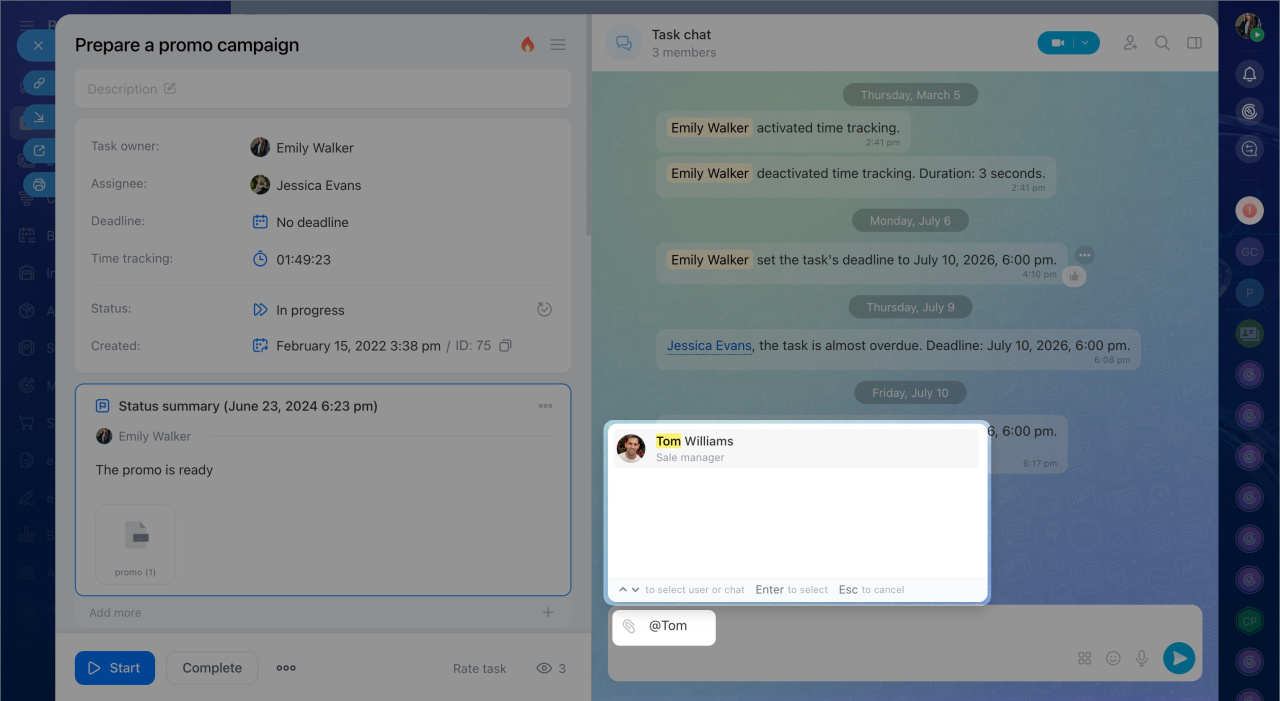
Mention colleagues. To quickly bring a colleague into a discussion, type @ at the start of your message and enter the name. You can mention any task participant. If you need to bring in someone new, first add them to the task in one of the roles.
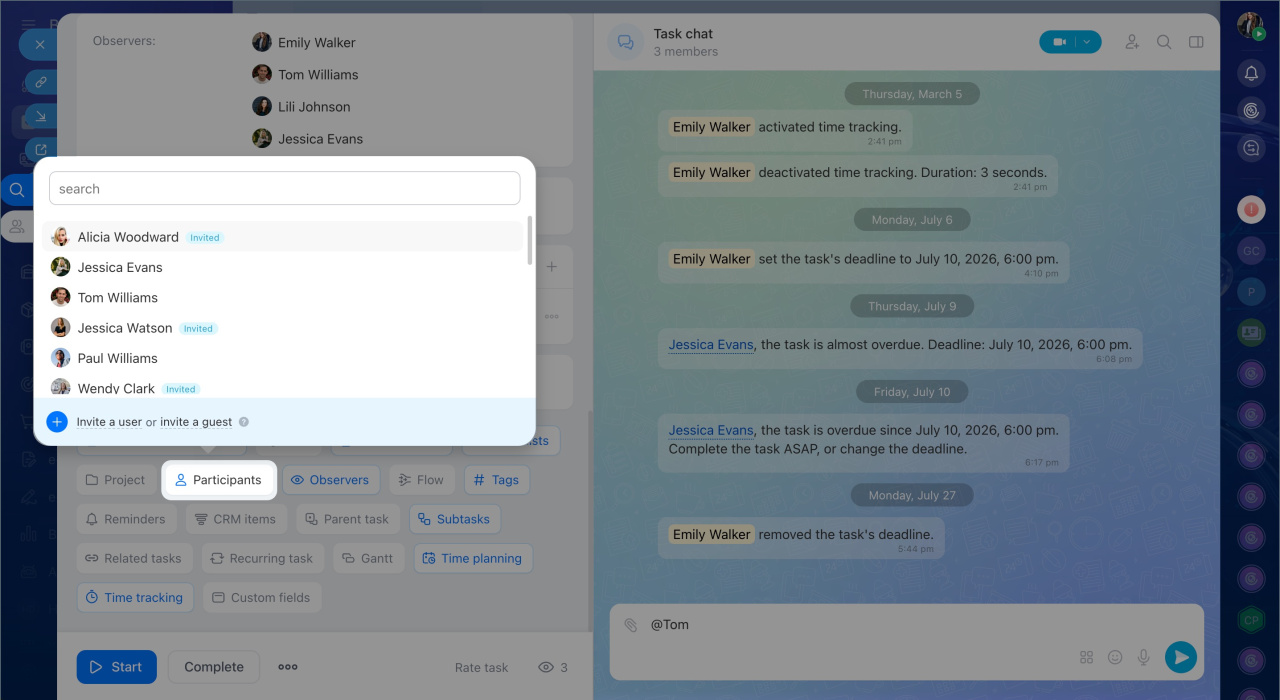
Add observers and co-assignees. You can add colleagues who are helping with the task or who need to stay informed.
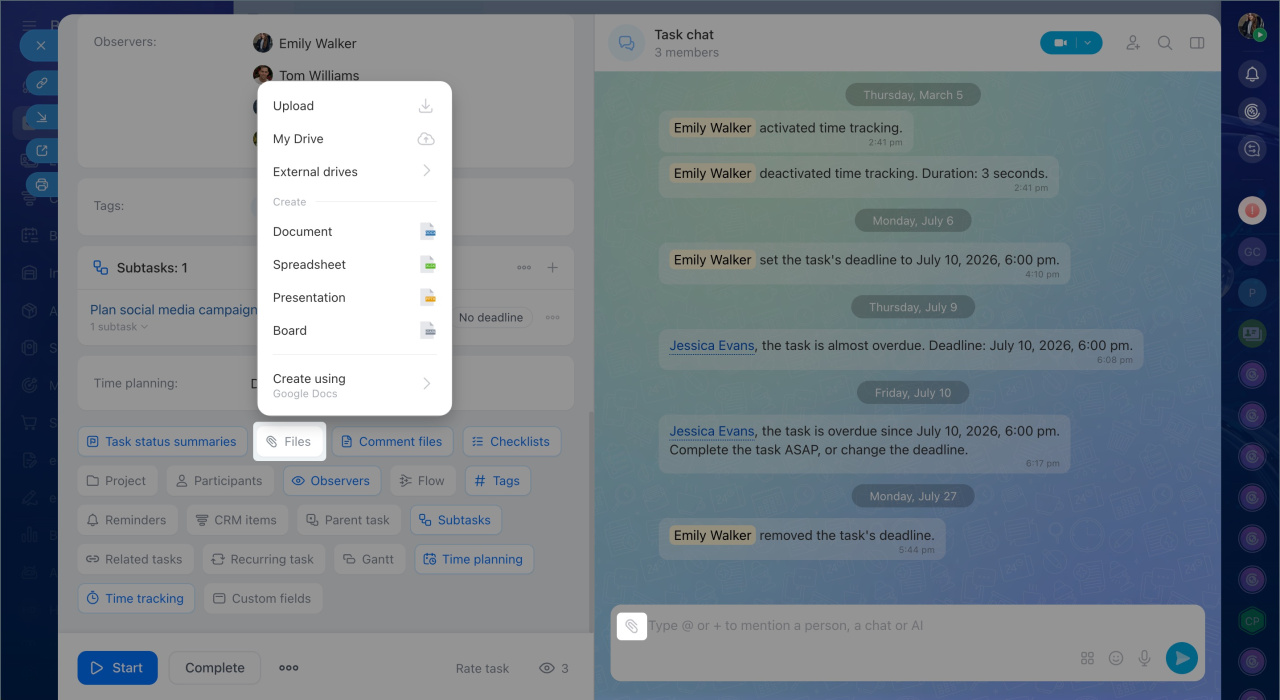
Attach materials. To keep files easy to find, send them to:
- The Files section — they will appear in the task form
- The task chat — they can be found quickly in the sidebar.
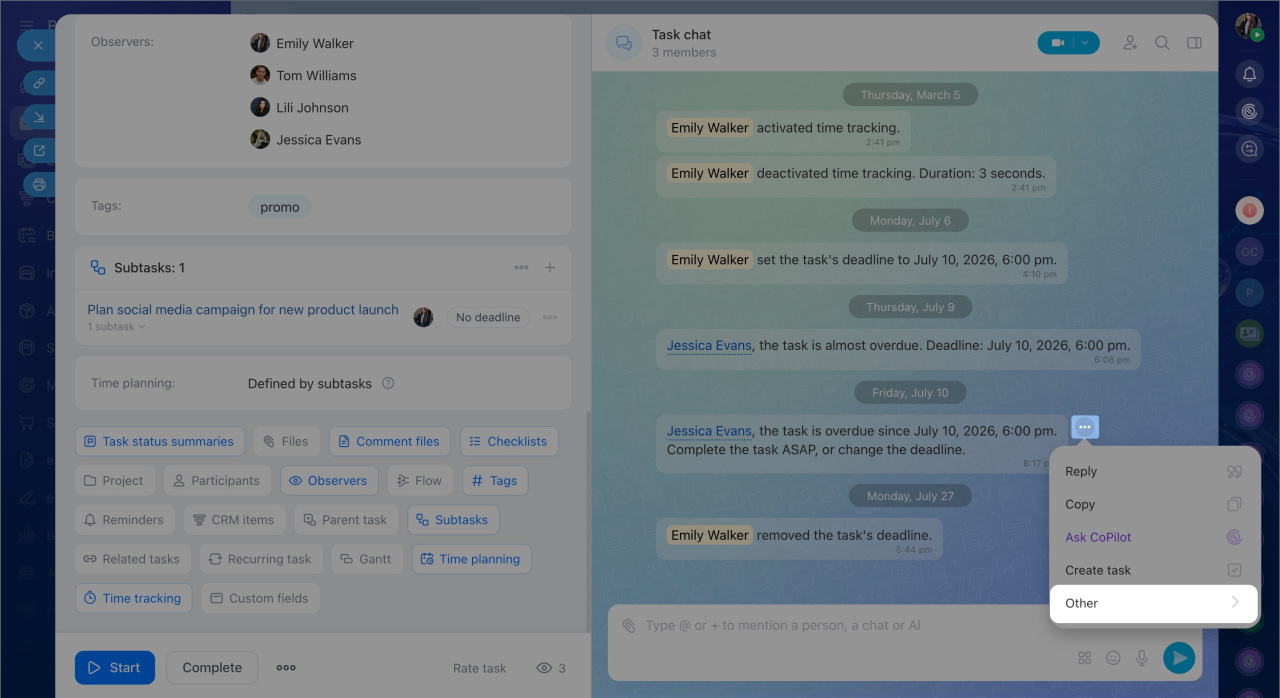
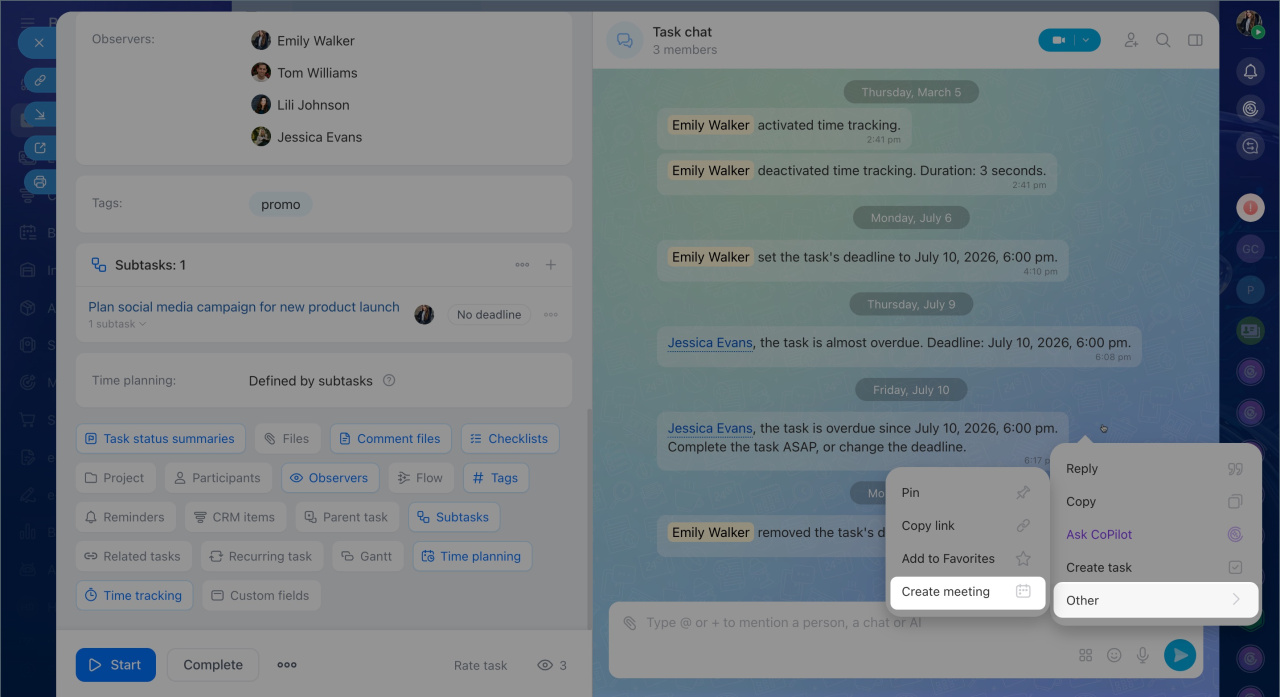
Schedule meetings and calls directly from the task chat. If you need to talk something through, you can schedule a meeting or start a call right away. Right-click a message and select Other > Create meeting.
You can also work on tasks in the Bitrix24 mobile app. Leave comments, attach photos or files, mention colleagues, check off checklist items, and update statuses. This is especially convenient for field employees. For example, after a client visit, a field surveyor can attach a photo report from their phone, close the task, and move on without returning to the office. The supervisor sees the result right away.
Complete a task
Complete a task only when it is truly done and there is a result to show.
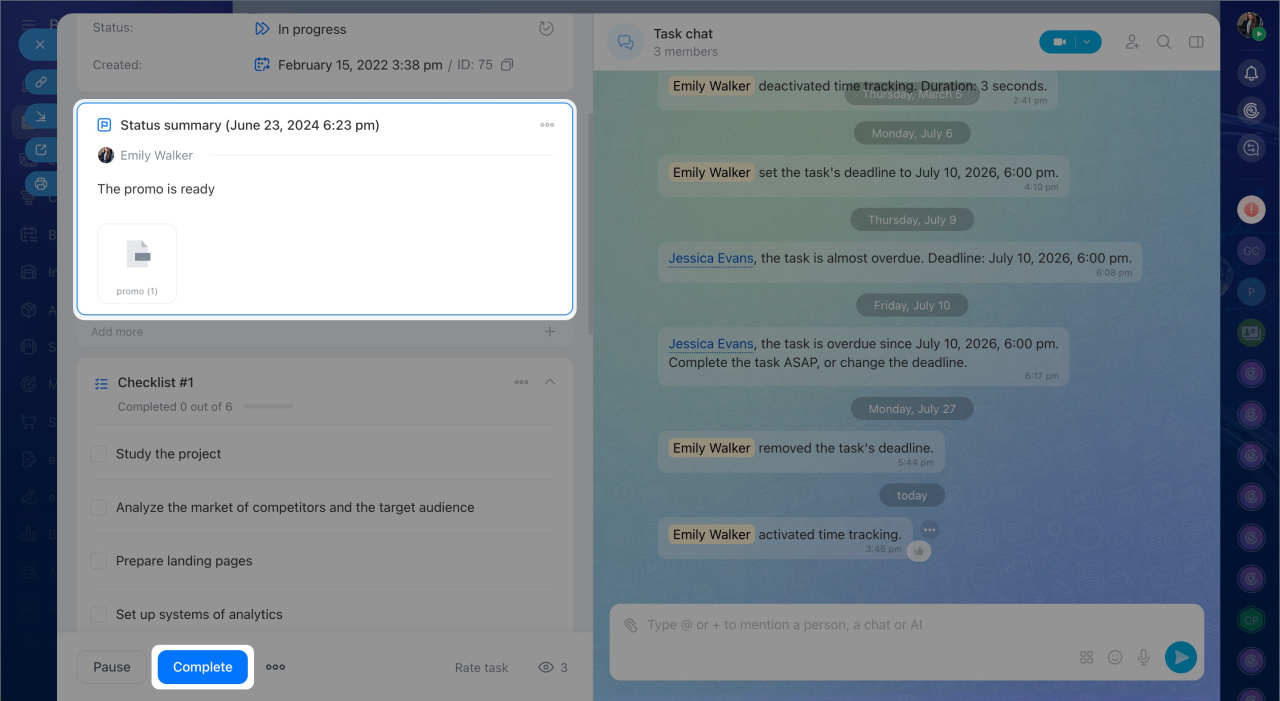
Record the result. Before closing the task, attach the final file, a link to the document, or a report. If the result cannot be shown as a file, for example if you updated CRM records or held a meeting, write a short comment.
If the Task status summaries option is enabled, you will not be able to close the task without describing the outcome. A prompt will appear asking you to enter the result.
Close the task. When everything is ready, click Complete in the task form. There are two possible outcomes:
- If creator control is enabled — the task moves to Pending review and goes to the creator. They will check the result and either accept it or send it back for revisions.
- If creator control is not enabled — the task immediately moves to Completed.
If you get a revision request. When the creator sends a task back for revision, the task returns to Pending. Read the comments and confirm what needs to change. After you make the updates, click Complete again.
In brief
- Tasks in Bitrix24 help you stay organized. All assignments and deadlines are in one place, so you do not need to search through chats or remember everything yourself.
- You can find all your tasks in Tasks and projects > Tasks. It does not matter where the task came from. Everything appears here automatically.
- The task form clearly shows what you need to do, when it is due, and who is responsible. It includes everything you need to work on the task: description, files, checklists, comments, and history.
- Keep task statuses up to date: Pending, In progress, and Completed. This helps your teammates and supervisor track progress.
- Keep all discussions in the task chat. The full conversation stays with the task, so you can always check who suggested or approved something.
- Add files to the task form or task chat so participants always have the latest version.
- Checklists help you complete work step by step and confirm that the result meets the requirements.
- Mark a task complete only when the work is fully done and you have a final result. Attach the final file or add a comment, then click Finish.
- If the Task status summaries is enabled, the creator reviews the result and either accepts the task or sends it back for revision.