
When your team has a lot of tasks, it is easy to lose track of the right file, the next owner, or what is already done. In Bitrix24, tasks are more than a list of assignments. They give you the tools to manage work, collaborate with your team, and finish on time.
Supervisors can track progress, team members understand their roles, and important details do not get lost in chats or emails.
For example, imagine you are launching a new ad campaign. You need to build the concept, write the copy, design the layouts, and launch the ads.
- Without Bitrix24 tasks, the process can quickly become chaotic. The brief gets lost in messages, the designer waits for materials, the copywriter does not know the deadline, and the supervisor spends time asking for updates.
- With Bitrix24 tasks, the process is clear. The supervisor creates a task and links it to the "Campaign Spring 2025" project. The task description includes the goal and deadline. A checklist covers each step: concept, copy, layouts, and launch. Each item has a specific owner. The task also includes all required materials and the media plan. The team can see overall progress, and the supervisor gets a clear view without extra follow-ups.
This is how Bitrix24 turns a simple task into a structured process with clear ownership and a documented result.
In this article, you will learn which task features help teams work efficiently and deliver results.
Deadline: complete tasks on time
A deadline shows when a task must be completed. It helps the assignee set priorities and decide what to work on first. For the supervisor, it shows whether the team is on schedule, which tasks are urgent, where delays may happen, and who may need help. When you compare deadlines with each employee's task load, you get a clear picture of workload and can adjust plans in time.
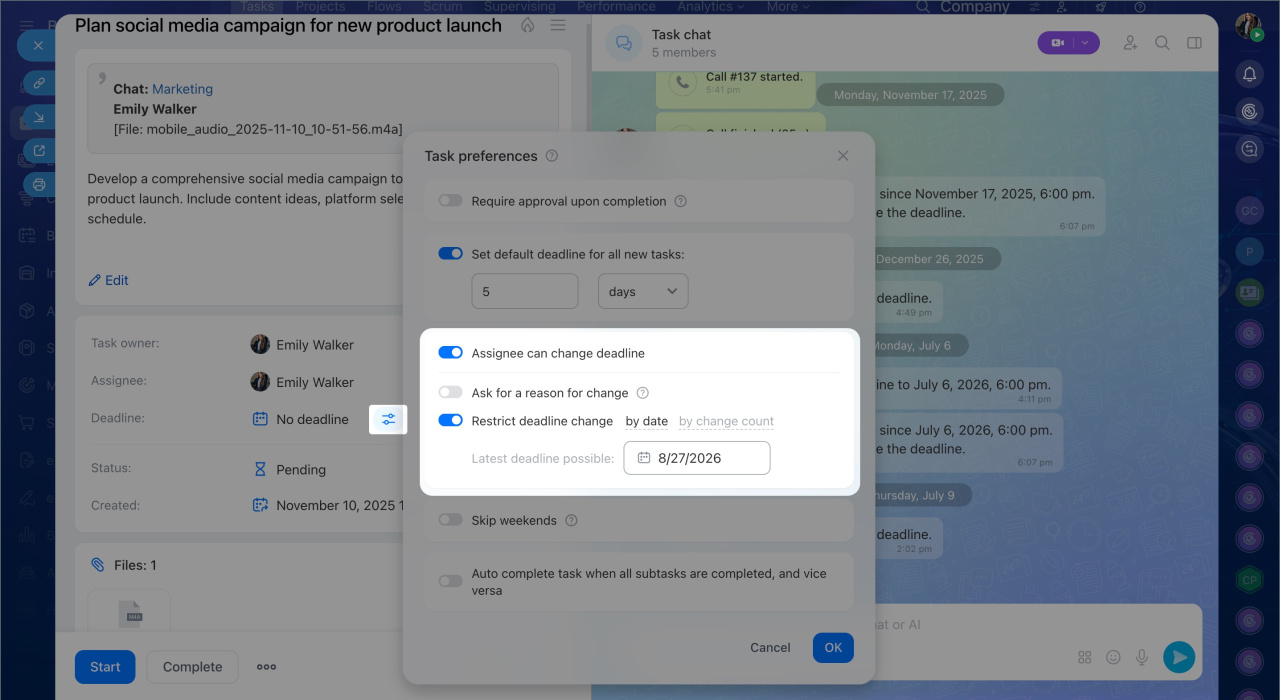
To keep deadlines clear and realistic, Bitrix24 lets you control who can change them and how:
- Let an employee change the deadline on their own, either freely or with limits. For example, you can set the latest allowed date or the maximum number of changes.
- Turn on the Ask for a reason for change option so the team can see why a deadline moved.
This helps keep the process clear and accountable without constant reminders. The supervisor can see deadline changes and respond quickly. Employees can manage their work and avoid missing fixed deadlines.
For example, a marketing manager creates a task called "Prepare banners for the advertising campaign" with a deadline of October 15. The manager allows one deadline change and requires a reason. The designer moves the deadline by one day because the layout approval was delayed and adds a comment. The supervisor can see the reason right in the task.
In a legal team, there may be a task called "Review the contract" with a deadline of October 10. The supervisor allows the deadline to move only until October 20. This keeps the process under control. Employees can adjust the timeline, but they cannot postpone the task indefinitely.
Files and documents: always use the latest version
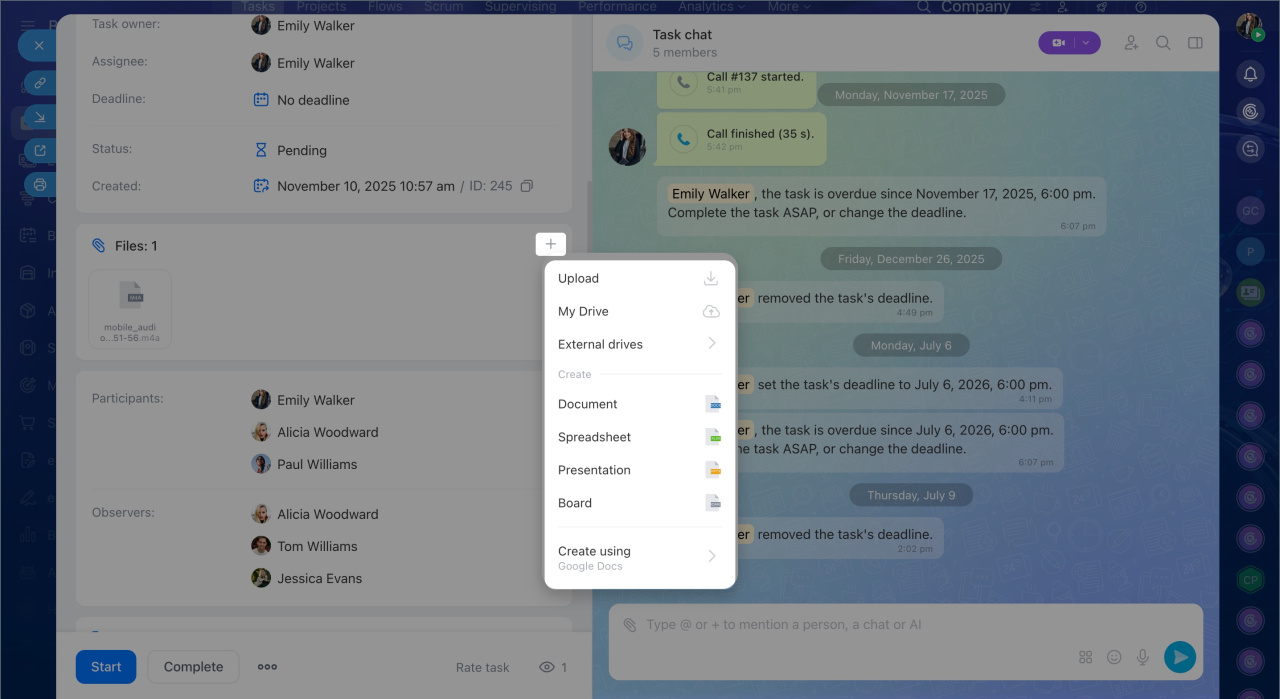
A task description does not always include every detail. Files such as layouts, instructions, and contracts help the assignee understand what to do and what the final result should look like.
The new task form includes a separate Files section. All participants share it. Anyone can upload a file, and it appears in the list right away. All materials stay in one place, which makes collaboration easier and removes the need to search through email or messengers.
If you need to discuss something quickly, you can send a file directly in the task chat.
For example:
- A manager attaches a draft contract, and the lawyer reviews it inside the task. All edits and versions stay in one place, so there is no need to send the file by email.
- A designer uploads a banner to the task "Prepare advertising layout." The manager can review the finished file and send it to the client right away.
If you attach a file created in Bitrix24, it is also available in other tools such as Drive and Projects. When the file is updated in Drive, the new version appears in the task automatically, and the same works the other way around. You can also enable shared access and share files with coworkers or external partners.
This helps your team always work with current materials and saves time when searching for files.
Checklists in tasks: do not miss important details
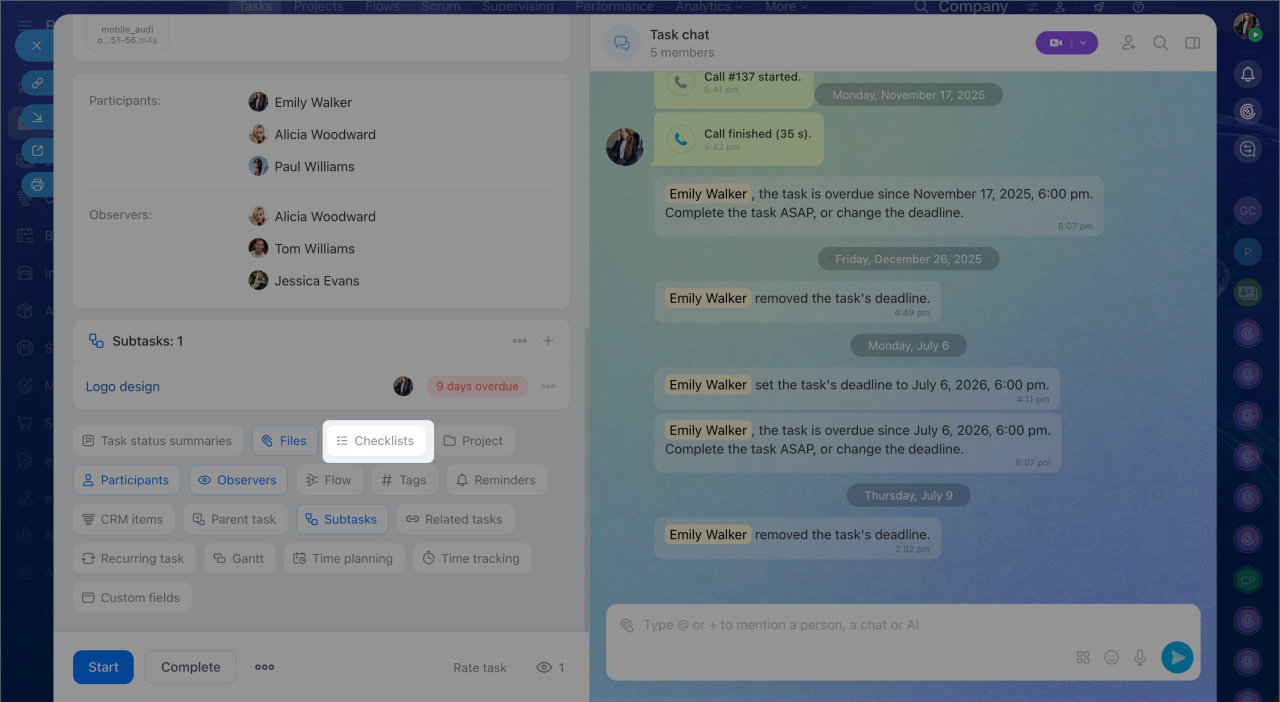
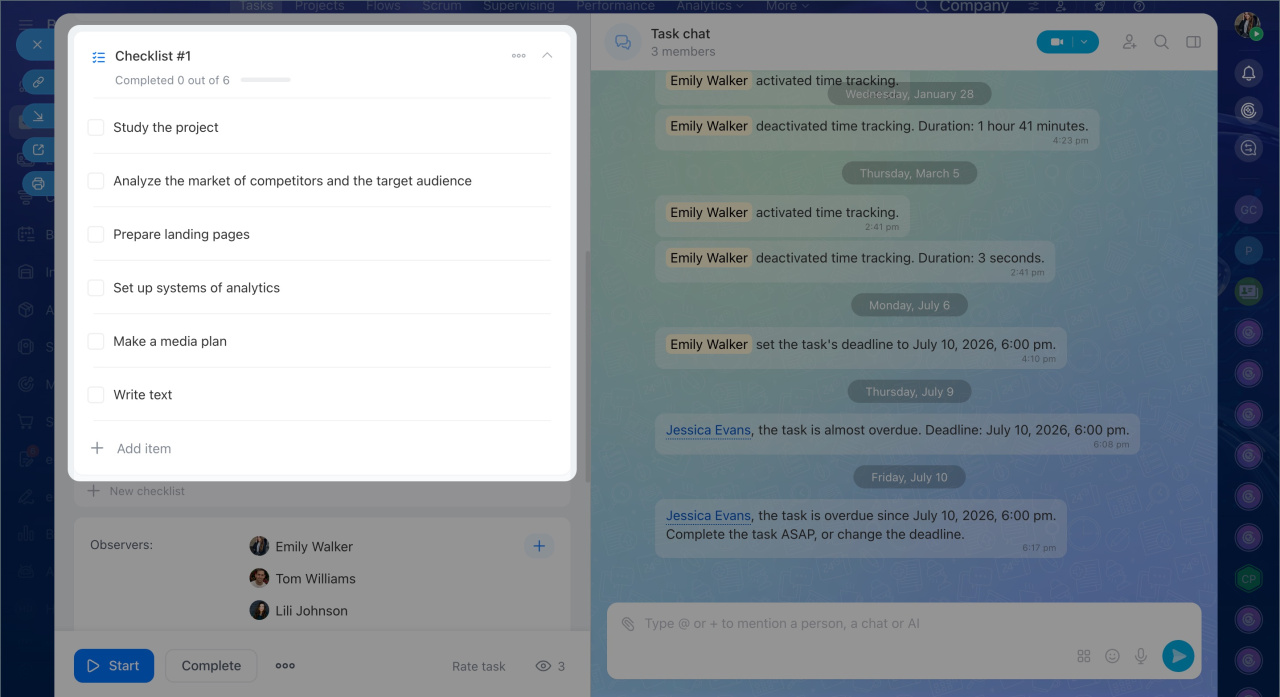
Checklists help you organize a task and track progress. They break a large task into clear steps, show how much is done, and help you avoid missing important details.
You can use checklists in tasks in several ways:
- For step-by-step work, when a task has several stages. For example, a marketer adds a checklist to the task "Prepare a newsletter": gather materials, approve the copy, confirm the layout, and send the newsletter.
- To split a larger task into smaller items when several people are involved or responsibilities need to be clear. You can add sub-items, assign owners, and attach files. For example, in a task for preparing an event, you can add items such as "Invite participants," "Prepare the venue," and "Create a presentation," and assign a responsible person to each step.
This makes it easier for the assignee to plan their work and for the supervisor to see what is done and what is still in progress.
CoPilot in Tasks
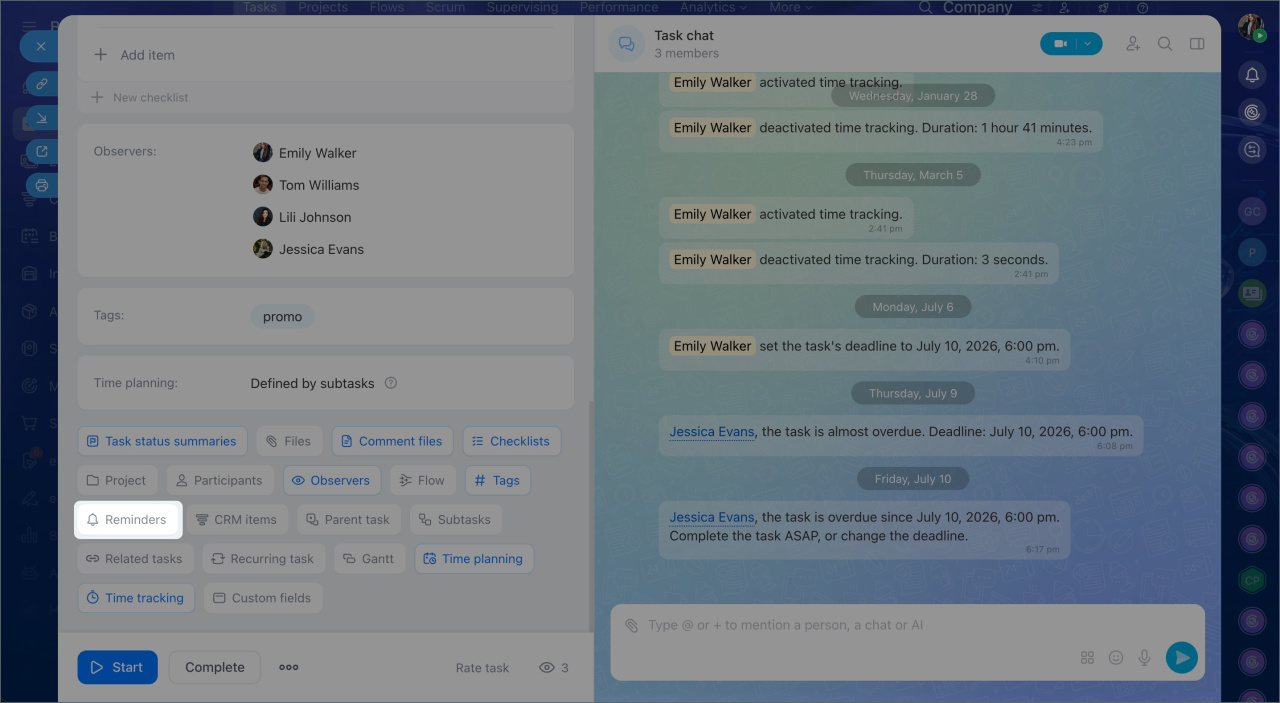
Reminders: never miss a task
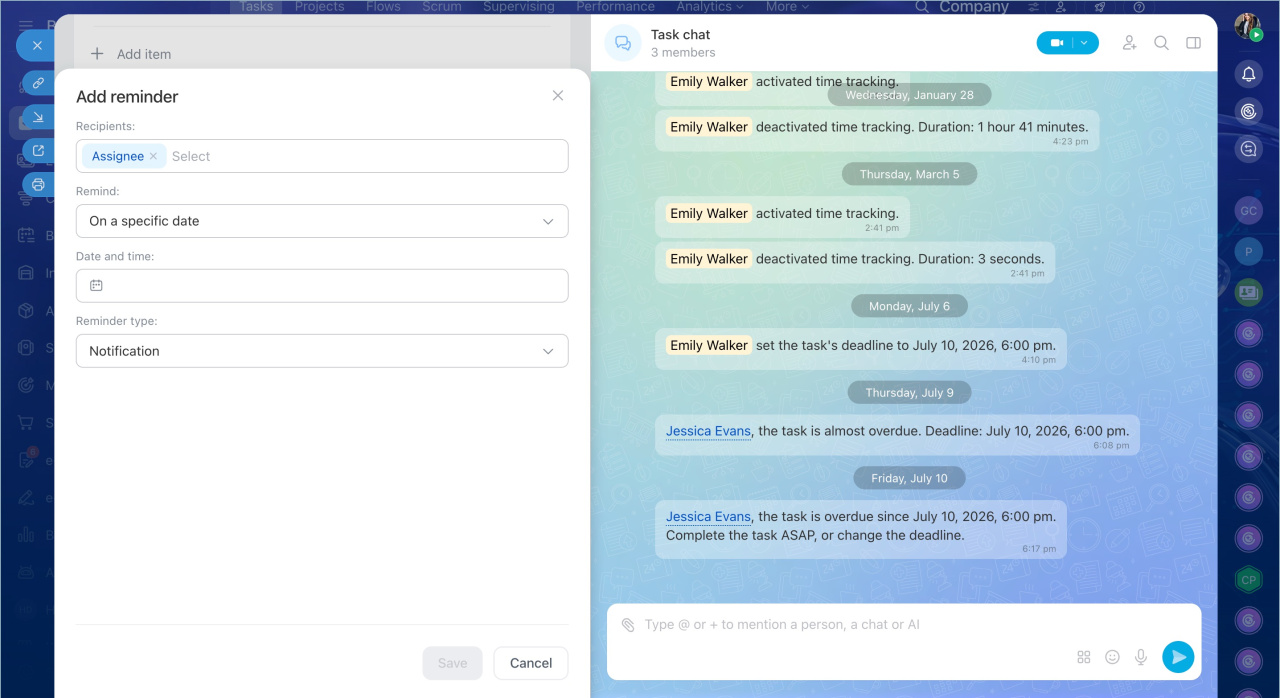
Reminders help you complete tasks on time and avoid missing deadlines. You can set them for any participant — the assignee, co-assignee, or observer. Reminders let assignees know when to start a task or finish a stage. For the task creator, reminders help check results at the right moment without constantly following up manually.
For example, a manager sets a reminder three days before the deadline to prepare a proposal for the client, and the supervisor sets one a day before completion to check whether the manager is on track.
Results: document what was accomplished
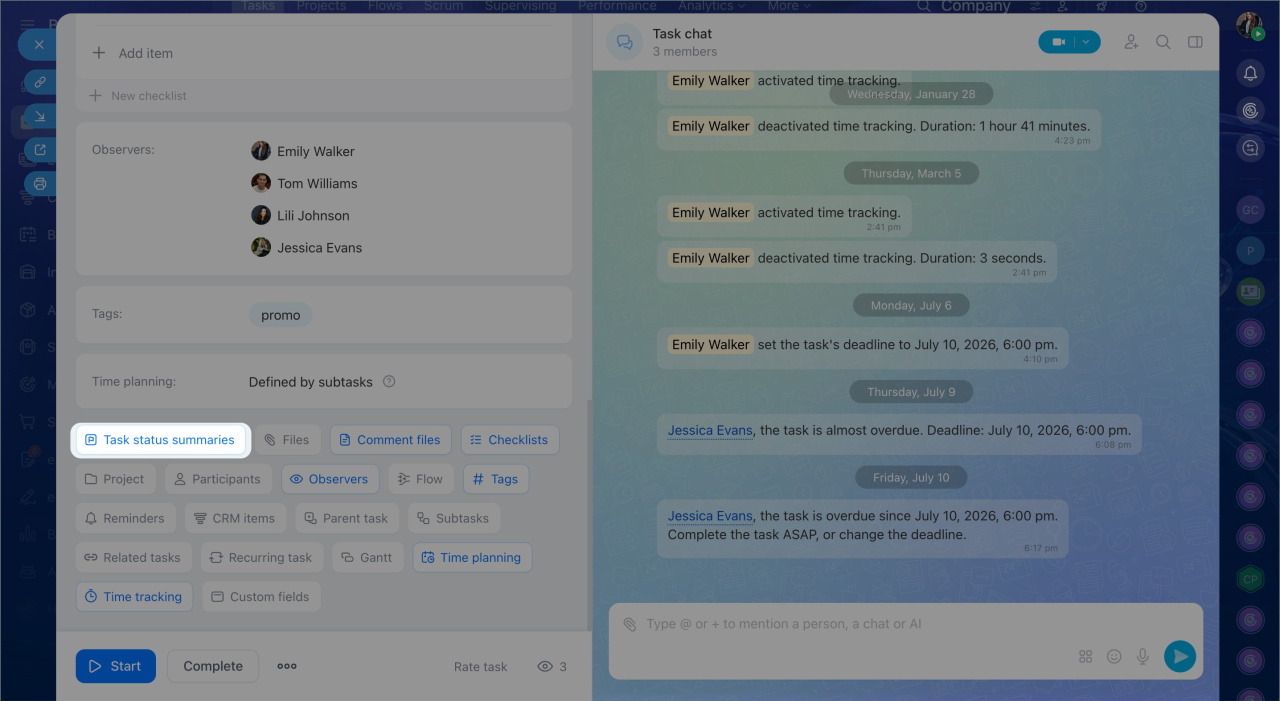
Results help you capture the outcome of a task and keep everything in one place. The assignee can attach a file, a report, a presentation, or write a short summary of what was done.
To avoid tasks being closed without a real outcome, you can enable the Task status summaries option. Bitrix24 will then remind the assignee to add an outcome and will not allow the task to be completed until a result is recorded. This way, the supervisor can immediately see how the work ended, and the team does not lose the outcome in the chat.
Projects: see the full picture
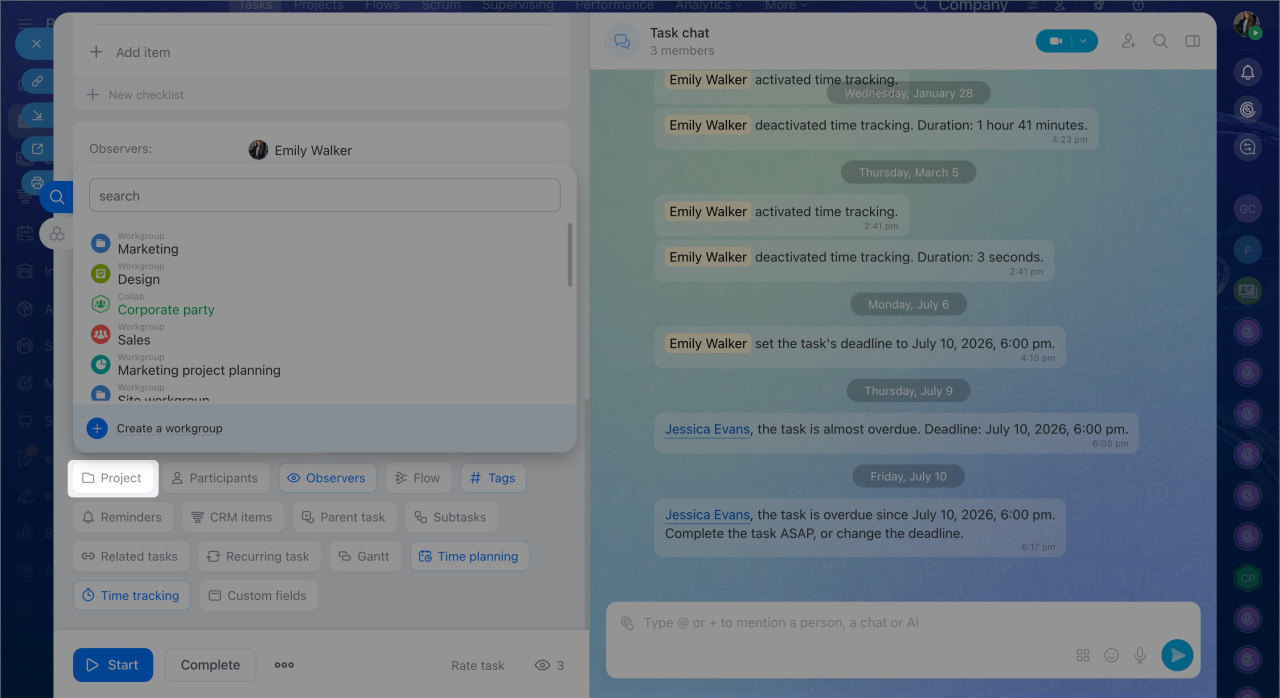
A project brings together tasks that share a common goal. All assignments and materials are in one place, so participants understand the overall context and can navigate their work faster. Each project can have its own kanban board with custom stages so you can track the workflow easily. The team moves tasks across columns to see what is done, what is in progress, and which tasks need attention.
For example, when launching a new product, tasks for design, marketing, testing, and sales all belong to one project. The supervisor can see the status of each part, and if a delay appears anywhere, it can be spotted and addressed quickly.
Create a workgroup or project
In brief
- Task features in Bitrix24 make teamwork clear, help keep the process under control, and ensure everything is completed on time.
- Deadlines help set priorities, track task completion, and adjust plans before it is too late.
- Files and documents are always at hand — current versions are not lost and are available to all participants.
- Checklists help break a task into steps and track the progress of its completion.
- Reminders help complete tasks on time and avoid missing deadlines.
- Results help capture the outcome of a task and keep everything in one place.
- Flows help distribute similar tasks evenly within a team.
- Projects bring related tasks together and give everyone a view of overall progress.