
Automation rules and triggers help you manage tasks automatically. They can assign tasks to the right employees, send notifications, and help you keep track of deadlines.
Triggers monitor changes, such as an approaching deadline or a task status change, and move tasks to another stage. Automation rules perform actions when a task reaches a specific stage. For example, they can send notifications, create tasks, or add participants.
For example, when a task is one day away from its deadline, a trigger moves it to the Urgent stage. An automation rule then notifies the task creator that the task is still incomplete. This saves time and reduces the need to monitor tasks and perform routine actions manually.
Pricing and Plans
In this article:
How automation rules and triggers work in tasks
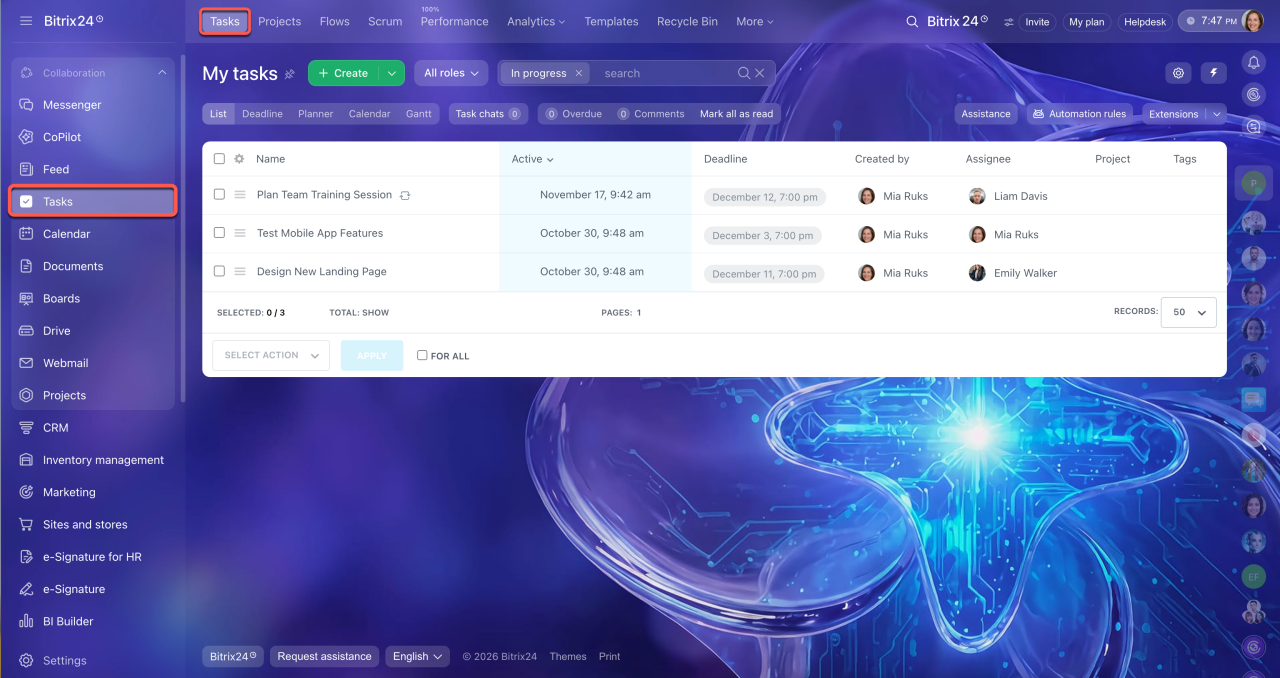
Open the Tasks block and click Automation rules on the right. Here you can view existing automation rules and triggers or add new ones.
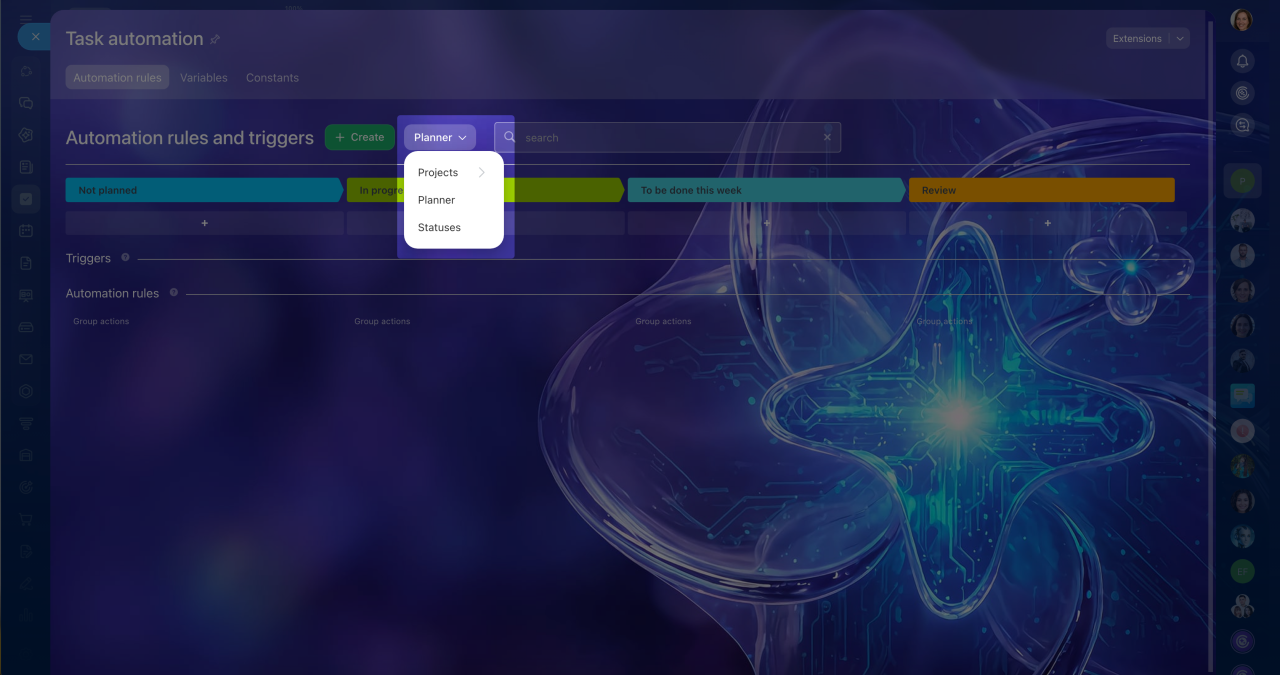
You can set up automation for project tasks, personal tasks, or task statuses. To switch between these options, use the selector at the top of the page. By default, Planner is selected.
Tasks in projects — automate tasks within a specific project. Set up automation rules and triggers separately for each project. For example:
- When a supervisor adds an employee as a task participant, an automation rule automatically adds the employee to the project chat. This keeps the employee informed about project discussions without requiring the supervisor to add them manually.
- When a supervisor updates a task description, a trigger moves the task to the Needs attention stage. This helps project members notice important changes.
Personal tasks in Planner mode — set up automation for tasks you participate in. For example:
- When you start working on a task, a trigger moves it to the Do this week stage.
- When less than one day remains before a task's deadline, a trigger moves it to the Urgent stage.
Task statuses — set up actions for different task statuses: pending, in progress, pending review, deferred, or completed. These settings apply to tasks you participate in. For example:
- When a task moves to the Pending review status, an automation rule notifies the task creator. This reminds them to review the results without requiring the assignee to follow up manually.
- When a task is completed, an automation rule sends a message to the group chat. For example, it can notify the team that the designer has finished a mockup for the client. Colleagues can see the update without having to ask about the task's progress.
Set up automation rules and triggers in tasks
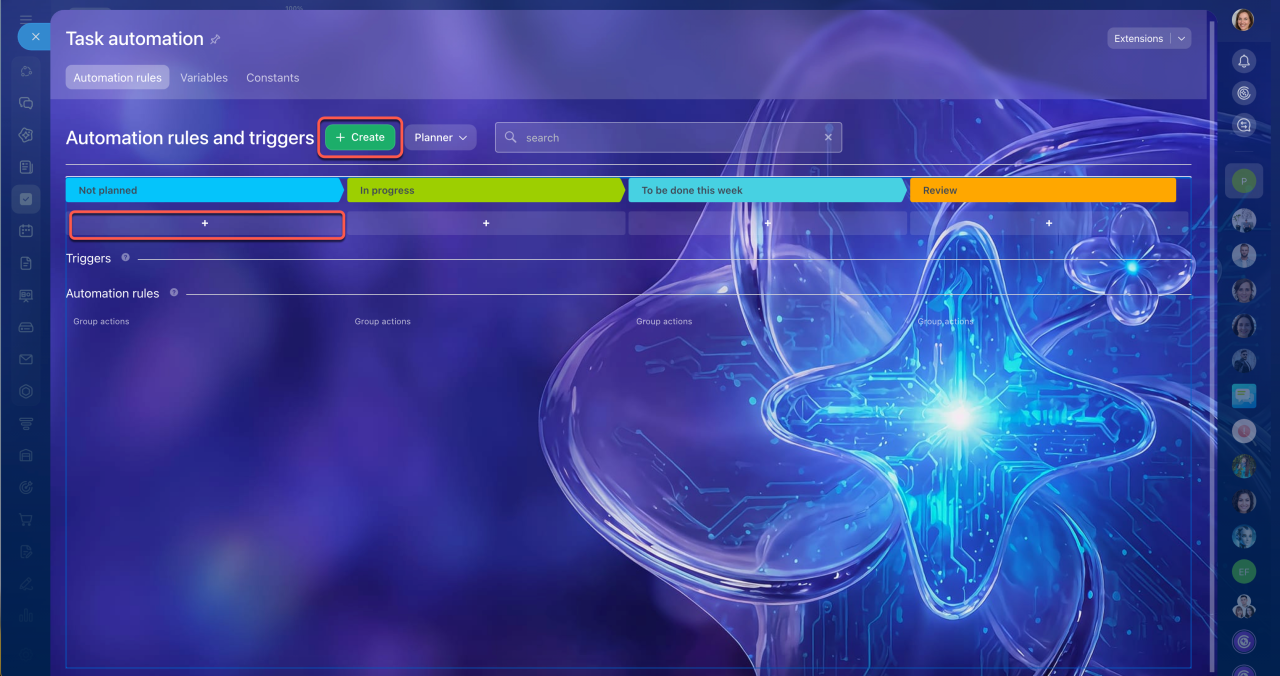
Choose where to set up automation: for project tasks, personal tasks, or task statuses. Depending on your selection, you'll see either the stages tasks move through in a project or Planner mode, or the task statuses. To add an automation rule or trigger, click +Create at the top of the page or Plus (+) under the stage or status you need.
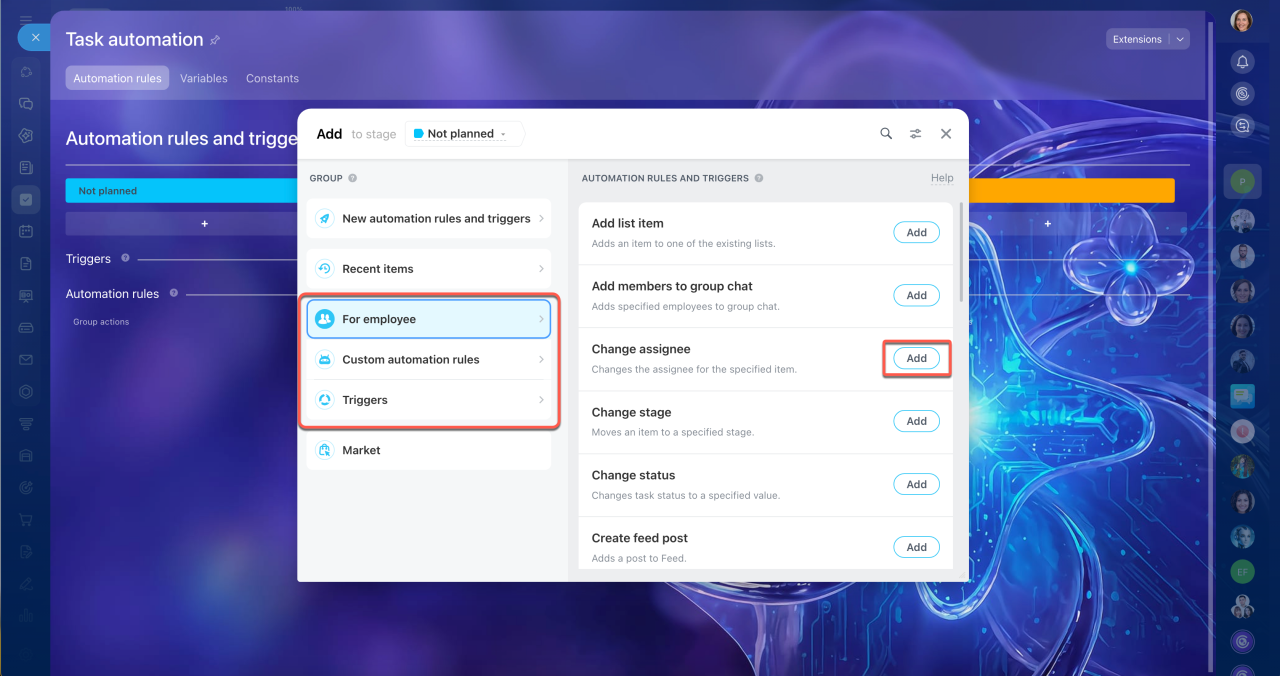
Select a group from the list on the left.
- For employee and Custom automation rules — include all automation rules available for tasks.
- Triggers — include triggers for tracking deadlines, status changes, and field changes in tasks.
Click Add next to the option you need. Configure each automation rule and trigger separately.
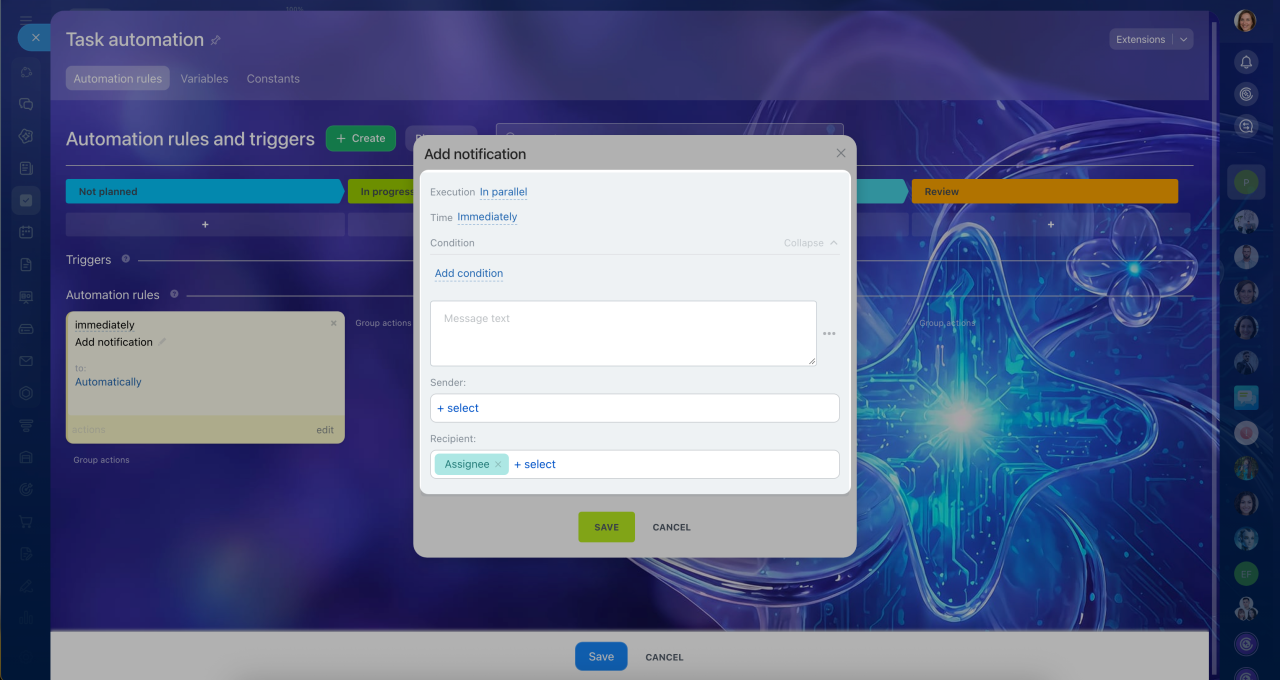
Set up an automation rule. Automation rules have individual and common settings. The common settings are the same for all rules:
- In order — choose when the automation rule runs: after previous rules or independently of other rules.
- When — specify when it runs: immediately or after a delay.
- Under condition — the automation rule runs only for certain tasks, not all tasks.
Conditions in automation rules
Variables and constants in automation rules
Individual settings depend on the action. For example, in the "Send message to group chat" automation rule, add the message text and select the chat and sender. In the "Add notification" automation rule, enter the text and specify the sender and recipient.
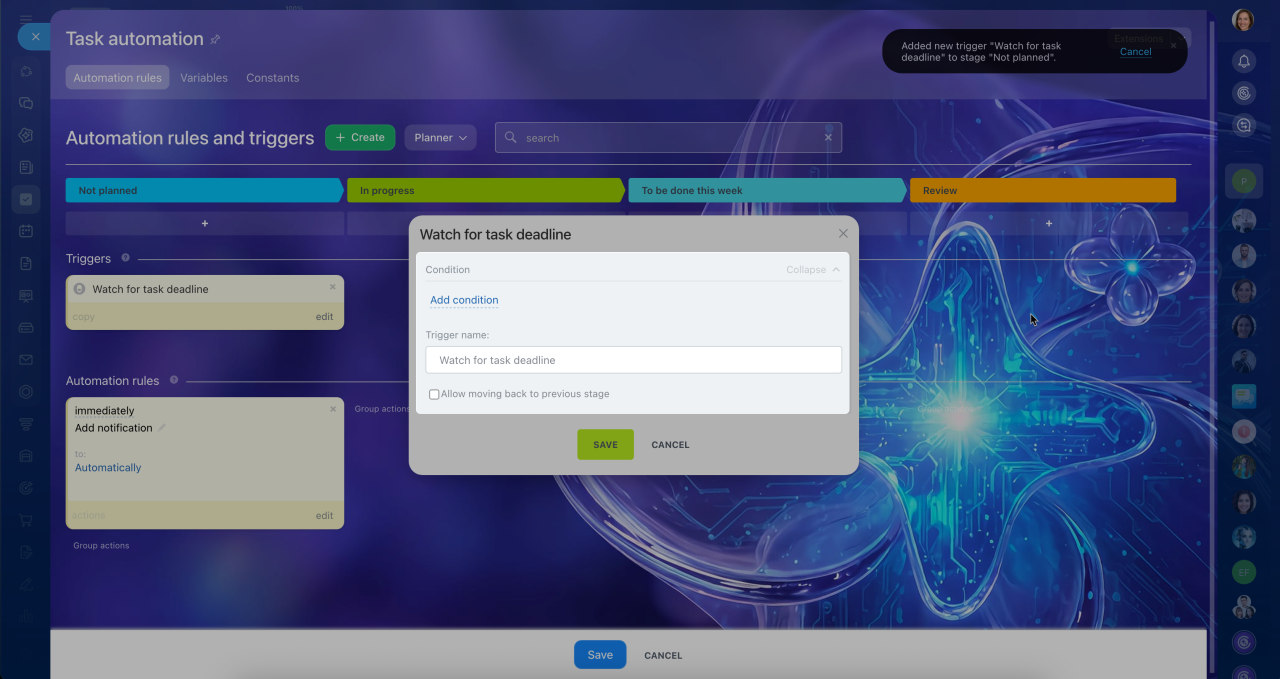
Set up a trigger. Triggers have common settings:
- Under condition — the trigger runs only for certain tasks, not all tasks. Conditions work the same way as in automation rules.
- Allow moving to a previous stage — when enabled, the trigger can move a task back to a previous stage, for example, from the last stage to the first.
Only two triggers have additional settings: the "Track task status change" trigger requires you to specify a task status, and the "Track field change" trigger requires you to select a field.
Set up triggers in tasks
Scenario 1: When less than one day remains before a task's deadline, a trigger moves it to the Urgent stage, and an automation rule notifies the task creator that the task is still incomplete.
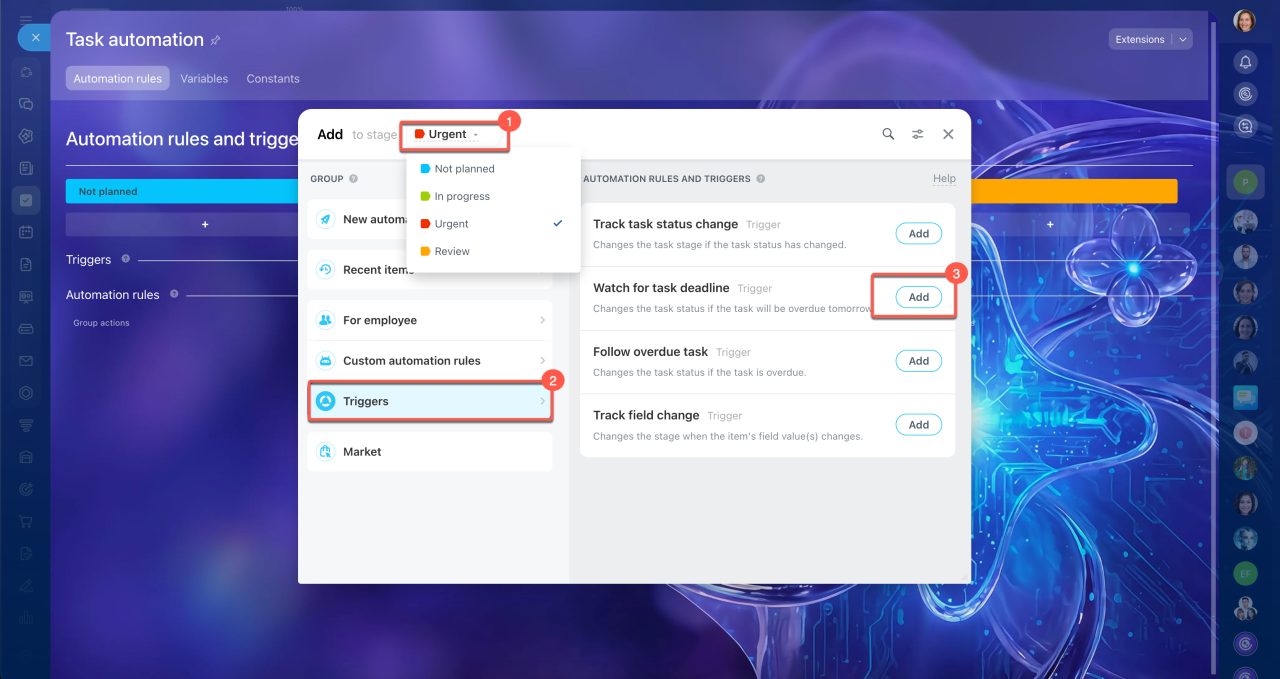
First, set up the "Watch for task deadline" trigger:
1–3. Select the Urgent stage, find the trigger in the Triggers section, and click Add.
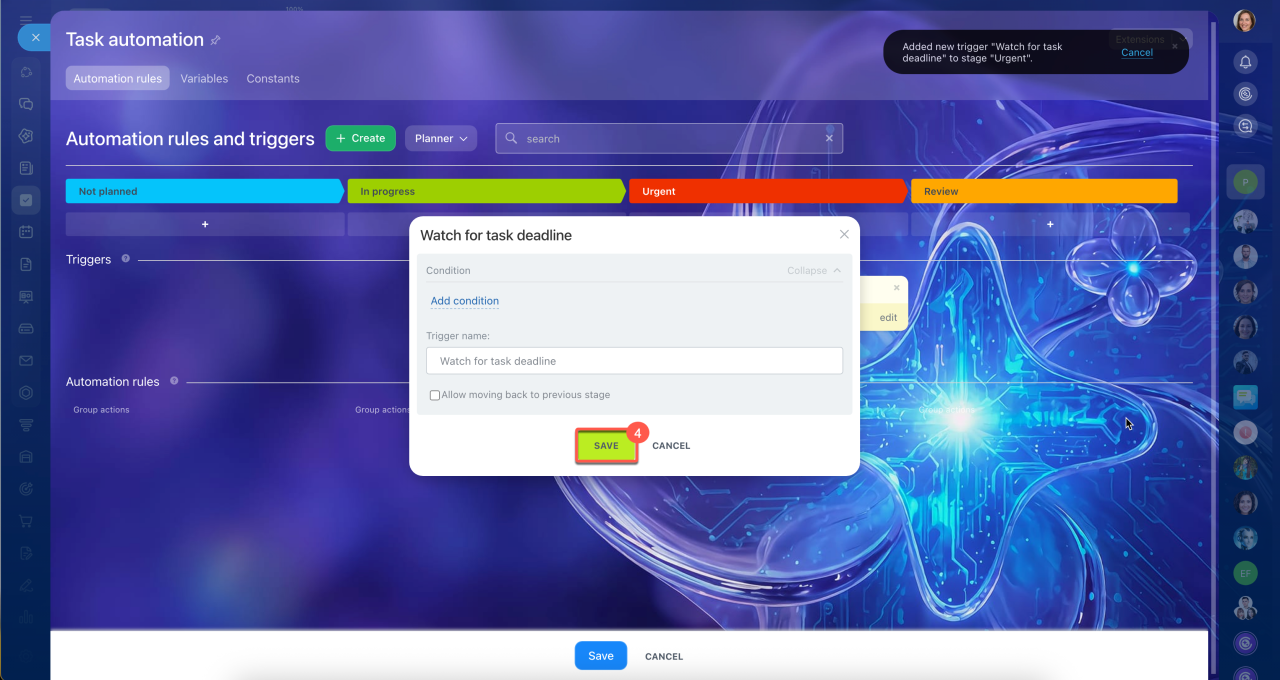
4. Save the trigger. When less than one day remains before the deadline, it moves the task to the Urgent stage.
Next, set up the "Add notification" automation rule:
1–3. Select the Urgent stage, find the Add notification automation rule in the For employee section, and click Add.
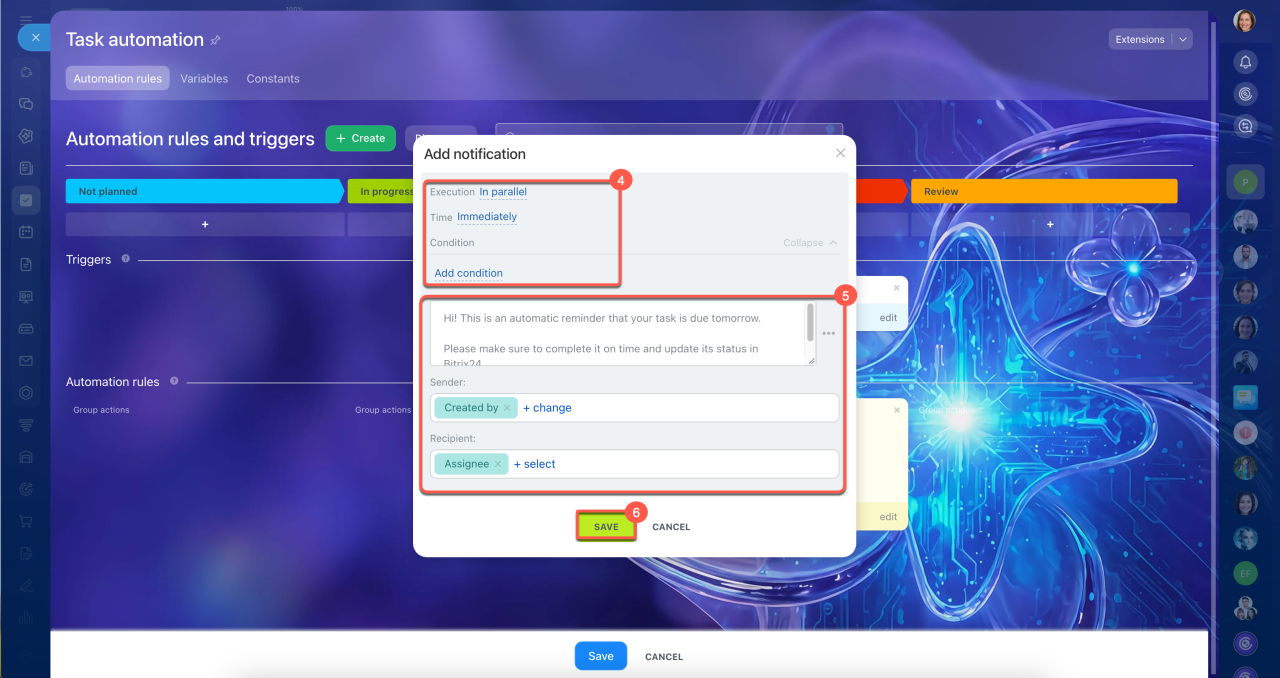
4. Keep the default settings. The automation rule runs immediately, independently of other rules, and applies to all tasks that reach this stage.
5. Enter the notification text. In the Sender field, select the task assignee. In the Recipient field, select the task creator.
6. Save the automation rule settings.
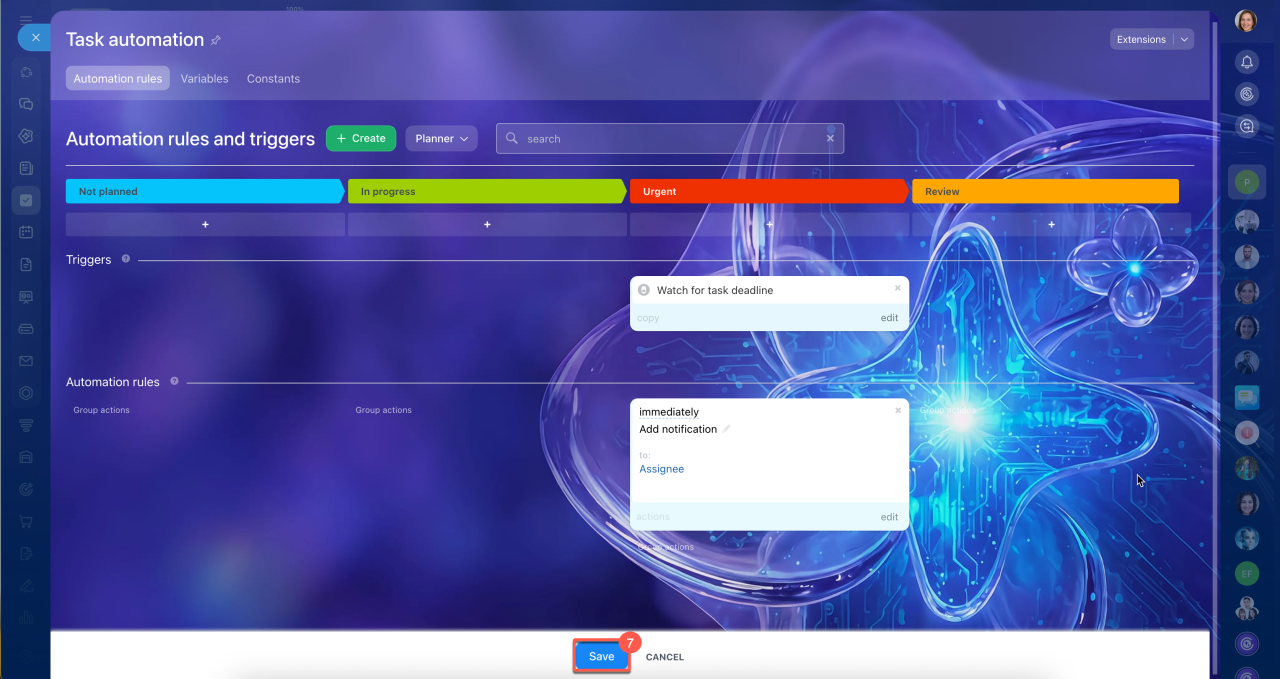
7. After adding the trigger and automation rule, click Save. When a task reaches the Urgent stage, the creator receives a notification about the approaching deadline.
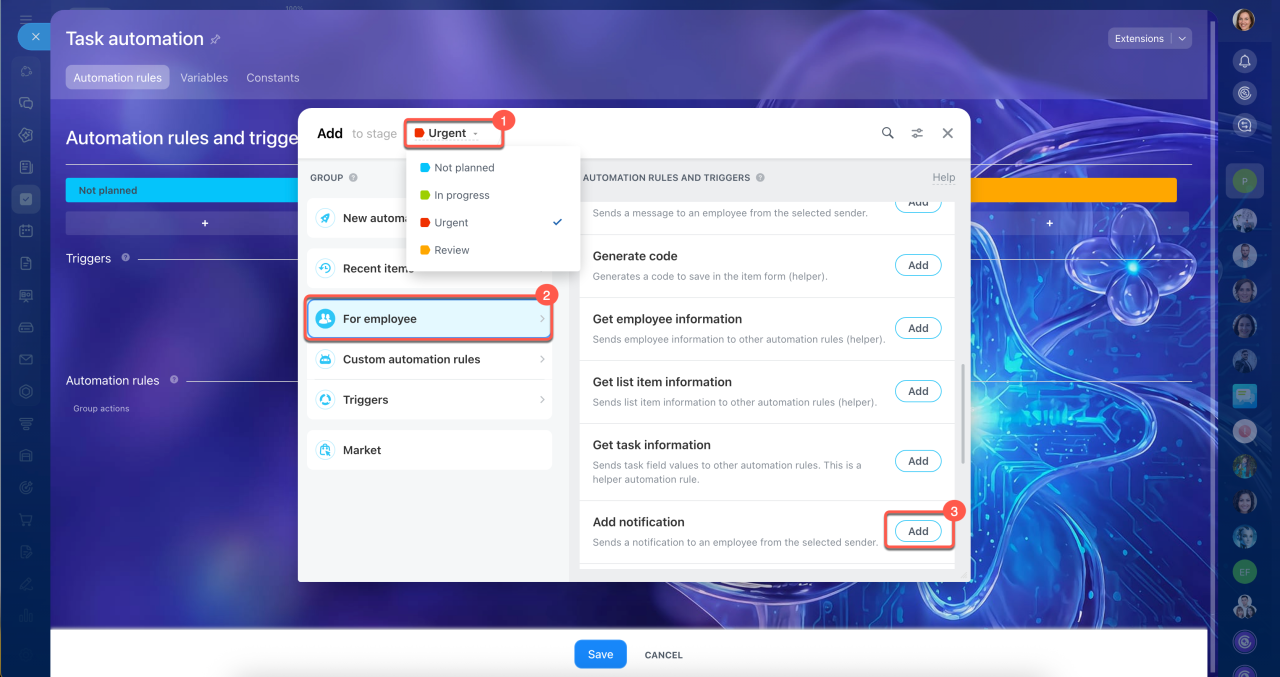
Scenario 2: When a task moves to the Completed status, an automation rule sends a message to the group chat.
Set up the "Send message to group chat" automation rule:
1–3. Click the toggle at the top of the page, select Statuses, and click +Create.
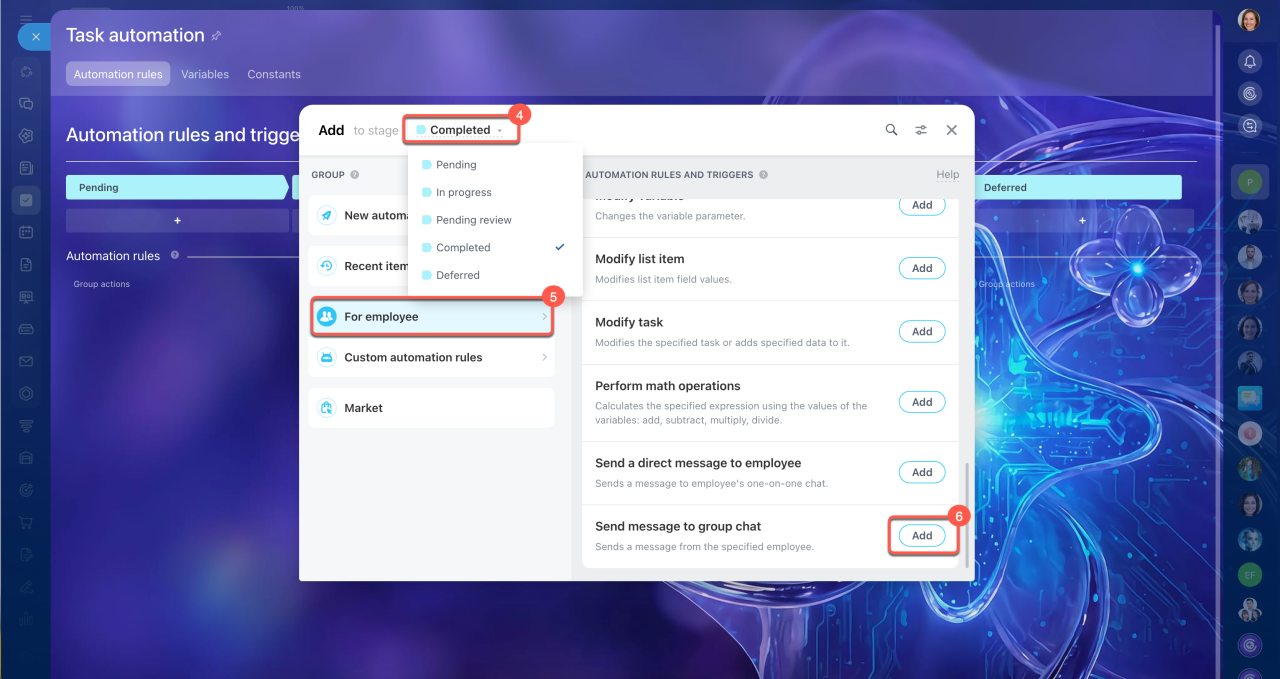
4–6. Select the Completed status, find the Send message to group chat automation rule in the For employee section, and click Add.
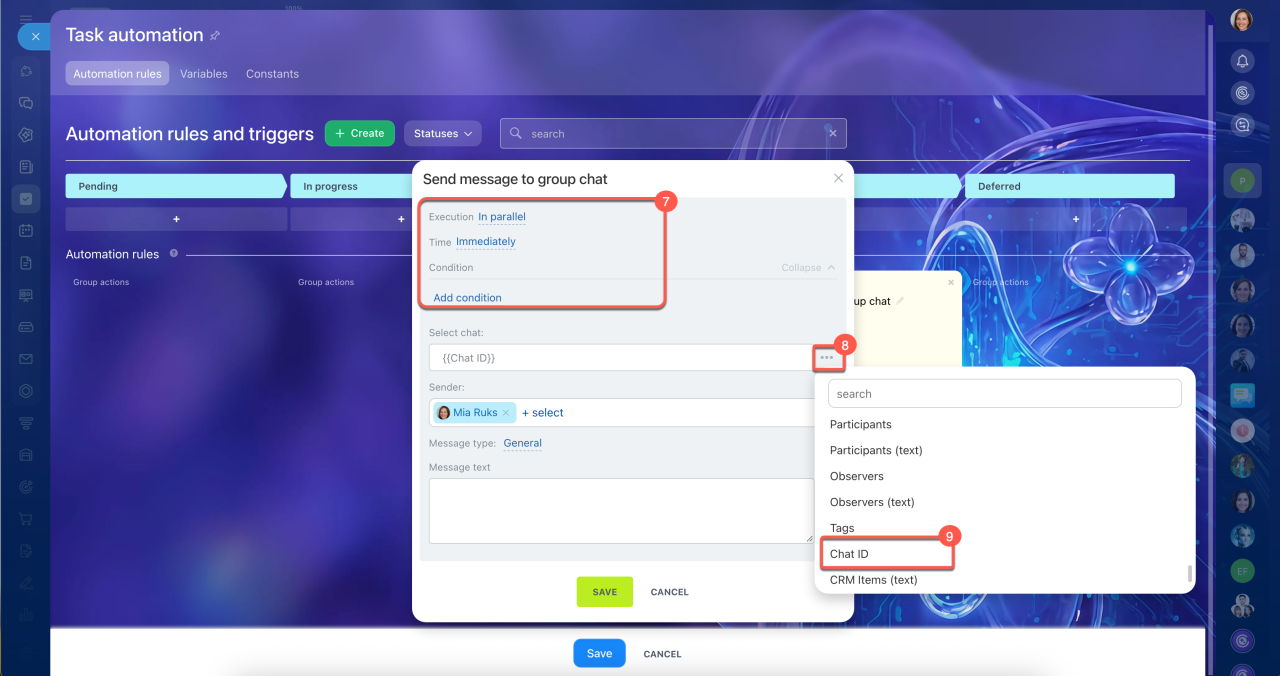
7. Keep the default settings. The automation rule runs immediately, independently of other rules, and applies to all tasks that move to this status.
8–9. Click Three dots (...) to the right of the Select chat field and select Chat ID.
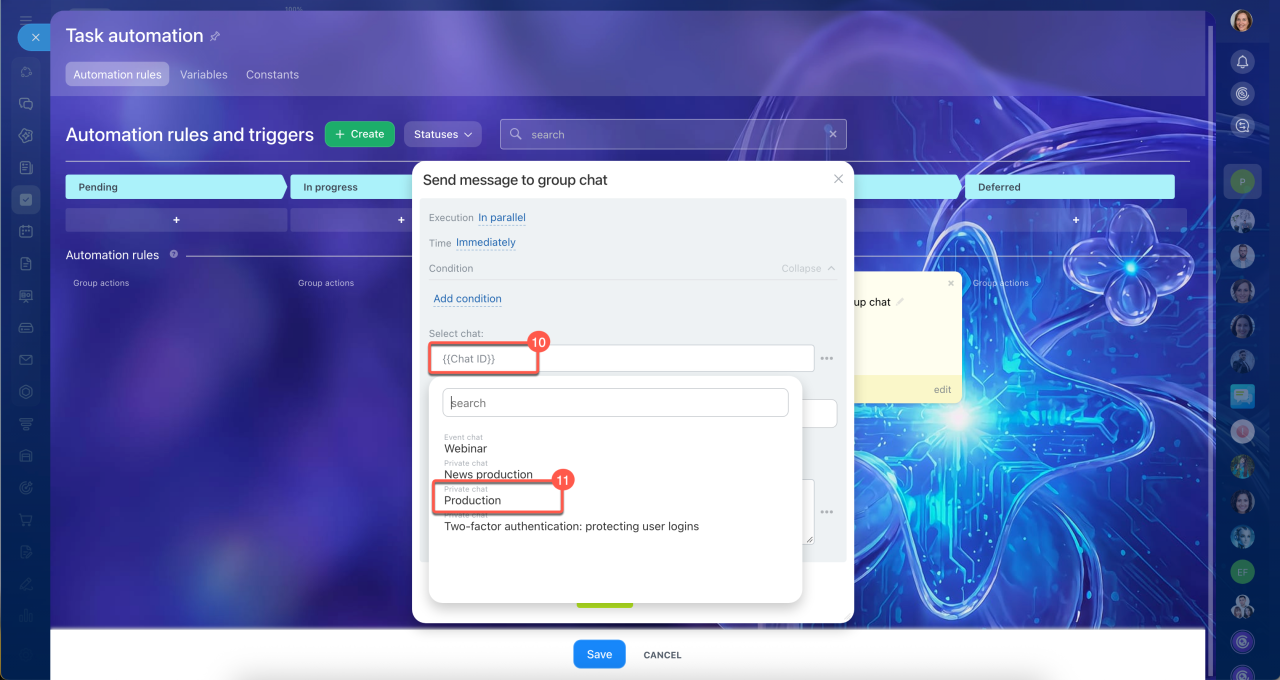
10–11. Click the Select chat field and choose a chat from the list, such as General chat.
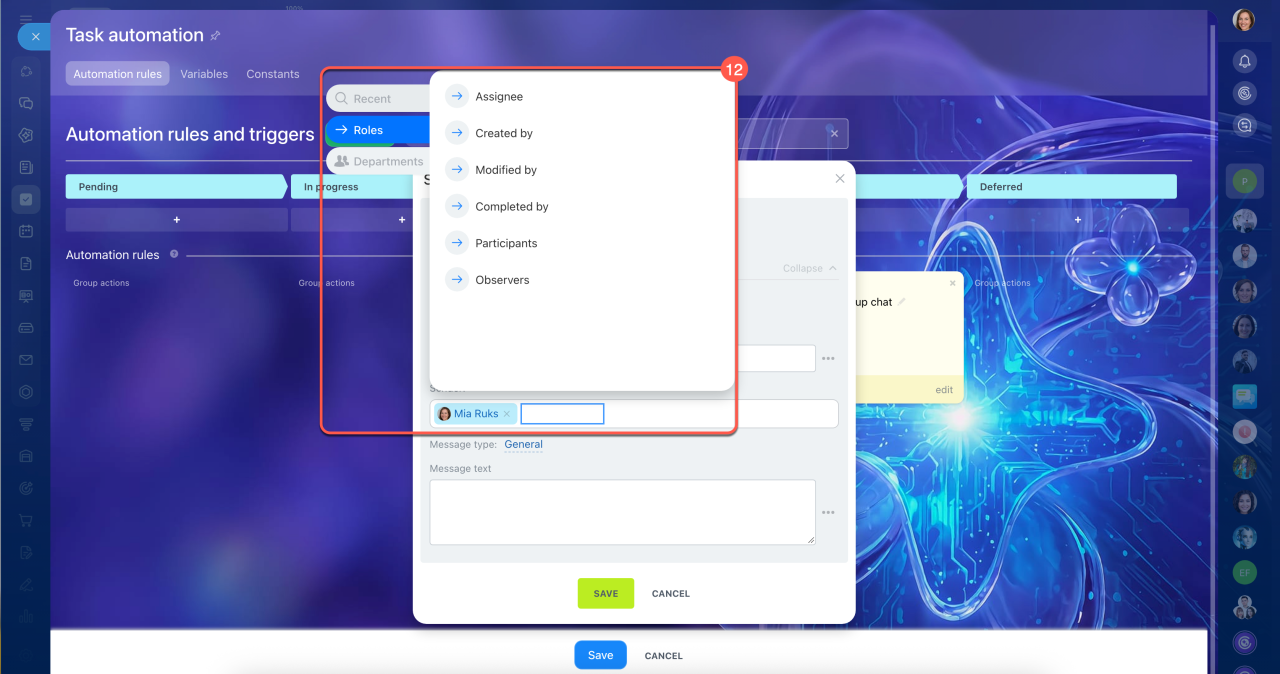
12. In the Sender field, select who will send the message, such as Assignee.
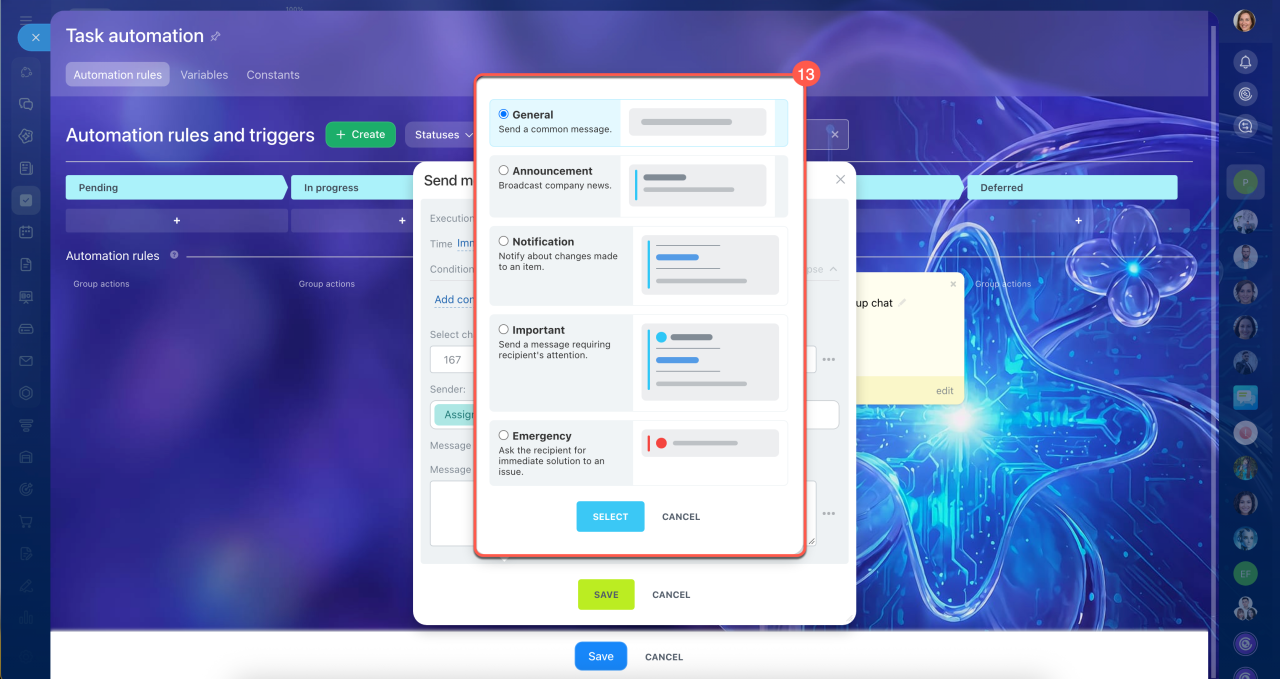
13. In the Message type field, select Notification.
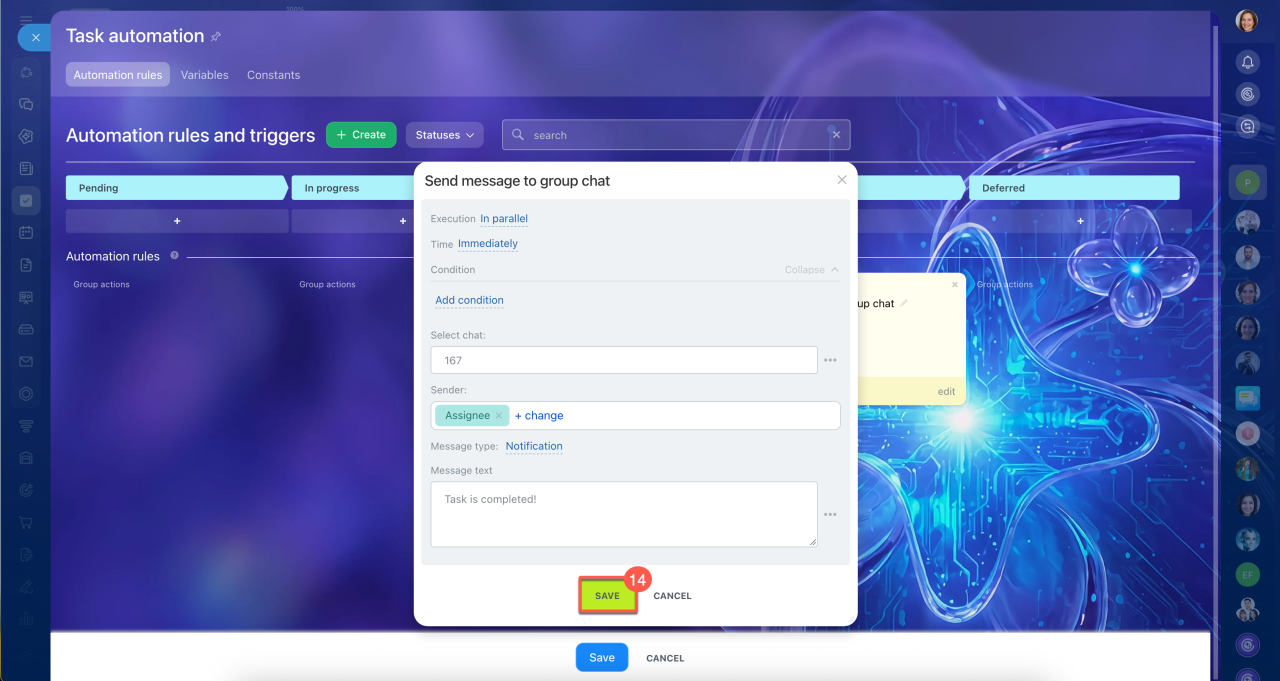
14. Enter the message text and save the automation rule settings.
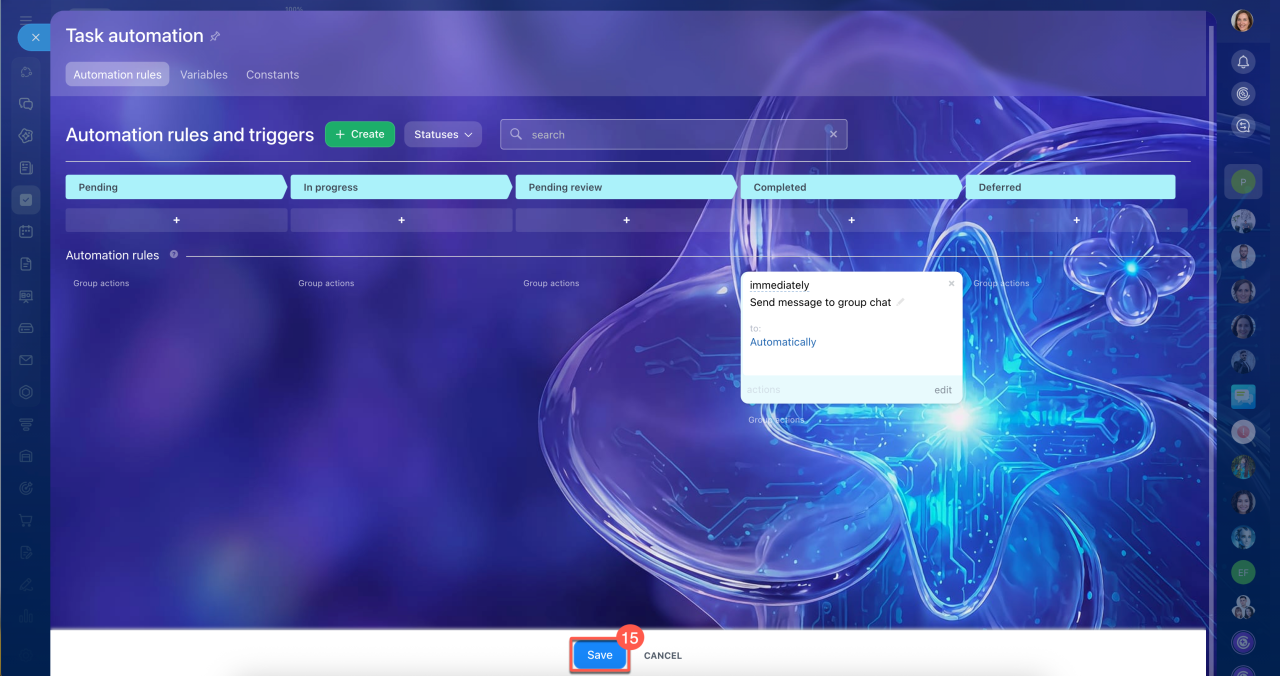
15. Click Save. When a task moves to the Completed status, the automation rule sends a message to the selected chat.
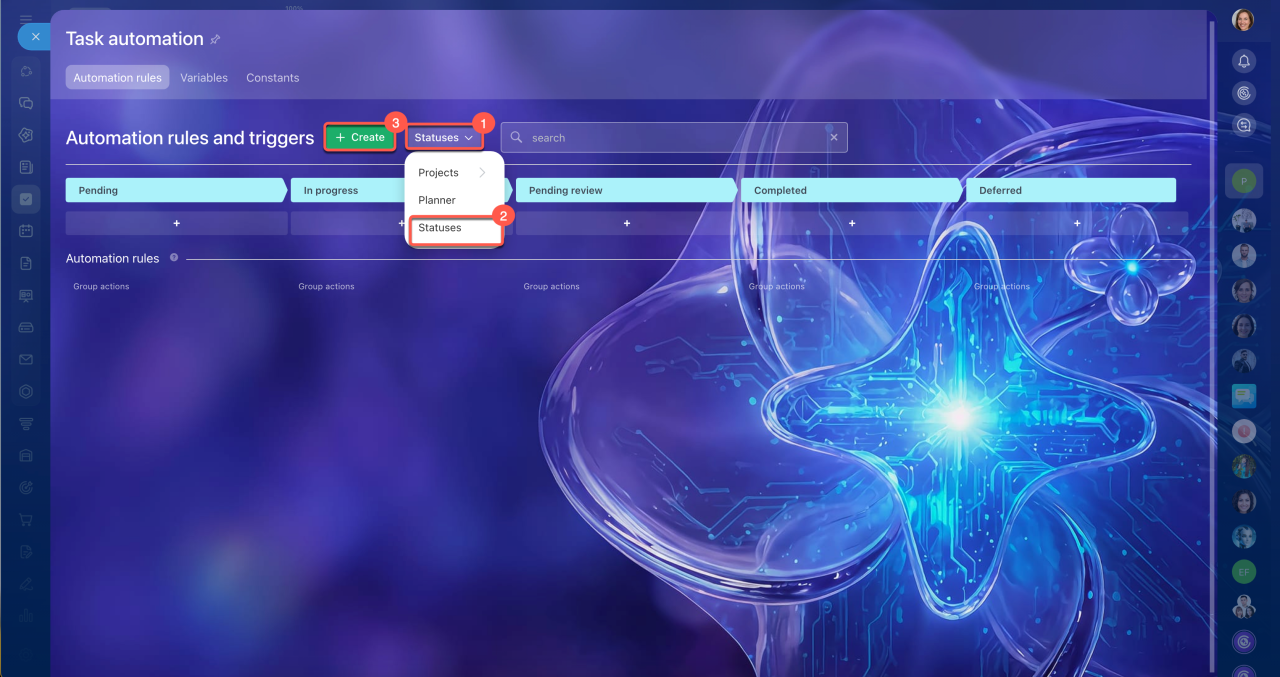
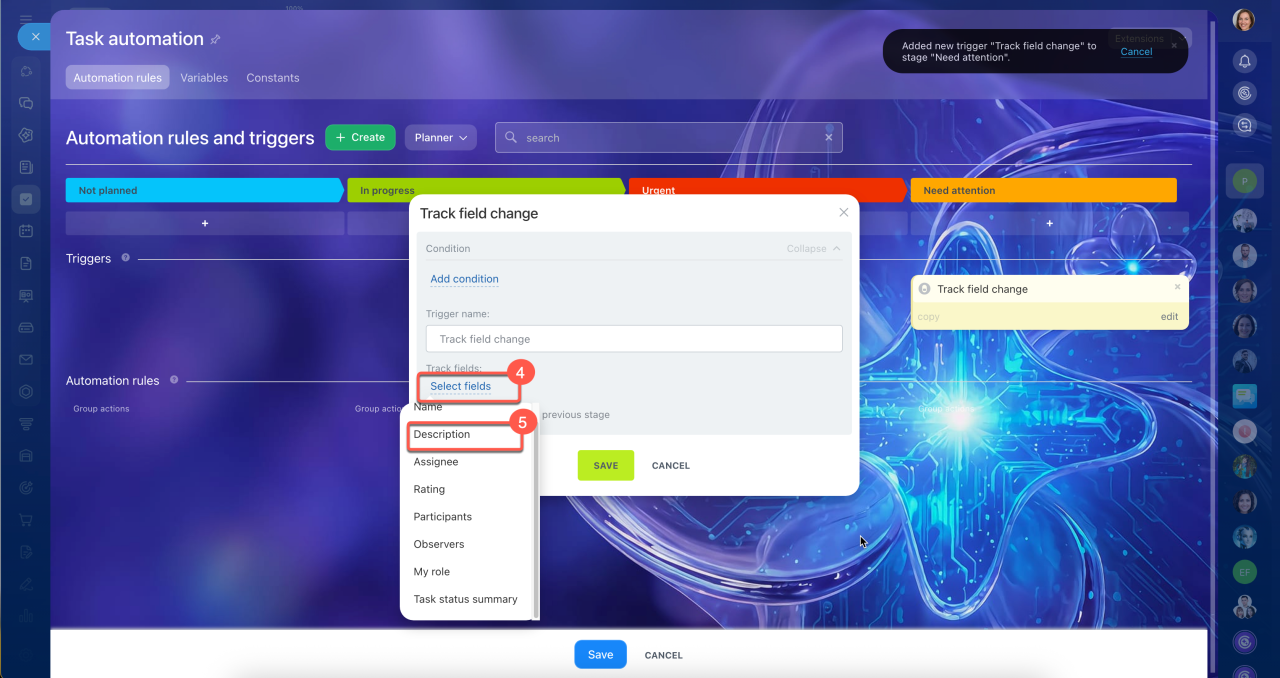
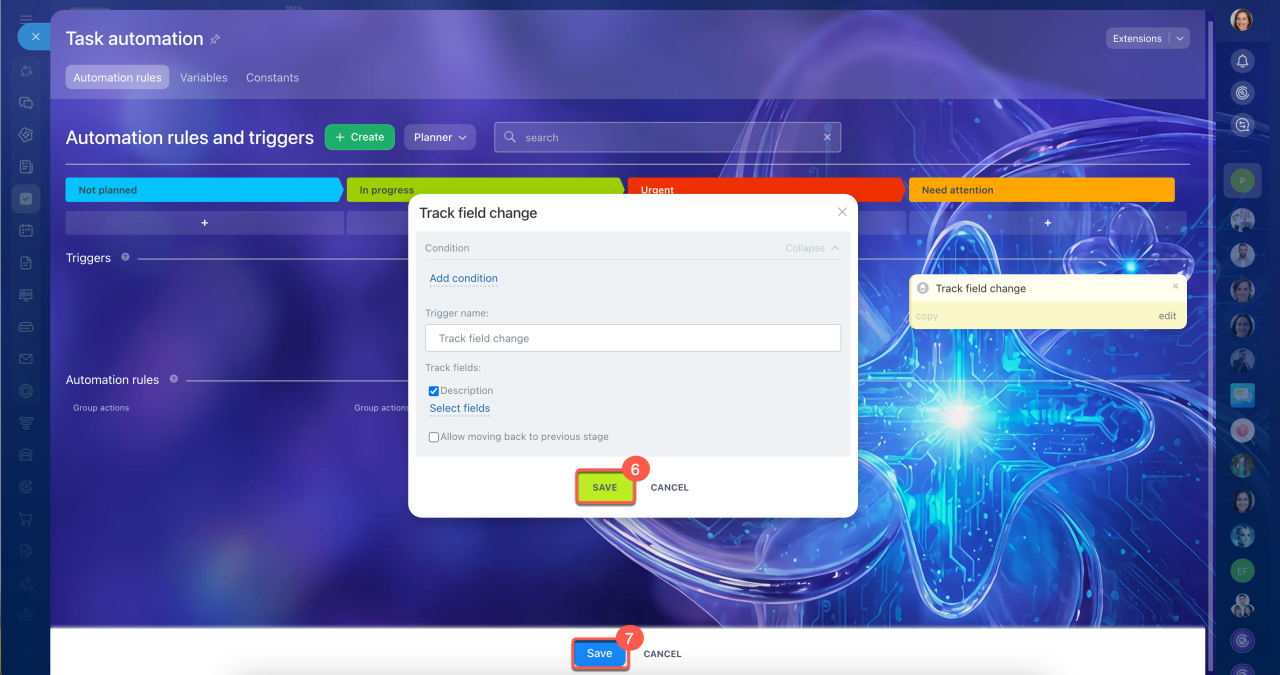
Scenario 3: When a task description changes, a trigger moves the task to the Needs attention stage.
Set up the "Track field change" trigger:
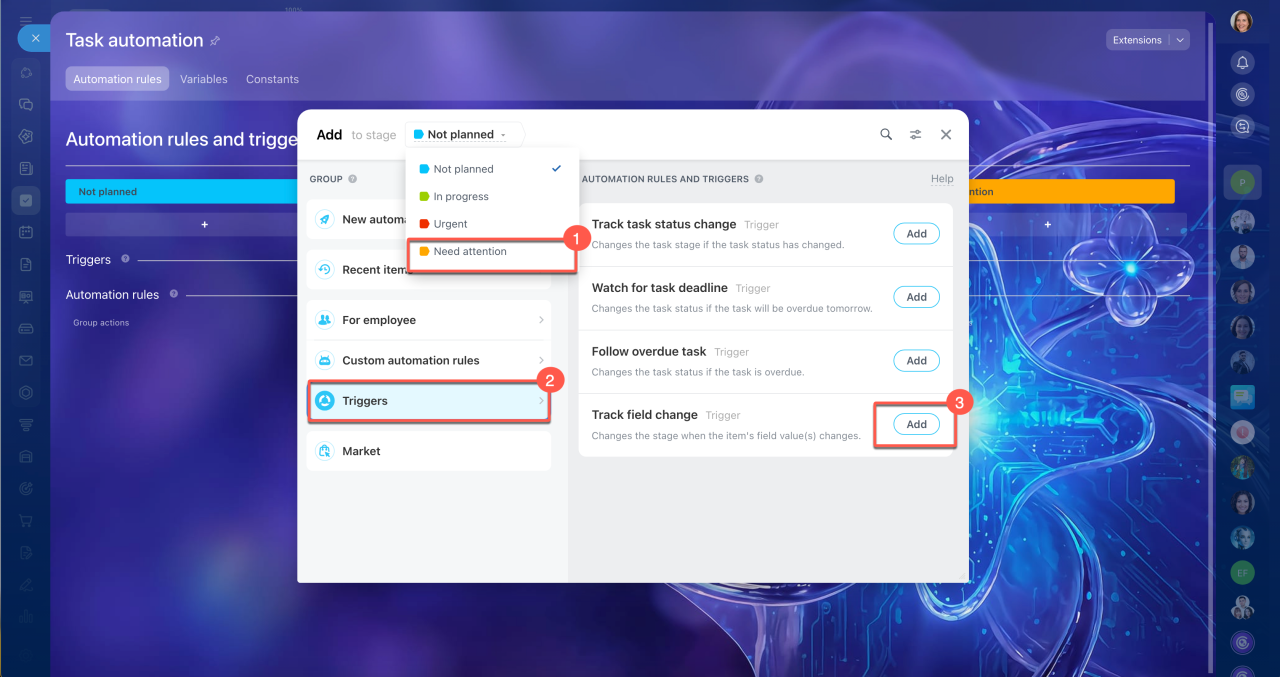
1–3. Select the Needs attention stage, find the Track field change trigger in the Triggers section, and click Add.
4–5. In the Track fields field, click Select fields and select Description.
6. Save the trigger settings.
7. Click Save. When a task description changes, the trigger moves the task to the Needs attention stage.

In brief
- Automation rules and triggers help you automate task management, assign tasks to the right employees, and keep track of deadlines.
- Triggers monitor changes, such as approaching deadlines or task status changes, and move tasks to another stage.
- Automation rules perform actions when tasks reach a specific stage, such as sending notifications, creating tasks, or adding participants.
- For example, when less than one day remains before a task's deadline, a trigger moves it to the Urgent stage, and an automation rule notifies the task creator.
- To configure automation, go to Tasks > Automation rules.
- You can set up automation for project tasks, personal tasks, or task statuses.
- Automation rules and triggers have both common settings and settings specific to each action or event.
- For automation rules, set the execution order, timing, and conditions.
- For triggers, set conditions and choose whether they can move tasks to previous stages.