
CRM search helps you quickly find deals, contacts, companies, and other items. For example, you can find all deals assigned to a specific manager.
In this article:
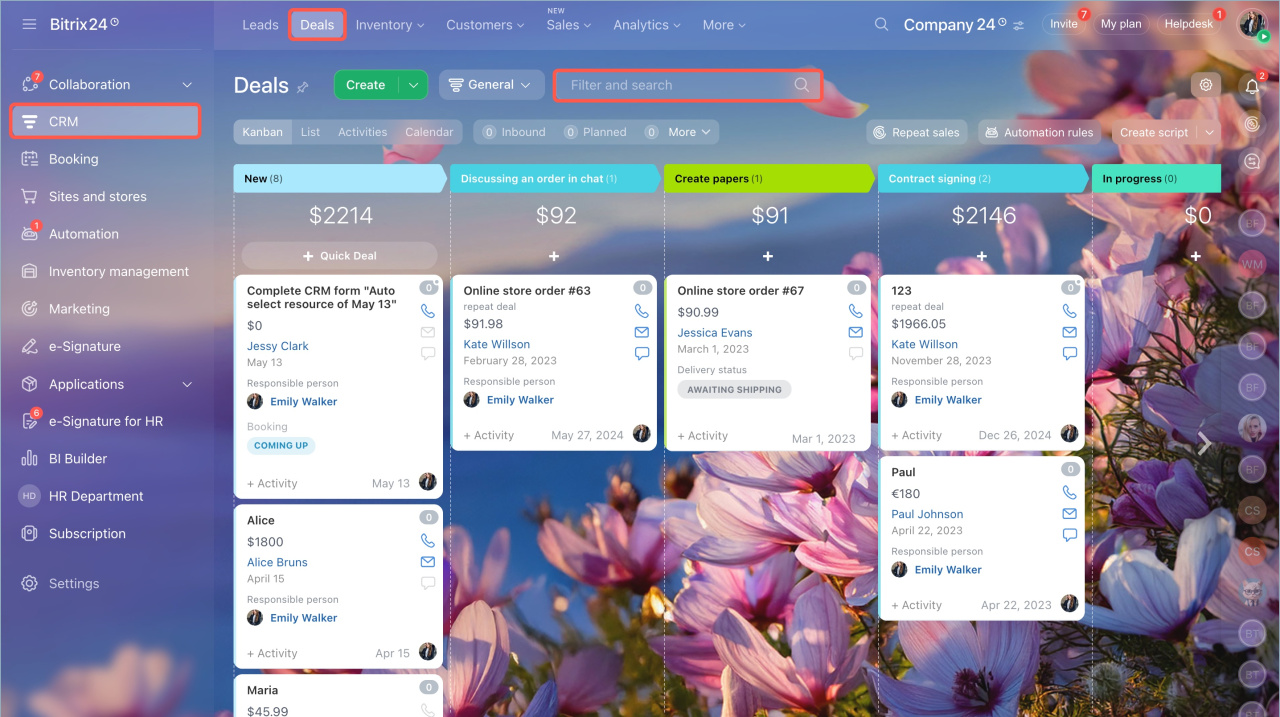
- Go to the CRM section and select the CRM item, such as deals.
- Click Filter and search, then enter a search value. If you leave the field empty, CRM shows all items.
How search works
Search looks only at fields in the CRM item form. It does not search activities or timeline comments.
You can search:
Search by field value
CRM checks all fields in the item form.
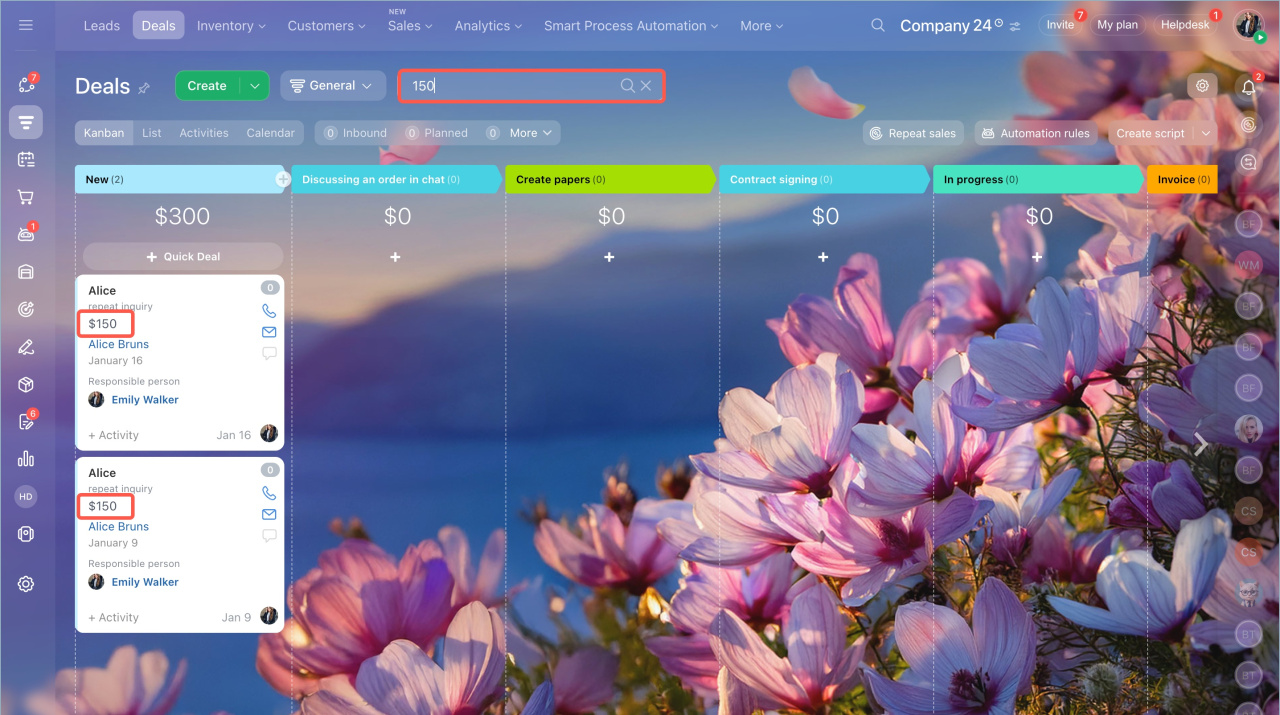
Search by numbers. Enter a number, such as 150, to find all items that include it.
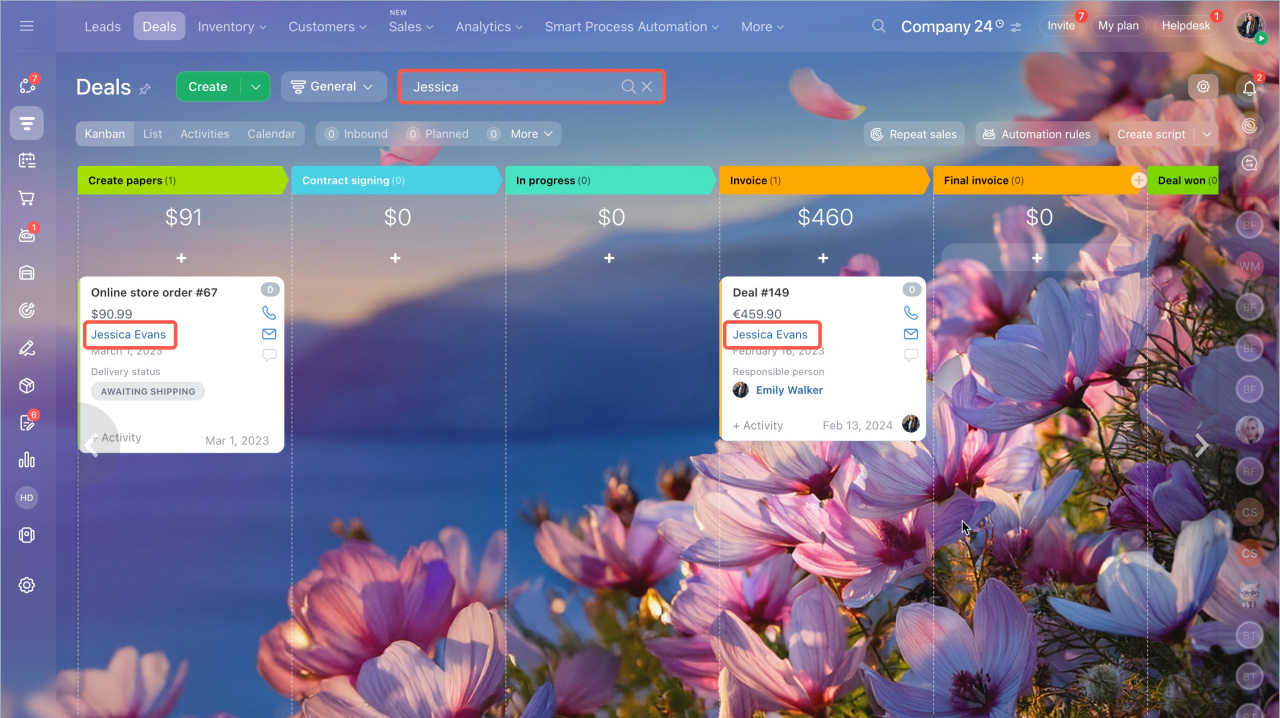
Search by name. Enter a name, such as “Jessica,” to find items:
- Assigned to a user with that name
- With that name in the title
- With that name in any field
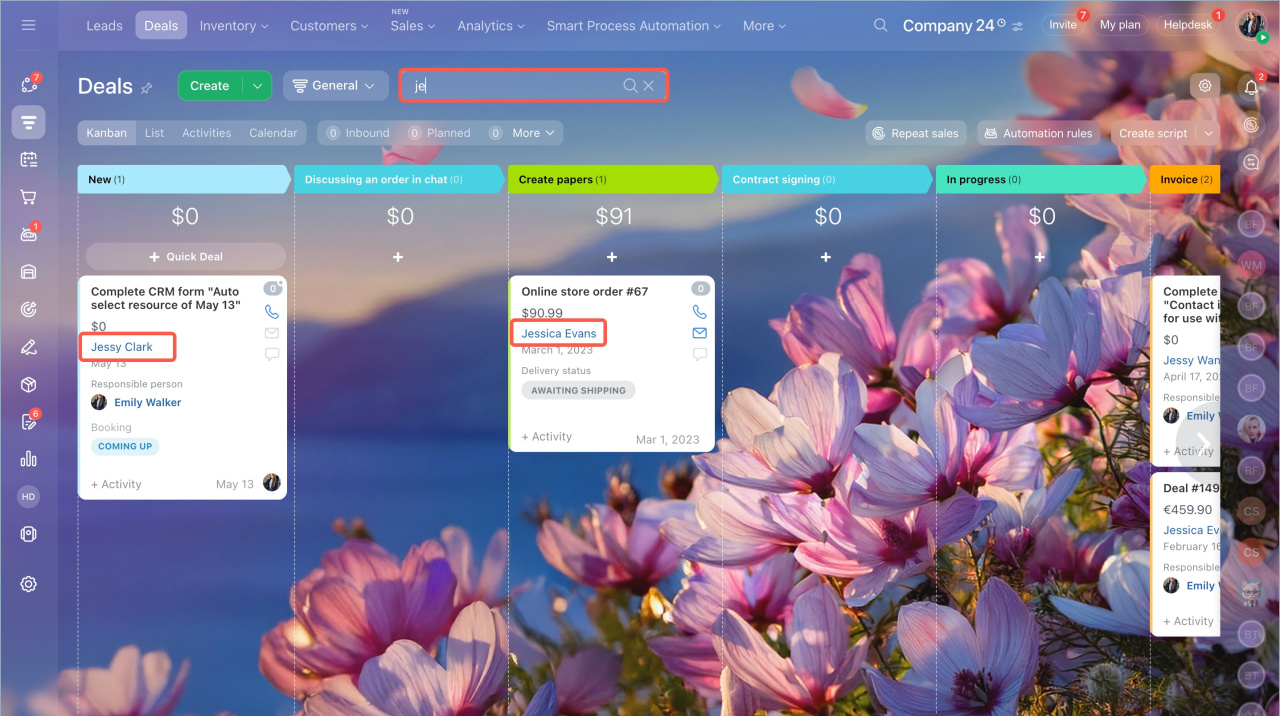
Search by word or part of a word. Enter part of a word, such as “je,” to find matches.
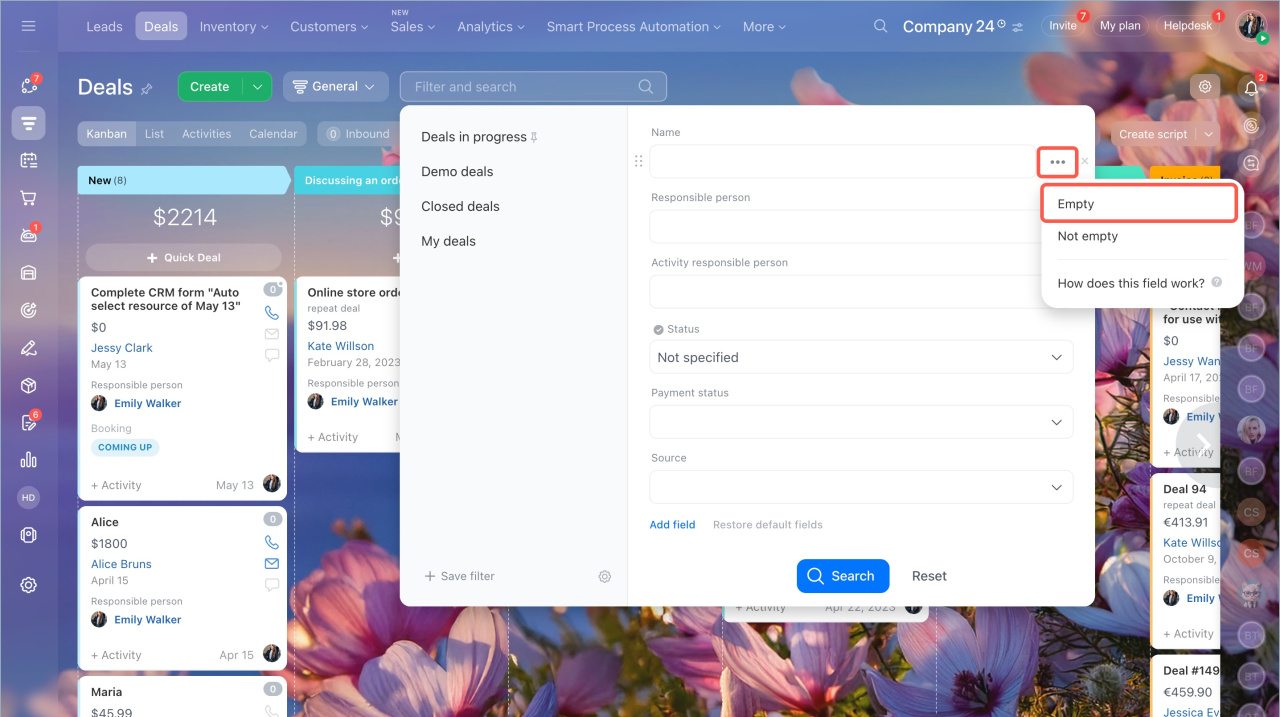
Search by filled or empty fields
You can find items based on whether a field has a value.
To use it:
- Select a field in the filter.
- Click Three dots (...).
- Choose Empty or Not empty.
Search using filters
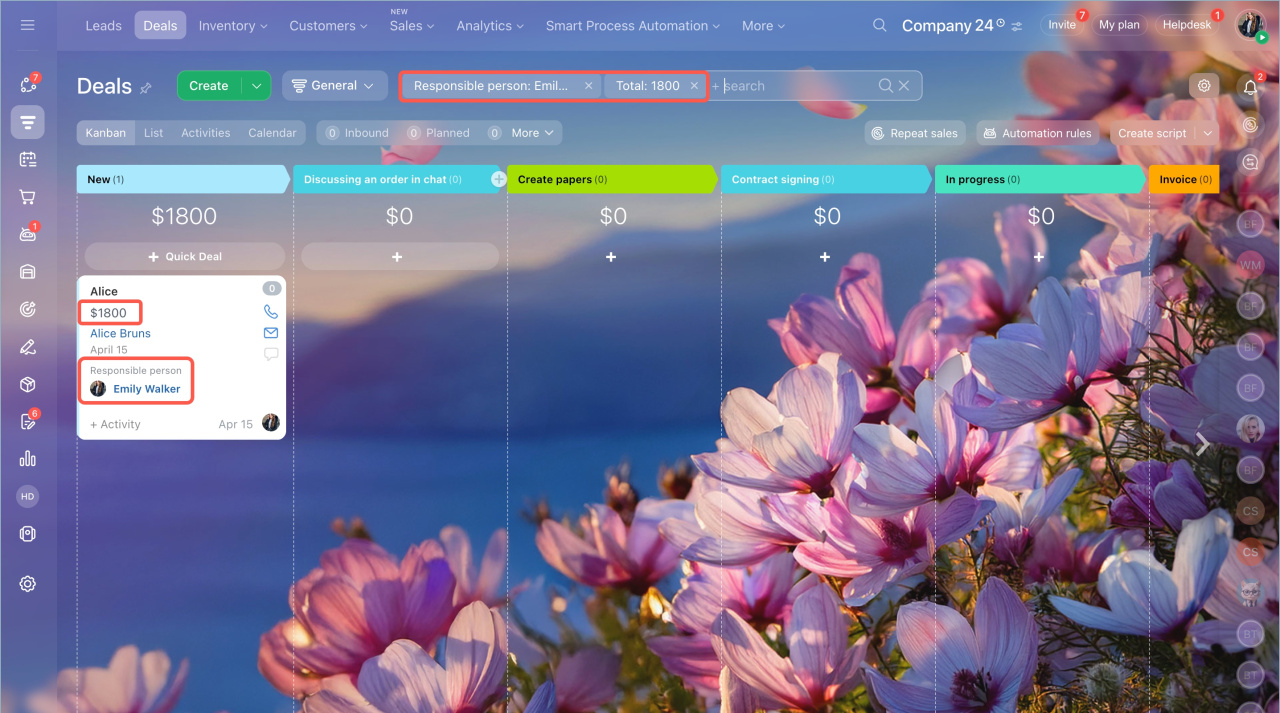
Filters help you find items faster. For example, you can find all deals assigned to a specific manager.
You can enter part of a value in a field. CRM will return all matching items.
Save filters
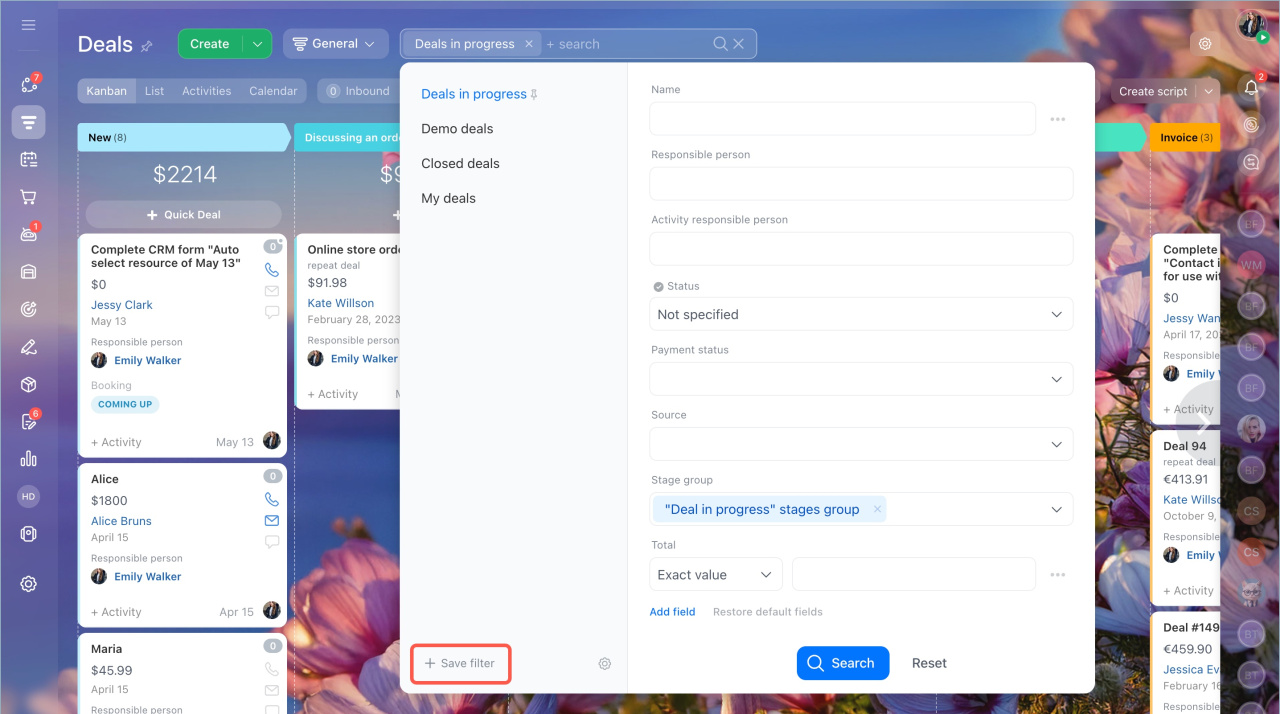
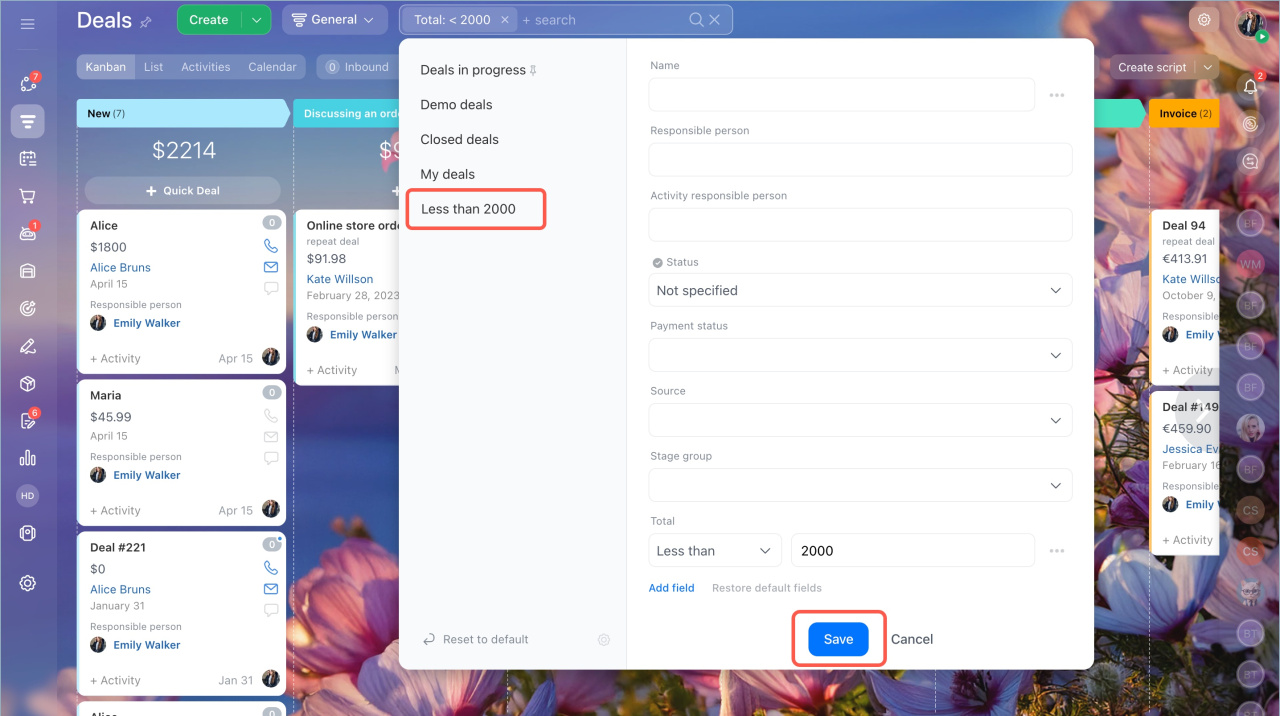
Save filters you use often.
- Click Filter and search.
- Set the fields and values.
- Click Save filter.
- Enter a name and click Save.
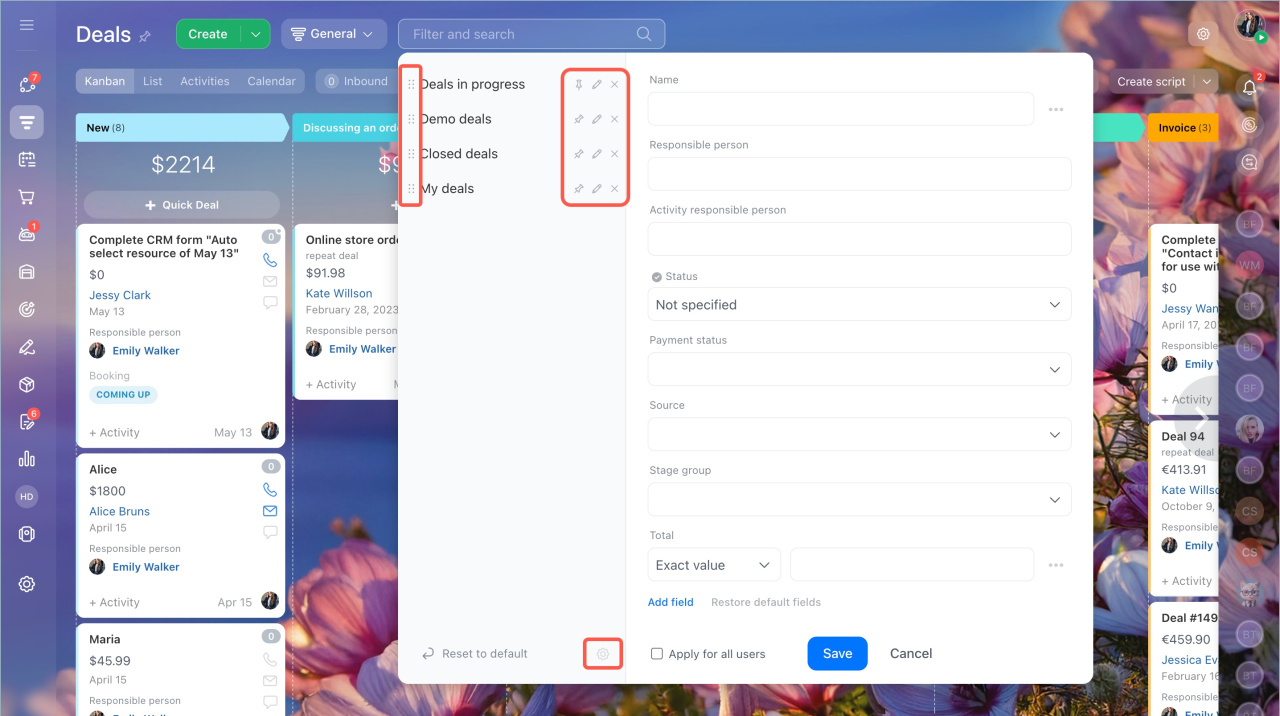
Open Settings (⚙️) next to a filter and choose an action:
 — move the filter in the list
 — set as the default filter
 — edit the filter
 — delete the filter
In brief
- CRM search helps you find items quickly.
- The number of searchable items depends on your plan.
- Search works only in item fields, not in activities or comments.
- You can search by values or by whether fields are filled.
- You can save filters for repeated use.