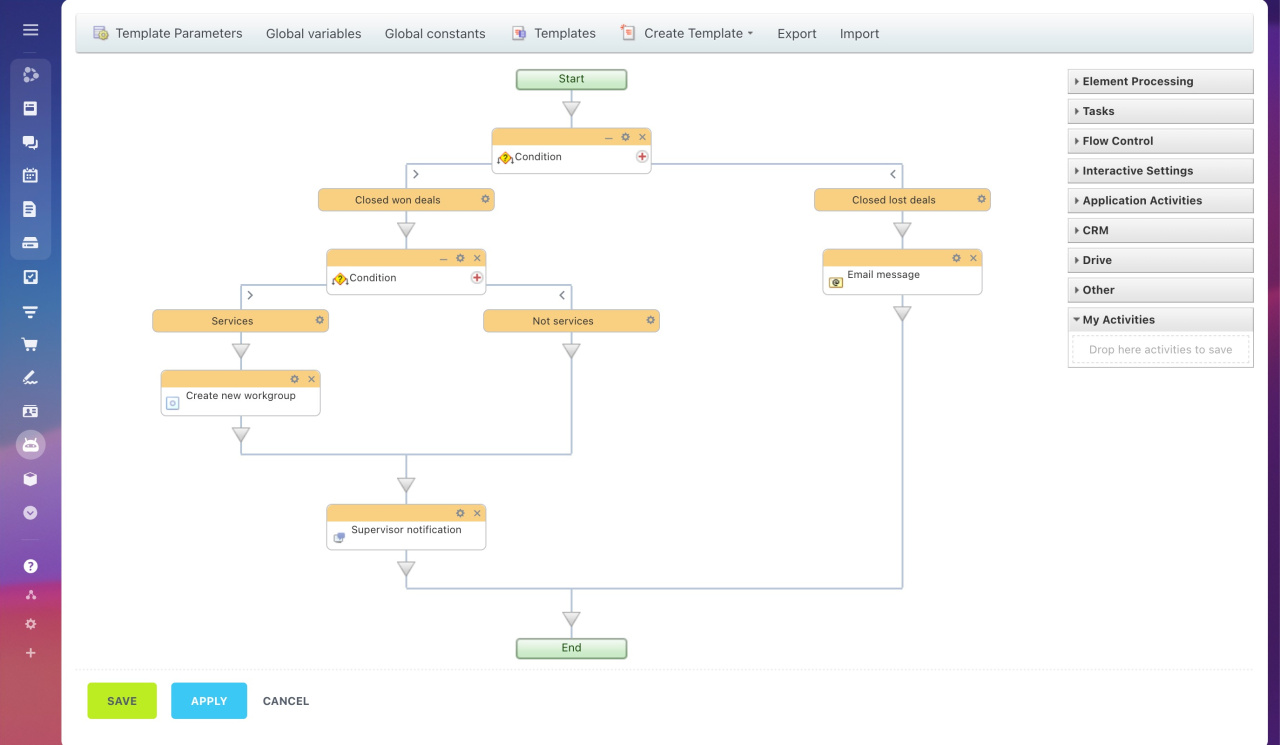
Closing a deal is a key step in your sales process. After a deal is completed, you may need to trigger follow-up actions. Use workflows to automate these steps.
Example scenario:
When a deal reaches its final stage:
- Create a new workgroup if the deal type matches specific criteria.
- Notify the supervisor when a deal is closed as won.
- Send an email to the supervisor when a deal is closed as lost.
Bitrix24 pricing page
Create a workflow template
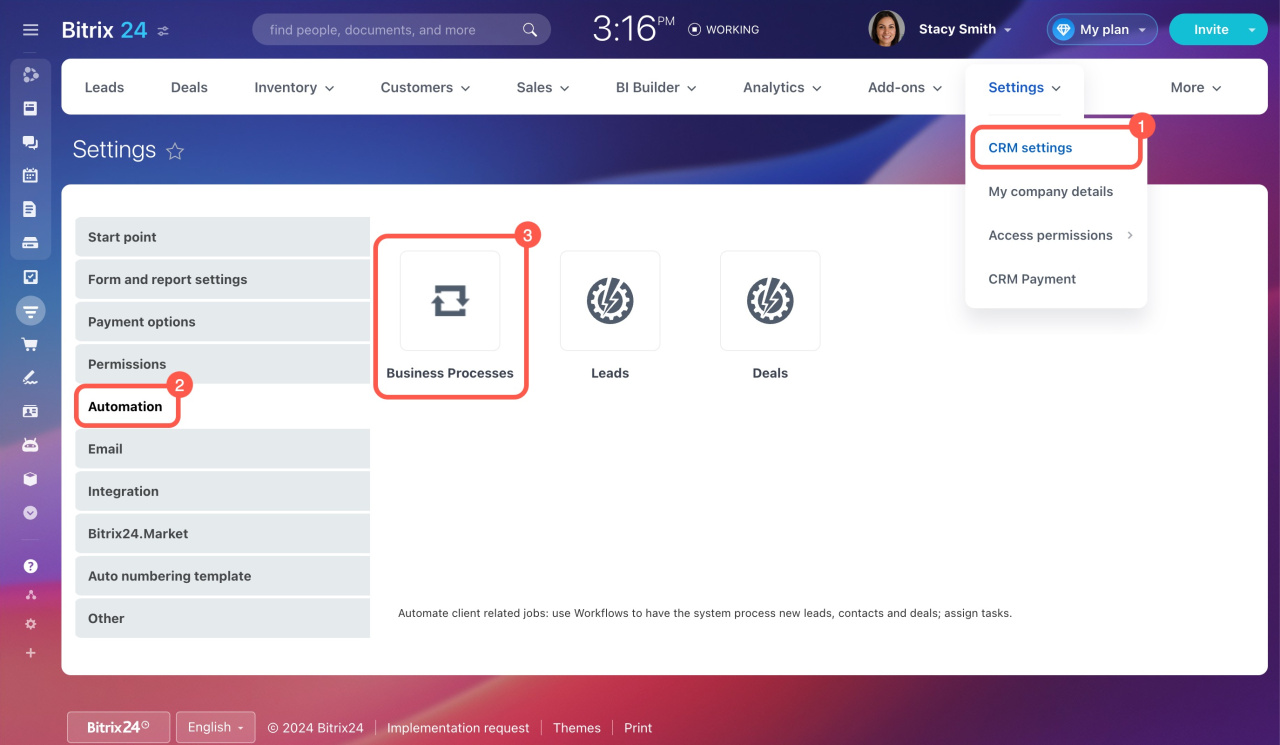
- Go to CRM > Settings > CRM settings.
- Open the Automation tab.
- Select Business Processes.
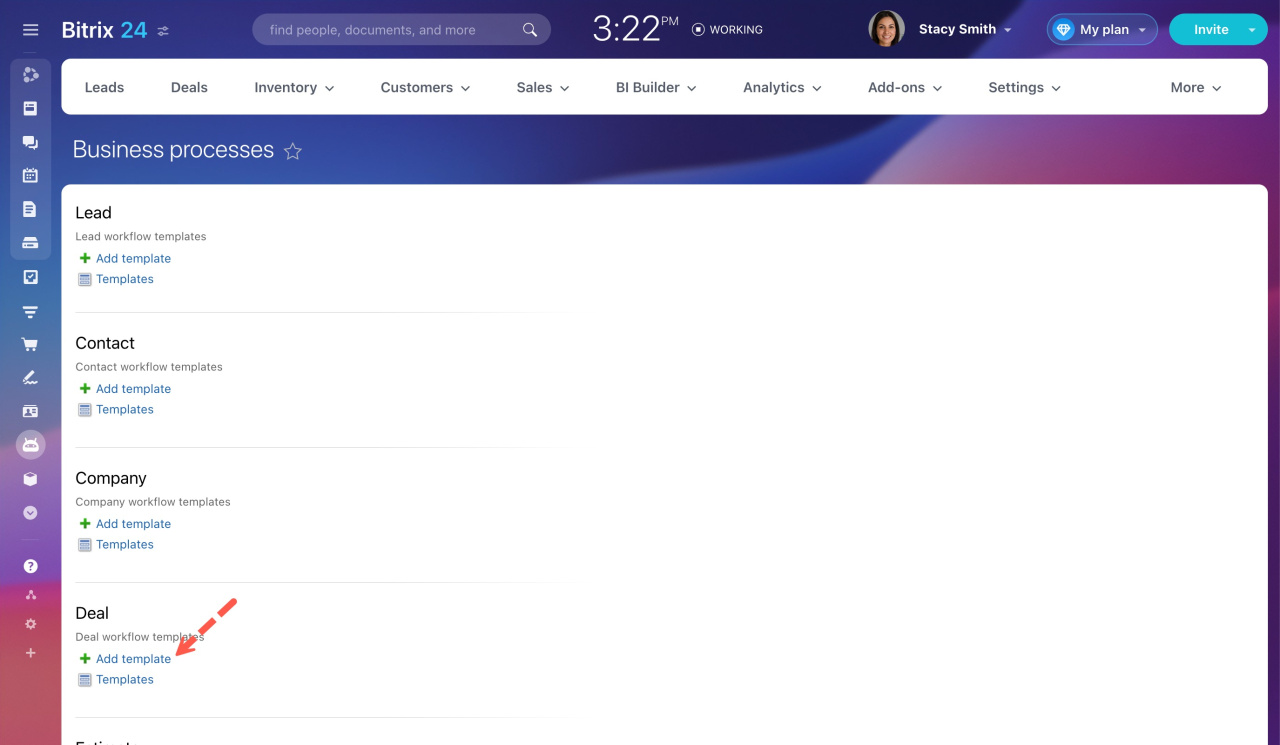
- Click Add template under Deal.
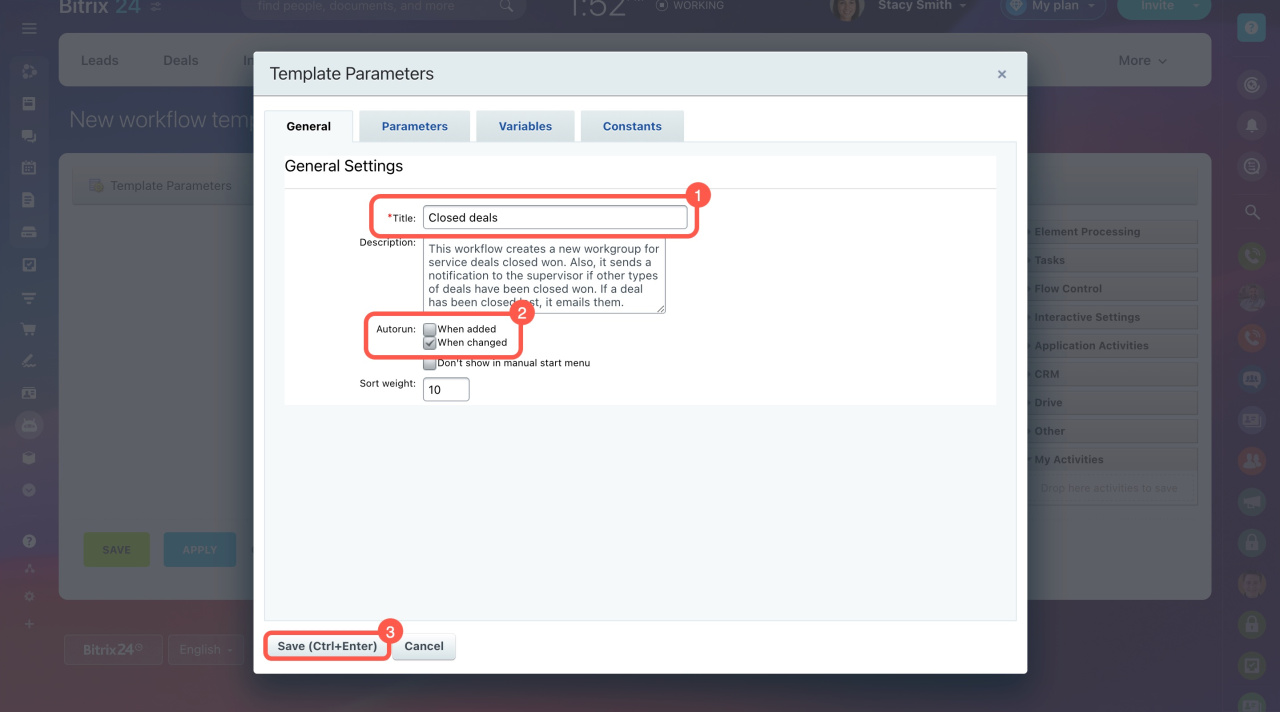
In the workflow designer:
- Enter a template name.
- Set it to run on change.
- Click Save.
Now build your workflow.
Step 1. Add conditions
Add a Condition activity to filter deals by final stage.
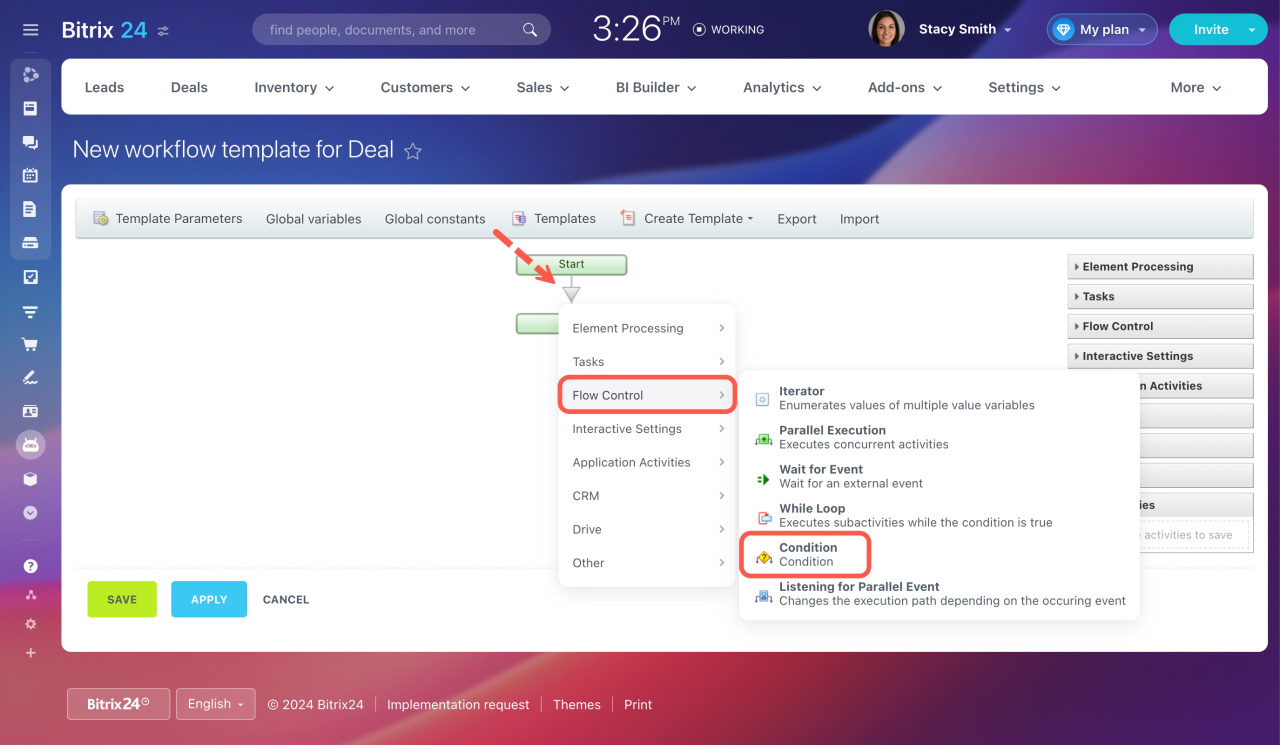
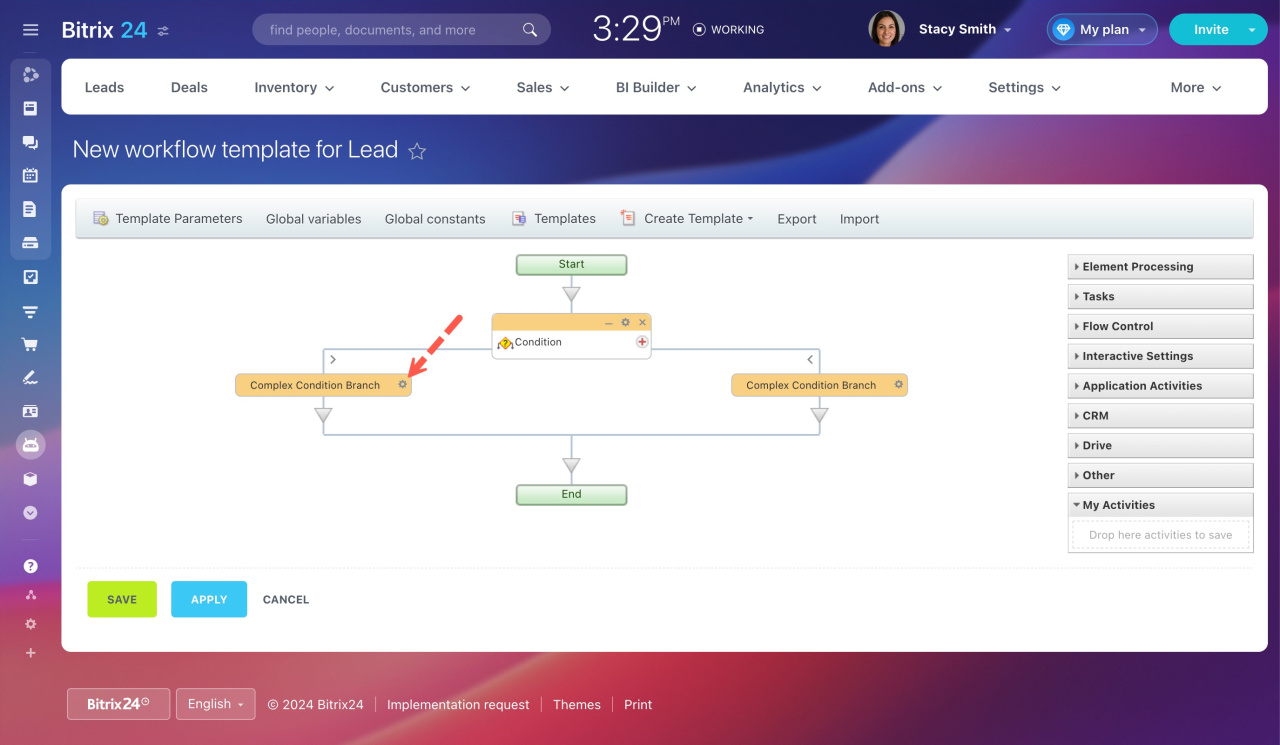
- Open the condition settings (gear icon).
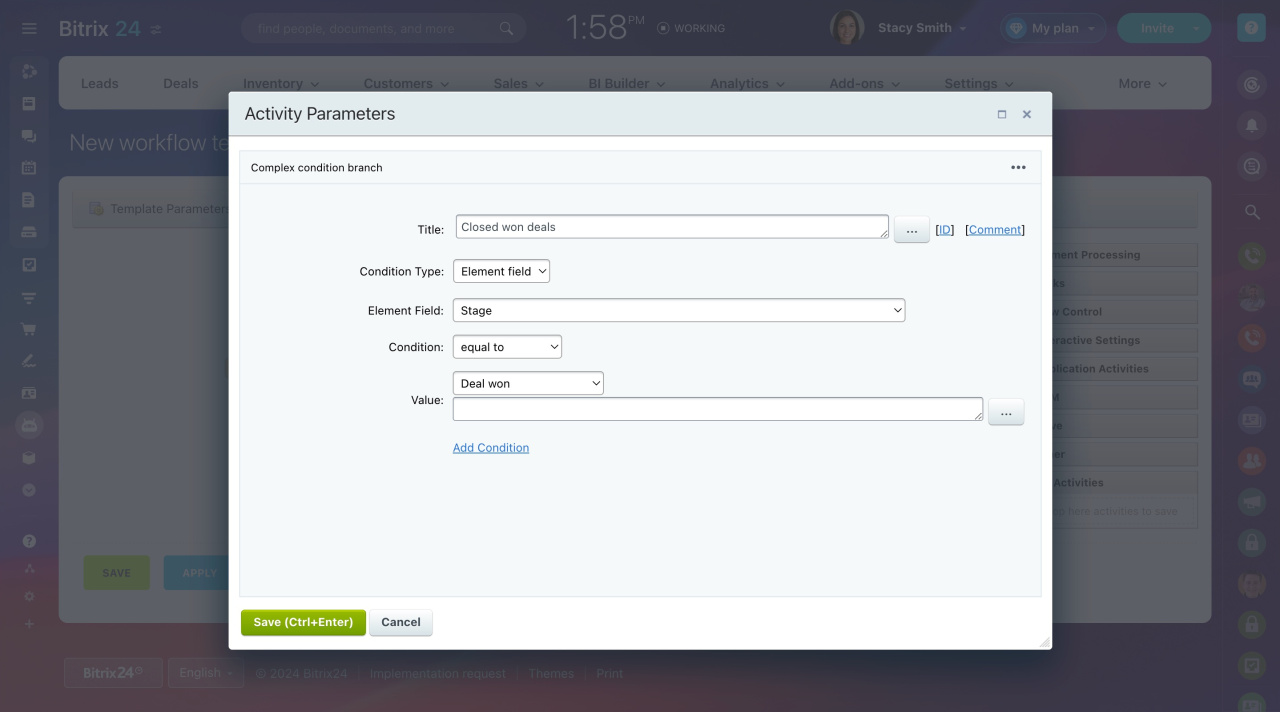
- Configure the fields:
- Condition Type: Element field
- Element Field: Stage
- Condition: Equal to
- Value: Deal won or Deal lost
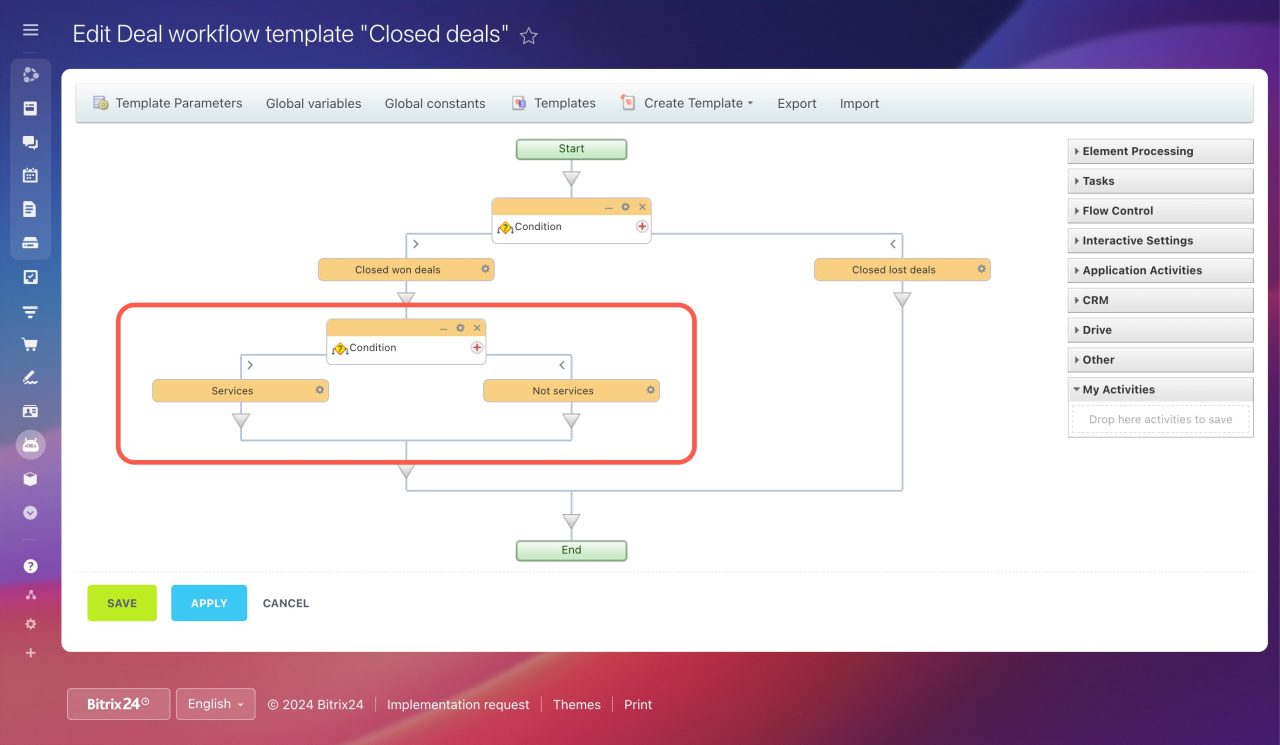
Next, split closed-won deals into two branches:
- Add another condition under Deal won.
- Rename branches to Services and Not services.
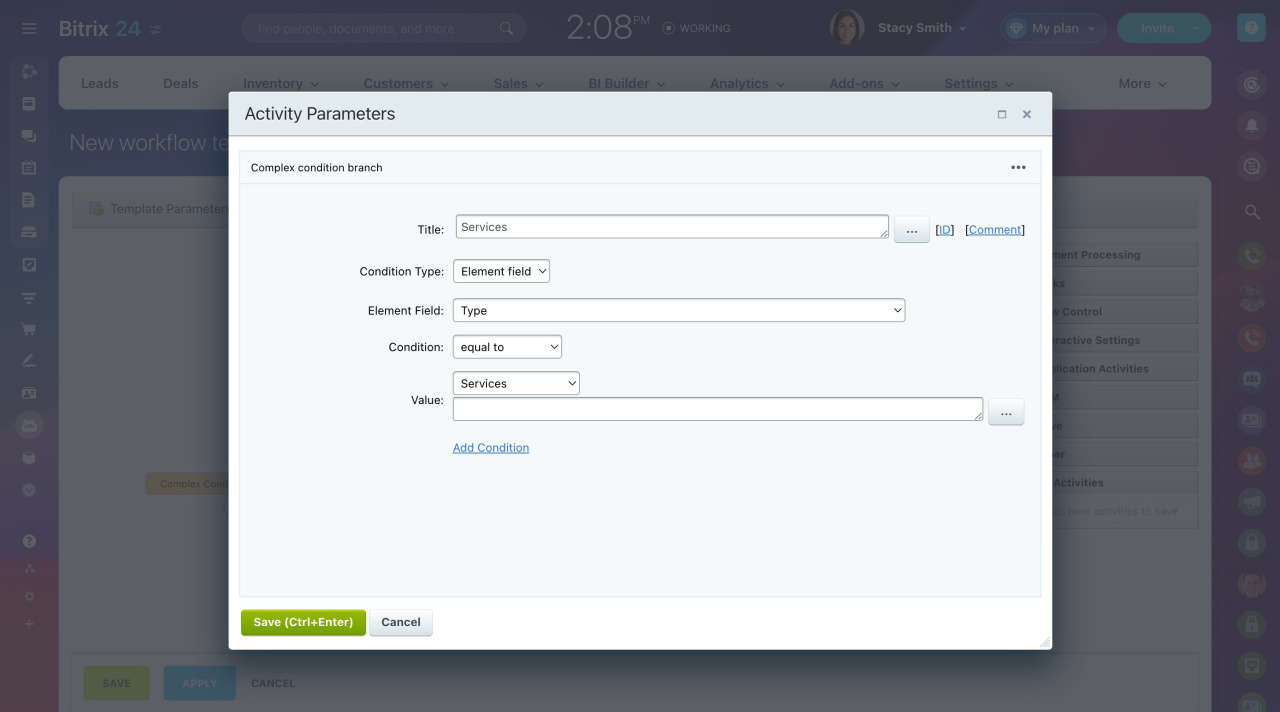
Configure the Services condition branch:
- In Element Field, select Type.
- Set the Condition to Equal to.
- Set the Value to Services.
Create another condition branch the same way. The only change:
- Set the condition to Not equal to.
Statuses and dropdowns
Step 2. Create a workgroup automatically
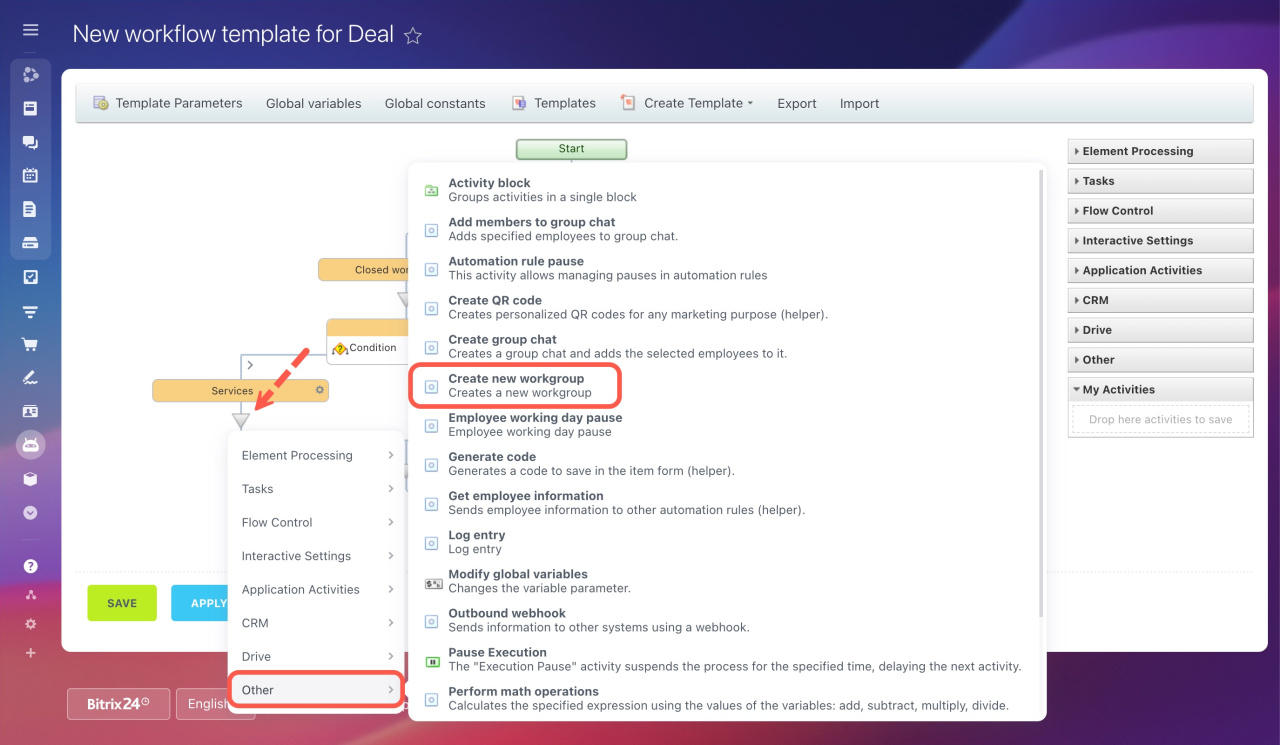
After sorting won deals with the services type, let's set the process to automatically create a new workgroup for such deals. Add the Create new workgroup activity.
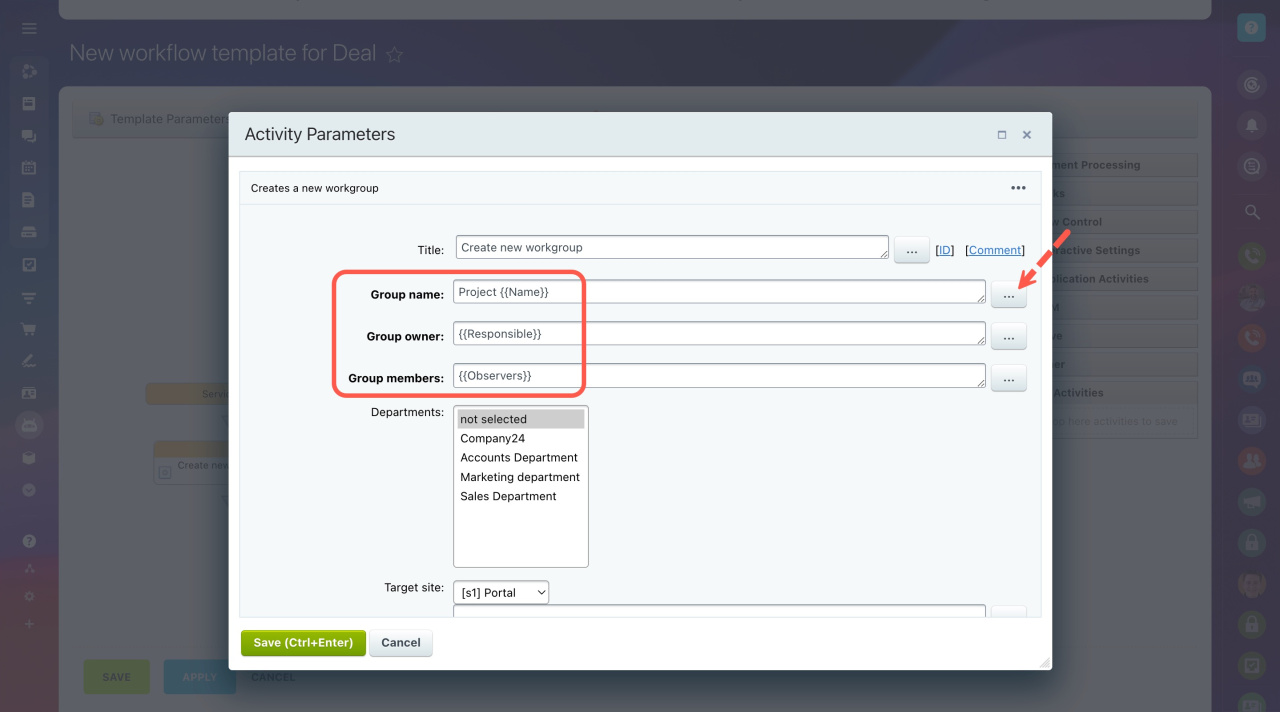
Configure the new workgroup activity parameters.
-
Group name: Set the group name. For example, you can add the deal name to the workgroup name.
-
Group owner: Select a user who will manage the group. For example, assign the deal responsible manager as an owner.
-
Group members: Select involved users as the workgroup members.
Step 3. Send notifications
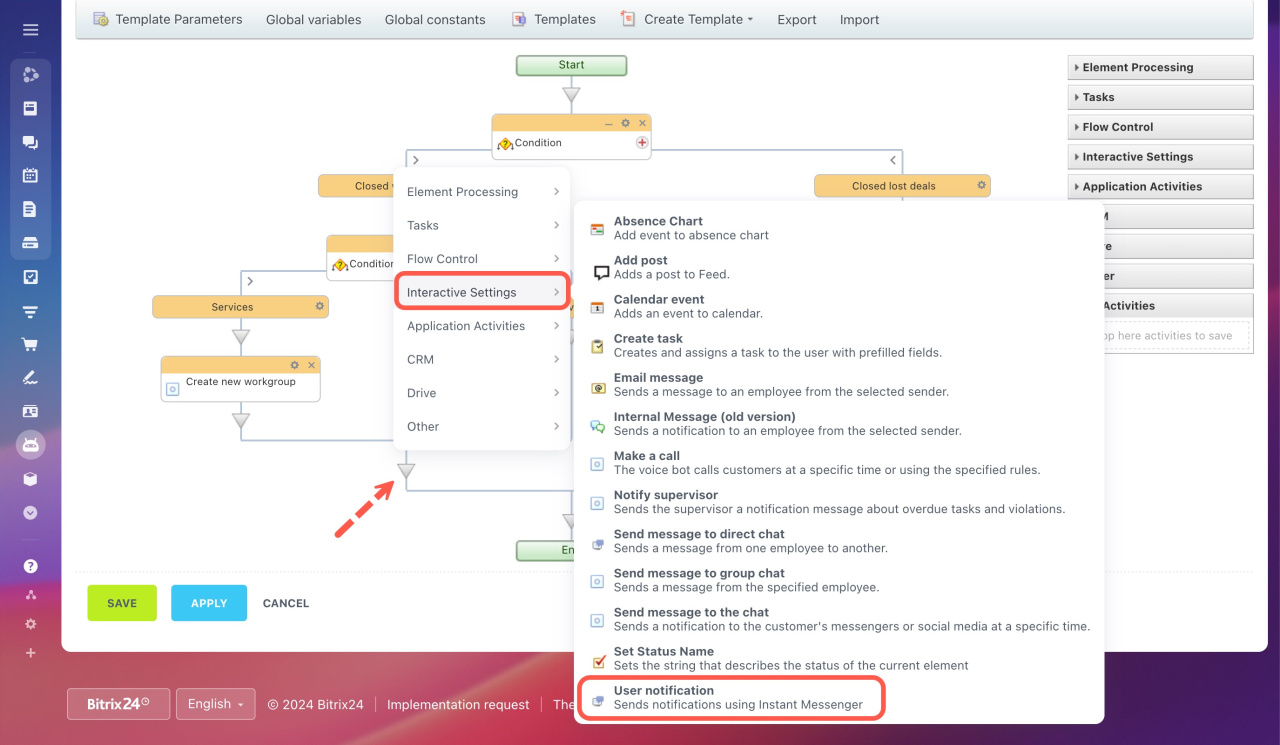
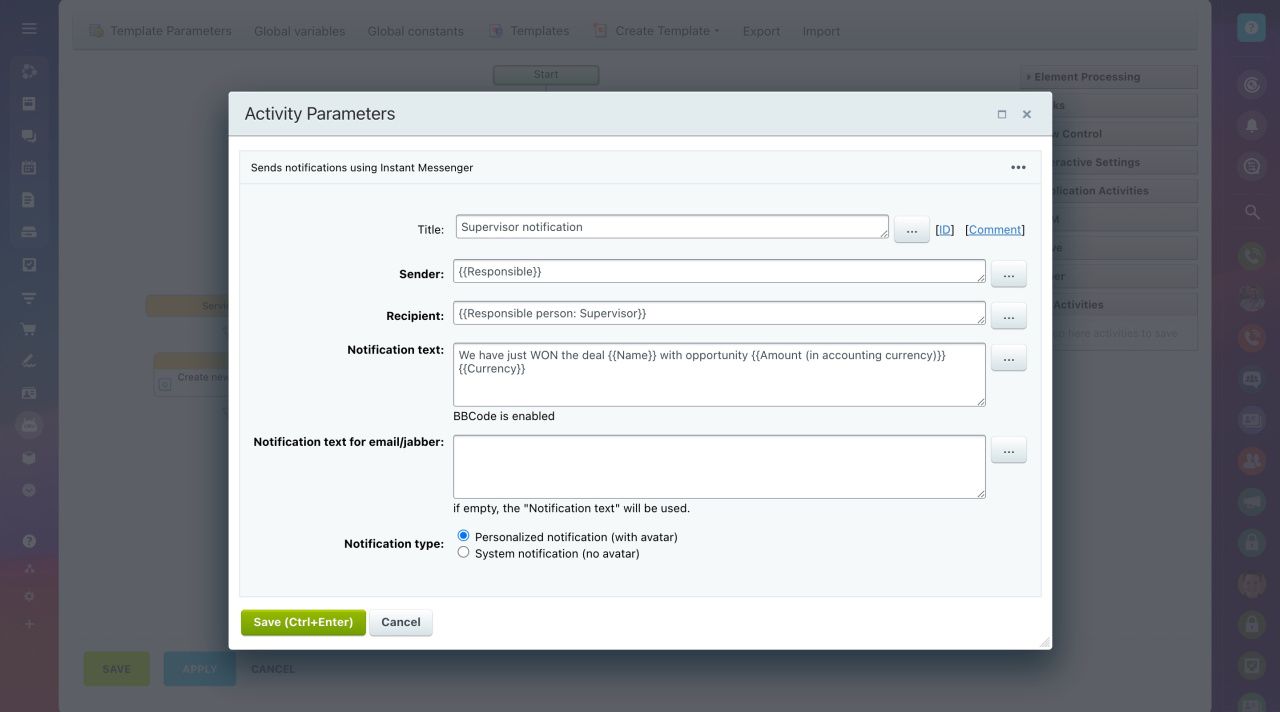
Suppose that the supervisor would like to receive notifications about all closed won deals. For this, add the User notification activity to the flow.
Configure the notification activity parameters:
-
Title: Rename the activity if needed.
-
Sender: Select a particular employee or deal responsible user.
-
Recipient: Use the special macros to select the responsible person's supervisor.
-
Notification text: Enter your text and add deal details to the message, such as deal name, opportunity, currency, etc.
-
Type: Decide if you want a notification to be personalized or not.
Step 4. Send emails for lost deals
It's time to return to the deals closed as lost. We indicated them in the upper condition.
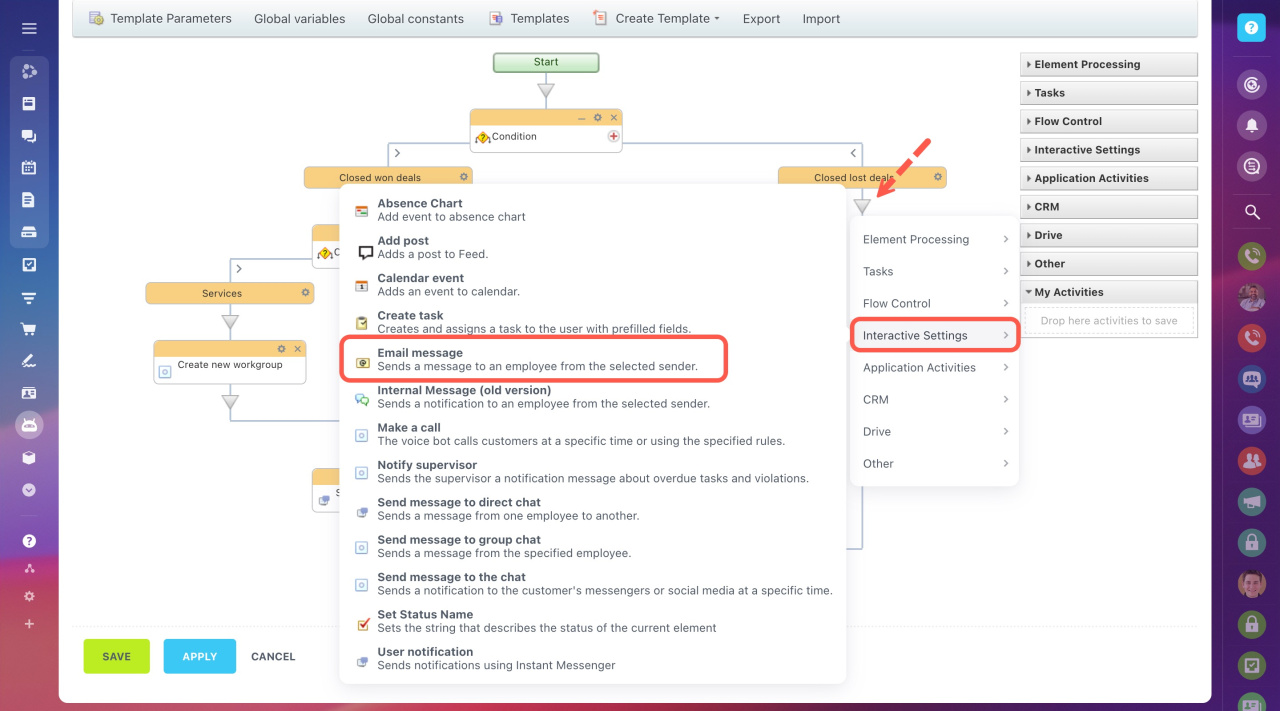
Add the activity that will email particular users. The purpose of the email is to notify them that the deal was not successful. It also contains deal details and a direct link to it. For that, add the Email message activity under the Closed lost deals condition branch.
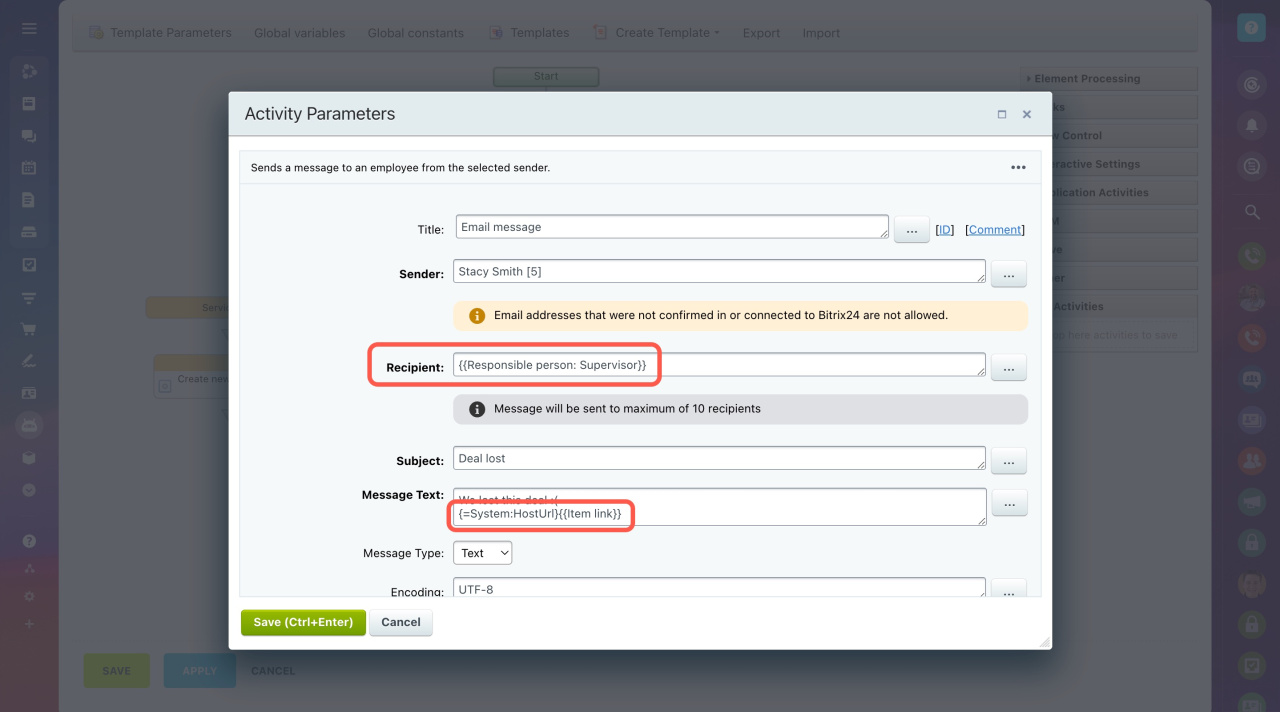
Configure the activity parameters:
-
Title: Rename the activity if needed.
-
Sender: Select a particular employee or user responsible for the deal.
-
Recipient: Use the special macros to select the responsible person's supervisor.
-
Email subject: You can add the deal name or other details to the subject.
-
Email message text: Enter your text and add deal details to the message. To add the direct link to it, use this combination of macros:
{=System:HostUrl}{{Item link}}
{=System:HostUrl} is replaced with your Bitrix24 account URL. {{Item link}} leads to the CRM entity for which the workflow is run.
Find other examples of using macros
Finish setup
Save the workflow template. The system will run all configured actions automatically based on the deal outcome.