
Date filters on the dashboard help select and analyze data for specific periods. Properly configured filters in an SQL query can speed up dashboard performance and limit data selection, which helps prevent exceeding BI Builder limits.
Bitrix24 plans: Rows per data table
In this article:
Filter data in a query
Query filters let you extract only the data you need from Bitrix24. For example, you can see how many deals were created over two years without loading all records.
To add a date range to a query:
- Open BI Builder and go to SQL > SQL Lab.
- Select the bitrix24 schema.
- Enter your SQL query, add a date filter, and click Run.
BI Builder runs the query with the filter and returns data only for the selected period. This improves dashboard performance and helps you avoid limits. You can save the query as a dataset and use it to build charts.
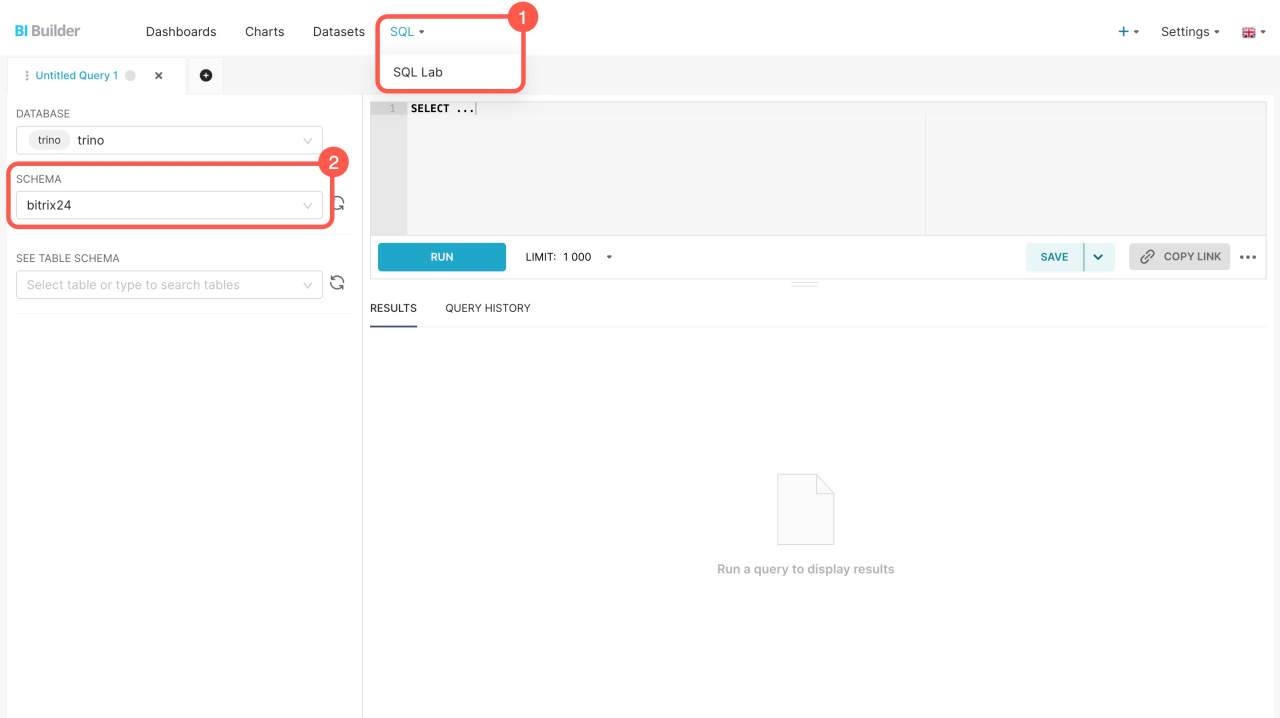
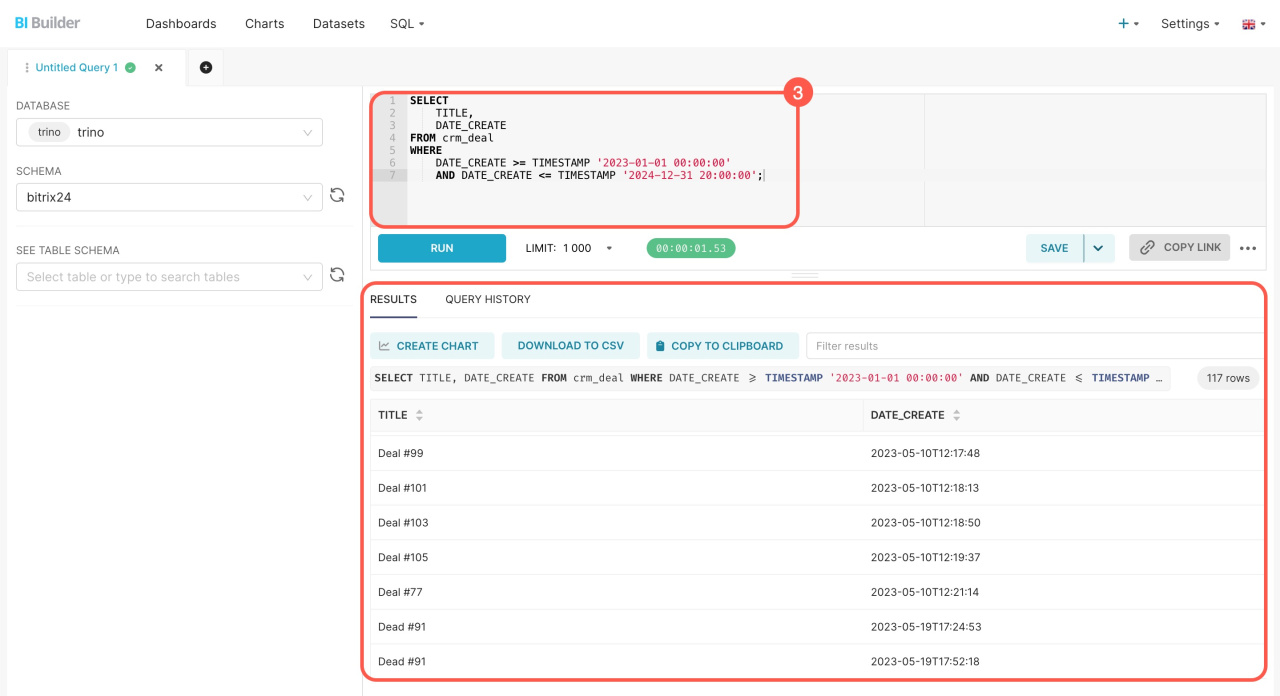
If this is your first time using filters, check the sample query below.
SQL query example
Here's an SQL query with a filter to extract deal names from the dataset (crm_deal). The filter selects data for a specific period based on the creation date. This is helpful if you want to see how many deals appeared over two years without loading all the data.
You can copy it and see how it works. Replace the dates with the ones you need and select only the necessary fields before running the query to enhance its speed.
SELECT TITLE, DATE_CREATE FROM crm_deal WHERE DATE_CREATE >= TIMESTAMP '2023-01-01 00:00:00' AND DATE_CREATE <= TIMESTAMP '2024-12-31 20:00:00';
The WHERE operator filters the data to include only deals from the last two years:
- DATE_CREATE >= TIMESTAMP '2023-01-01 00:00:00' sets the start of the date range, selecting all deals created from January 1, 2023, onward.
- DATE_CREATE <= TIMESTAMP '2024-12-31 20:00:00' sets the end of the date range, limiting the selection to December 31, 2024. Deals created in 2025 and later won't be included.
Query usage statistics in BI Builder
Dashboards use SQL queries to build charts. Faster queries mean faster dashboards. Use usage statistics to evaluate performance and adjust queries if needed.
To view statistics, go to BI Builder > Analytics hub > Usage statistics.
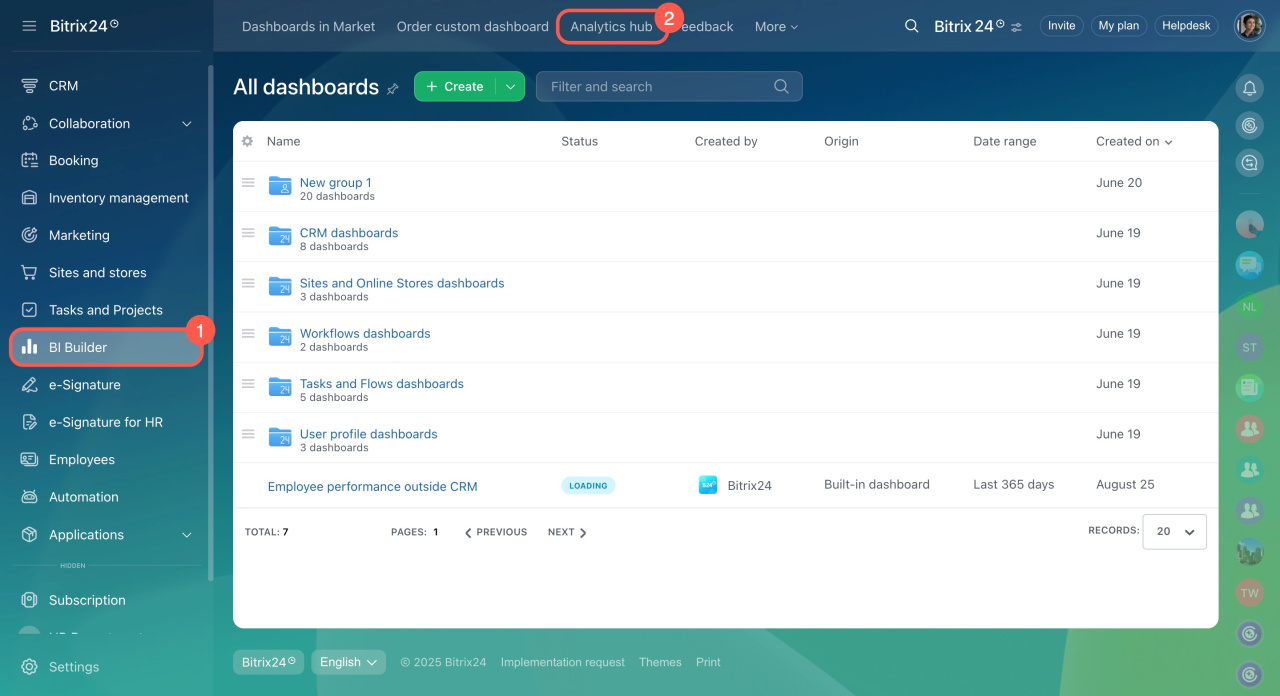
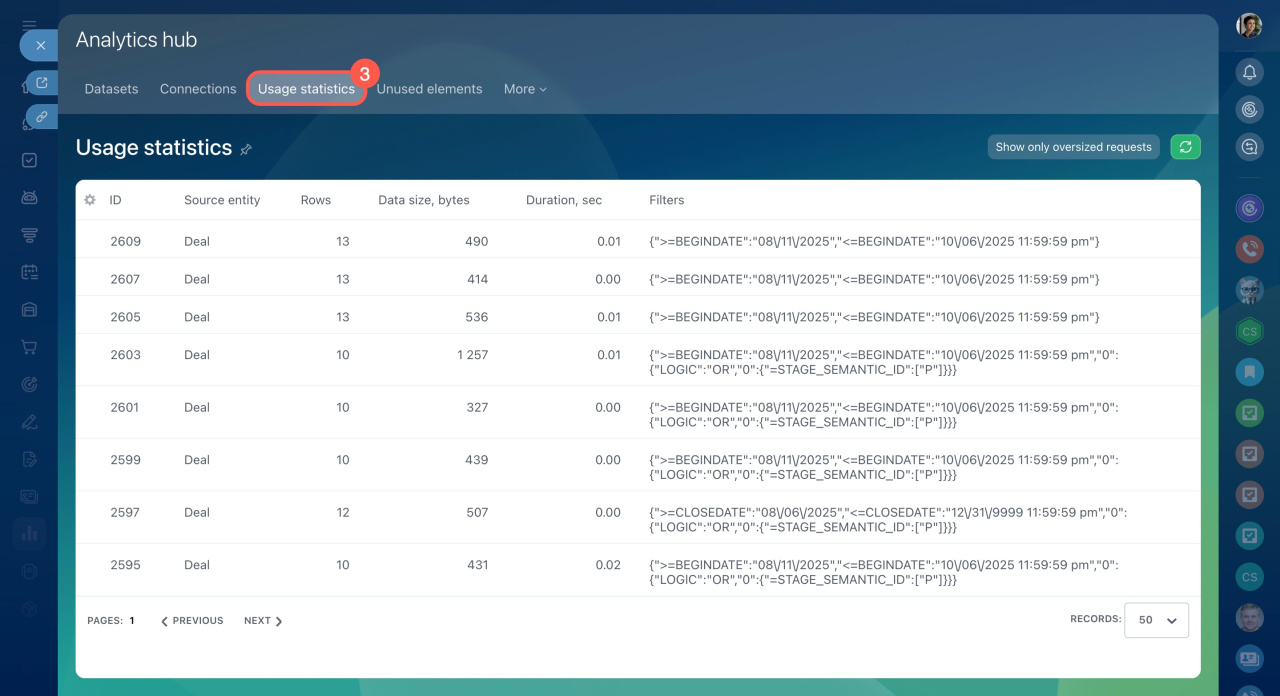
Check statistics regularly when you create dashboards or add charts. The table shows the number of rows, applied filters, and data volume.
For example, a query returned 1,036 rows and 32,312 bytes of data. It took 0.77 seconds, which is slower than other queries. No filters were applied, which likely caused the delay.
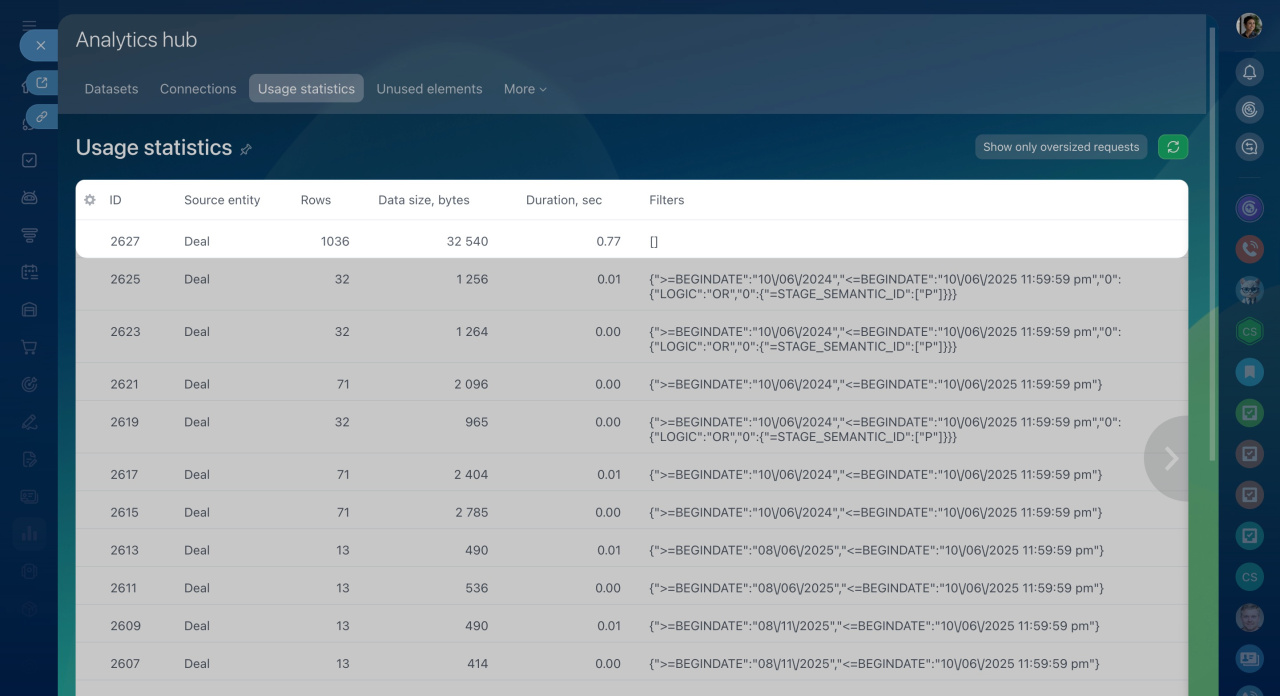
To improve performance, add a date filter. For example, to load only last year’s deals:
WHERE DATE_CREATE >= TIMESTAMP '2024-01-01 00:00:00'
Then check the Usage statistics section to compare performance.
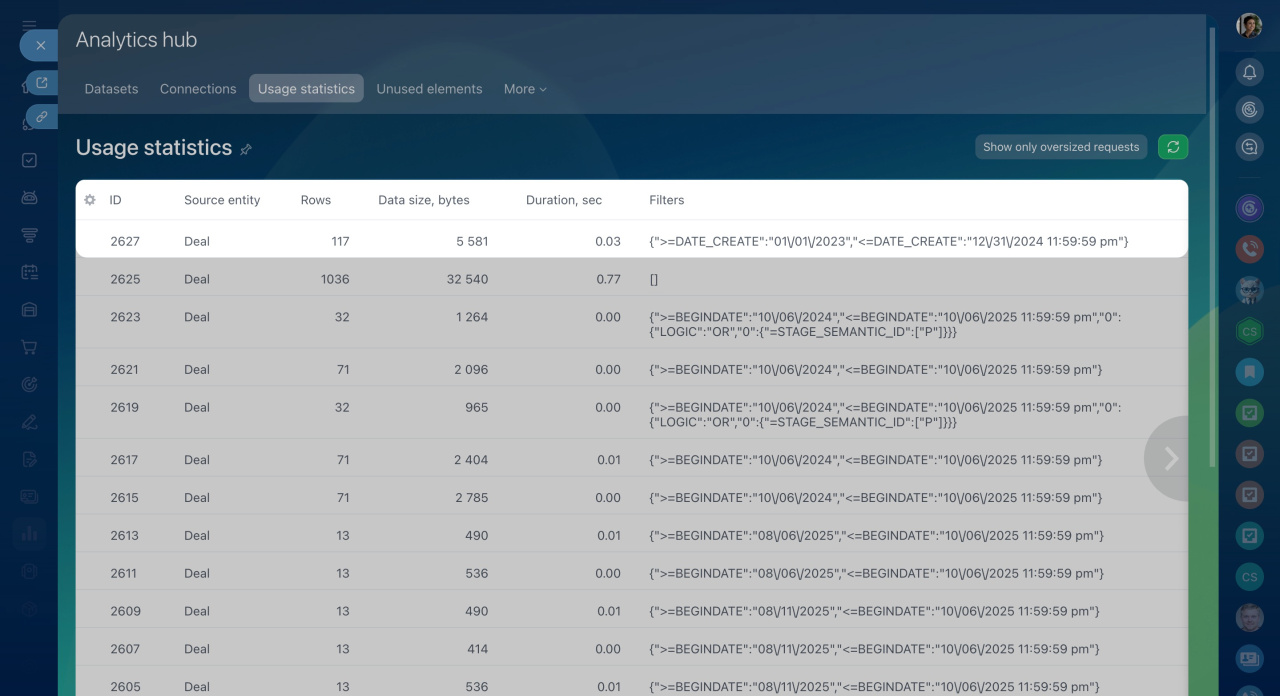 The filter reduced query time, rows, and data volume.
Date range filters in BI Builder
In BI Builder, you can use various filter options to optimize queries and improve dashboard performance. Let's explore three main date range filters and how they impact data selection.
Single date range. This filter selects data created within a specific time frame. It's useful for seeing how many deals appeared over two years without loading all the data at once.
SELECT /* Fields from the dataset */ FROM /* Dataset name */ WHERE DATE_CREATE > TIMESTAMP '2023-01-01 00:00:00' AND DATE_CREATE < TIMESTAMP '2024-12-31 23:59:59';
The filter quickly selects deals by the DATE_CREATE field, loading only the necessary data to speed up query execution. In the Usage statistics section, it appears as: {">=DATE_CREATE":"01\/01\/2023","<=DATE_CREATE":"12\/31\/2024 11:59:59 pm"}.
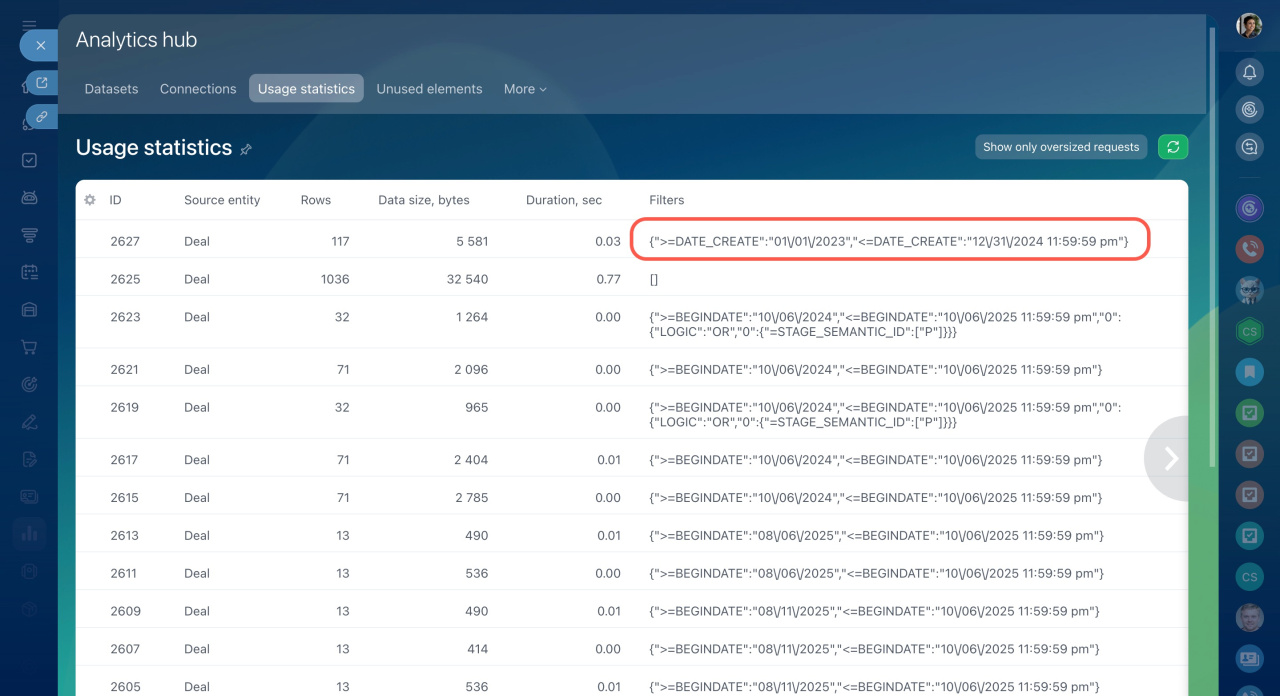
Overlapping date ranges. This filter selects data for two overlapping periods. It's useful for comparing two periods and considering overlapping data. For example, analyze deals for 2023 and from June 2023 to June 2025. The filter will select all deals created within these periods, including those that overlap.
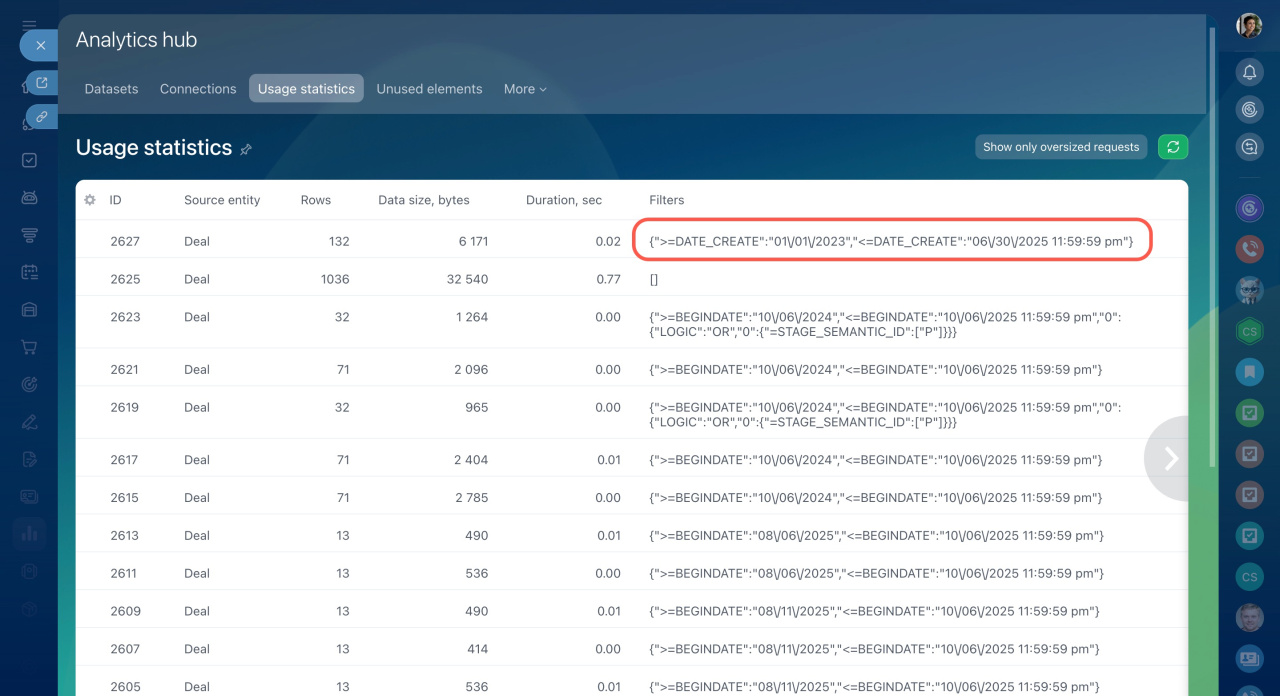
SELECT /* Fields from the dataset */ FROM /* Dataset name */ WHERE (DATE_CREATE > TIMESTAMP '2023-01-01 00:00:00' AND DATE_CREATE < TIMESTAMP '2024-12-31 23:59:59') OR (DATE_CREATE > TIMESTAMP '2023-06-01 00:00:00' AND DATE_CREATE < TIMESTAMP '2025-06-30 23:59:59');
The filter combines the two periods into one overall range during query processing. This can increase the data volume. In the Usage statistics section, it appears as: {">=DATE_CREATE":"01\/01\/2023","<=DATE_CREATE":"06\/30\/2025 11:59:59 pm"}.
Two-date range filter. This filter selects data based on two date fields: DATE_CREATE and DATE_MODIFY. It's used to analyze deals created and modified within a specific timeframe.
SELECT /* Fields from the dataset */ FROM /* Dataset name */ WHERE DATE_MODIFY > TIMESTAMP '2023-01-01 00:00:00' AND DATE_MODIFY < TIMESTAMP '2024-12-31 23:59:59' AND DATE_CREATE > TIMESTAMP '2023-01-01 00:00:00' AND DATE_CREATE < TIMESTAMP '2024-12-31 23:59:59';
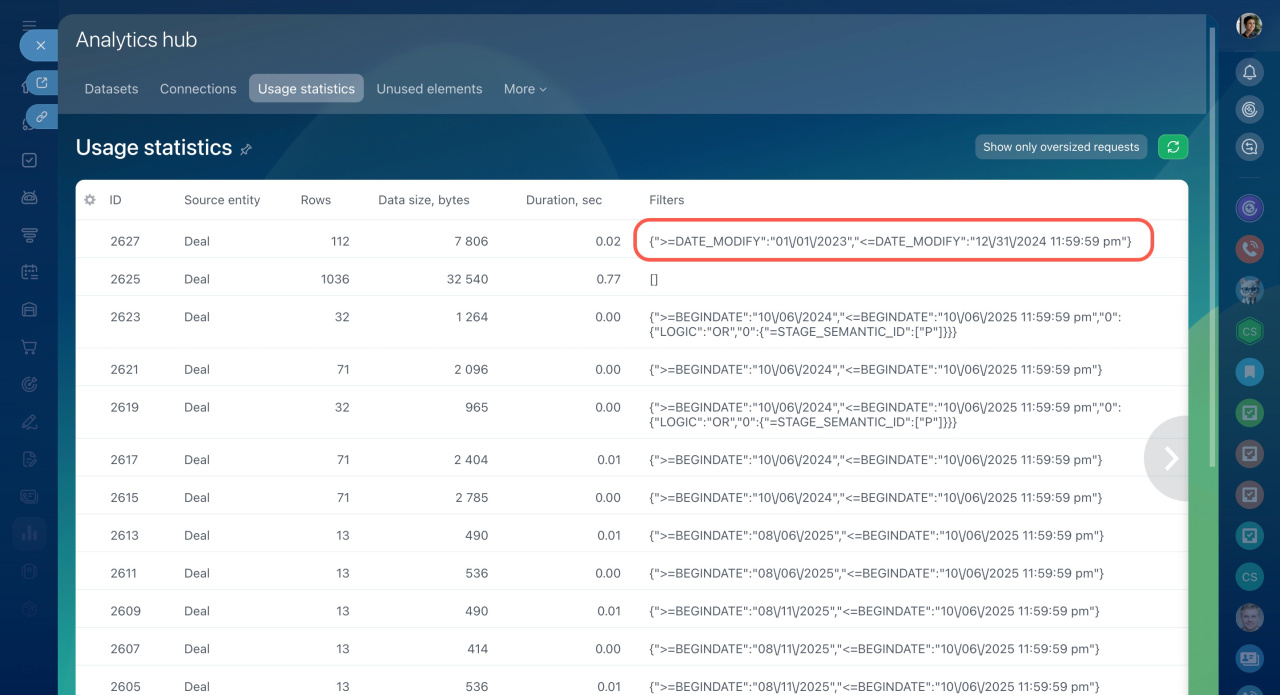
Filtering is done by the first date specified. To filter by another date, change the order of conditions in WHERE. In the Usage statistics section, it appears as: {">=DATE_MODIFY":"01\/01\/2023","<=DATE_MODIFY":"12\/31\/2024 11:59:59 pm"}.
In brief
-
Use filters in BI Builder to select data for specific periods and improve dashboard speed.
-
Check query performance in BI Builder > Analytics hub > Usage statistics.
-
Filters in SQL queries limit data volume and help you stay within limits. Create queries in SQL Lab, select the bitrix24 schema, add a date condition, and run the query.
-
BI Builder supports single-date, two-date, and overlapping date filters.