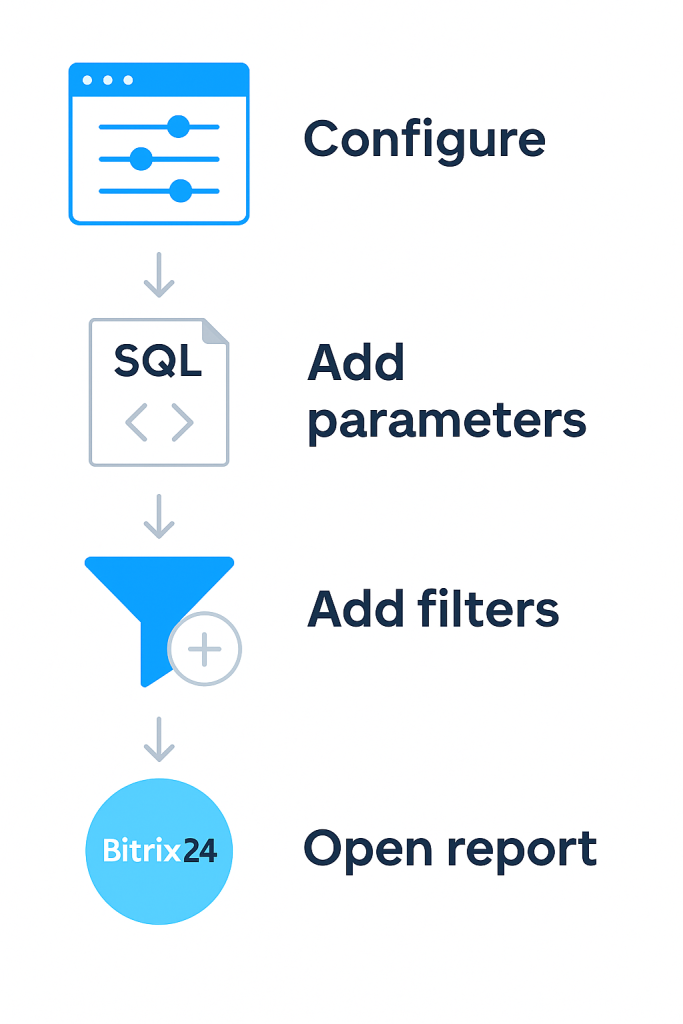
Use filters in BI Builder to analyze data by task flows or workflow templates. Filters help you focus on a specific flow or process.
Filters work with dashboard parameters. When you open a dashboard from a specific section, the filter applies automatically. For example, if you open a dashboard from a flow, it shows data only for that flow.
In this article:
Set up dashboard parameters
Before adding filters, configure parameters. Parameters connect the dashboard to the data.
Examples:
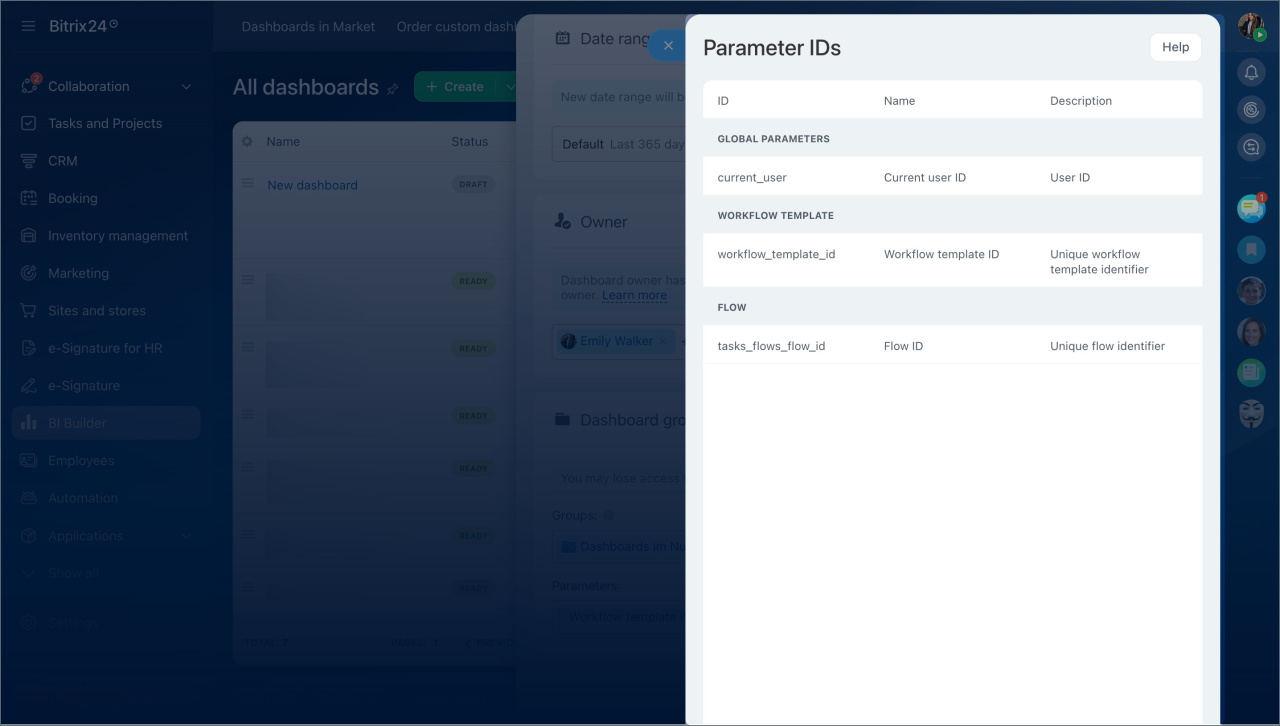
tasks_flows_flow_id— passes the task flow IDworkflow_template_id— passes the workflow template ID
To add parameters:
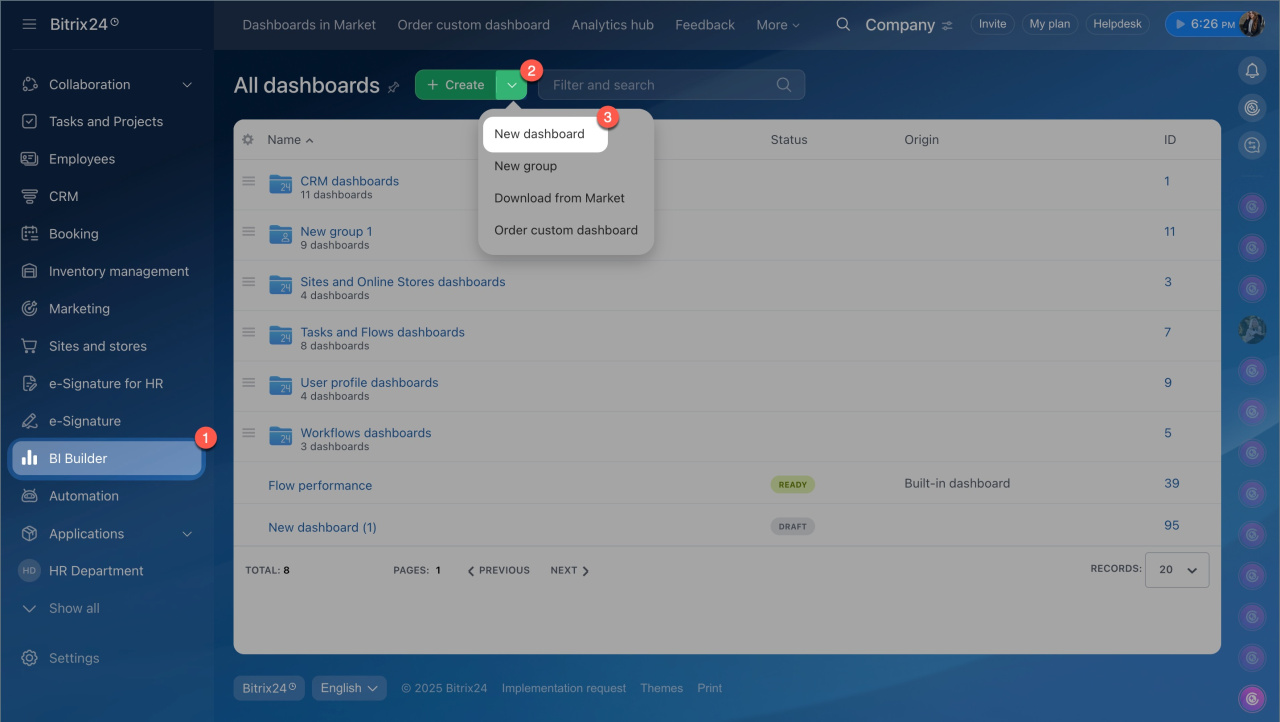
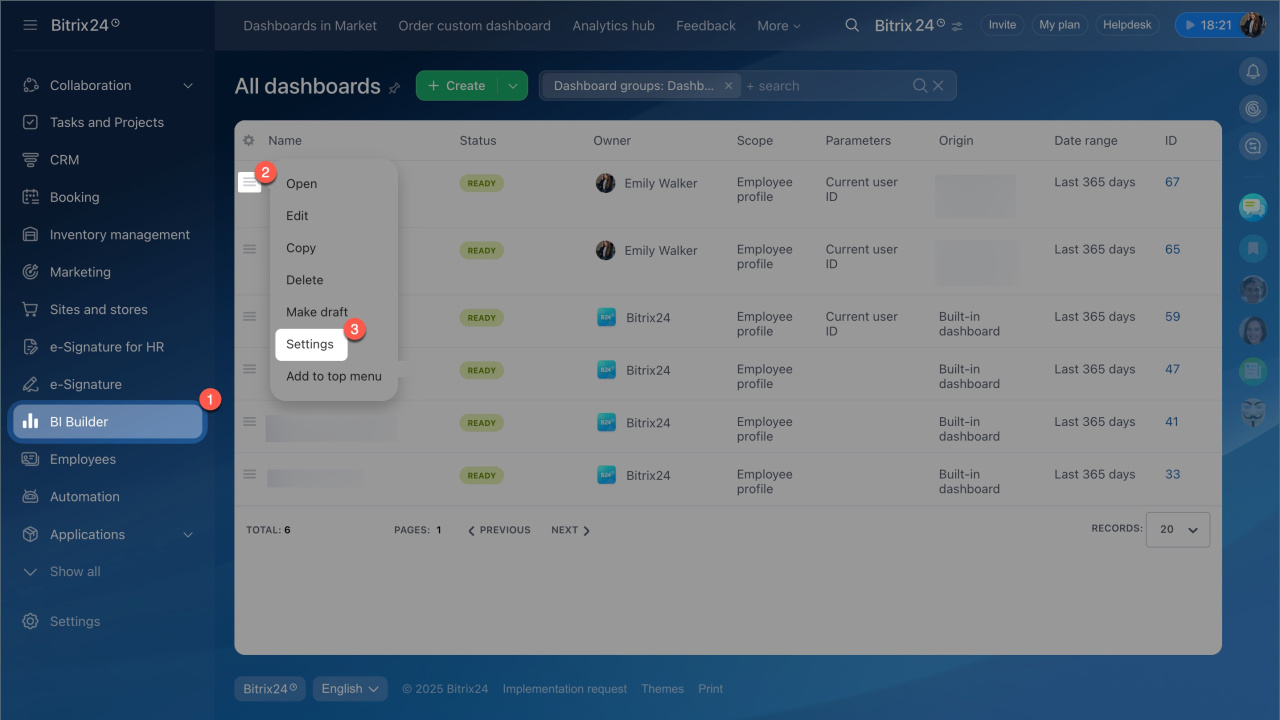
- Go to BI Builder.
- Click New dashboard, or open an existing one via Menu (≡) > Settings.
- Enter a name, select where the dashboard will appear, and add parameters.
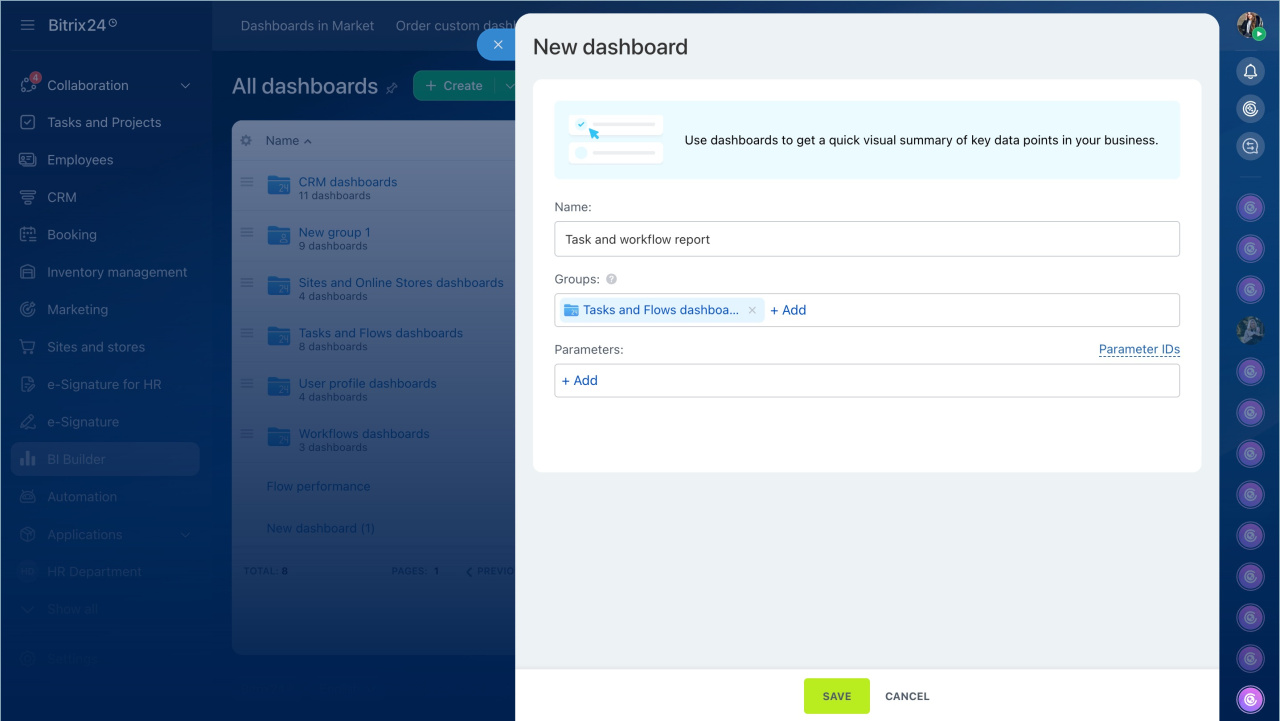
After you add a parameter, choose where the dashboard should appear:
- Flow ID: The dashboard opens from the flow view.
- Workflow template ID: The dashboard opens from the workflow log.
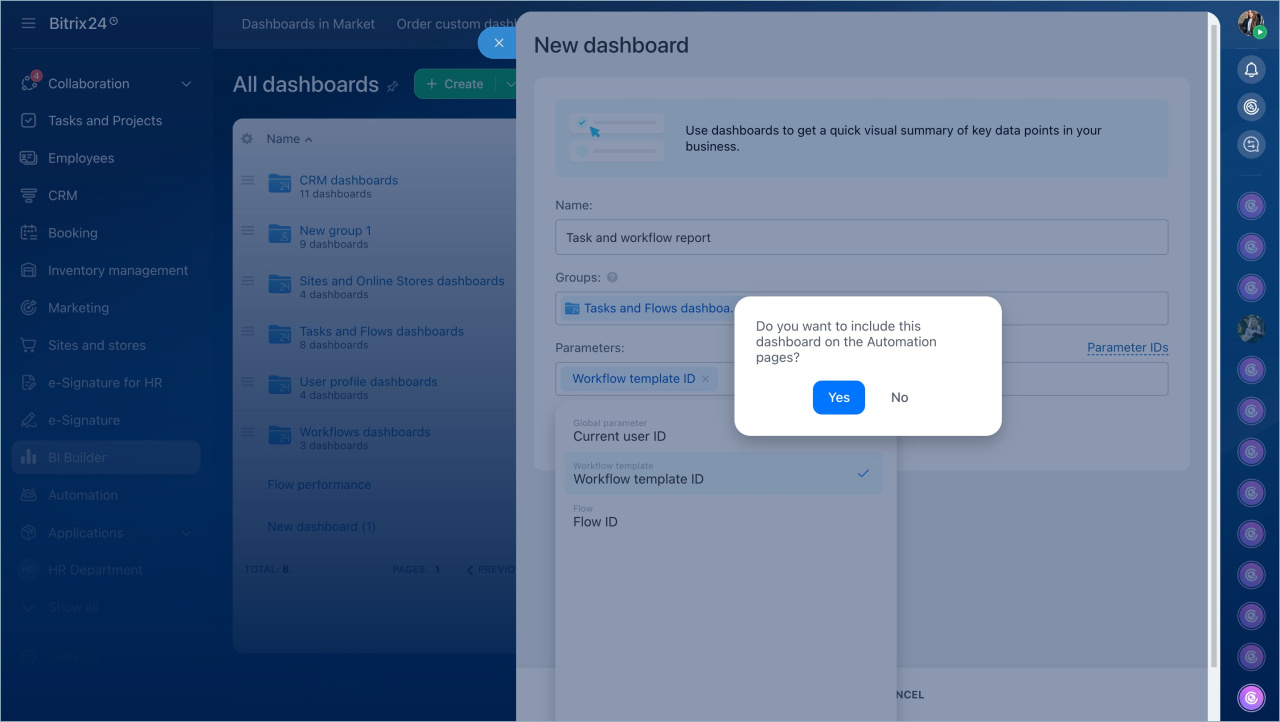
Next, add the parameters to the dataset. Dashboards use datasets to build charts, so parameters must be included in the query.
Open Parameter IDs and copy the parameter codes. You will use them in the dataset query.
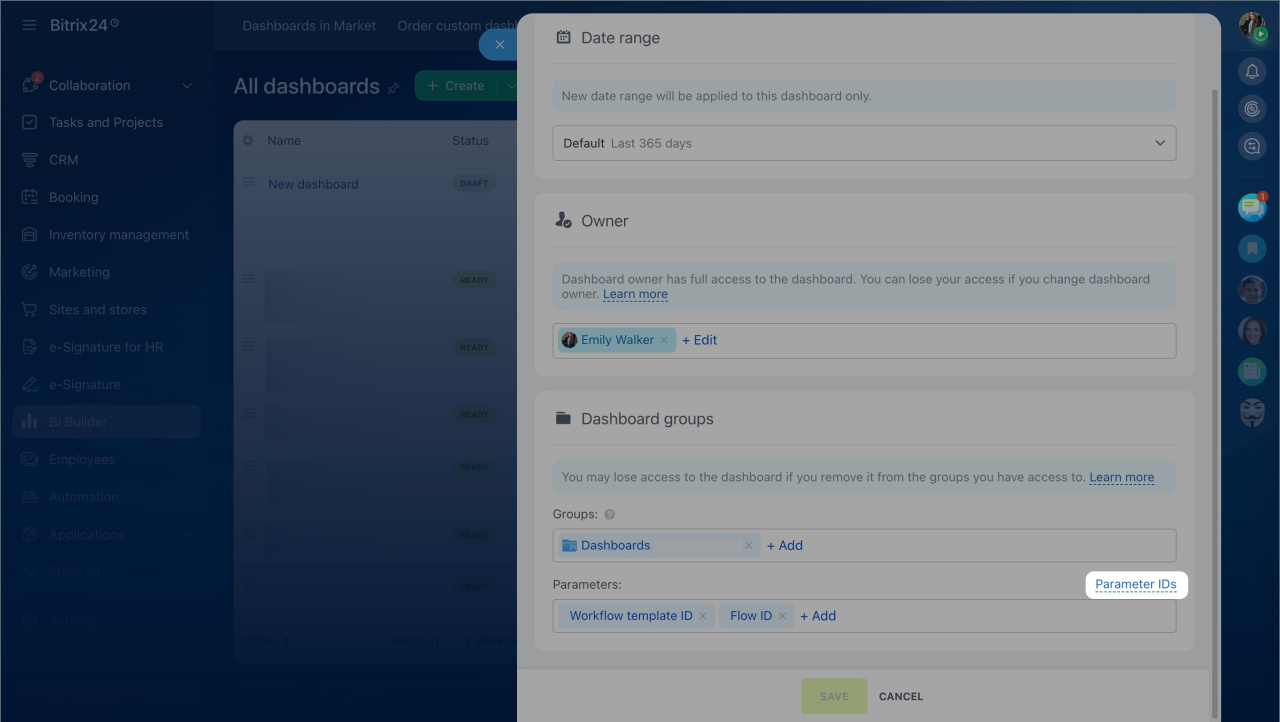
Create or edit a dataset
Create a dataset for a new dashboard
You can add parameters directly to your SQL query.
- Open the SQL tab and select SQL Lab.
- Choose the bitrix24 schema.
- Enter your SQL query and click Execute.
Add a Jinja template to the query. This lets the dashboard apply filters automatically:
- If you open the dashboard from a workflow or flow, the system inserts the ID and shows only related data.
- If you open the dashboard directly in BI Builder, no ID is passed and the dashboard shows all data.
Using Jinja Templates in BI Builder

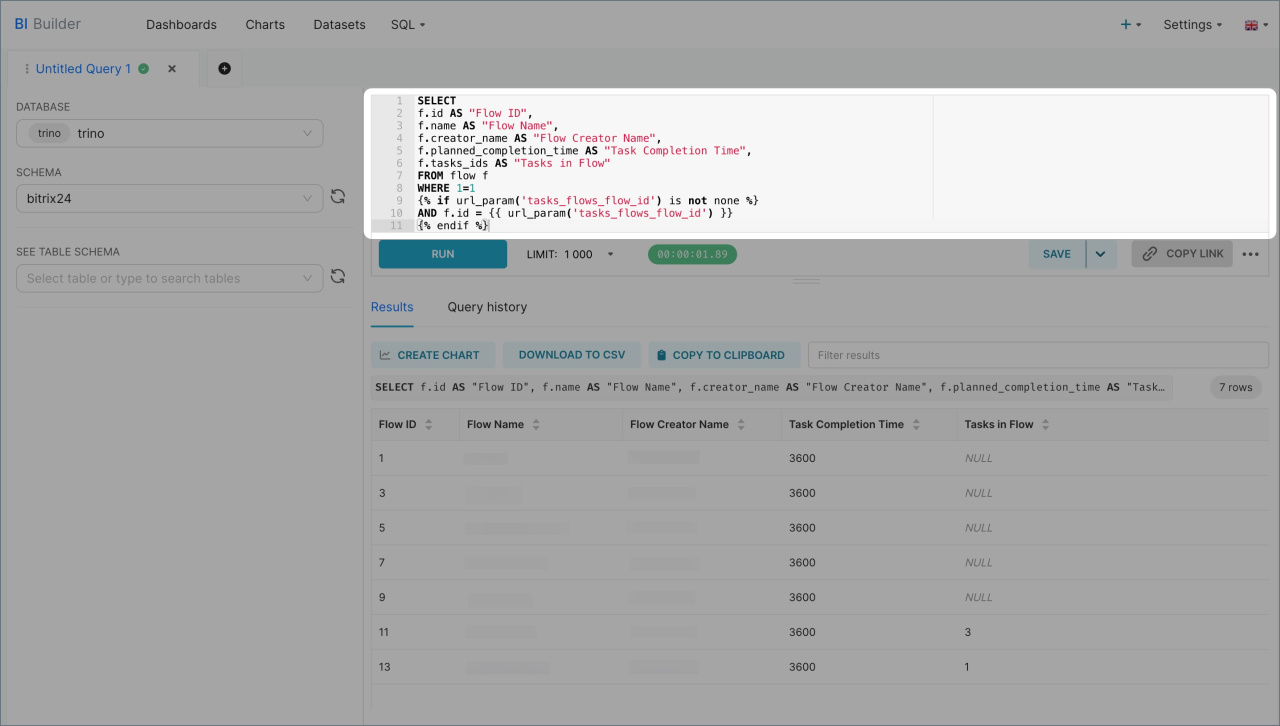
If this is your first dataset, review the example queries below.
Example: SQL query for task flow dashboards
Use this query to get data from the task flow dataset (flow). It returns key fields and supports filtering by the tasks_flows_flow_id.
SELECT f.id AS "Flow ID", f.name AS "Flow Name", f.creator_name AS "Flow Creator Name", f.planned_completion_time AS "Task Completion Time", f.tasks_ids AS "Tasks in Flow" FROM flow f WHERE 1=1 {% if url_param('tasks_flows_flow_id') is not none %} AND f.id = {{ url_param('tasks_flows_flow_id') }} {% endif %}
How it works:
SELECT defines which fields to return and how they appear in the table.
For example, SELECT f.id AS "Flow ID":
- Takes the
idfield fromflow. - Renames it to
Flow ID. - Shows it as a separate column.
FROM specifies the dataset. In this case, it is the flow table.
WHERE filters the data. The 1=1 condition makes it easy to add filters later.
The Jinja block checks for the tasks_flows_flow_id parameter:
- If the dashboard opens from a flow, the system inserts the ID and shows only that flow.
- If not, the dashboard shows all data.
Example: SQL query for workflow template dashboards
Use this query to combine data from workflow tasks, workflows, and templates. It supports filtering by the workflow_template_id parameter.
SELECT t.created_date AS "Task Creation Date", t.status_name AS "Task Status", t.user_name AS "Task Participant", w.started_by_name AS "Process Initiator", w.completed AS "Process Completion Status", w.duration AS "Time Spent", wt.name AS "Template Name" FROM bizproc_task t LEFT JOIN bizproc_workflow_state w ON t.workflow_id = w.id LEFT JOIN bizproc_workflow_template wt ON wt.id = w.workflow_template_id WHERE 1=1 {% if url_param('workflow_template_id') is not none %} AND wt.id = {{ url_param('workflow_template_id') }} {% endif %} ORDER BY t.created_date DESC;
How it works:
SELECT defines the fields to display.
For example, SELECT t.created_date AS "Task Creation Date":
- Takes the
created_datefield frombizproc_task. - Renames it to
Task Creation Datename - Shows it as a separate column.
FROM and LEFT JOIN define the data sources and how they connect:
bizproc_task– tasks completed by employeesbizproc_workflow_state– workflow databizproc_workflow_template– template details
LEFT JOIN keeps all tasks, even if some related data is missing.
WHERE filters the data. The 1=1 condition makes it easy to add filters later.
The Jinja block checks for the workflow_template_id parameter:
- If the dashboard opens from a workflow, the system inserts the ID and filters the data.
- If not, the dashboard shows all data.
After you finish the query:
- Save it as a dataset.
- Use it to build charts for your dashboard.
Create a chart based on a virtual dataset
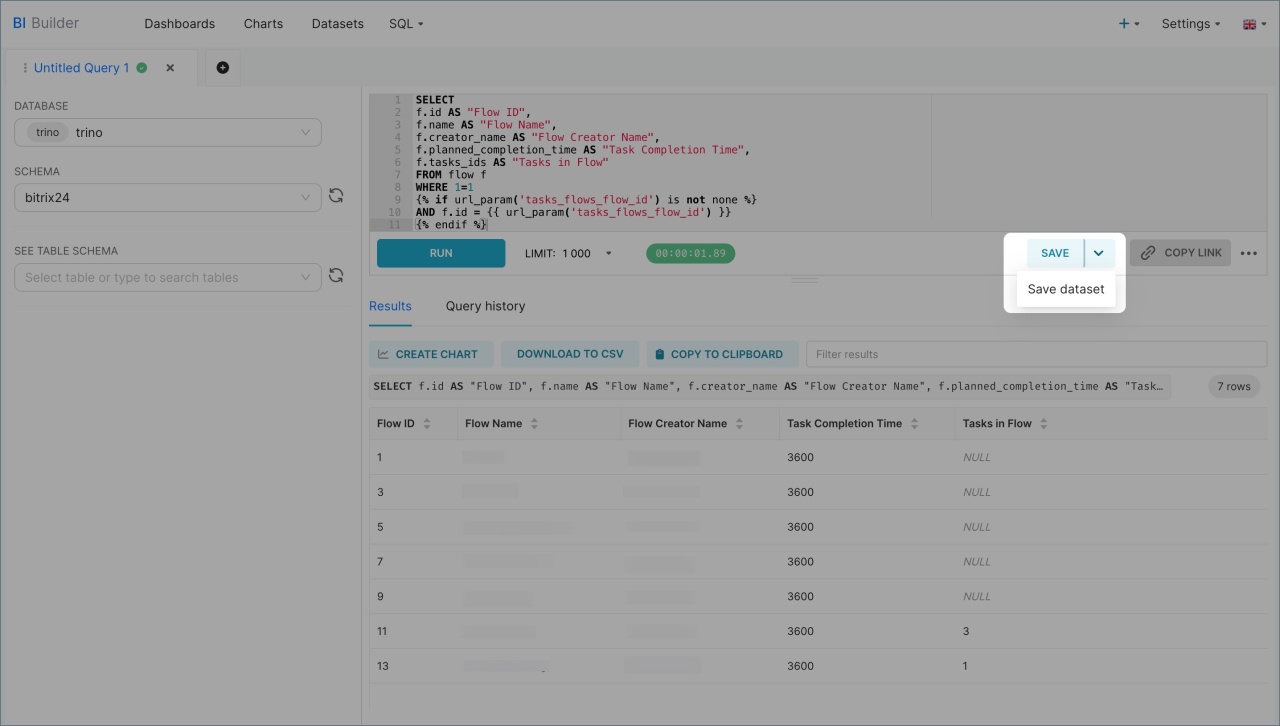
Update a dataset in an existing dashboard
If you already have a dashboard, you can update its dataset and add the required parameter.
- Open the Datasets tab.
- Select a dataset.
- Click Edit.
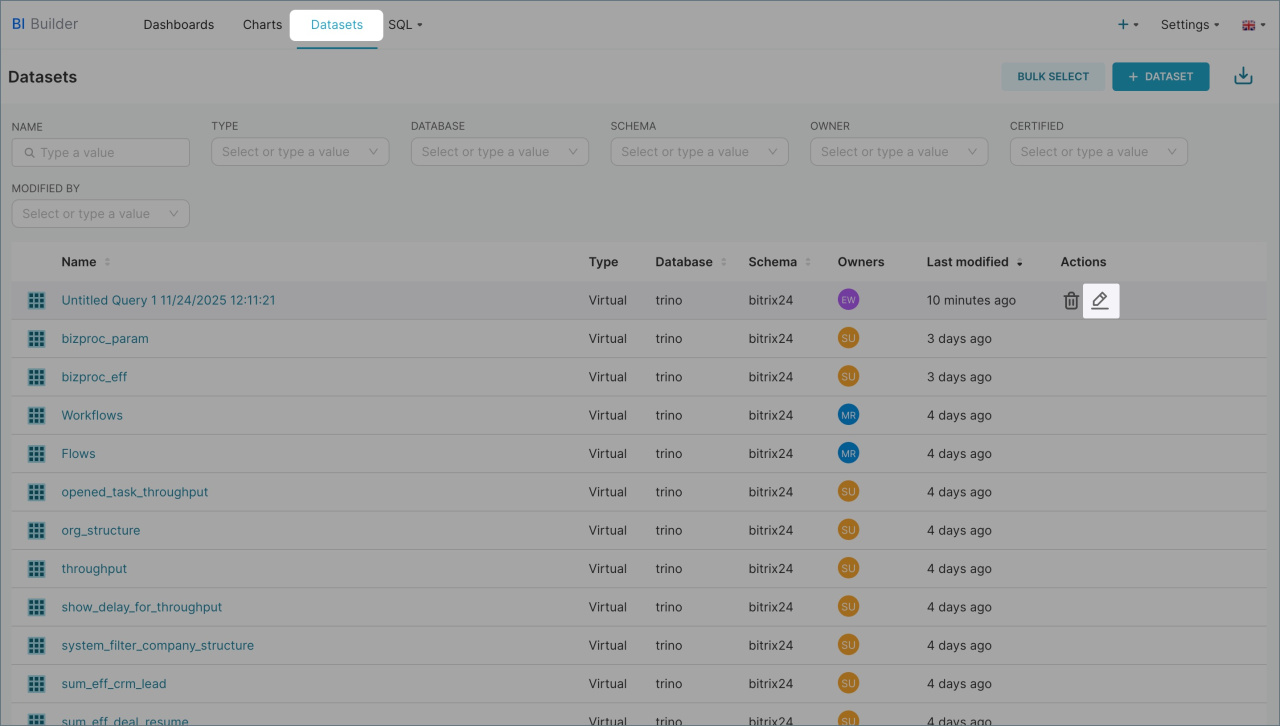
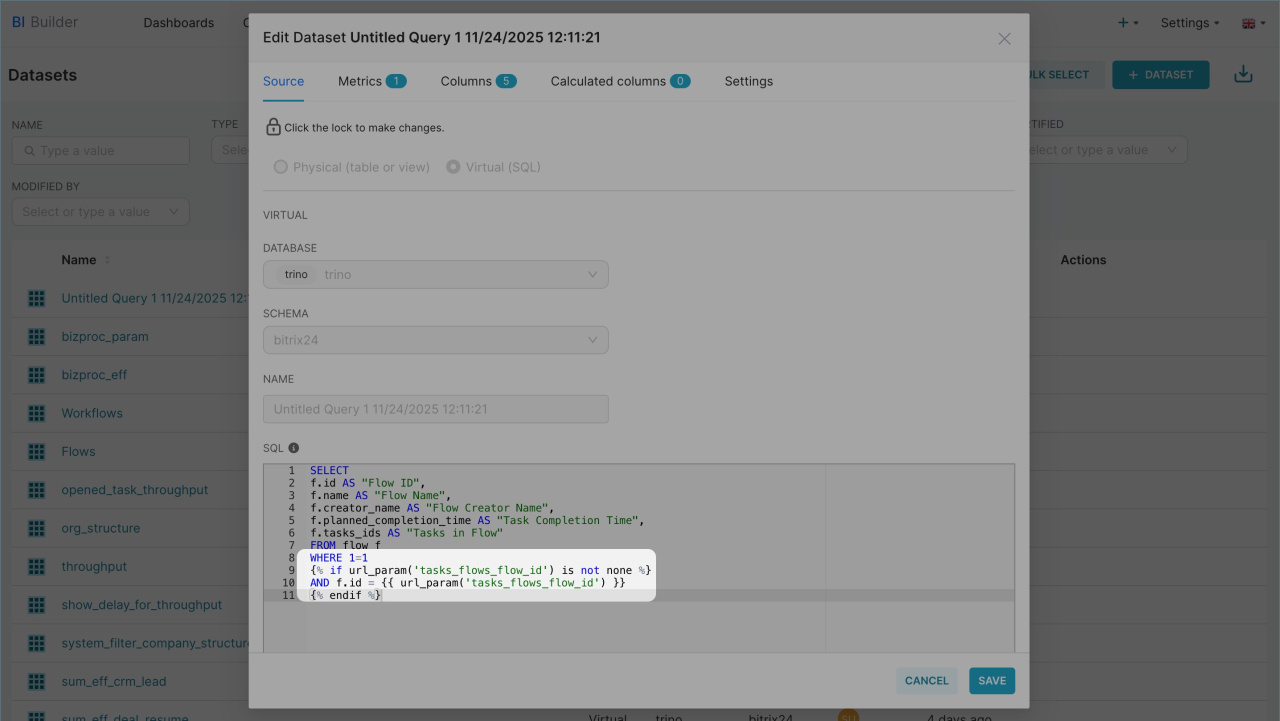
Update the SQL query and add a parameter based on the filter you need:
- Task flows
WHERE 1=1 {% if url_param('tasks_flows_flow_id') is not none %} AND f.id = {{ url_param('tasks_flows_flow_id') }} {% endif %} - Workflow templates
WHERE 1=1 {% if url_param('workflow_template_id') is not none %} AND wt.id = {{ url_param('workflow_template_id') }} {% endif %}
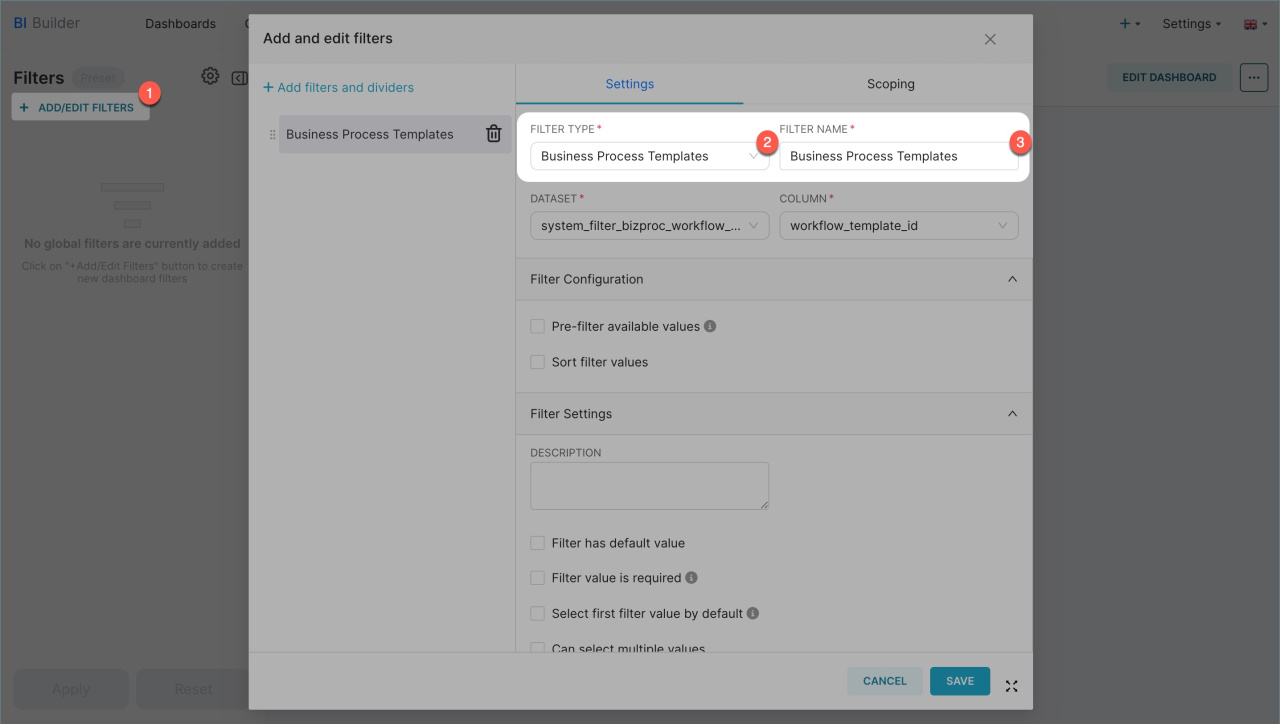
Add filters and test the dashboard
To add filters:
- Open the dashboard in edit mode.
- In the left panel, click Add/modify filters.
- Choose the filter type, enter a name, and save your changes.
Open the dashboard from the section where it appears. The location depends on the parameters you set.
Workflow templates
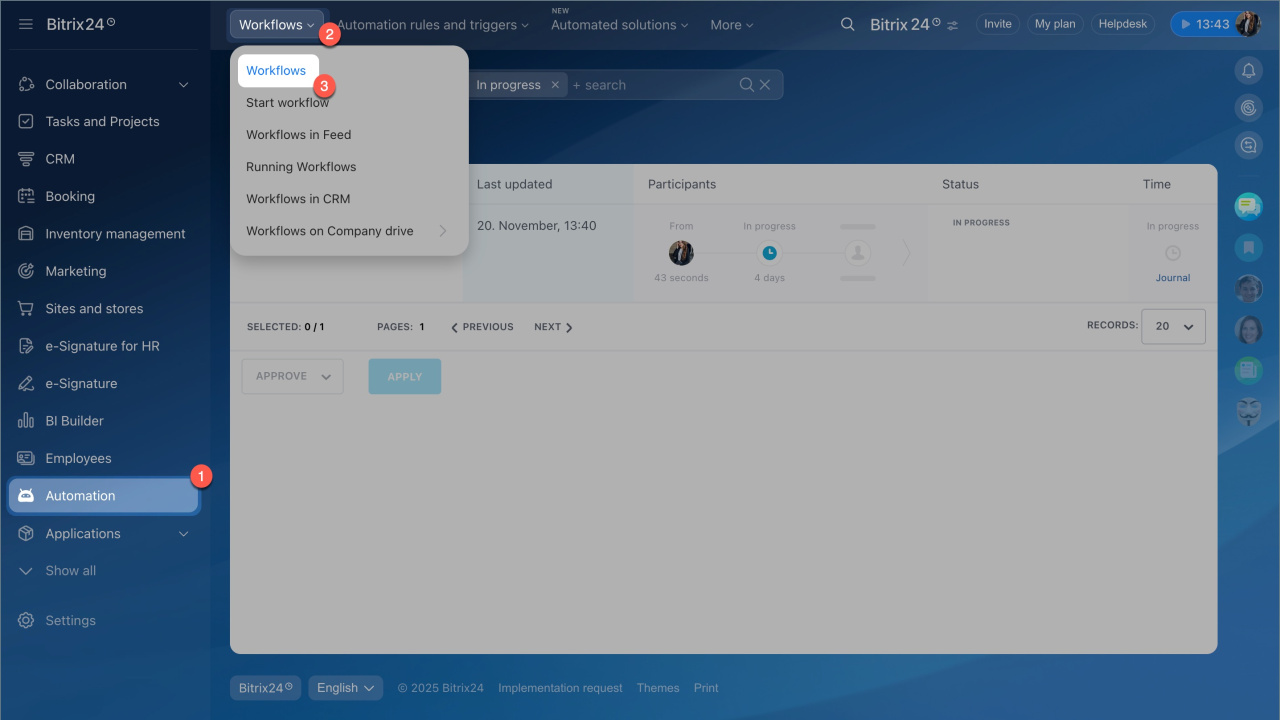
- Go to Automation > Workflows.
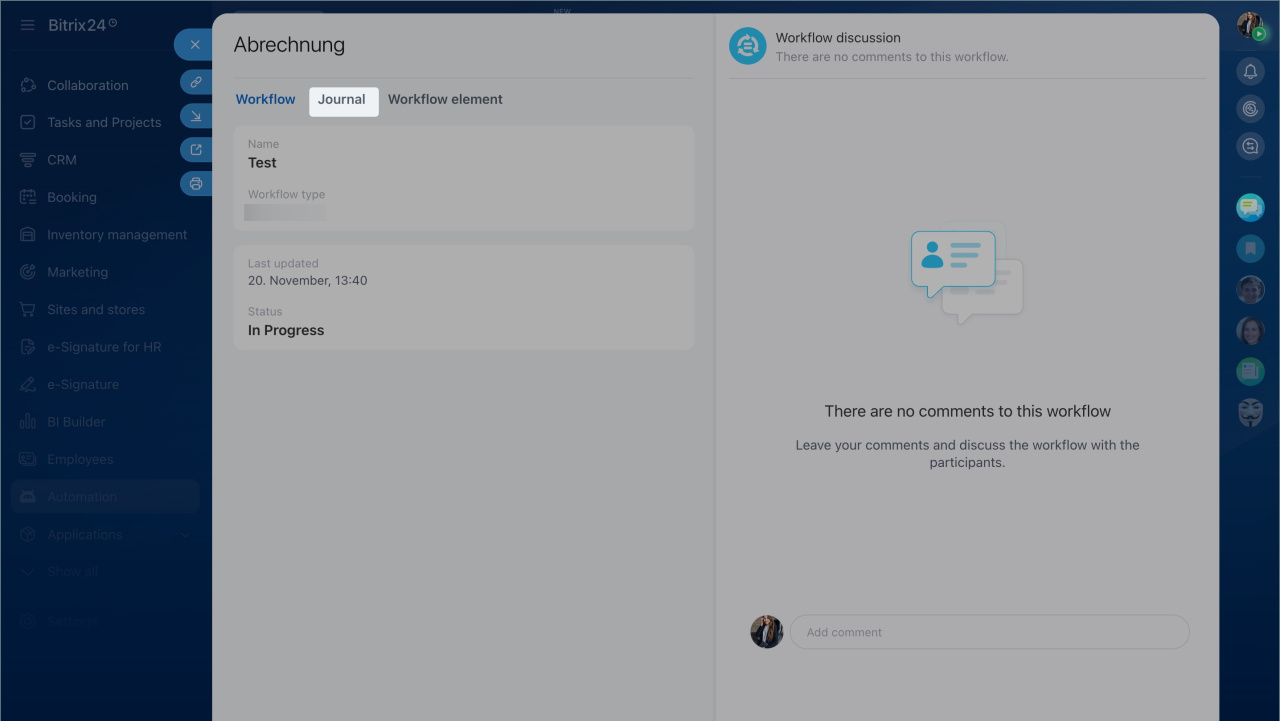
- Open a workflow.
- Open the dashboard in the Journal tab.
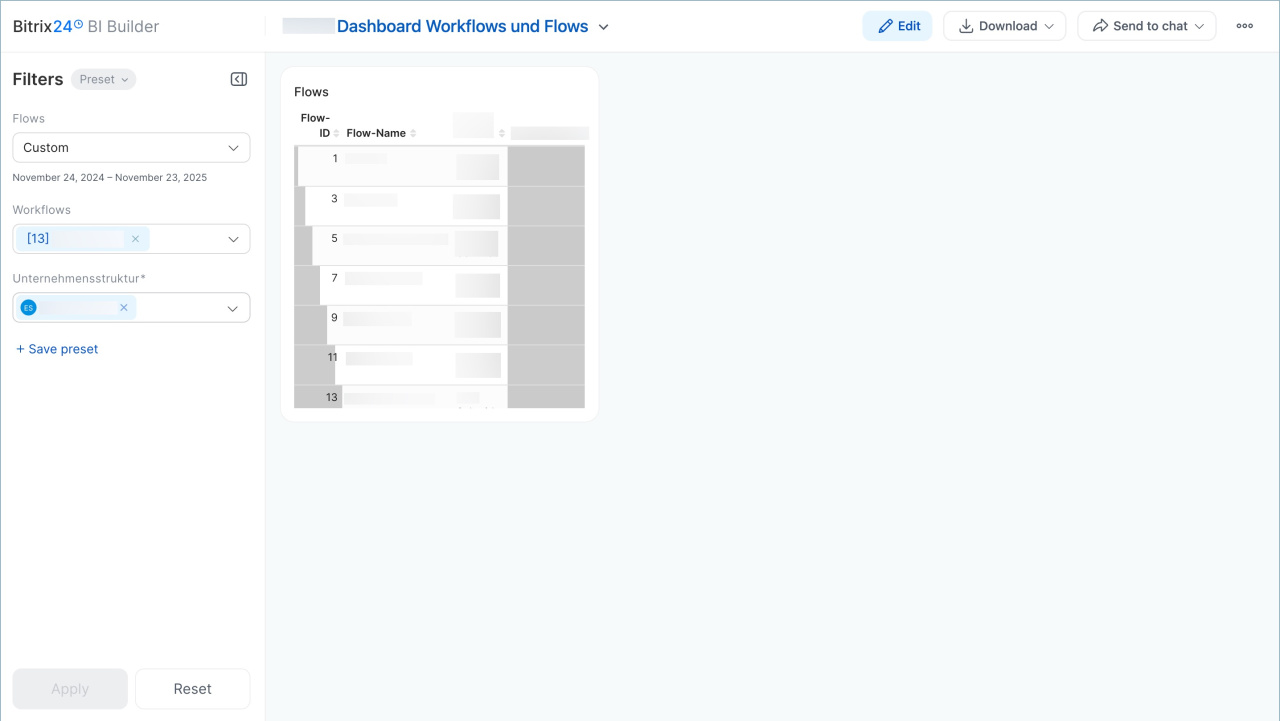
Check that the dashboard shows data only for the selected workflow.

Task flows
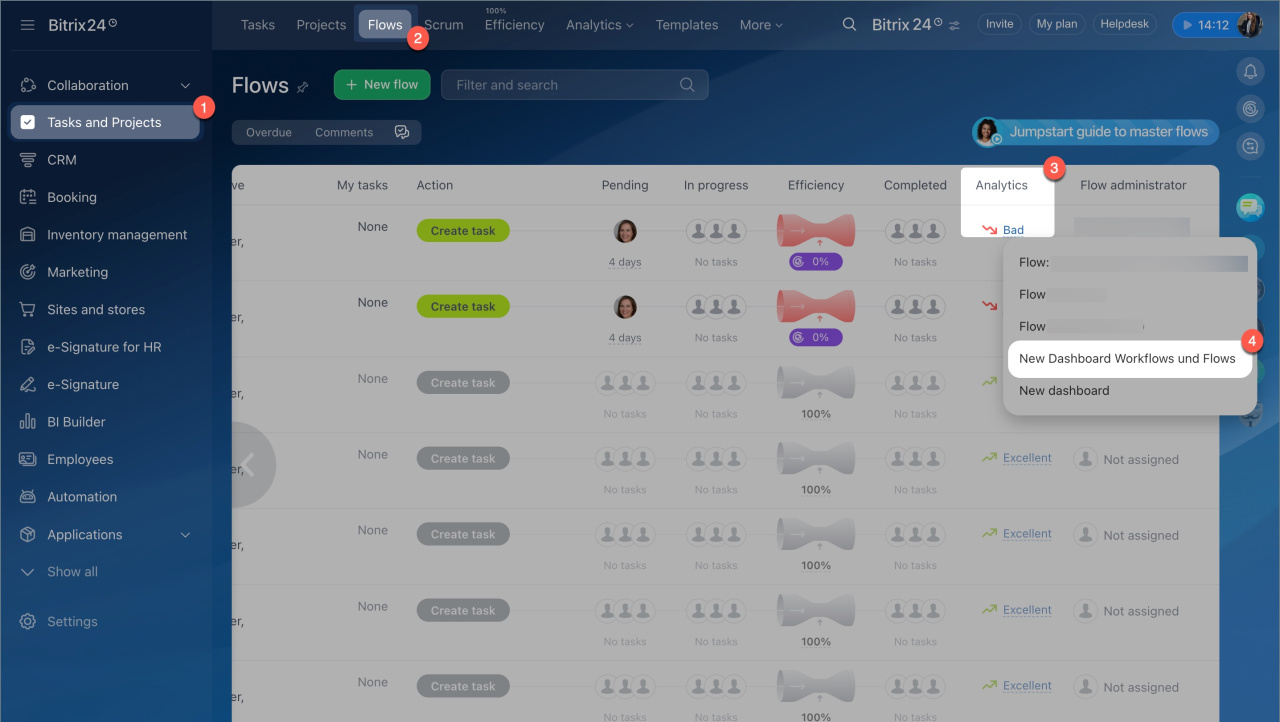
- Go to Tasks and Projects > Flows.
- In the Analytics column, click a flow metric.
- Open the dashboard.
Check that the dashboard shows data only for the selected flow.

In brief
- Use parameter-based filters to analyze data for a specific task flow or workflow template.
- Set up dashboard parameters and choose where the dashboard will appear.
- For a new dashboard, add parameters directly to the SQL query. For an existing one, update the dataset.
- Add filters, open the dashboard in Bitrix24, and make sure it shows data only for the selected flow or workflow.