
Explore the new SQL functions in BI Builder: bitrix24.bi_queries_t() and bi_explain_query(). These tools help you track query history and understand why dashboards load slowly.
They show which filters a query uses and how much data it processes. If a query runs slowly, adjust filters or reduce the number of columns to improve performance.
In this article:
View SQL query history
Function: bitrix24.bi_queries_t()
This function shows a table with details about executed queries, including data volume and execution metrics.
To view query history:
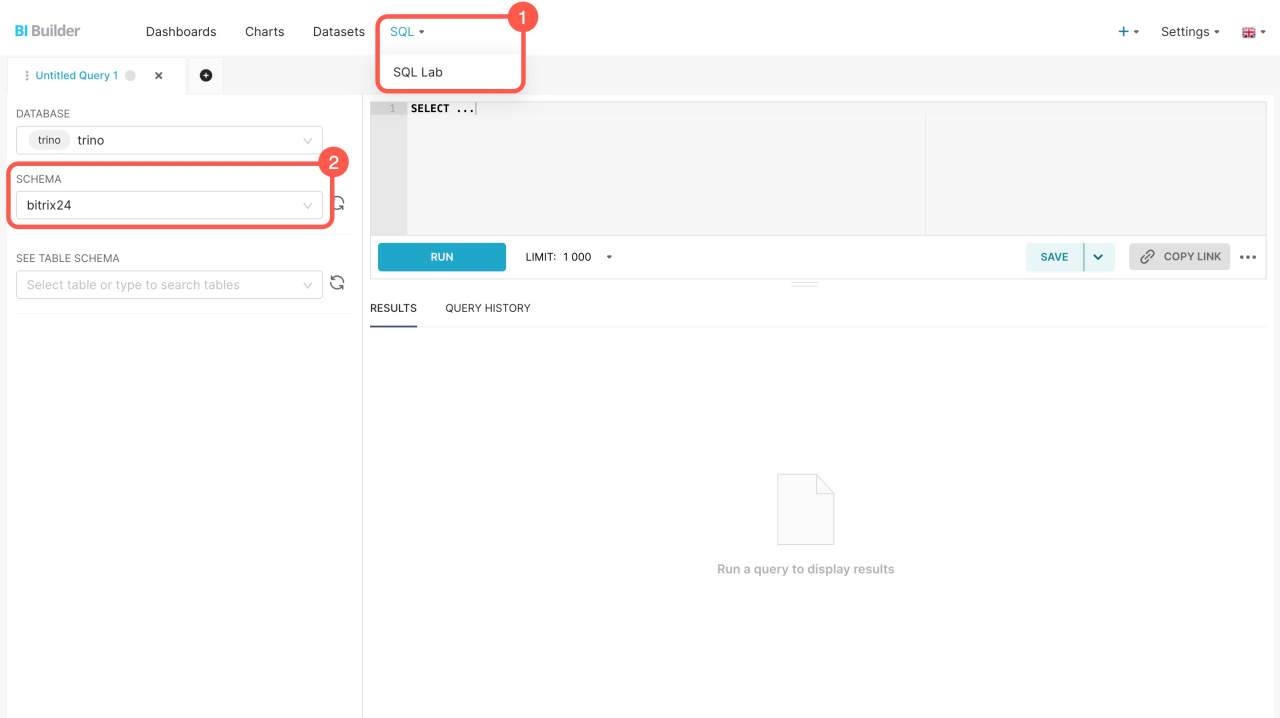
- Open BI Builder and go to SQL > SQL Lab.
- Select the bitrix24 schema.
- Run the query:
SELECT * FROM TABLE(bitrix24.bi_queries_t())
By default, the table shows the last 1,000 queries. To limit the results, use LIMIT. For example:
SELECT * FROM TABLE(bitrix24.bi_queries_t()) LIMIT 10;
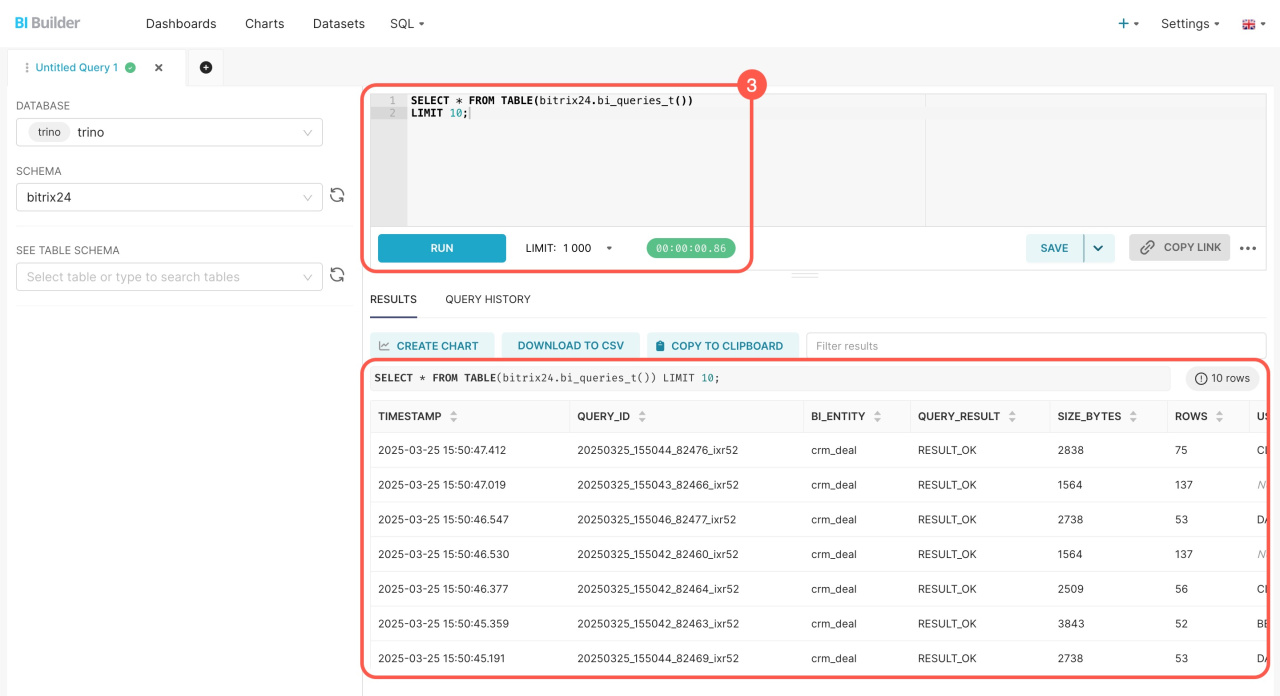
Use this data to find slow queries. Check execution time and data volume. If a query loads too much data, add a date filter or reduce the dataset.
The table includes more details than the query usage statistics section in BI Builder.
You’ll see these columns in the table:
| Column name | Description |
|---|---|
| TIMESTAMP | Exact date and time of query execution. Helps identify peak load periods. |
| QUERY_ID |
Unique query identifier. Use with bi_explain_query() to find and analyze specific query details.
|
| BI_ENTITY | Target dataset or entity. Helps trace slow queries to specific data sources. |
| QUERY_RESULT | Execution status. Indicates whether the query completed successfully or encountered an error. |
| SIZE_BYTES | Volume of data returned. Larger datasets may require optimization. |
| ROWS | Number of rows returned. If there are too many rows, add a filter to speed up performance. |
| USED_DATE_FILTER | Date range filter applied (if any). Check if the query is limited to the required period. |
| SELECTED_COLS_CNT | Number of columns selected. If there are many columns, the query may slow down. Select only the necessary ones. |
| SERVER_FILTERS_CNT | Number of filters applied on the server side. If there are no filters, queries may run slower as they will load more data. |
| SERVER_FILTERS_INFO | Details the specific filters used. Verifies correct data selection. |
| CACHE_SIZE_BYTES | Size of data retrieved from cache. When data is cached, queries run faster because accessing the cache is quicker than reading directly from Bitrix24. The default cache lifetime is 1 hour. |
| DOWNLOAD_MILLS | Data download time. Shows how long data loading takes. |
| PARSE_MILLS | Time to process raw data before sending it to the server. Smaller datasets parse faster. |
| COMPRESS_MILLS | Time to compress raw data before saving it to the cache. The larger the data volume, the longer the compression takes. |
| DECOMPRESS_MILLS | Time to decompress cached data. The larger the data, the longer it takes to decompress, which can slow down performance. |
| FROM_CACHE | Indicates whether the query results were served from cache. When data is cached, queries run faster. |
| QUERY_JSON | Complete query configuration in JSON format, including parameters and filters. |
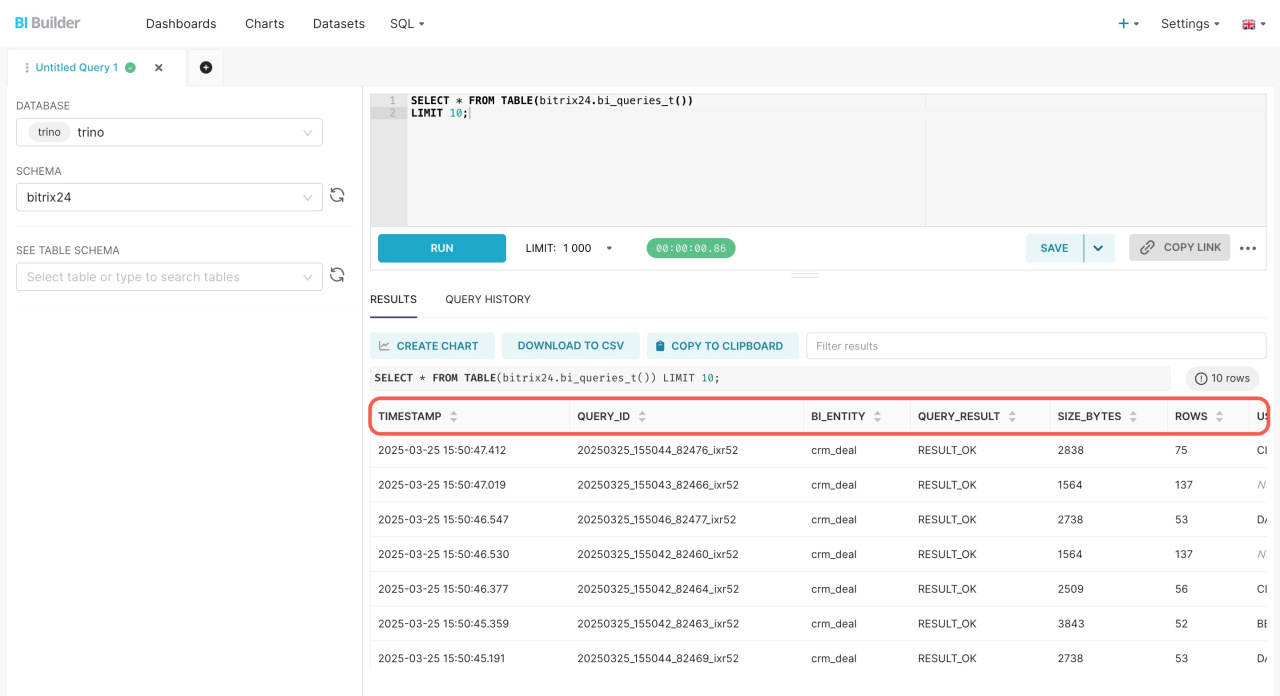
Analyze an SQL query
Function: bi_explain_query()
This function shows how a query runs in the database. It helps you find performance issues.
To analyze a query:
1. Copy the QUERY_ID and TIMESTAMP values. Find them in the query history table. Run SELECT * FROM TABLE(bitrix24.bi_queries_t()), find the row you need, and copy the values.
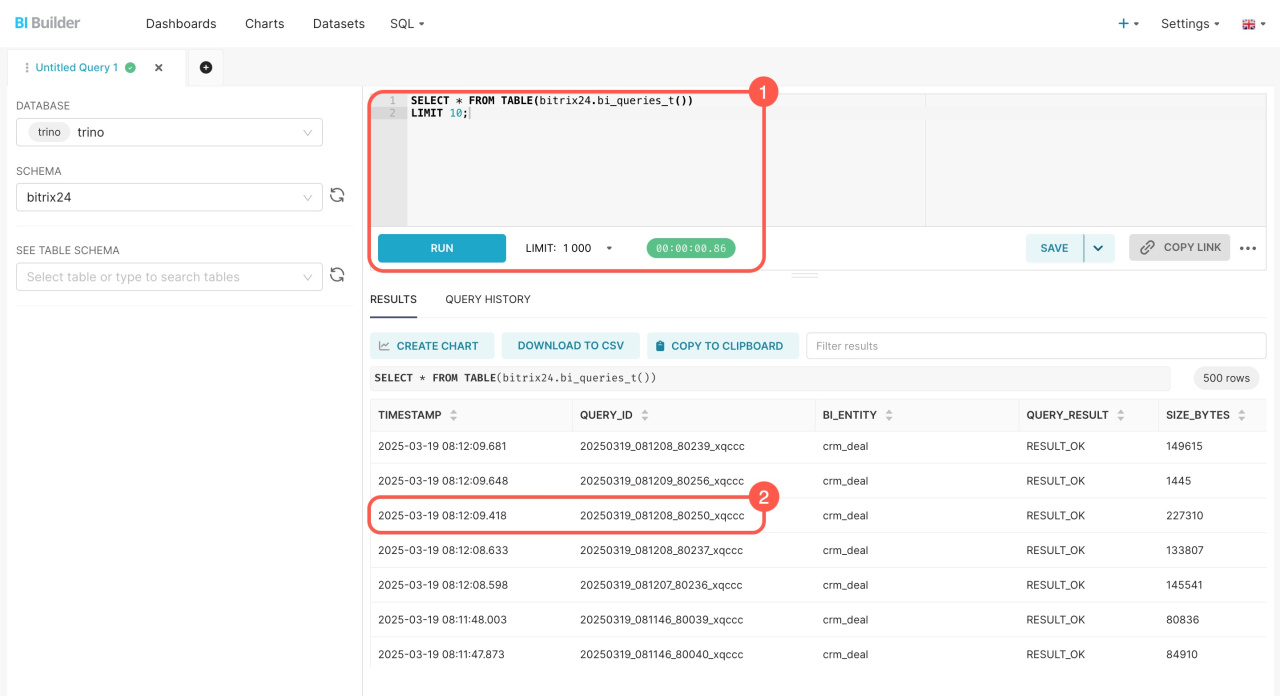
2. Add parameters and run the query. Add the copied values to the query: SELECT bi_explain_query('20250319_081208_80250_xqccc', '2025-03-19 08:12:09.418');. Then run it. For easier review, copy the result and open it in a text editor.
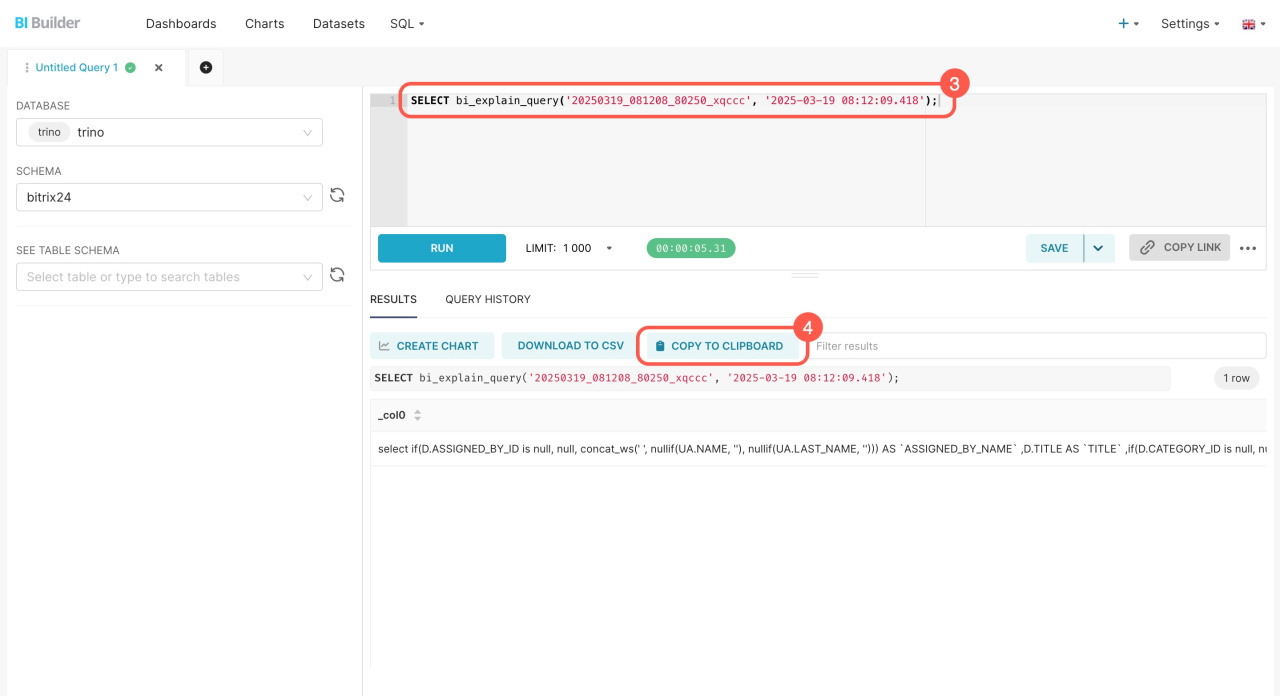
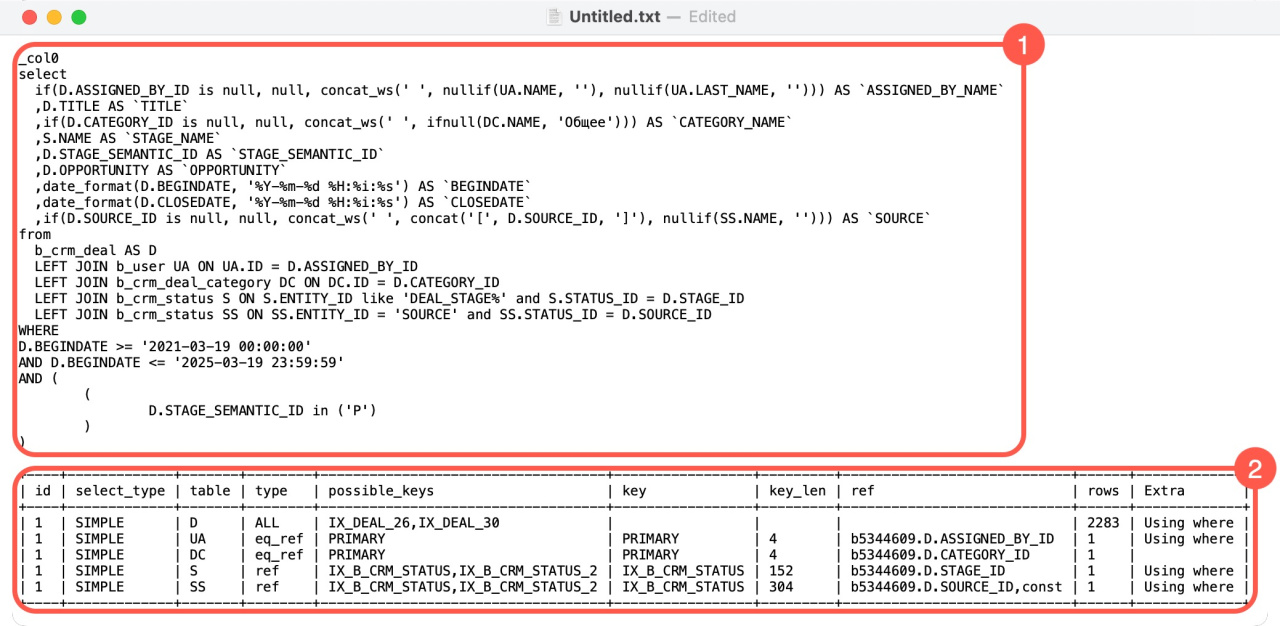
The result includes:
Original SQL query. Shows what data is requested.
Execution plan. Shows how the system processes the query.
| Column name | Description |
|---|---|
| id | Step number in the execution sequence. Shows the processing order of tables in the query. |
| select_type | Query type. SIMPLE indicates a basic query without subqueries or unions. |
| table | Name of the table being accessed at this step. |
| type |
Method of searching for data in the table:
|
| possible_keys | Potential indexes available for this operation. |
| key | Index the server uses when executing the query. If the field is empty, the server does not use indexes, and the query may run slower. |
| key_len | Length of the index key. Shorter keys generally improve search speed. |
| ref | Shows the fields used to join tables (e.g., by deal ID, category, or stage). This helps understand how the server links data together. |
| rows | Number of rows the server will check at this step. The more rows, the slower the query. |
| extra |
Additional execution details:
Official MySQL documentation |
In the on-premise version, you can add indexes to improve performance. In the cloud version, you cannot change indexes. Contact support if needed.
How to contact Bitrix24 Support
In brief
-
Use
bitrix24.bi_queries_t()to review query history and find slow queries. -
Use
bi_explain_query()to understand how queries run. -
Optimize queries by adding filters, reducing columns, and limiting data volume.