
In CRM, you can create items directly from the Kanban view without opening the full form. The quick form allows you to add a new record and enter key details in just a few seconds. Additionally, you can customize the preview card in Kanban to choose which fields and data will be visible without opening the item.
In this article:
Customizing the quick creation form
When interacting with a new lead, you often need more information than just a name and phone number, such as the inquiry source or estimated amount.
Let’s look at the setup using a quick lead as an example. The same steps apply to any CRM items available in Kanban.
Customize fields for yourself. Each employee can select which fields will appear in their quick creation form.
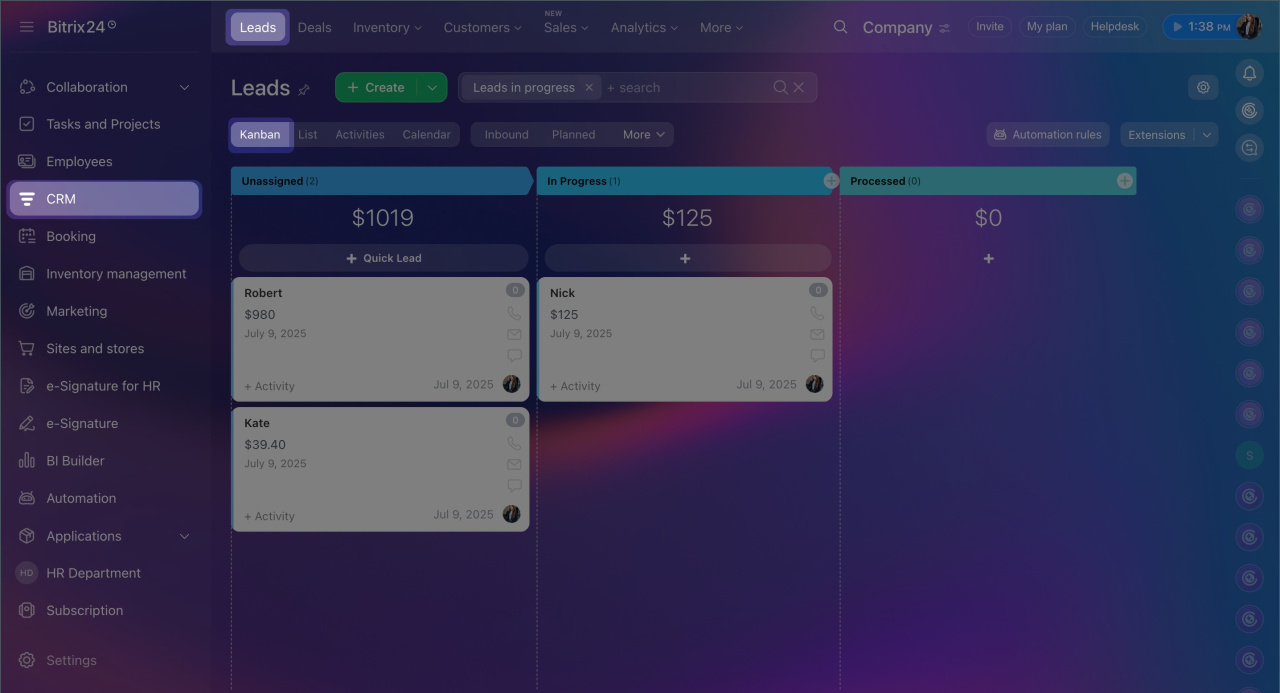
1. Open CRM > Leads > Kanban.
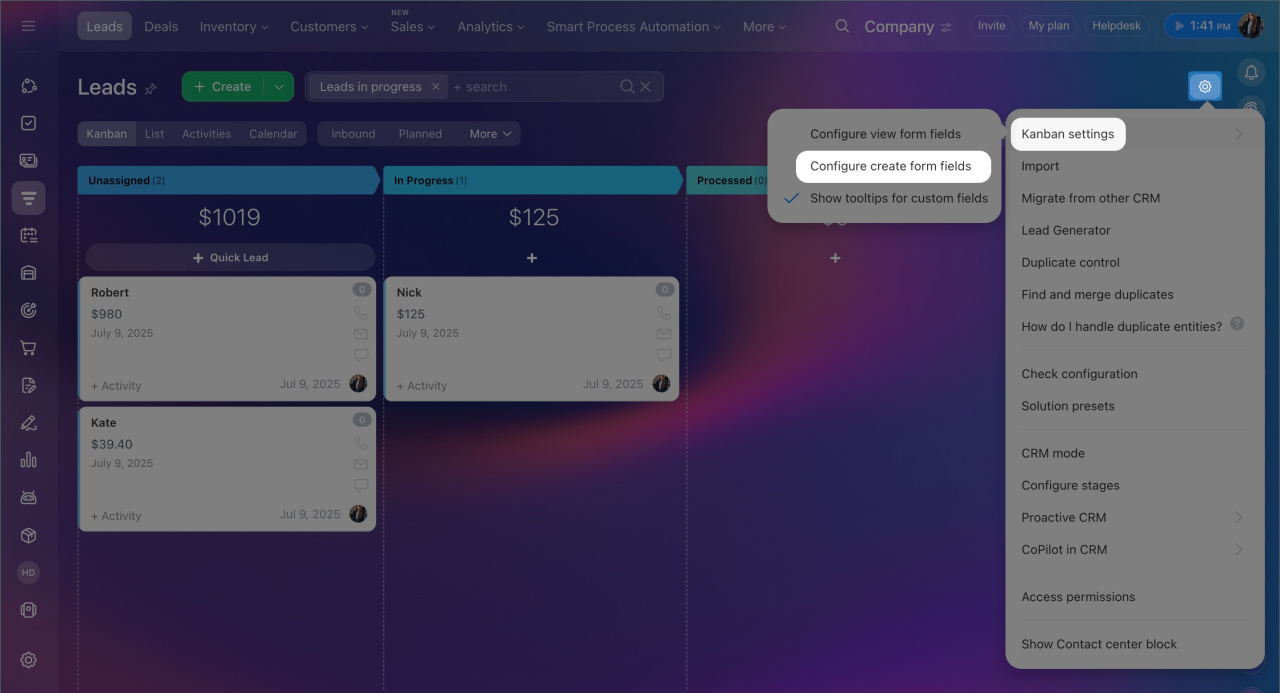
2. Click Settings (⚙️) > Kanban settings > Configure create form fields.
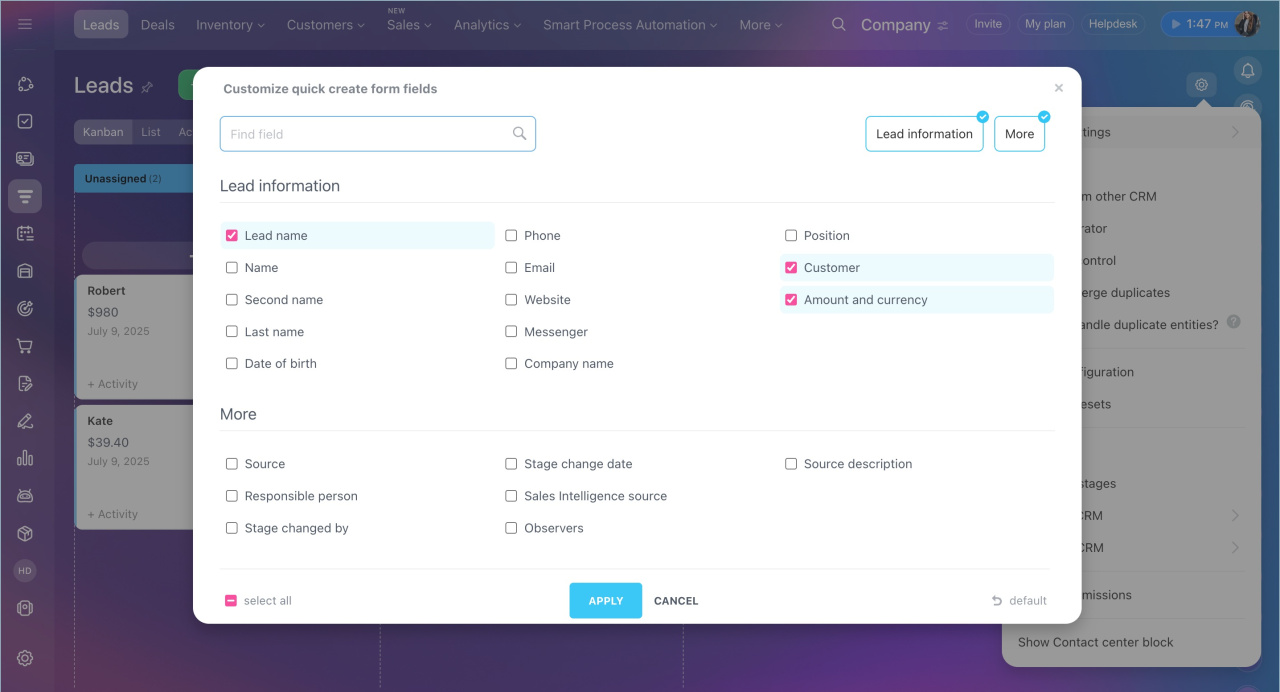
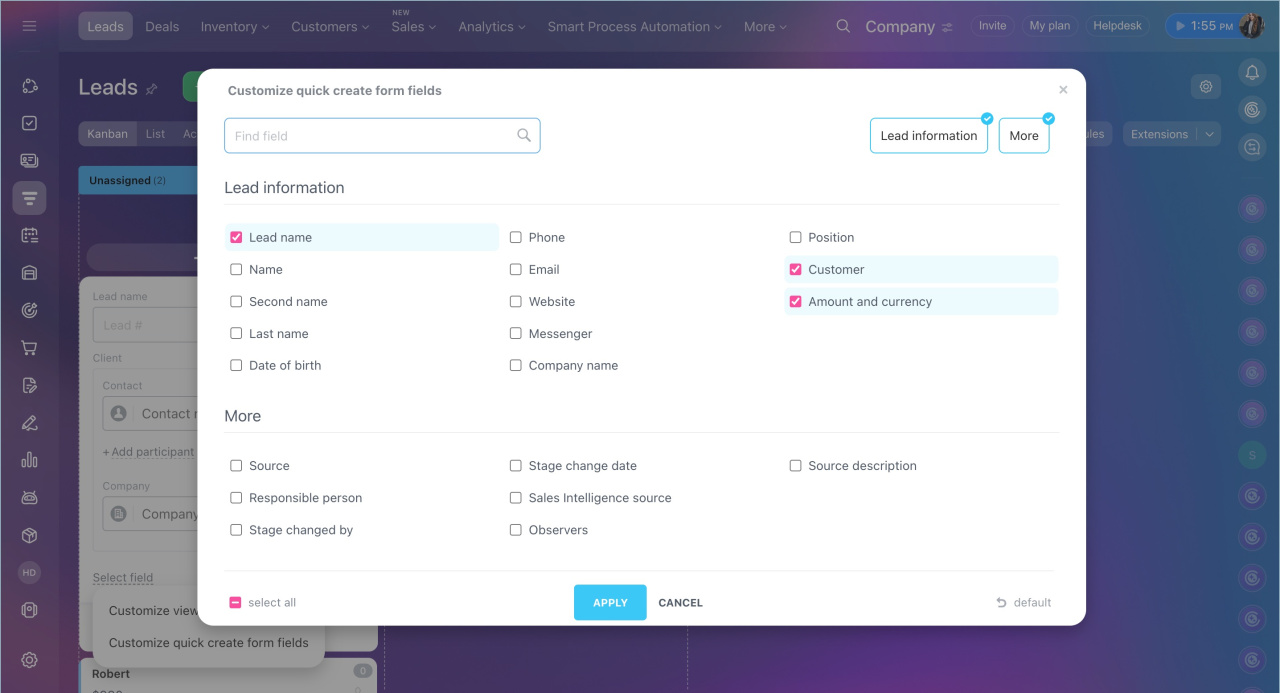
3. Select the required fields.
4. Save changes.
Customize fields for all employees. Bitrix24 or CRM administrator can set default fields for all employees.
1. Open CRM > Leads > Kanban.
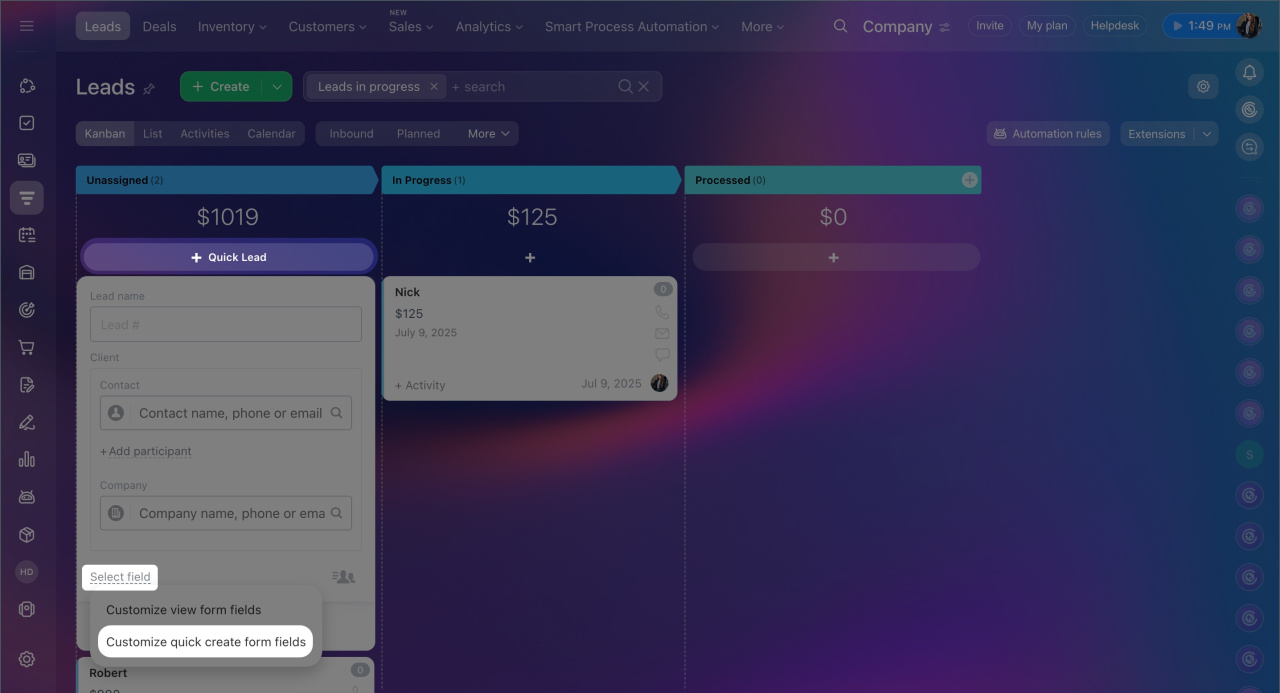
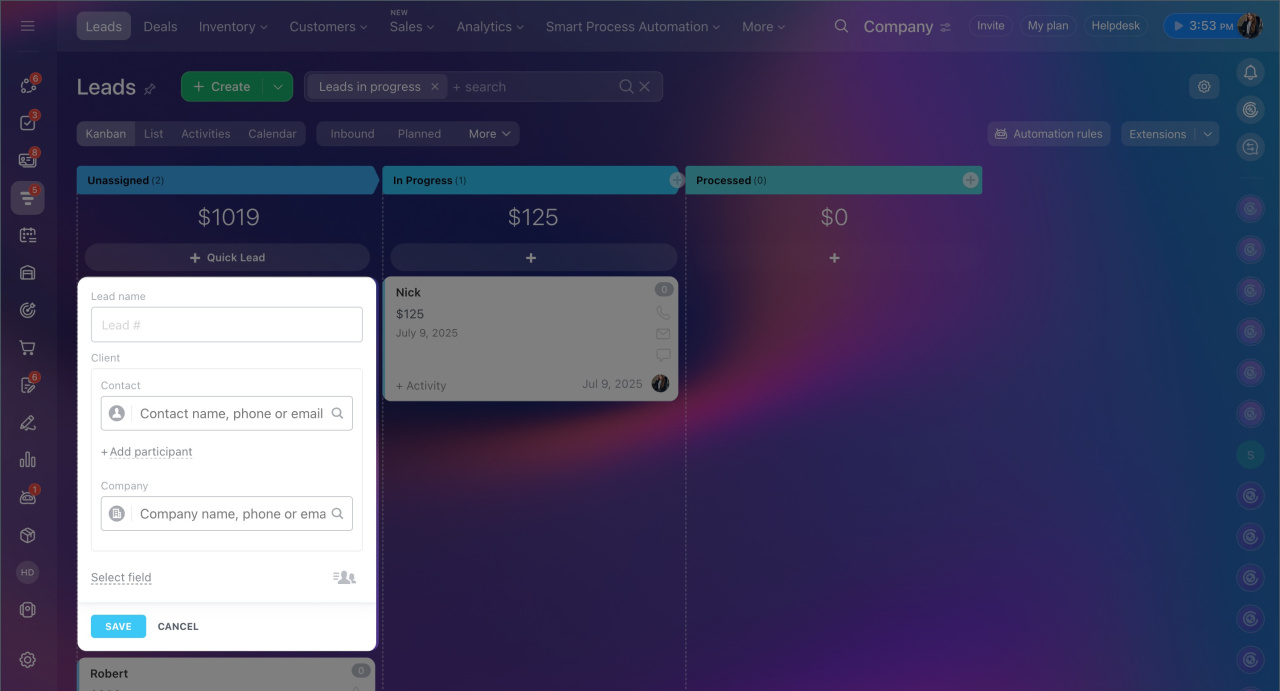
2. Click Quick lead > Select field > Customize quick create form fields.
3. Select the required fields.
4. Save settings.
Once saved, the selected fields will appear in the quick creation form for all employees. However, each employee can still customize the form for themselves at any time.
Customizing the preview form in Kanban
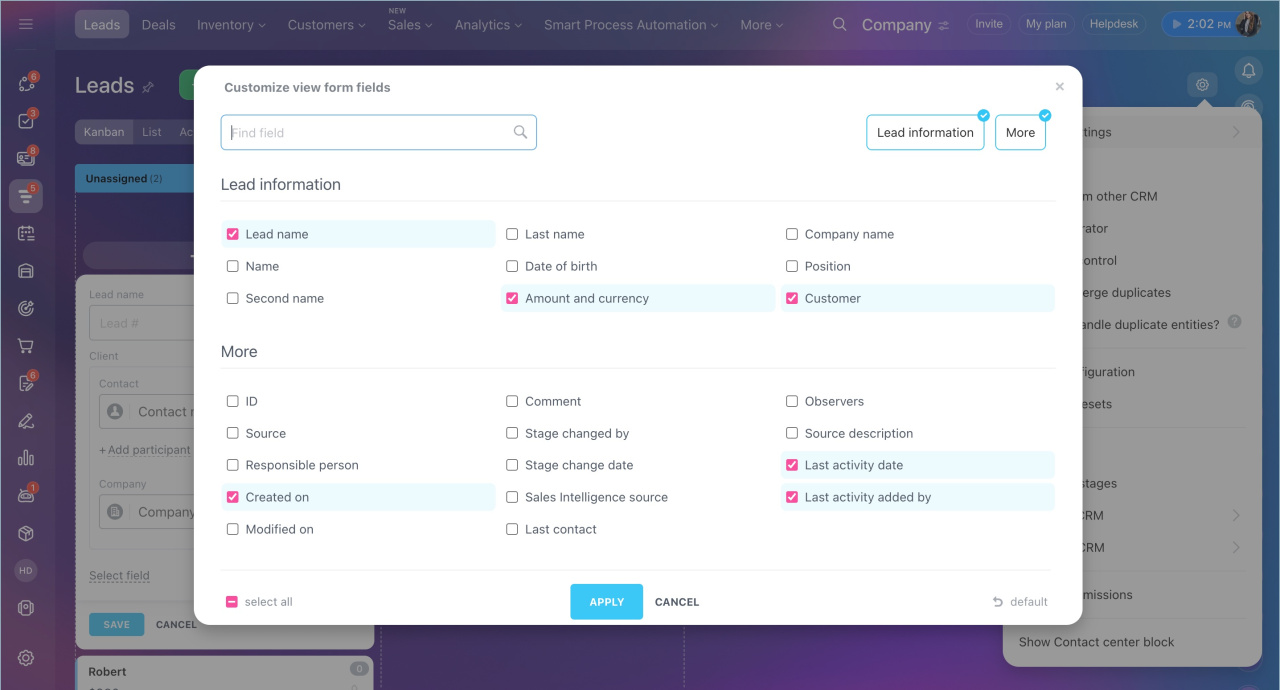
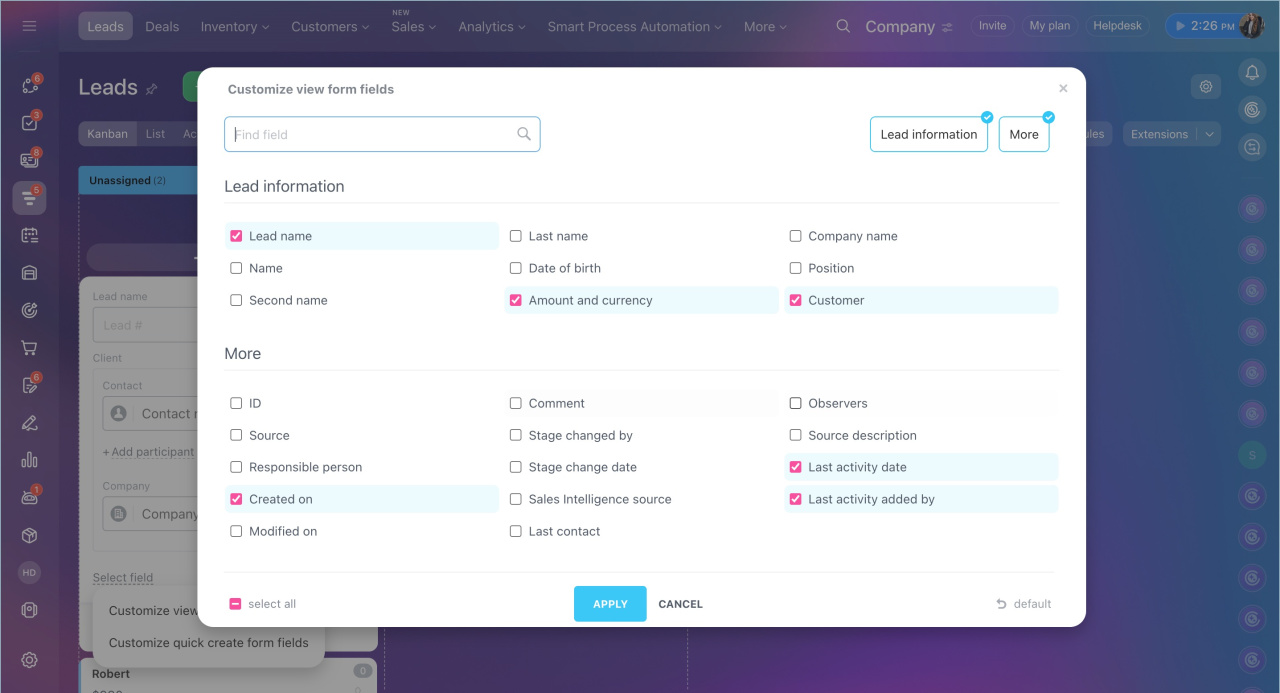
The preview form displays key data without opening the item. For example, you can add the "Source" field to see where a lead came from.
Customize fields for yourself. Each employee can select which fields will be visible in their preview form.
1. Open CRM > Leads > Kanban.
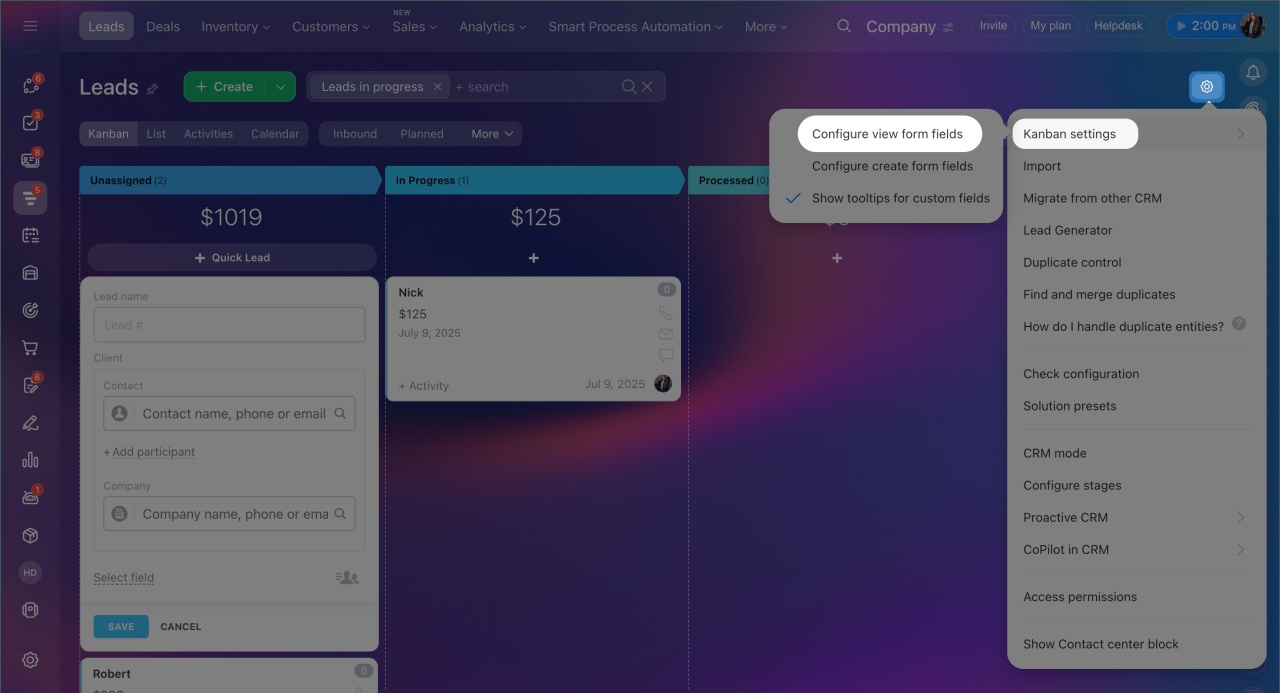
2. Click Settings (⚙️) > Kanban settings > Configure view form fields.
3. Select the required fields.
4. Save settings.
Customize fields for all employees. Bitrix24 or CRM administrator can set up preview form fields for all employees.
1. Open CRM > Leads > Kanban.
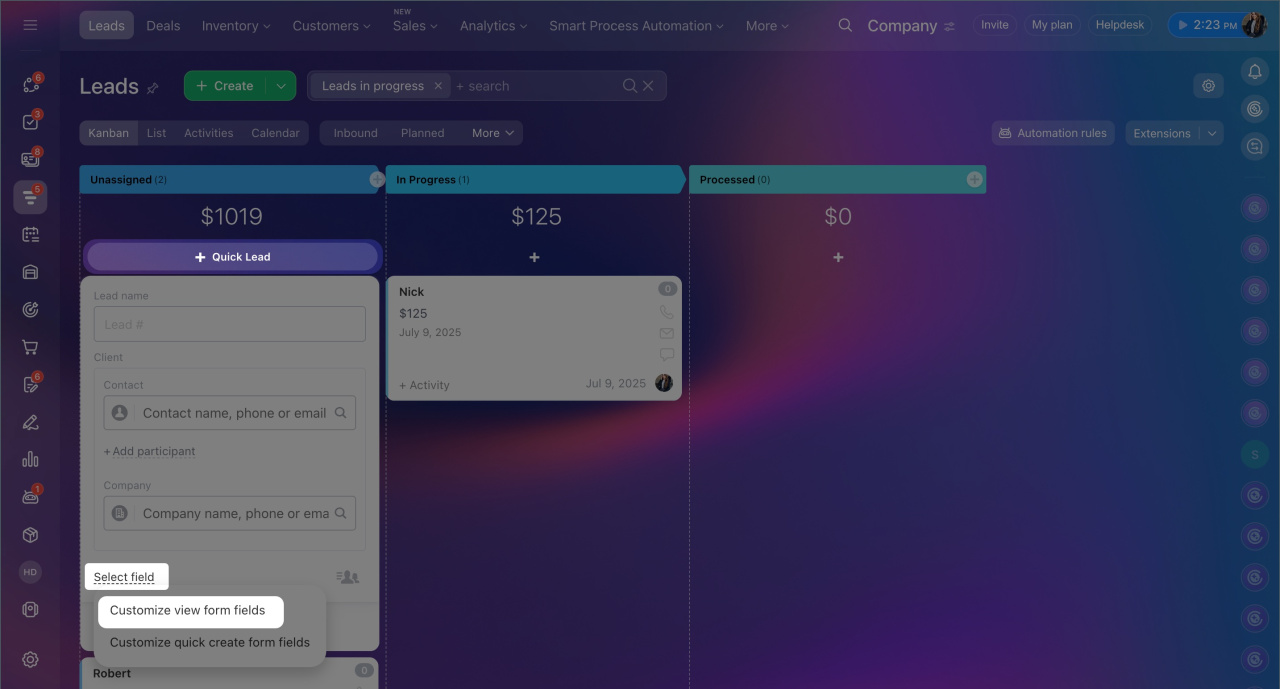
2. Click Quick lead > Select field > Customize quick create form fields.
3. Select the required fields.
4. Save settings.
Once saved, the selected fields will appear in preview form for all employees. However, each user can still customize their preview form at any time.
Creating a quick item in Kanban
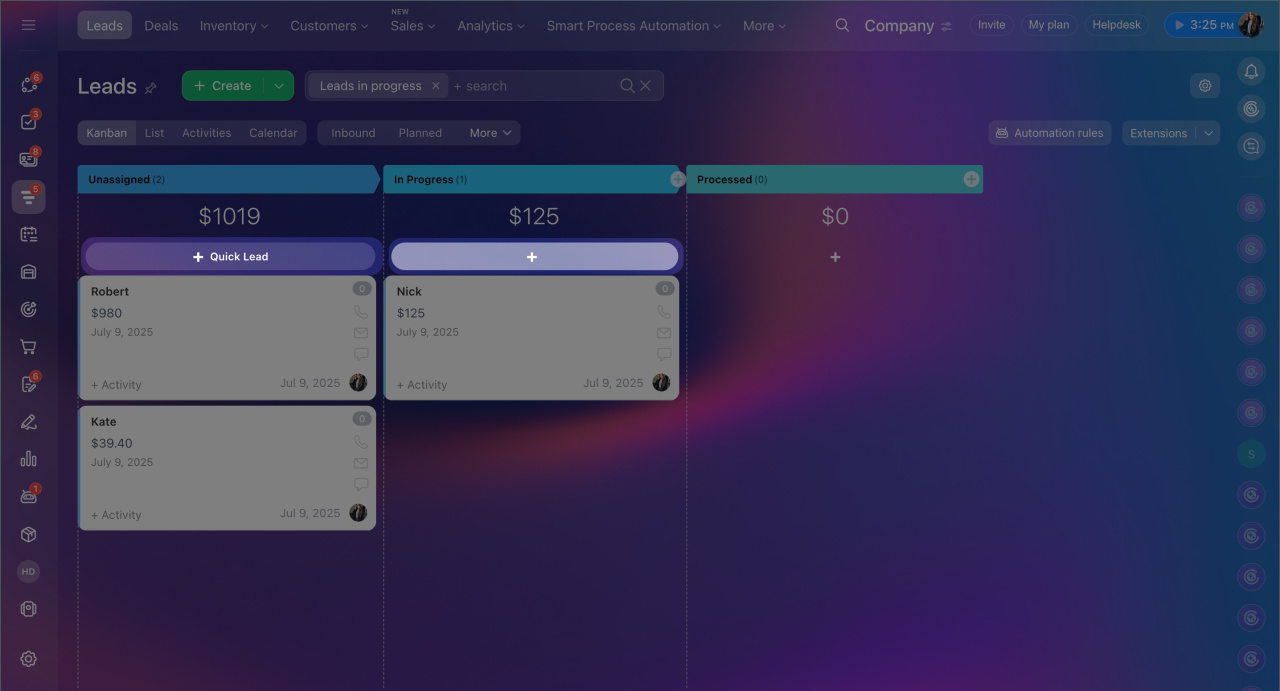
The quick form allows you to create a lead in just a few seconds. This is useful for recording inquiries without opening the full form. For example, during a call, a manager can enter just the name and phone number, and the lead will immediately appear in Kanban. Additional details can be added later.
1. Open CRM > Leads > Kanban.
2. Click the button on the desired stage. On the first stage, it’s + Quick lead. On other stages, it’s Plus (+). Both open the same form, and the lead will appear in the selected stage.
3. Fill in the required fields.
4. Save the item.
In brief
- You can create items directly from Kanban in CRM without opening the full form.
- The quick form allows you to add a new record and enter key details in just a few seconds.
- You can customize the preview form in Kanban to choose which fields and data will be visible without opening the item.
- Bitrix24 and CRM administrators can customize creation and preview forms for all employees, while each employee can customize them for themselves.
- To customize creation and preview forms for yourself, open Settings (⚙️) > Kanban settings > Customize preview form or Configure view form fields.
- To customize creation and preview forms for all employees, administrators need to click Quick lead > Select field > Customize quick create form fields.
