
A callback form lets customers leave their phone number for a manager to call them. It helps ensure no inquiries are missed and enables quick responses to customer requests.
CRM forms
Bitrix24 plans and pricing
Telephony connection options overview
In this article:
Create a callback form
Only Bitrix24 administrators and employees with permissions to edit CRM forms can create a callback form.
Configure access permissions for CRM forms
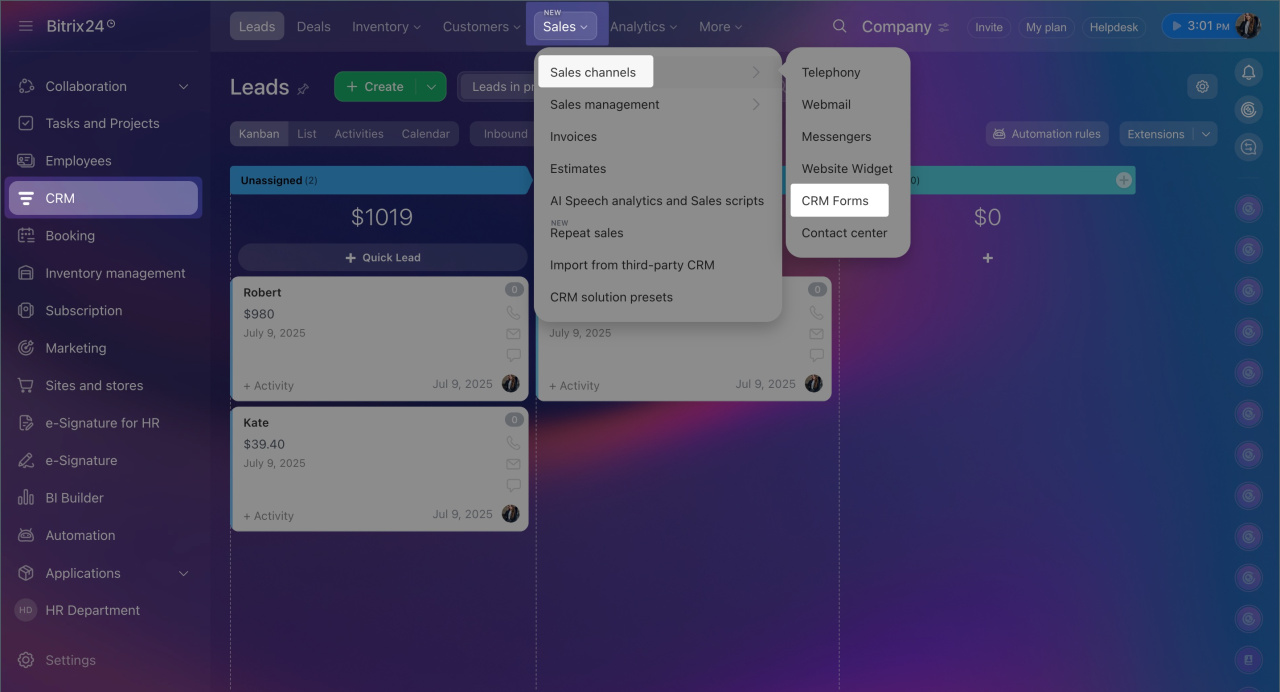
1. Go to CRM > Sales > Sales Channels > CRM forms.
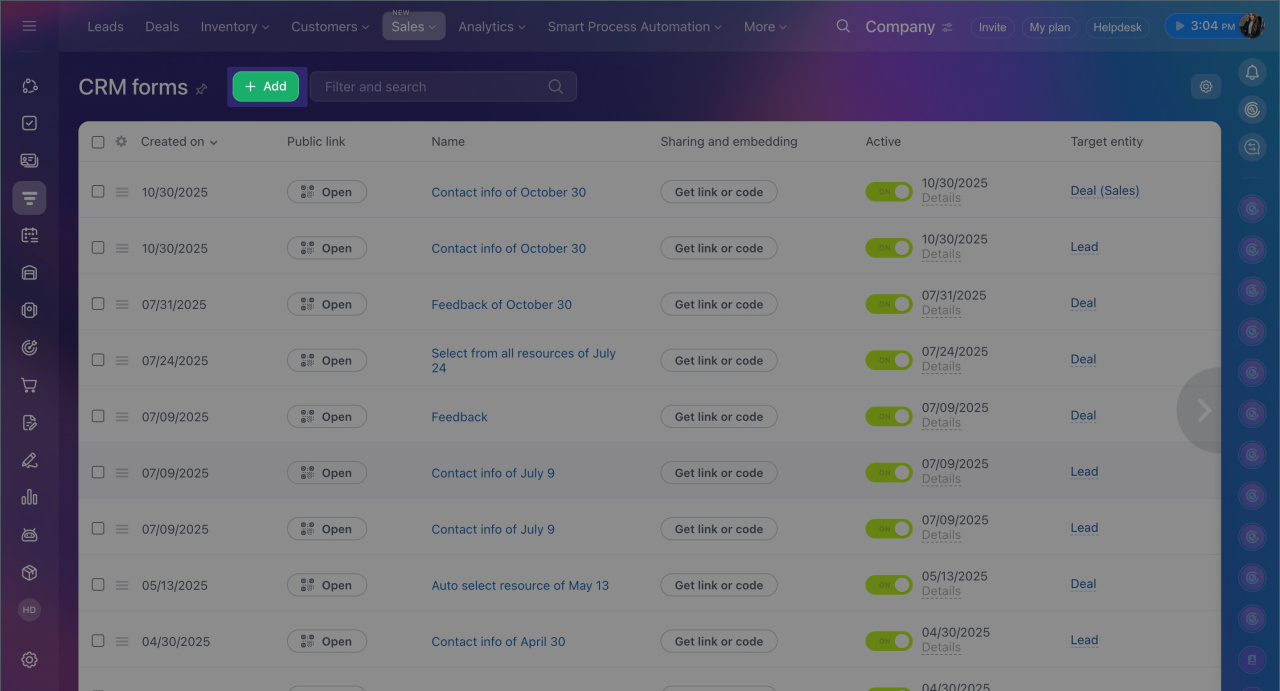
2. Click Add.
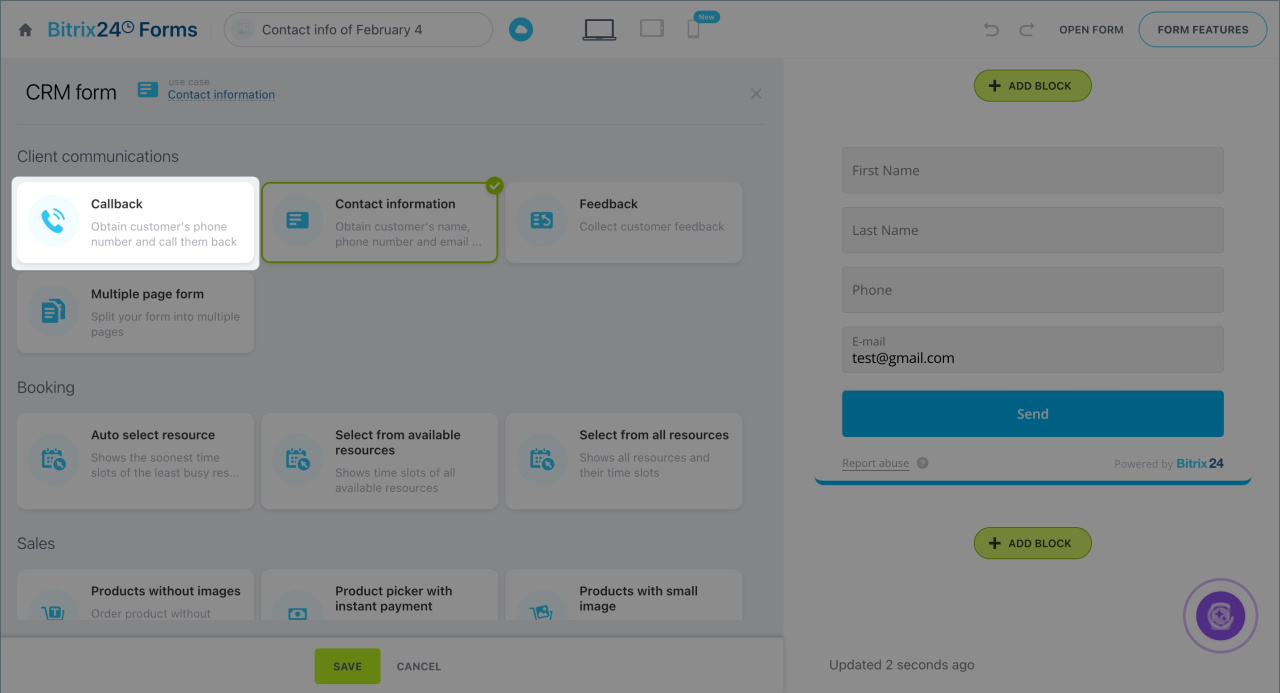
3. Select Callback.
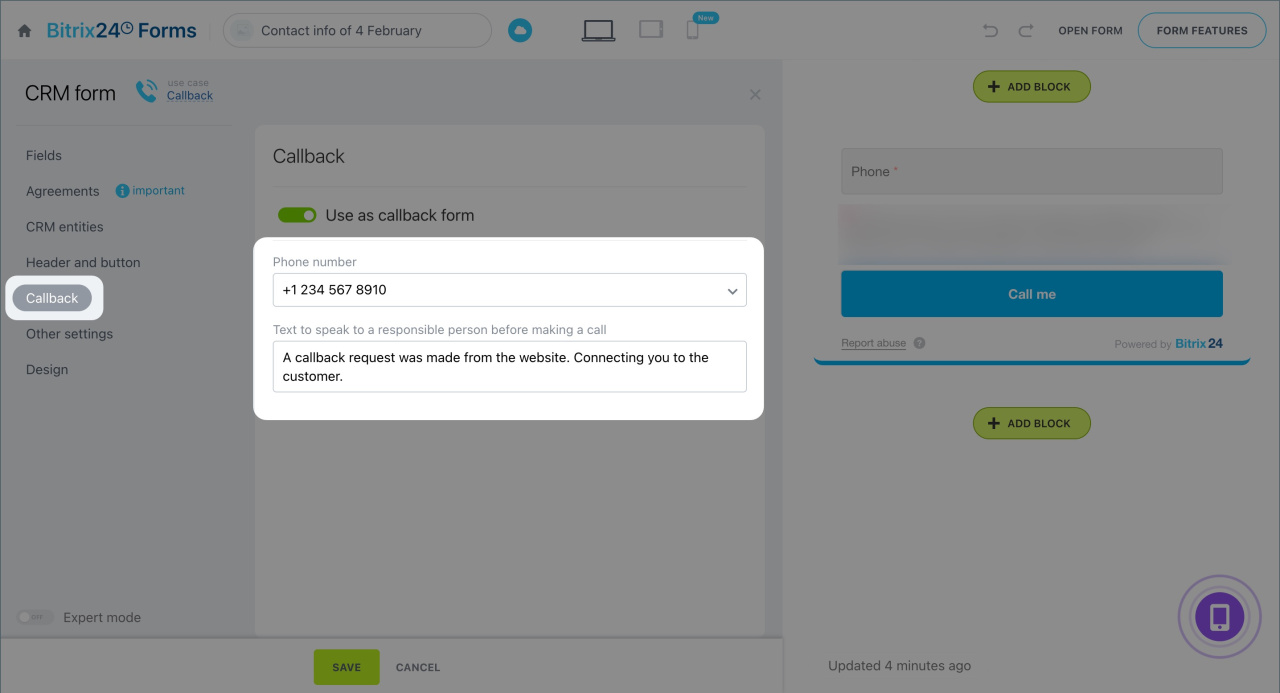
4. Select the number to call the customer from in the Phone number field.
5. In the Text to speak to a responsible person before making a call field, specify the phrase the manager will hear before calling the customer. For example, “A callback request was made from the website. Connecting you to the customer.”
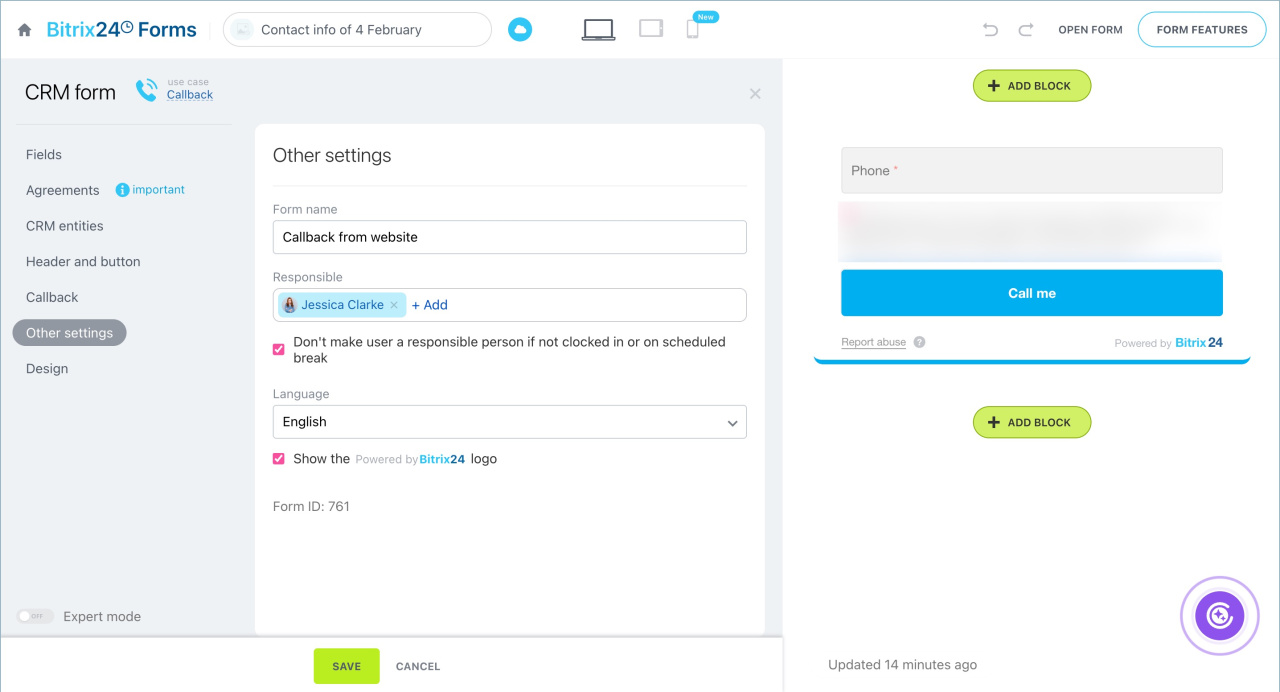
6. Go to Other settings and:
- Enter the form name.
- Assign responsible employees who will handle CRM items created after the form is submitted.
- Select the form language.
- Check Don't make user a responsible person if not clocked in or on scheduled break to ensure inquiries are only assigned to employees currently working.
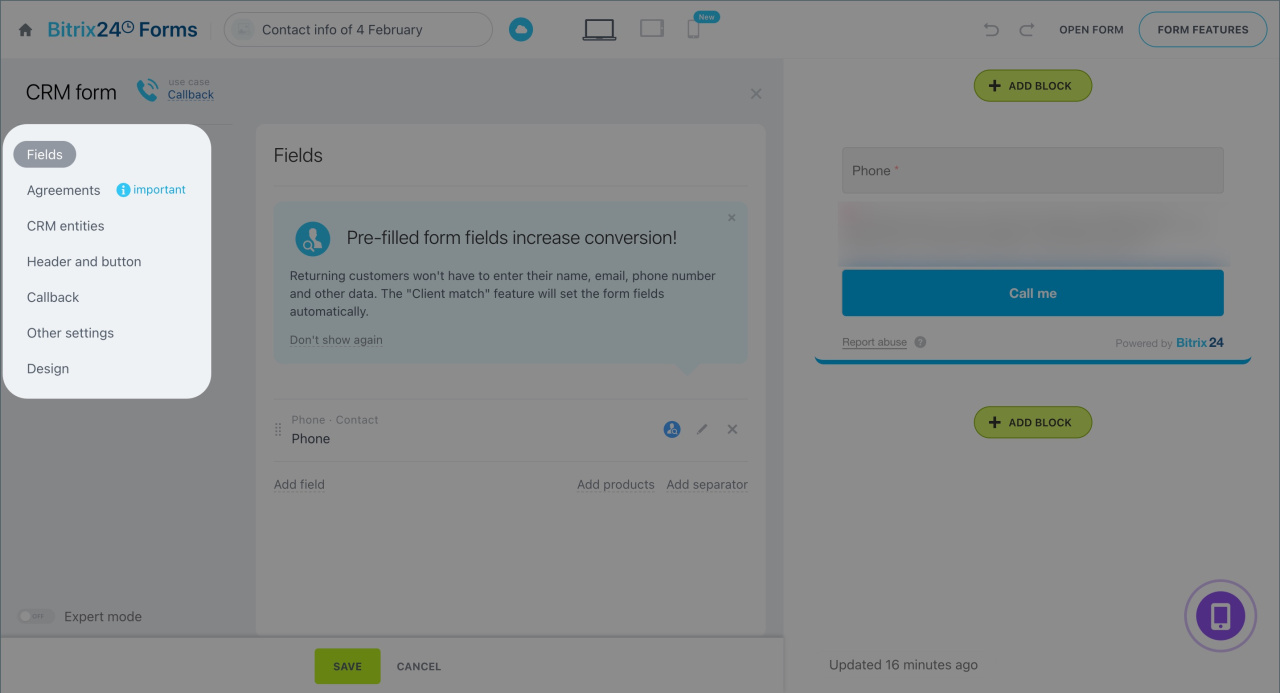
7. If needed, add extra fields to the form, customize its design, and adjust other settings.
Create and configure CRM forms
8. Save the changes.
Publishing a callback form
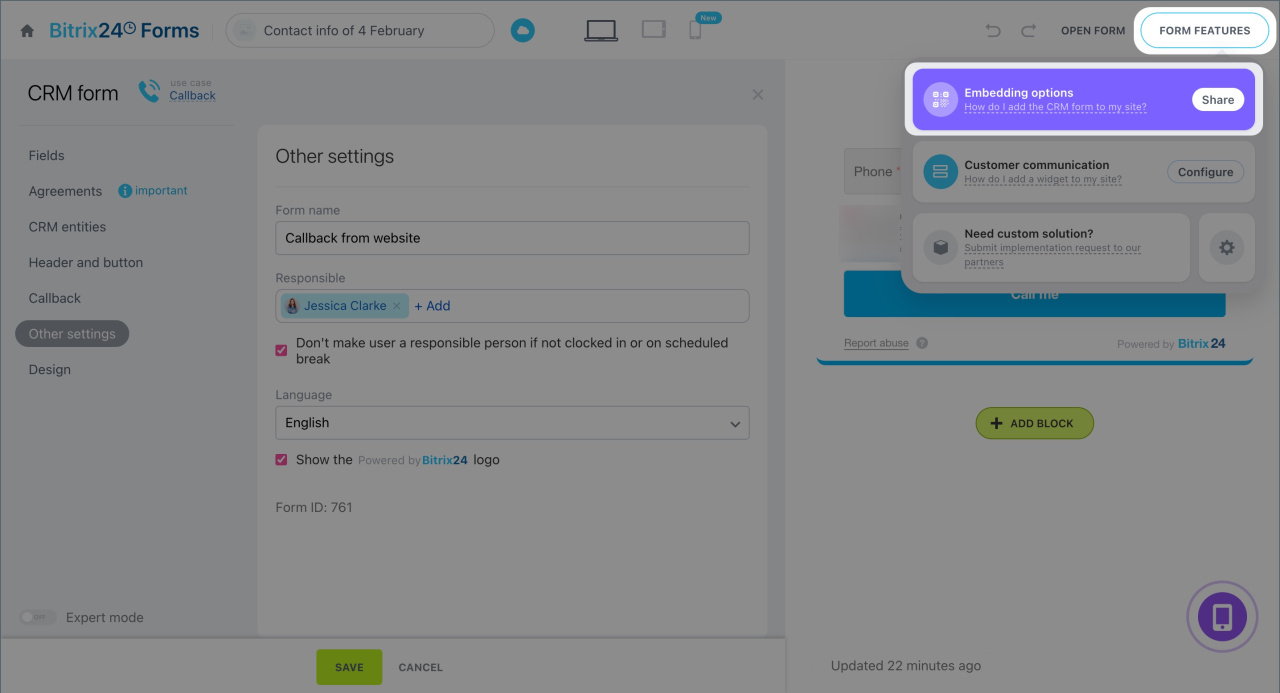
You can place the callback form on a separate page, on your website, or send it in a chat with a customer. Click Form features > Share and choose a publication method.
On a separate page. Select the Public link tab and click Copy link. You can send this link to customers via email, messenger, or post it on social media. The form will open on a separate page when the link is accessed.
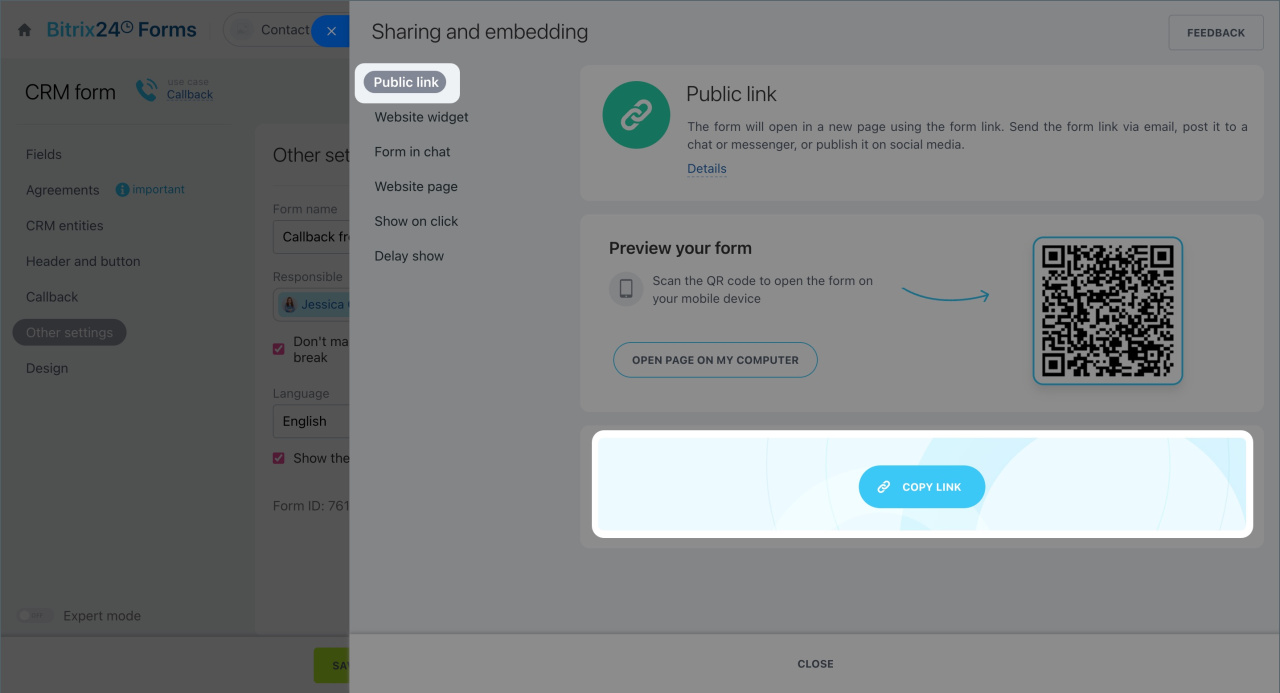
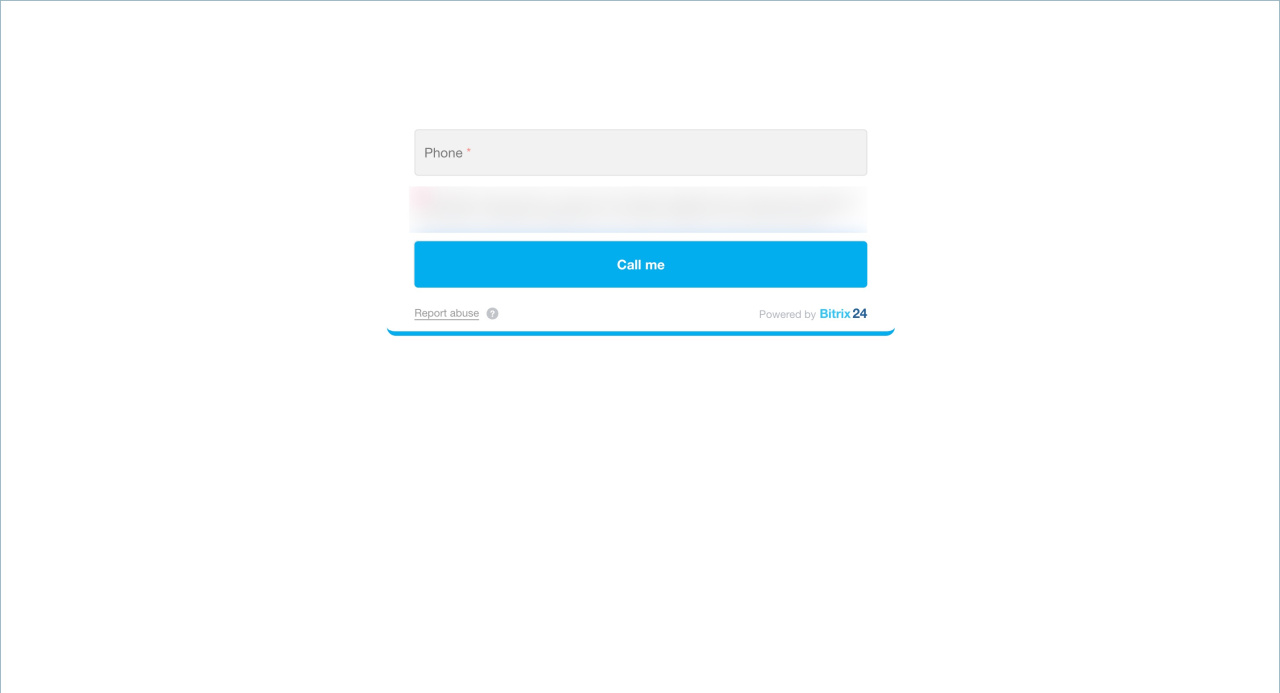 Form on a separate page
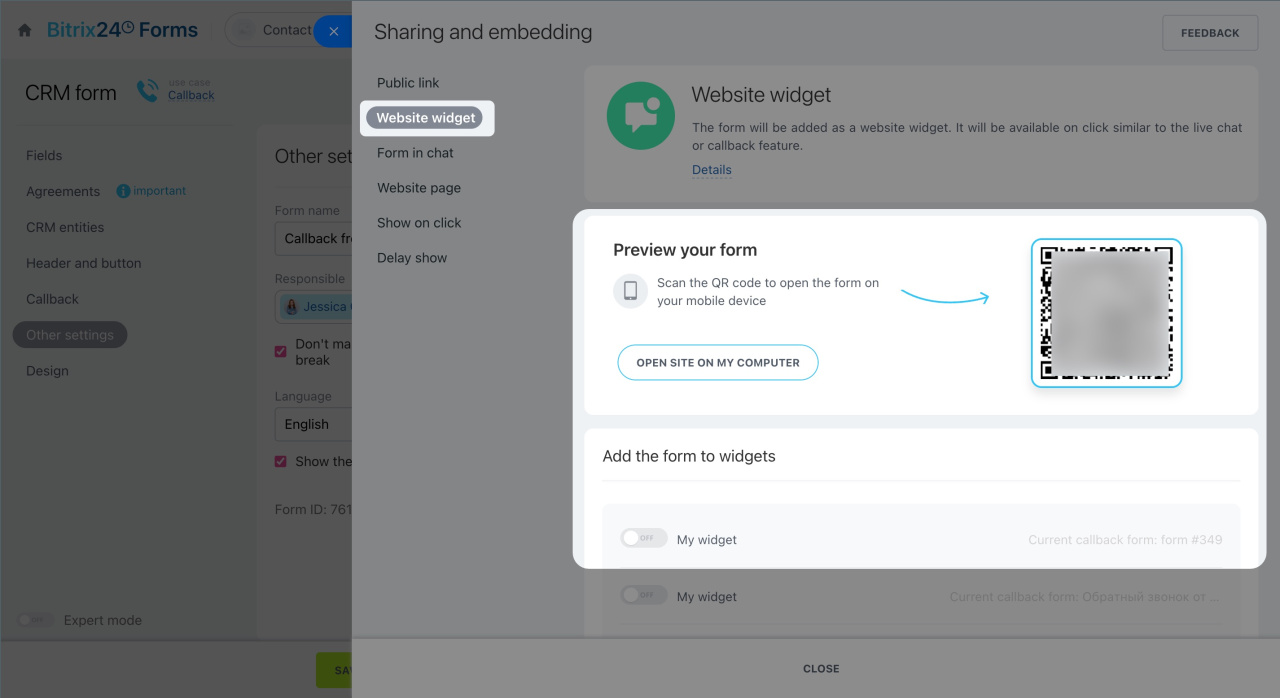
In a website widget. The form will be added to a widget on your website and will open when the icon is clicked.
1. Click Website widget.
2. Preview how the callback form will look on the page. To view it, click Open page on computer, or scan the QR code.
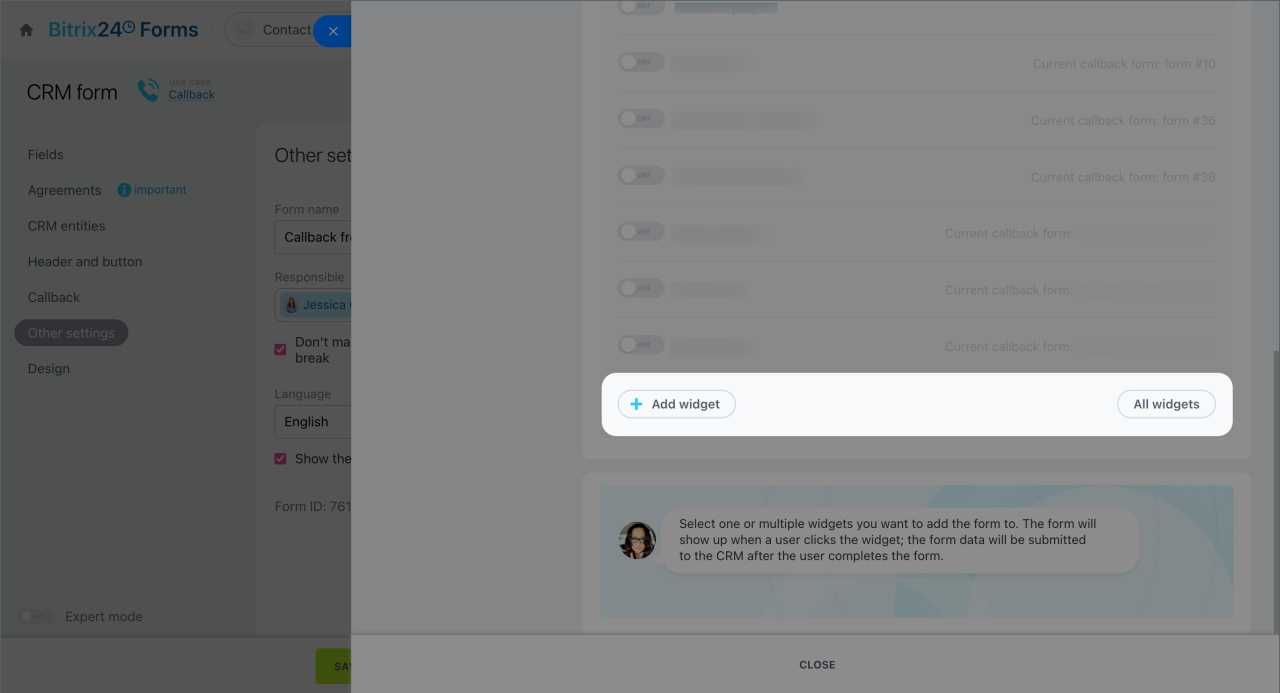
3. Select one or more widgets to add the form to.
4. If the required widget is not listed, click Add widget to create a new one. To view all widgets, click All widgets.
Website widget
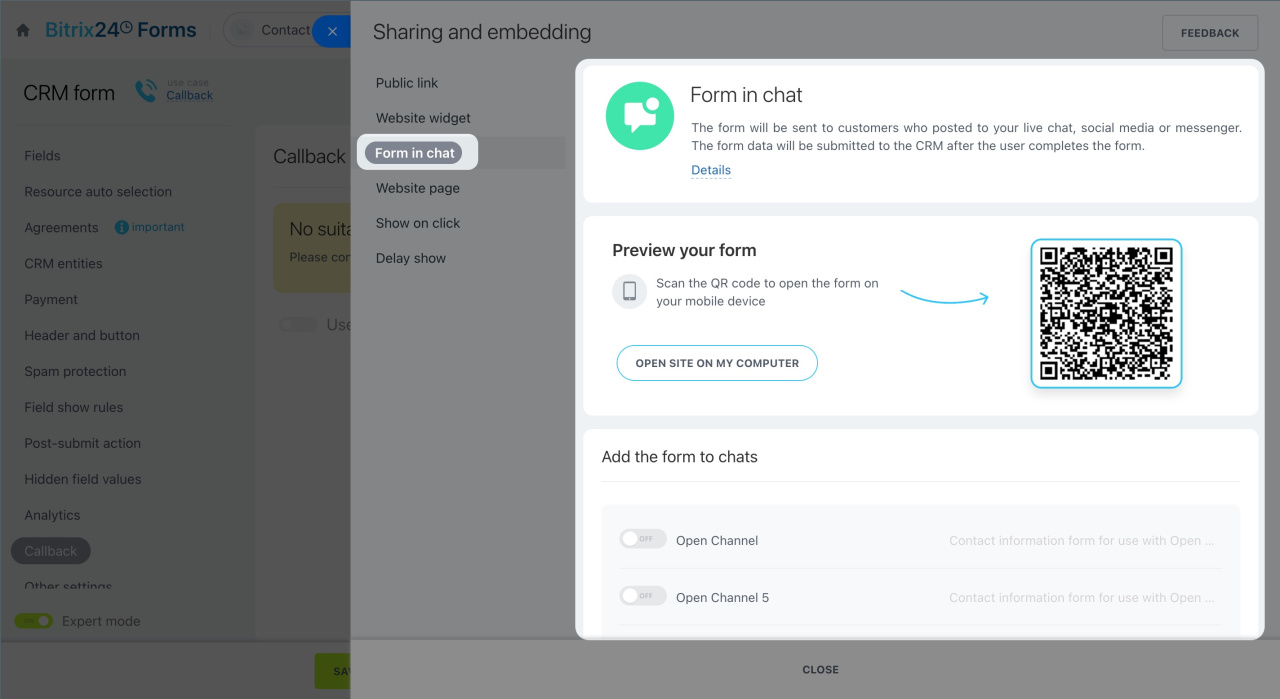
In a chat with a customer. The form will automatically be sent to customers who contact you via live chat, social media, or messenger.
Click Form in chat and select the open channel where you want to add the form.
Create and configure Open Channels
Send CRM forms in Open Channel chats
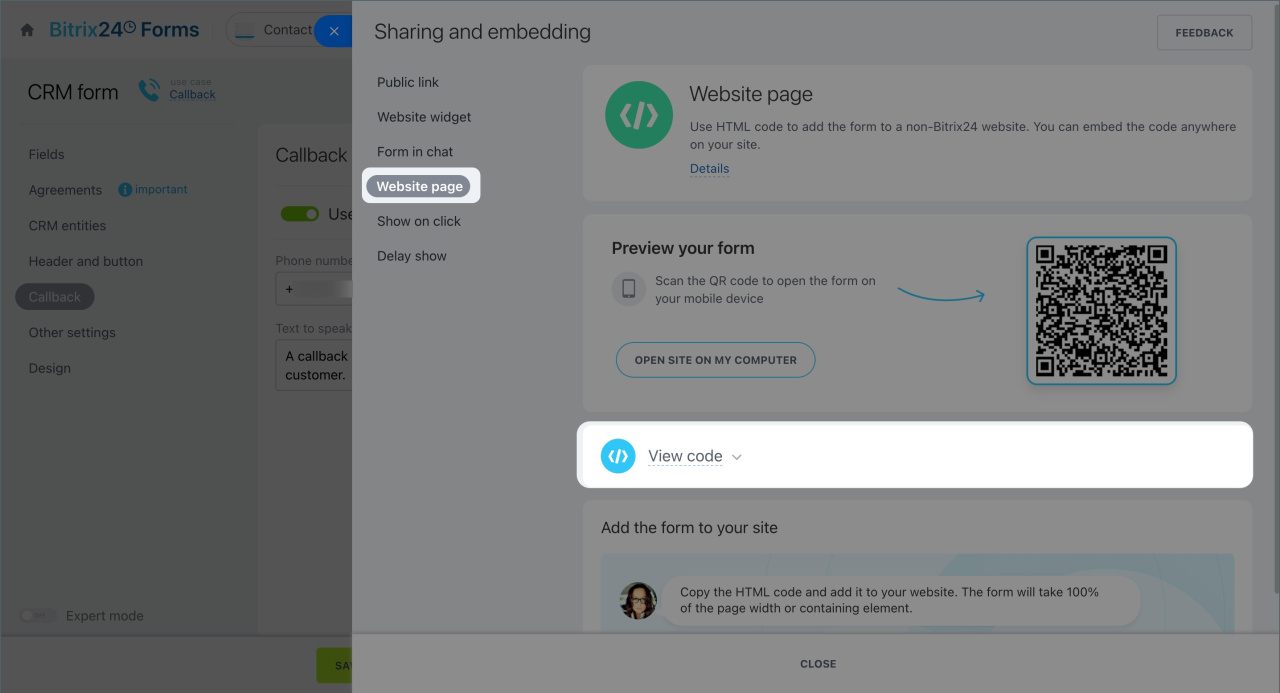
On a website page. To add the form to a website not created in Bitrix24, use the provided code. It can be embedded anywhere on your site.
Click the Website page tab > View code. Copy it and embed on your website.
Place CRM form on site created not in Bitrix24
How the callback form works
When customers fill out the form, CRM items are automatically created and assigned to employees specified in the form settings. The next steps depend on whether the responsible employee can receive incoming calls.
To enable an employee to receive incoming calls, add them to the telephony user group.
Configure queue groups
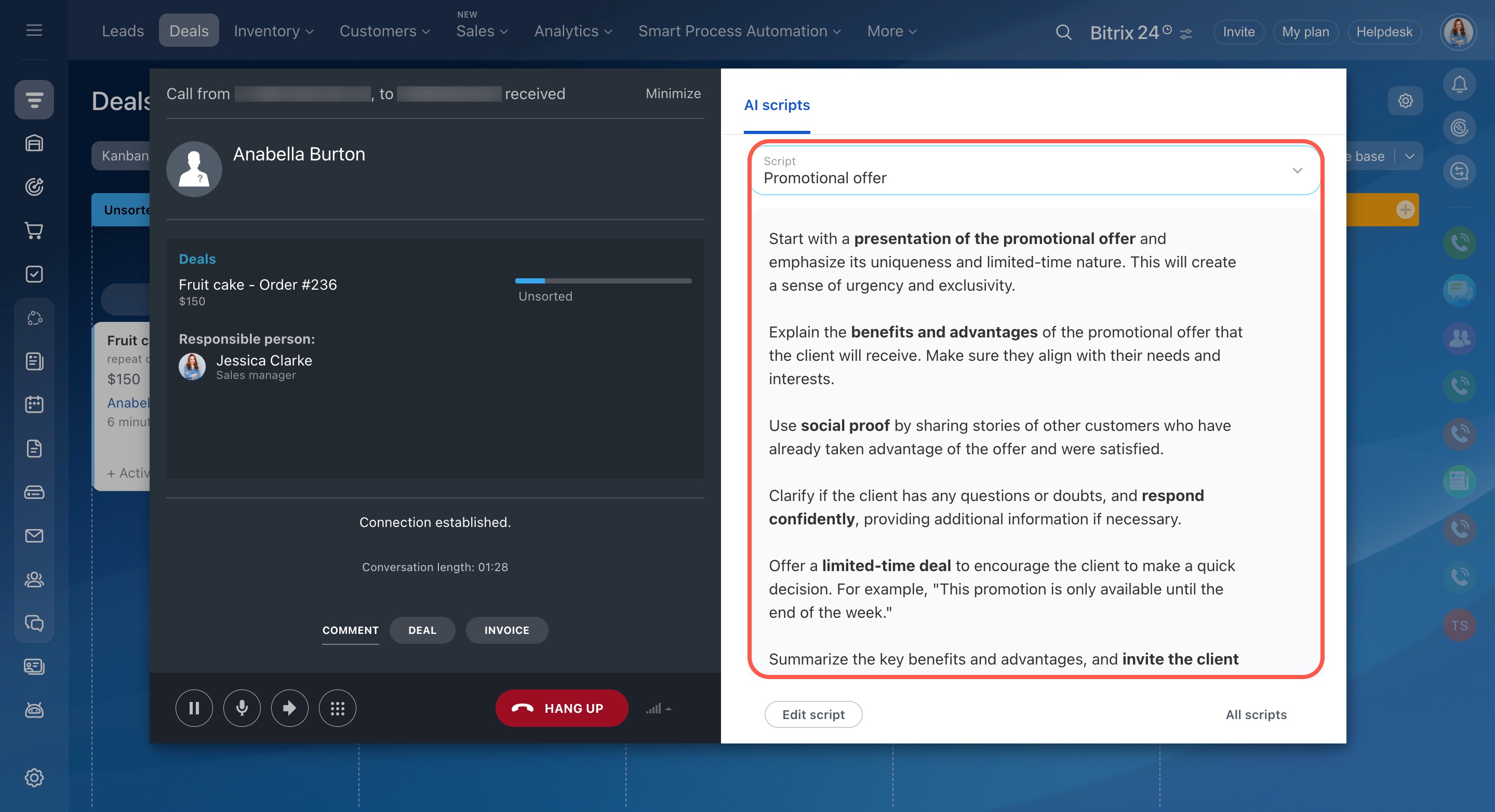
The manager can receive incoming calls. The employee receives an incoming call and hears the text specified in the form settings. Bitrix24 then automatically calls the customer. A CRM item and a call activity are created.
A script suitable for this customer type automatically opens in the call window. For example, if the customer is new to CRM, the manager will see a script for the first contact, helping them handle the call more effectively.
AI Speech analytics and Sales scripts in CRM
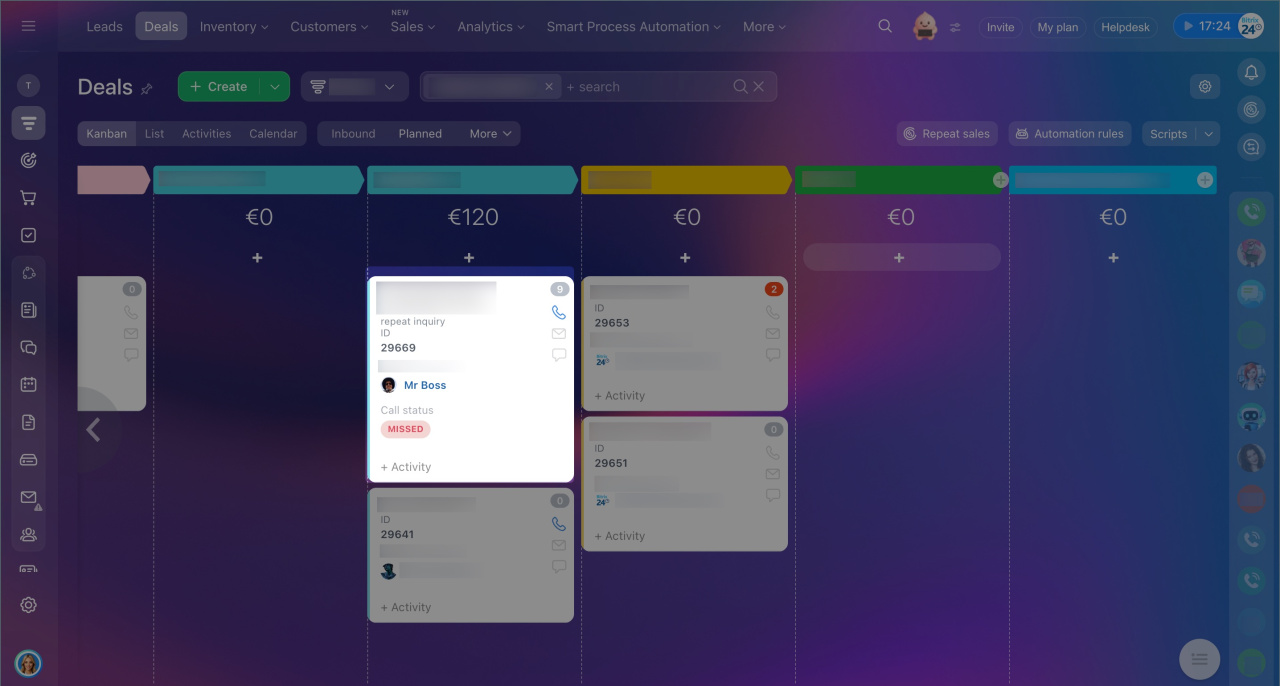
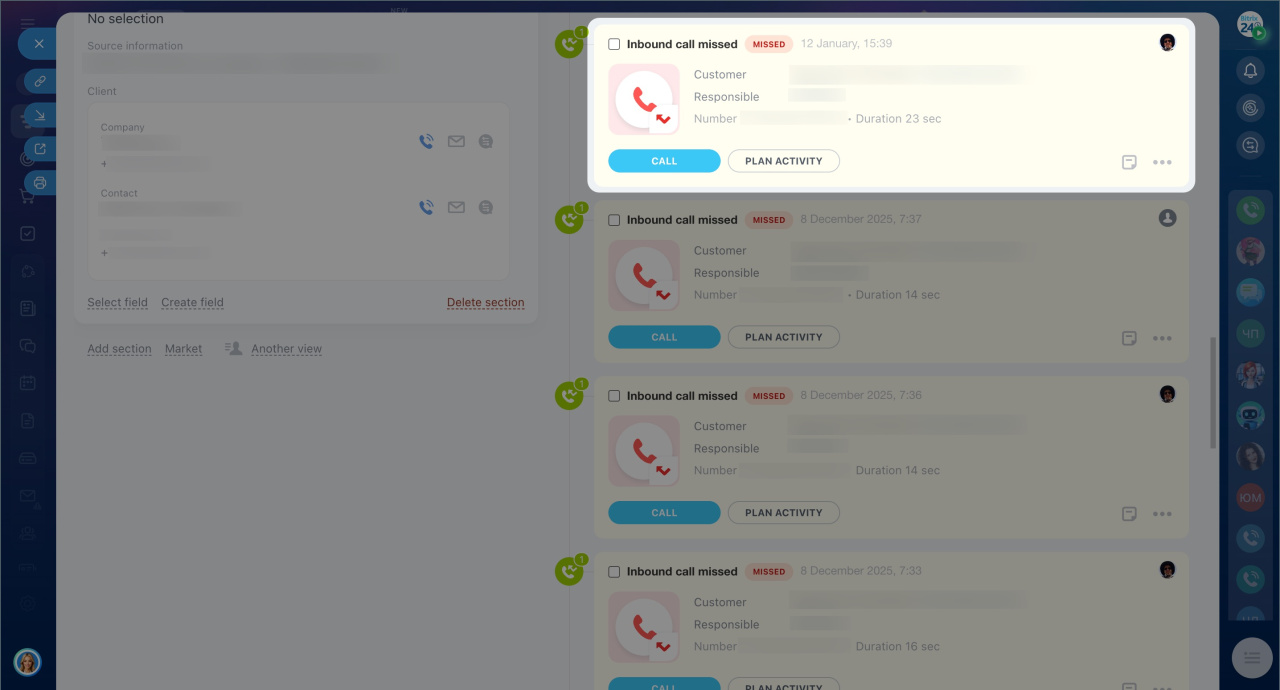
The manager cannot receive incoming calls. A CRM item with customer data is created. A missed call activity is automatically added to the timeline. The manager sees the new item and calls the customer back from the CRM form using the Call button.
In brief
- A callback form lets customers leave their phone number for a manager to call them. It helps ensure no inquiries are missed and enables quick responses to customer requests.
- Only Bitrix24 administrators and employees with permissions to edit CRM forms can create a callback form.
- To create a callback form, go to CRM > Sales > Sales Channels > CRM forms. Click Add and select the Callback scenario.
- You can place the callback form on a separate page, on your website, or send it in a chat with a customer. Click Form features > Share and choose a publication method.
- When customers fill out the form, CRM items are automatically created and assigned to employees specified in the form settings.
- If the manager can receive incoming calls, they get a call to connect with the customer. If not, they call the customer back from the CRM form.
