
The barcode scanner helps quickly locate and add products to the Inventory management documents. Instead of manually searching by name, an employee scans the barcode, and Bitrix24 automatically adds the product to the document.
For example, a warehouse worker can receive a product shipment and scan the barcodes on the packages. The products will automatically appear in the stock adjustment document.
In this article:
Add or find a product using a barcode
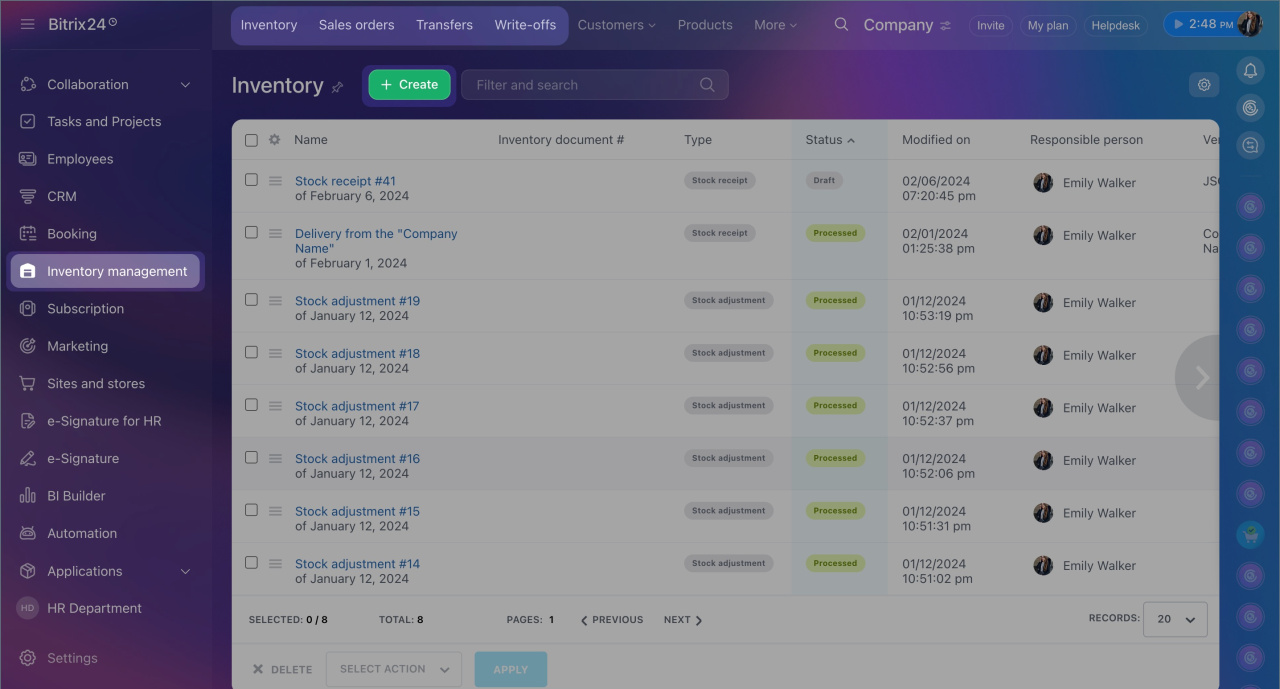
1. Go to the Inventory management section. Select the required document type, and click Create.
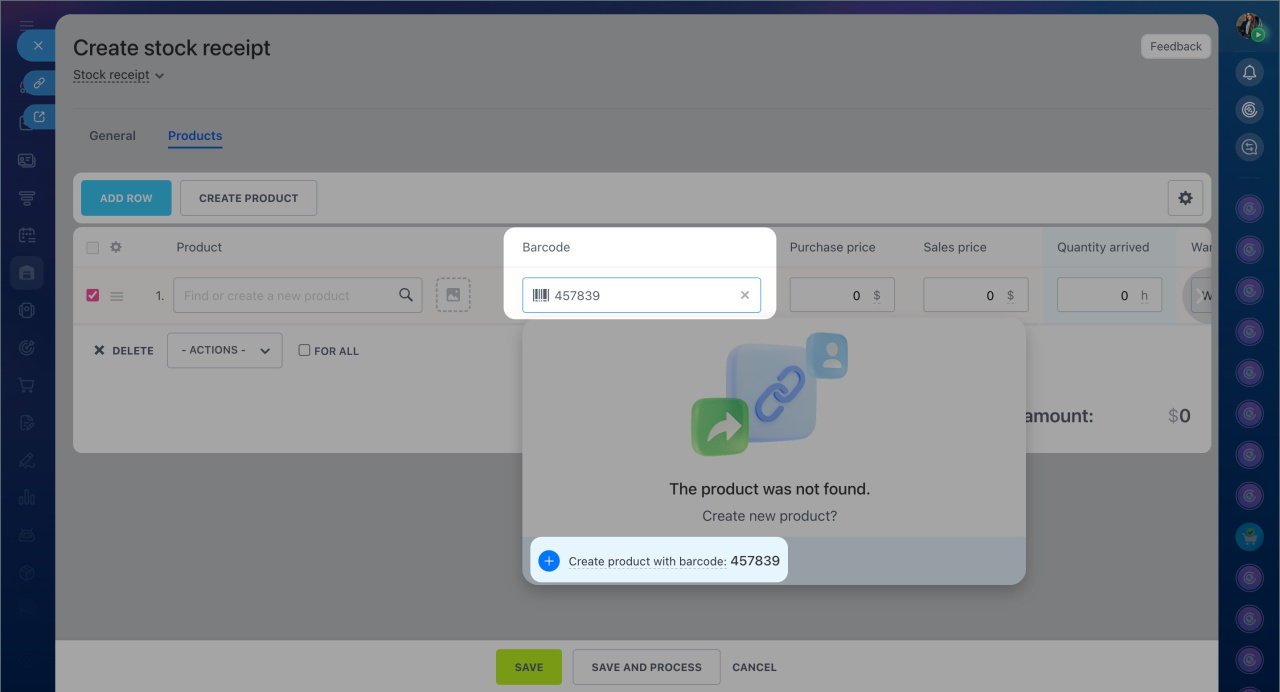
2. Click the Barcode field in the document and scan the product's code.
If a product with this barcode already exists in the catalog, Bitrix24 will automatically add it to the document. If the product is not found, it will suggest creating a new item and saving the barcode for it.
Bitrix24 allows you to work with barcodes in two ways:
- Using a USB barcode scanner on a computer
- Using the Bitrix24 mobile app and a smartphone camera
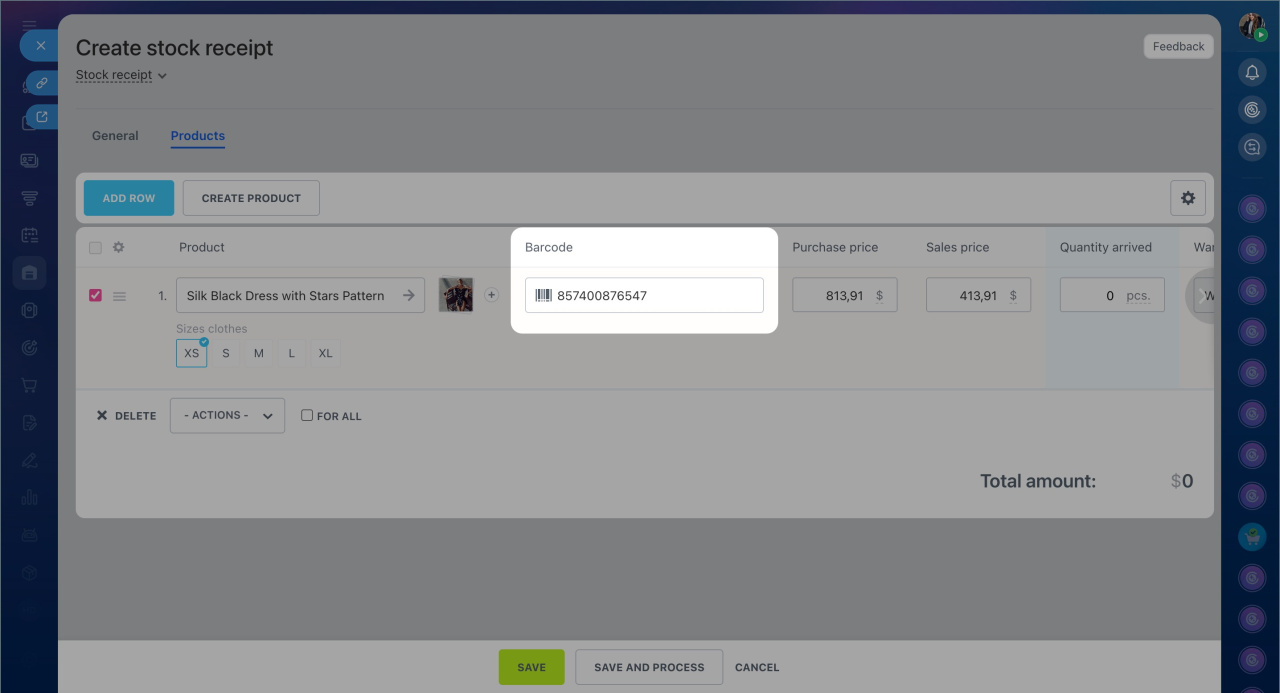
USB barcode scanner. Connect the USB scanner to a computer or laptop. No additional setup is required — you can start scanning immediately after connecting.
1. Open the Inventory management document, click the Barcode field, and scan the product's code. Bitrix24 will add the product from the catalog to the document.
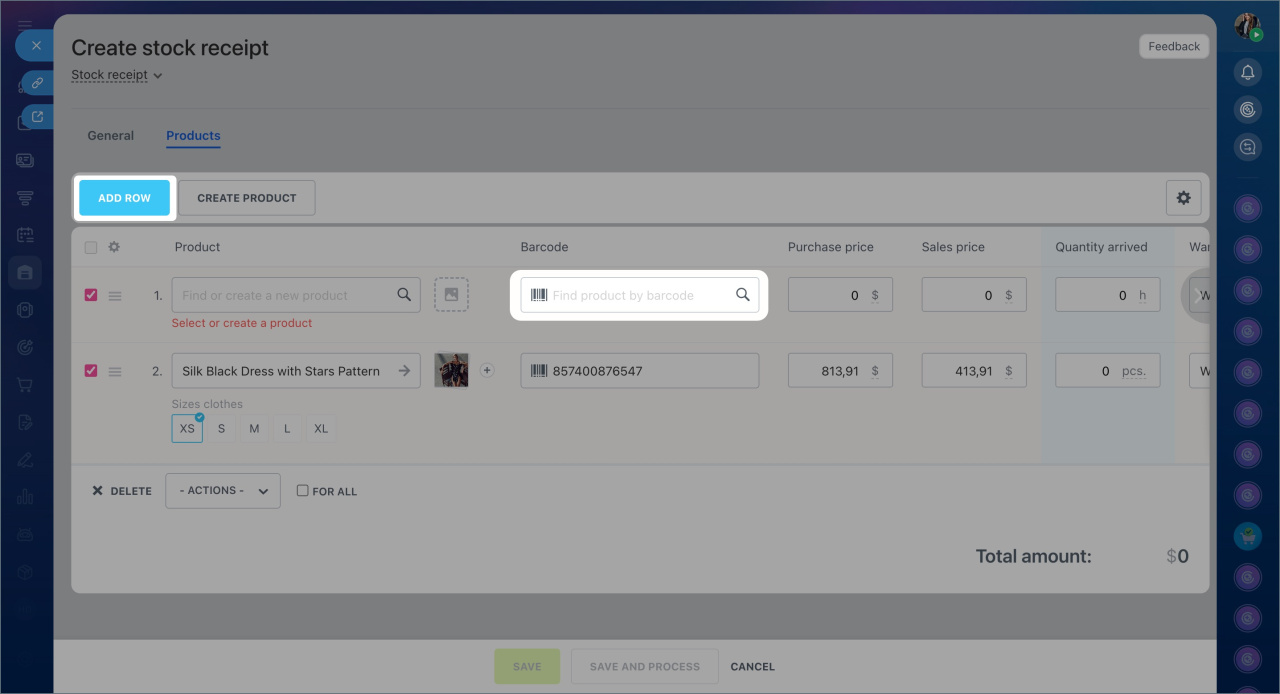
2. To add the next product, click Add row, place the cursor in the Barcode field again, and scan the code.
Scanning barcodes via the mobile app. Scanning barcodes through the mobile app is convenient when a USB scanner is unavailable or when working directly in the warehouse. For example, a warehouse worker can use the Bitrix24 mobile app to scan barcodes of large items and add them to the document without returning to their workstation.
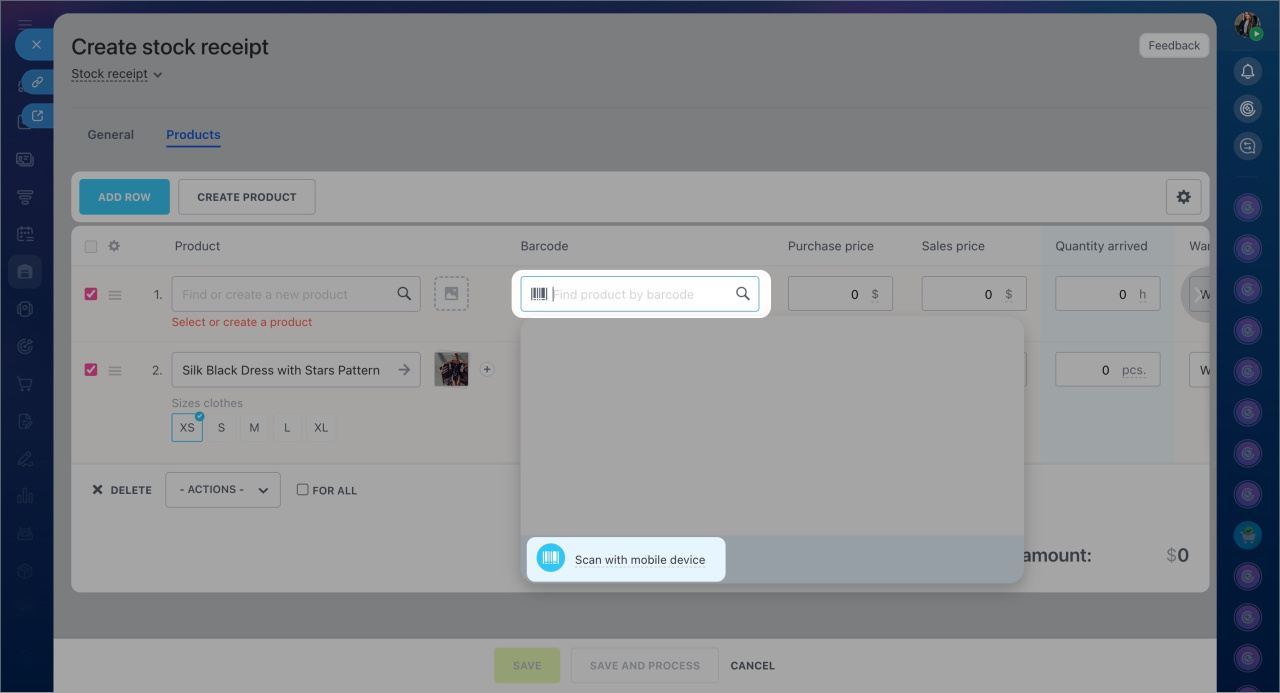
1. In the inventory management document, click the Barcode > Scan with mobile device field. If the mobile app is not installed, Bitrix24 will suggest downloading it and logging in via a QR code.
2. A notification will appear in the mobile app, prompting you to launch the scanner. Click the notification and point the camera to scan the barcode.
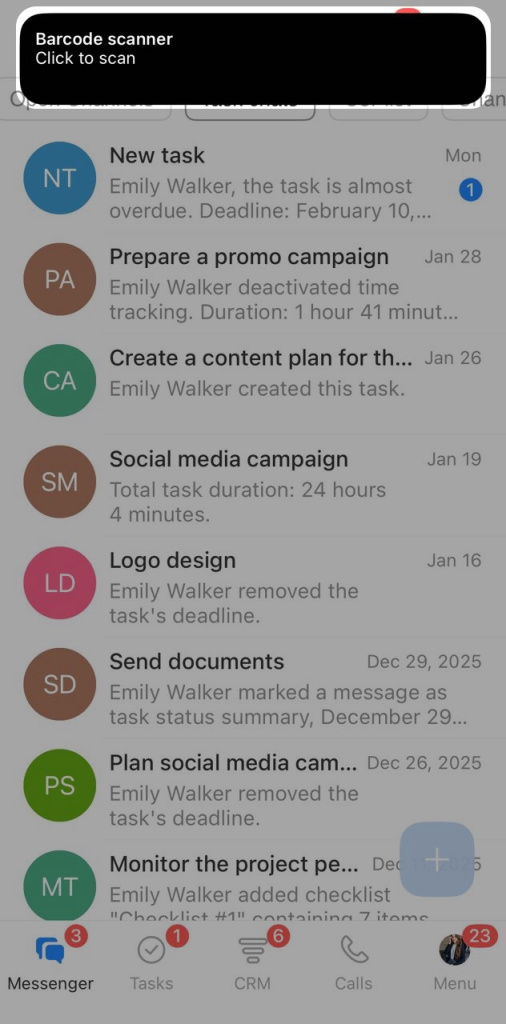
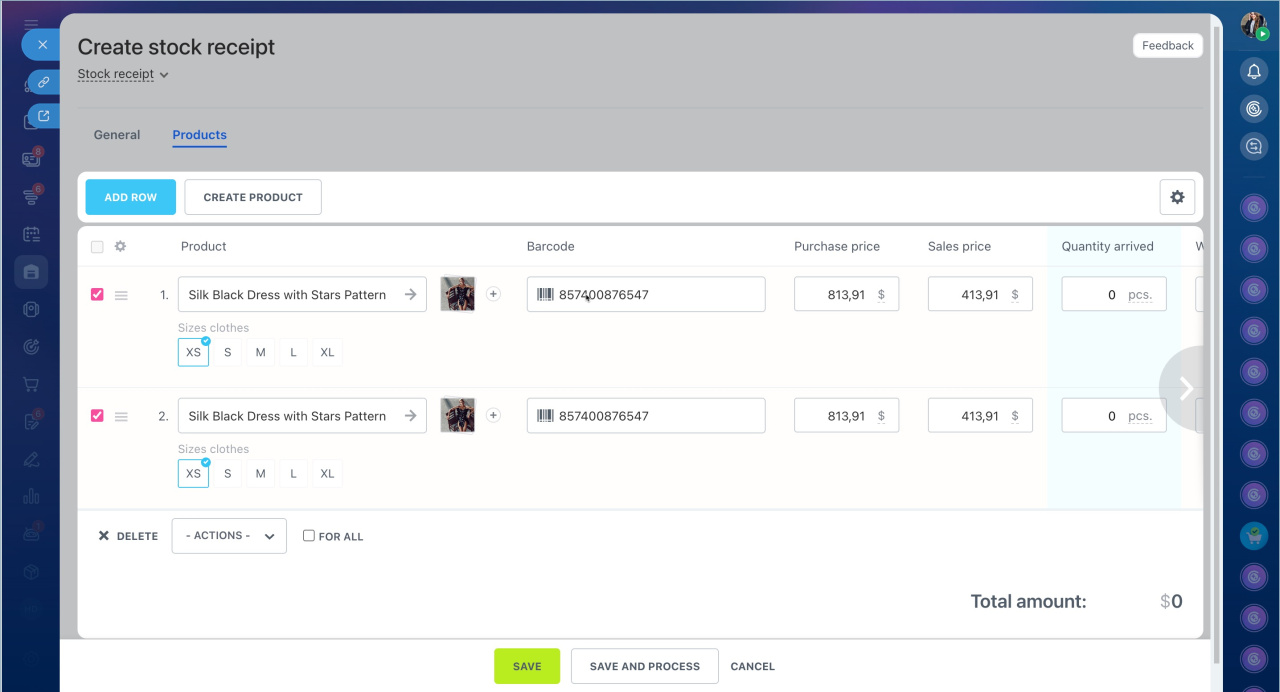
After scanning the barcode, the product will appear in the document. To add multiple products, keep the camera open and continue scanning barcodes — new rows will be added to the document automatically.
In brief
- The barcode scanner helps quickly locate and add products to the Inventory management documents without manual search or data entry.
- If the product is found in the catalog, Bitrix24 automatically adds it to the document.
- If the product is not found, Bitrix24 suggests creating a new item and saving the barcode for it.
- You can work with barcodes using a USB scanner on a computer or through the Bitrix24 mobile app.
