
Custom fields allow you to configure the warehouse form to your business needs. They can store information for which there are no suitable system fields.
For example, you can create a File type field to store a document with instructions for receiving goods. New employees can study it directly in the warehouse form and follow the guidelines.
Configure access permissions to Inventory Management
In this article:
- Types of custom fields available in the warehouse form
- Create a custom field
- Edit or delete a custom field
Types of custom fields
The type of a custom field determines the kind of data it will store. You can select the type when creating the field.
- CRM item binding — allows selecting a specific CRM item like a contact, company, deal, etc. For example, you can specify a vendor.
- CRM directory binding — allows selecting values from CRM directories used for system fields. For example, Company industry or Company type.
Statuses and dropdowns in CRM - Money — an amount with currency. For example, you can add the warehouse's reference insurance value.
- Employee binding — allows selecting a company employee. For example, you can specify the responsible warehouse manager.
- String — suitable for any information: text, numbers, dates.
- Integer — only whole numbers can be entered. For example, you can specify a storage zone number.
- Number — suitable for any numbers. For example, you can specify the reference value for the permissible storage temperature.
- Date and time — date and exact time. For example, the date and time of the last shipment.
- Date — date without time. For example, the date of the last inventory check.
- Yes/No — allows selecting Yes or No. For example, you can indicate whether the warehouse offers delivery to customers.
- Address — allows selecting an address on a map. For example, you can mark the warehouse's actual location on the map.
- Link — allows adding a link to any object, such as a document, page, or file.
- File — a field for uploading instructions, regulations, diagrams, and other files.
- List — a field where users can select one or more predefined options. For example, you can specify the warehouse's operation format: 24/7, shipping to retail points, or customer delivery.
- Infoblock section binding — allows selecting a section from an infoblock. For example, a department from the company structure or a product catalog section.
- Infoblock item binding — allows selecting a specific infoblock item. For example, a product or a workflow element.
Create a custom field
You can create a custom field directly in the warehouse form or through the custom field settings.
In the warehouse form. This method is suitable for quickly creating and filling out a field.
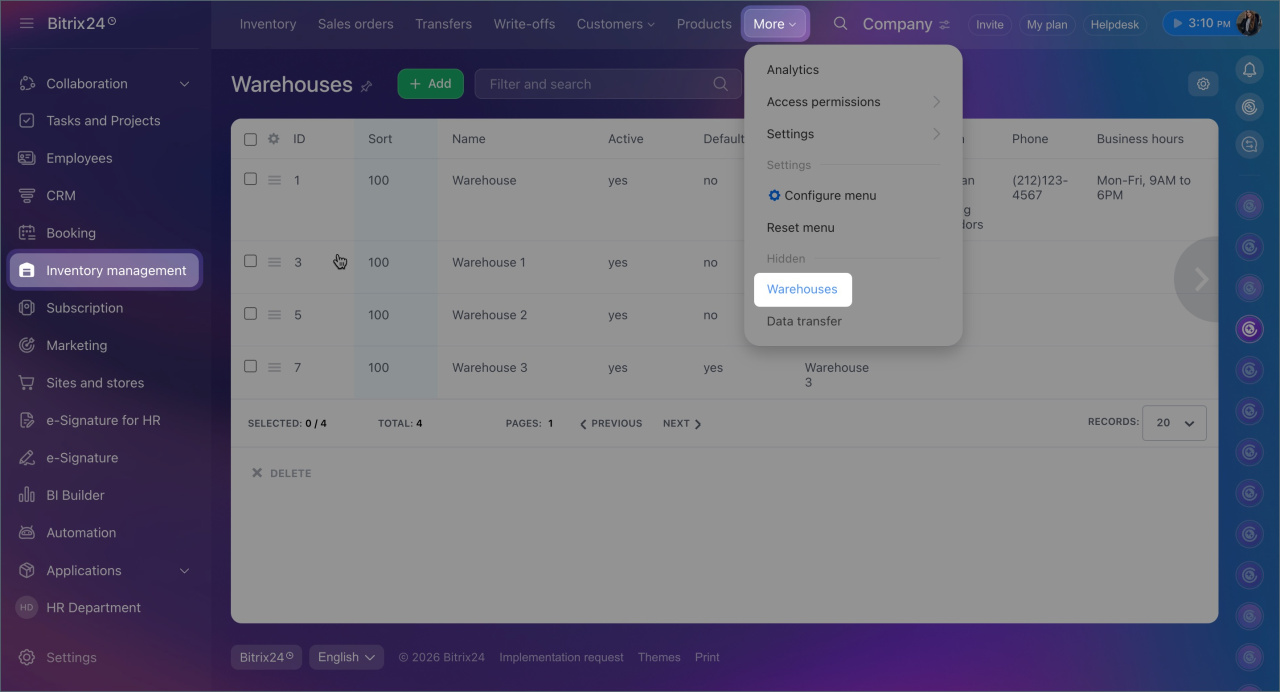
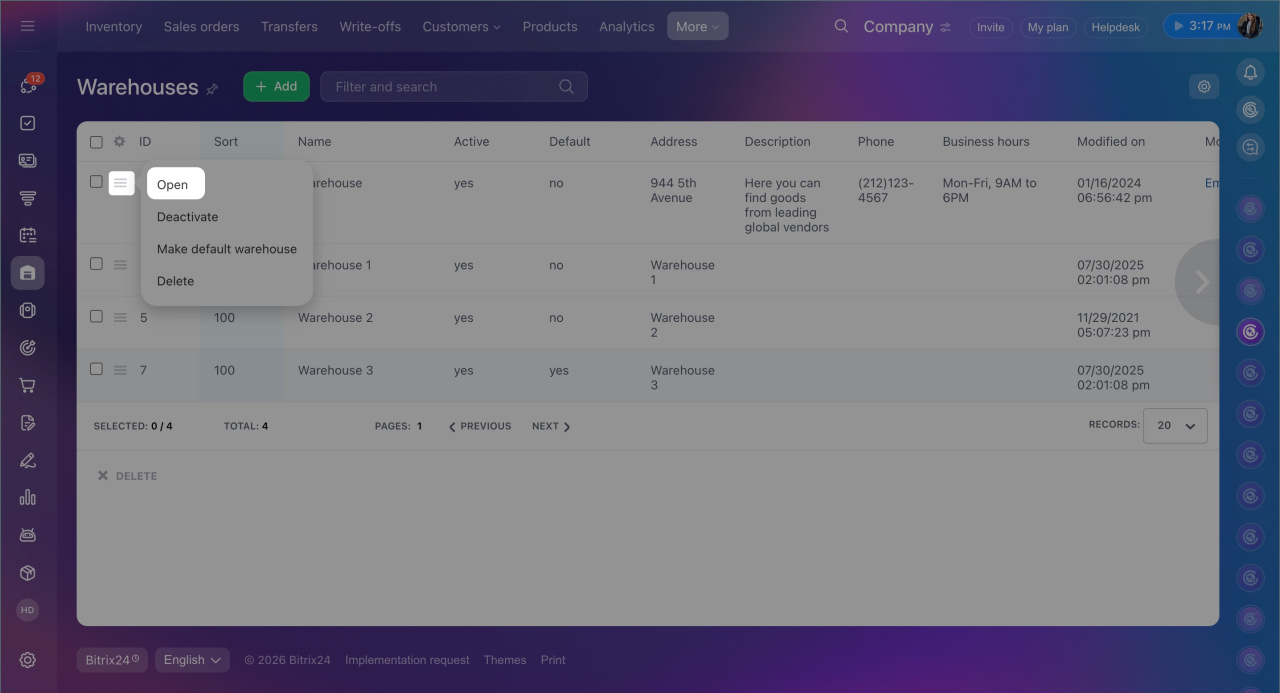
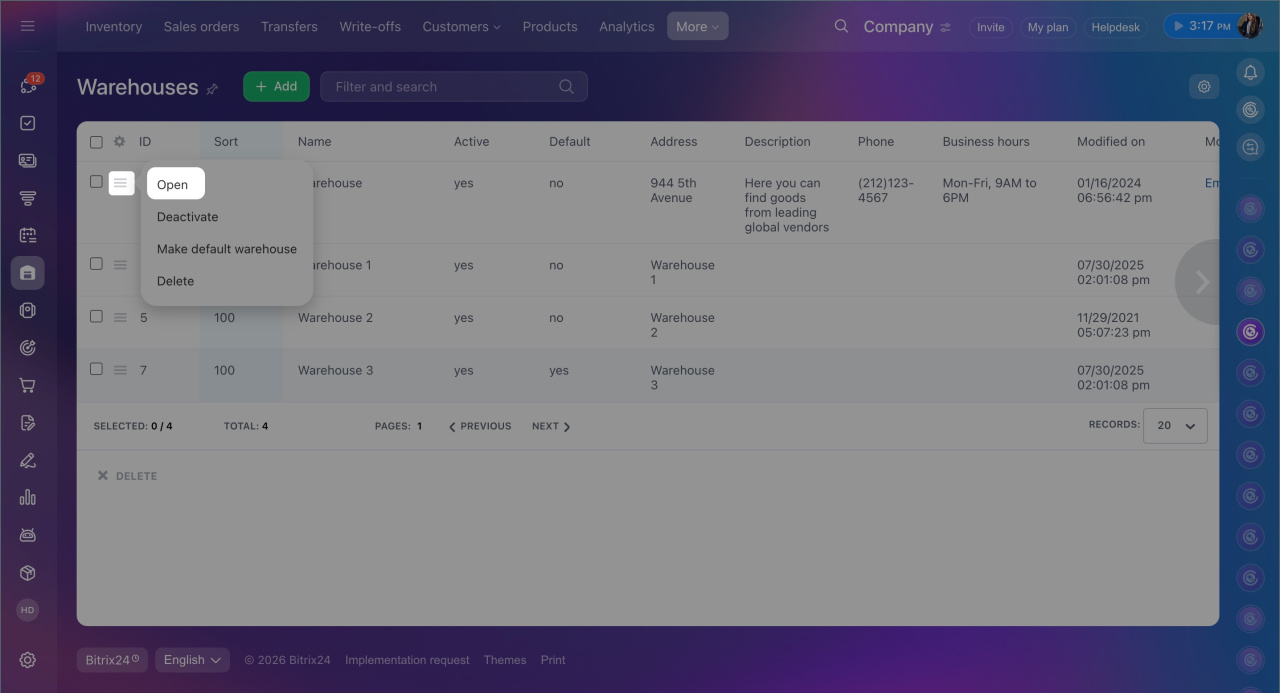
1. Go to the Inventory management section > More > Warehouses. Select the required warehouse and click Menu (≡) > Open.
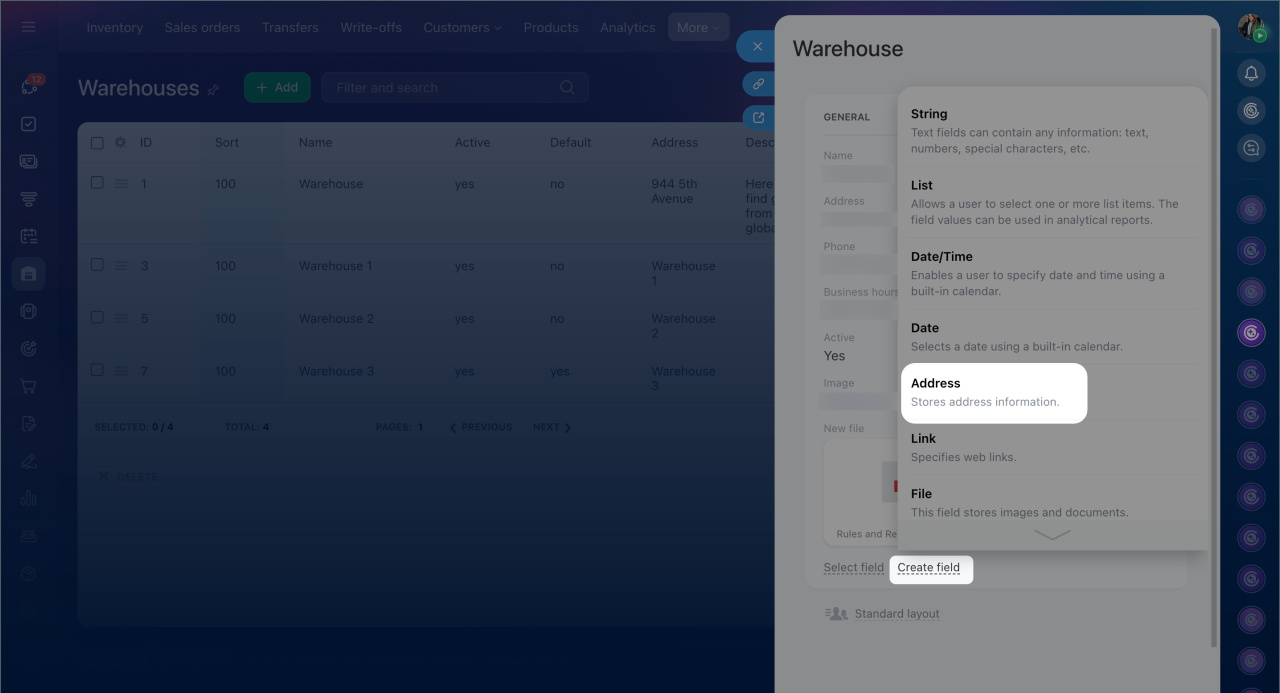
2. In the warehouse form, click Create field and select its type.
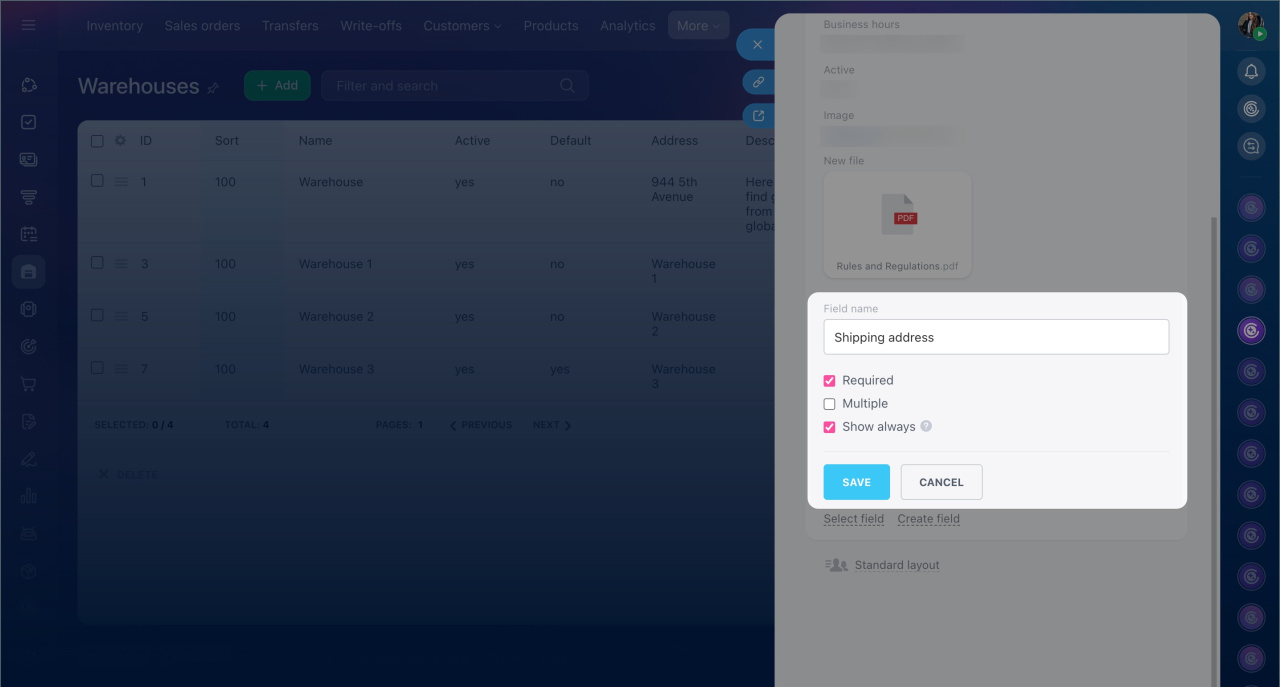
3. Specify the field name and enable the necessary parameters. The set of parameters depends on the field type.
- Required — the user cannot save the warehouse form without filling out this field.
Required fields in CRM - Multiple — the user can enter multiple values in the field. For example, you can specify several storage zones in the warehouse.
- Always show — the field will be displayed in the form even if it is not filled out.
4. Save the changes. The field will be added to the warehouse form and the general list of custom fields.
In custom field settings. This method is suitable if you need to set additional field parameters. For example, limit the size and format of uploaded files.
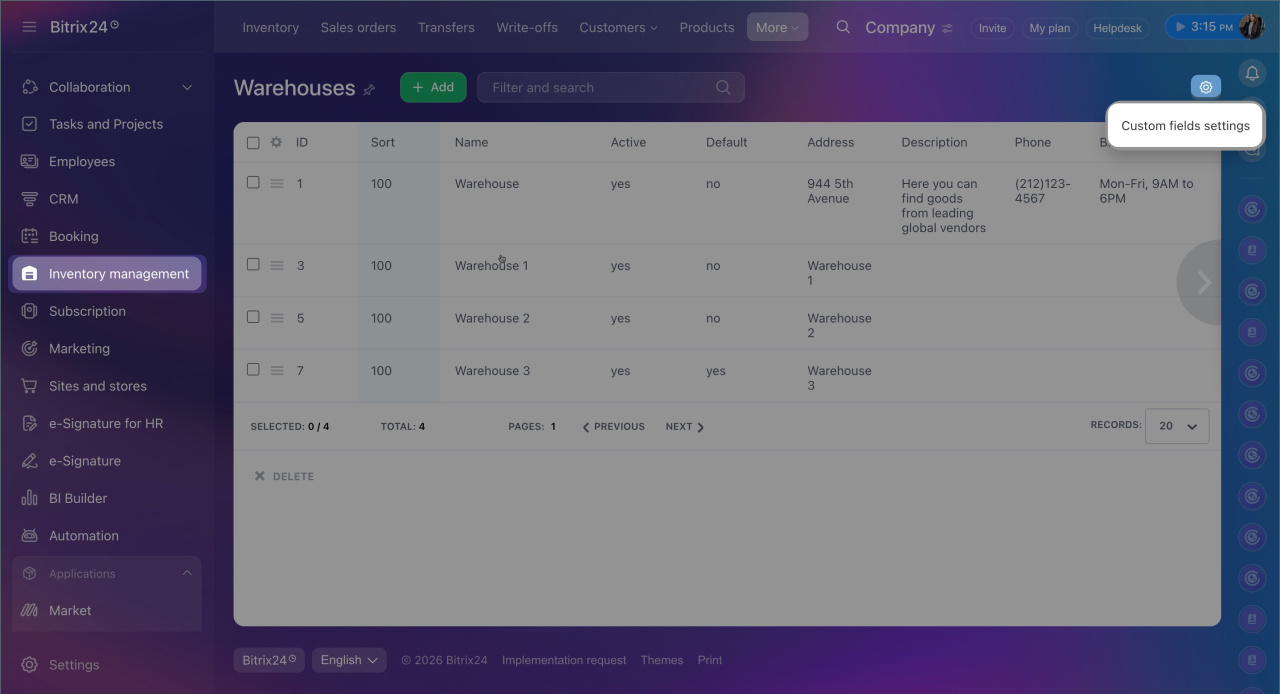
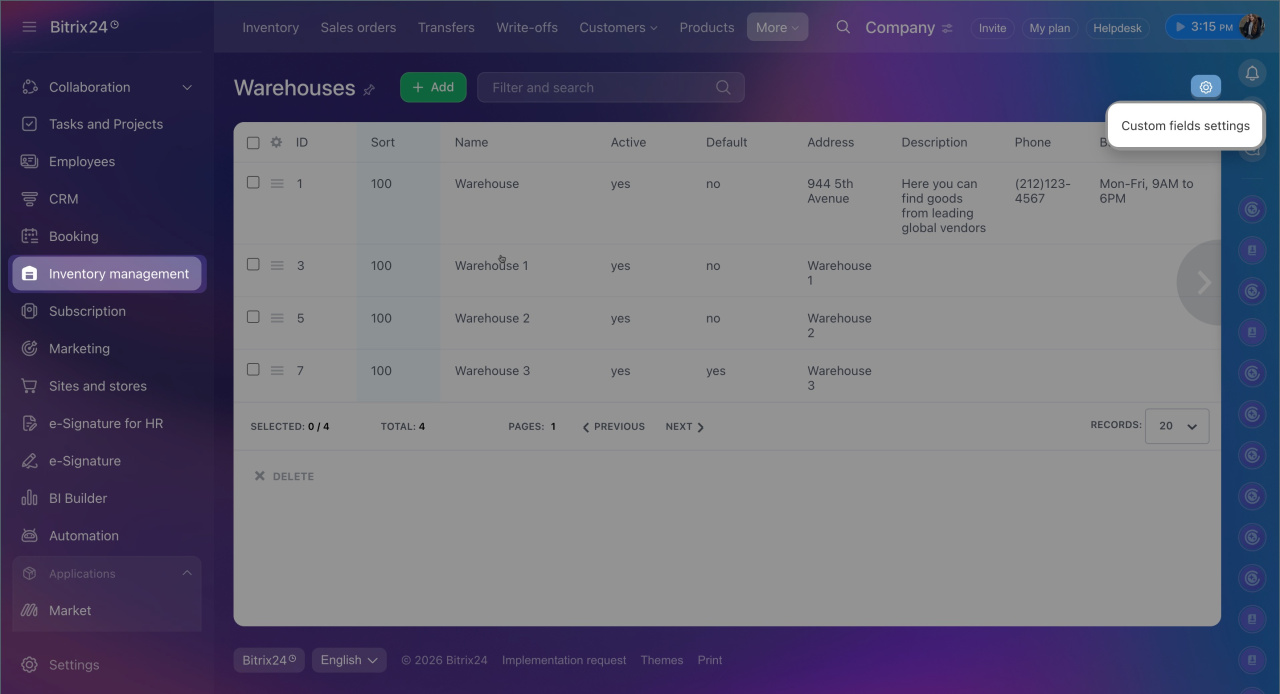
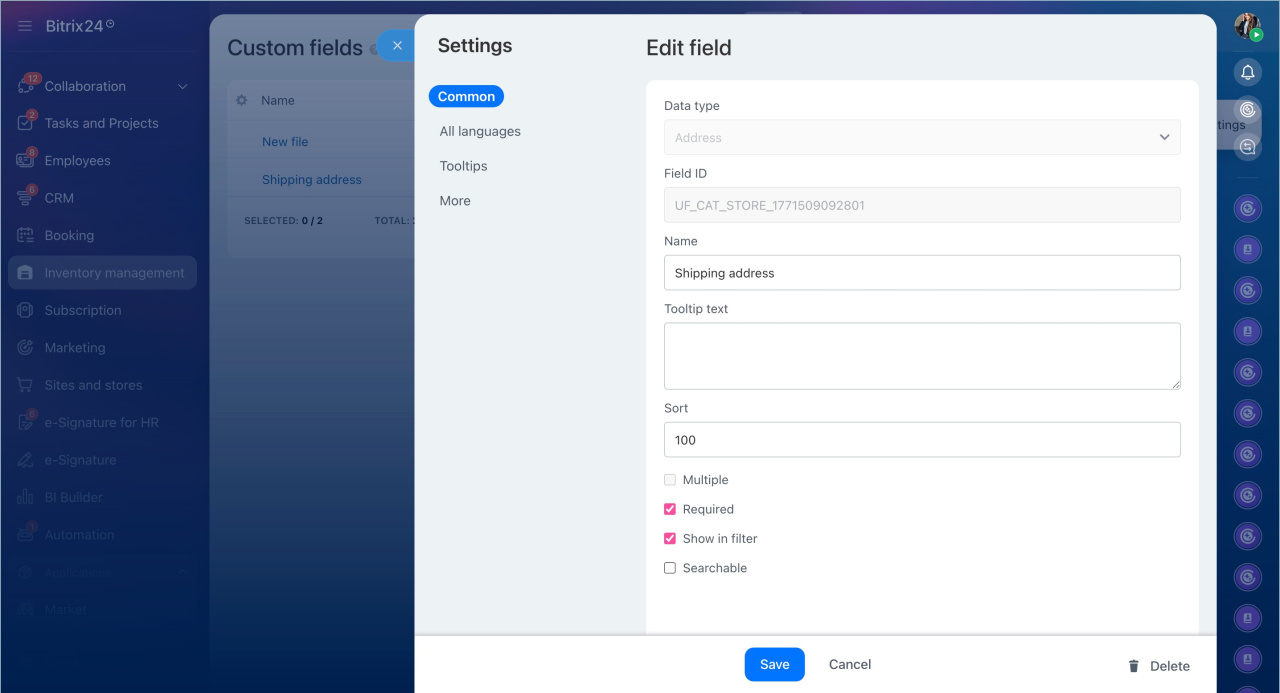
Go to the Inventory management > More > Warehouses > Settings (⚙️) > Custom field settings. Click Create.
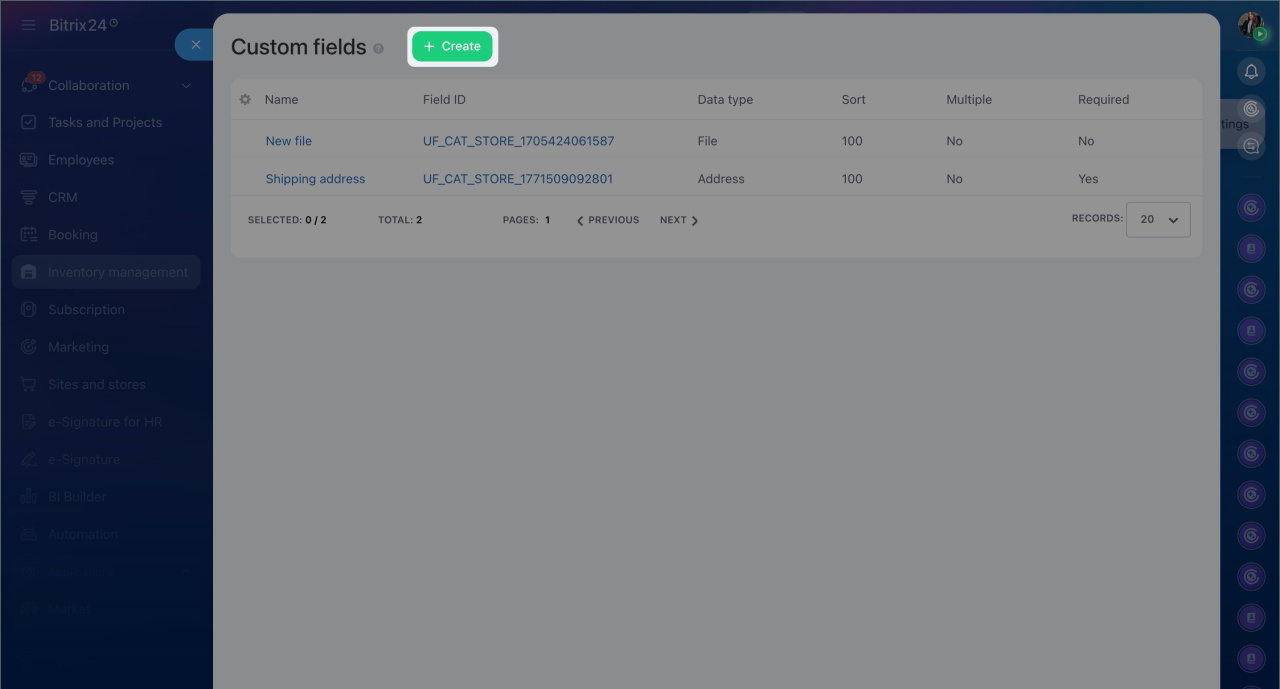
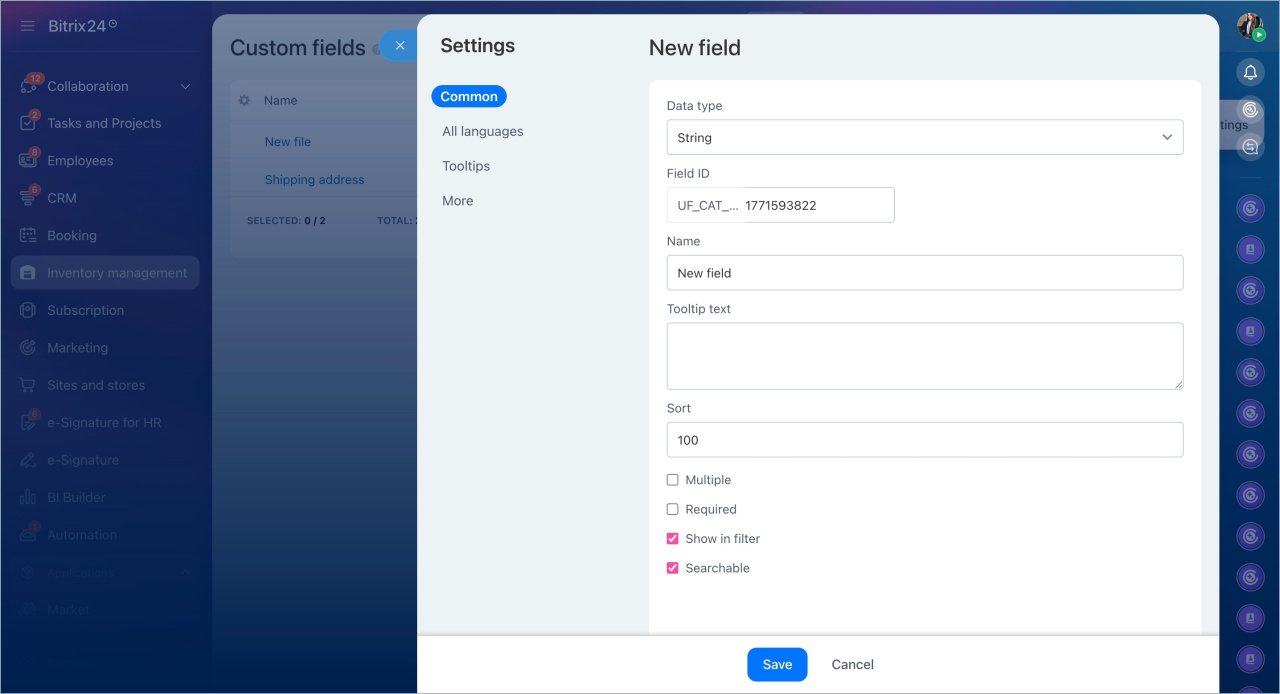
Specify the field parameters:
1. On the Common tab:
- Data type — select the type of data the field will store.
How to filter transfers - Field code — generated automatically but can be edited during field creation. Used in CRM documents and for configuring integrations with external systems.
- Name — displayed in the item form.
- Hint text — displayed next to the field to guide the user. For example, it explains the field's purpose or the data to be entered.
- Sorting — determines the field's position in the list. The smaller the number, the higher the field appears in the list.
- Multiple — allows entering multiple values in the field. For example, you can specify several storage zones in the warehouse.
- Required — the user cannot save the warehouse form without filling out this field.
- Show in filter — allows filtering warehouses by the field's value. If disabled, the field will not appear in the filter.
Search in CRM - Field values are searchable — allows searching for warehouses by the field's value in the search bar.
2. For List type fields, go to the List values tab. Add options that users can select when filling out the warehouse form.
In the Default value field, specify the option that will be automatically pre-filled. Users can keep or change it.
3. On the Name and Tooltips tabs, provide translations for field names and hints. This is useful if employees use different interface languages in Bitrix24.
4. Save the changes.
Edit or delete a custom field
You can edit field parameters in the warehouse form or edit and delete them in the custom field settings.
In the warehouse form.
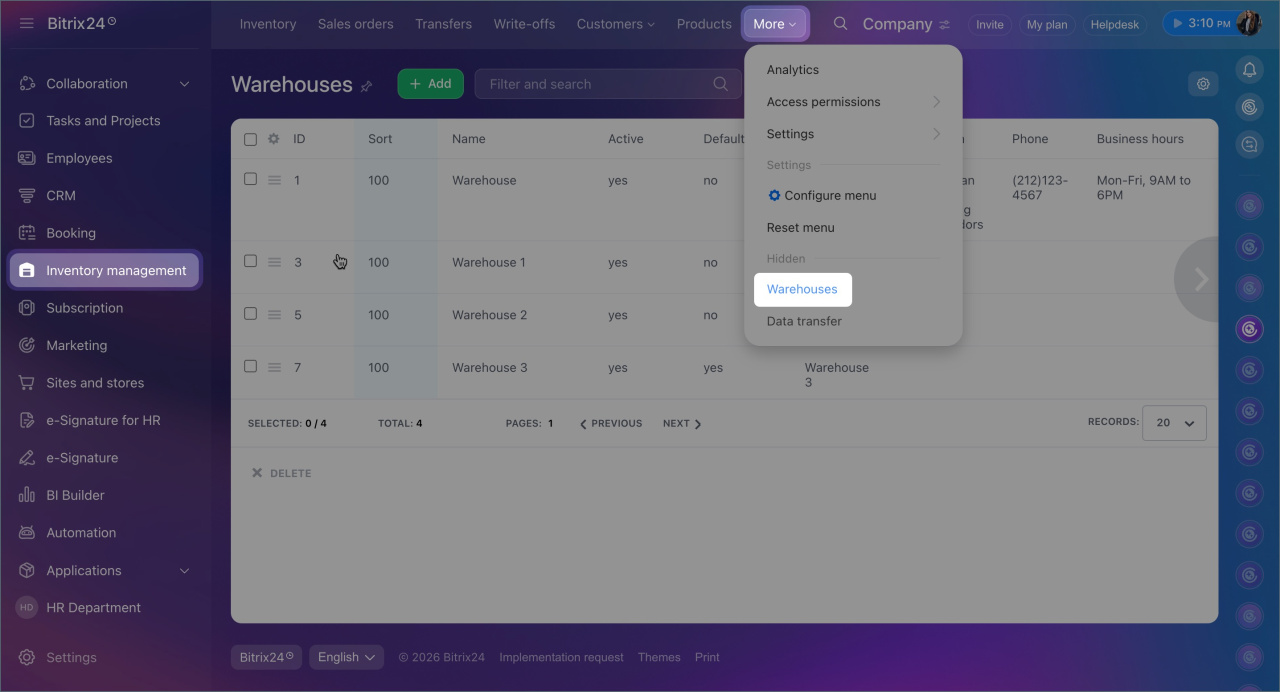
1. Go to Inventory management > More > Warehouses. Select the required warehouse and click Menu (≡) > Open.
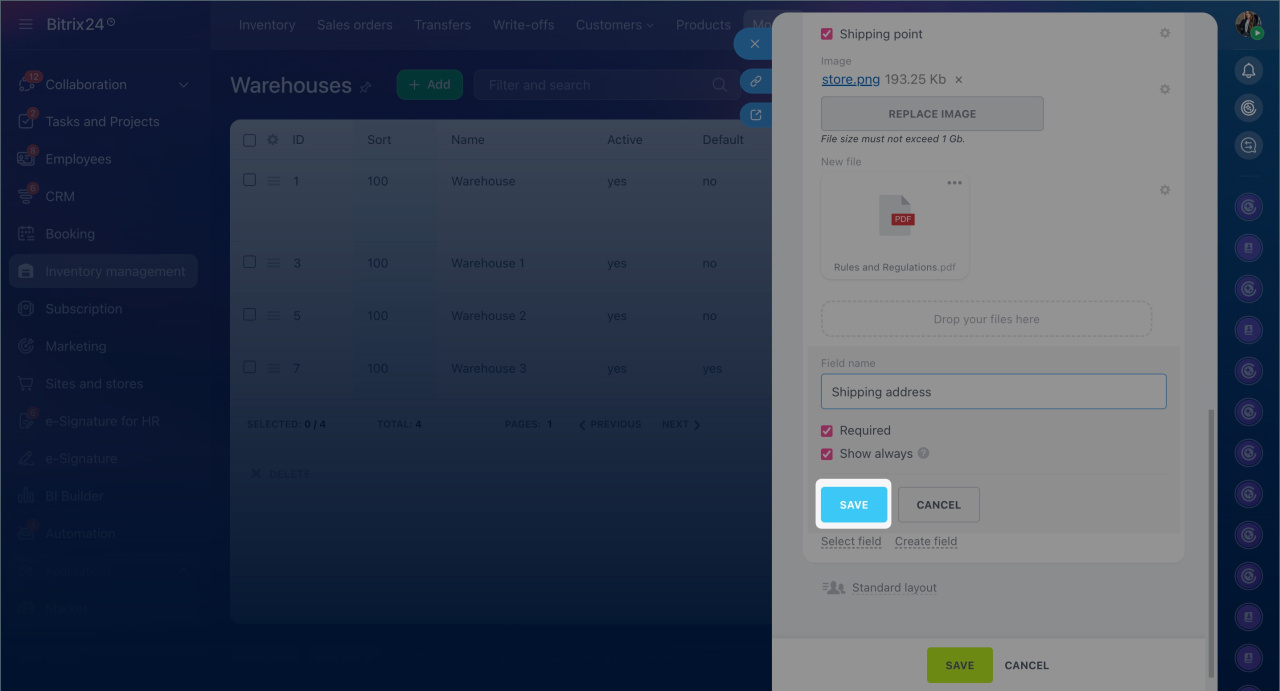
2. Click Settings (⚙️) next to the required field and select Configure. After making changes, click Save.
Edit or delete a field in custom field settings.
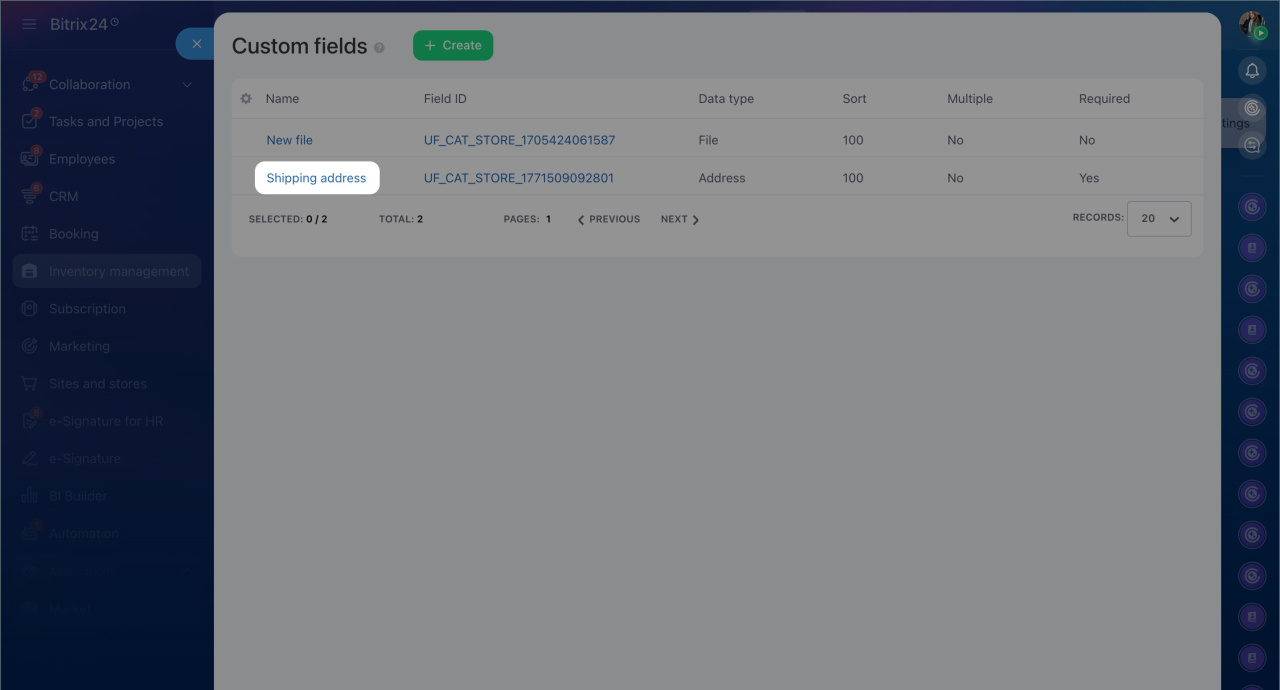
1. Go to Inventory management > More > Warehouses > Settings (⚙️) > Custom field settings. Click the field name to edit it.
2. Make changes and save the settings.
3. If the field is no longer needed, click Delete. The data in the field will also be deleted.
In brief
- Custom fields allow you to configure the warehouse form to your business needs. They can store information for which there are no suitable system fields.
- Fields can be created by Bitrix24 administrators and employees with Edit warehouses permissions.
- The type of a custom field determines the kind of data it will store. You can select the type when creating the field.
- You can create a custom field directly in the warehouse form or through the custom field settings.
- After creation, you can edit any settings except the type, code, and multiplicity of the field.
- If you delete a field, the data stored in it will also be deleted.
