
Activities are any actions related to a customer, such as calls, meetings, and document approvals. You can create them in CRM item forms to plan your work. Activities appear in the timeline of the form and in the My Activities section.
Access permissions settings allow you to define who can work with activities in CRM and how. For example, managers can create and edit activities in their own deals but only view activities in their colleagues' deals.
Role-based access permissions in CRM are not available on all plans.
Bitrix24 plans and pricing
Bitrix24 does not have separate permissions for activities. Access to them depends on the permissions for the CRM items where they are created. For example, if employees have permissions to edit their own deals, they can also edit the activities within those deals.
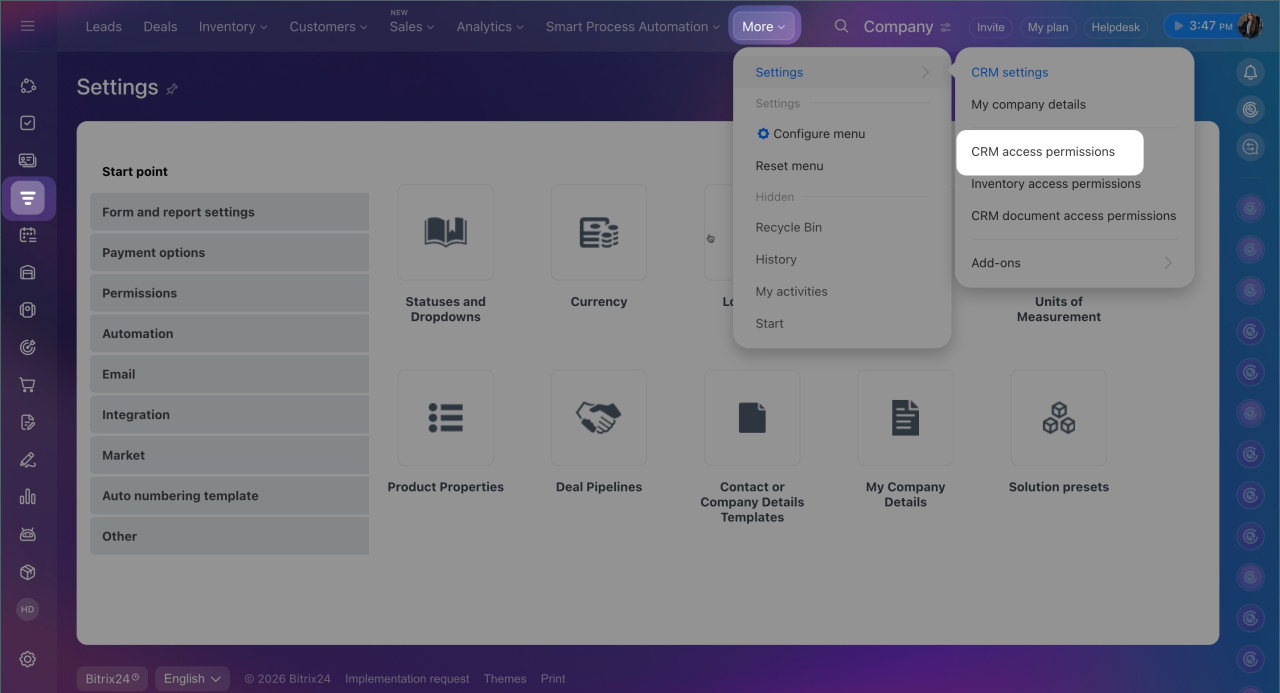
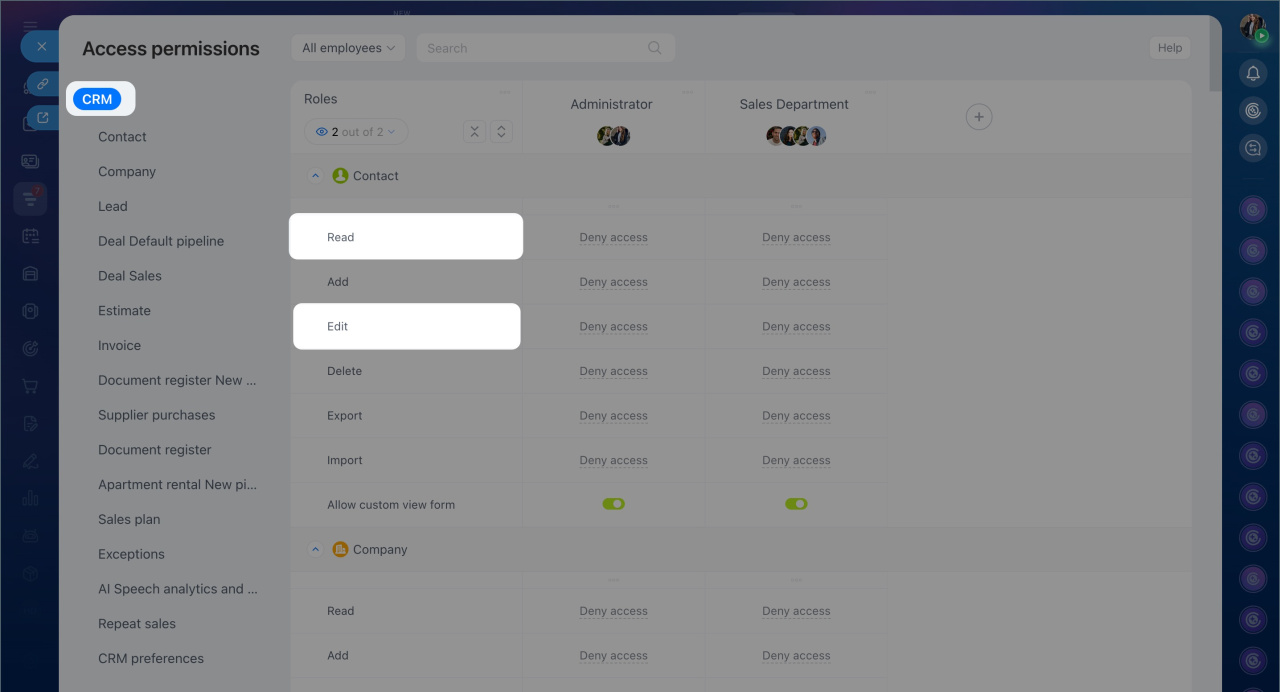
Go to CRM > More > Settings > CRM access permissions. Two types of permissions affect activities:
- Read — allows viewing the item and its related activities. This is useful for reviewing the interaction history with a customer.
- Edit — allows creating, modifying, and deleting activities within an item. This is suitable for working with customer-related activities.
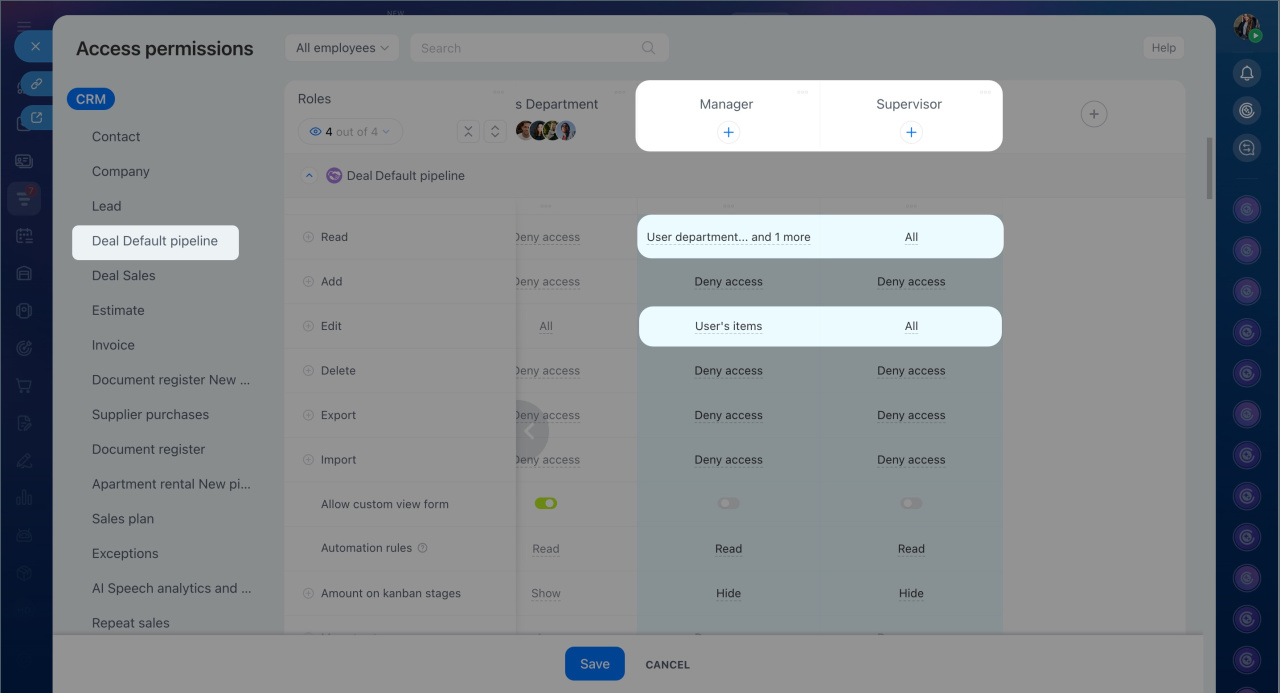
Scenario: A manager works only with his own activities, while a supervisor works with activities of all employees. You can configure standard roles or create custom ones.
1. Select the CRM item for which you want to configure permissions in the list on the right. If employees work with activities in multiple items, such as leads, deals, and contacts, configure permissions for each item separately. If multiple deal pipelines are used, select the required one.
2. Configure permissions for the Manager role: Read — User's items and User department's items, Edit — User's items. The manager will be able to create and edit activities in his own items but only view activities in their colleagues' items.
3. Configure permissions for the Supervisor role: Read — All items, Edit — All items. The supervisor will be able to view and edit activities in all employees' items.
4. Click Save. Employees assigned to these roles will receive the configured permissions.
In brief
- Activities are any actions related to a customer, such as calls, meetings, and document approvals. You can create them in CRM item forms.
- Bitrix24 does not have separate permissions for activities. Access to them depends on the permissions for the CRM items where they are created.
- A Bitrix24 administrator can configure access permissions, but they can delegate this right to other employees.
- To configure access permissions, go to CRM > More > Settings > CRM access permissions.
- The Read permission allows viewing the item and its related activities, while the Edit permission allows creating, modifying, and deleting activities within an item. Permissions must be configured separately for each item.
- To allow managers to create and edit activities in their own items and only view activities in their colleagues' items, configure permissions for the Manager role: Read — User's items and User department's items, Edit — User's items.
- To allow a supervisor to view and edit activities in all employees' items, configure permissions for the Supervisor role: Read — All items, Edit — All items.
