
Bitrix24 Drive stores company documents and personal employee files and enables collaboration. Employees can upload files, edit documents online, and share them with colleagues.
For example, an employee can create a document, share it with the team, and edit the same file together with colleagues.
In this article:
Add a folder or file to Drive
Create a folder or document, create a board, or upload a file from your computer.
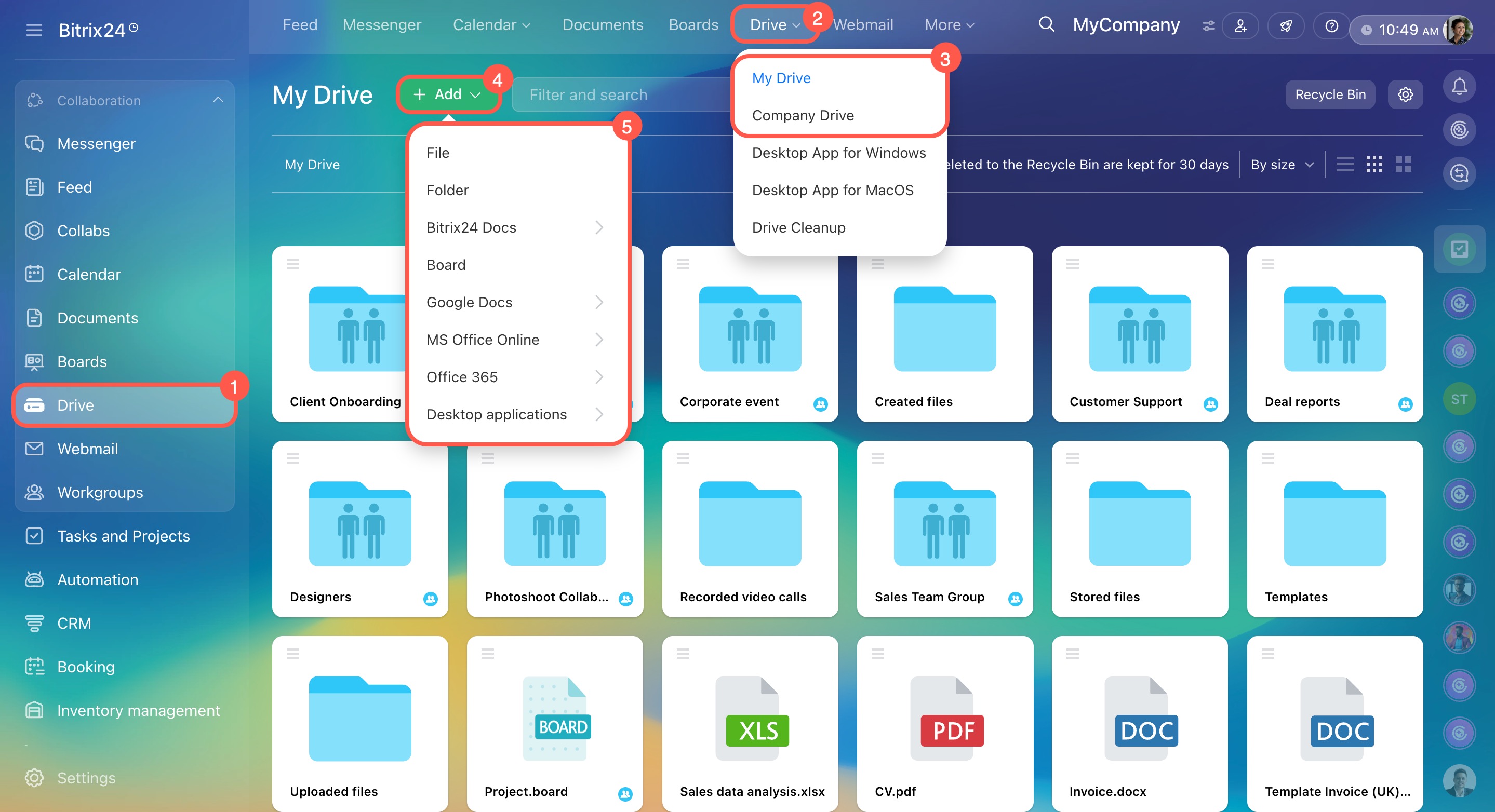
- Open the Drive section and go to the Drive tab.
- Choose where to add the file: My Drive or Company Drive.
- Click Add and select an action.
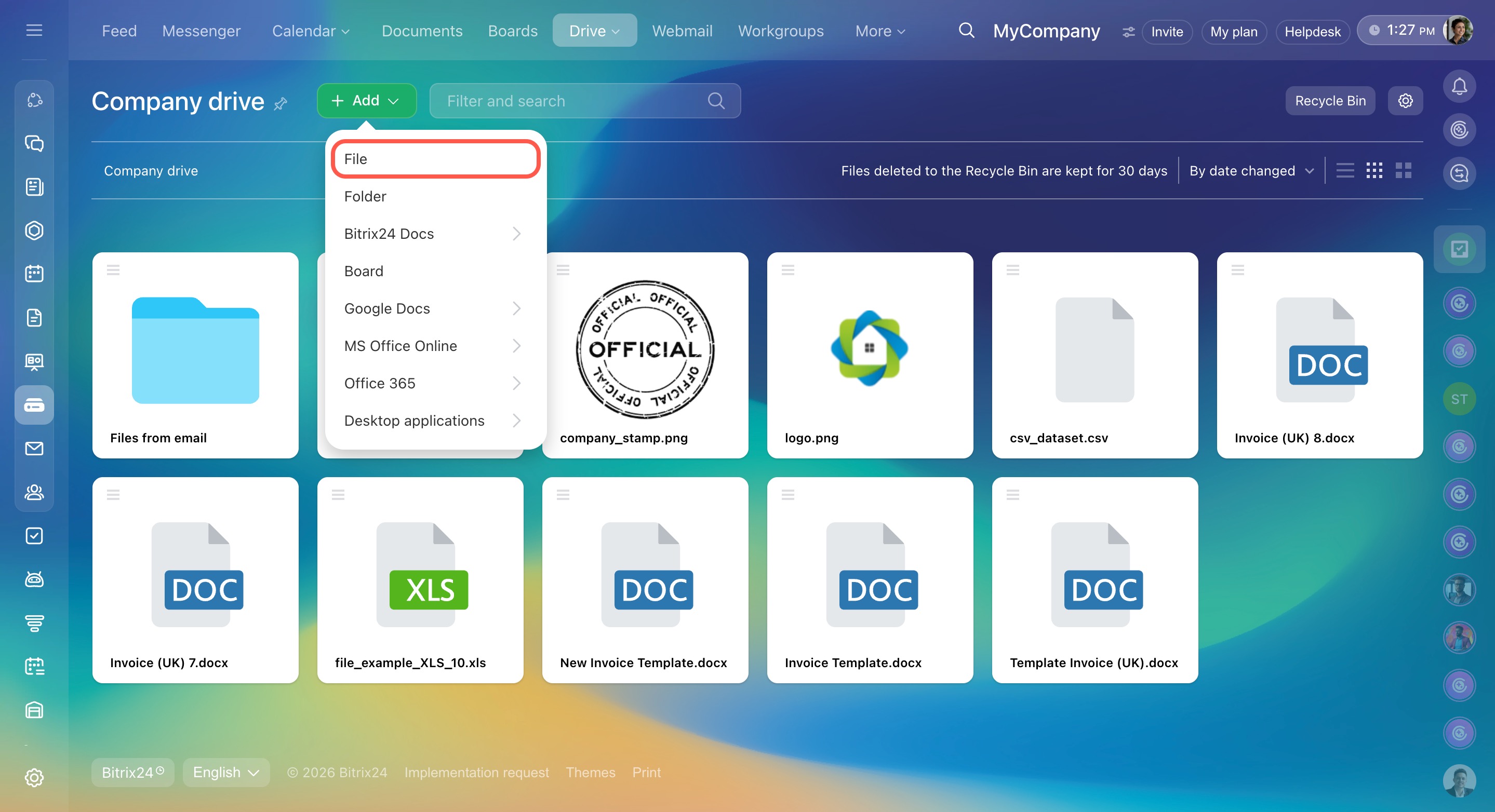
File. Upload files from your computer, such as documents, images, or archives. Keep important materials accessible.
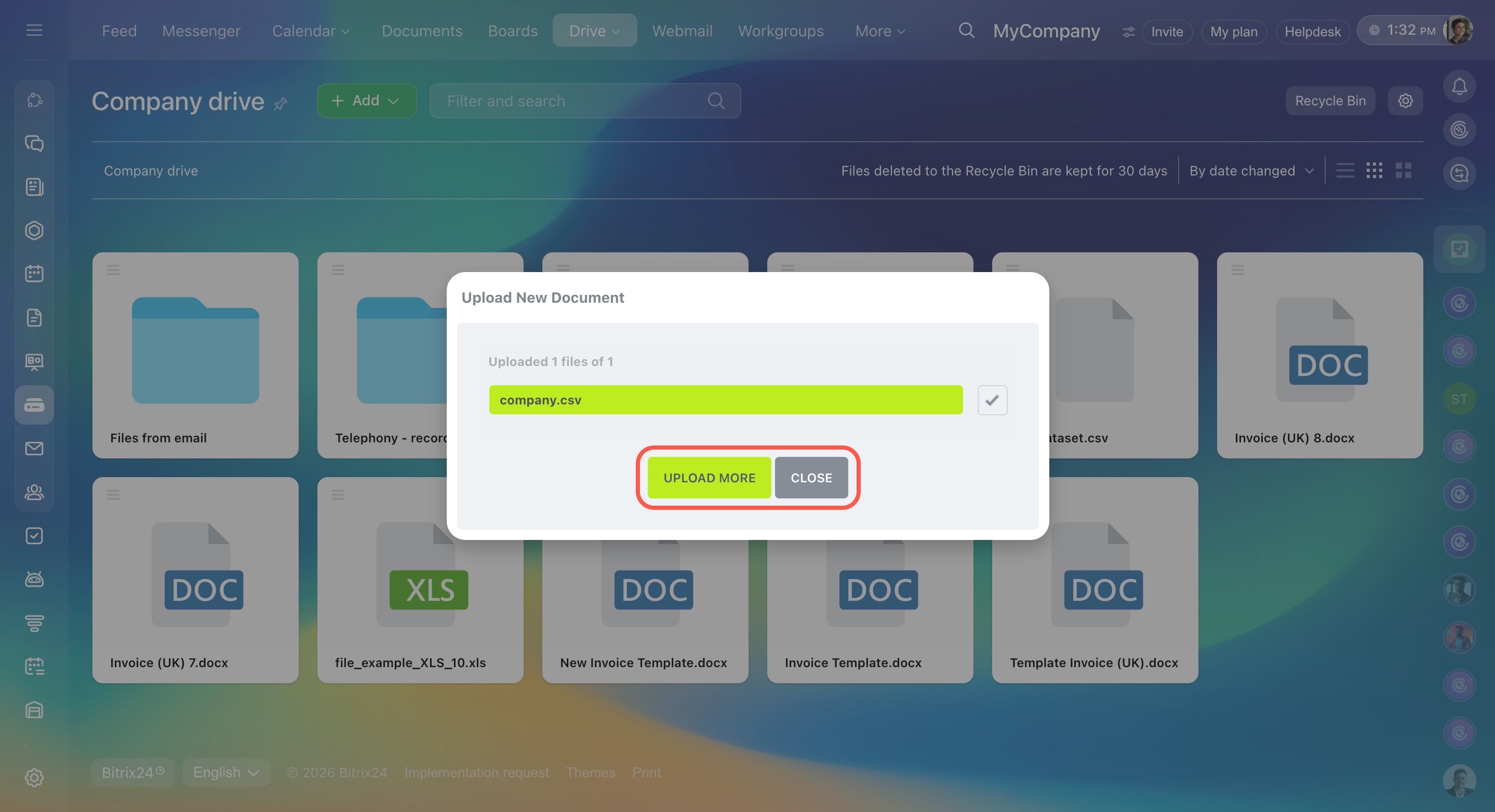
Select one or more files and click Open. After upload finishes, click Upload more to add more files or Close to return to Drive.
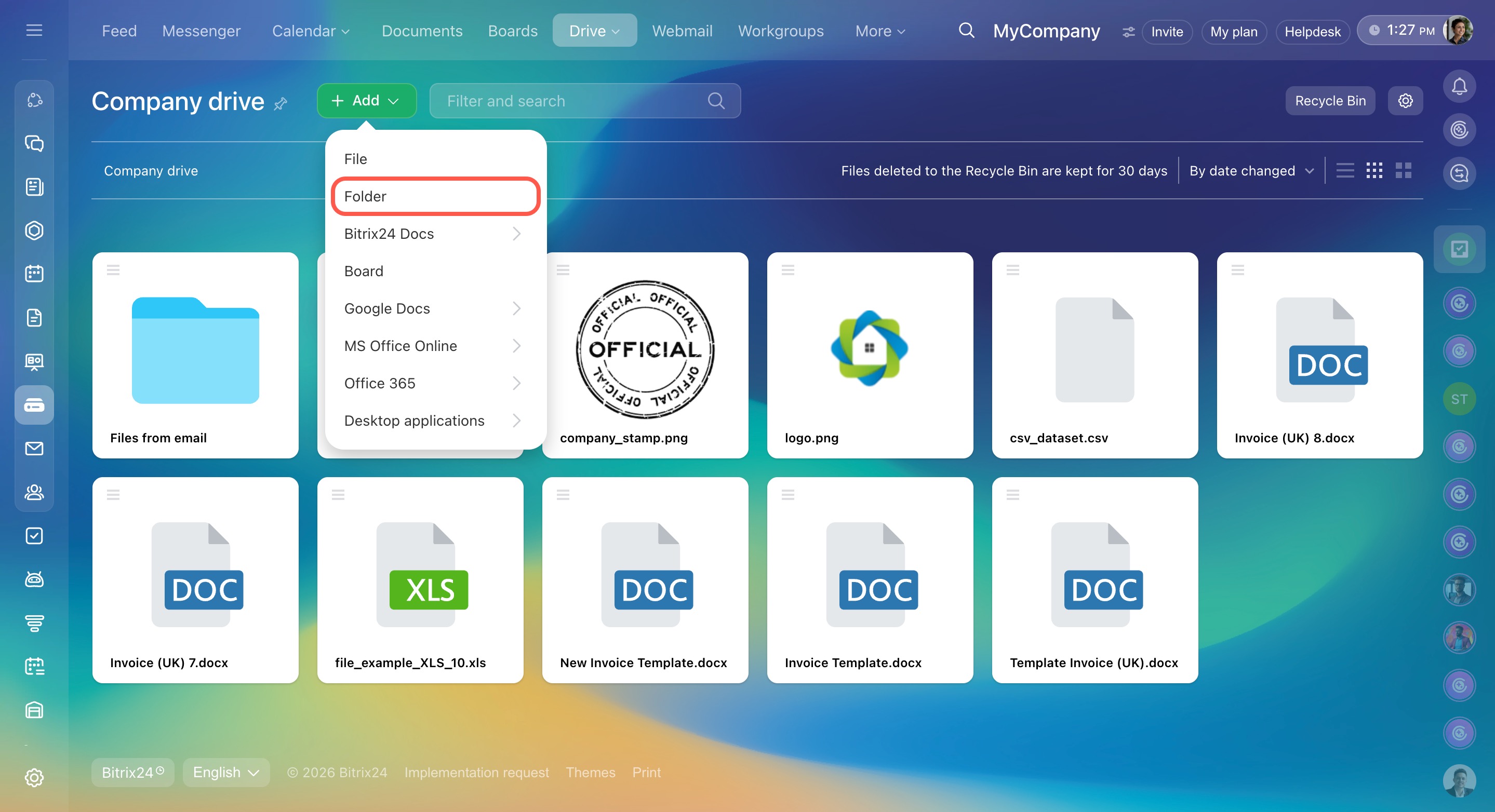
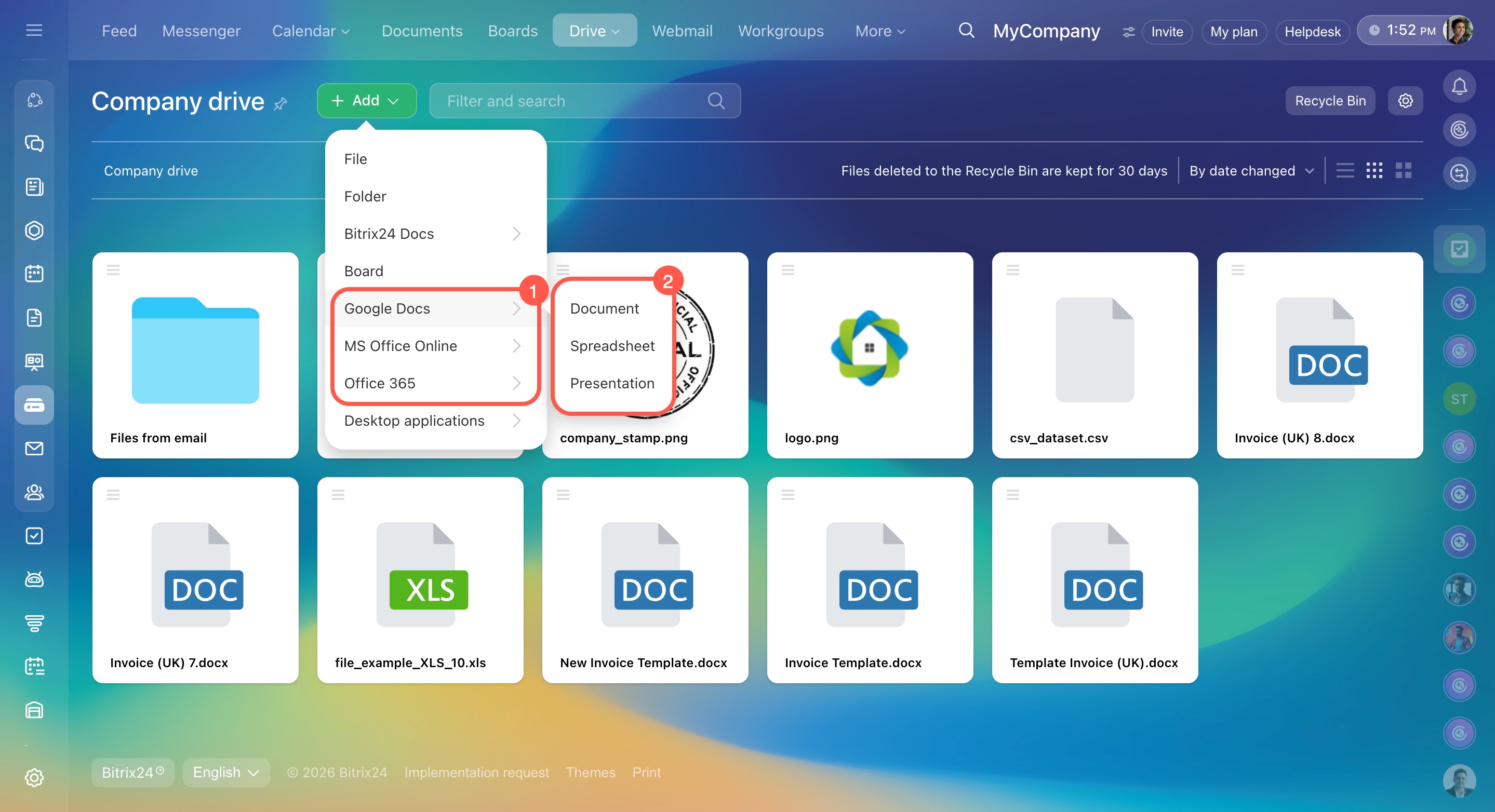
Folder. Create a folder to organize files. Enter a name and click Create.
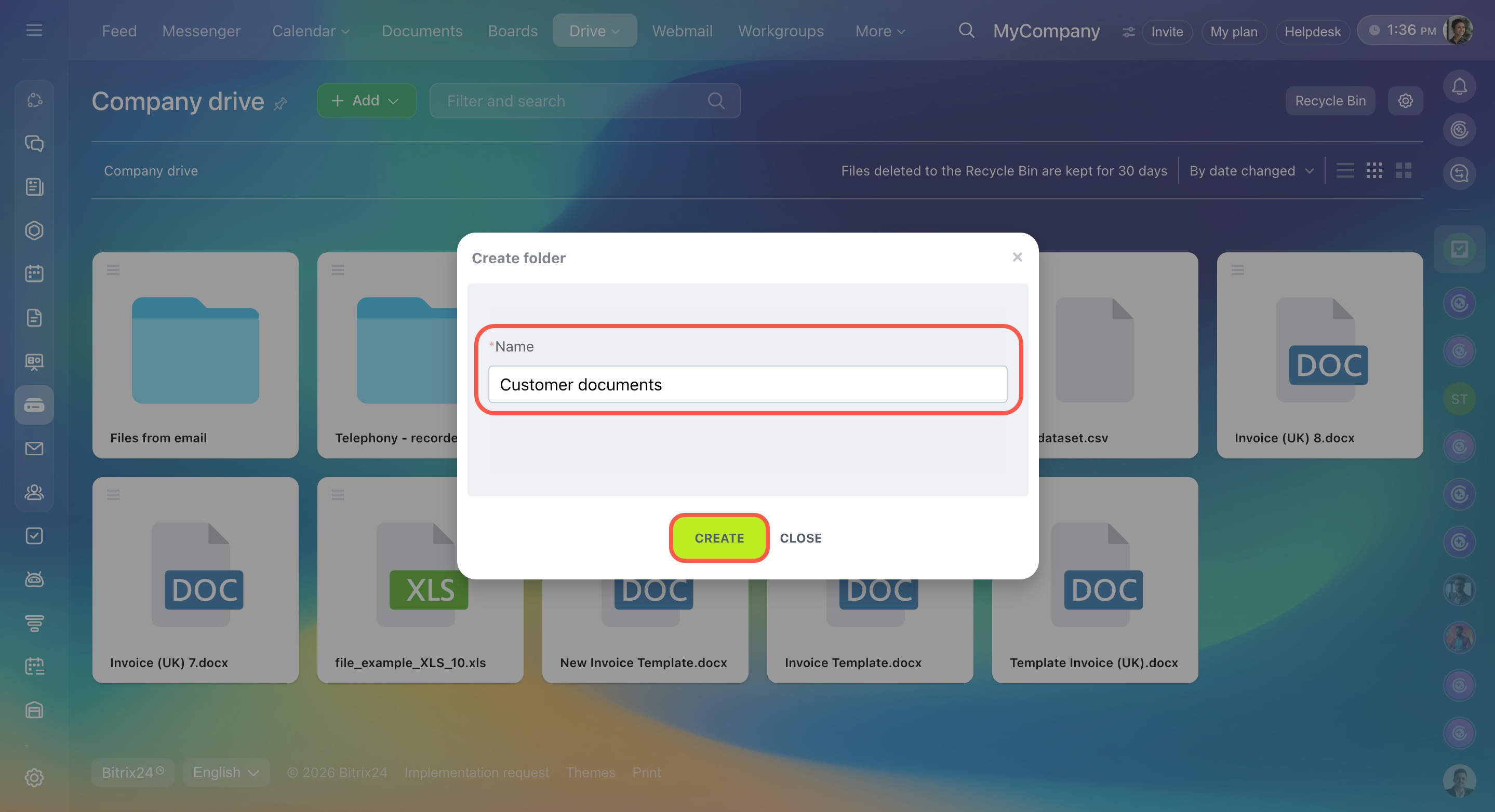
Bitrix24 Docs, Board. Create a text document, spreadsheet, presentation, or board and continue working in the built-in Bitrix24 editor.
Rename and edit the document or board, then close it — changes save automatically.
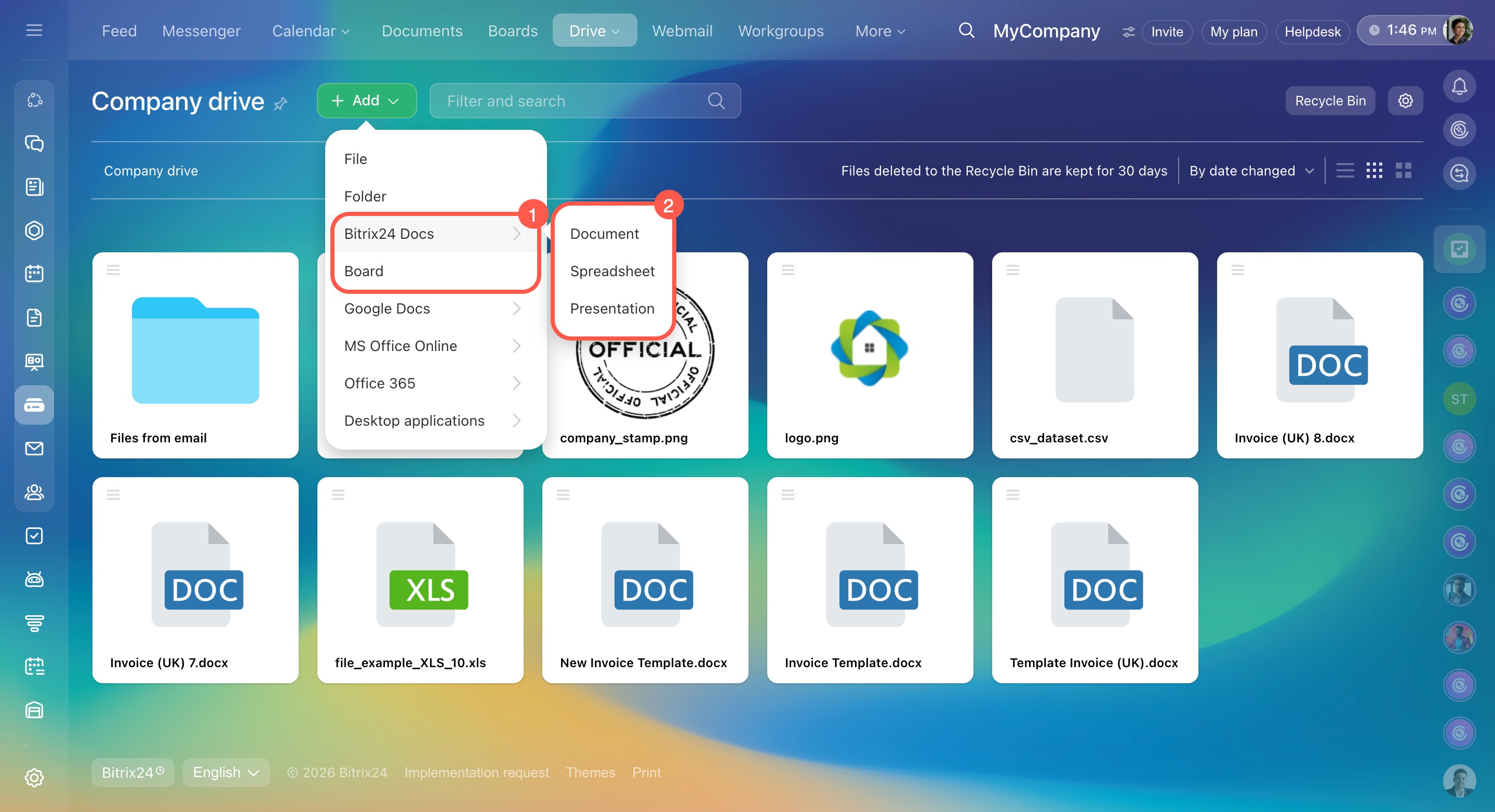
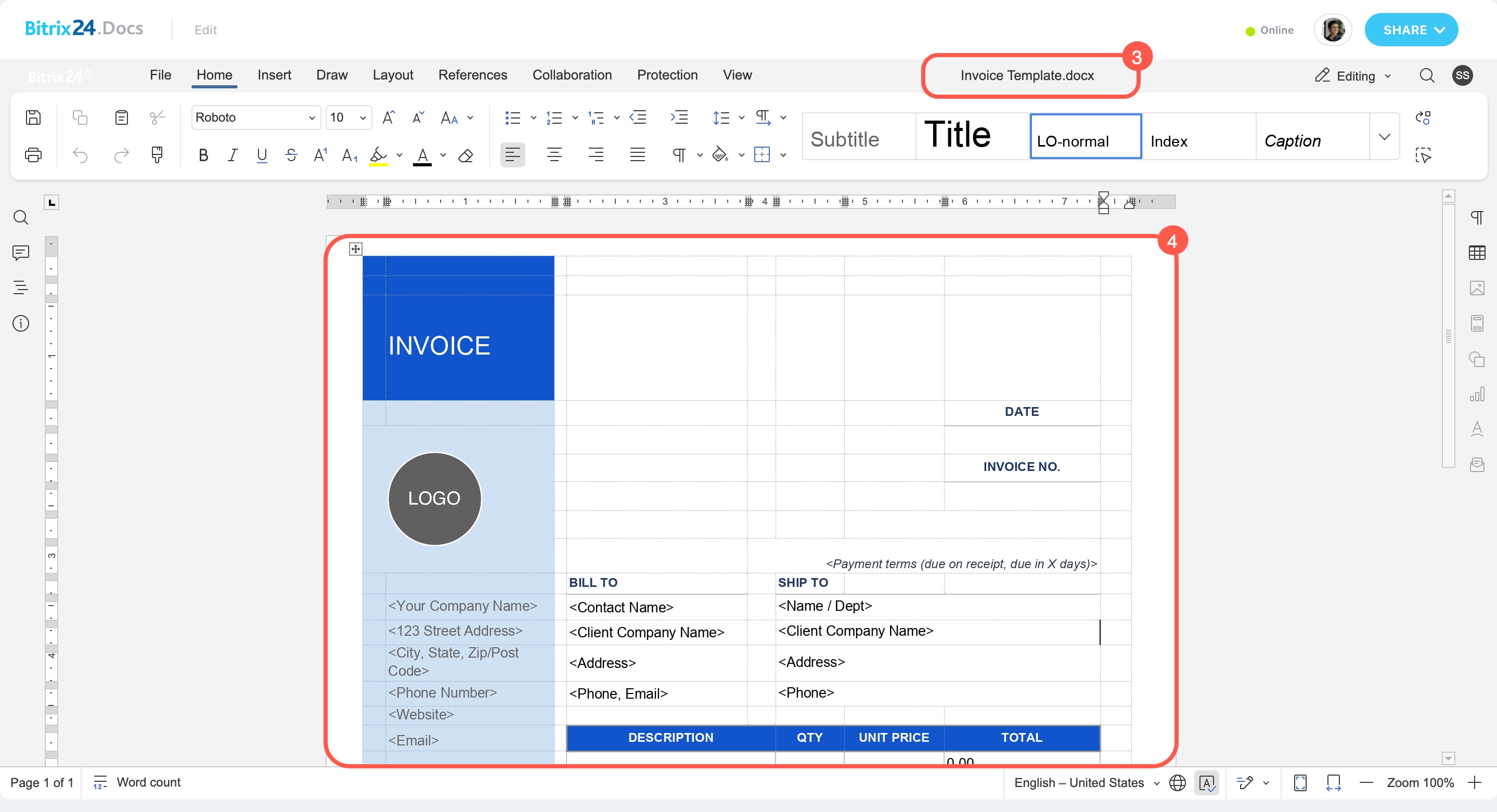
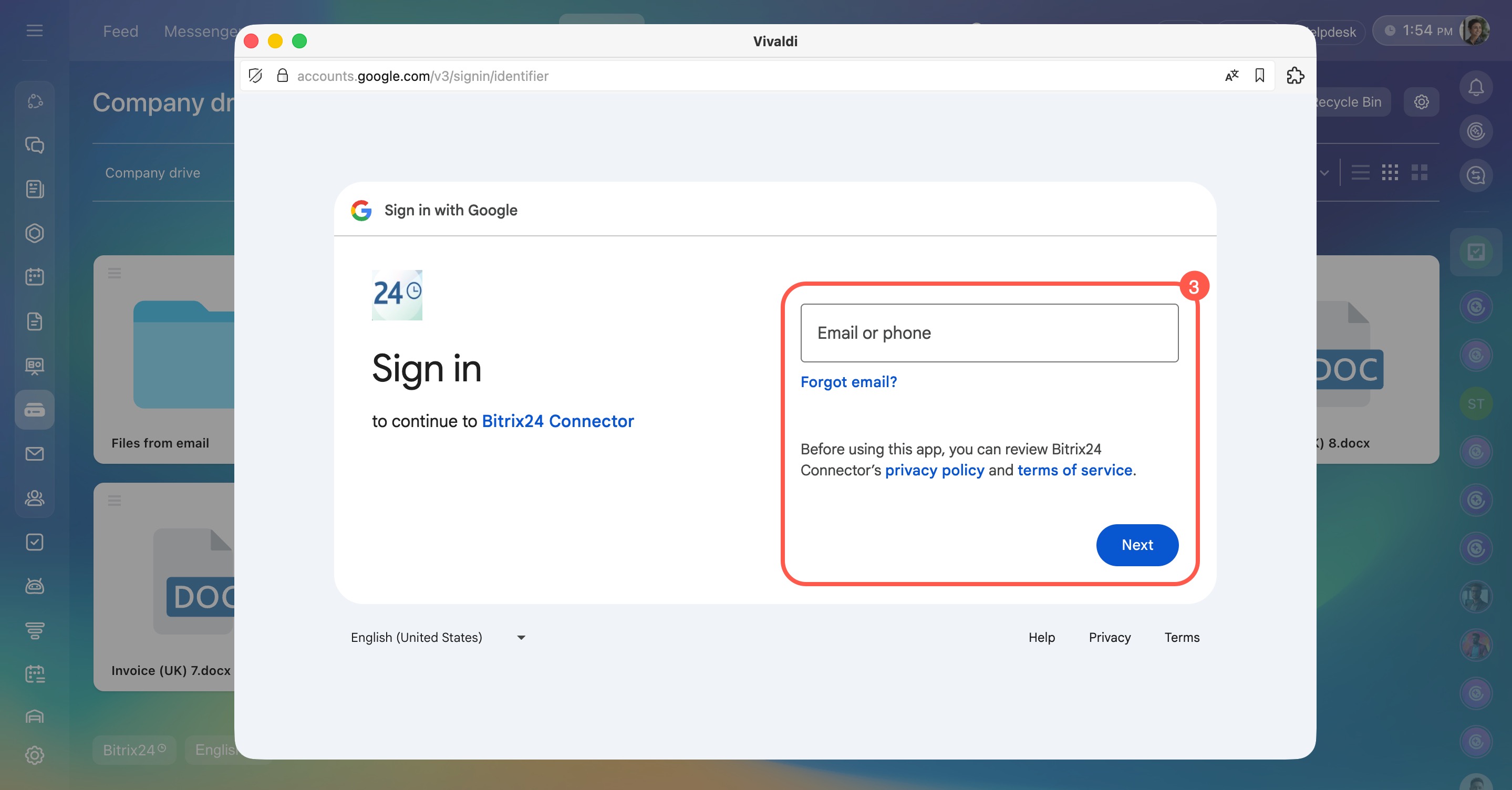
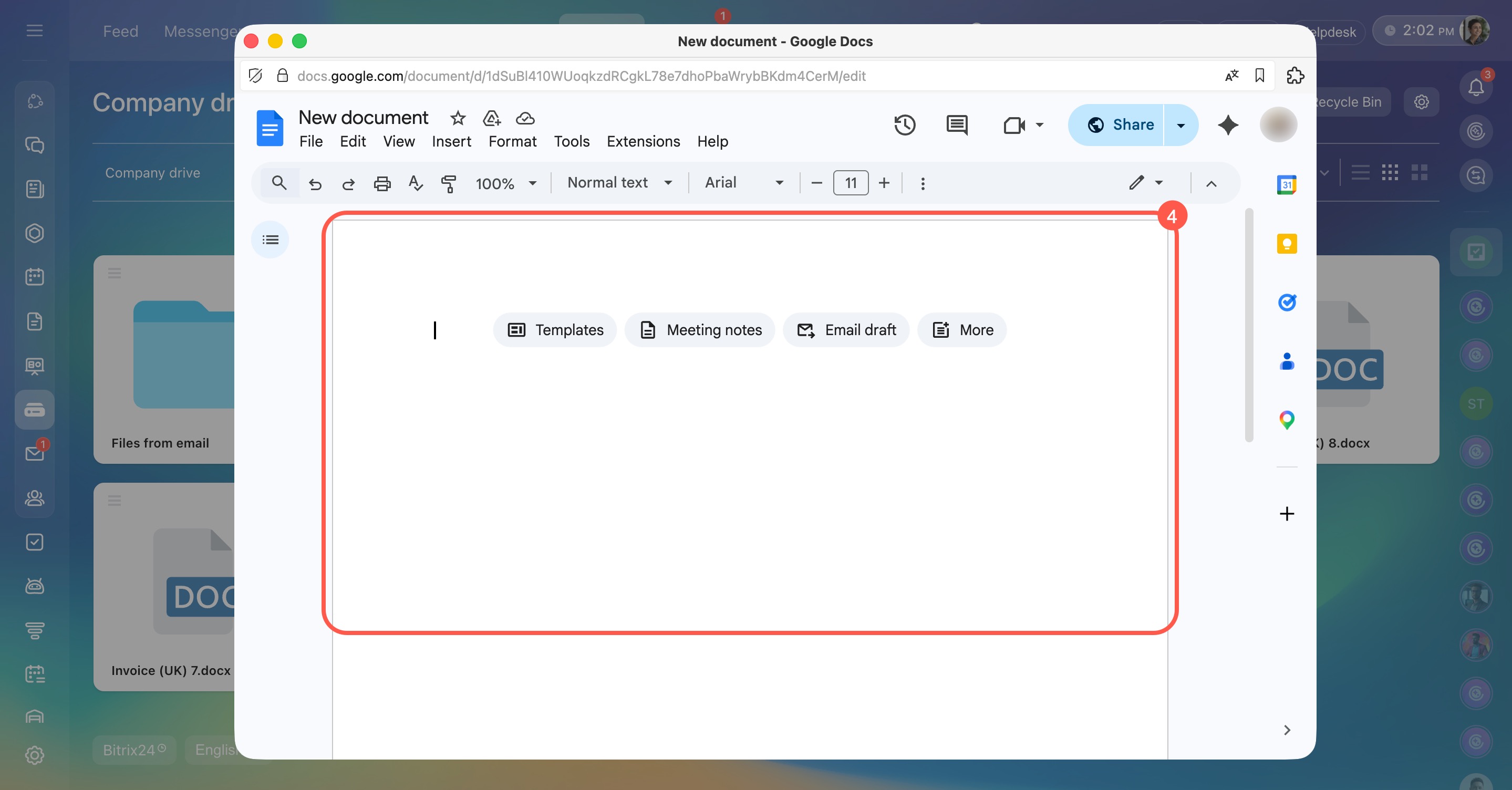
Google Docs, MS Office Online, Office365. If your company uses one of these services, continue working in a familiar editor.
- Choose the service and document type.
- Sign in to the external service.
- Edit the document and close it.
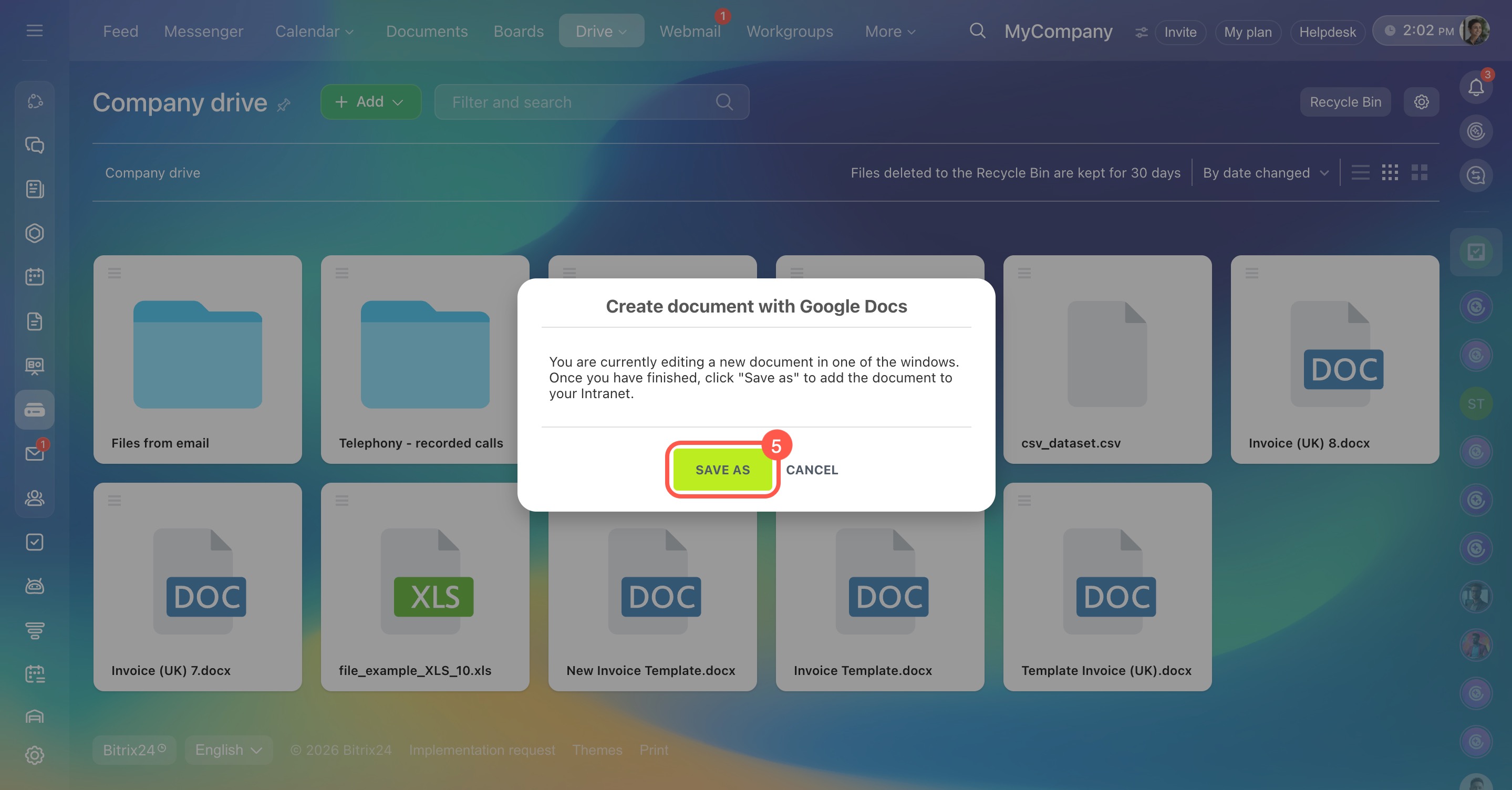
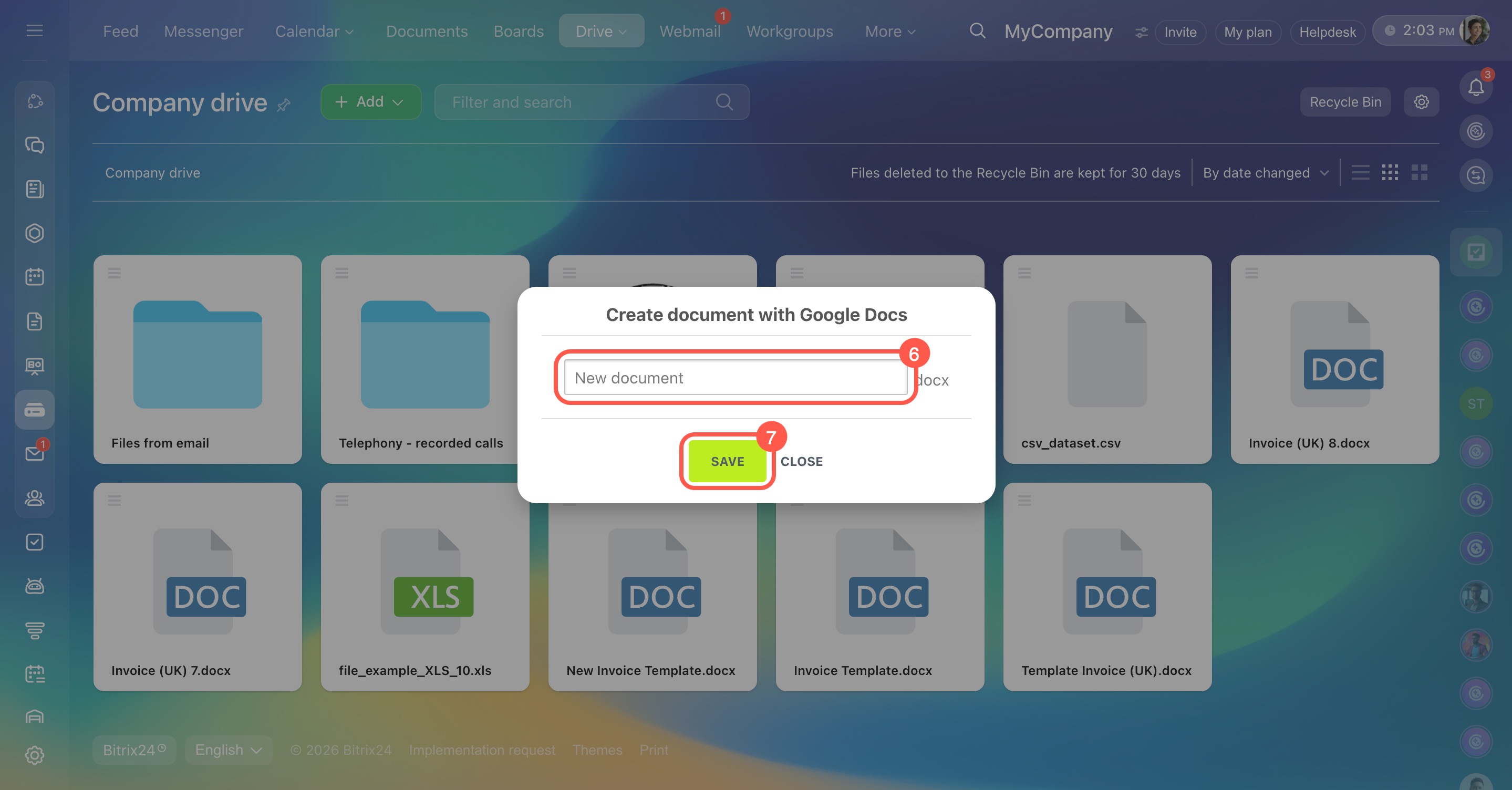
- Click Save as, enter a document name, and save changes — the file will be added to Bitrix24.
Work with documents using Google Docs
Create folders and upload files from your device in the Bitrix24 mobile app.
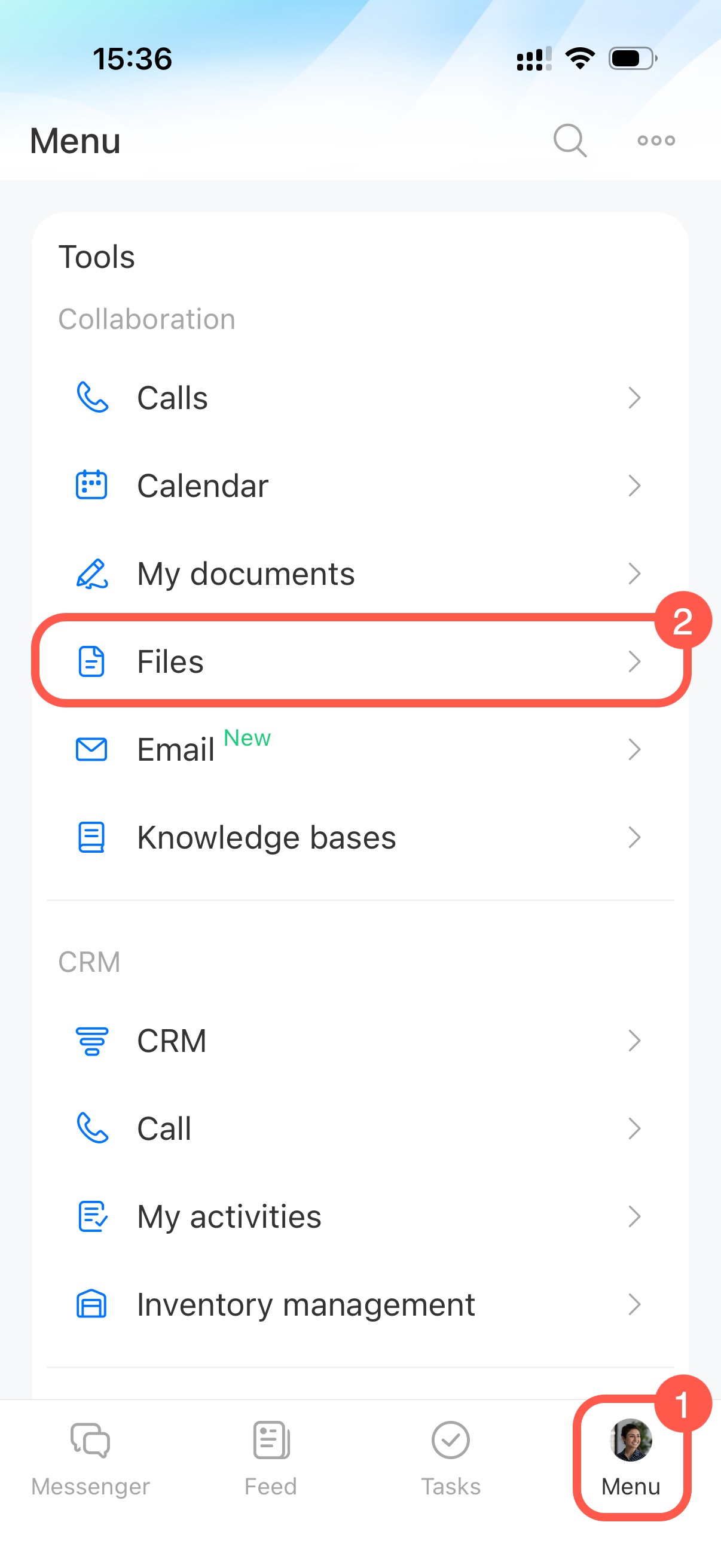
- Tap Menu in the bottom right corner.
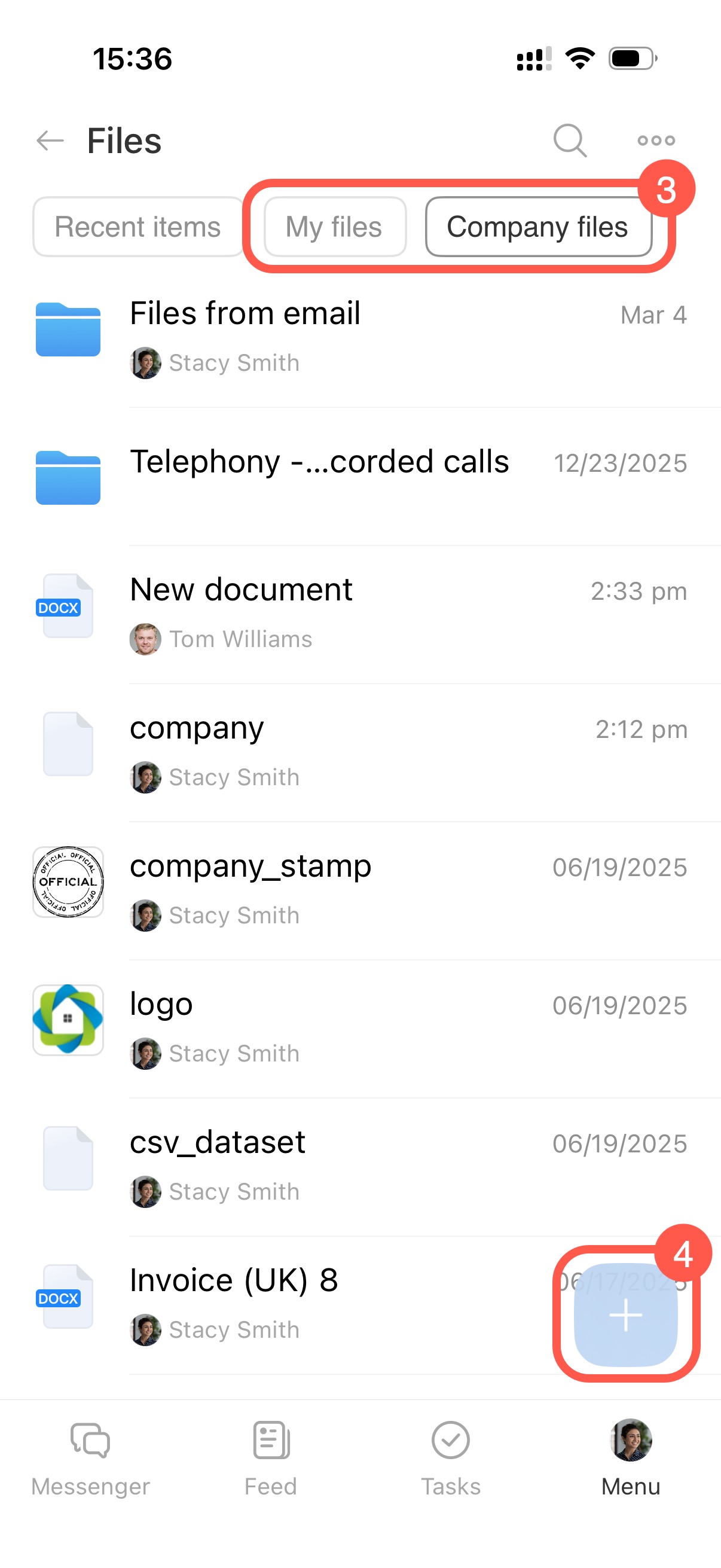
- Tap Files and open the My files tab to add a file to your personal Drive, or Company files to add it to the Company Drive.
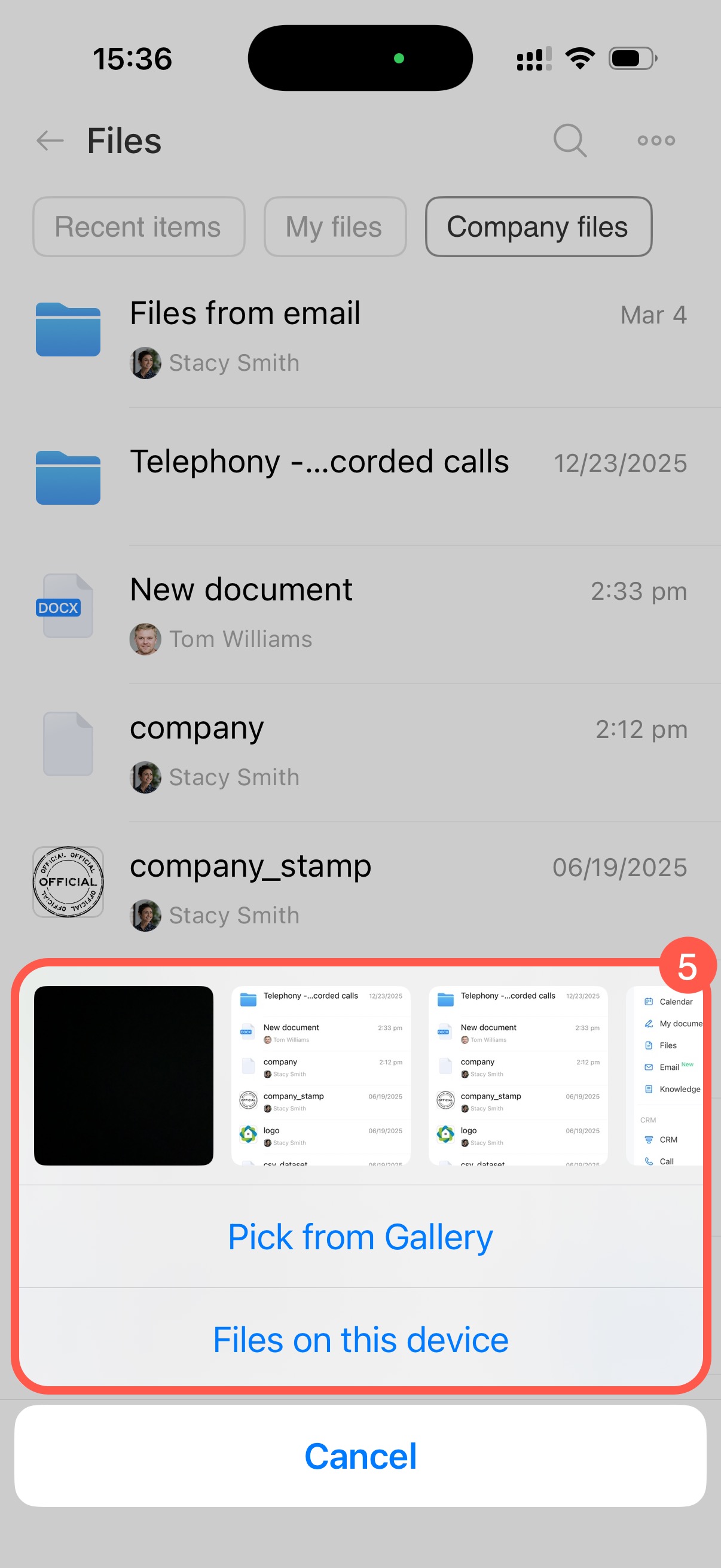
- Tap the Plus (+) in the bottom right corner to add a file.
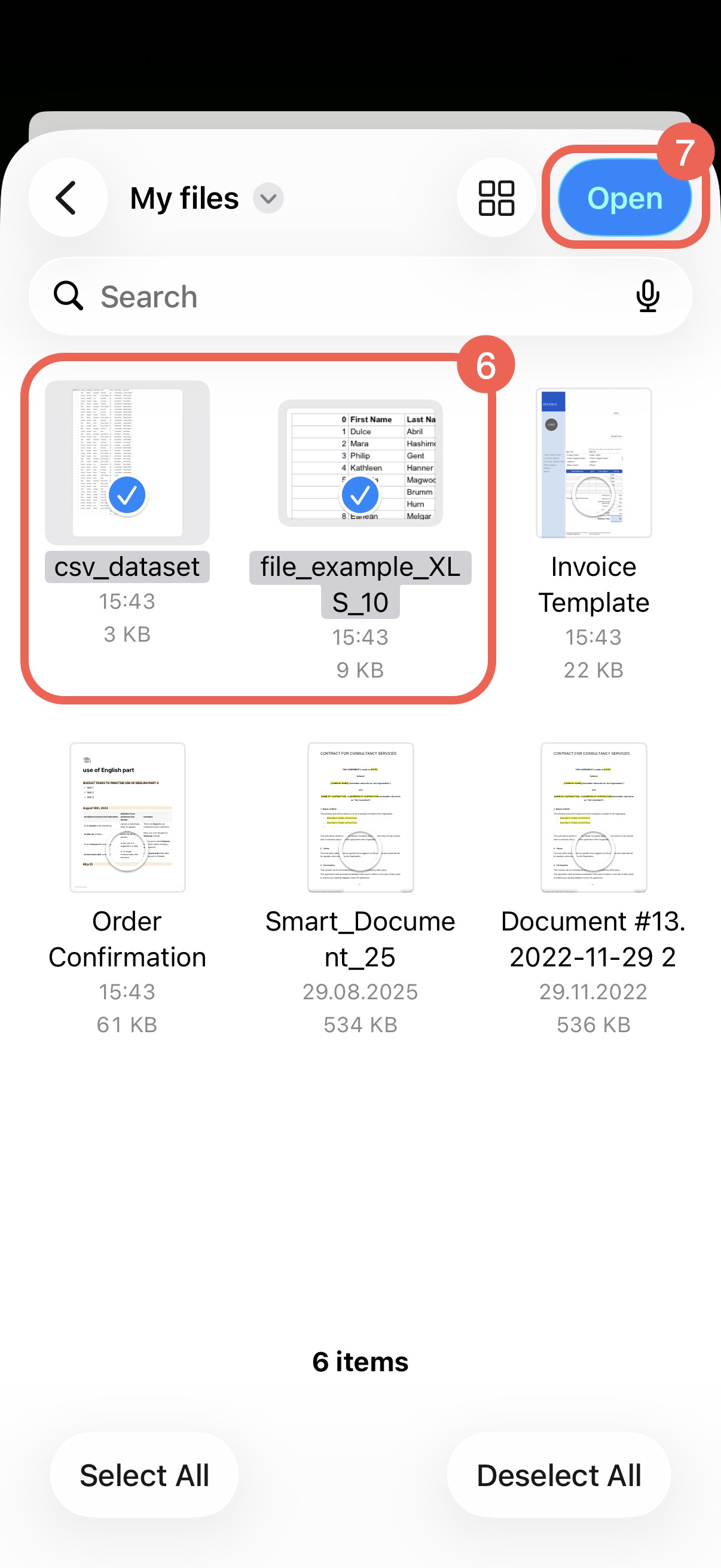
- Take a photo or video, or select files stored on the device, then tap Done or Open.
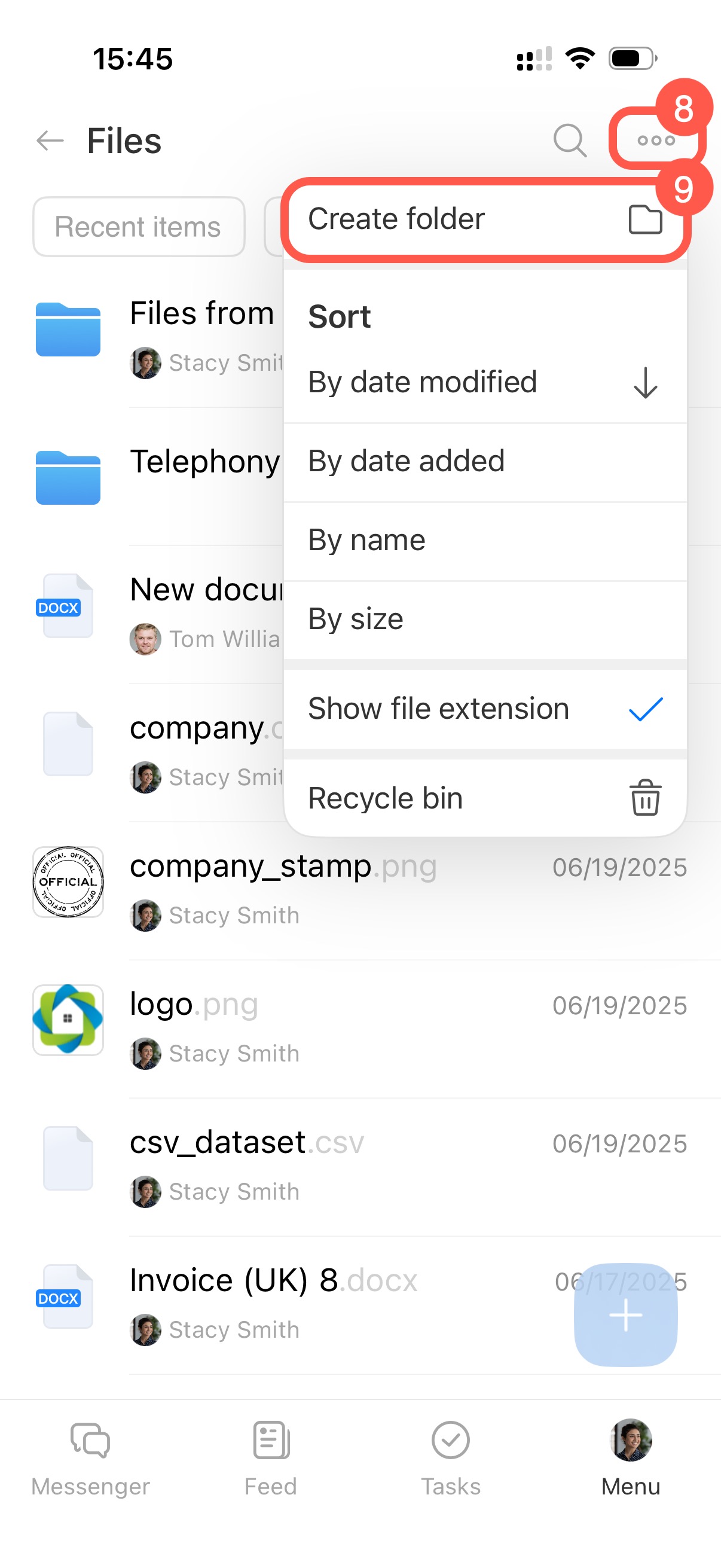
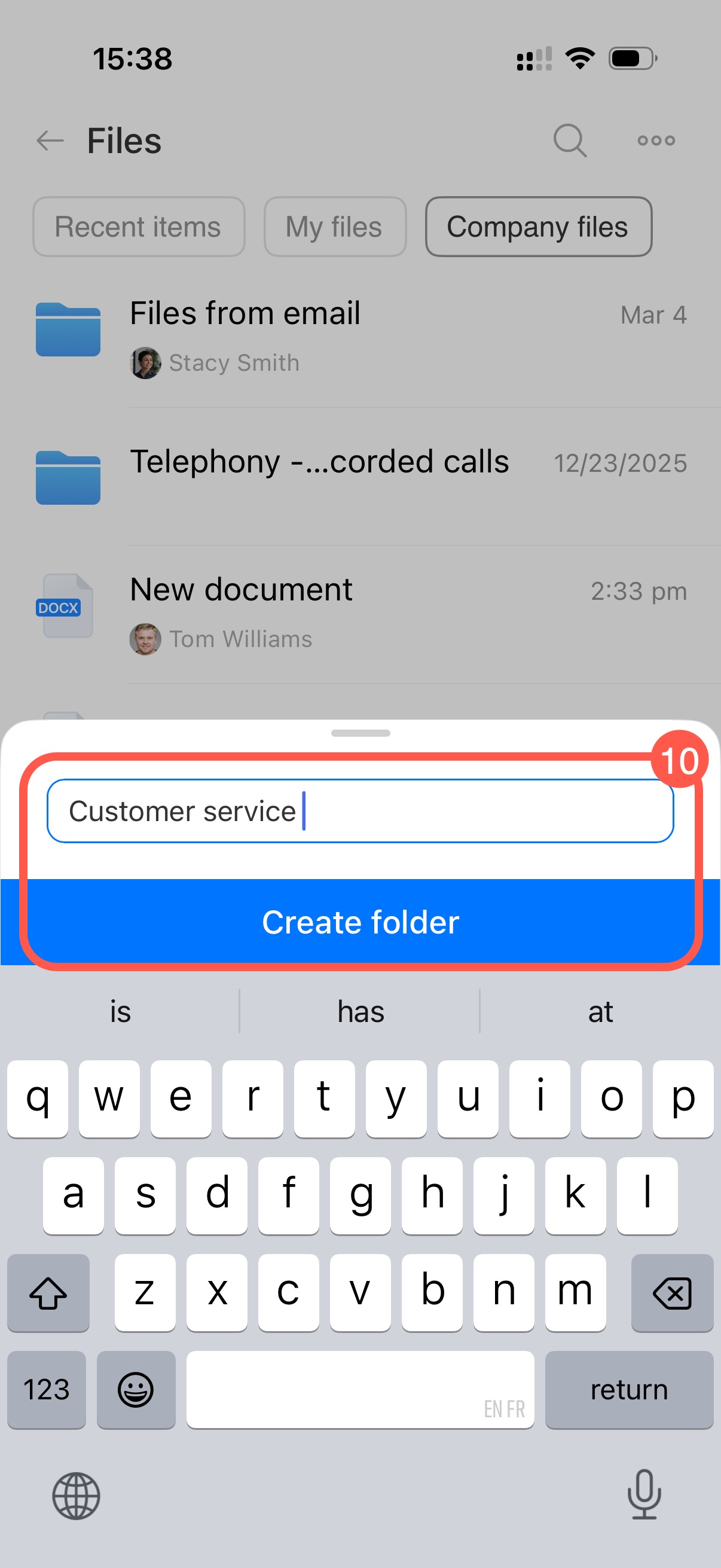
- To create a folder, tap Three dots (...) > Create folder in the top right corner, enter a name, and confirm.
Manage folders and files on Drive
Open, edit, and perform other actions with files depending on access permissions. For example, without edit permission, an employee cannot rename, move, or delete a file.
Select a file or click Menu (≡). Available actions appear in the top panel and the file menu.
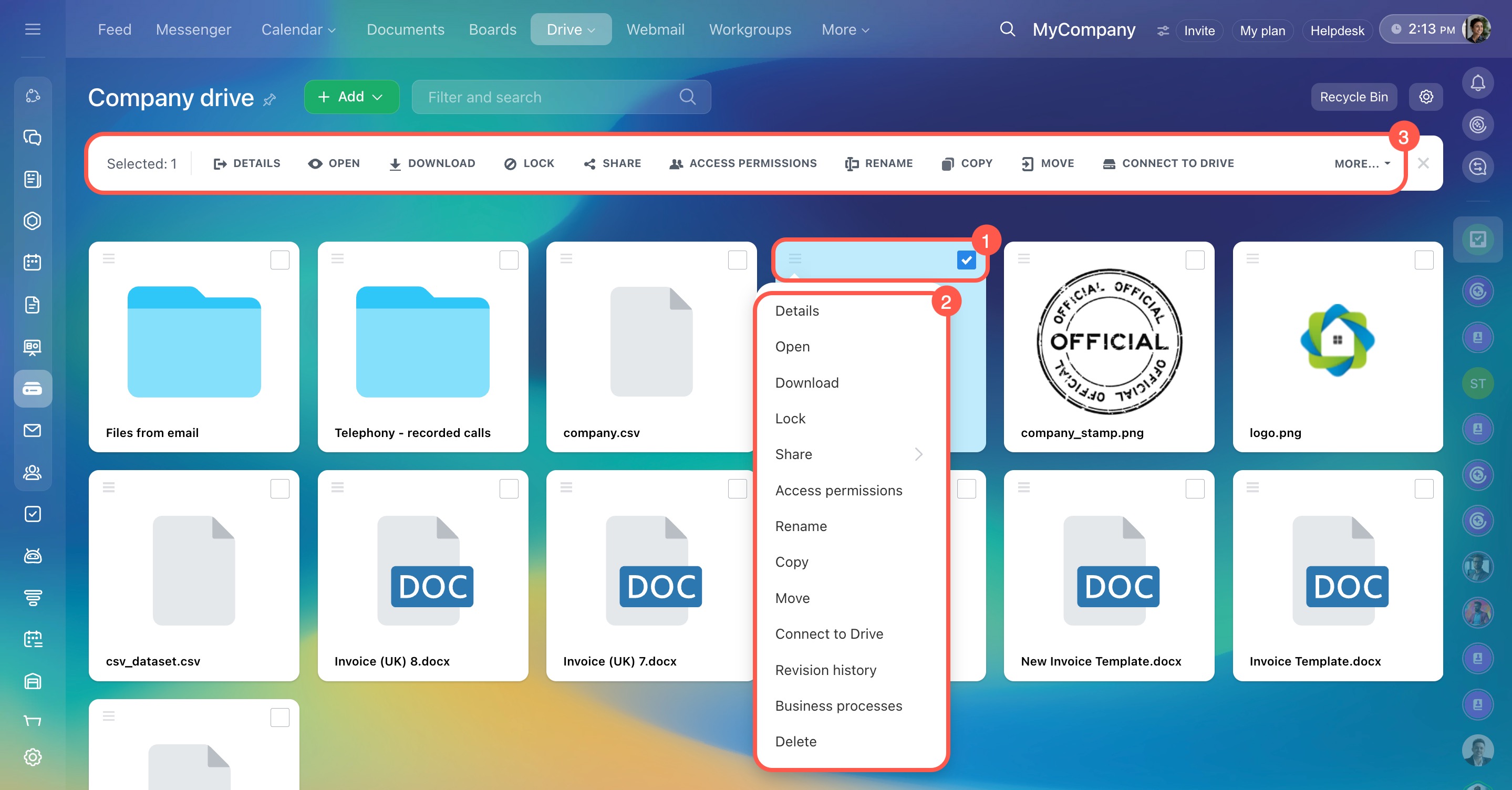
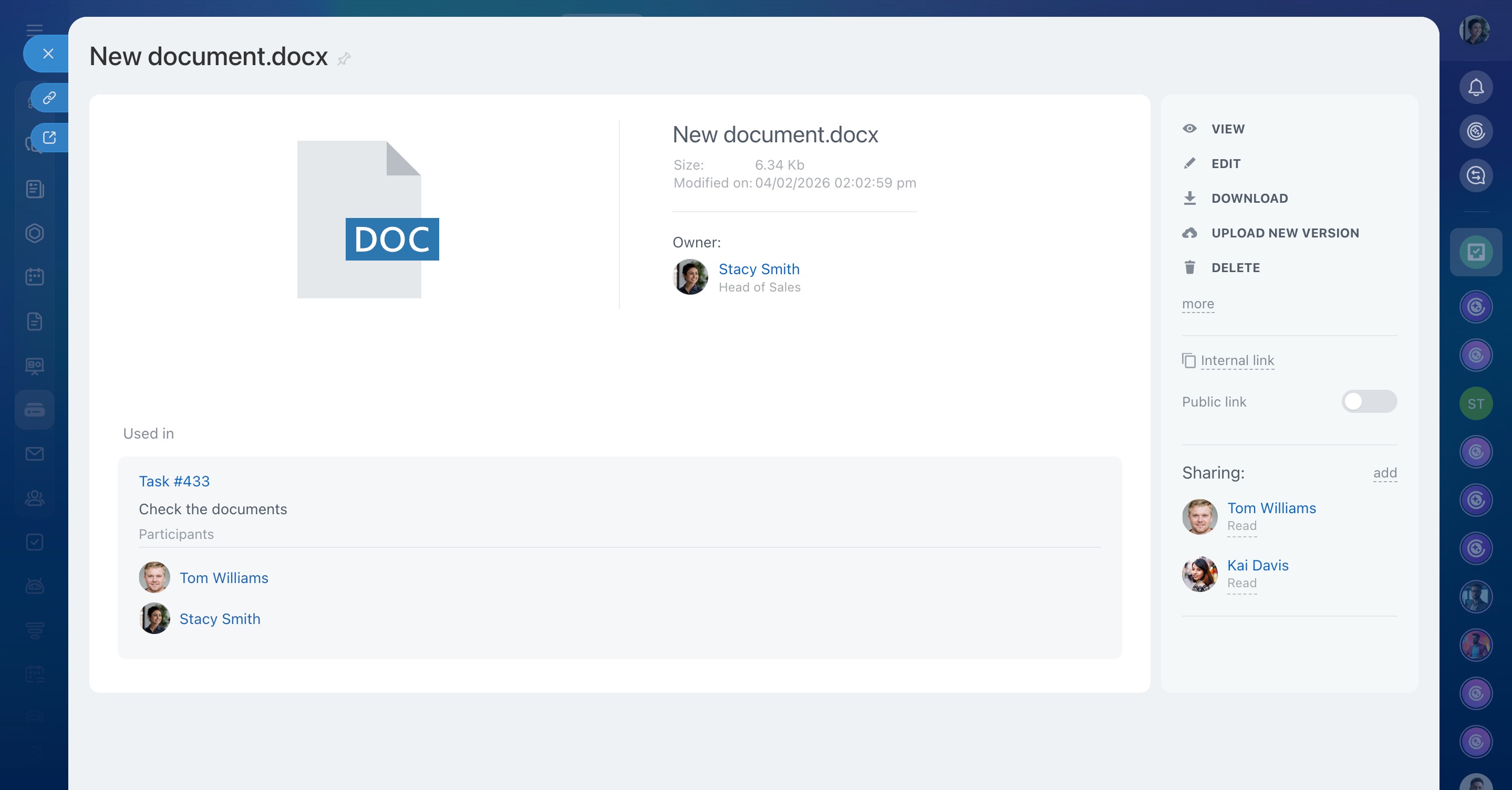
Details. Opens the file card where you can:
- Add a link to the file card to the main menu
- View file details — size, last modified date, owner
- Open, edit, or download the file
- Upload a new file version and view version history
- Configure access: create an internal or public link and set permissions
- See where the file is used — for example in tasks
- Delete the file
Open. View the file.
Download. Save the file to your computer.
Lock. Temporarily prevent other employees from editing the file. Useful to avoid version conflicts while making changes.
Lock documents while editing
Share. Copy an internal link for employees or a public link for external users and configure access. Send the link in chat, SMS, or email.
Share a folder or file
Access permissions. Available if you activate the option Enable extended permission control for individual files and folders in Drive settings.
View who has access and configure permissions for employees or departments. Employees with access can find the file in its original location on the Company Drive or personal Drive.
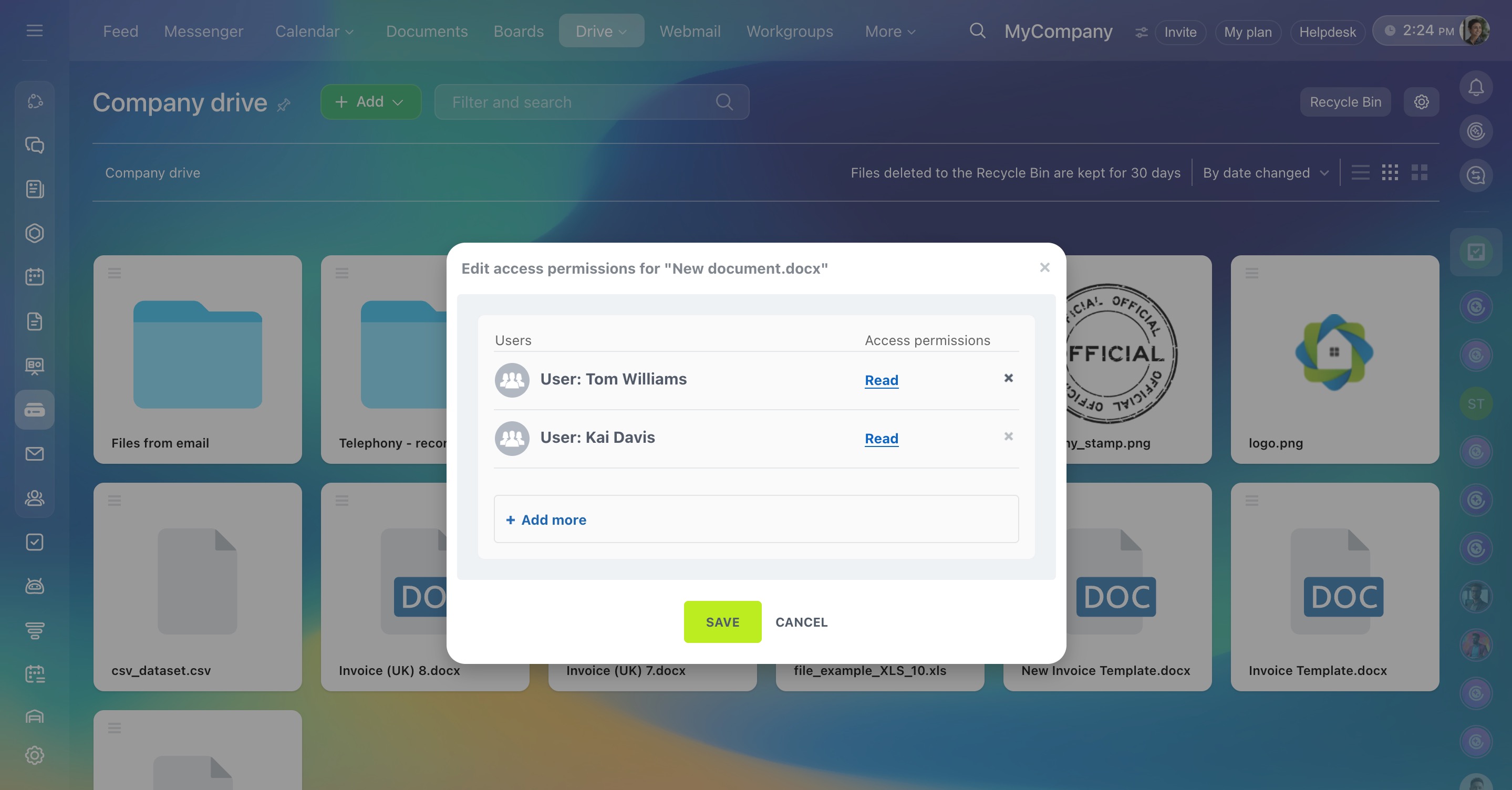
Rename. Change the file name.
Copy. Create a copy of the file in a selected folder on the current Drive.
Move. Move the file to another folder on the current Drive. Moving between Drives is not supported.
Connect to Drive. Available only for files on the Company Drive — adds the file to an employee’s personal Drive without copying.
Useful when a team frequently works with a shared file. For example, a quarterly duty schedule is stored on the Company Drive. The manager updates it there, and employees access the latest version from their own Drive.
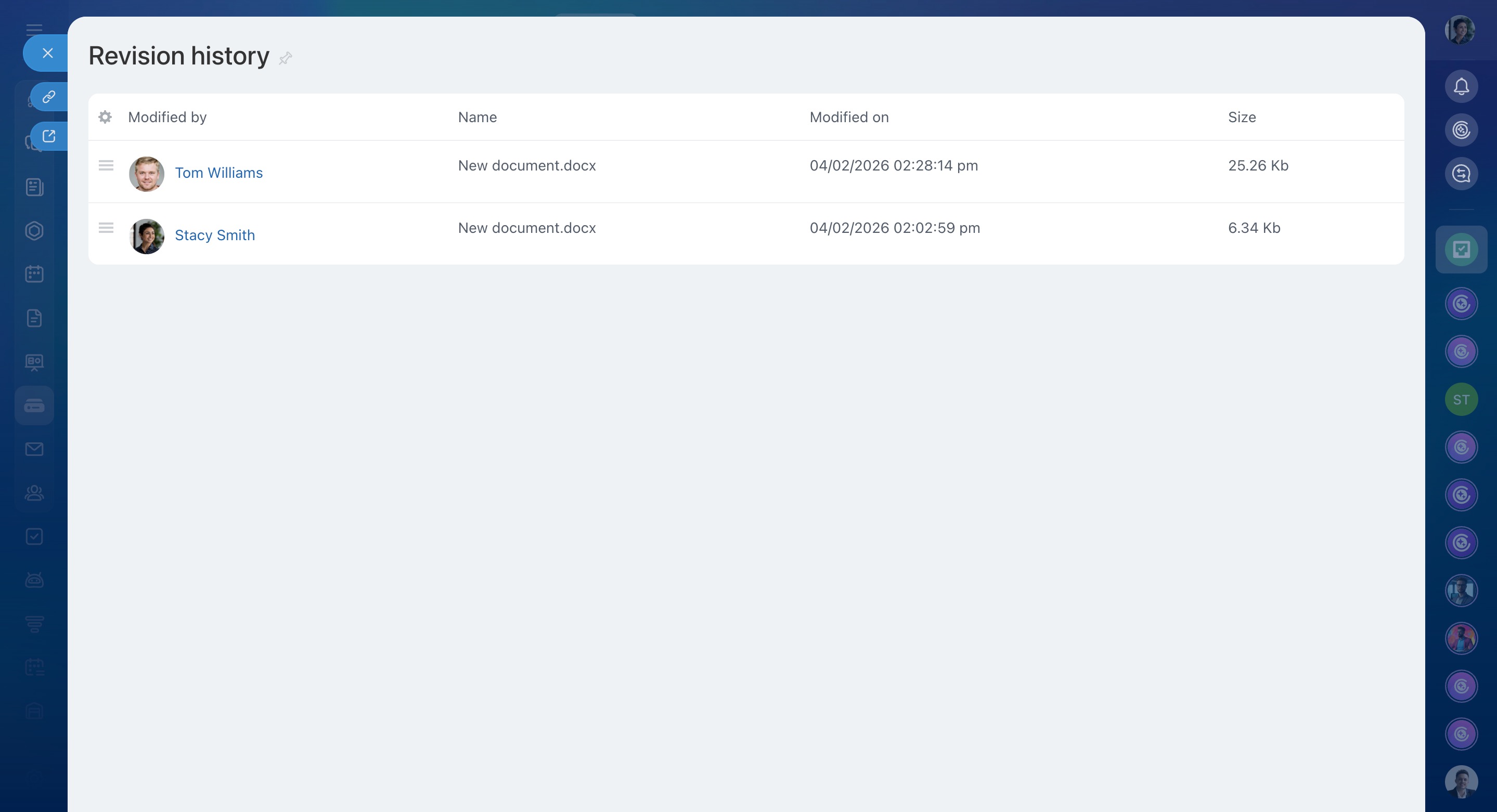
Revision history. Shows who changed the file and when. View previous versions.
File version storage
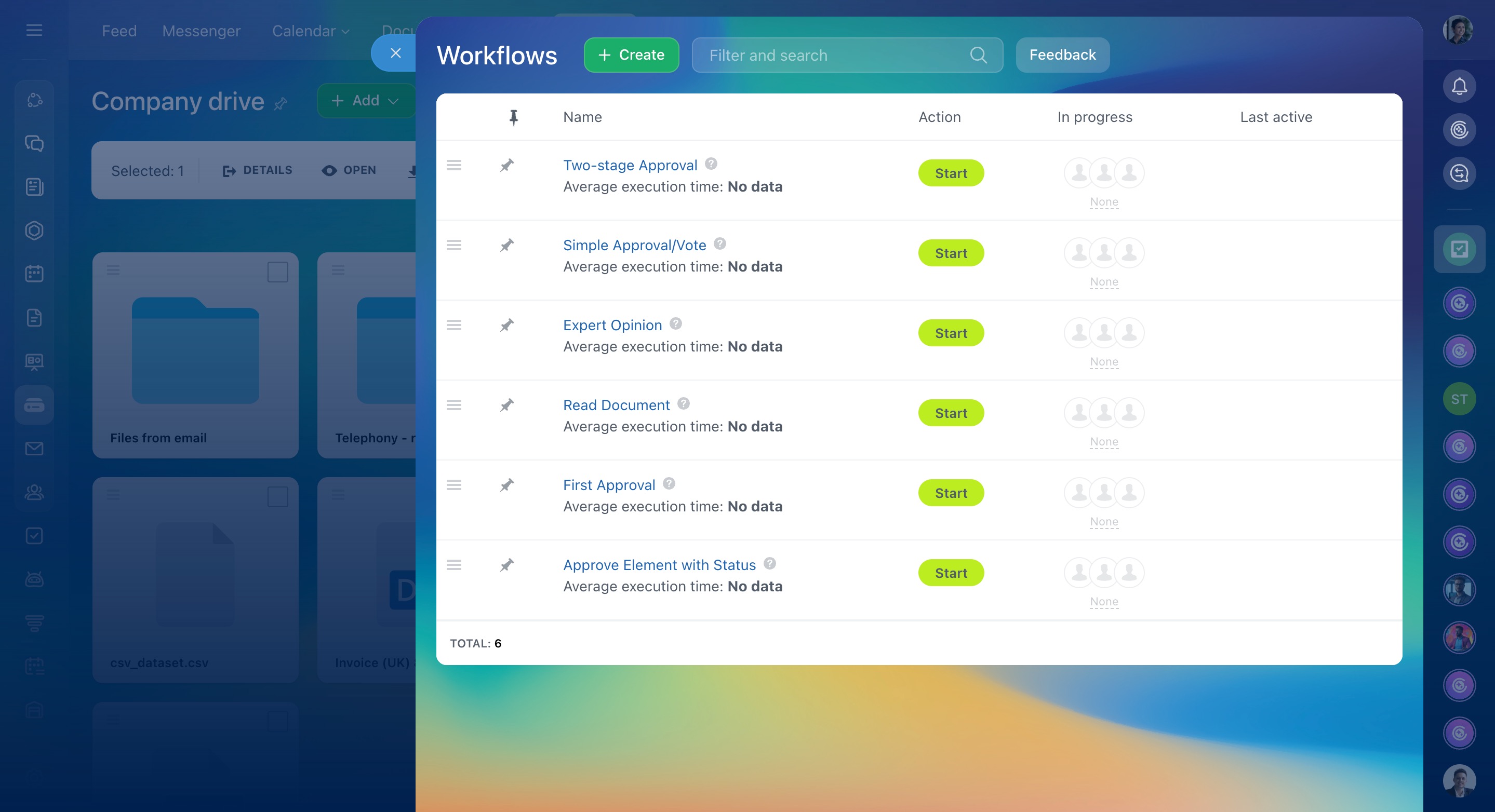
Business processes. Available only for files on the Company Drive — automate processes such as document approval or request handling.
Workflows on Bitrix24 Drive
Delete. Move the file to the Recycle bin or delete permanently.
Recycle bin on Bitrix24 Drive
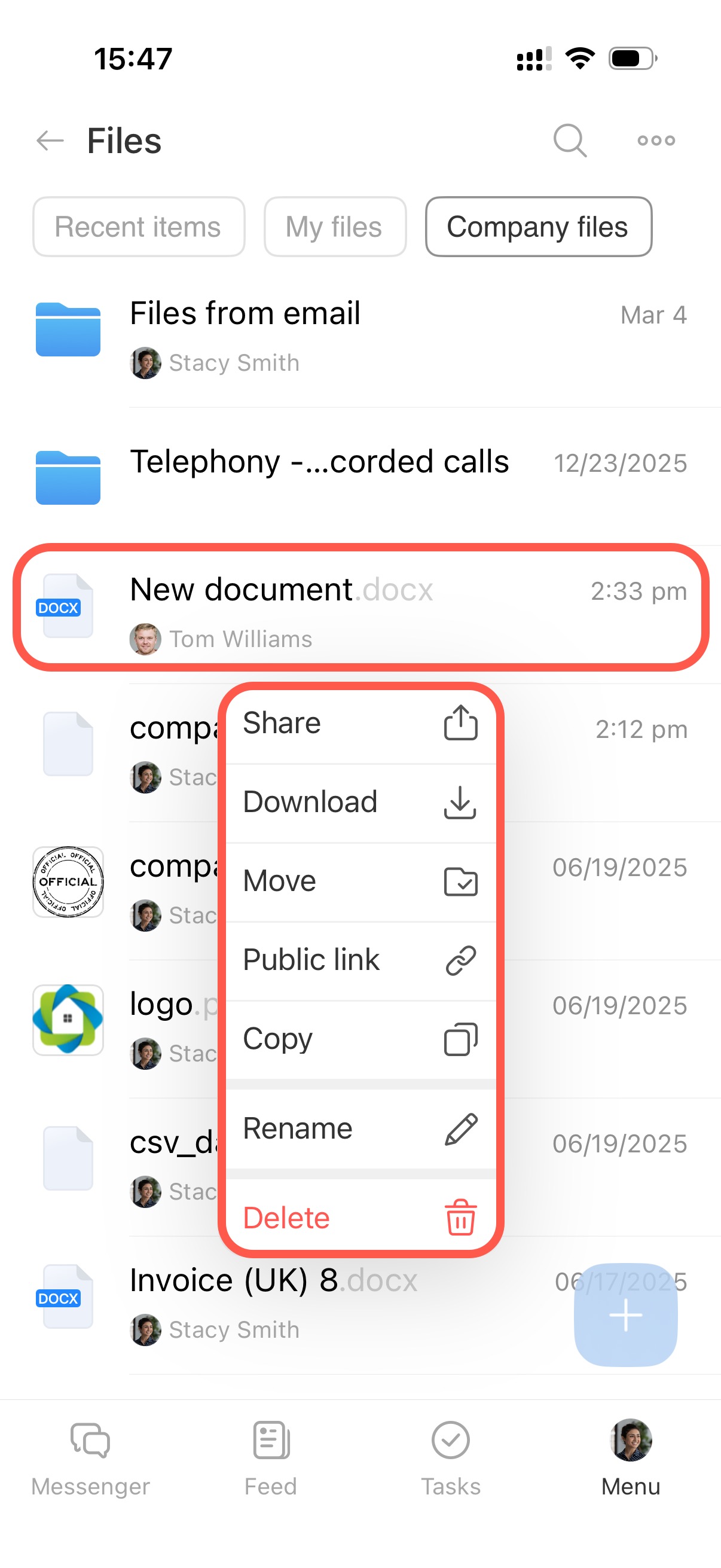
Tap and hold a file to open the menu. Select an action:
- Share. Attach the file to a message, for example in chat, without downloading. Useful for quickly sending a document to a client or colleague.
- Download. Save the file to the device.
- Move. Move the file to another folder on the current Drive.
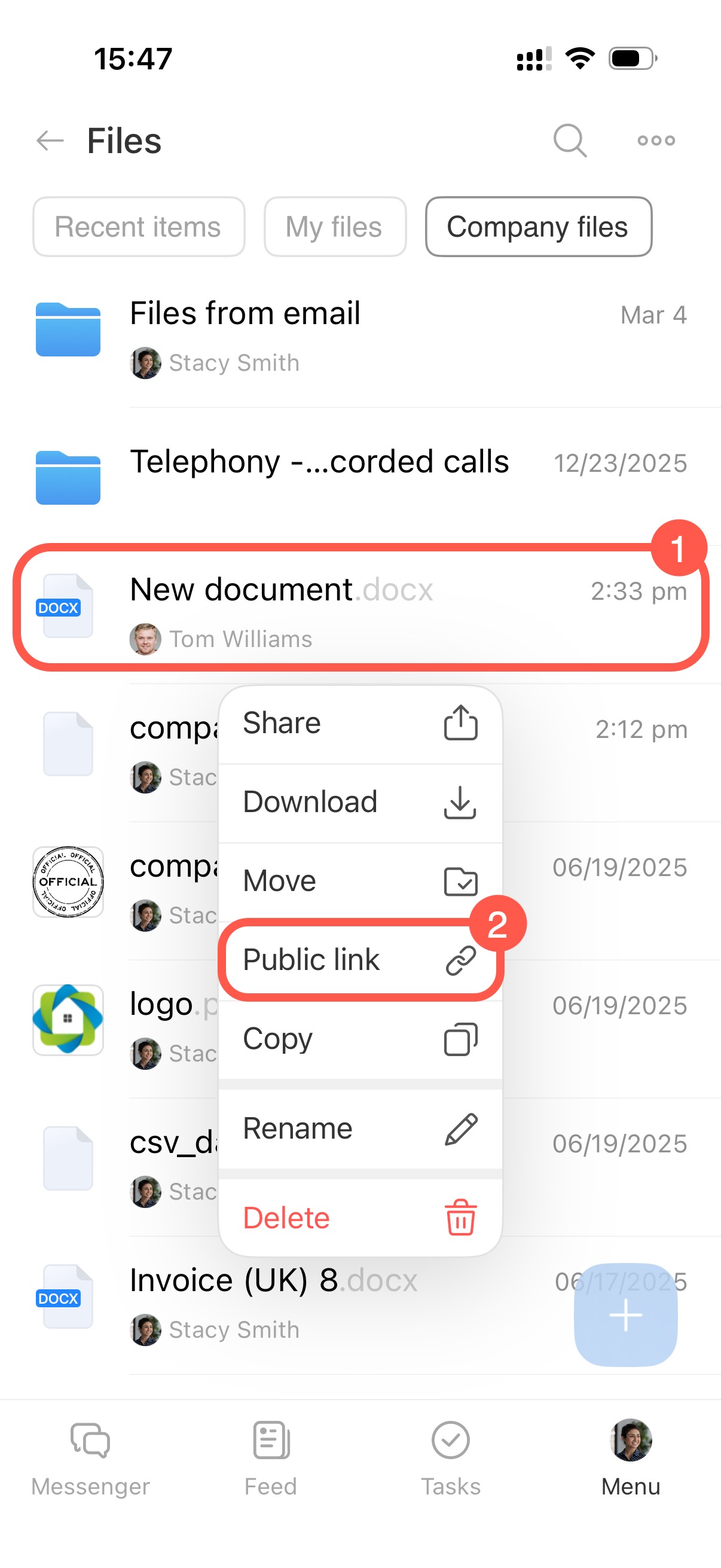
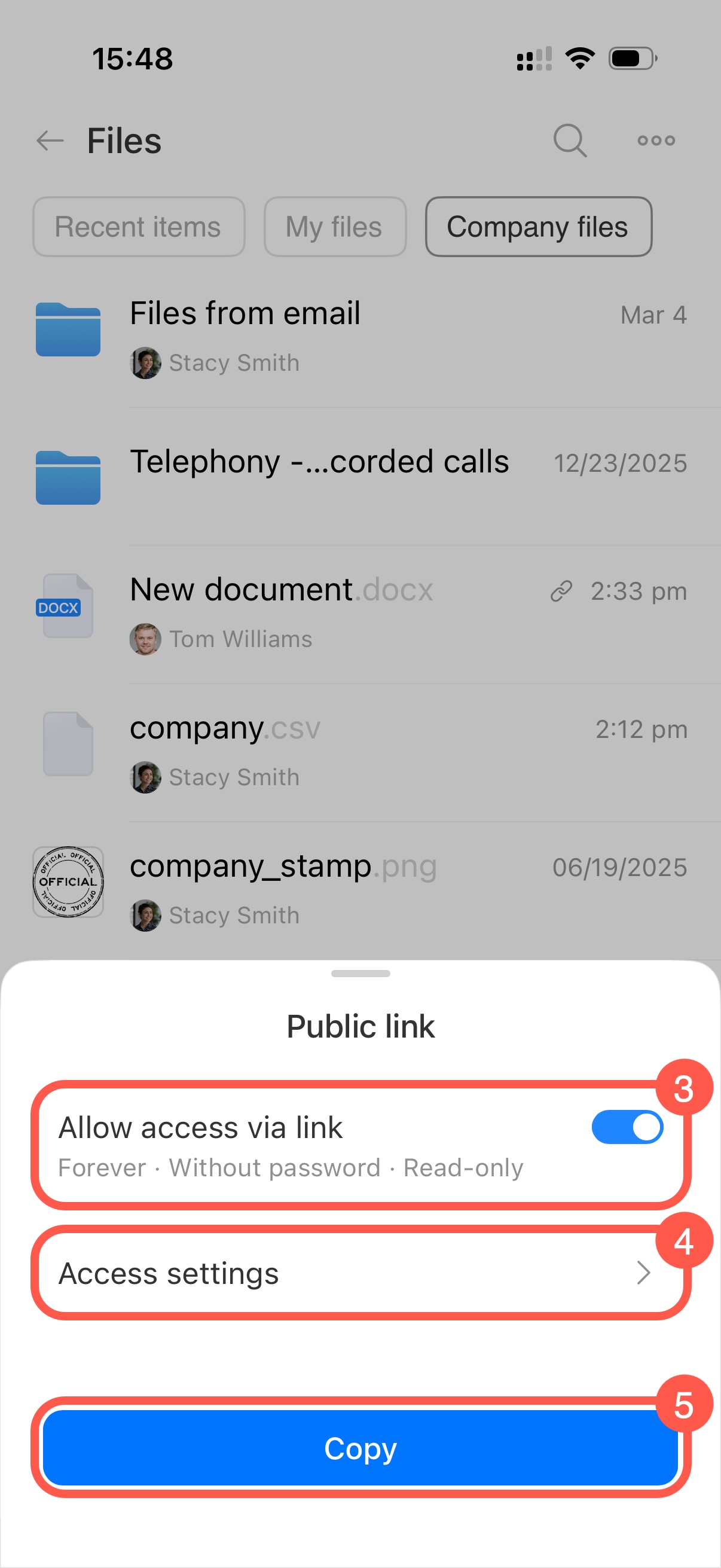
- Public link. Enable link access, configure permissions, and copy the link to send via message, SMS, or email.
- Copy. Create a file copy.
- Rename.
- Delete. Move the file to the Recycle bin.
Recycle bin on Bitrix24 Drive
Work with the list of folders and files
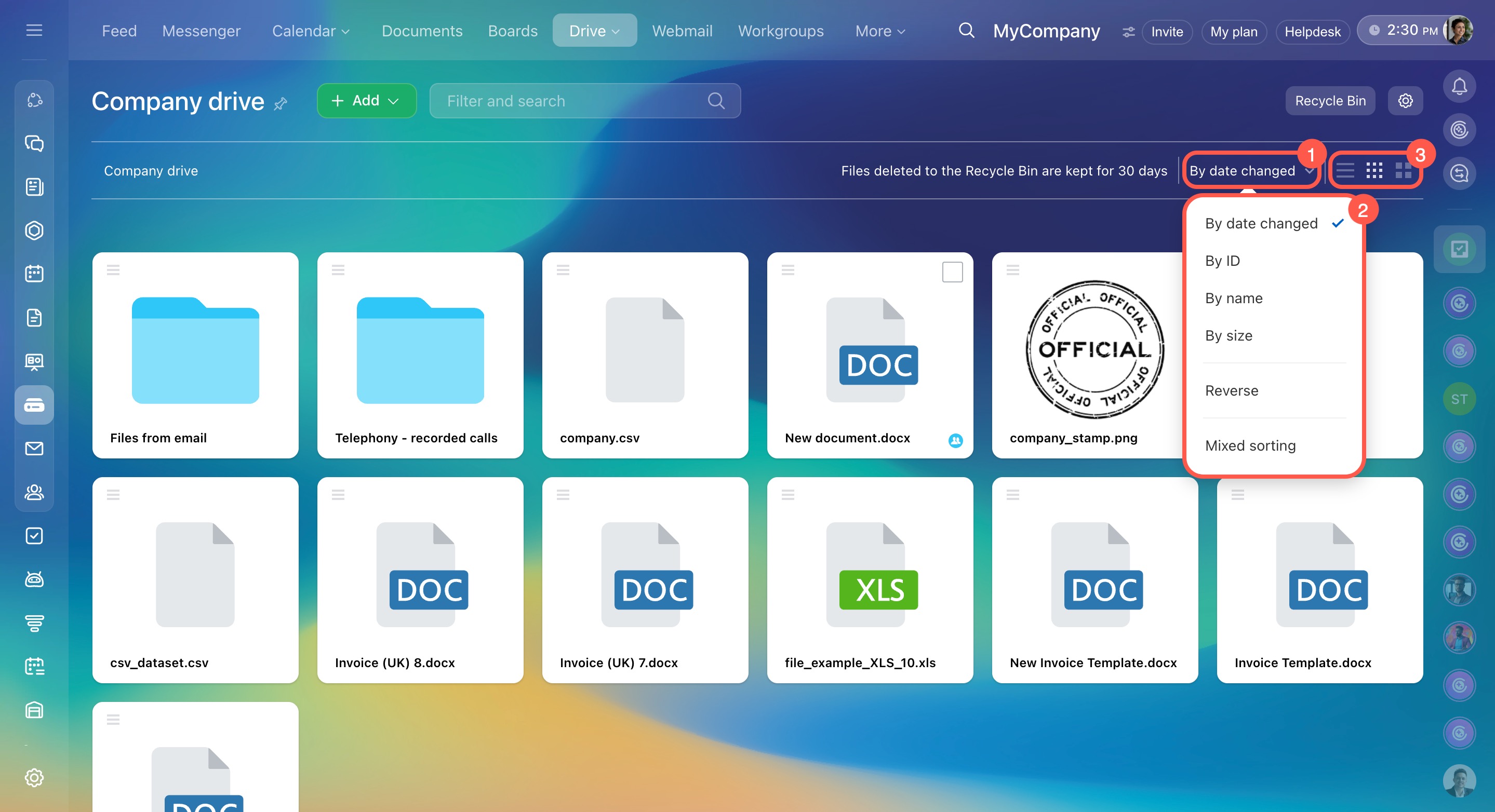
Configure sorting and view. Adjust the list to make large collections of files easier to navigate.
Choose the sorting criteria and order. For example, select By size and Reverse to show the largest file first.
The Mixed sorting option controls the order of folders and files. When disabled, folders appear first and files after them — each group is sorted separately.
Choose how files appear on Drive: list view, small icons, or large icons.
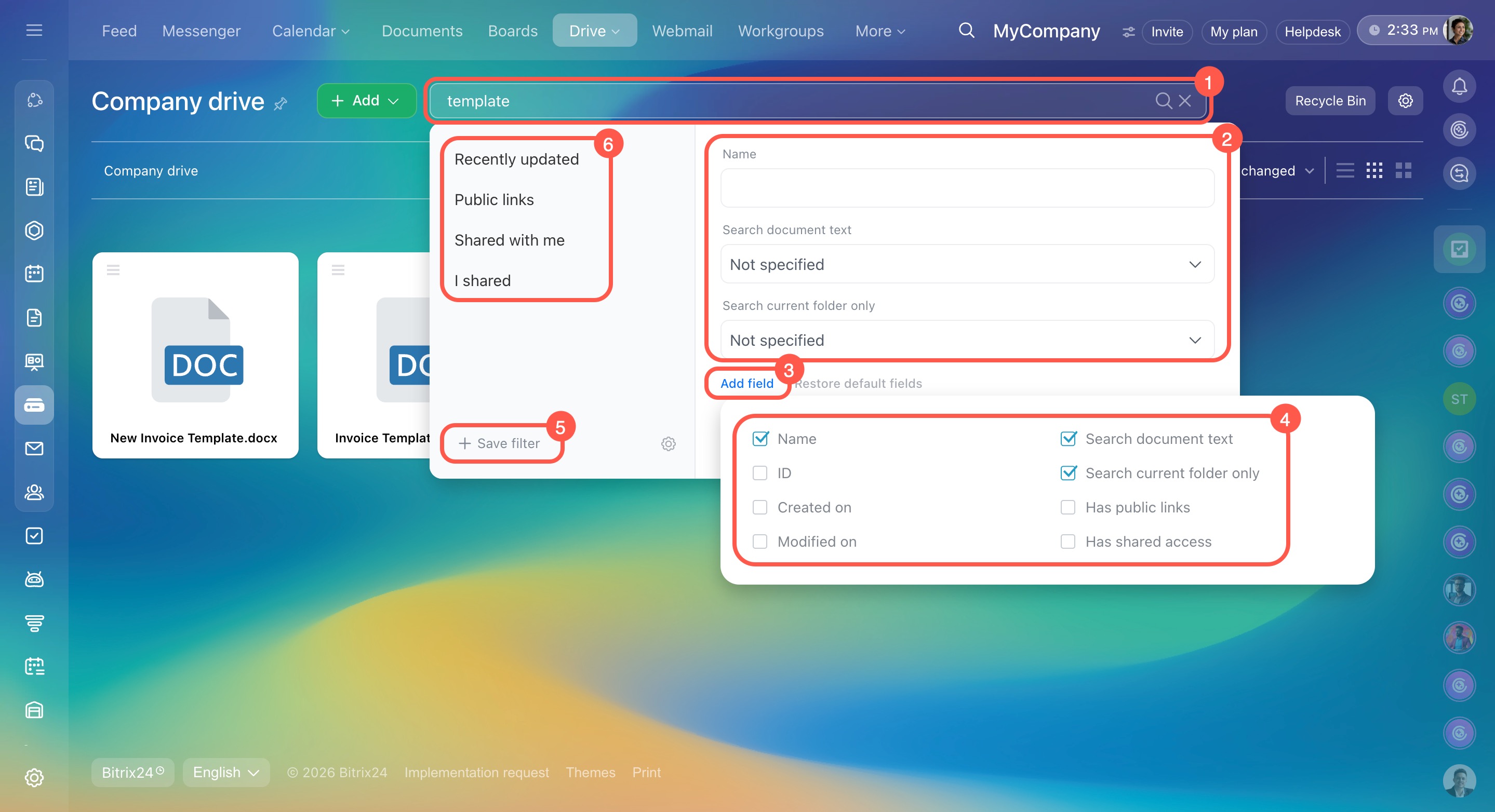
Find a file by name or using filters.
- Enter the full or partial file name in the Filter and search field. Click the field again to add filters.
- Specify conditions, for example file location.
- Click Add field to include more parameters.
- Select the fields you need.
- Click Save filter to reuse search settings.
- Use preset filters for quick search.
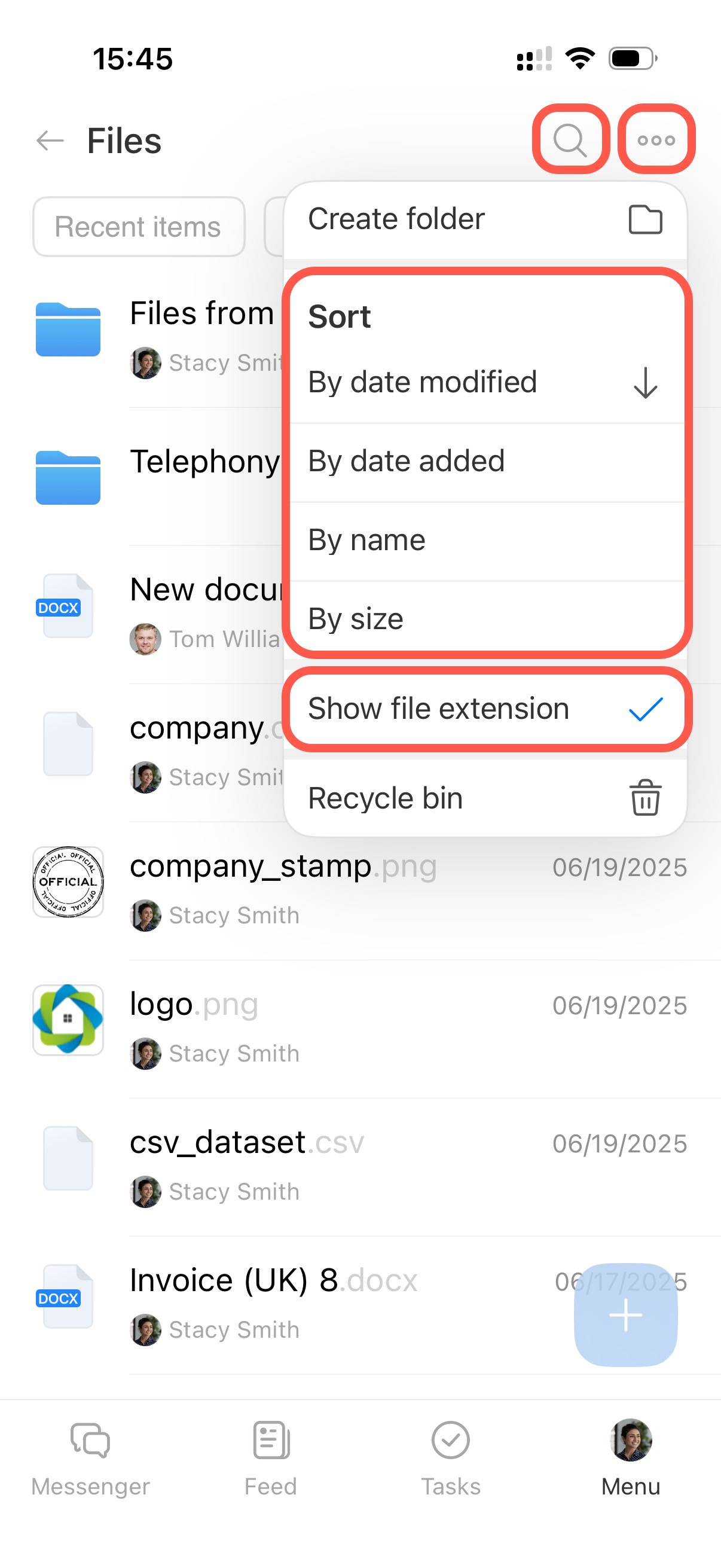
- Tap the search icon in the top right corner to find a file.
- Tap Three dots (...) in the top right corner to configure sorting and display.
- Select sorting criteria and order. For example, choose By date modified and tap the Up arrow to show the most recently edited file first.
- Enable Show file extension to display file format such as doc or mp4.
Share a folder or file
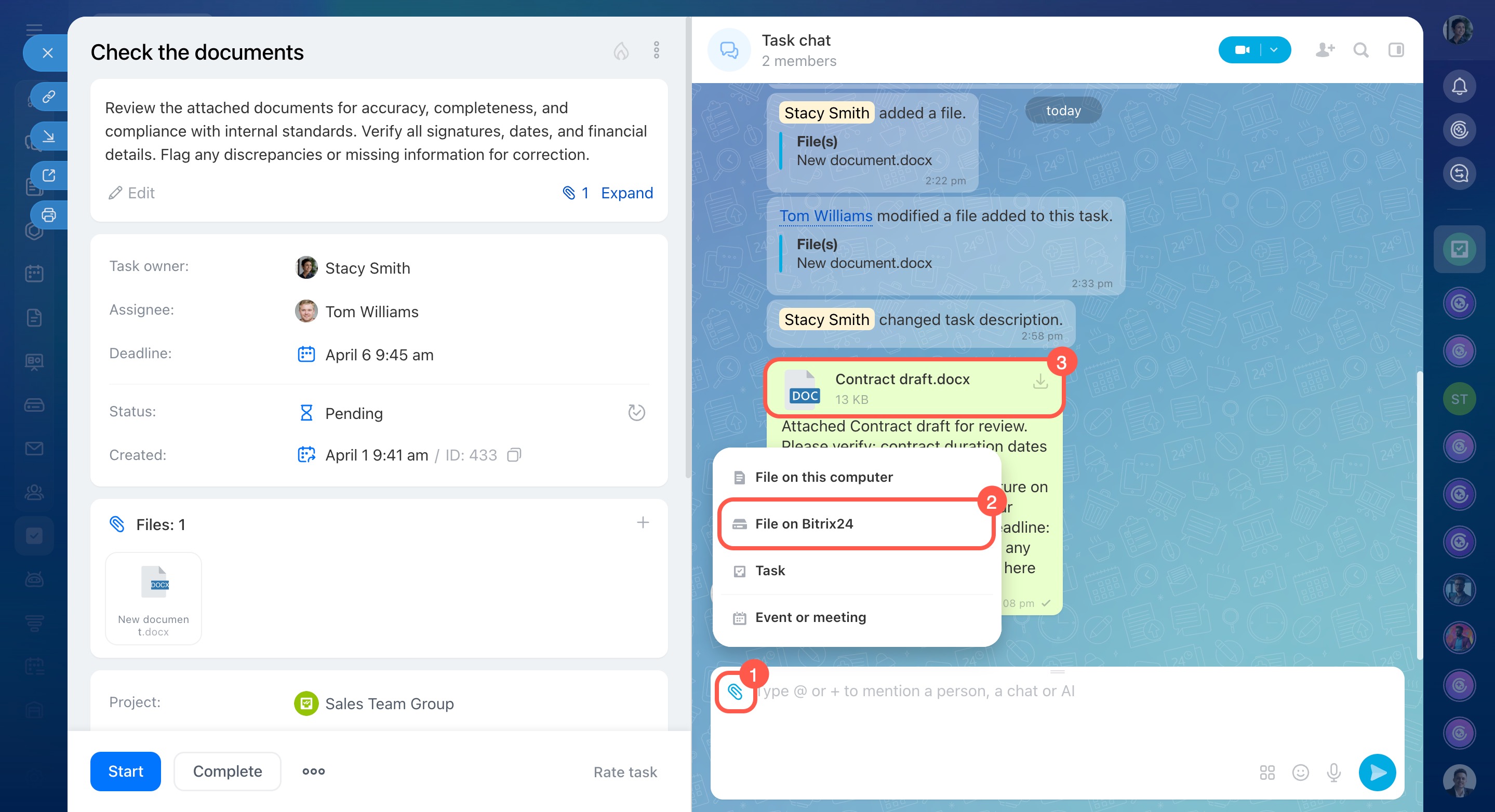
Attach a file to a message, task, Feed post, and other items. Useful for sending files to colleagues and working on them. For example, you can discuss a document in chat or attach it to a task.
Access to documents and boards attached to chats, tasks, and other items expands automatically. All participants can edit them even if access was originally restricted.
If you do not want to give access to everyone, send a link instead — existing permissions remain unchanged.
Add files from cloud storage to Bitrix24
Send a link to a folder or file in Bitrix24 chat, an external messenger, SMS, or email. Use internal links for colleagues and public links for people outside your company.
Copy internal or public links from the file list, file details card, or while working with the file.
Share files and folders using public and internal links
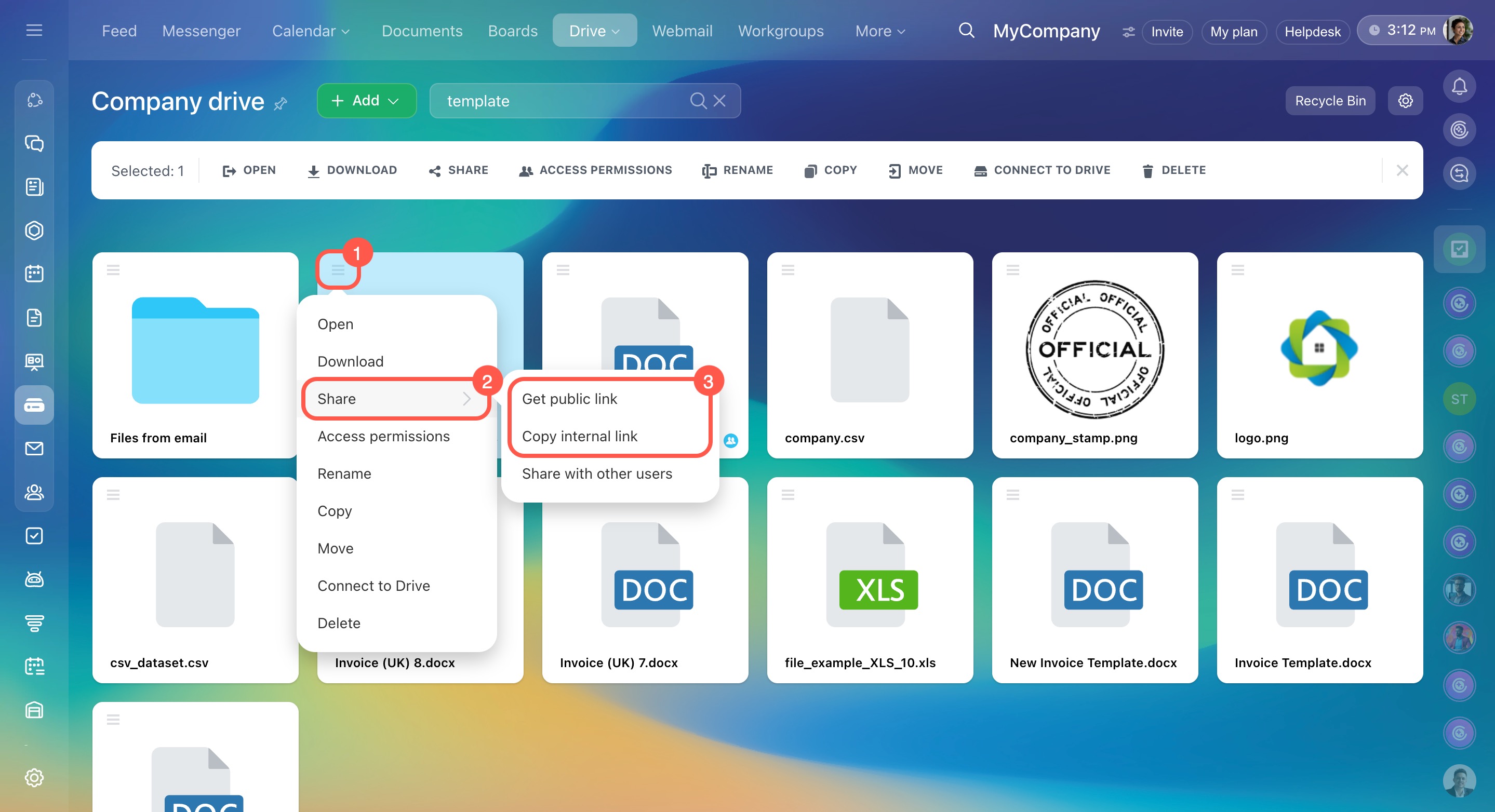
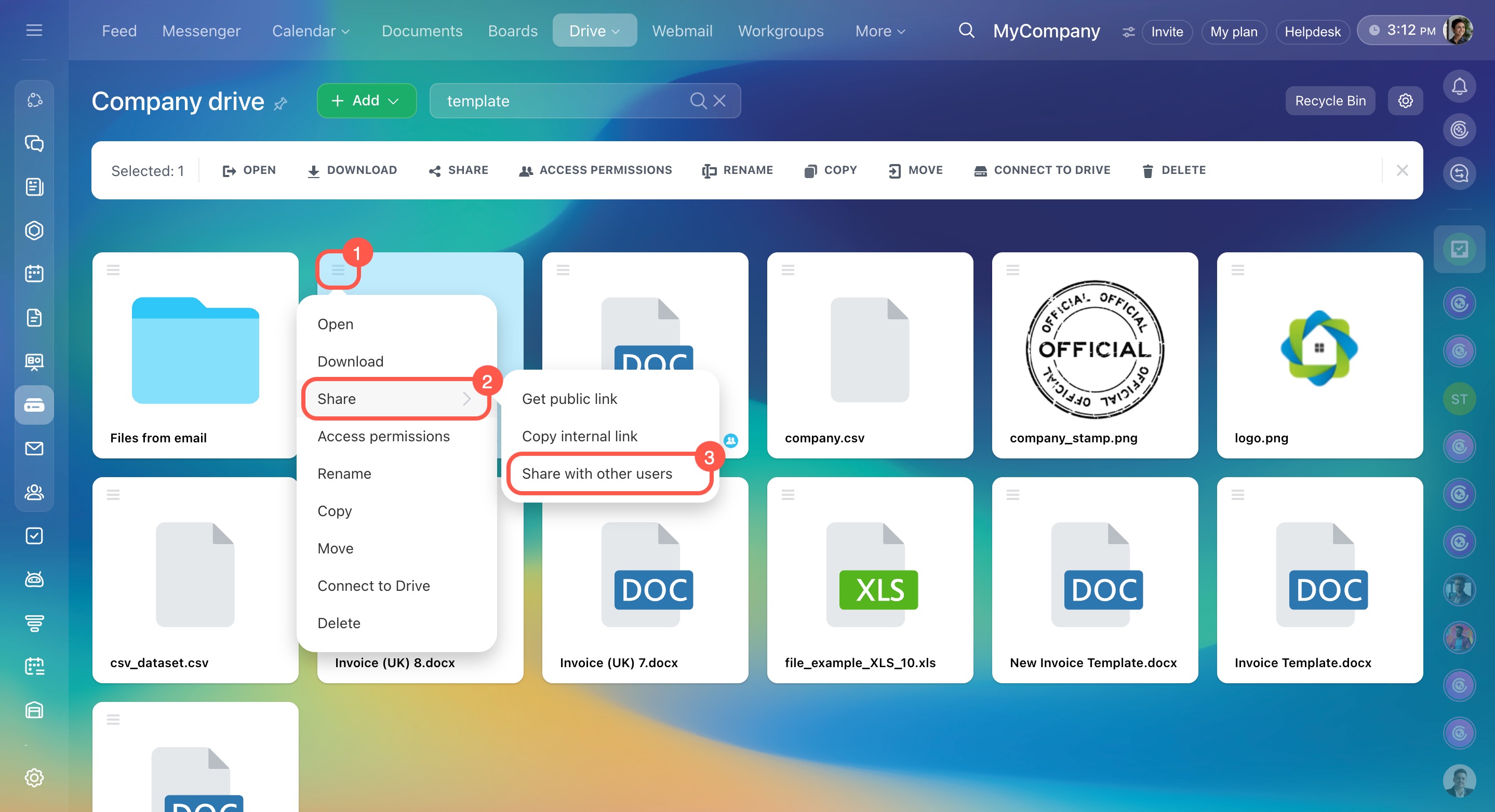
Configure shared access. Add a file or folder to another employee’s personal Drive. Useful for collaborative work with documents — employees can quickly find and open required files.
- Select a folder or file and click Menu (≡) > Share > Share with other users.
- Click Add more and choose employees or departments.
- Set permission level and save changes.
Configure access permissions to personal drive
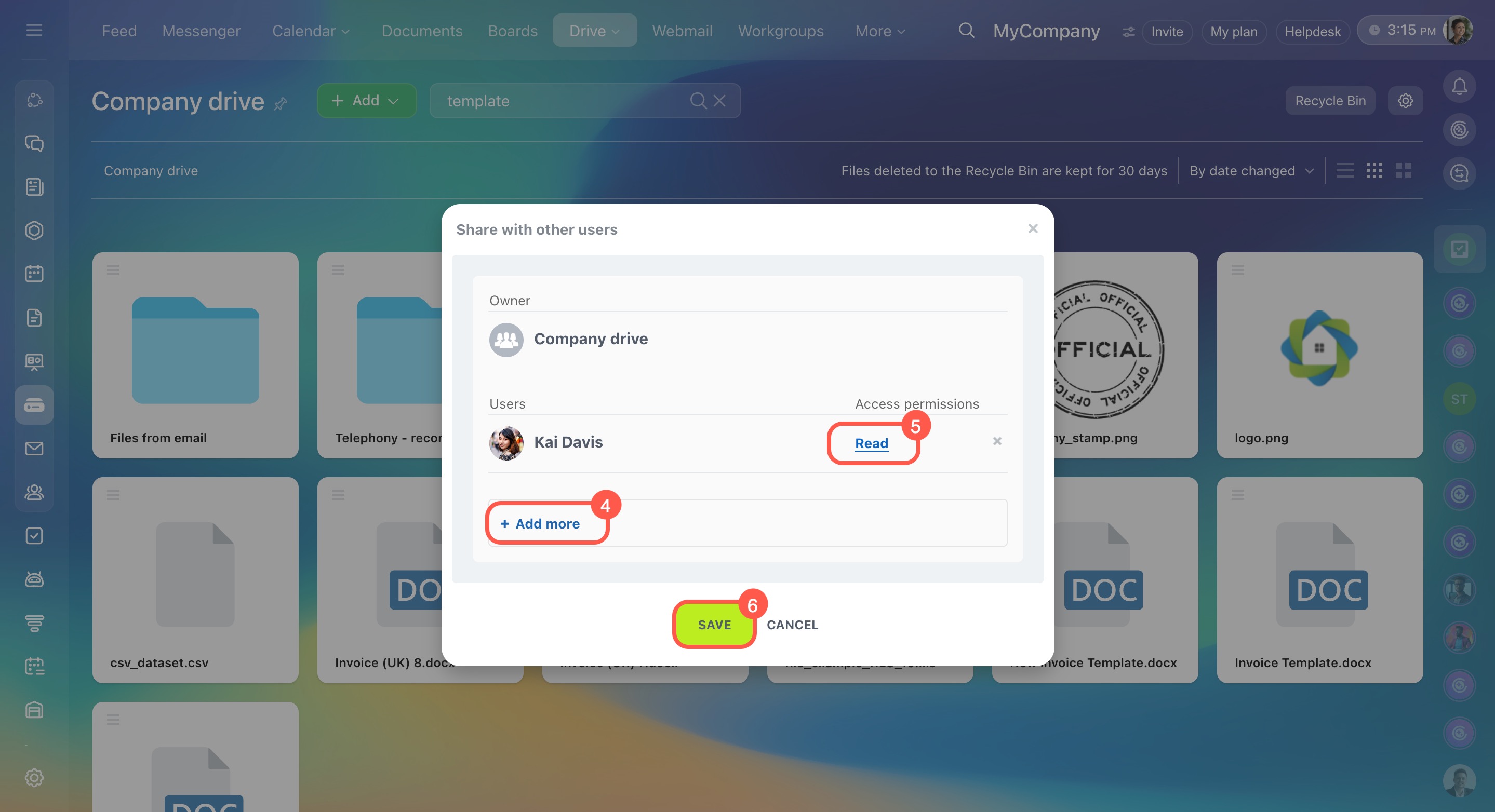
The employee receives a notification. Depending on the file type, they will have an option to add the board to the board list or connect the file or folder to Drive. If the employee:
- Confirms — the file or folder appears in the list and becomes accessible.
- Declines — the file or folder does not appear on the employee’s Drive. Only the owner or a user with full access can share it again.
Configure access permissions for all Drive content or specific folders and files. Share materials without connecting them to another employee’s Drive.
Extended access permissions
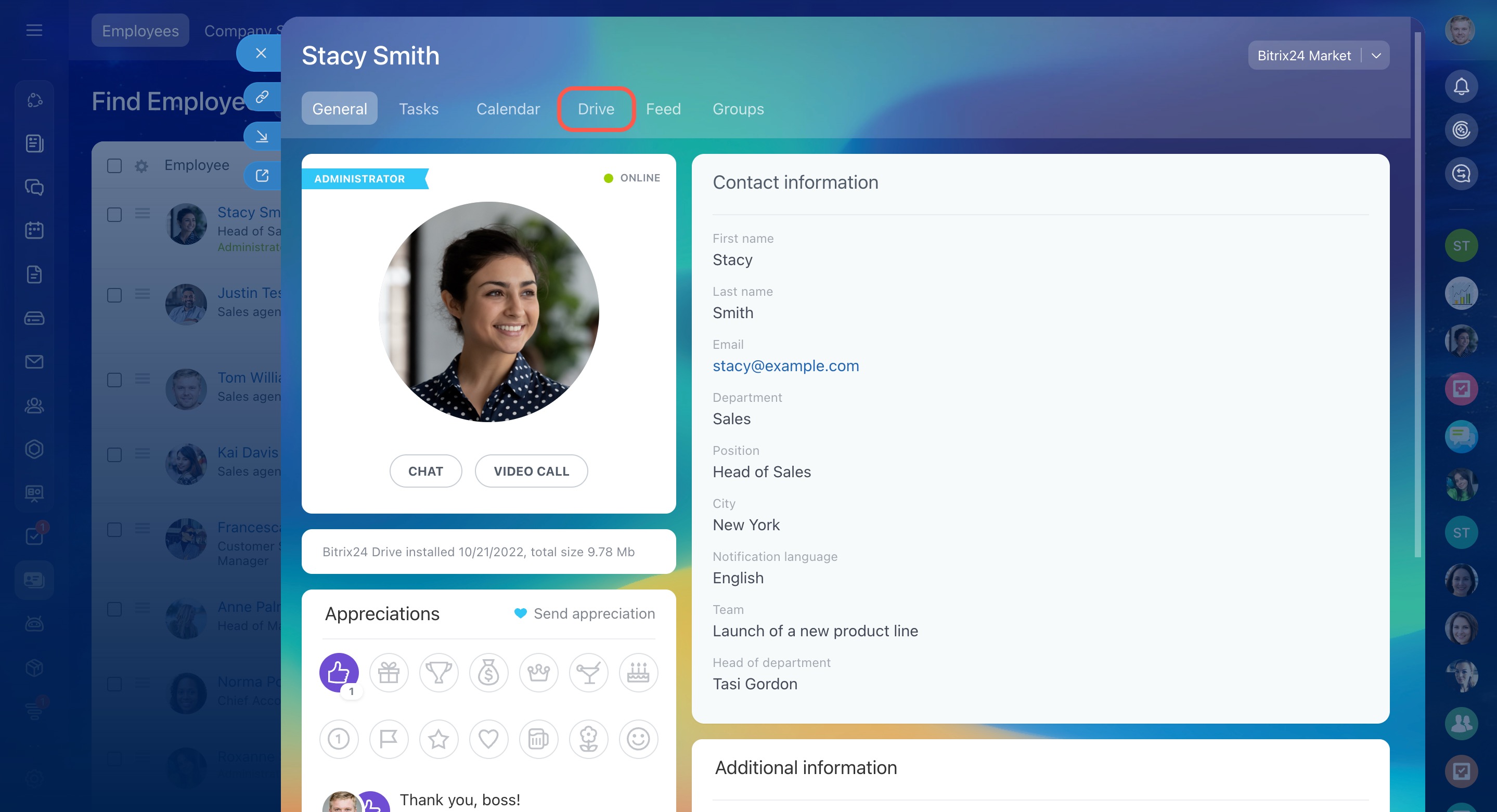
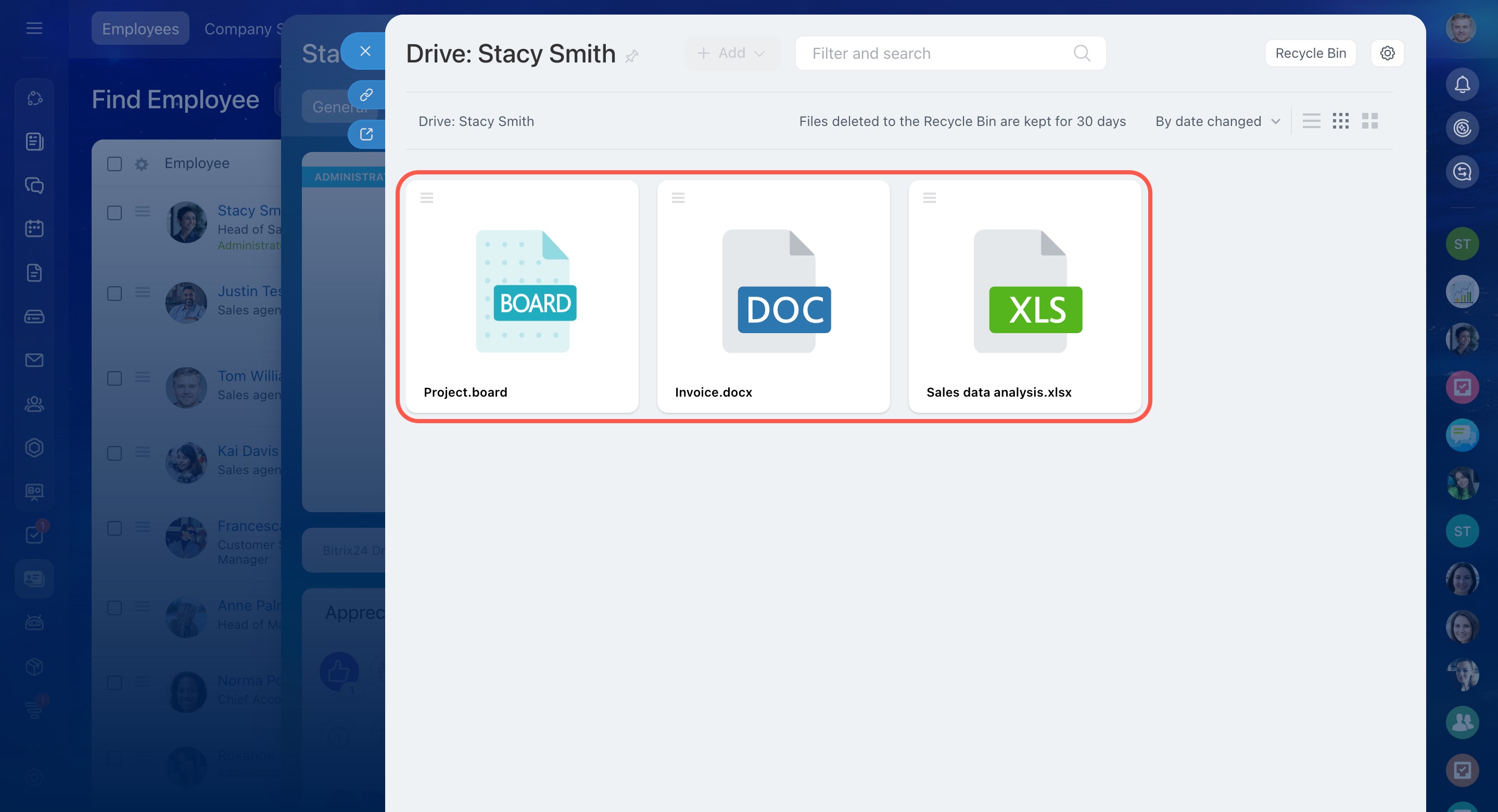
Employees do not receive notifications after configuration. To find accessible files, open the employee profile and go to the Drive tab — it displays items available to them.
Attach a file to a message, task, Feed post, and other items. Useful for sending files to colleagues and working on them. For example, you can discuss a document in chat or attach it to a task.
Access to documents and boards attached to chats, tasks, and other items expands automatically. All participants can edit them even if access was originally restricted.
If you do not want to give access to everyone, send a link instead — existing permissions remain unchanged.
Add files from cloud storage to Bitrix24
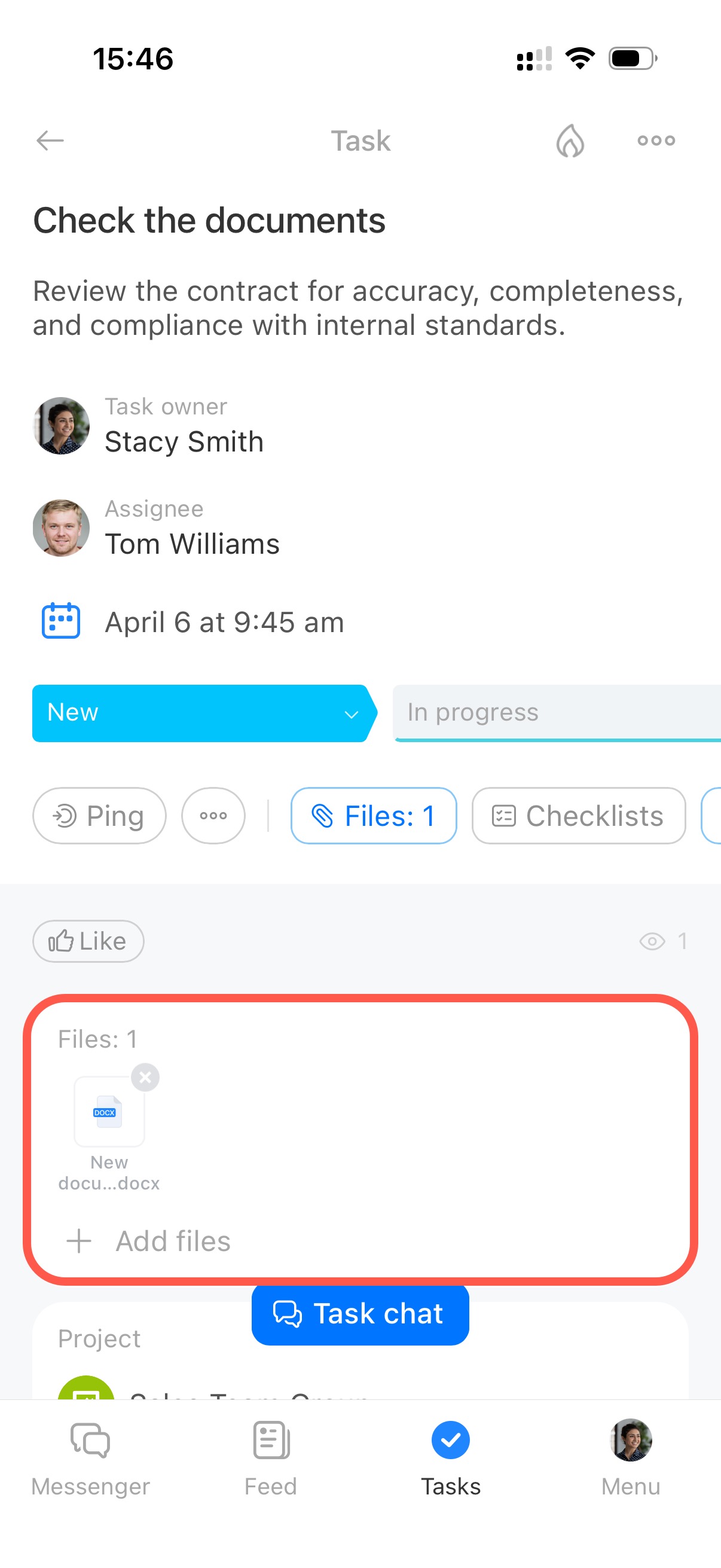
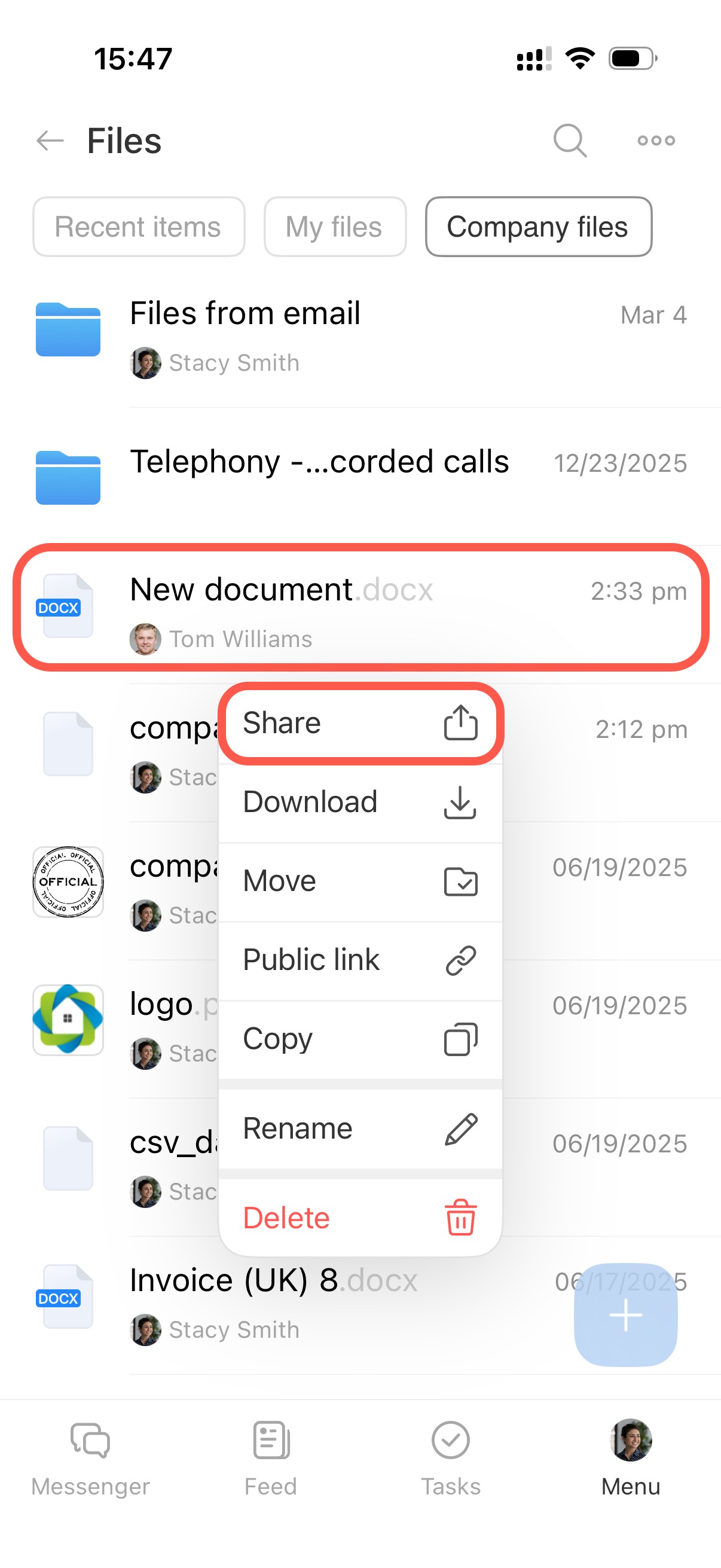
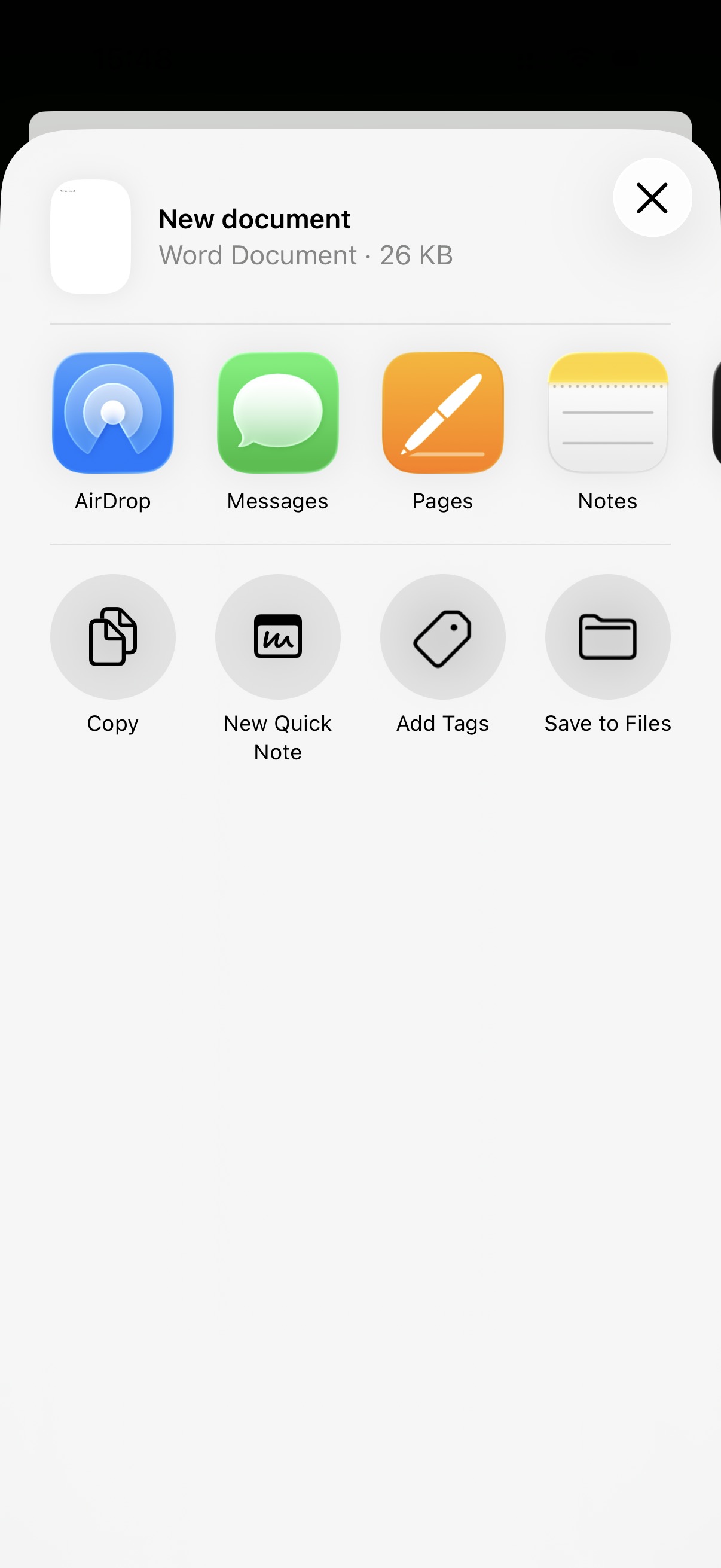
Send a file. Send a file to an external service without downloading it first. Useful for quickly sharing a document with a client or printing it.
Tap and hold a file to open the menu. Select Share and choose where and to whom to send the file.
Send a public link. Enable link access, copy the link, and send it via message, SMS, or email to an external user such as a client or contractor.
Tap and hold a file to open the menu. Select Public link, enable link access, configure settings, and click Copy.
Public links in Bitrix24
In brief
- Bitrix24 Drive stores files and supports individual and collaborative work on desktop and mobile.
- In the web version, create or upload files. In the mobile app, only file upload is available.
- To manage a file or folder in the web version, select it and choose an action. In the mobile app, tap and hold the file.
- Share files from personal or Company Drive with colleagues or external users.
- If Drive contains many files, configure sorting and display options. Find folders and documents by name or filters.
- Share files by attaching them to items such as chat messages or tasks, or by sending internal or public links.
- Configure shared access to add files or folders to another employee’s Drive. Access permissions allow colleagues to work with files on personal or Company Drive.
