
Knowledge Bases 2.0 in Bitrix24 helps you store instructions, training materials, and other useful content. You can create spaces for different departments, set up the structure, manage access, and edit articles together with your team.
- the Professional and Enterprise plans in the Bitrix24 Cloud version. Bitrix24 plans and pricing
- the Business and Enterprise plans in the Bitrix24 On-premise version. To make sure it works correctly, update the Note module to the latest version. Bitrix24 plans and pricing
Update Bitrix24 On-Premise
In this article:
Open Knowledge Bases 2.0
By default, only Bitrix24 administrators can access the Knowledge Base 2.0 section. To allow other employees to view, edit, and create knowledge bases, you must grant them access to the section.
Knowledge base 2.0
Click Knowledge Bases 2.0 in the left menu.
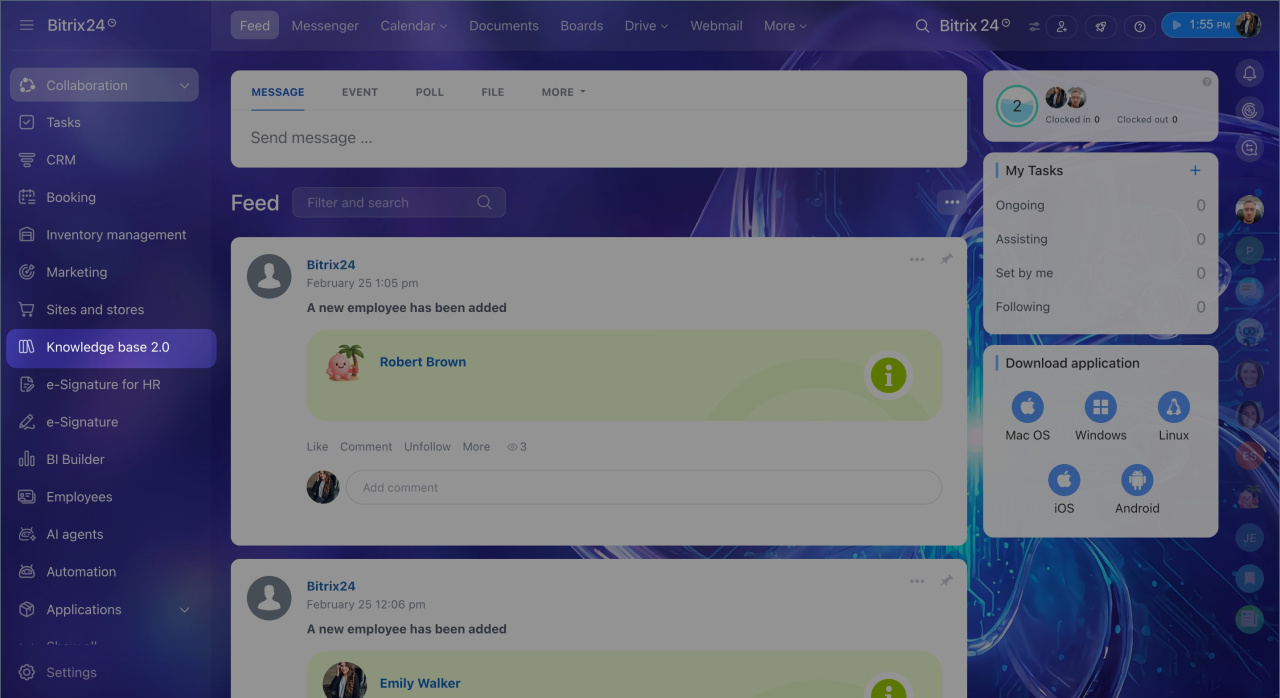
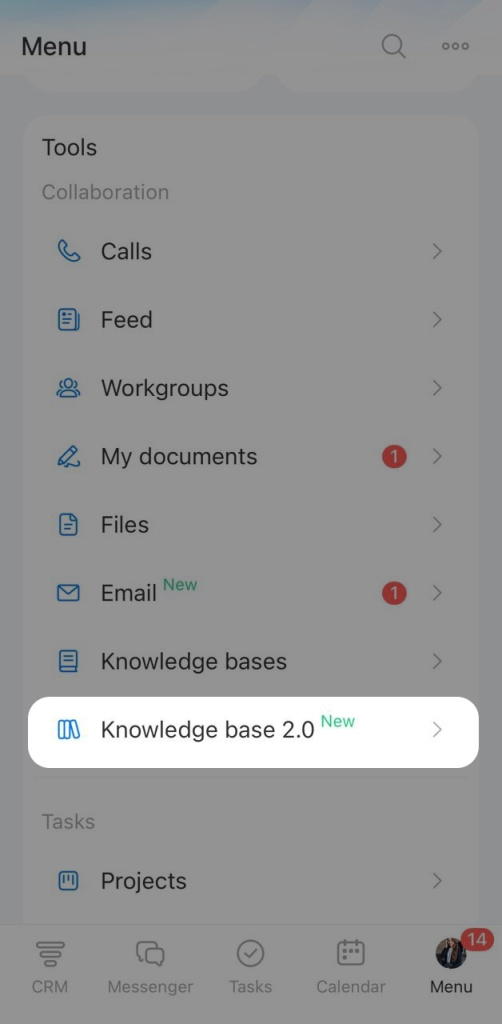
Go to the Menu > Knowledge Bases 2.0
Use the Control Panel
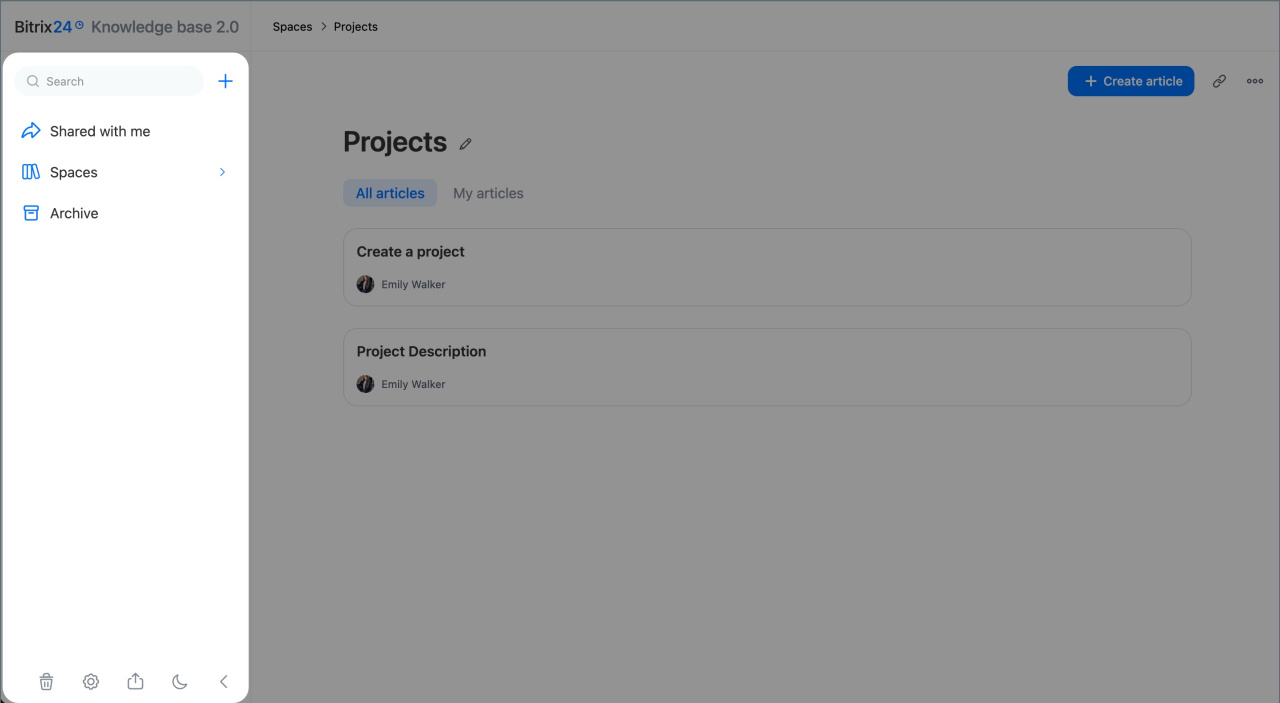
The Control Panel lets you switch between spaces, search for articles, manage items, and change the theme.
The Control Panel is on the left side of the screen.
Search bar. Find an article by keyword. Enter a search term and select a result from the list.
Plus. Add a new article or space.
Shared with me. View articles that your colleagues shared directly with you.
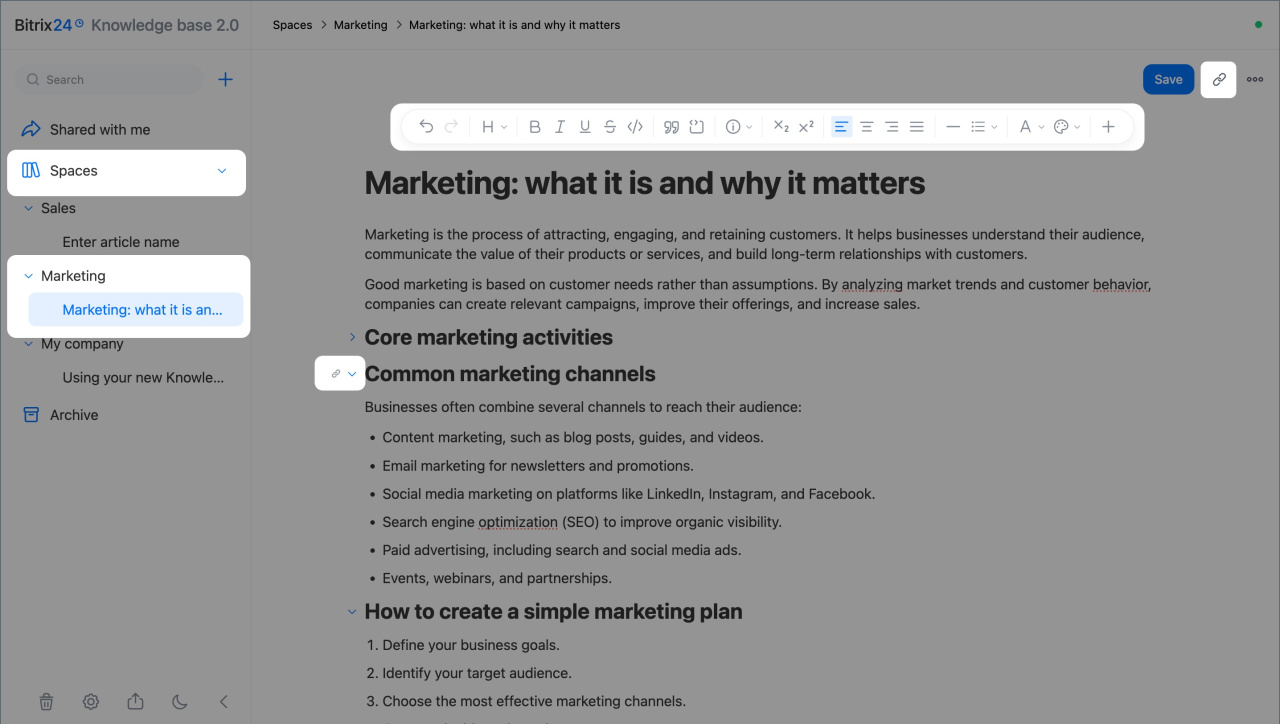
Spaces. View all spaces you can access. Click the tab to collapse or expand the list.
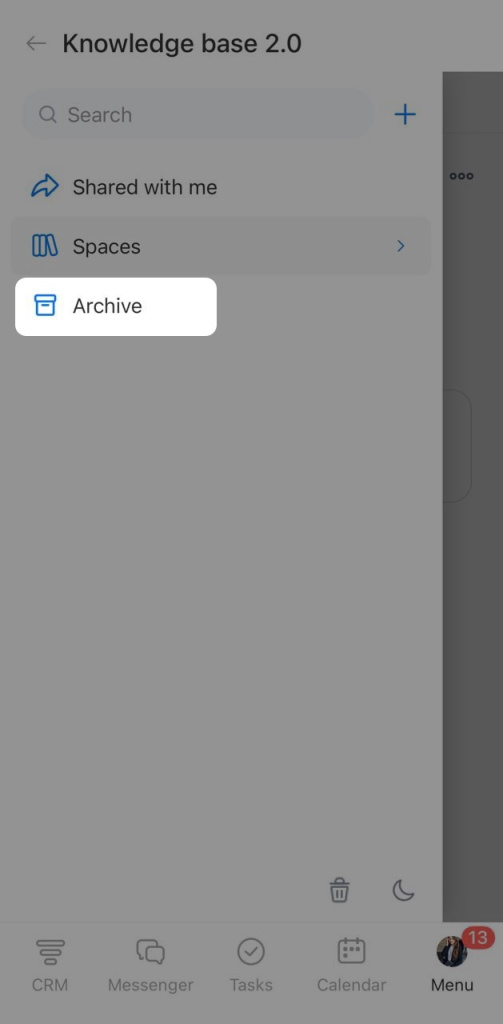
Archive. View archived spaces and articles. You can restore them at any time.
Recycle bin. View deleted articles. Bitrix24 stores them for 30 days, then deletes them automatically.
Access permissions. Set who can create, edit, view, and import spaces in this section.
Import. Move a space from an external source.
Moon or sun icon. Switch between dark and light themes. This setting applies only to you.
Arrow icon. Collapse the panel to free up screen space.
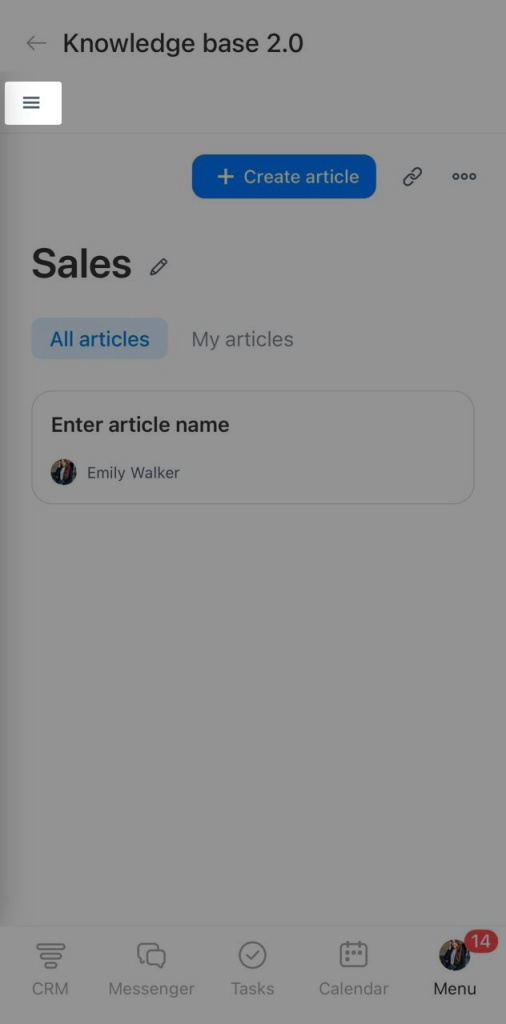
In the mobile app, you can work with spaces much like you do on desktop. You can create spaces and articles, search by keyword, and switch between dark and light themes.
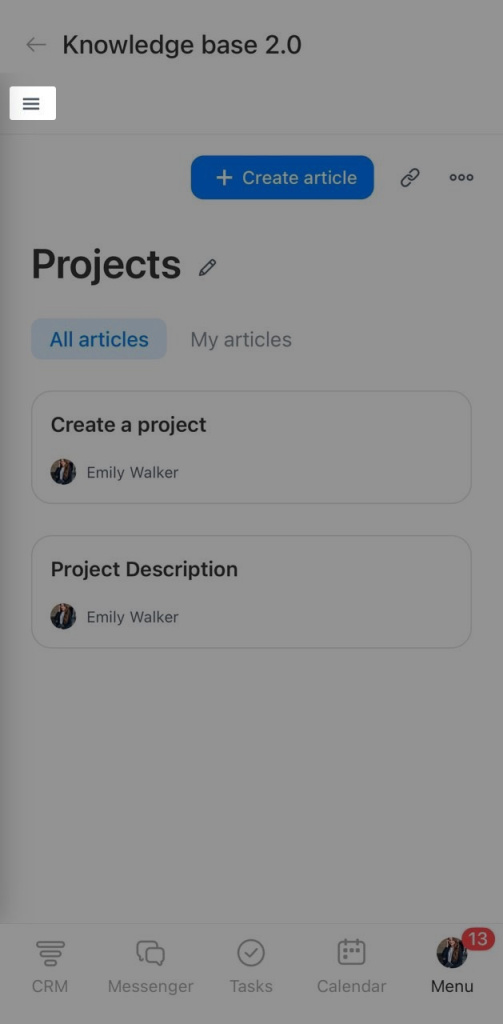
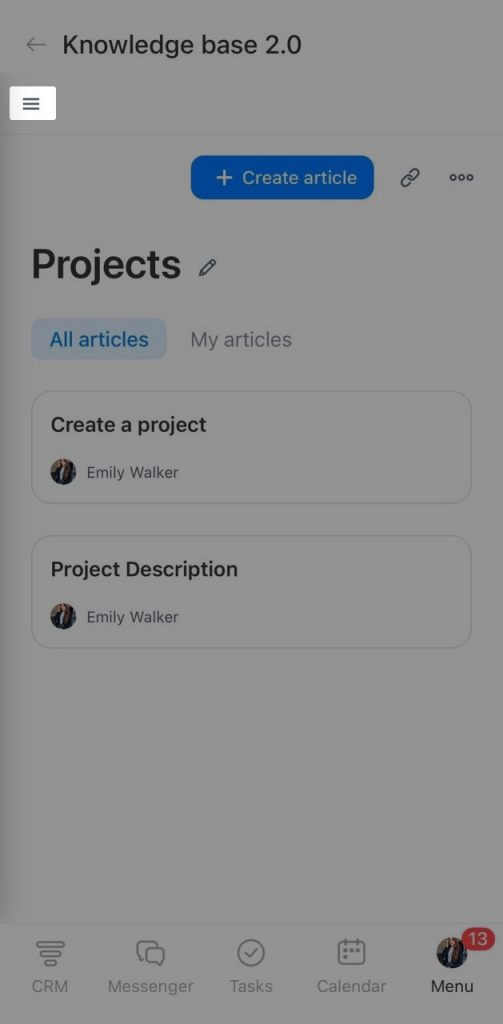
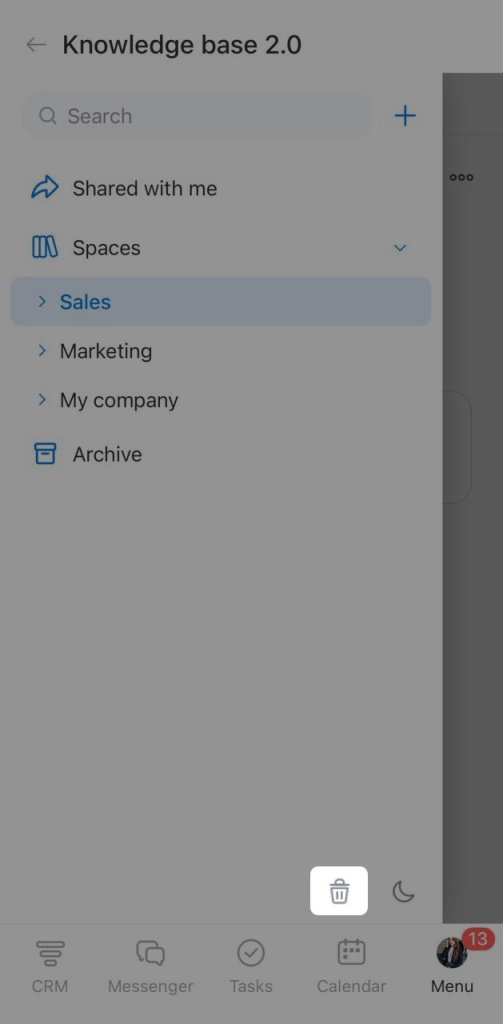
Tap the Menu (☰) in the upper-left corner to open the Control Panel. Then select the tab or tool you need.
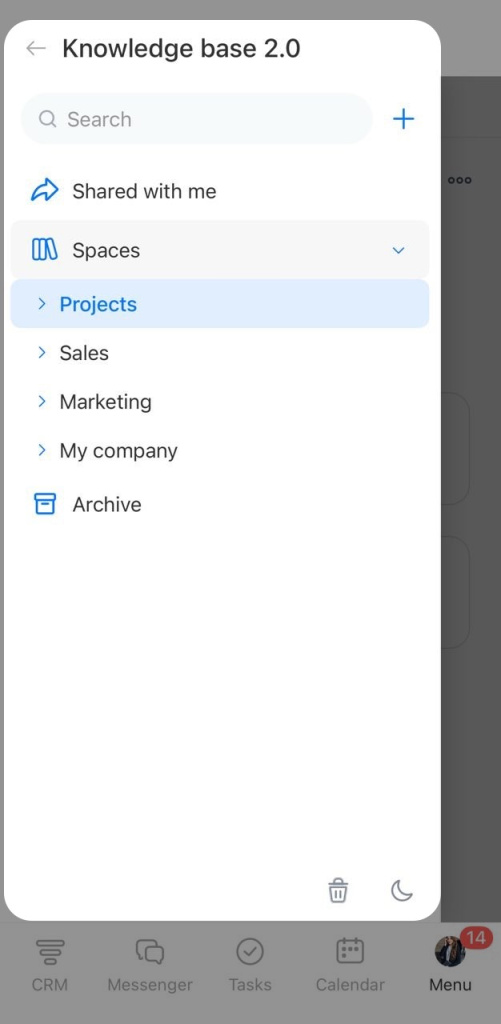
Manage a space
Open the Spaces tab.
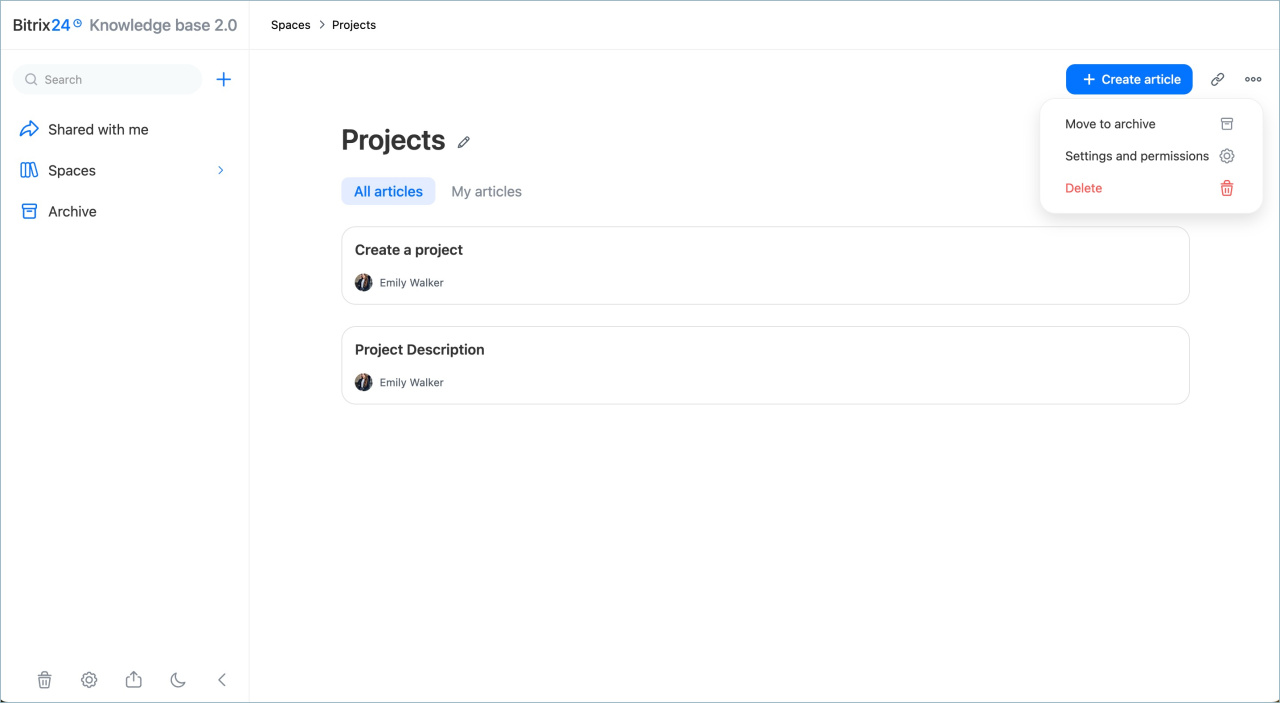
Create article. Click + Create article in the upper-right corner. Bitrix24 adds the article to the space and opens it in edit mode.
Copy link. You can send the link in a message or attach it to a task, board, or another item. Colleagues can open the space based on their access permissions. Click the link icon in the upper-right corner.
Space menu. Click Three dots (...) and choose an action:
- Move to archive
- Settings and permissions — set access permissions.
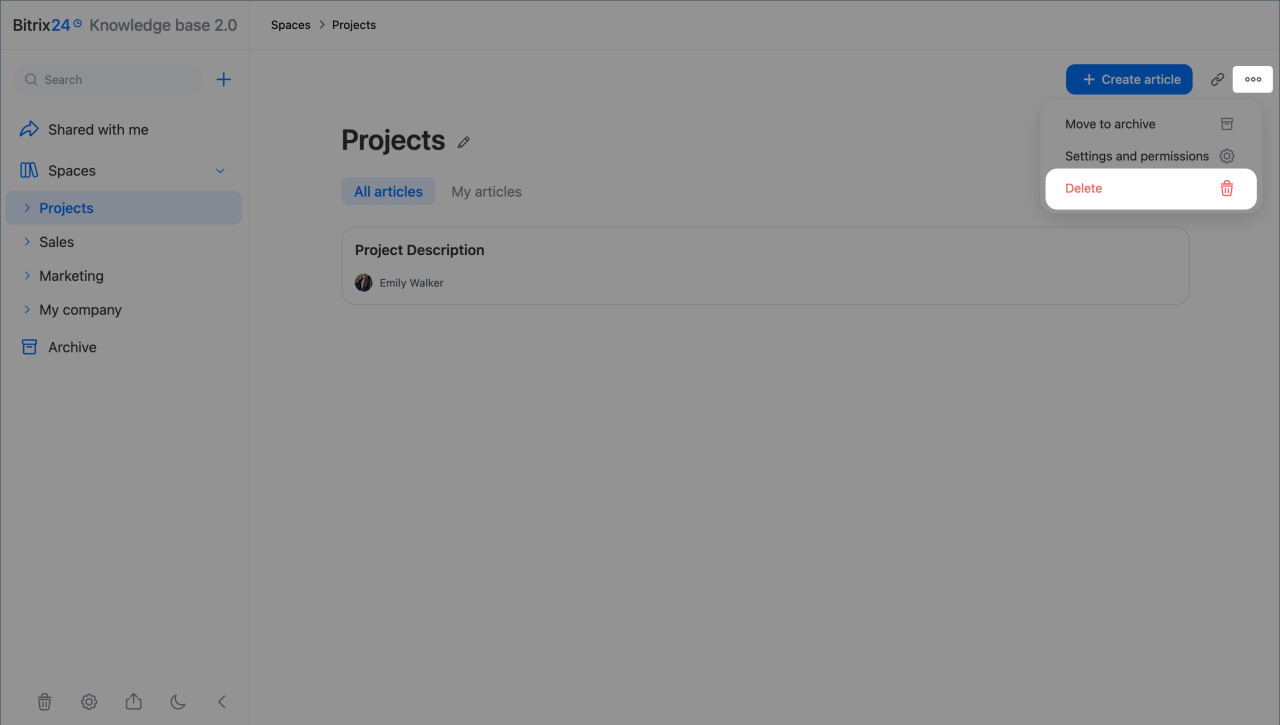
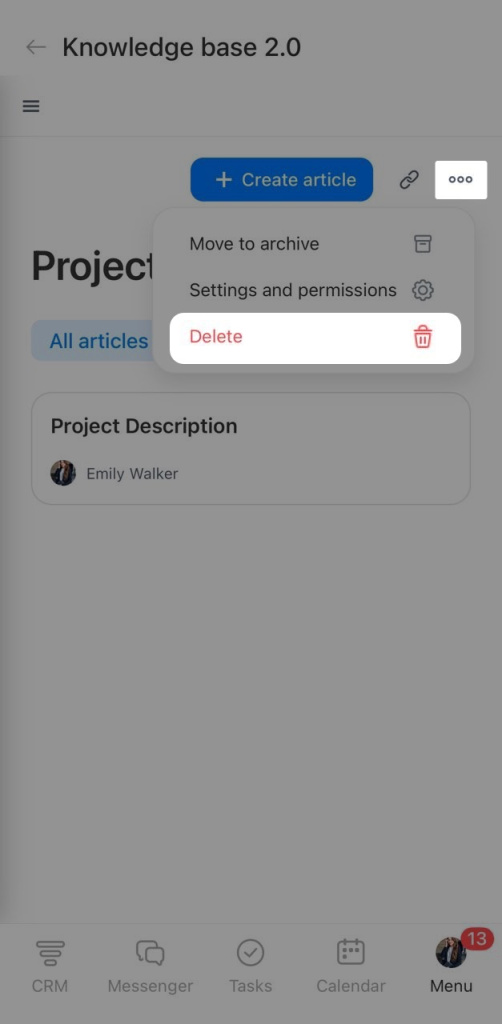
- Delete — move the space to the Recycle bin.
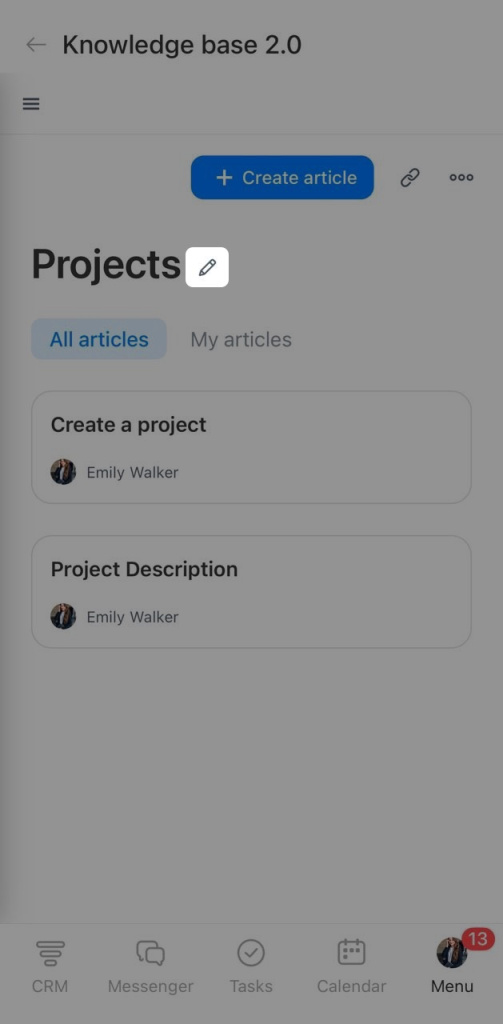
Rename. Click the pencil icon next to the space name. Enter a new name, then click anywhere on the page. Bitrix24 saves the change automatically.
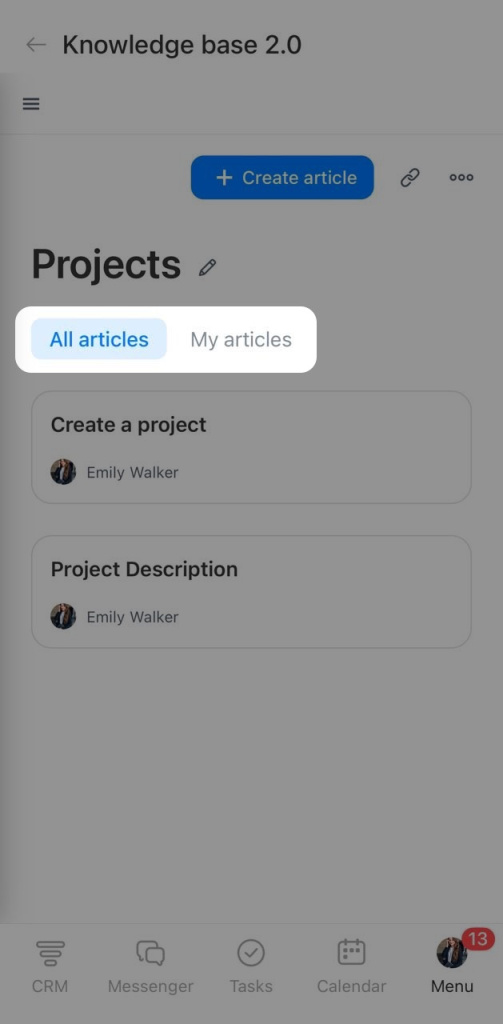
Article structure. Open the Spaces tab to view all content.
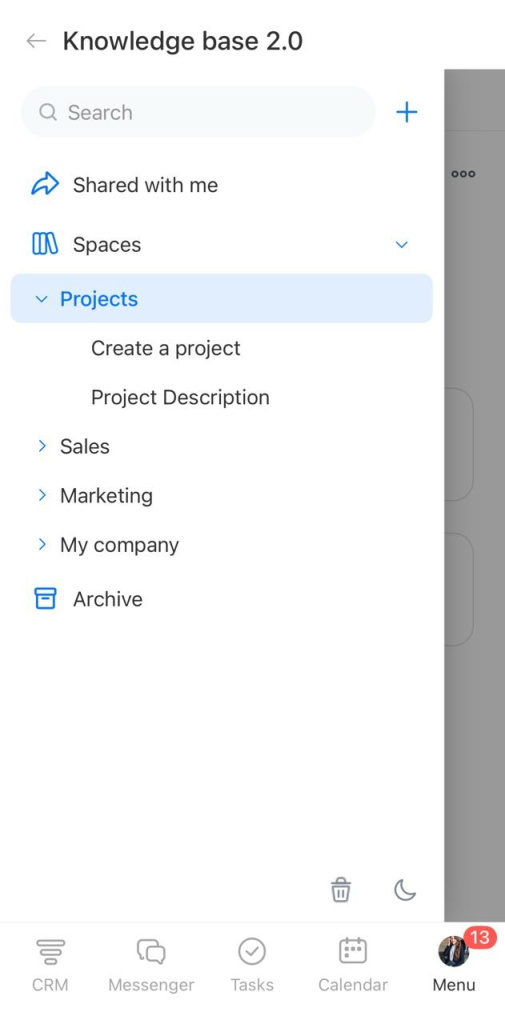
Open the Spaces tab and select the space from the list.
Create article. Click the + Create article button in the upper-right corner. The article will be added to the space and opened in edit mode.
Copy article as markdown. You can send it in a message or attach it to a task, board, or other item. Colleagues will open the space based on their access permissions. Click the hyperlink icon in the upper-right corner. The link will be copied to the clipboard.
Space menu. Click Three dots (...) and select an action:
- Archive
- Settings — set access permissions.
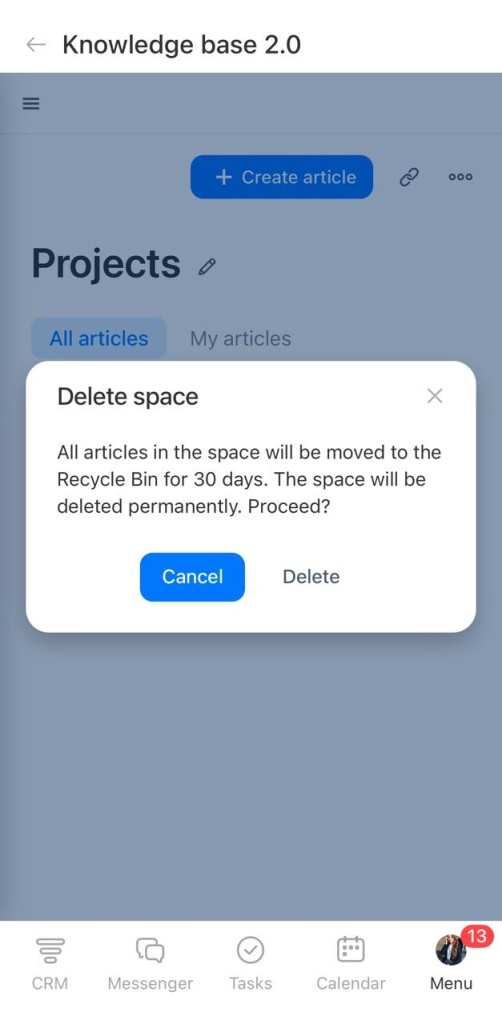
- Delete — move the space's articles to the Recycle Bin.
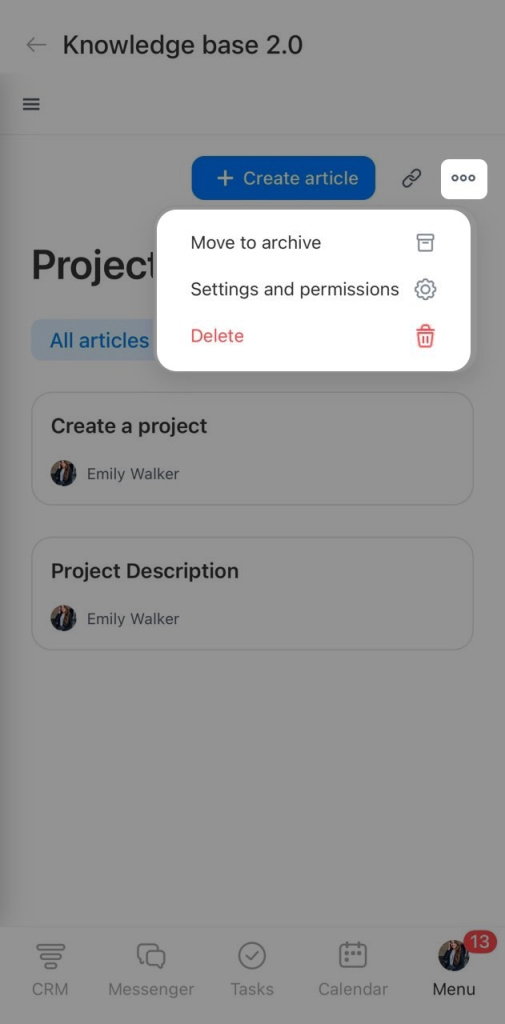
Rename. Click the pencil icon next to the space name. Enter a new name, then click anywhere on the page. Bitrix24 saves the change automatically.
Article structure. Open the Spaces tab to view all content.
Manage an article
Open the Spaces tab and select the article. Then choose an action.
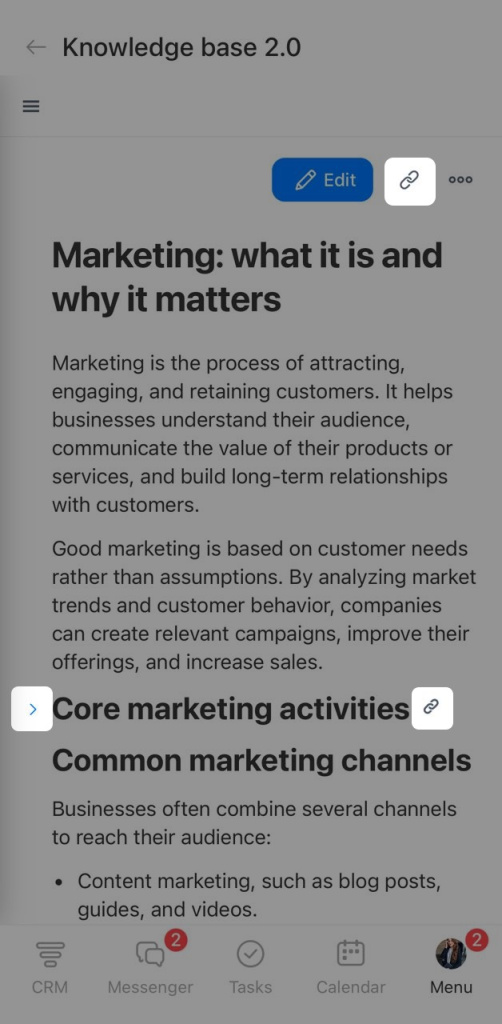
Copy a link to the section. Move your pointer over a section heading and click the paperclip icon. The link copies to your clipboard. You can send it to a colleague or use it as an anchor in the same article or another one. People who open the link can view the information if they have access.
Collapse a section. Move your pointer over a section heading and click the arrow next to it. This hides the section content. Click it again to expand the section. This helps when you work with long articles and want to focus only on the sections you need.
Copy a link to an article. You can send the link in a message or attach it to a task, board, or another item. Colleagues can open the article based on their access permissions. Click the link icon in the top-right corner to copy the article link to your clipboard.
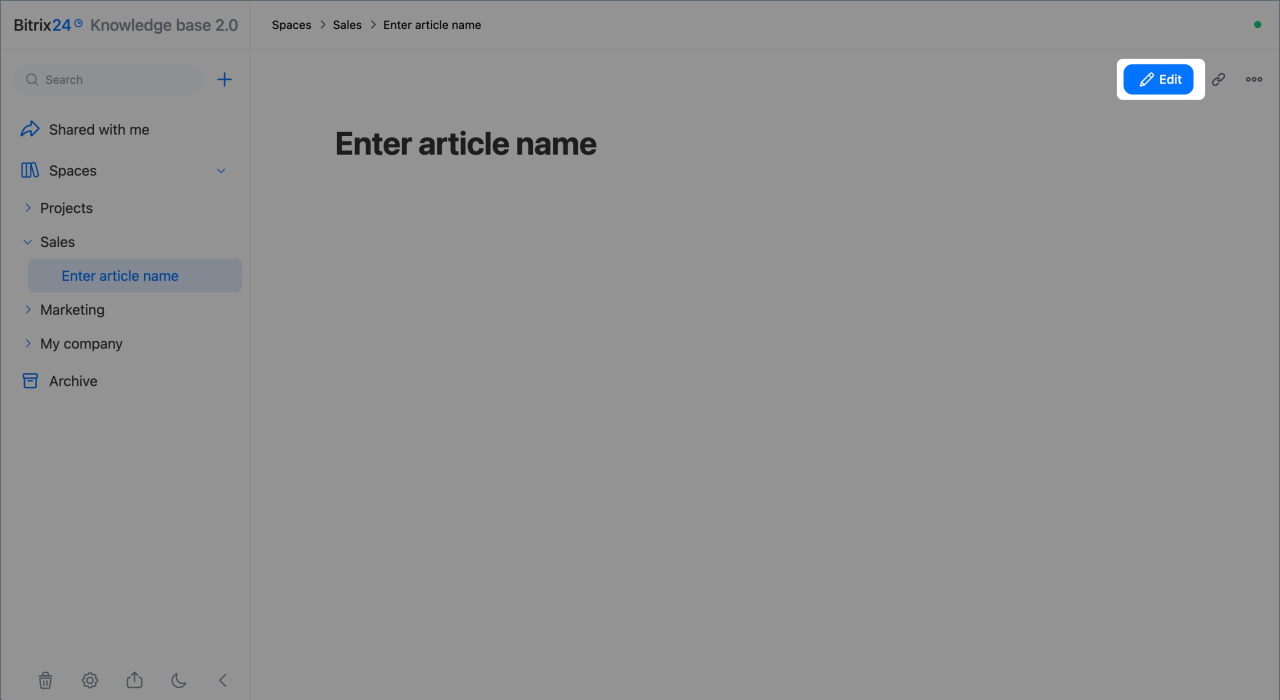
Edit an article. To make changes, click Edit in the top-right corner.
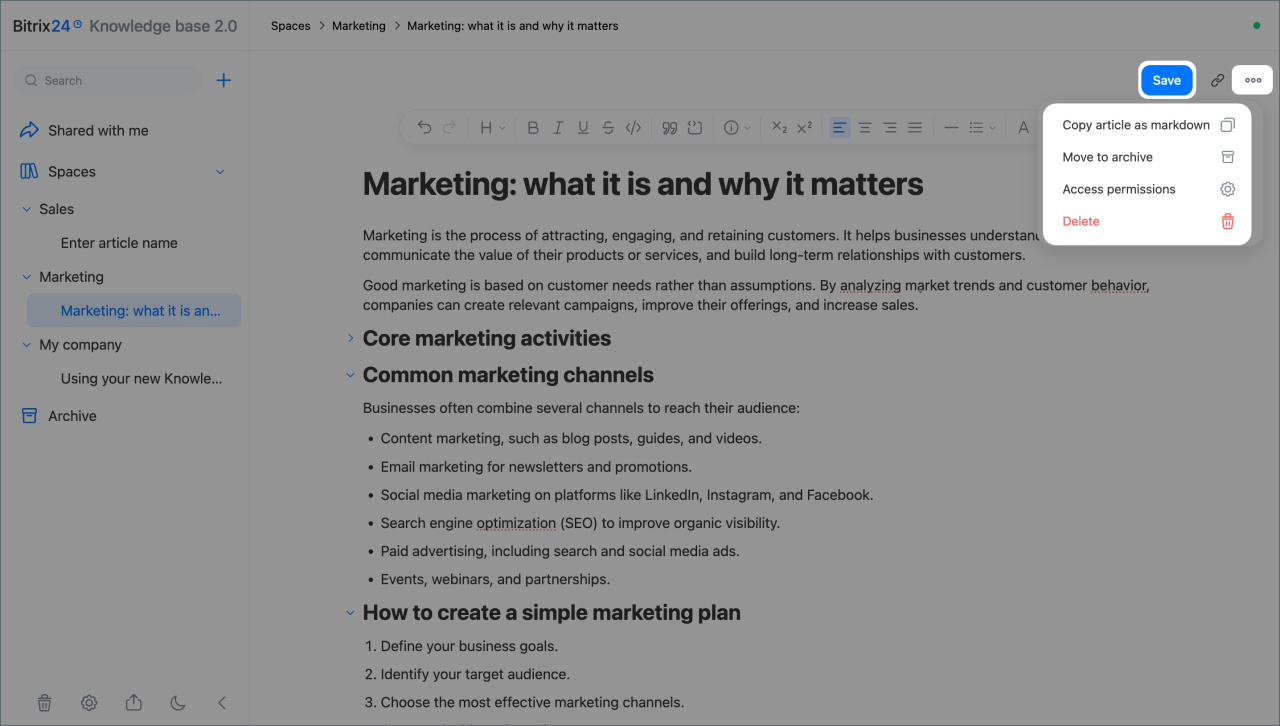
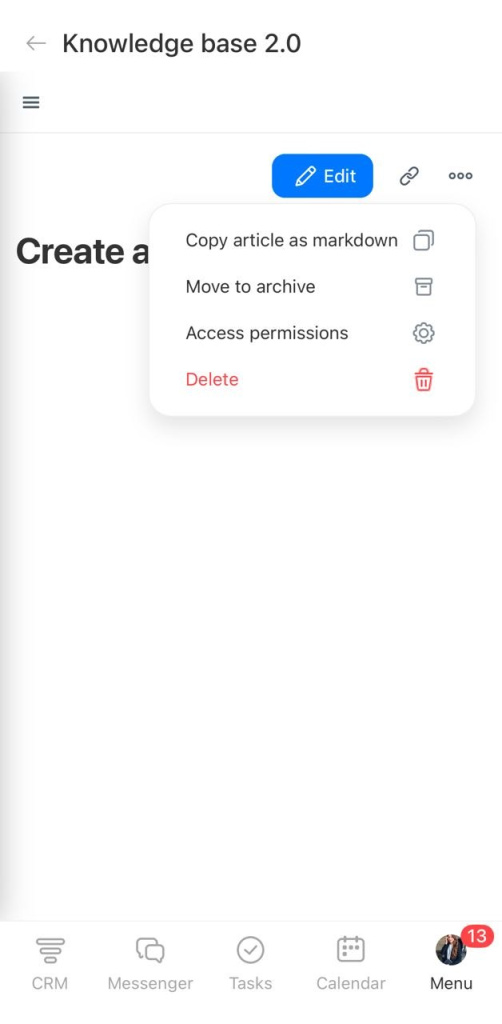
Article menu. Click Three dots (...) and choose an action:
- Copy article as markdown— copy the page content to the clipboard without nested articles. To add the content to another page, open that page and paste the content.
- Move to archive
- Access permissions— set access permissions.
- Delete — move the article to the Recycle bin.
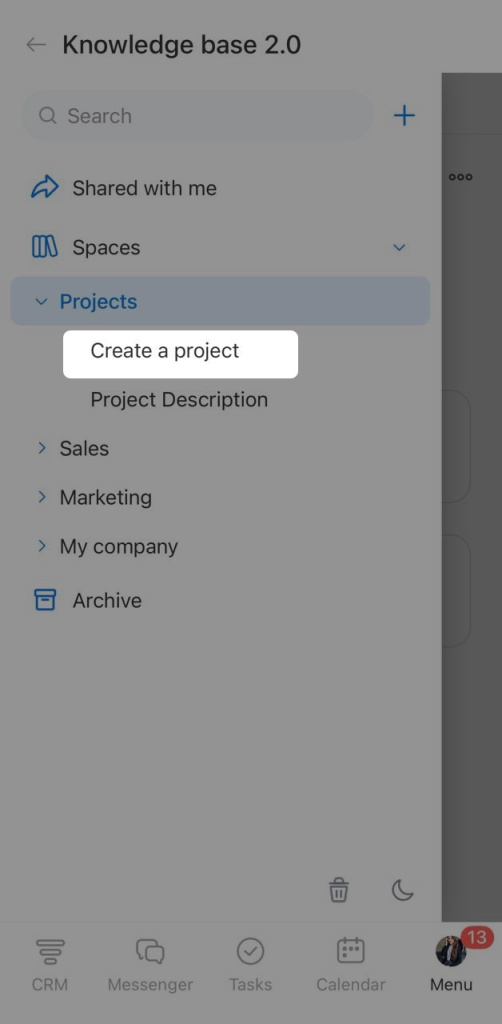
You can manage articles in the Bitrix24 mobile app the same way as on desktop.
1. Open the Spaces tab and select the article from the list.
2. Move your pointer over a section heading to collapse or expand the section, or copy a link to that section.
3. Click the paperclip icon in the top-right corner to copy a link to the article.
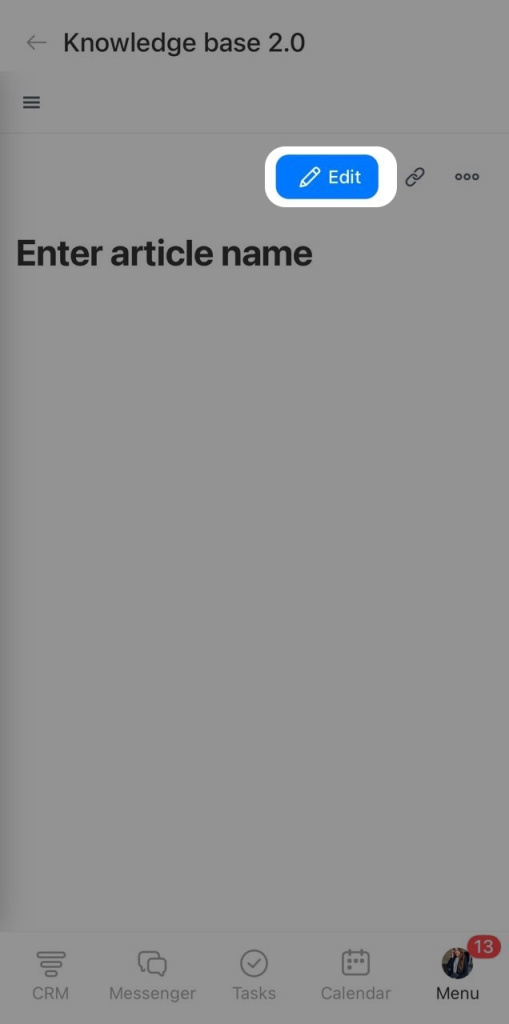
4. Click Edit to change the article.
5. Click Three dots (...) to open the menu. From the menu, you can copy the page content, archive or delete the page, or set access permissions for the article.
Work with the Archive
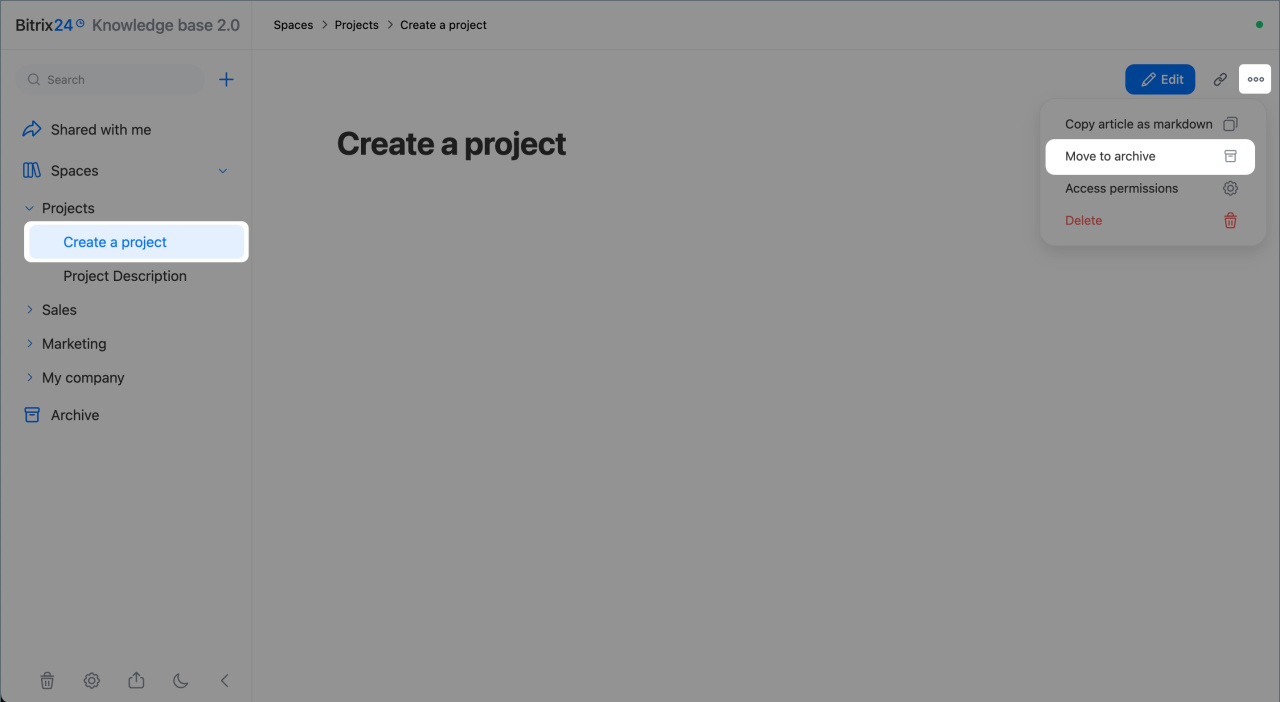
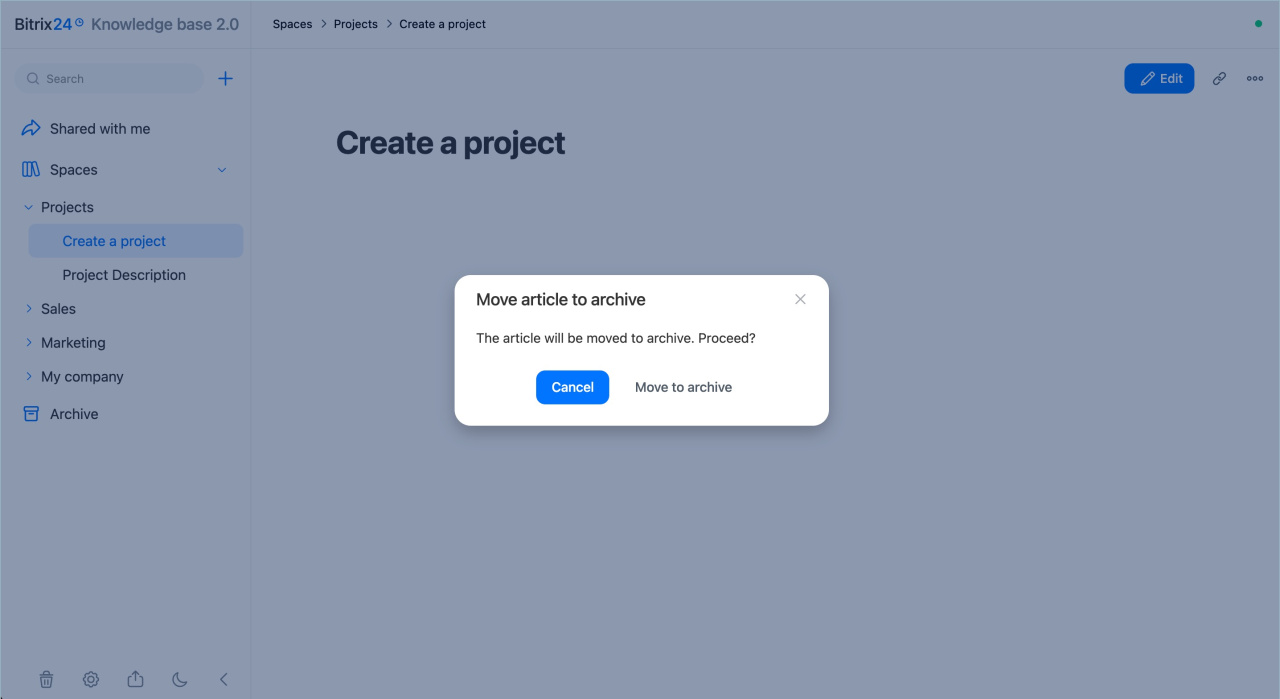
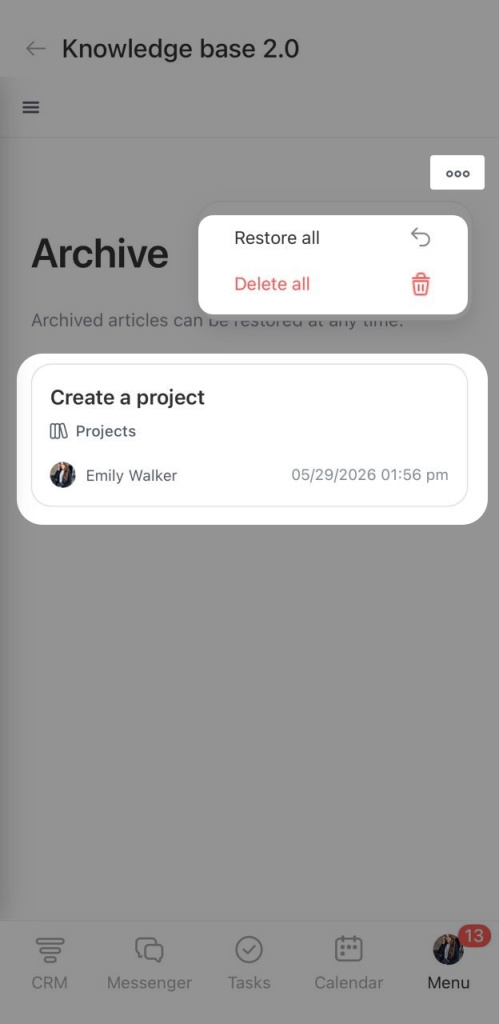
Archive a space or article to hide it from public access for a while. When you archive articles, each one moves to the Archive section separately. Each archived article shows which space it belongs to. You can restore archived items at any time.
1. Open the space or article, click Three dots (...) > Move to archive and confirm the action.
2. To manage all archived articles, open the Archive section and click Three dots (...) in the top-right corner. Choose an action:
- Restore all — makes all archived articles available to users again. The space structure and access permissions stay the same.
- Delete all — moves all articles to the Recycle Bin.
3. To manage one archived article, open it and click Three dots (...) > Restore or Delete.
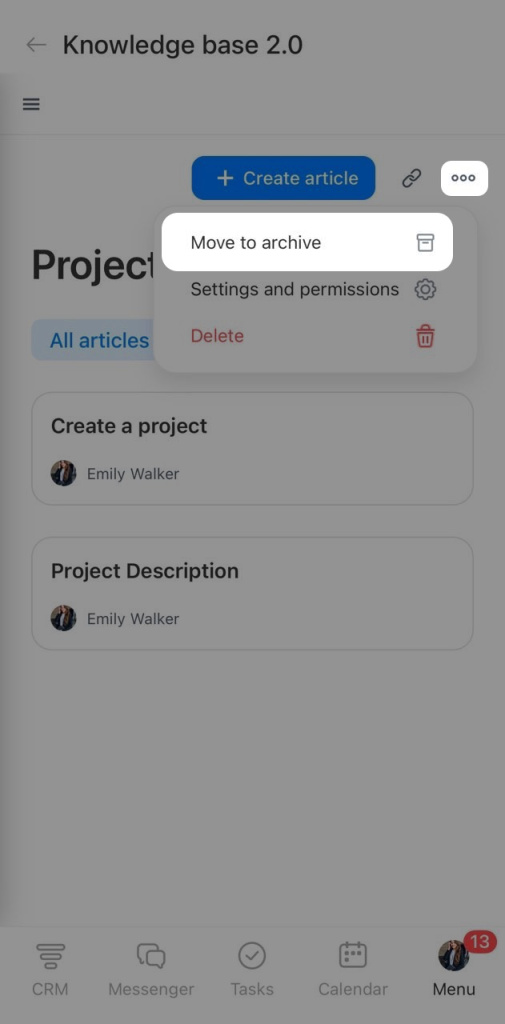
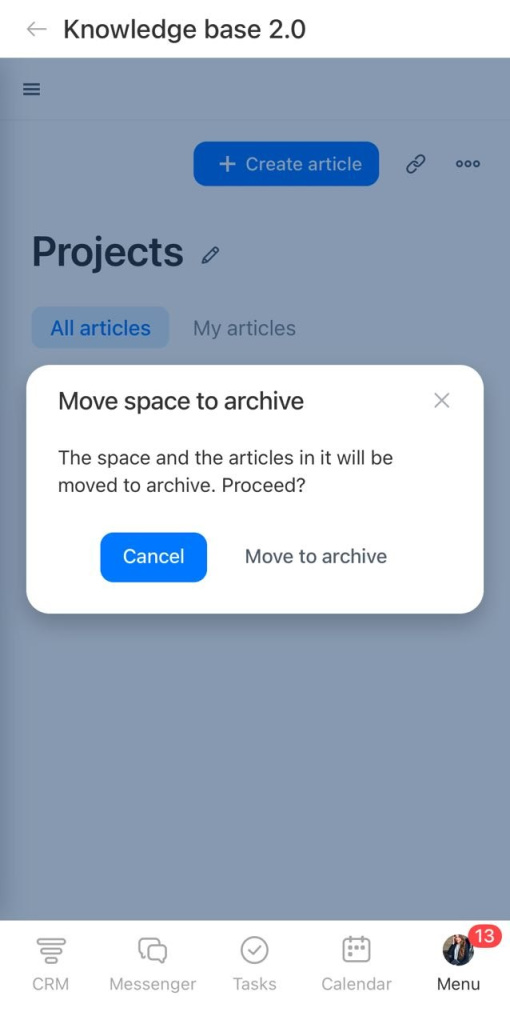
1. Open the space or article, tap Three dots (...) > Move to archive and confirm the action.
2. To manage all archived articles, open the Archive section and tap Three dots (...) in the top-right corner. Choose an action:
- Restore all — makes all archived articles available to users again. The space structure and access permissions stay the same.
- Delete all — moves all articles to the Recycle Bin.
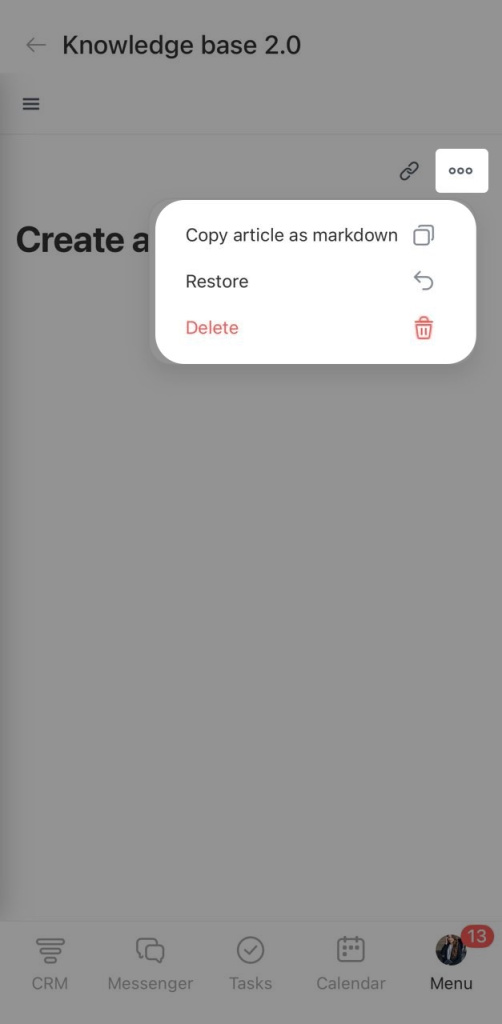
3. To manage one archived article, open it and tap Three dots (...) > Restore or Delete.
Use the Recycle Bin
If you no longer need a space or an article, you can delete it and move it to the Recycle Bin. Items stay there for 30 days and are then deleted automatically. You can restore them during that time.
1. Open the space or article, click Three dots (...) > Delete > Yes, delete.
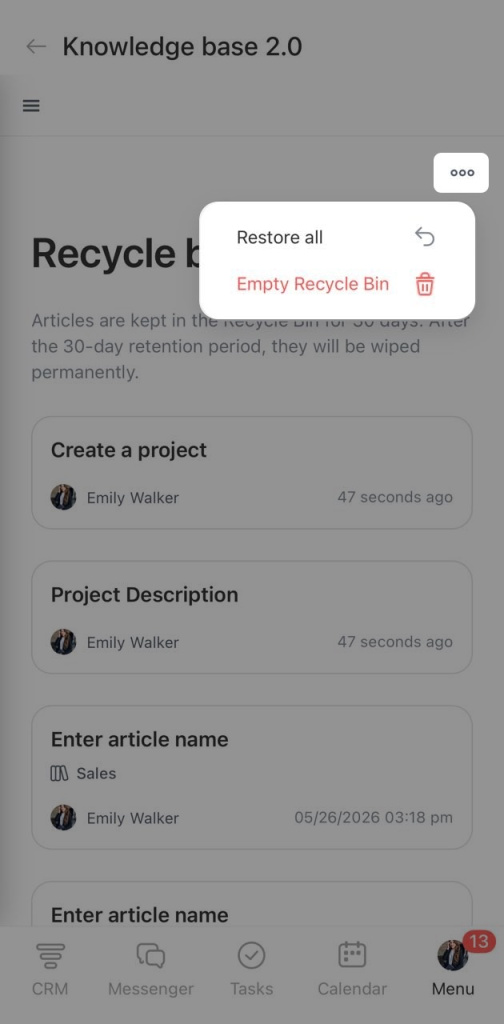
2. To manage all deleted articles, open the Recycle Bin section and click Three dots (...) in the upper-right corner. Choose an action:
- Restore all — you can restore all deleted articles and make them available to users again. Restored spaces keep their structure and access permissions.
- Empty Recycle Bin — this option permanently deletes all articles. You cannot restore them after that.
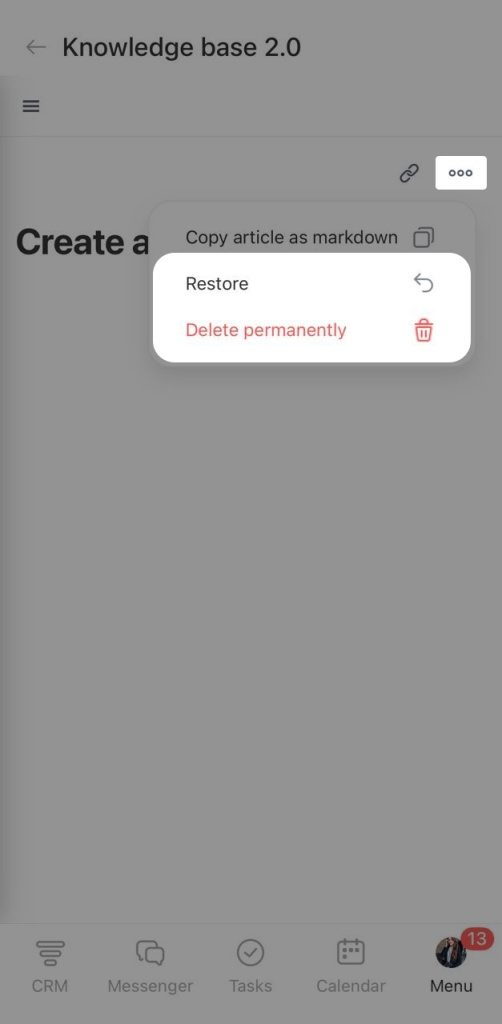
3. To manage a single article, find it in the list and open it. Click Three dots (...) and select Restore or Delete permanently.
1. Open the space or article, tap Three dots (...) > Delete > Yes, delete.
2. To manage all deleted articles, open the Recycle Bin section and tap Three dots (...) in the upper-right corner. Choose an action:
- Restore all — this option restores all deleted articles and makes them available to users again. Restored knowledge bases keep their structure and access permissions.
- Empty Recycle Bin — it permanently deletes all articles. You cannot restore them after that.
3. To manage a single article, find it in the list and open it. Tap Three dots (...) and select Restore or Delete permanently.
Format an article
Open the article and click Edit. Add text and format it to make the content easier to read and scan. All changes save automatically.
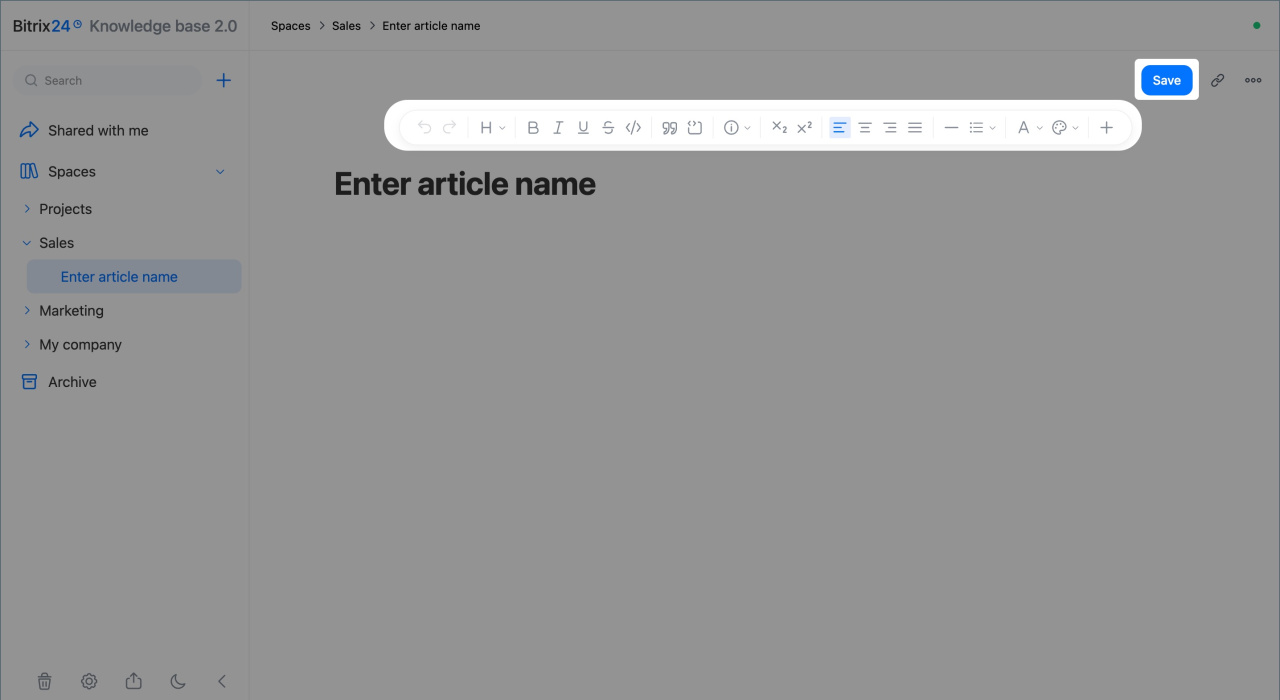
Undo and redo
Use the arrows to undo your last action or redo it.
Text style
Apply normal text or Heading 1–4. Headings help organize the article into clear sections.
Text formatting
You can format text as bold, italic, underline, strikethrough, or code. Use these options to highlight important steps, statuses, rules, or technical values.
Quote
Use quotes to highlight text and separate key ideas from the main content. This works well for notes, recommendations, warnings, or excerpts from guidelines.
Code block
Use a code block to add a formatted code snippet. This is helpful when you need to show a request, script, or style sample that others can copy.
Callout
Use a callout to highlight text with a colored background and an icon. This works well for notes, tips, warnings, and important details.
To choose an icon, click the info icon and select the one you want.
Superscript and subscript
Use these options for formulas, notation, exponents, chemical symbols, or abbreviations that need special formatting.
Text alignment
Align text left, center, right, or justify it.
Horizontal rule
Use a horizontal rule to separate sections in an article.
Lists
Bulleted lists, numbered lists, and checklists.
Text and background color
Use color to highlight important text and draw attention to key details.
Insert
You can add a link, table, file, image, or video up to 5 GB.
To add an item, click Plus (+) at the end of the formatting toolbar and select what you want to insert. When you finish, click Done to exit editing mode.
In the mobile app, you can format articles the same way as in the web version. You can change text style and color, add code blocks, videos, and more.
1. Open the article and tap Edit.
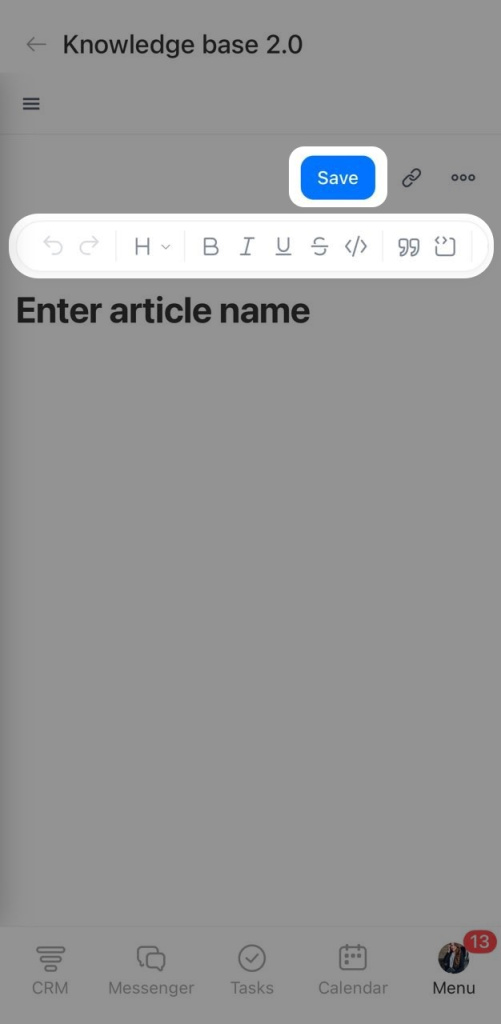
2. Add text and format it. Changes save automatically. To view all formatting options, press and hold the formatting bar, then scroll through the toolbar.
3. Tap Done to exit editing mode.
In brief
- In Knowledge Bases 2.0, you can create separate spaces for different departments, configure the structure, manage access, and edit articles with colleagues.
- Use the left panel to search across all content, create and view spaces and articles, manage access permissions.
- When working with a space or an article, you can copy a link, manage access permissions, archive, or delete it.
- Articles in the Archive section can be restored at any time. Articles in the Recycle Bin can be restored within 30 days. After that, they are deleted automatically.
- To format an article, open it and click Edit. Click Done to exit editing mode.