In Bitrix24, you can create a knowledge base, which is an online resource with clear navigation and built-in search. Use it to store instructions, policies, and other important information. It helps new employees get up to speed faster and keeps your team aligned on shared processes.
In this article:
- Which plans include knowledge bases
- Add a video to a knowledge base
- Add a search bar to a knowledge base
- Change the cover of a knowledge base
- Create a custom knowledge base template
- Hide a specific knowledge base from an employee
Which plans include knowledge bases
Knowledge bases are available on all Bitrix24 plans. Available features depend on your plan.
Bitrix24 plans and pricing
Number of company knowledge bases:
- Free — 1
- Basic — 3
- Standard — 3
- Professional and Enterprise — unlimited
Group and project knowledge bases are available on Standard, Professional, and Enterprise plans.
Import and export are available on all plans.
Access permissions are available on Standard, Professional, and Enterprise plans.
Add a video to a knowledge base
You can add videos from YouTube or Bitrix24 Drive. Videos help explain processes and improve training materials.
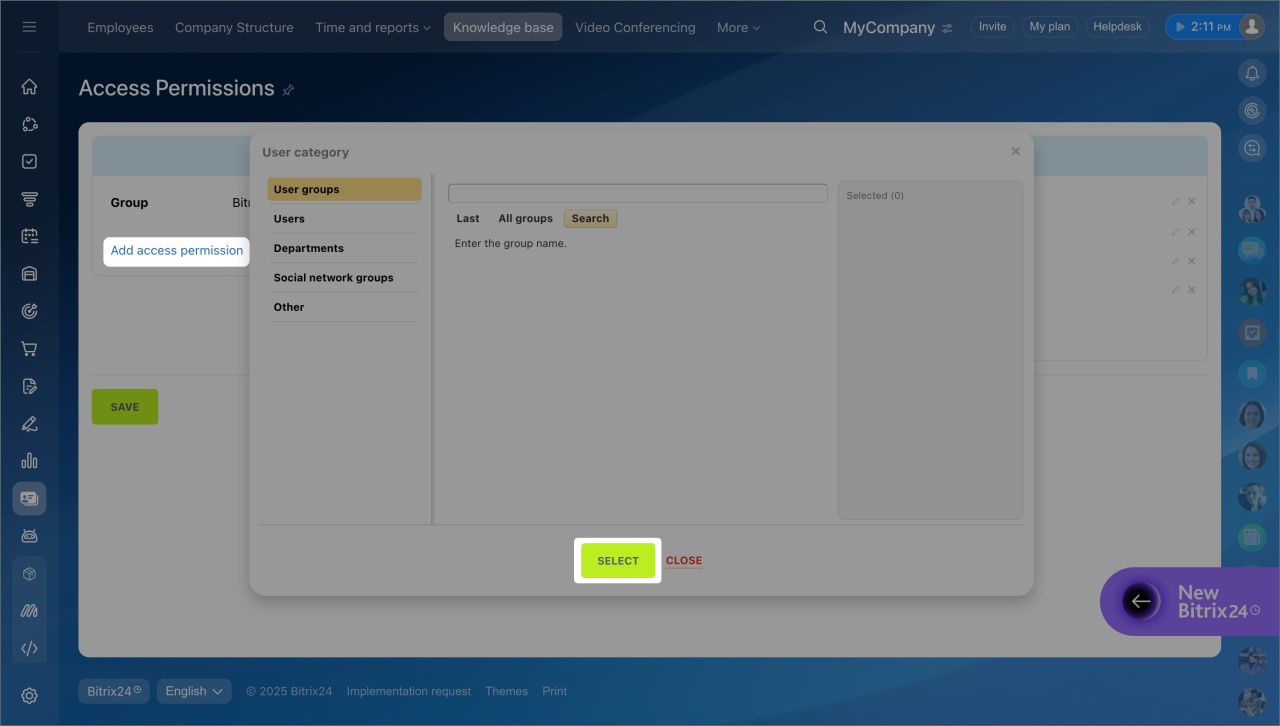
Company knowledge bases: Access permissions
Workgroup knowledge base: Access permissions
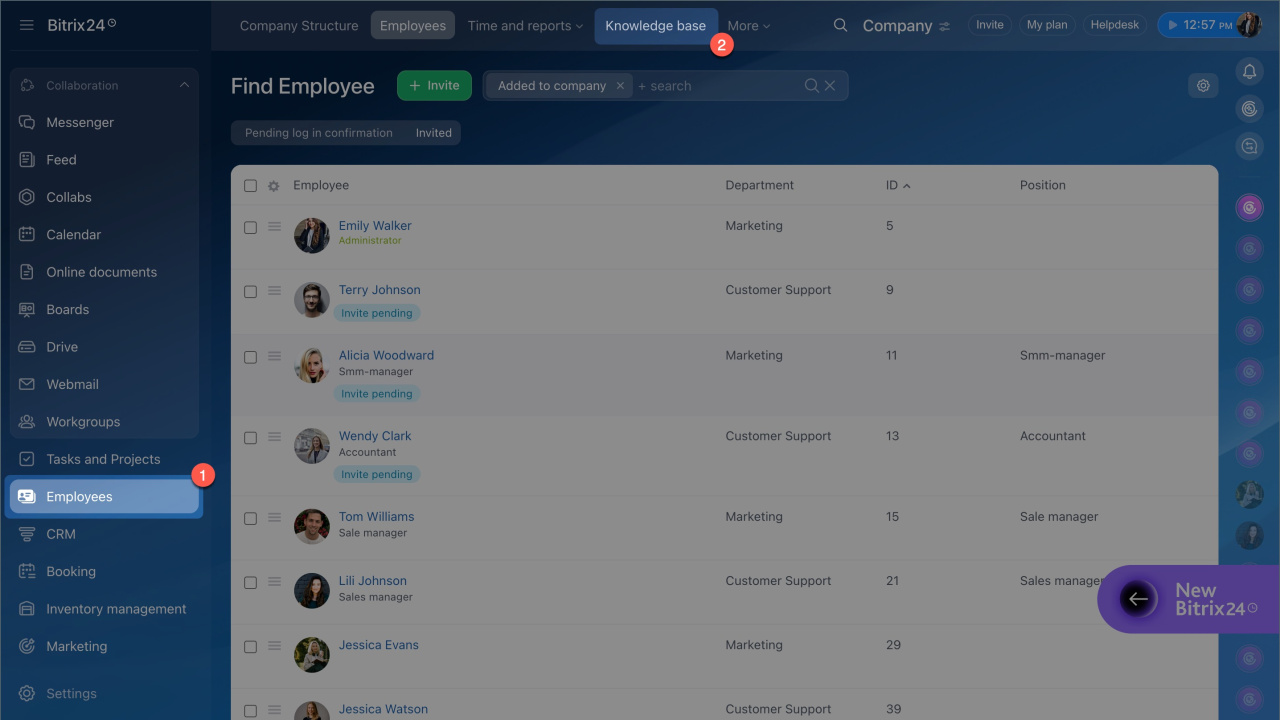
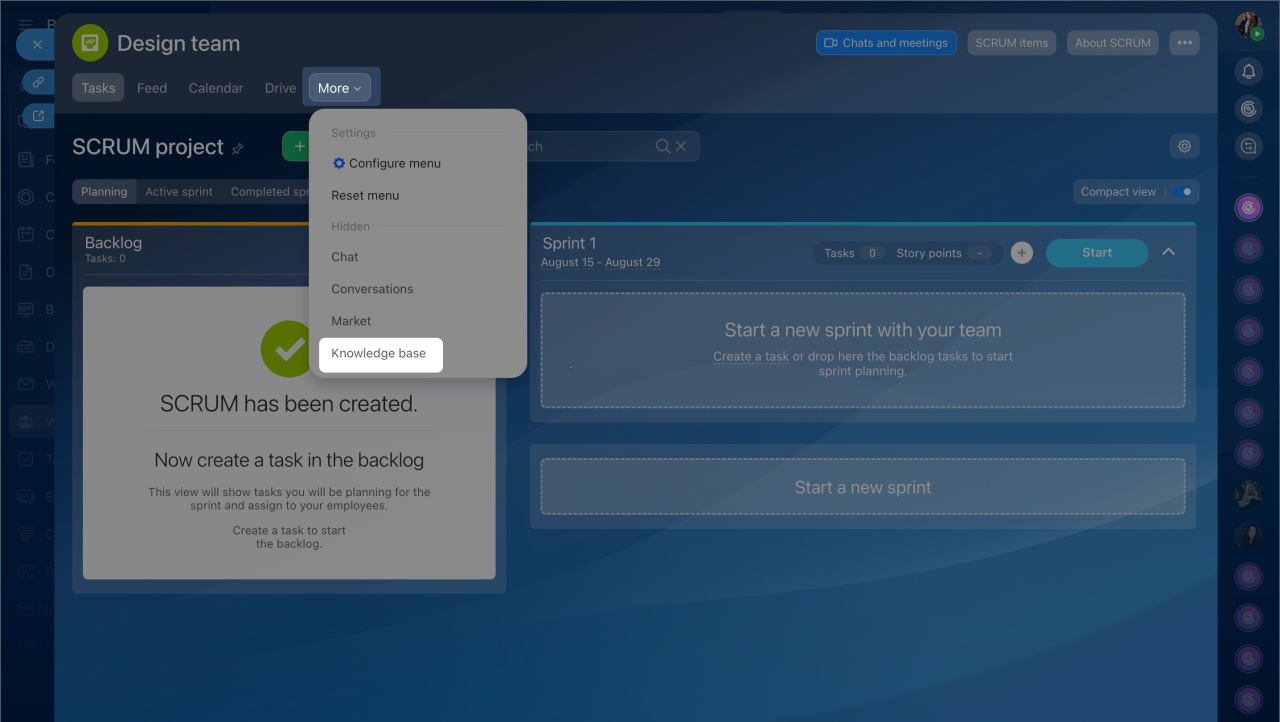
Open a knowledge base:
- Company-wide: go to Employees > Knowledge base.
- Workgroup: go to Workgroups, open a group, then click More > Knowledge base in the top menu.
Add a video:
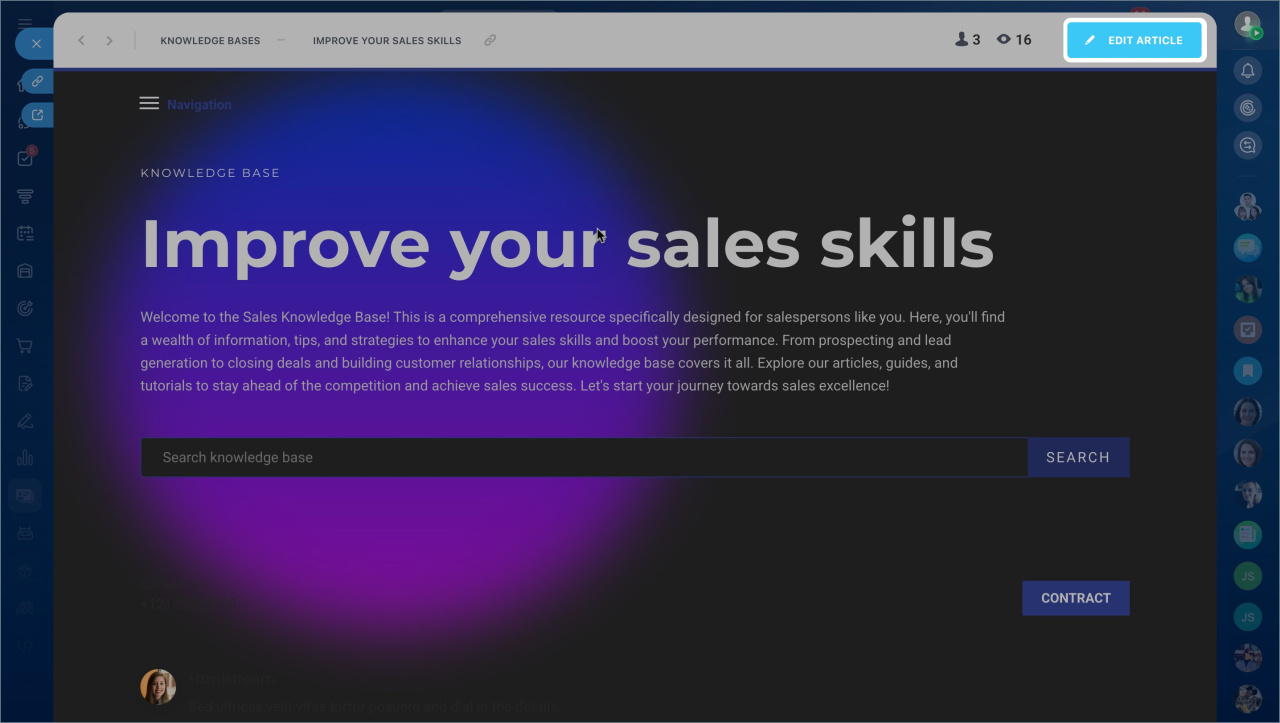
- Open the knowledge base.
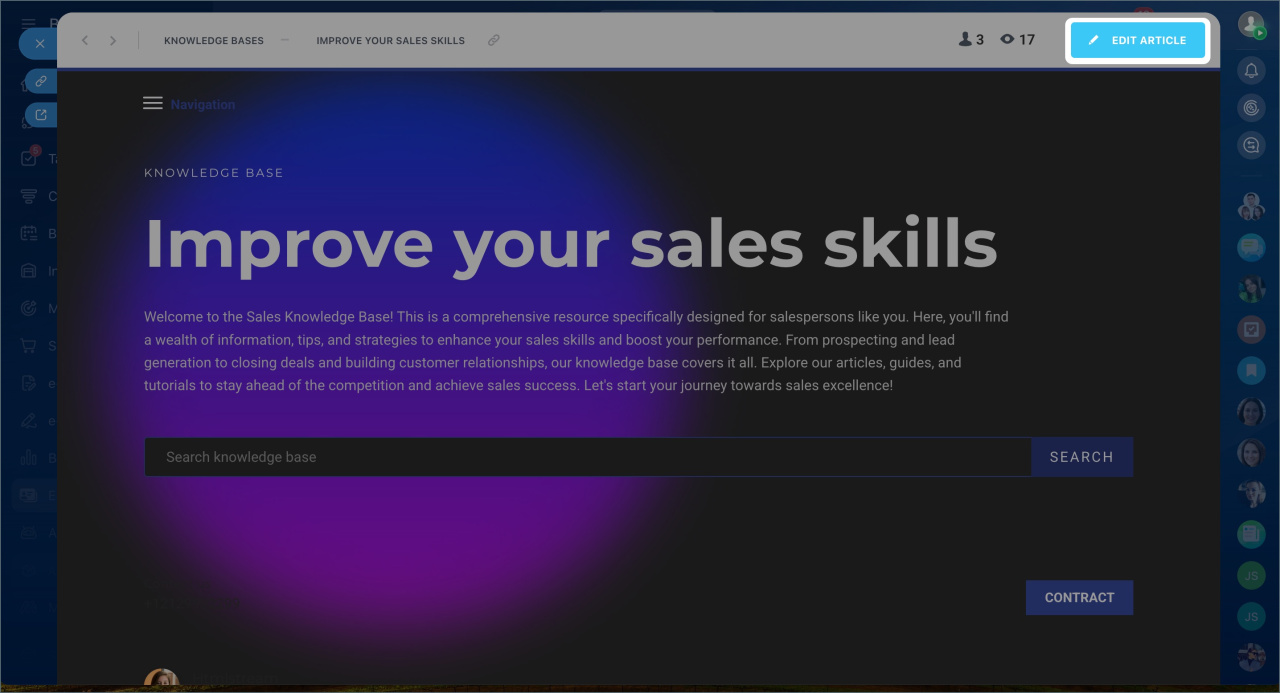
- Click Edit article.
- Choose where to place the video and click Add block.
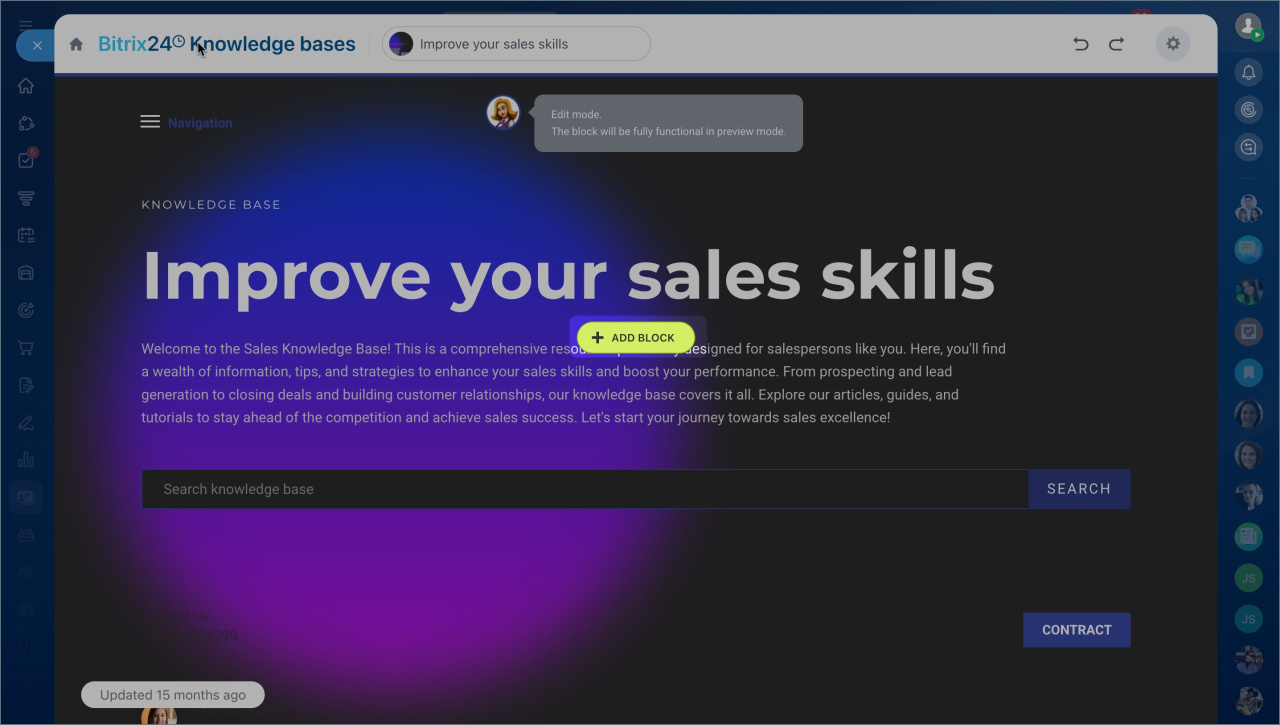
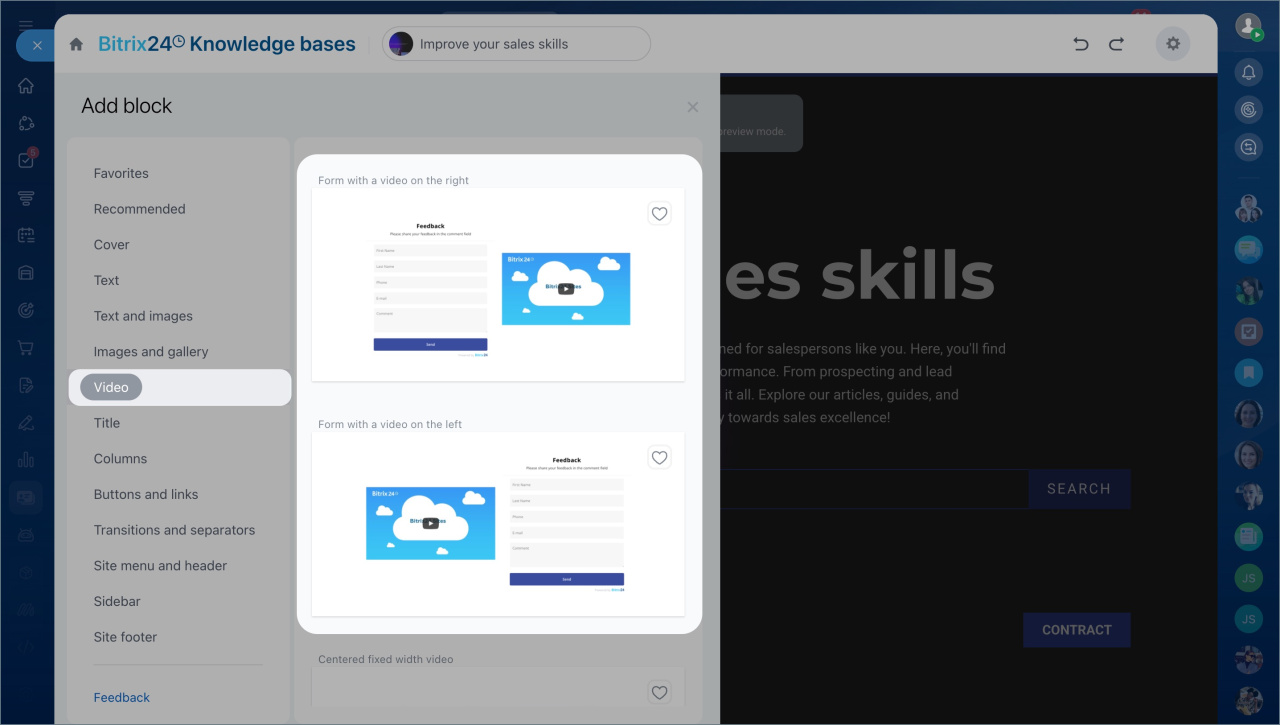
Add a video from an external service:
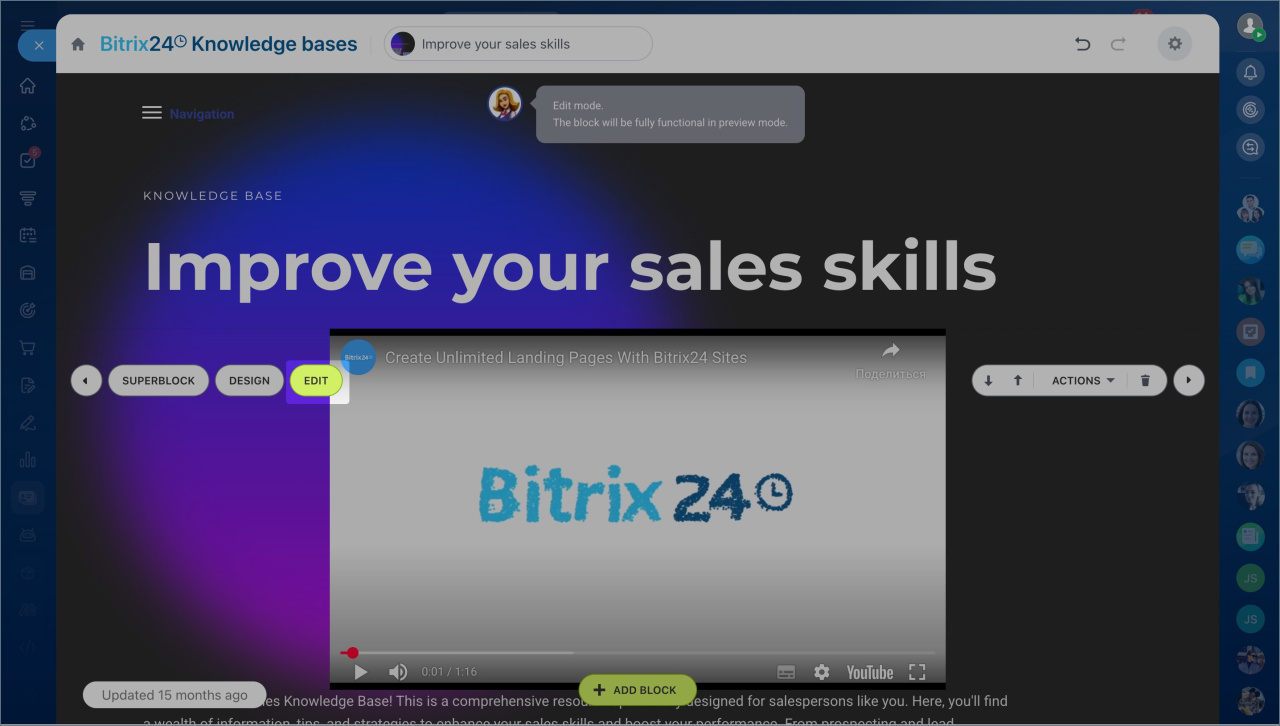
- Open the Video tab and choose a template.
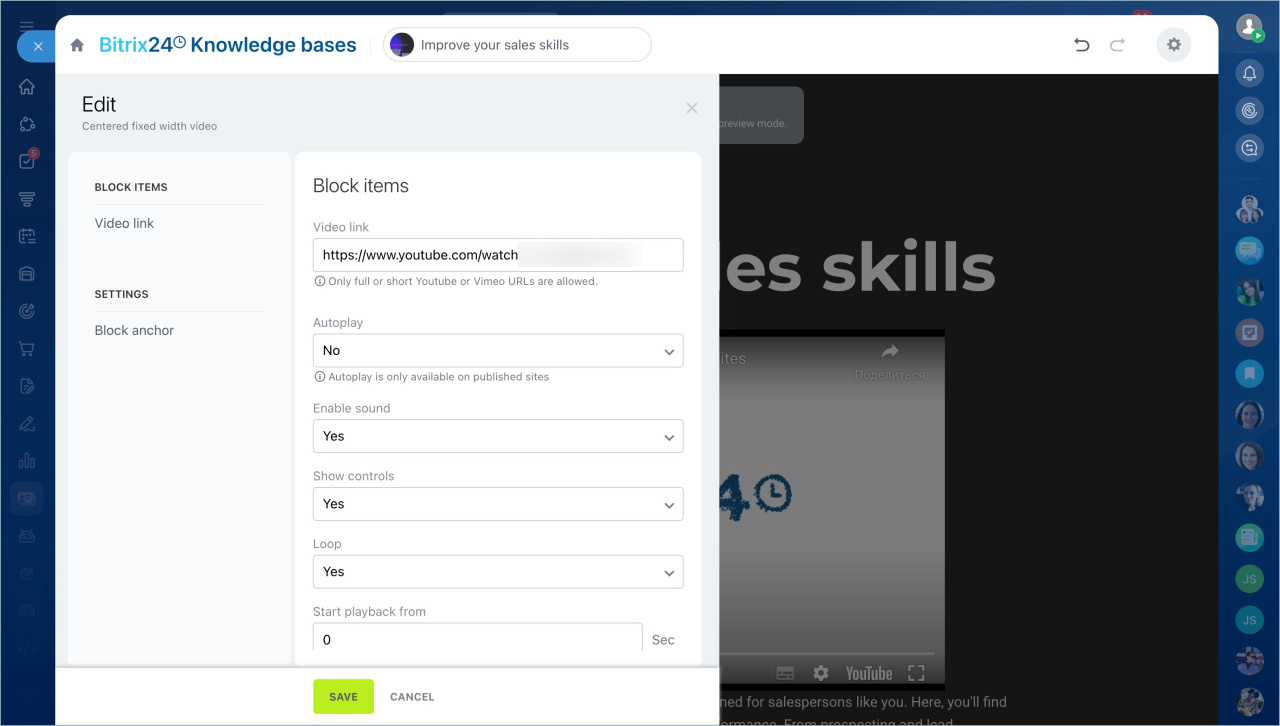
- Click Edit.
- Copy the video URL.
- Paste it into the Video link field.
- Choose autoplay or click-to-play.
- Save.
Add a video from Bitrix24 Drive:
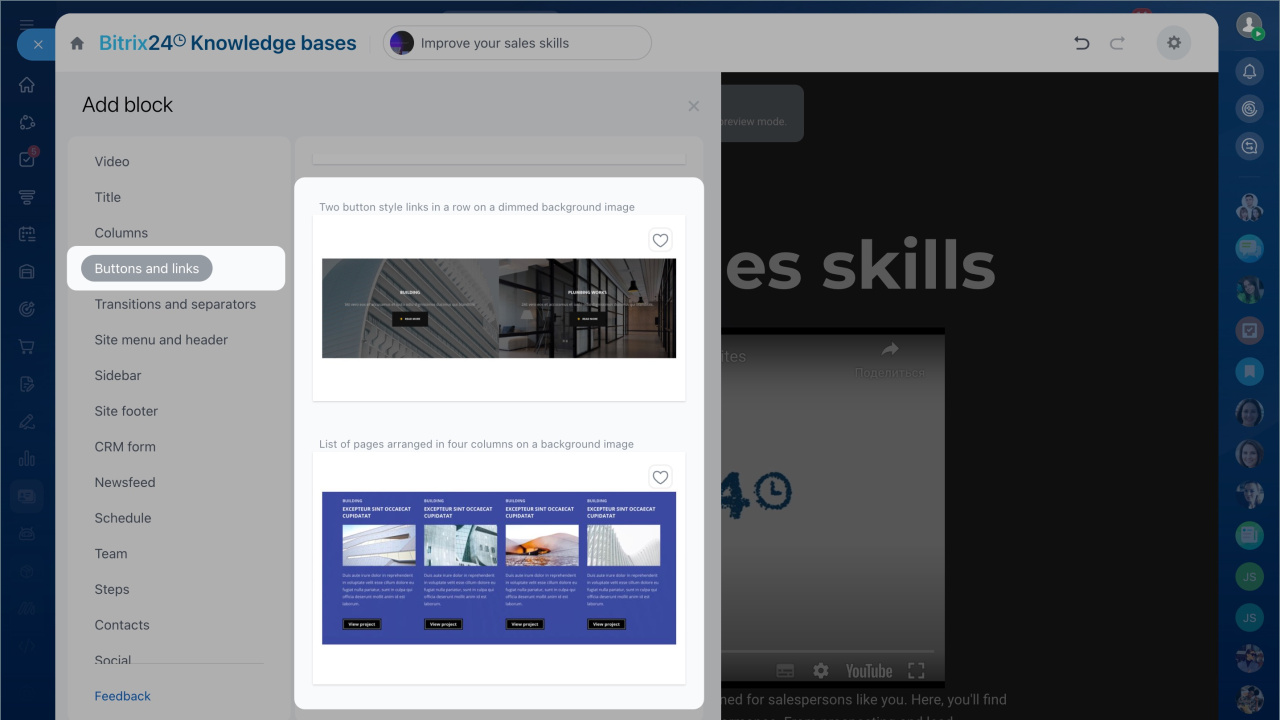
- Go to Buttons and links.
- Select a template and click the button.
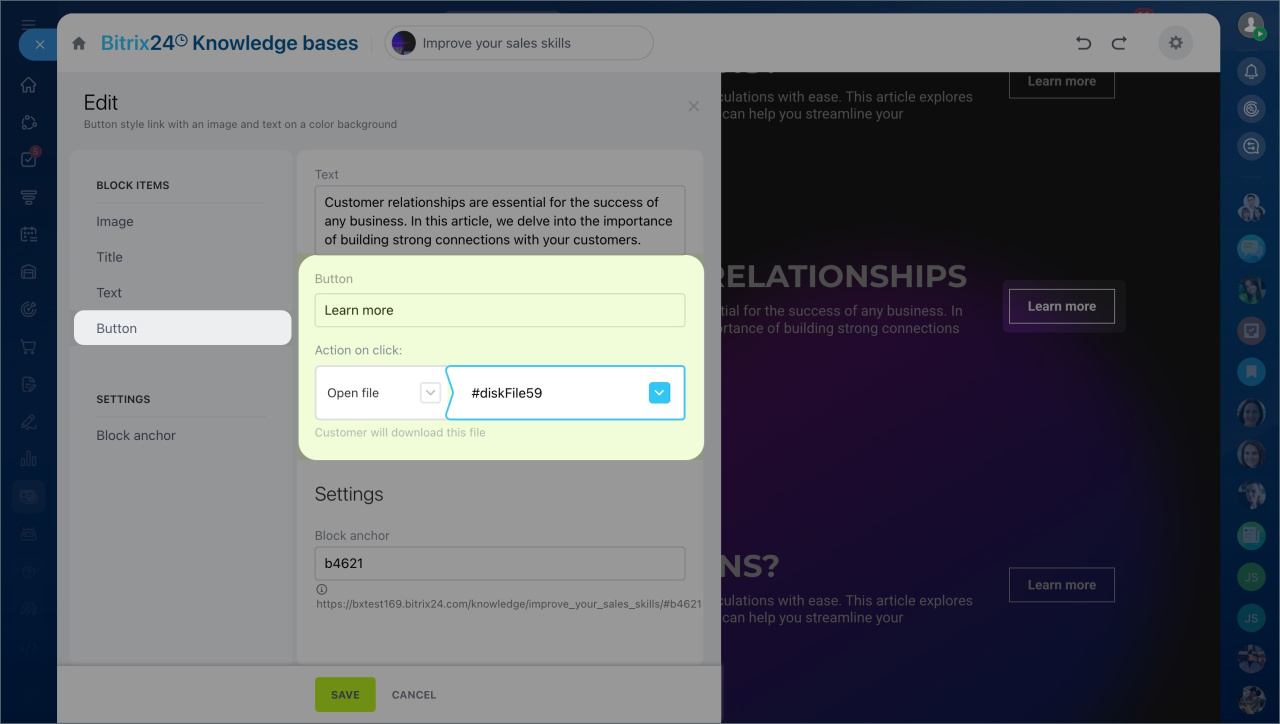
- Enter a label.
- Choose Open file as the action.
- Click Select file and choose the video.
- Save.
Add a file from Bitrix24 Drive to Knowledge base
Add a search bar to a knowledge base
You can add or replace a search bar in your knowledge base.
Company knowledge bases: Access permissions
Workgroup knowledge base: Access permissions
Open a knowledge base:
- Company-wide: go to Employees > Knowledge base.
- Workgroup: go to Workgroups, open a group, then click More > Knowledge base in the top menu.
Add a search bar:
- Open the knowledge base.
- Click Edit article.
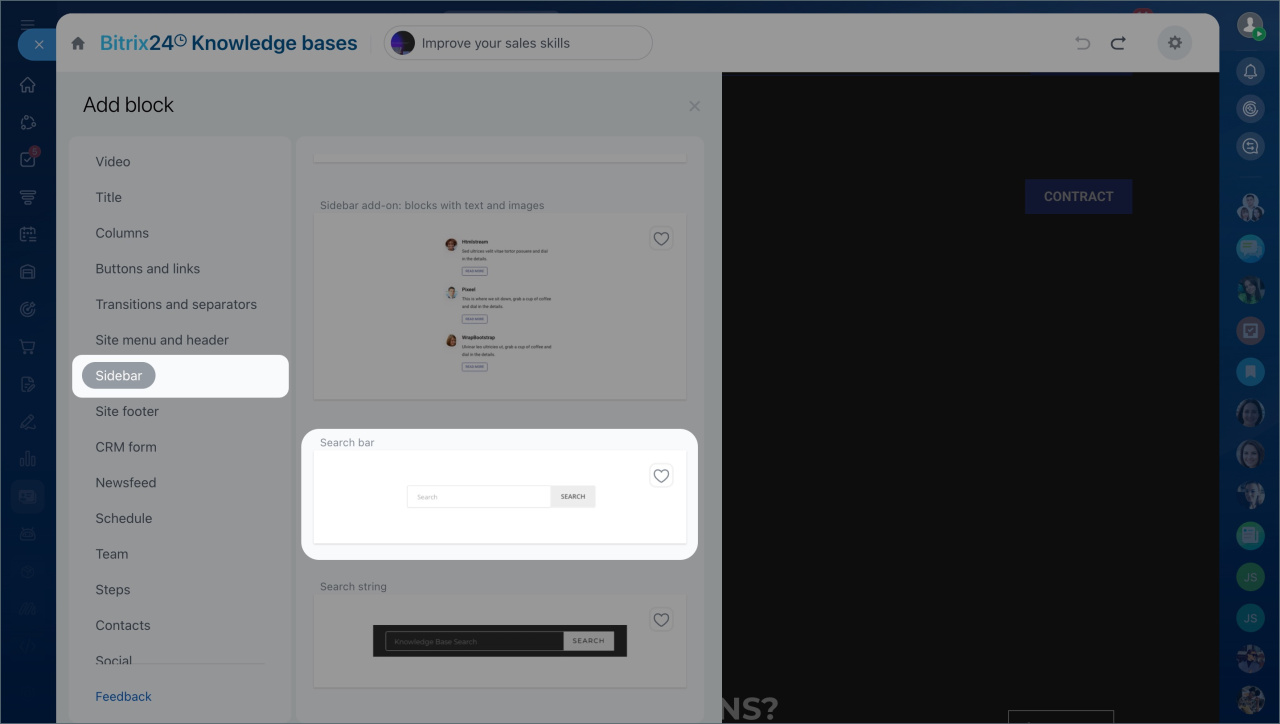
- Go to the Sidebar tab.
- Select Search bar or Search field.
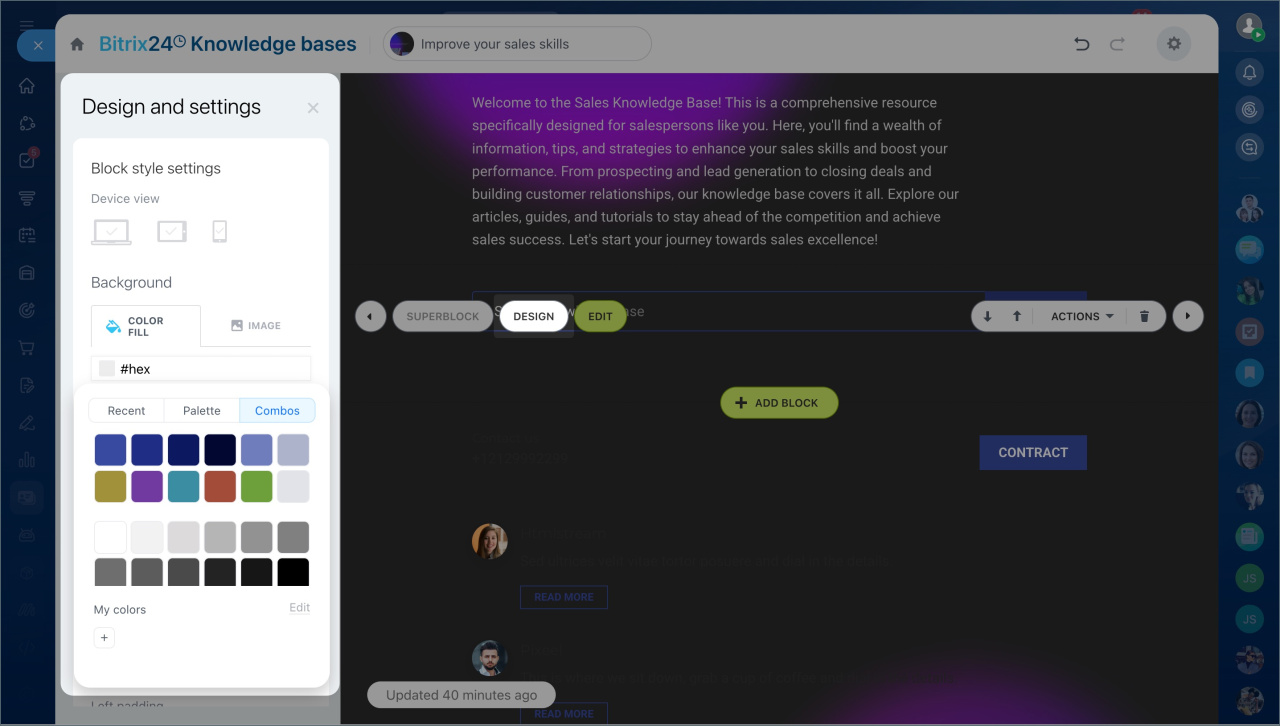
- Click Design to customize it.
Change the cover of a knowledge base
A custom cover helps your knowledge base stand out.
Company knowledge bases: Access permissions
- Go to Employees > Knowledge base.
- Open the knowledge base.
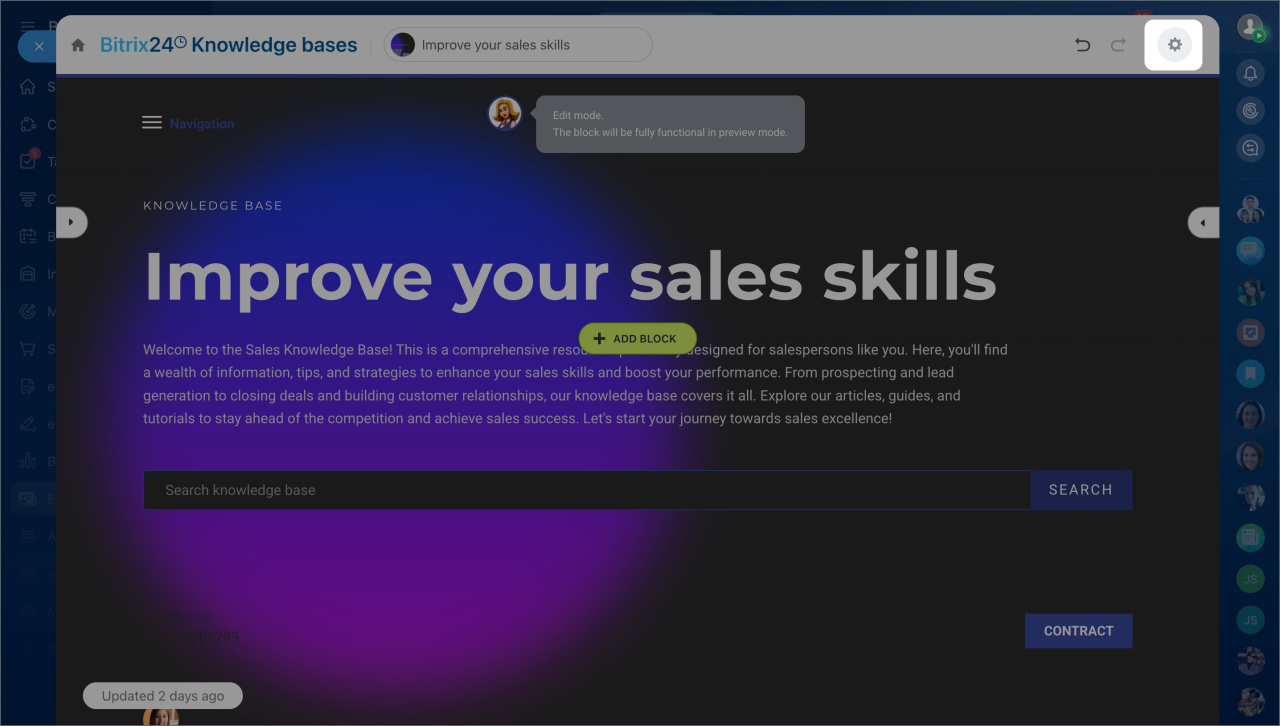
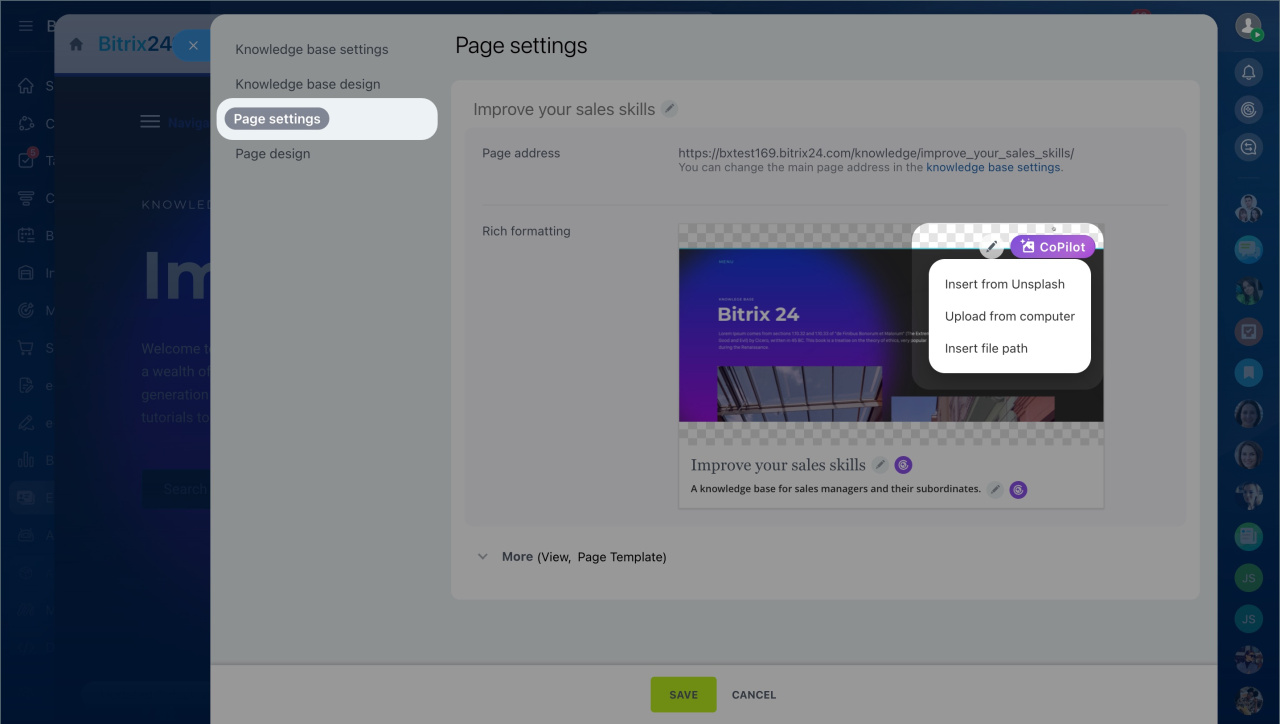
- Click Edit article > Settings (⚙️) > Page settings.
- Click the pencil icon on the cover.
- Upload or generate an image.
- Save.
Create a custom knowledge base template
You cannot save a knowledge base as a reusable template. Instead, use export and import.
Company knowledge bases: Access permissions
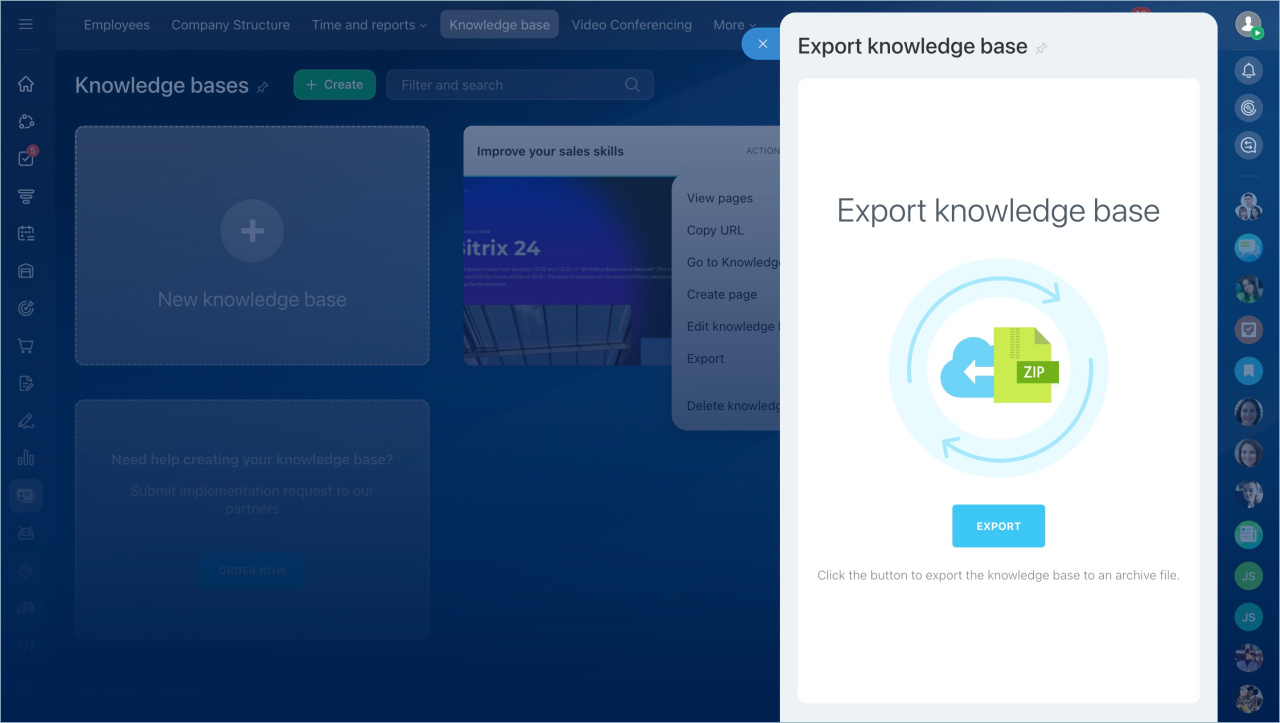
Export:
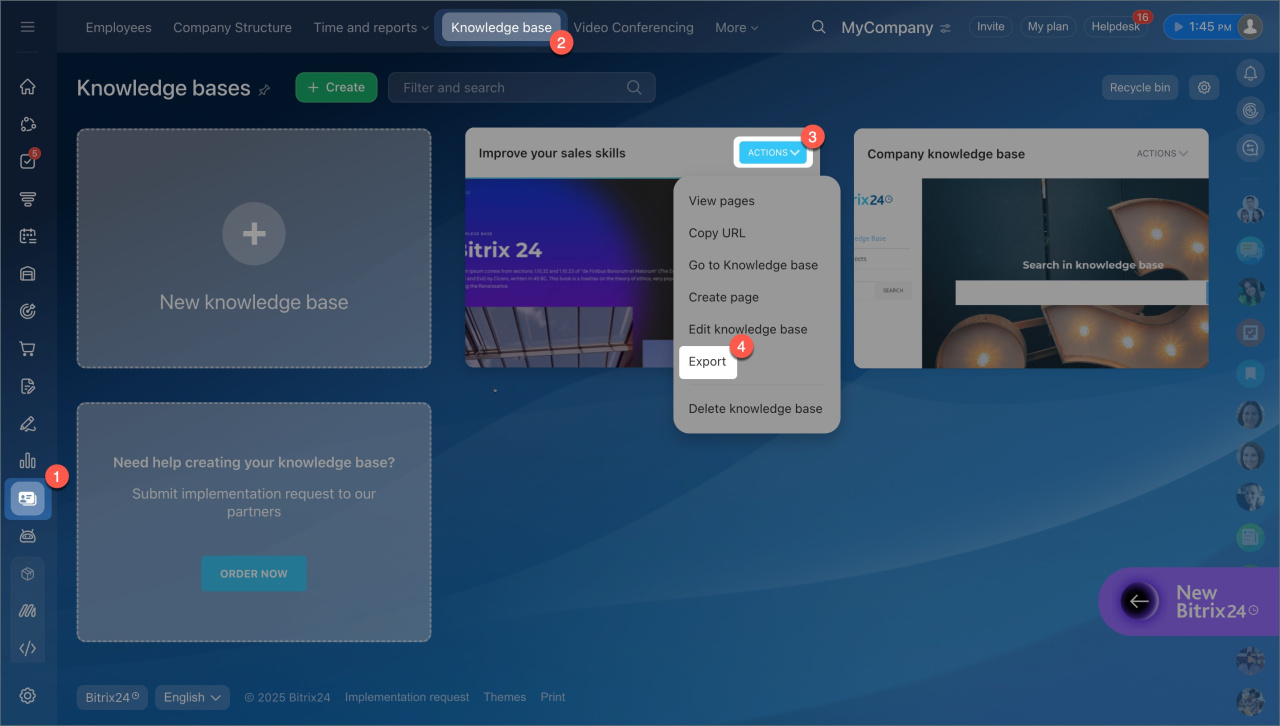
- Go to Employees > Knowledge base.
- Select a knowledge base.
- Click Actions > Export > Download.
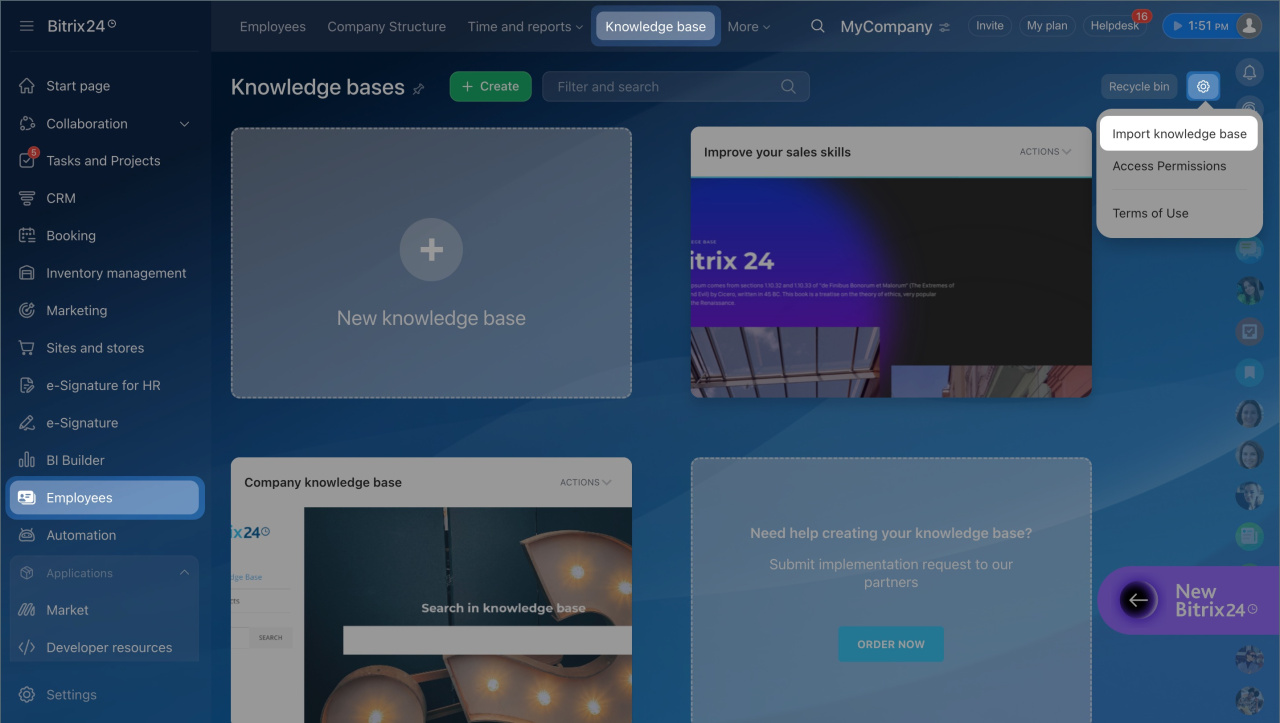
Import:
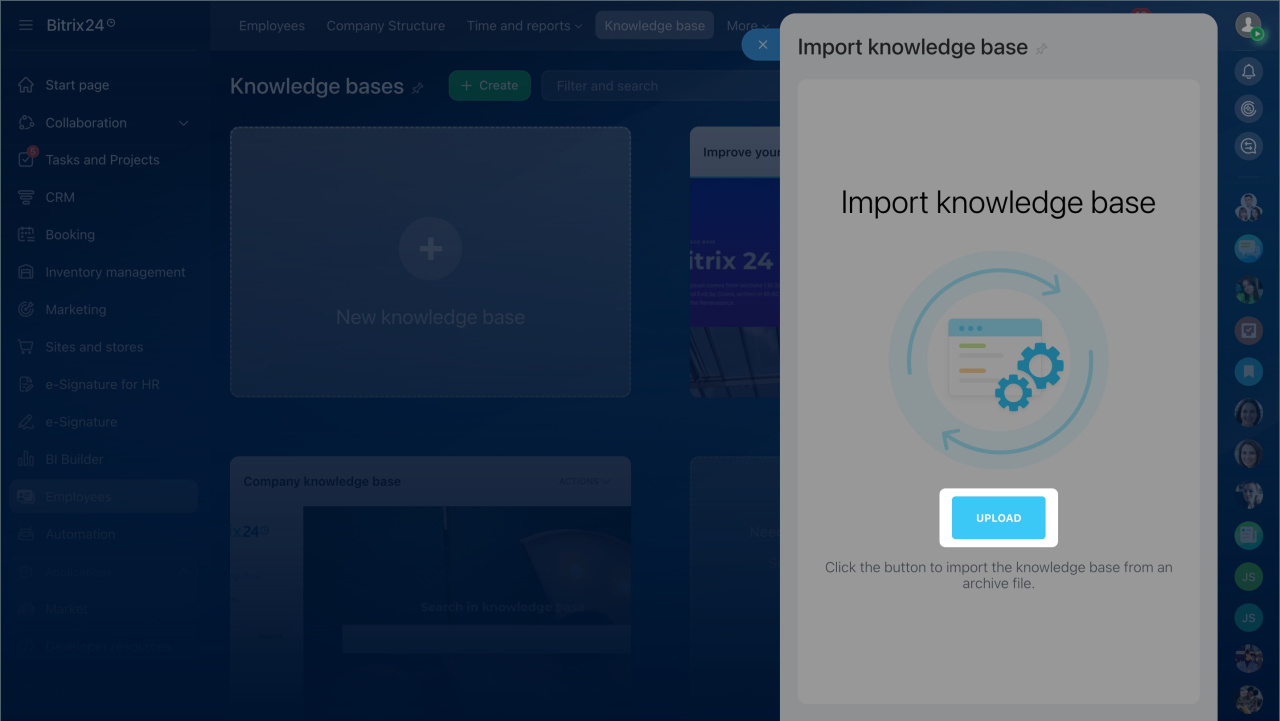
- Click Settings (⚙️) > Import Knowledge base > Upload.
- Select the archive.
- Open it and click Edit article if needed.
Hide a knowledge base from an employee
In Bitrix24, you can create roles with different access levels for knowledge bases and assign them to employees, groups, or departments. Users only see the knowledge bases included in their permissions. If a role does not include access to a specific knowledge base, the employee will not see it.
- Go to Employees > Knowledge base > Settings (⚙️) > Access permissions.
- Click Add > Add specific permissions for a knowledge base.
- Select the knowledge base.
- Enter a role name and configure permissions.
Knowledge base section
- View allowed: The employee can open the section and see the list of knowledge bases.
- View not allowed: The Knowledge base section is hidden from the menu. The employee can only open available knowledge bases using direct links.
- Full access: Set to No access. If a user has full access to the section, they will see all knowledge bases, including restricted ones.
Knowledge base list
- Set all actions to No access. This prevents users from exporting restricted knowledge bases or sharing them.
Content of all knowledge bases
- Set all actions to No access. This hides all knowledge bases except those with specific permissions.
Specific permissions for a knowledge base
Choose an option for each action:
- View: Required to open the knowledge base.
- Edit: Allows the user to update content.
- Change settings: Allows updates to settings and design, such as name, colors, background, and fonts.
- Delete: Allows the user to delete the knowledge base.
5. Save the changes.

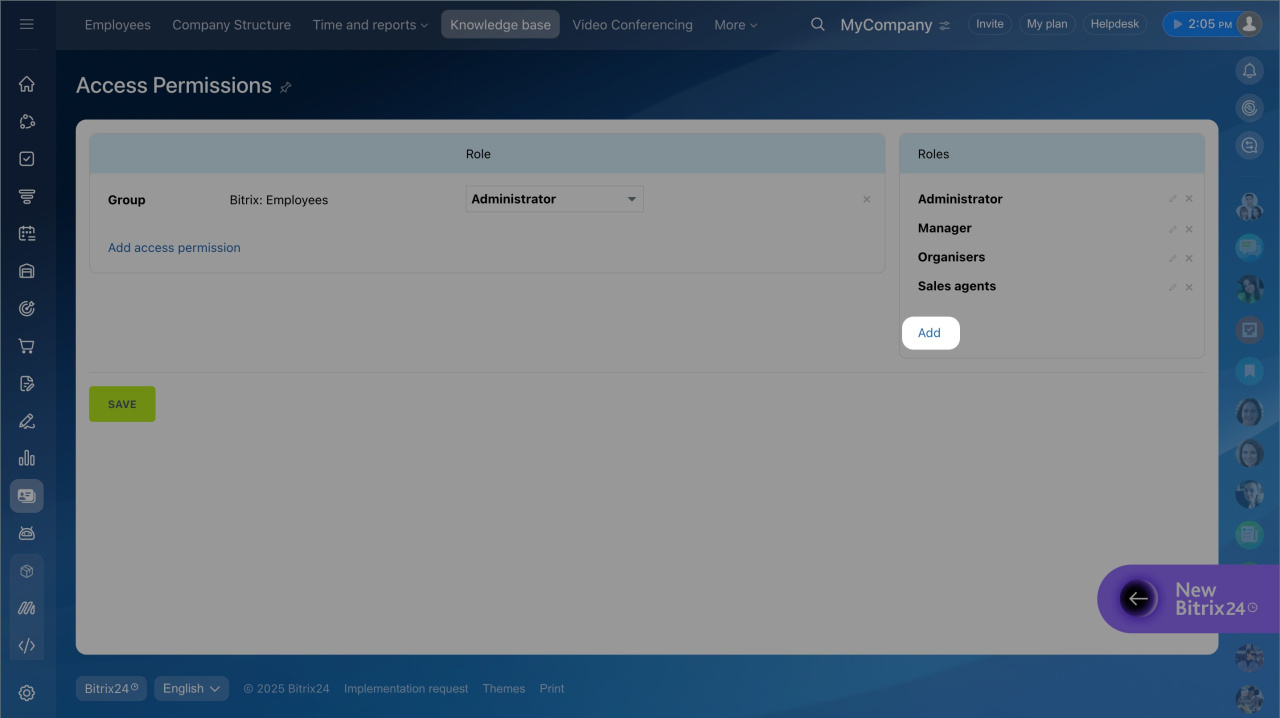

Assign roles to employees:
- Click Add.
- Select users, groups, or departments.
- Assign a role and save.
Users will only see knowledge bases allowed by their roles. If they open a restricted link, they will see an access error.