
Bitrix24 allows you to automate workflows and operations on every level of your company's hierarchy.
Personal
Use CoPilot to generate content, summarize work, automate small routines, and stay productive effortlessly.
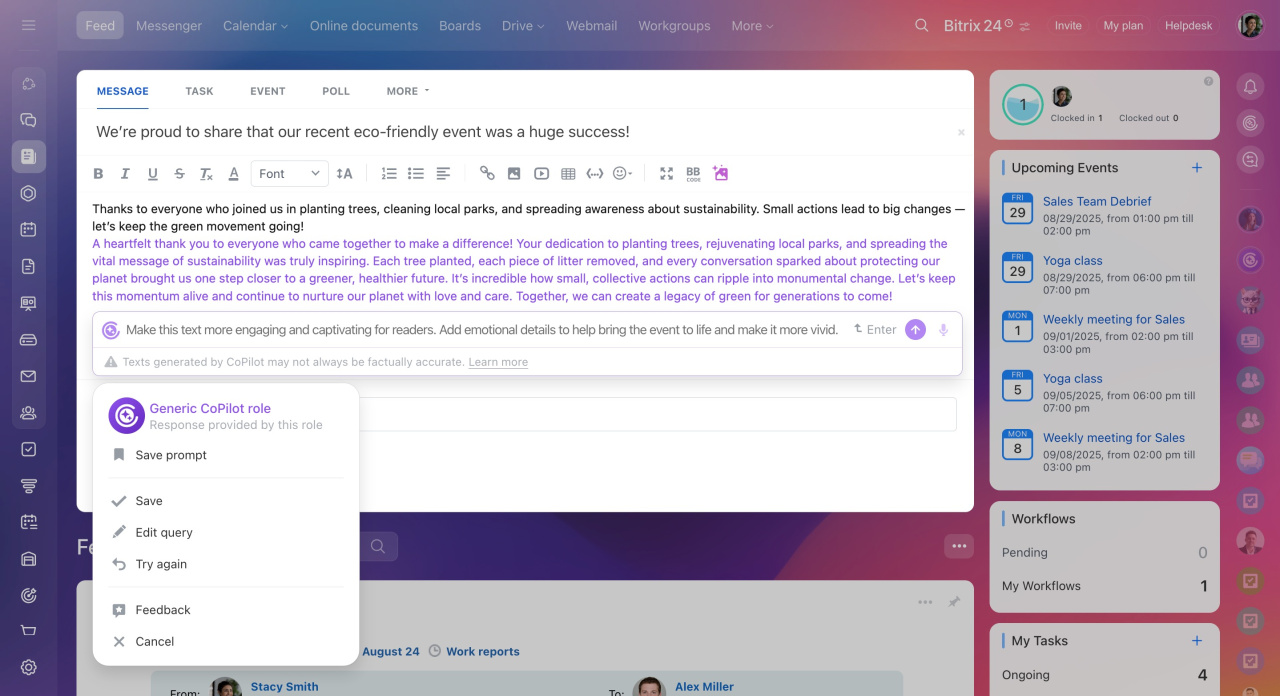
CoPilot in Feed
Take advantage of CoPilot for quicker post and comment writing. Open the Feed section and start CoPilot. Then specify your request and get the result in a few seconds.
We have divided the pre-prompts in Feed into several groups:
- Analyze text: Use CoPilot to extract the main points, find the pros and cons, and explain unclear phrases.
- Modify text: CoPilot can shorten or expand your text, simplify it, correct typos, or add emoji.
- Change tone of text: CoPilot is beneficial in making your text more polite or formal.
- Create text: Enter some basic details, and CoPilot will prepare a text according to a chosen format (post, news, greeting, article, or job description).
CoPilot in Tasks
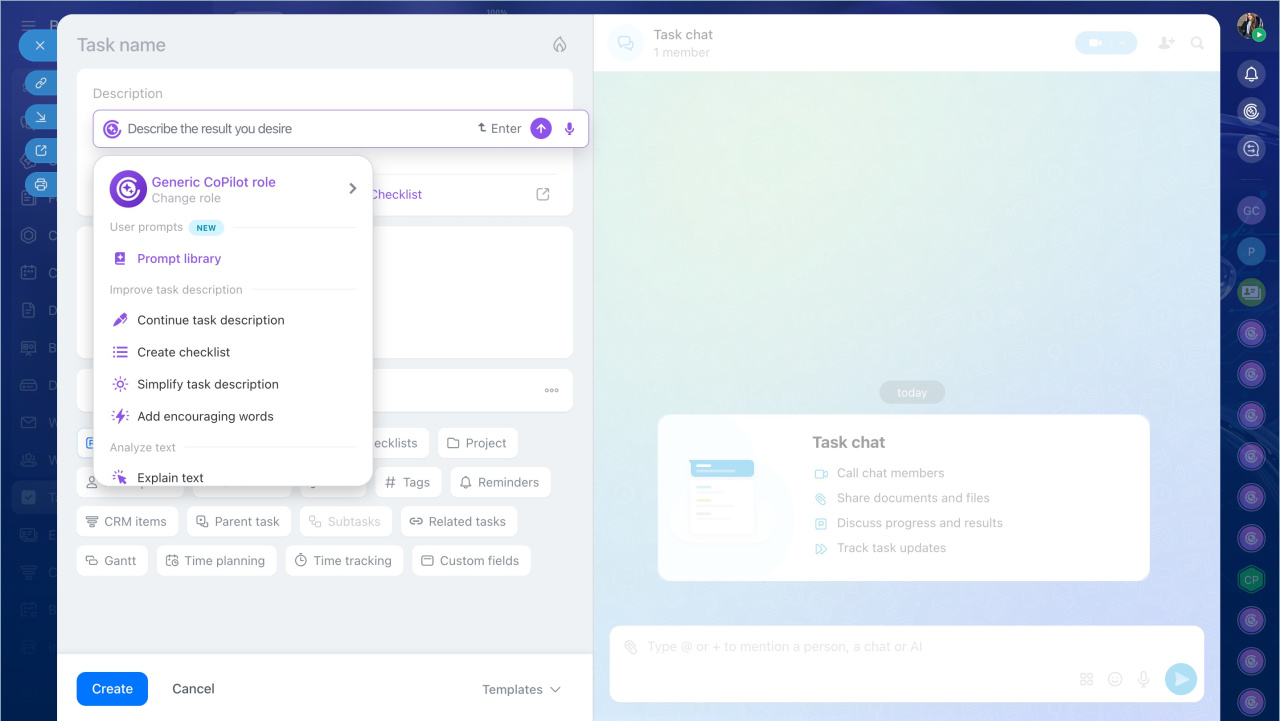
Specify some basic information about your task, then let CoPilot add more details and determine the steps to take.
The main advantage of using CoPilot in tasks is the option of making checklists in one click. There's no need to distribute information manually and worry about missing anything. Provide some essential data and allow CoPilot to create a checklist for the task.
CoPilot in Chat
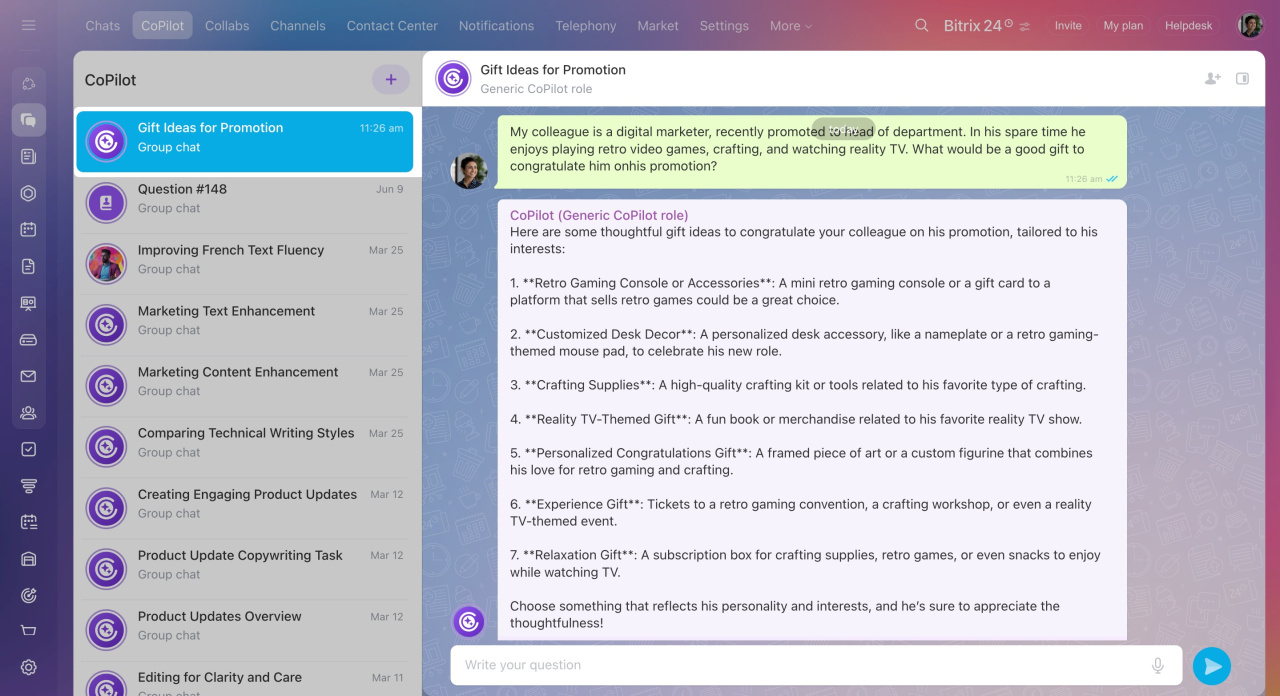
CoPilot chat conveniently opens in a separate section. There are no pre-prompts, just enter your query concerning any task.
To access the CoPilot chat, click the special icon in the right sidebar. CoPilot saves the chat history and remembers the context of your question in each chat. You can return to the chats you started earlier to proceed.
It is important to clearly define the desired output for CoPilot in your prompt. This way, CoPilot will generate accurate and relevant results. Just be specific: the more details you provide, the better.
CoPilot in Bitrix24 Mail
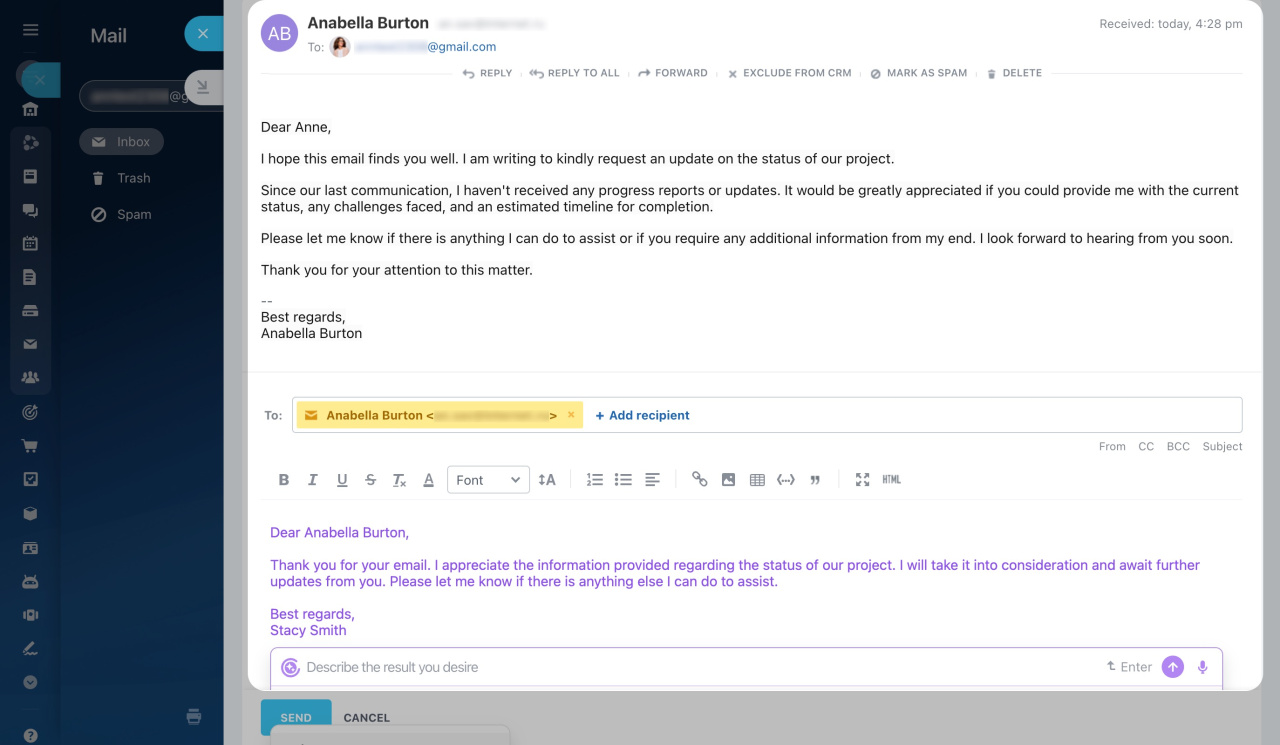
CoPilot is an AI assistant built into Bitrix24 Mail. It helps you work with emails faster. Use it to summarize email threads, write replies, continue drafts, fix grammar and spelling, or translate text into another language.
Without CoPilot, you may need to:
- Spend time writing emails from scratch
- Carefully word replies, such as polite declines or formal responses
CoPilot helps simplify these tasks. You can use it to:
- Summarize email conversations
- Write or continue email drafts
- Generate client responses
- Improve and edit text
Team
Automate project handovers, status updates, CRM workflows, and call processing to keep teams synced and responsive.
AI Speech analytics and Sales scripts in CRM
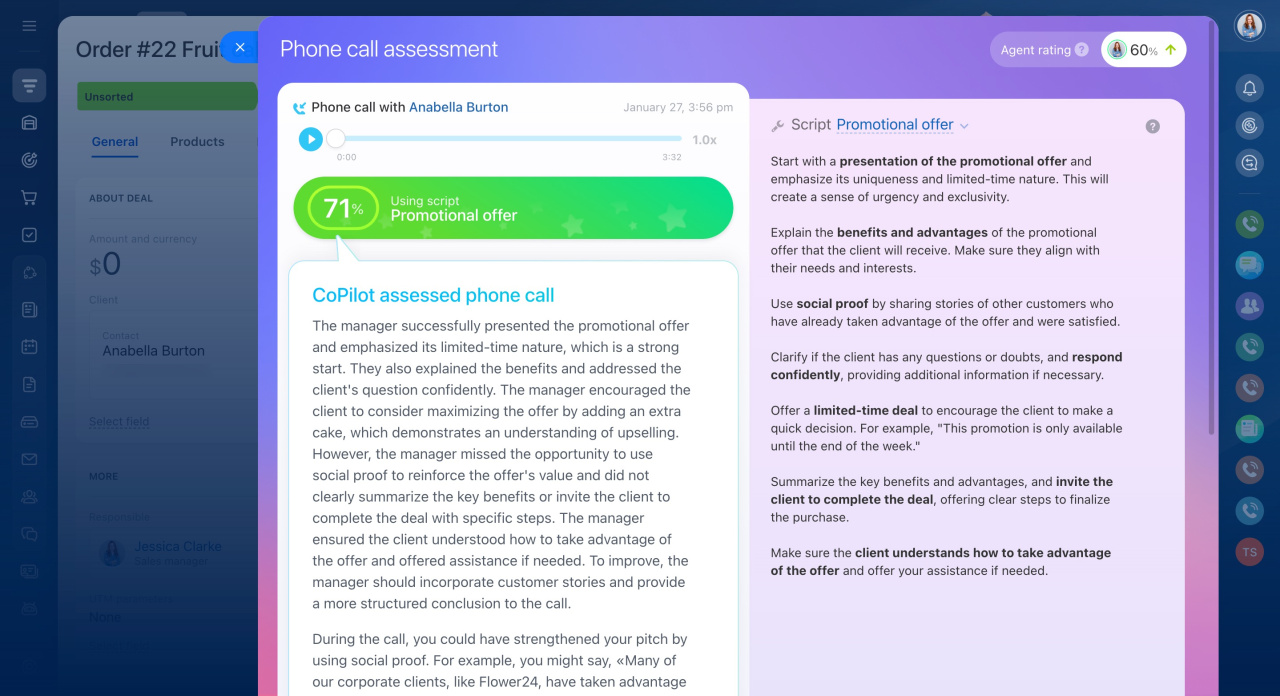
Bitrix24 now offers new CoPilot features in CRM: AI Speech analytics and Sales scripts. With CoPilot, you can analyze your agents' customer calls, compare them to scripts, and get improvement tips.
CRM has ready-made sales scripts for various situations, such as talking to new customers, handling complaints, presenting new products, and more. You can use these scripts or create your own to quickly train your agents and improve service quality.
CoPilot helps supervisors by:
- Creating sales scripts
- Analyzing agent calls to find areas for improving customer communication
- Tracking each employee's performance without listening to calls or asking for reports
CoPilot supports agents by:
- Improving customer communication quality through feedback on each call
- Providing specific recommendations to improve customer communication skills
CoPilot in Sites
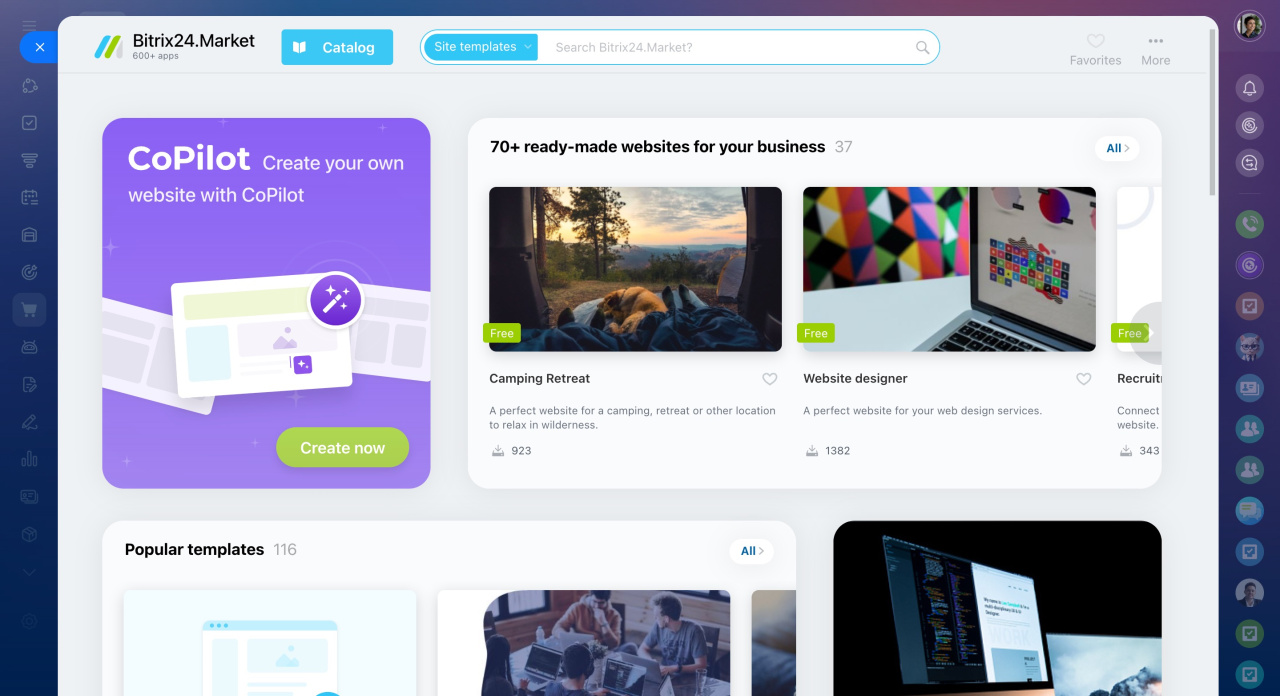
CoPilot is an AI assistant that generates websites based on a given theme. Describe the main parameters, and it will select the design, images, and text.
CoPilot can help:
- Create a website without programming skills. For example, quickly launch a landing page for a promotion or new business.
CoPilot Follow-Up
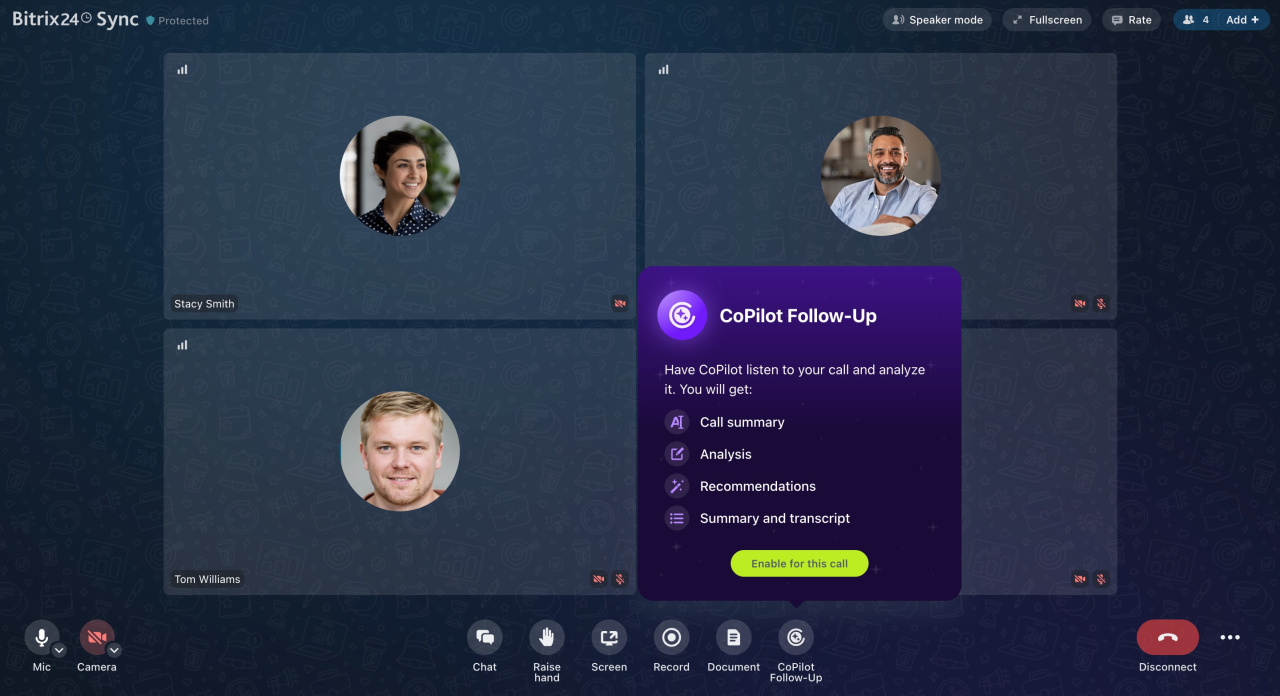
CoPilot Follow-Up can help your team have productive meetings. Discuss the agenda, summarize key points, record the results, and keep everything on schedule.
AI Audio and Video Tasks
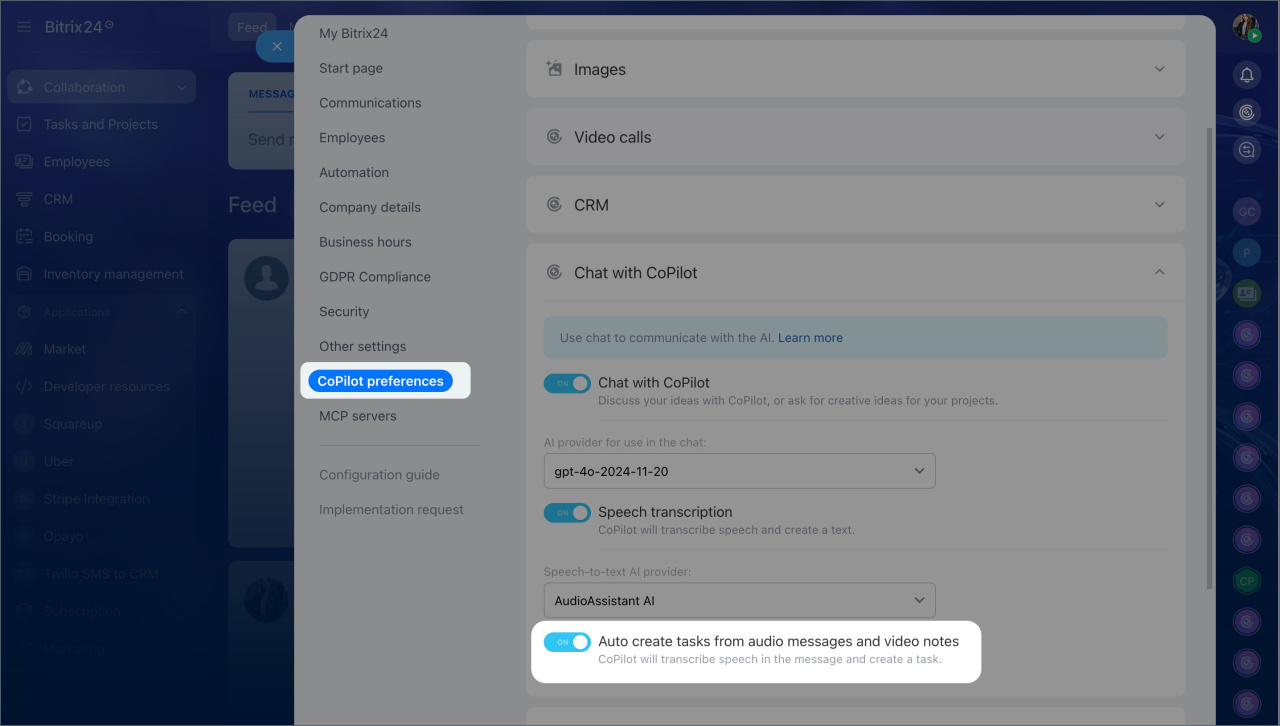
Turn your voice or video messages into tasks instantly. AI analyzes your message in real-time, identifying the assignee and the deadline, formulating checklists, and automatically creating tasks. Assignments are no longer lost in chats. Everything you say in voice or video messages is captured in tasks, helping the team stay on track.
To create tasks automatically, turn on this option in your Bitrix24 settings.
Department
Enhance departmental efficiency with AI-driven call transcription, follow-up actions, and automated multi-step workflows.
Flows
Flows is a tool for collecting and managing tasks from different departments. For example, if an employee needs software installed, they can add a task to a Flow. The system then distributes tasks to the responsible team members.
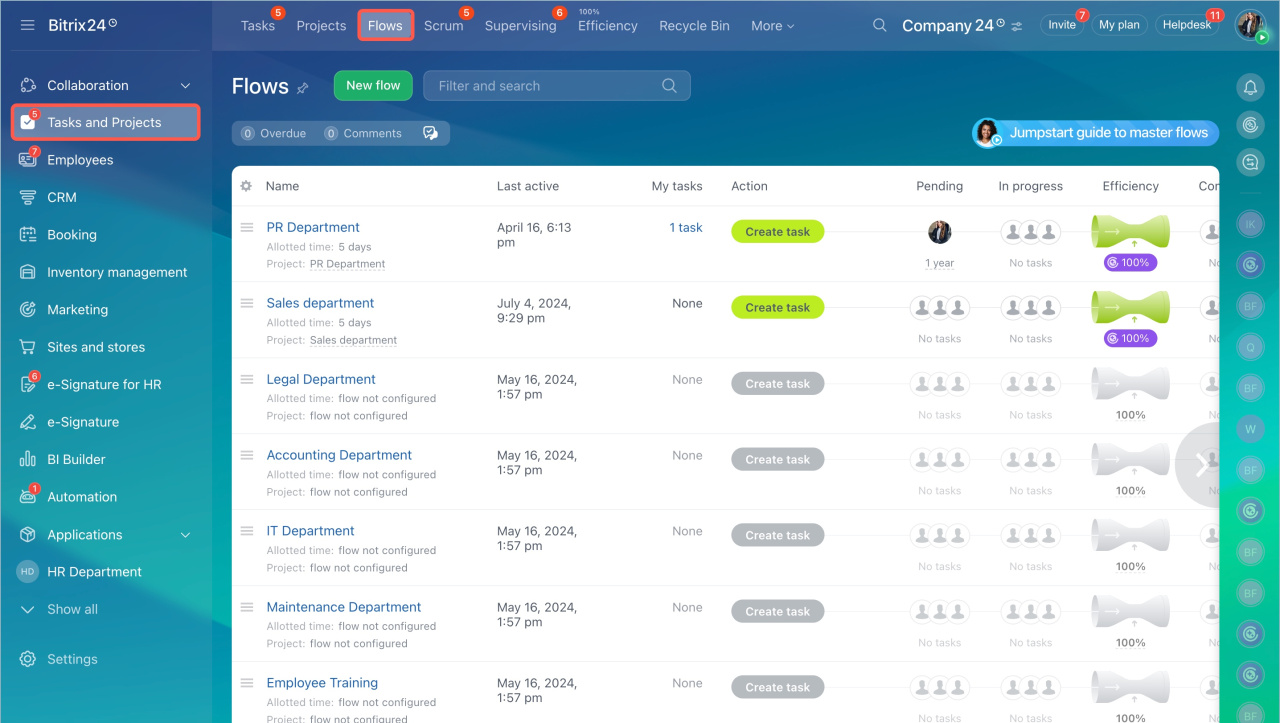
What you can do with Flows
- Collect tasks in one place and assign them automatically or manually
- Monitor employee workload
- Track task completion speed
- Identify bottlenecks and problem areas
Flows. Jumpstart Guide
Create a flow
Create and find tasks in Flows
Distribute tasks in the Flow
Sales automation in CRM
Bitrix24 CRM includes a full set of tools to automate and manage customer workflows. You can assign orders to employees, send personalized emails and SMS, generate documents, and more.
To use sales automation in CRM, you need to:
- Add and configure automation rules and triggers
- Set up variables and constants
- Test and validate your automation setup
Automation rules in CRM
Triggers in CRM
Task automation
You can automate task workflows using automation rules and triggers. Automation rules handle routine actions such as sending notifications, creating tasks, or adding participants. They run when a task reaches a specific stage.
Set up triggers in tasks
Task templates
Company
Standardize and automate organization-wide processes – from HR requests to approvals, contracts, and more.
Robotic Process Automation (RPA)
RPA (Robotic Process Automation) is a tool that automates routine tasks, such as approving leave requests, business trips, invoices, and contracts, or creating tasks and handling other routine actions.
It’s easier to set up than standard workflows and doesn’t require any technical skills—any employee can create a workflow using ready-made assignment templates. This helps your team work faster and make fewer errors.
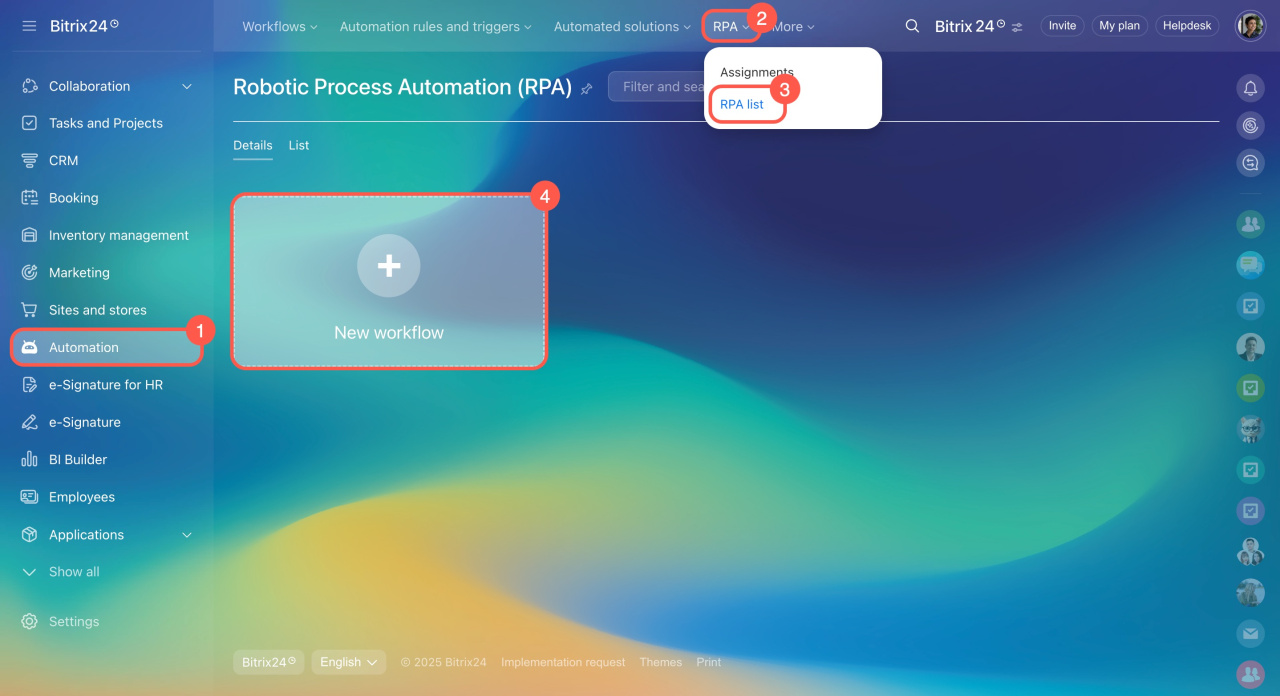
Create a workflow in RPA
Configure stages
Add an assignment
Add a workflow item
Automated solutions
Smart Process Automation (SPA) lets you build custom workflows. You can create CRM entities with custom fields, kanban stages, permissions, and more. You can also use SPA outside of CRM to automate work for any team, such as HR or accounting. Create a dedicated workspace and set up the tools and settings you need.
Create an automated solution with SPA
Configure automated solutions