
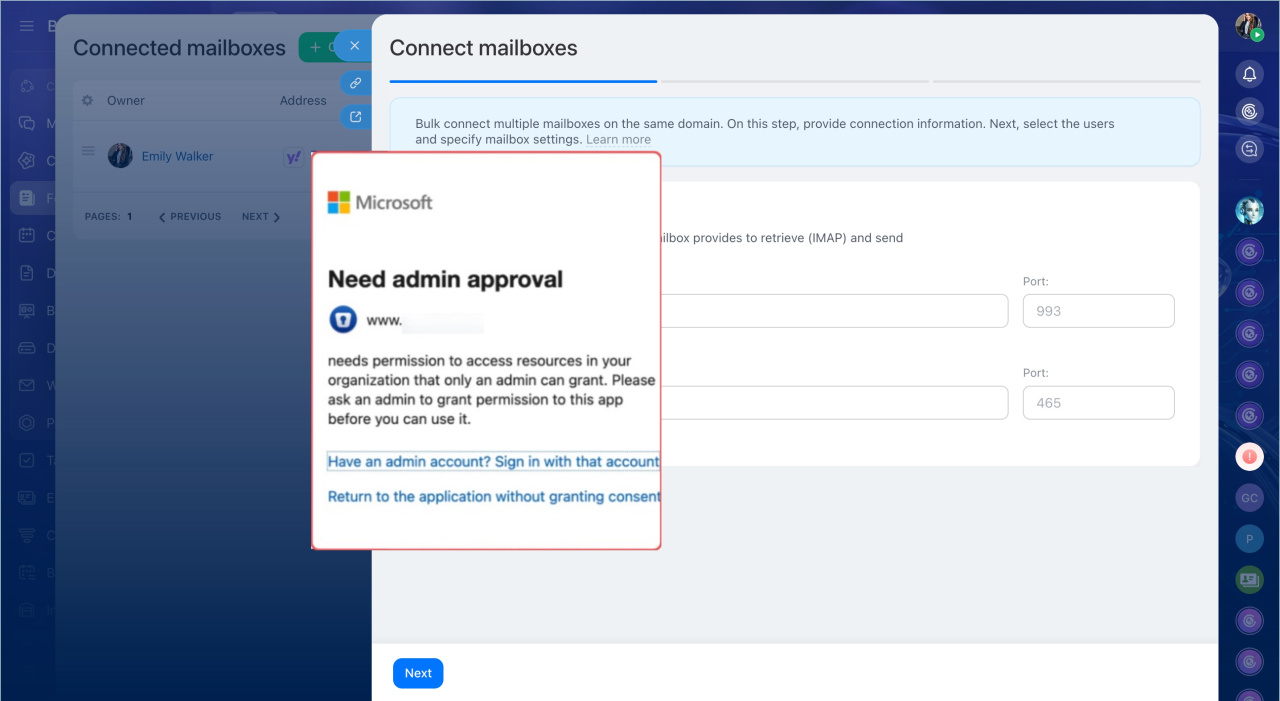
When you connect a corporate Microsoft 365 mailbox to Bitrix24, you may see a blank window or a Need admin approval message. This happens because Microsoft 365 security policies can block third-party apps from accessing work or school accounts, including email accounts on your company domain.
To let employees connect corporate Microsoft 365 mailboxes, an administrator should grant consent once in Microsoft Entra.
In this article:
What users should do
If you see the Need admin approval error, do not enter your password again in the blank window. Contact your Microsoft 365 administrator and send them the following message:
786d7aab-1054-4475-8ec7-d050ffe38ec6. Please check the application in Microsoft Entra and grant the required permissions for the organization. Microsoft instructions: Grant tenant-wide admin consent to an applicationAfter the administrator grants consent, return to the mailbox setup page and try connecting your mailbox again.
Grant administrator access
To grant consent, you need one of these Microsoft 365 roles: Global Administrator, Application Administrator, or Cloud Application Administrator. Without one of these roles, you cannot grant administrator consent. Check with your IT department or the person who created your organization's Microsoft 365 tenant.
Main method.
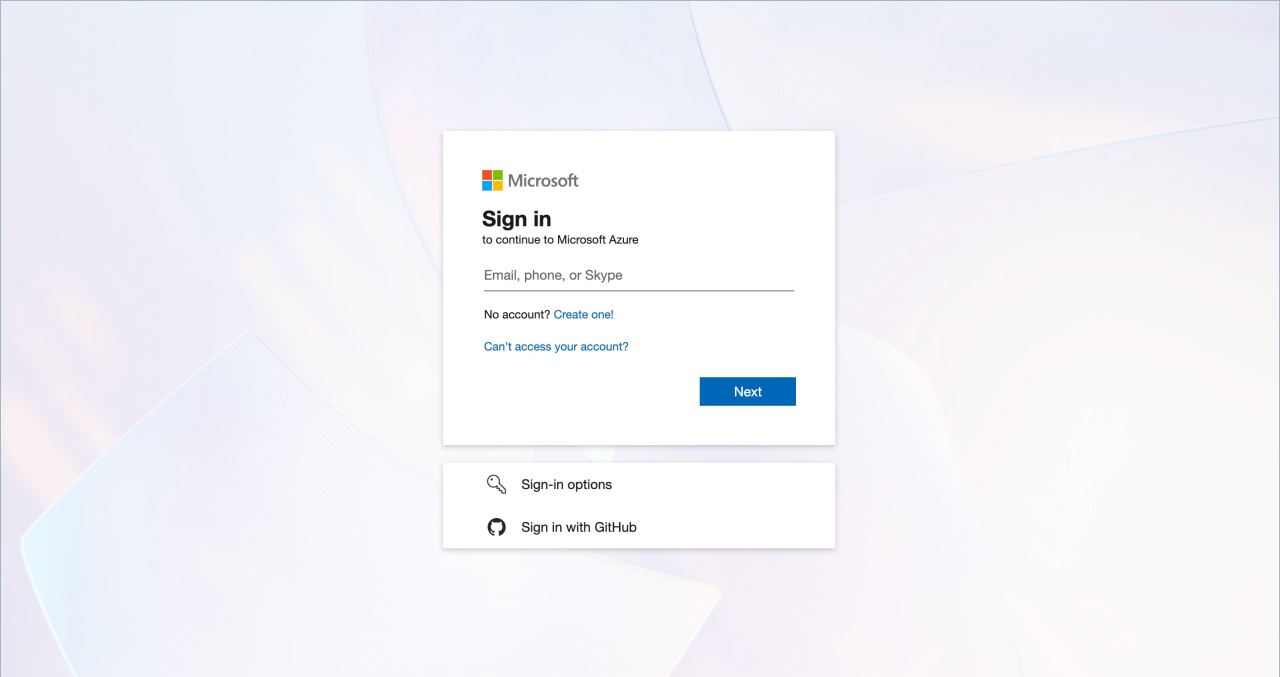
1. Sign in to the Microsoft Entra admin center with an account that has one of the required roles.
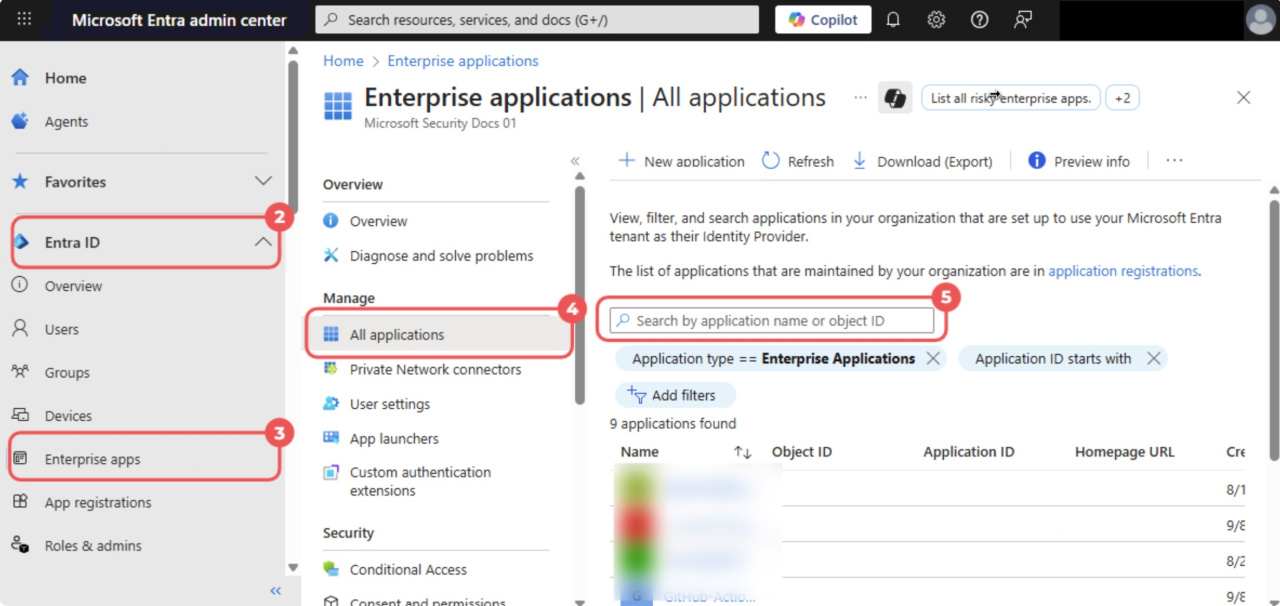
2–4. Go to Entra ID > Enterprise apps > All applications.
5. Search for Bitrix24. If you cannot find the app by name, search by Application ID — enter 786d7aab-1054-4475-8ec7-d050ffe38ec6. Open the Bitrix24 app.
If the Bitrix24 app does not appear in Enterprise applications
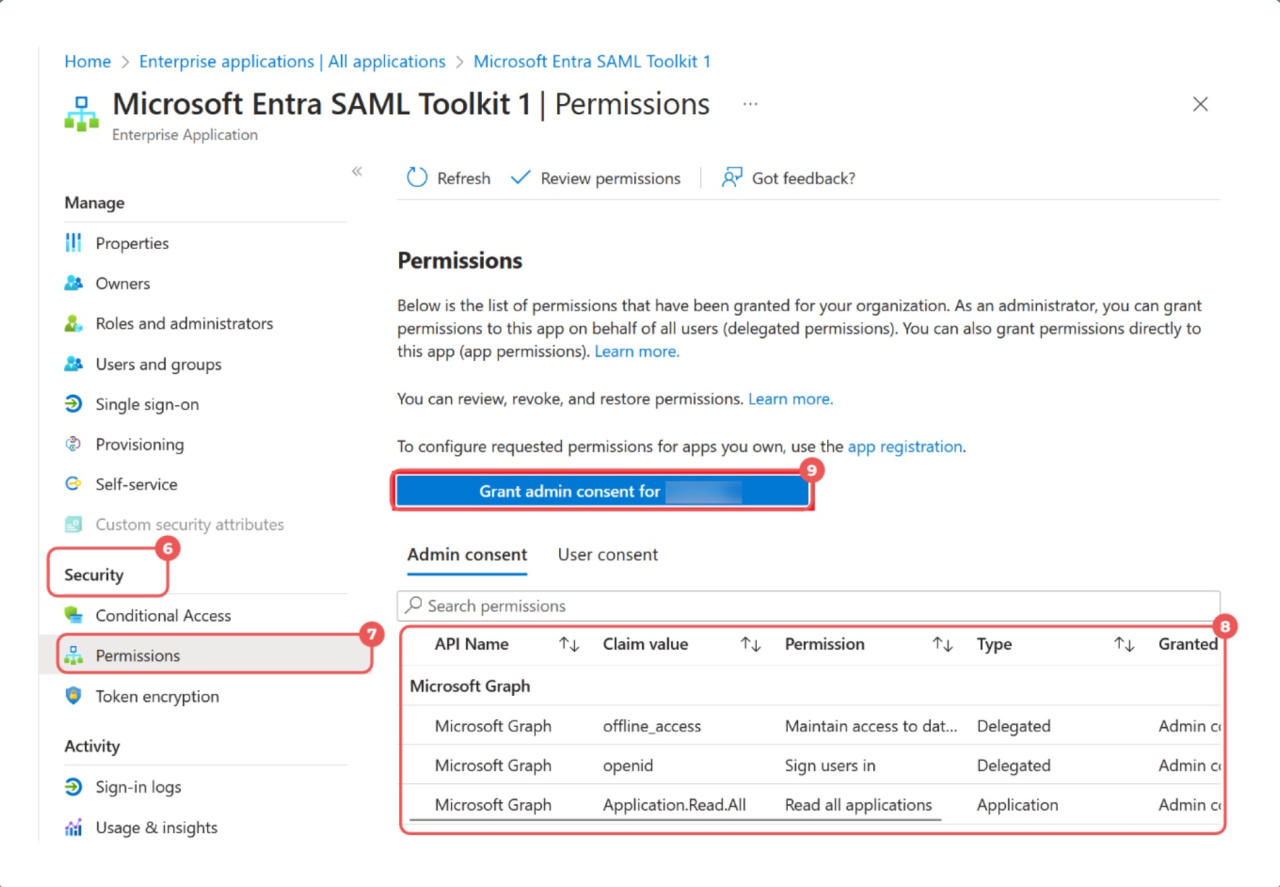
6–7. Go to Security > Permissions.
8. Review the requested permissions. Bitrix24 requires:
- User.Read
- offline_access
- IMAP.AccessAsUser.All
- SMTP.Send
Official Microsoft documentation on administrator consent
9. Click Grant admin consent for <company name> and confirm the action.
Employees can now connect their corporate Microsoft 365 mailboxes to Bitrix24.
If the Bitrix24 app does not appear in Enterprise applications.
1. Open the consent screen for the Bitrix24 app with a Microsoft 365 administrator account. You can replace companies in the URL with your Tenant ID or a verified company domain. A list of requested permissions for the company will appear.
2. Review the requested permissions:
- User.Read
- offline_access
- IMAP.AccessAsUser.All
- SMTP.Send
3. Click Accept.
The app will receive administrator consent. Employees can then connect their Microsoft 365 work mailboxes to Bitrix24.
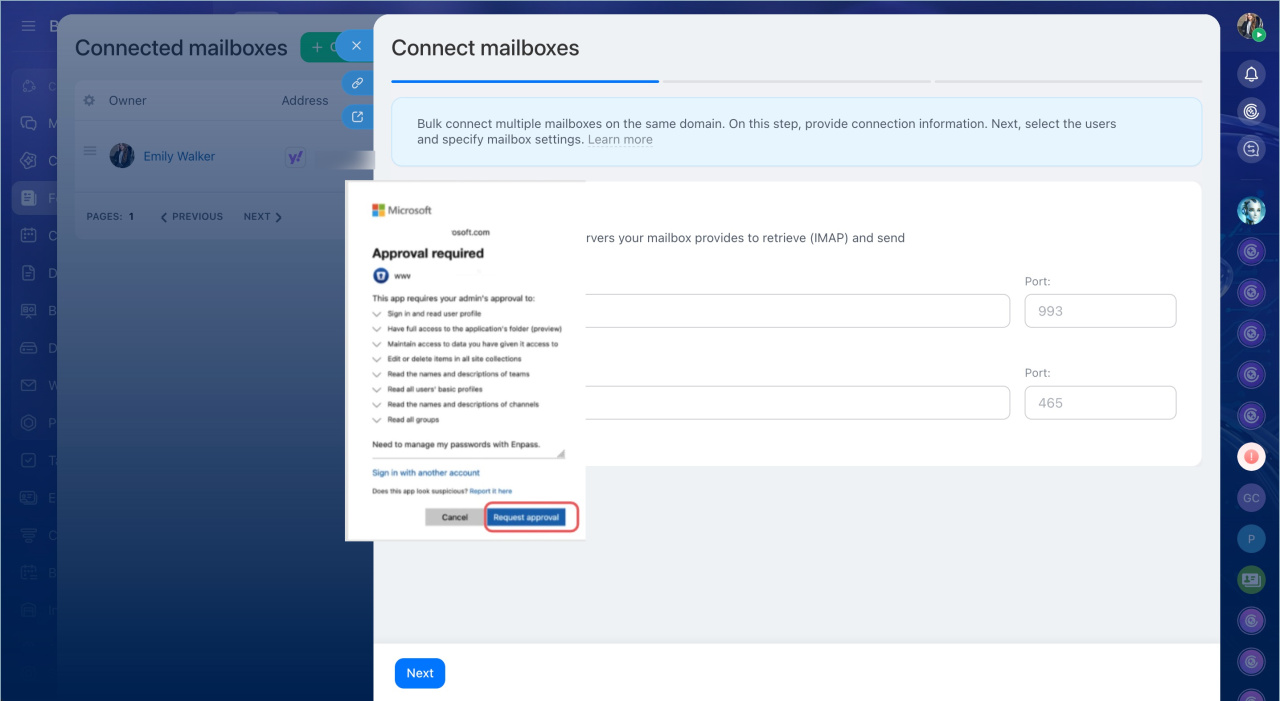
Alternative method: approve an access request. If your organization uses an admin consent request workflow, employees may see a request button in the connection window. Assigned administrators receive a notification and can approve or deny the request. After approval, the employee can connect their corporate Microsoft 365 mailbox to Bitrix24.
Configure the admin consent workflow
Fix connection issues after granting access
If an administrator has granted consent but employees still cannot connect their Microsoft 365 mailboxes, check the Exchange Online settings for IMAP and SMTP AUTH.
Run the commands in Exchange Online PowerShell. If you have not connected to Exchange Online PowerShell yet, install the ExchangeOnlineManagement module and connect first.
Connect to Exchange Online PowerShell
Check IMAP. Run this command:
Get-CASMailbox -Identity user@company.com |

	     Format-List ImapEnabled
If IMAP is disabled, enable it:
Set-CASMailbox -Identity user@company.com -ImapEnabled $true
Official Microsoft documentation on IMAP
Check SMTP AUTH. Run these commands.
Check the global setting:
Get-TransportConfig |

	     Format-List SmtpClientAuthenticationDisabled
Check the setting for a specific mailbox:
Get-CASMailbox -Identity user@company.com |

	     Format-List SmtpClientAuthenticationDisabled
Microsoft recommends disabling SMTP AUTH for the organization and enabling it only for mailboxes that need it. The preferred option is to enable SMTP AUTH for a specific mailbox:
Set-CASMailbox -Identity user@company.com -SmtpClientAuthenticationDisabled $false
Enable SMTP AUTH for the entire organization only as a last resort — this option lowers security for all users:
Set-TransportConfig -SmtpClientAuthenticationDisabled $false
Security Defaults and other organization security policies can also block SMTP AUTH.
Official Microsoft documentation on SMTP AUTH
Prepare data for support
If you cannot resolve the connection issue, contact Microsoft support or Bitrix24 support. Include the details below so support can identify the cause of the error.
Microsoft support. Include the Microsoft Entra error code. Common connection errors include:
- AADSTS90094 — administrator consent is required.
- AADSTS90095 — administrator consent must be requested separately.
- AADSTS65001 — the user or administrator has not granted consent.
- AADSTS65004 — the user declined consent.
Microsoft Entra error code reference
Bitrix24 support. Prepare the following information:
- A screenshot of the error window without passwords or tokens
- The date and approximate time of the connection attempt
- Whether the mailbox is personal or corporate
- The
AADSTSerror code, if available - Confirmation from the administrator that consent was granted
- The results of the IMAP and SMTP AUTH checks.
Contact Bitrix24 Support
In brief
- Connecting a corporate Microsoft 365 mailbox to Bitrix24 may show a blank window or a Need admin approval error because of Microsoft 365 security policies.
- The employee should contact a Microsoft 365 administrator.
- The administrator needs to grant consent once in Microsoft Entra. Go to Entra ID > Enterprise apps > All applications, select Bitrix24, open Security > Permissions, review the permissions, and click Grant admin consent.
- If Bitrix24 is not listed in Enterprise applications, open the Bitrix24 consent screen using the direct link, review the requested permissions, and click Accept.
- If your organization uses an admin consent workflow, employees can request approval from the connection window.
- If consent has been granted but the mailbox still does not connect, check the Exchange Online IMAP and SMTP AUTH settings.
- Before contacting support, collect the
AADSTSerror code, if available, and the results of the IMAP and SMTP AUTH checks.