
Bitrix24 Telephony gives you reliable call quality and a full set of tools, including inbound and outbound calls, call recording, and CRM integration. To start making calls, connect a phone number. This guide explains all available connection options.
Go to the CRM section > Sales > Sales channels > Telephony.
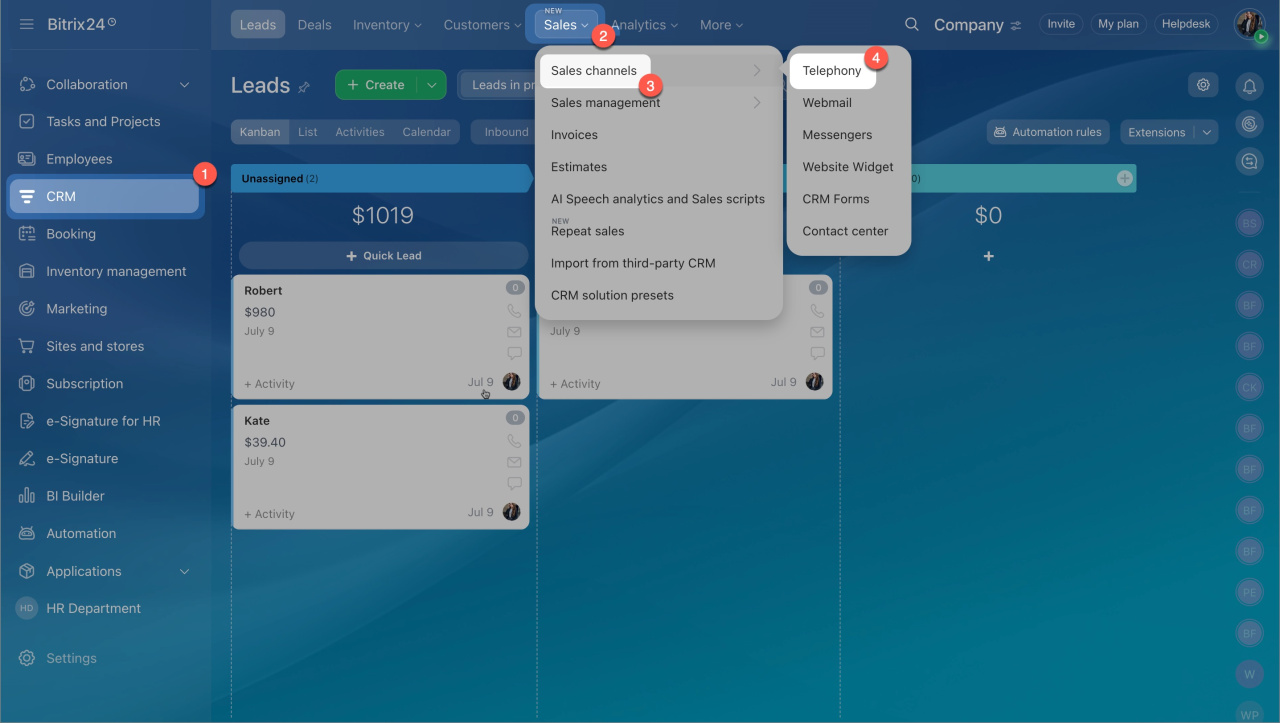
Available telephony connection options
Rent a number
Get a virtual phone number from the built-in telephony provider.
Connect SIP PBX using a SIP connector
Link your office or cloud PBX using the built-in SIP connector.
Connect SIP PBX using REST API
Connect your PBX through a Market app.
If you don’t have a business number, rent one in Bitrix24. If you already have a number, connect it using a SIP connector or REST API.
You can use multiple connection options in one account. However, avoid using both a SIP connection and an app from the same provider at the same time, as this may cause errors.
Rent a number
- Go to CRM > Sales > Sales channels > Telephony
Payments for Telephony - Click Rent a number.
- Choose the country, region, and number type. The system assigns a number automatically.
- Upload documents if required. Some regions need identity or address verification. Processing usually takes up to two business days.
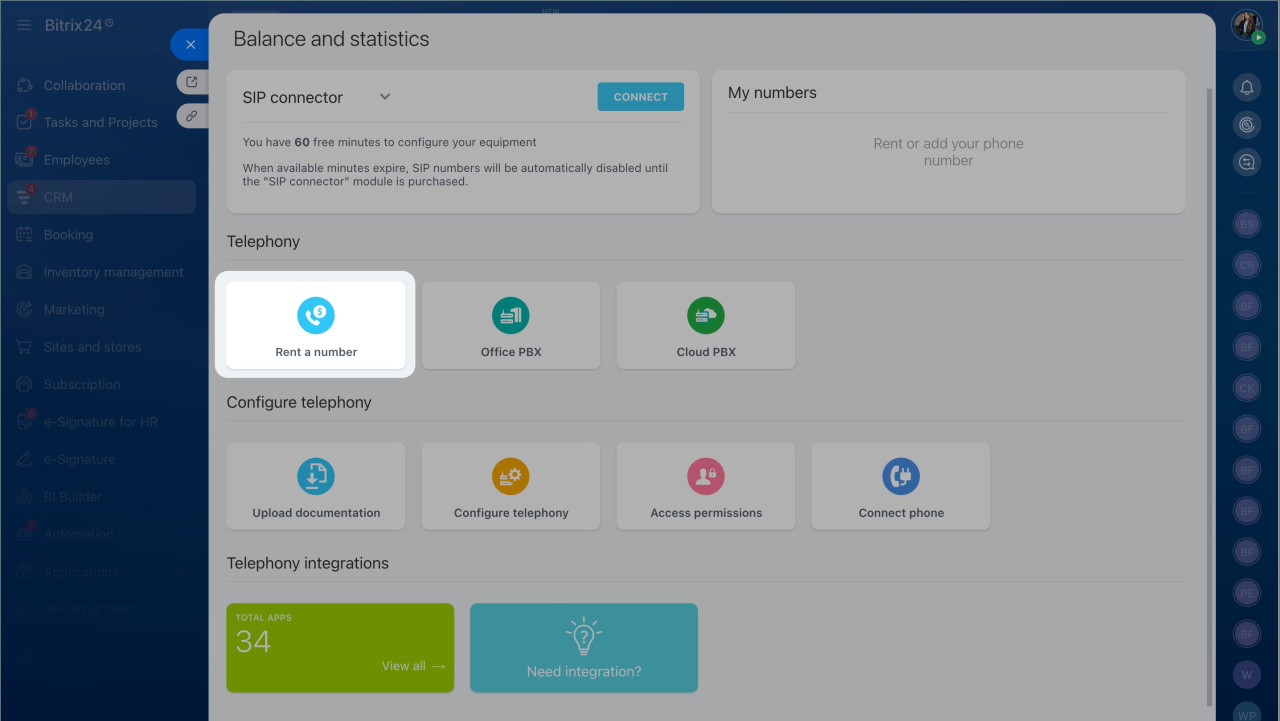
Connect SIP PBX using a SIP connector
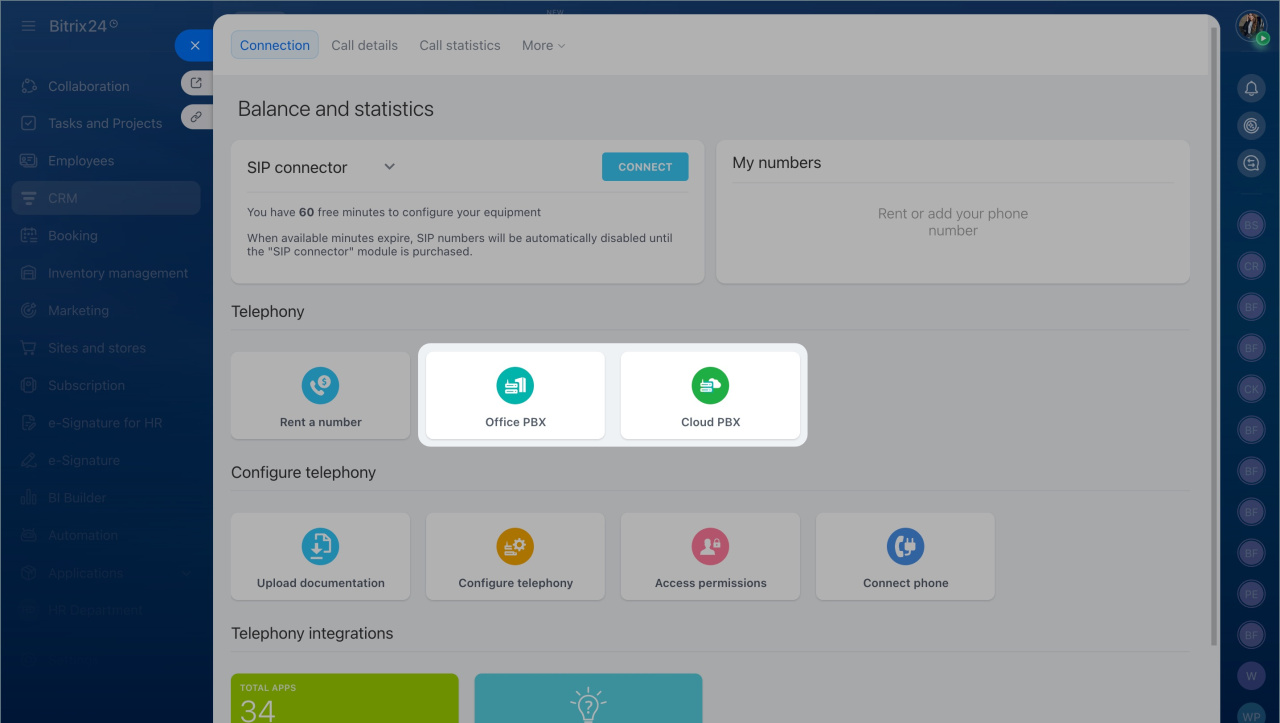
If you use a number from another provider, connect it as a cloud or office PBX. Make sure your PBX supports the SIP protocol.
To connect:
- Go to CRM > Sales > Sales channels > Telephony.
- Select Cloud PBX or Office PBX.
- Enter the server address, login, and password. Get these details from your PBX provider.
Your provider handles call charges. You don’t need to top up your Bitrix24 balance.
You get 60 free minutes to test outbound calls. After that, purchase the SIP connector to continue using outbound calling.
Connect SIP PBX using REST API
- Go to CRM > Sales > Sales channels > Telephony.
- Open the Telephony integrations section.
- Click Total apps and choose an app in Catalog > Communication channels > Telephony.
With this option, call routing and traffic are managed on your PBX side. This can reduce connection time and improve call quality compared to the SIP connector.
You can’t make calls from the browser, Bitrix24 Messenger, or the mobile app. Use a softphone app or a SIP phone instead.