
When you reply to customers, fast response times matter. Use customer chat statuses in CRM to prioritize incoming messages. You can see chat statuses on CRM item cards in the Activities and Kanban views.
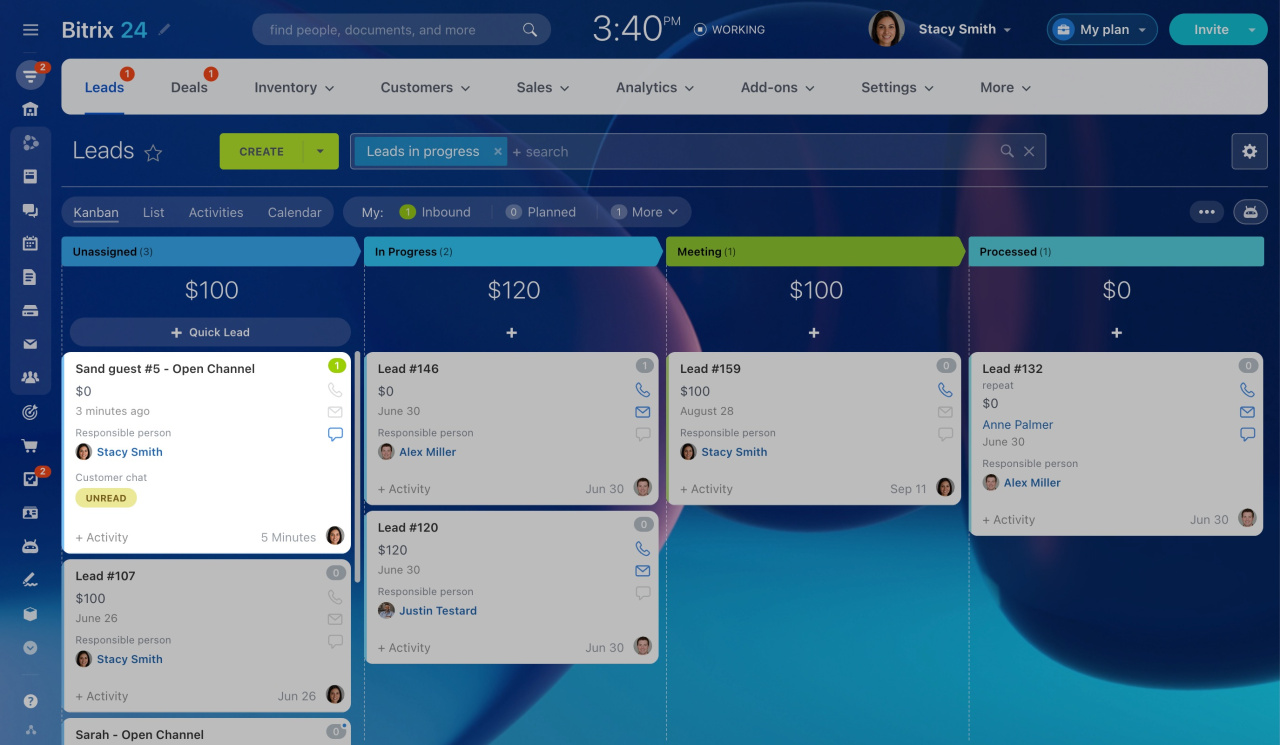
The chat status also appears in the CRM item timeline.
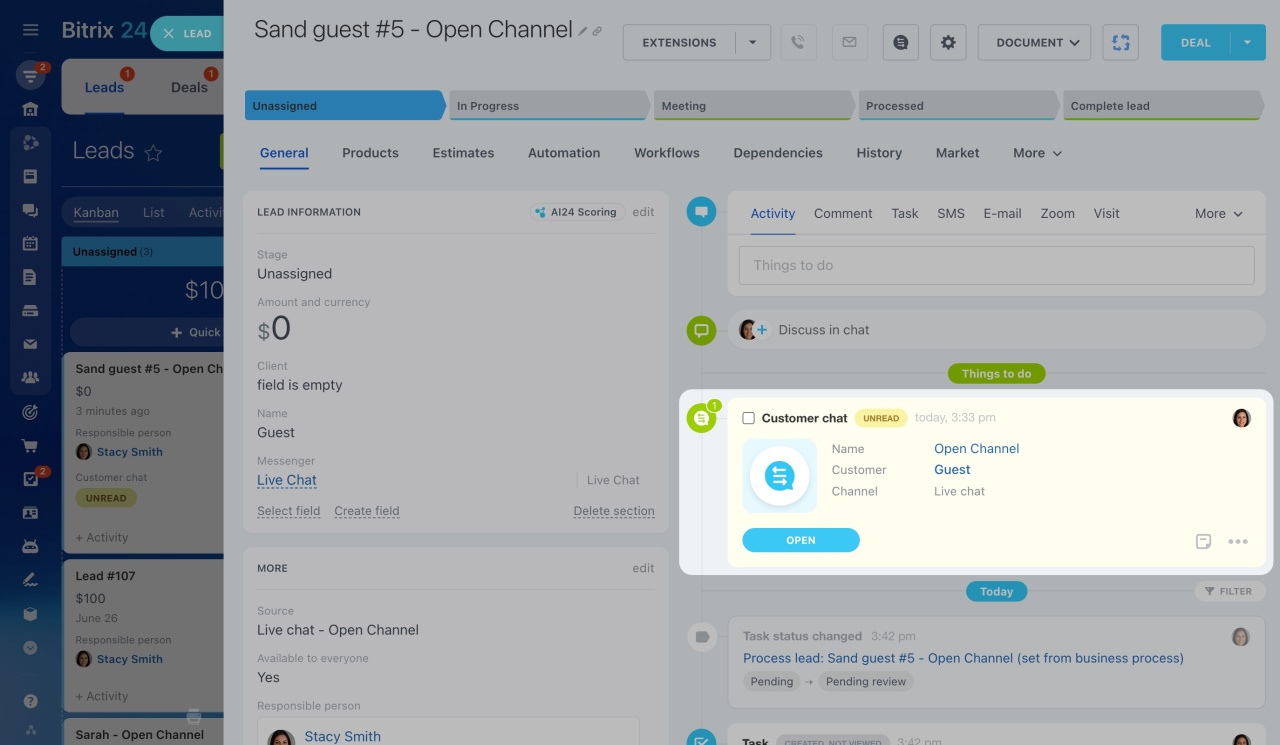
Once you open the conversation, the chat is marked as read and the Unread status disappears. However, the CRM item still shows a green counter because the chat remains an inbound activity. If the customer sends another message, the status updates automatically.
Counters in CRM
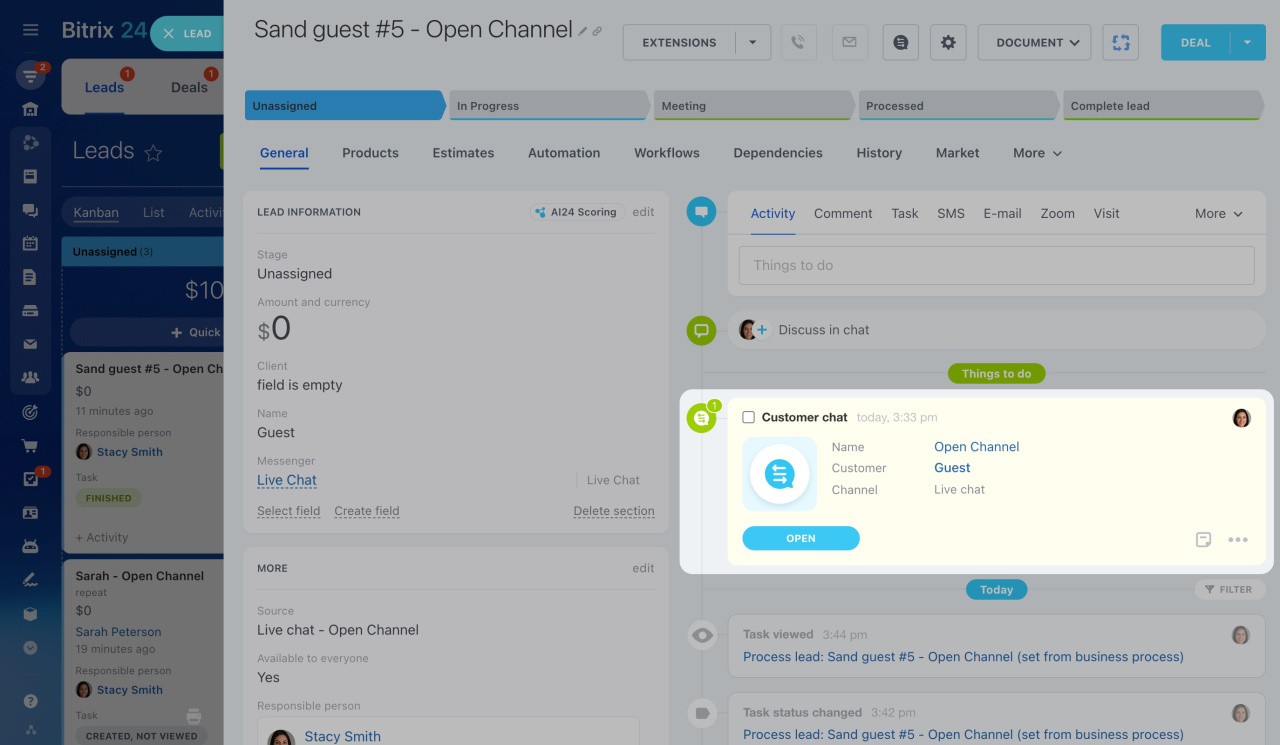
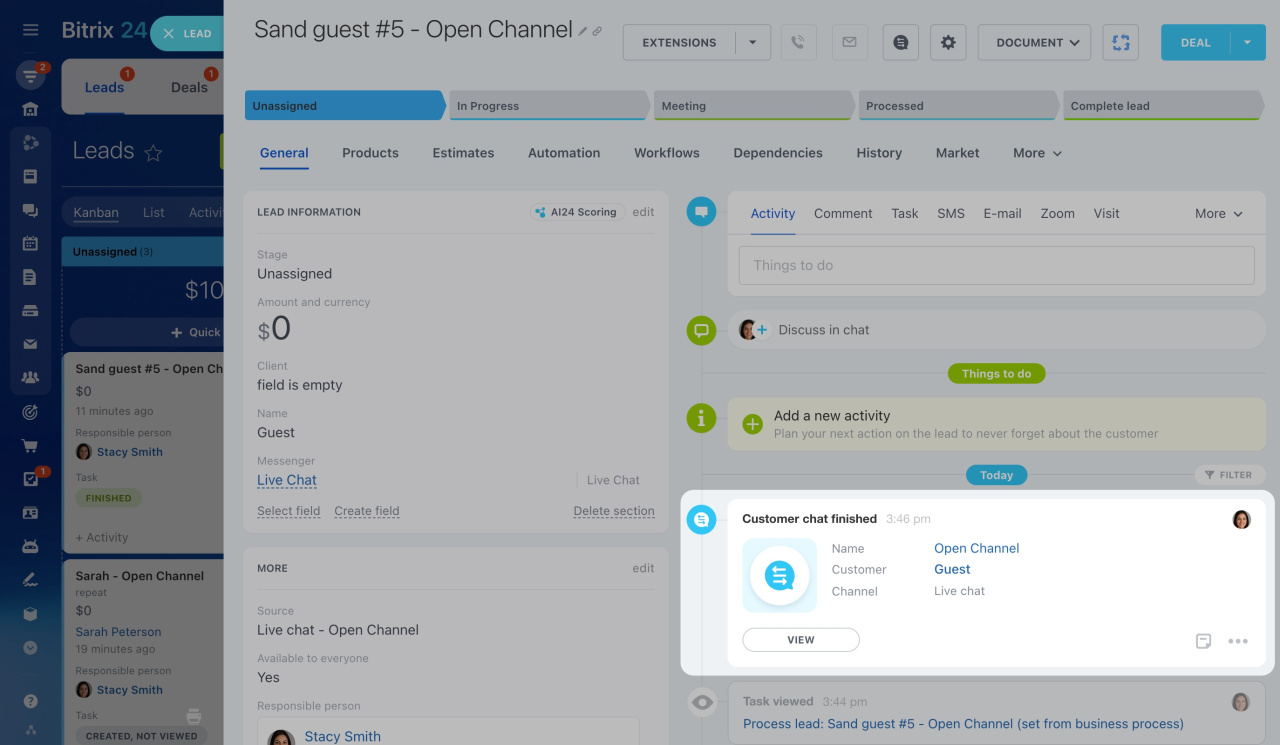
When you close a conversation, the related activity is automatically marked as completed. The same works in reverse: if you complete the activity, the conversation closes automatically.
Completed activities change from yellow to white in the CRM item timeline.
In brief
-
Use chat statuses to prioritize incoming customer messages.
-
Chat statuses appear on CRM items in the Activities or Kanban view.
-
When you close a customer conversation, the related activity is completed automatically, and vice versa.