
In CRM, a client goes through several stages — from the first contact to payment. At each stage, different elements are created: lead, deal, contact, company, quote, or invoice.
To avoid manual data transfer, Bitrix24 allows you to create one element based on another. The new form is automatically filled and retains a connection with the original. This helps move the client through the sales funnel faster and keeps the entire work history in one place.
Only the Bitrix24 administrator and employees with special permissions can create elements based on others. For example, to create a deal based on a lead, you need permissions to create deals and edit leads.
Role-based access permissions in CRM
In this article:
Which elements can be created based on others
Based on a lead, you can create:
- deal + contact + company
- deal + contact
- deal + company
- deal
- contact + company
- contact
- company
For example, when a potential client is ready to discuss a purchase, the manager can create a contact and deal directly from the lead.
Convert a lead
Based on a deal, you can create:
- Estimate
- Invoice
If a client wants more information about products, you can create an estimate based on the deal. Product information is transferred automatically.
Based on an estimate, you can create:
- deal
- invoice
When a client reviews the quote and is ready to purchase, the manager can create an invoice from the quote. The new element appears in the estimates's timeline.
Create an element based on a lead, deal, or an estimate
For example, let's see how to create an invoice based on a deal. These steps apply to other elements as well.
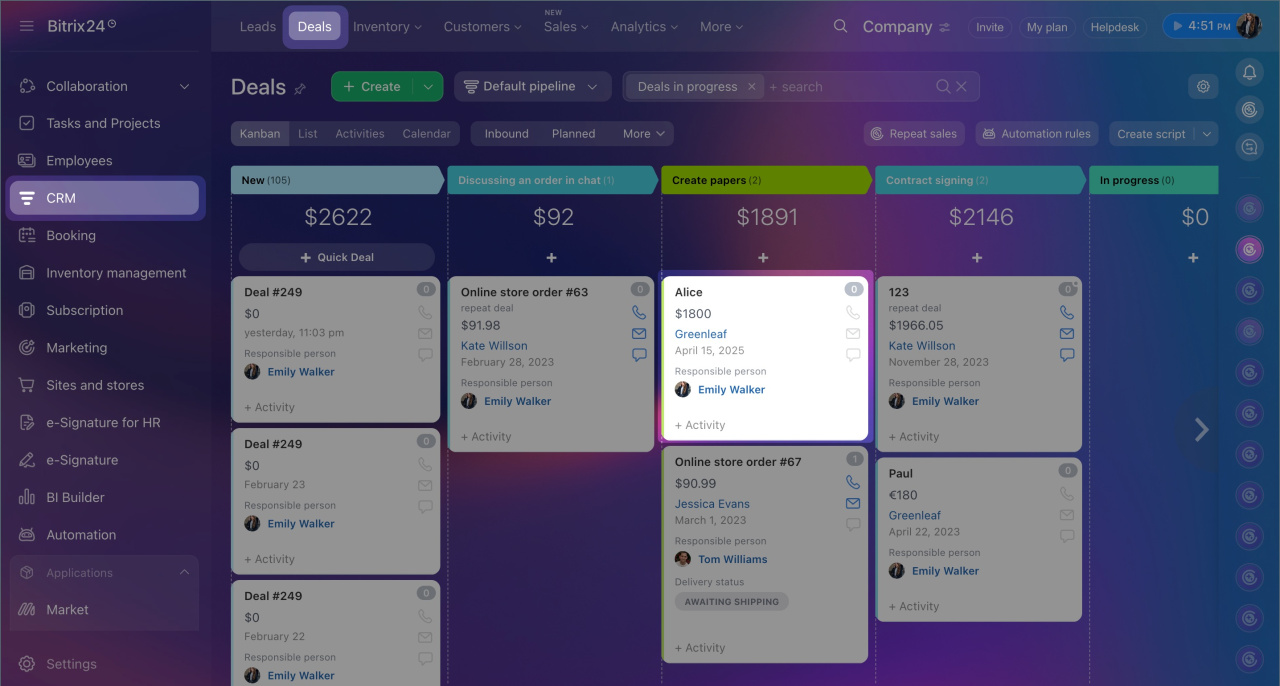
1. Go to CRM > Deals and open the one.
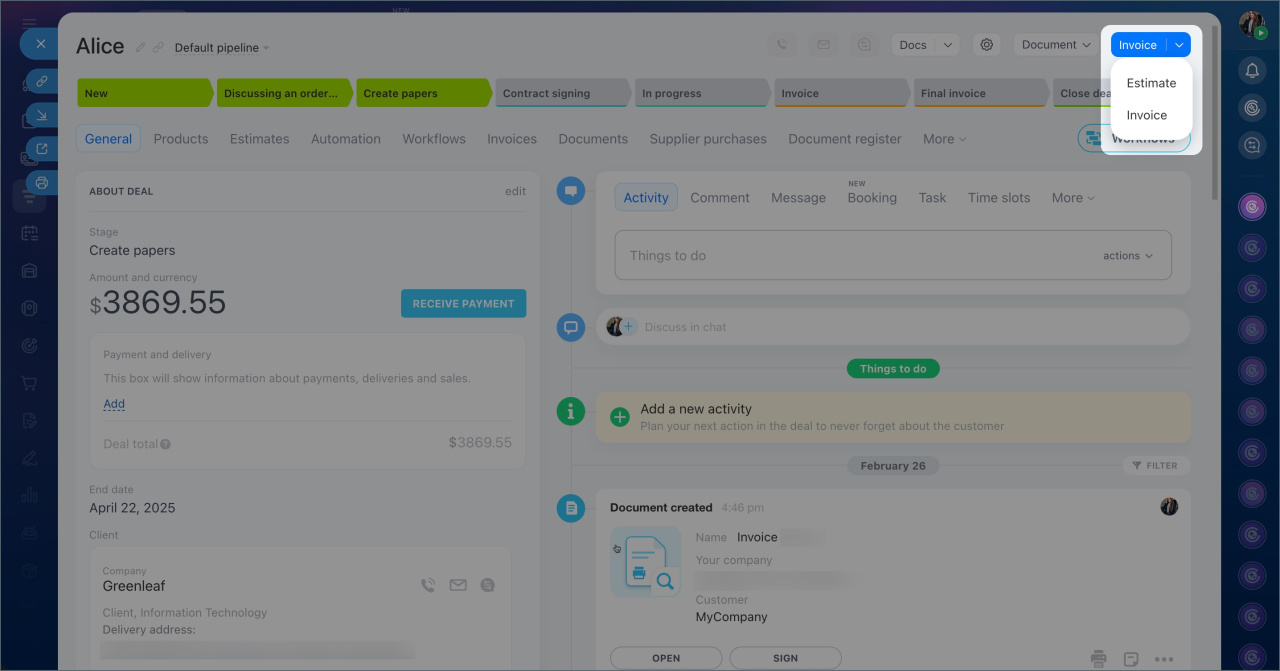
2. Click the arrow next to the create element button in the top-right corner. A list of elements that can be created based on the deal will appear.
3. Select Invoice. If the original element contains custom fields not present in the new element, you will be prompted to create similar fields. Check the box next to the element if you want to create the fields, and click Continue. An invoice will be created based on the deal, and its form will open.
Custom fields in CRM
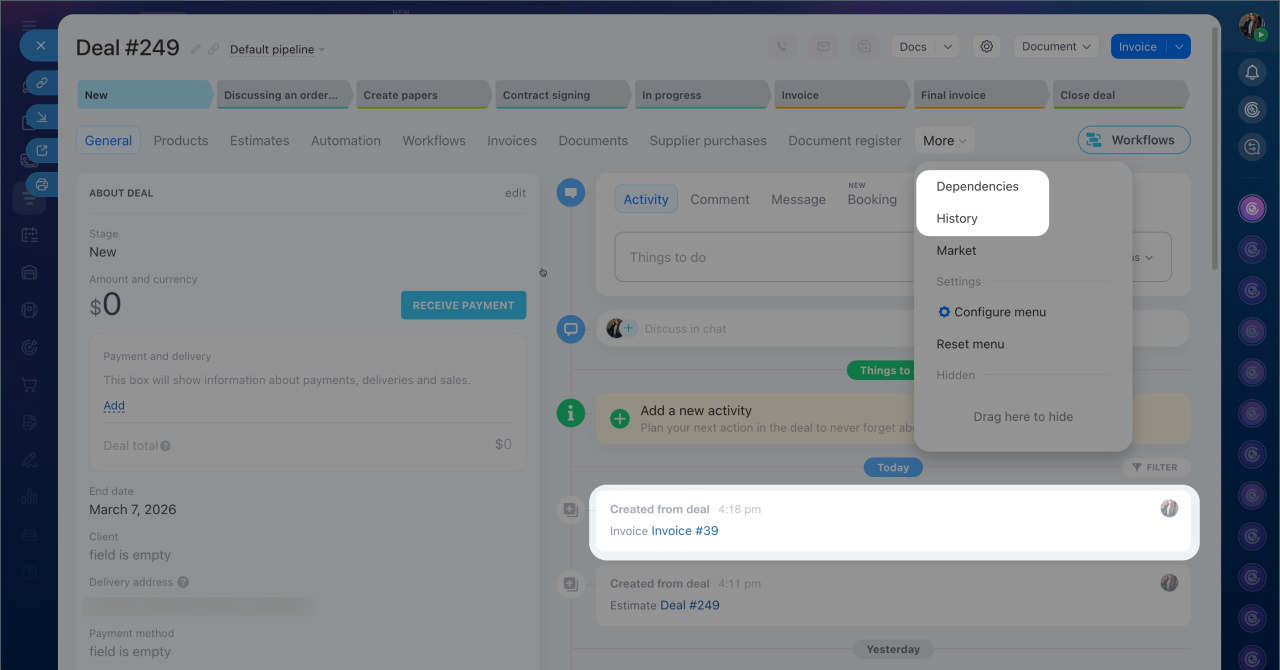
4. The created element will appear in the original form's timeline and in the History and Connections tabs. To open the new element's form, click its name.
CRM form: features and settings
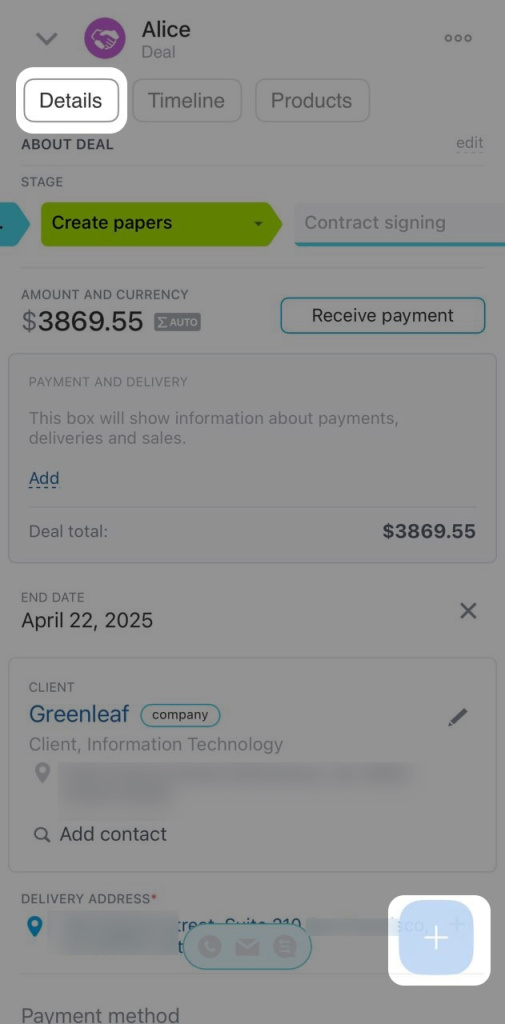
1. Go to CRM > Deals and open the one.
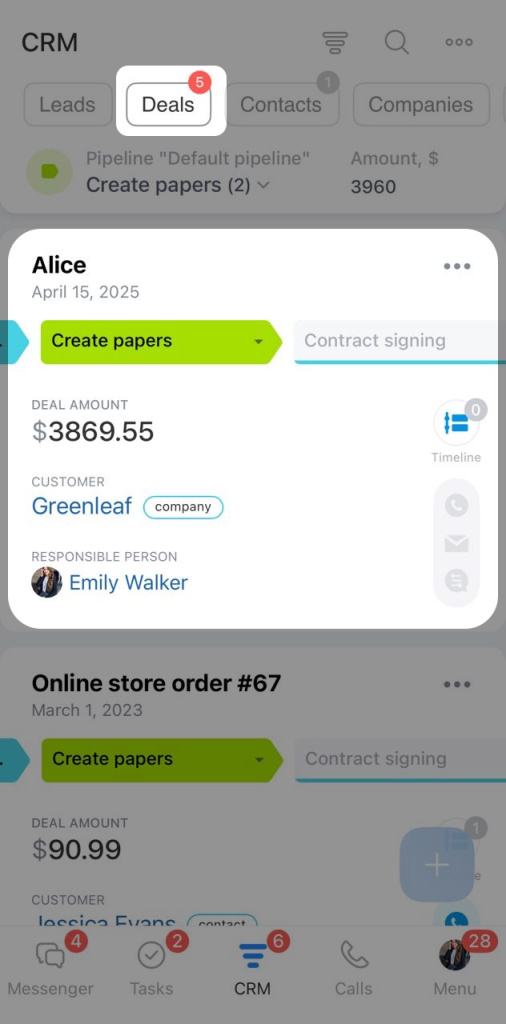
2. Tap Plus (+) in the bottom-right corner of the form.
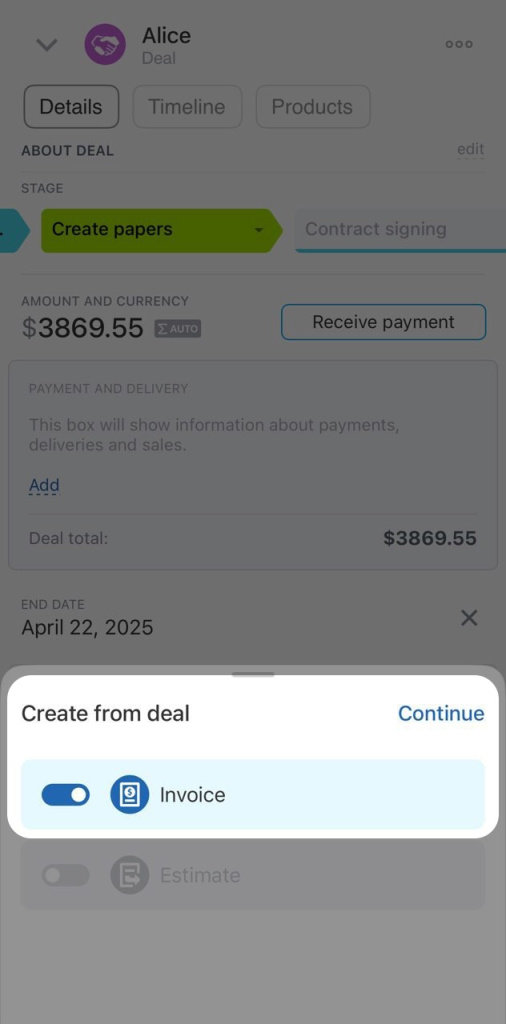
3. Select Create from > Invoice and tap Continue. If the original element contains custom fields not present in the new element, you will be prompted to create similar fields. Activate the toggle next to the element if you want to create the fields, and tap Continue. An invoice will be created based on the deal, and its form will open.
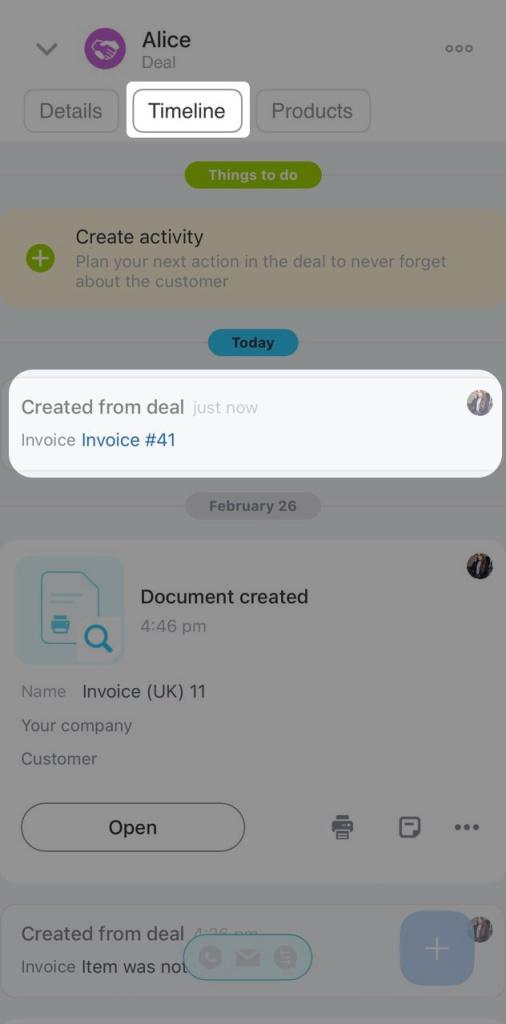
4. The created element will appear in the original form's timeline. To open the new element's form, tap its name.
In brief:
- In CRM, you can create elements based on leads, deals, and estimates. The new form is automatically filled and retains a connection with the original.
- Only the Bitrix24 administrator and employees with permissions to edit the original element and create a new one can create elements based on others.
- To create an element based on another in Bitrix24 on a computer, go to CRM > Deals, open the desired deal, click the arrow next to the create element button in the top-right corner, and select the element.
- To create an element based on another in the mobile app, go to CRM > Deals, open the desired deal, tap Plus (+) in the bottom-right corner, tap Create from, and select the element.
- If the original element contains custom fields not present in the new element, you will be prompted to create similar fields.
