
Sales Intelligence and CRM analytics help evaluate the performance of marketing, advertising, and sales. These tools show where customers come from, deal progress, and which channels deliver the best results.
In this article:
- Why two advertising sources may appear in a lead or deal form
- Why leads and deals are categorized as "Other traffic"
- Сheck a number and why it may not support call tracking
- How the "Reporting period" filter works in Sales Intelligence
- Why a lost deal may appear as won in the sales funnel
- Why CRM analytics reports lack data on new invoices
- Сreate reports for universal activities and smart processes
- Whether access to Sales Intelligence and CRM analytics sections can be restricted
- What data an employee sees in reports if CRM access is limited
- Why report dates may differ from deal form dates
- How the CRM analytics item limit works
Why two sources are listed in a lead or deal form
By default, Bitrix24 uses an attribution window for leads and deals. This setting defines the period during which customer actions are linked to advertising sources.
Why leads and deals are categorized as "Other traffic"
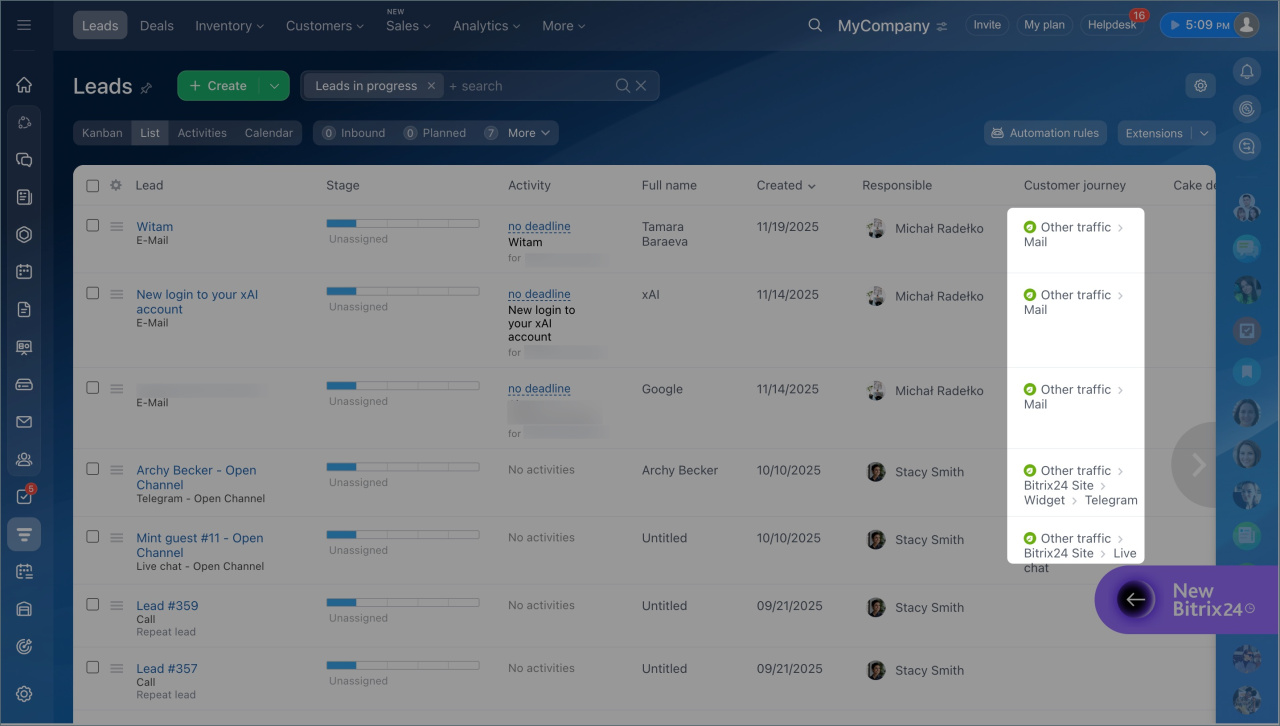
"Other traffic" appears when Bitrix24 cannot identify the source of an inquiry and link the lead or deal to one of the connected Sales Intelligence channels. The inquiry is recorded, but its parameters do not match any source in the settings.
Connect traffic sources and set UTM parameters
Why a number fails call tracking verification
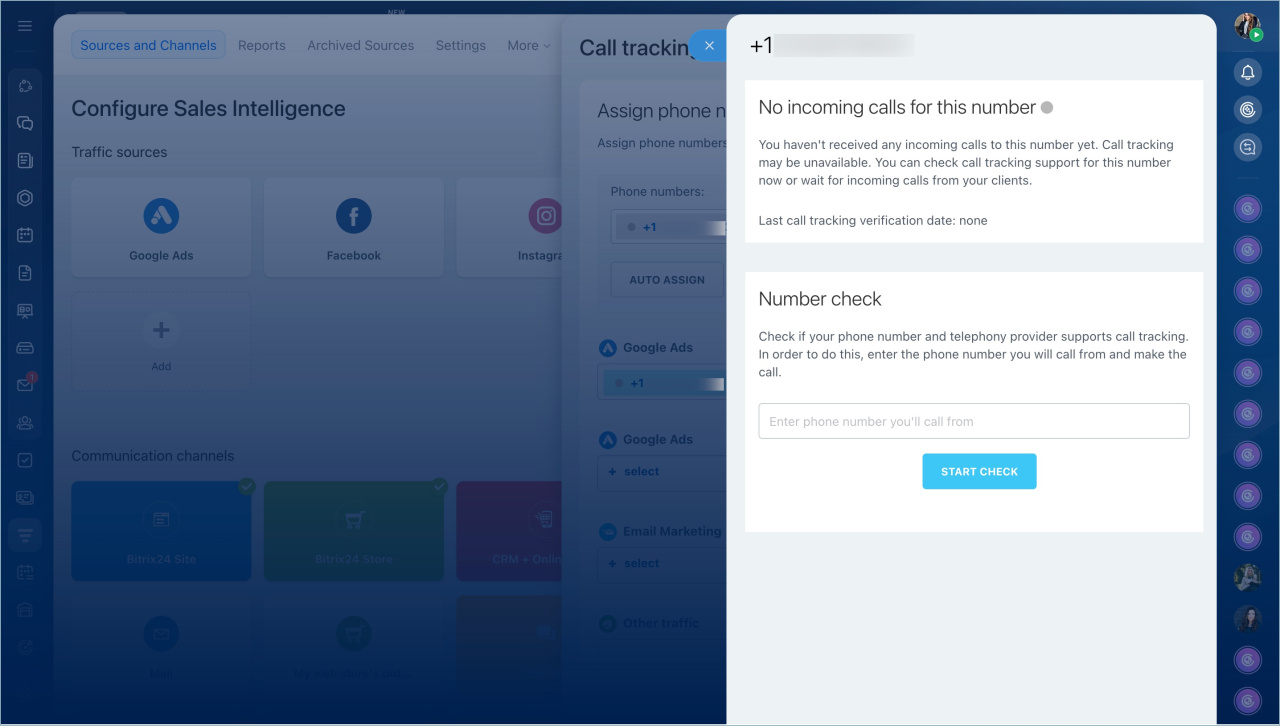
Not all operators and number types can identify the call source, so the number must be verified first. Bitrix24 includes a built-in verification tool to check if a number supports call tracking.
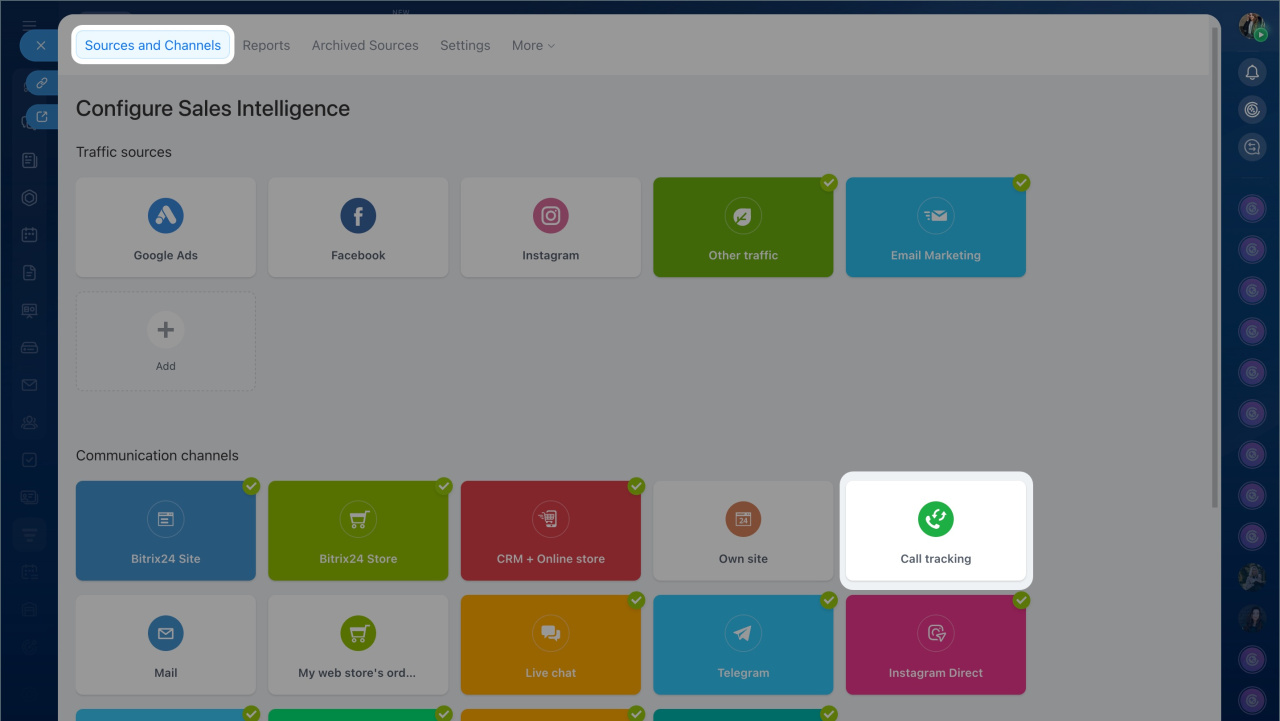
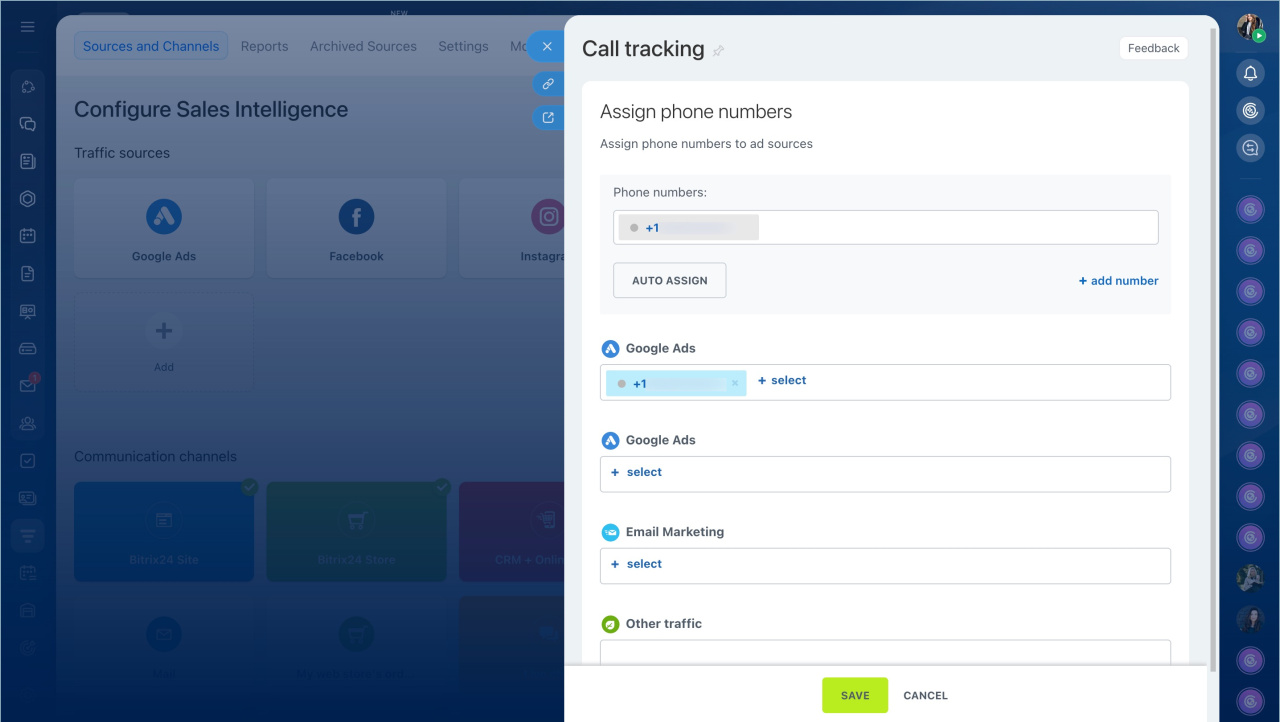
- Go to the CRM section > Analytics > Real-time analytics > Sales Intelligence > Call tracking.
- Add the number, and click Start check. The verification will indicate whether calls to this number can be tracked.
Call tracking
Check call tracking support

How the "Reporting period" filter works in Sales Intelligence reports
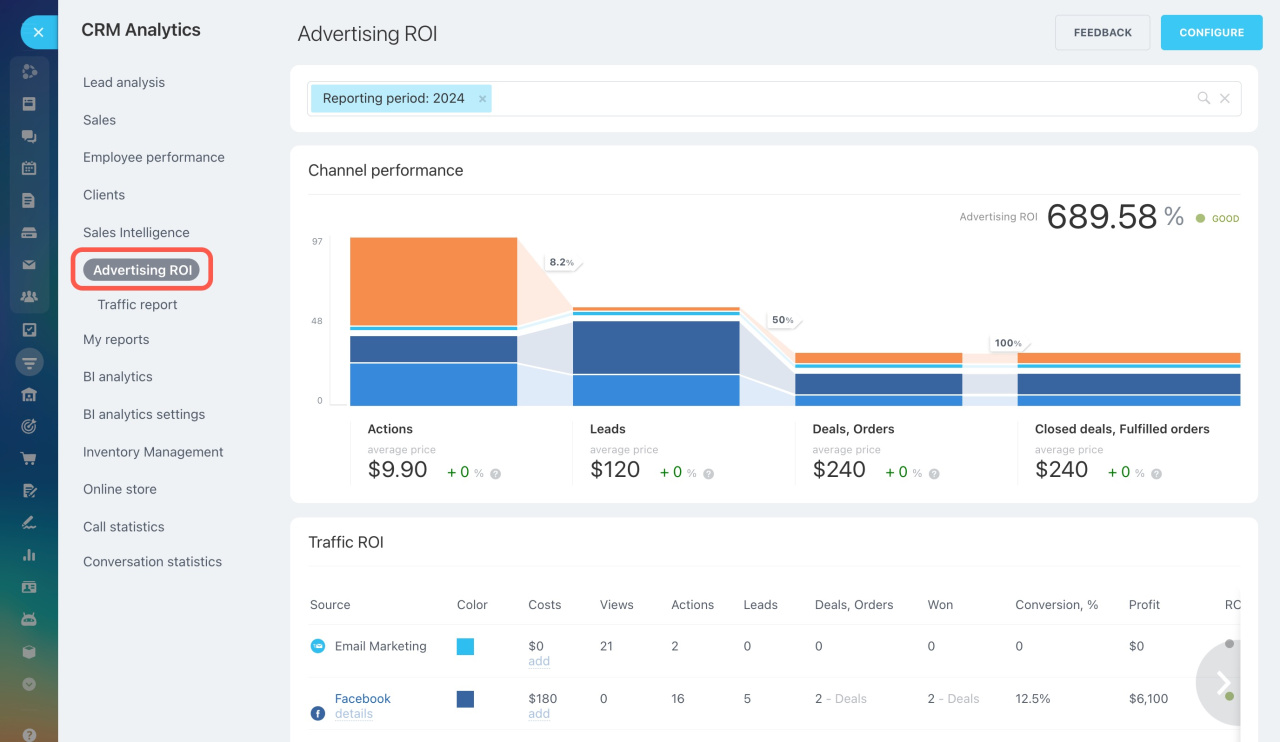
The "Reporting period" filter selects deals based on their creation date. This aligns with the logic of the reports: Sales Intelligence calculates advertising expenses by month and compares them with the number of customers acquired during the same period. Conversion and acquisition cost data are therefore based on the creation date of the deal or lead.
Sales Intelligence analytical reports
Why a lost deal appears as won in the sales funnel
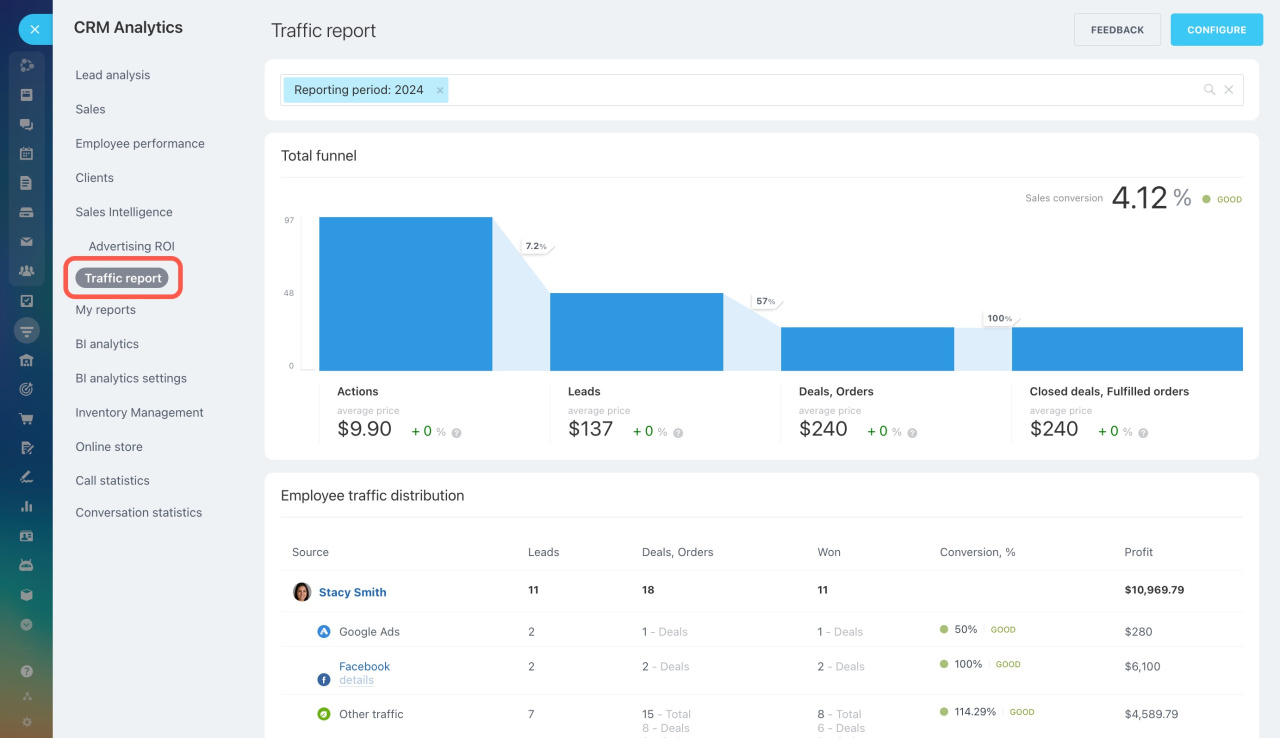
The sales funnel in CRM analytics displays all stages a deal has gone through. The report uses historical data, recording the deal's journey rather than its current status.
If a deal reached the final "Success" stage but was later reopened or marked as "Lost", the funnel will still show that the deal passed through the success stage. This does not mean the deal is considered won in the final statistics. The funnel reflects the deal's journey to help analyze its path and identify stages where sales often stall.
Sales Intelligence analytical reports
To view the current status of deals, use the CRM report builder or BI Builder.
Reports in CRM
BI Builder
Why reports lack data on new invoices
CRM analytics only supports the old version of invoices. New invoices are not displayed in these reports. To analyze them, use BI Builder or BI analytics with the dataset crm_dynamic_items_31.
BI analytics in Bitrix24
Getting started with BI Builder
BI Builder datasets: Invoices and estimates

Create reports for universal activities and smart processes
Universal activities and smart processes can be analyzed in BI Builder or BI analytics. Use the corresponding datasets for this purpose.
- Universal activities — data is stored in the
crm_activitydataset. The action type is determined by the fieldsPROVIDER_ID = CRM_TODOandPROVIDER_TYPE_ID = TODO.
BI Builder datasets: Activities, CRM stages, and CRM activity associations - Smart processes — use datasets
crm_dynamic_items_*, where*is the smart process ID.
BI Builder datasets: Smart Process Automation
Can access to Sales Intelligence and CRM analytics sections be restricted
Access to these sections cannot be restricted — there are no access permission settings for these tools. Reports can be viewed by administrators and regular employees.
Will an employee view data in reports if they lack access to CRM items
Data visibility in CRM analytics and CRM report builder depends on CRM access permissions.
Role-based access permissions in CRM
There are the following permissions:
- to own deals
- to department's deals
- to all deals
Why report dates differ from deal form dates
Data is transmitted to analytics systems in the server's UTC+3 time zone. In the deal form, time is displayed according to your time zone. Therefore, the report date and deal form date may not match. For example, if a deal is created at 11:00 PM your time, it may already be the next day in UTC+3. The report will show the deal under 11/21/2025, while the form will display 11/20/2025.
Time zone in Date/time fields in BI Reports
Why CRM analytics shows a warning about upgrading to a higher plan
CRM analytics has a limit on the number of records per report. The limit is calculated separately for each item type: leads, deals, contacts, and companies. If the limit is exceeded for any type, reports will stop generating, even if there is room for others. For example, if the lead limit is exceeded, including records in the recycle bin, analytics will not work.
CRM Analytics limits
