
Connect your Facebook Page to Bitrix24 Open Channels to receive and manage Instagram comments directly in Bitrix24.
What you can do after connecting Instagram:
- Receive Instagram comments in real time
- Automatically assign conversations based on your distribution settings
- Reply to comments from Bitrix24 Messenger
- Automatically create leads in CRM
To connect Instagram to Bitrix24, you need:
- A Facebook Page
- An Instagram Business account
Step 1. Create a Facebook Page
You need a Facebook Page before connecting Instagram.
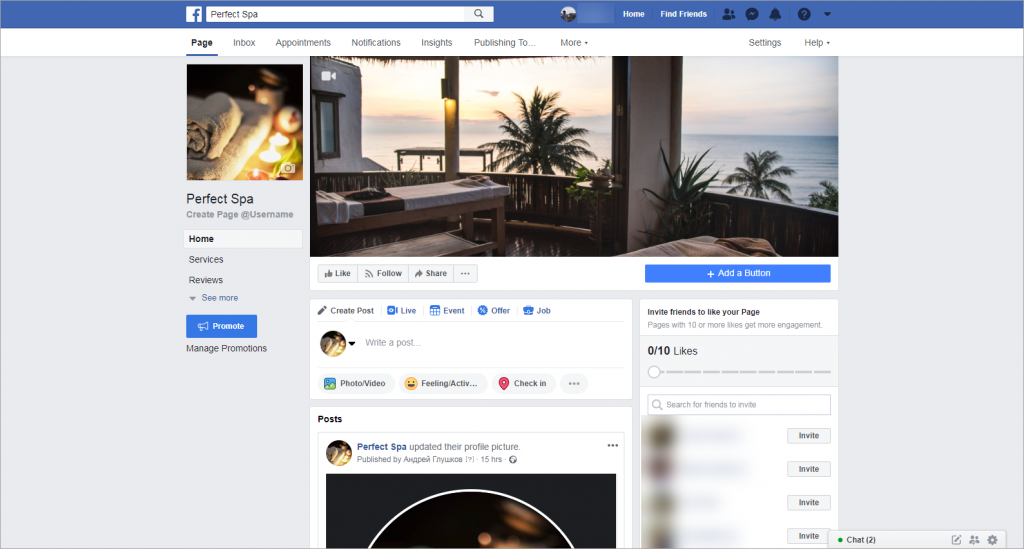
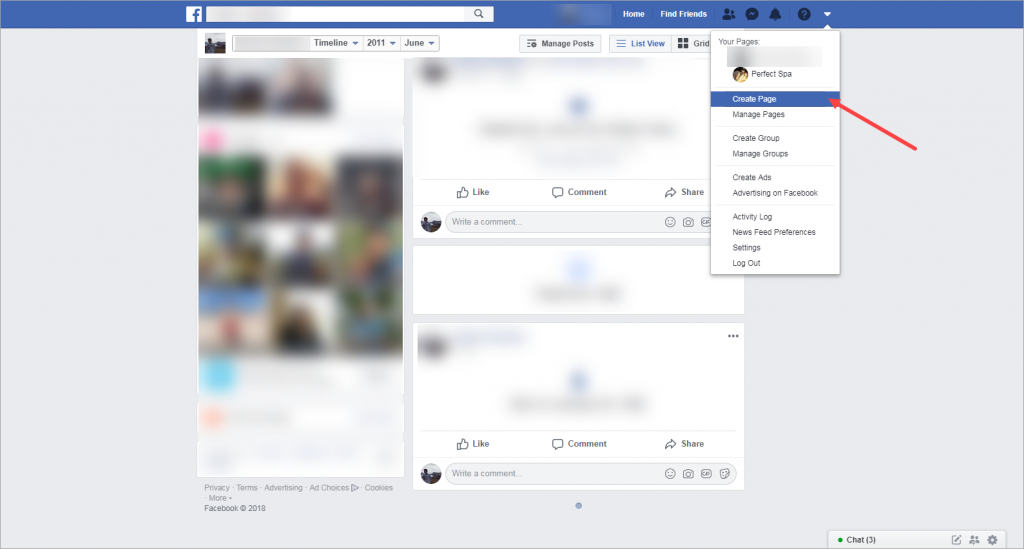
Create a page from your Facebook profile. For instructions, see the Facebook Help Center.
Step 2. Link your Instagram account to the Facebook Page
Make sure your Instagram account is personal before linking it. During the connection process, it will be converted to a Business account automatically. If you're not sure about the type of your Instagram account, see the article How to convert personal Instagram account to Instagram Business account.
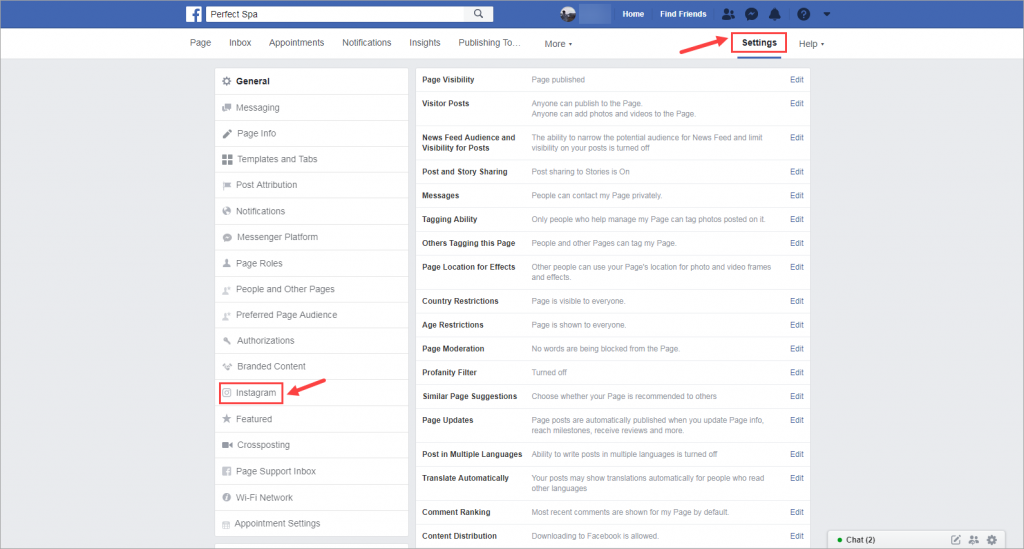
- Open your Facebook Page.
- Go to Settings > Instagram.
- Click Connect Account.
- Log in to Instagram and complete the setup.
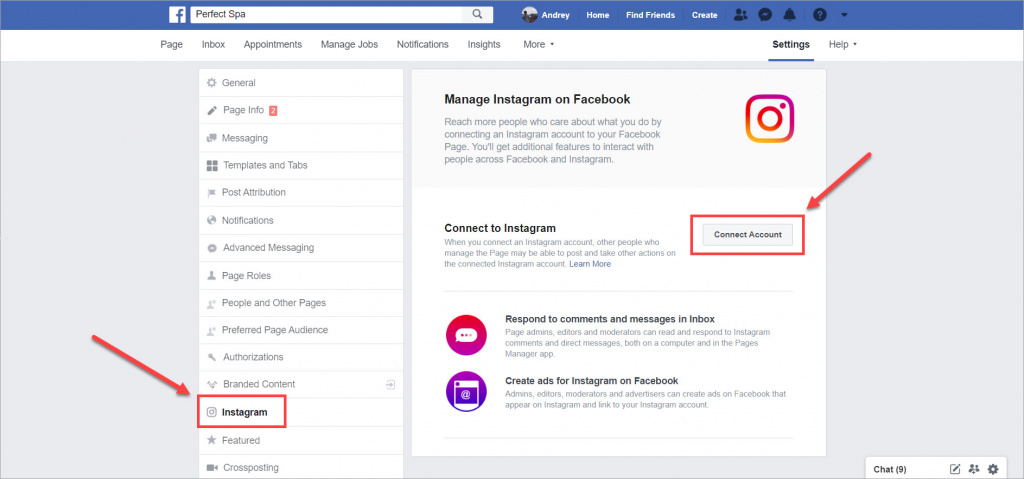
After setup, your Instagram Business account will be linked to the Facebook Page.
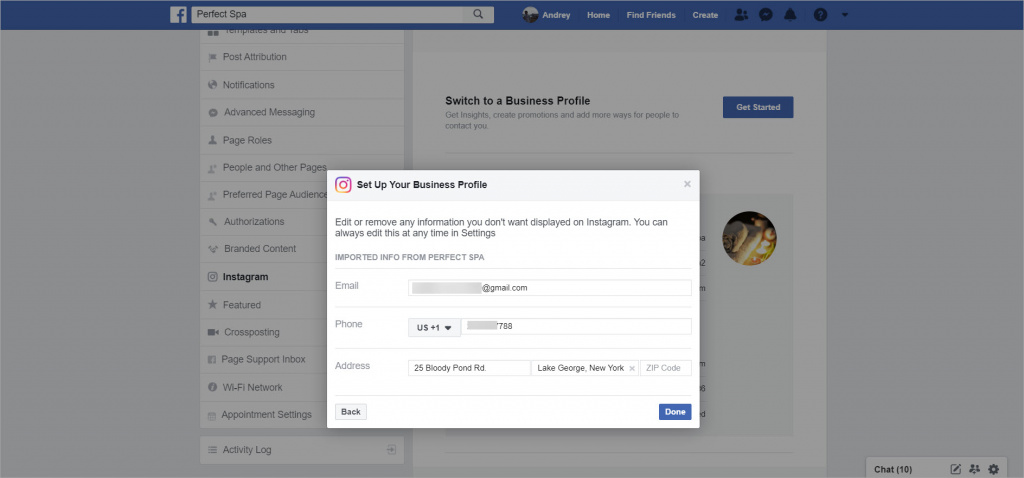
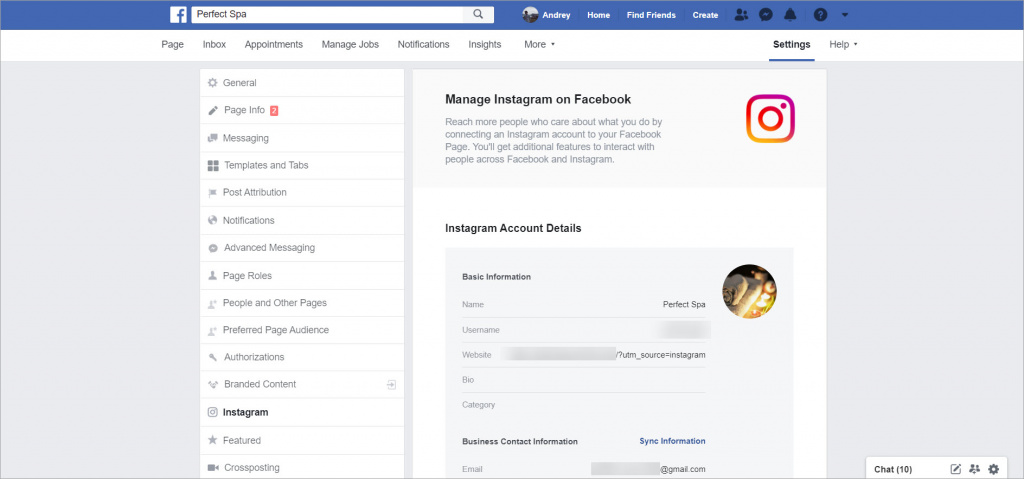
One Instagram Business account can be connected to only one Facebook Page. To use it with another page, disconnect it first.
Step 3. Connect the Instagram Business account to Bitrix24
- Log in as a Facebook Page administrator.
- Go to Contact Center.
- Select Instagram Business.
- Choose an Open Channel.
- Add users to the queue.
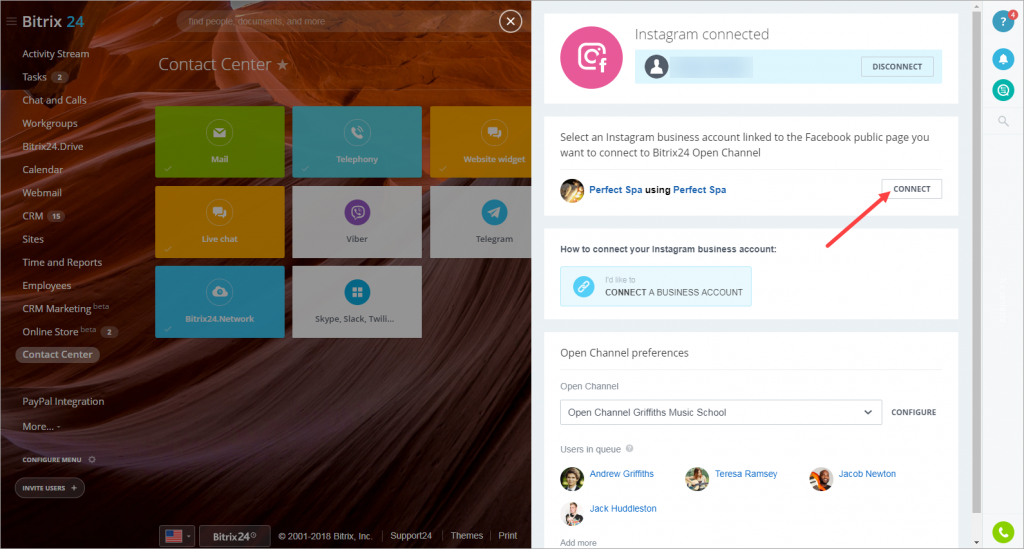
- Click Connect.
- Log in to Facebook.
- Select the Facebook Page linked to your Instagram Business account.
- Click Connect.
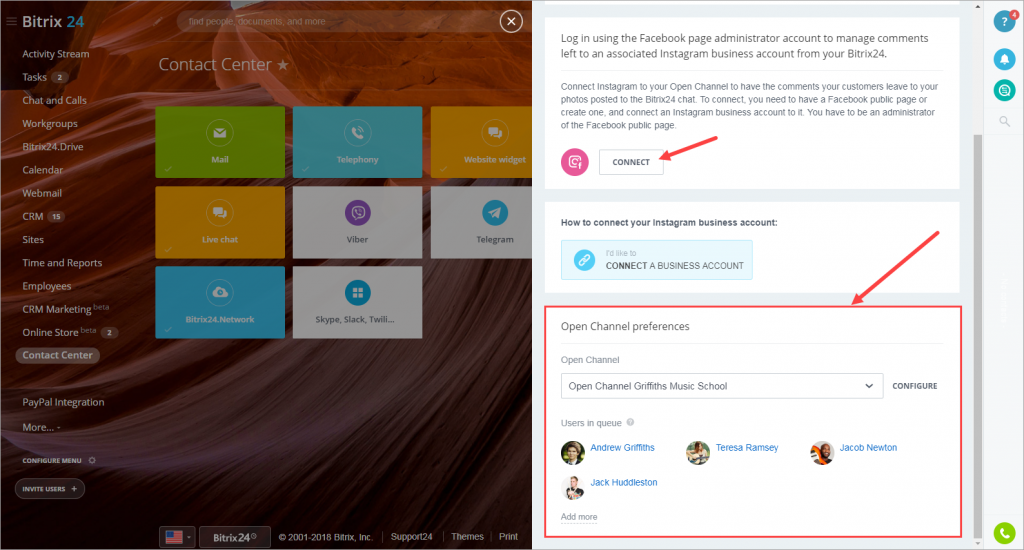
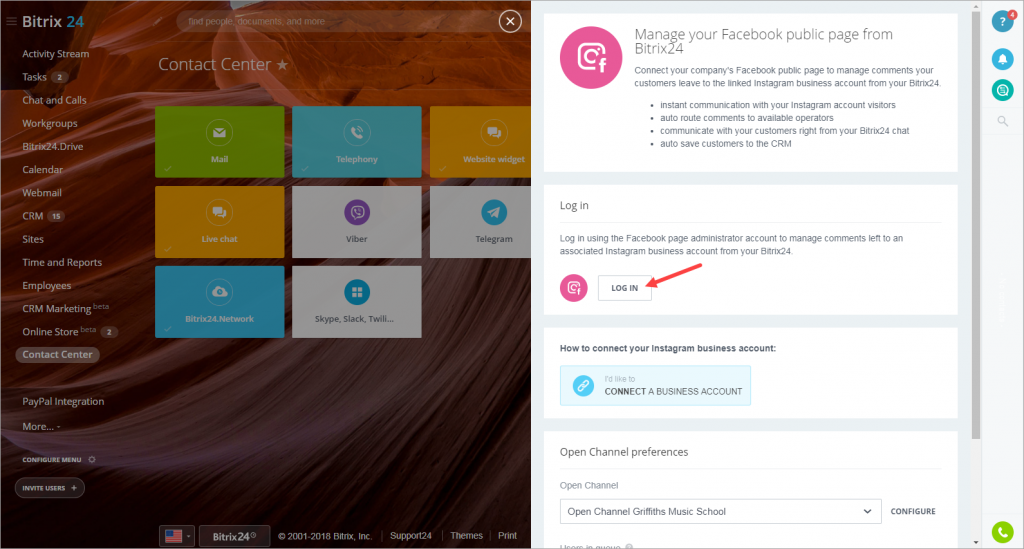
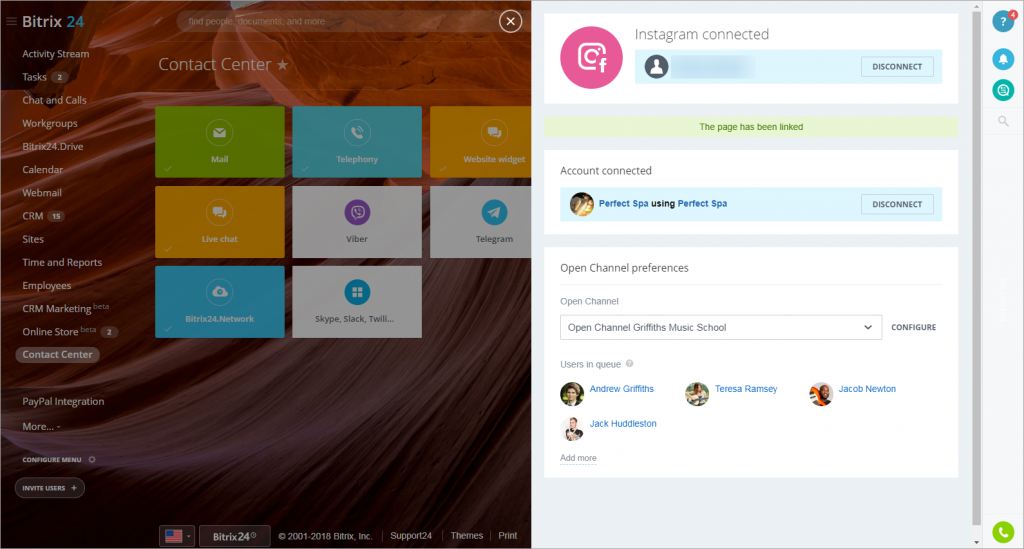
Your Instagram Business account is now connected to Bitrix24.
How it works
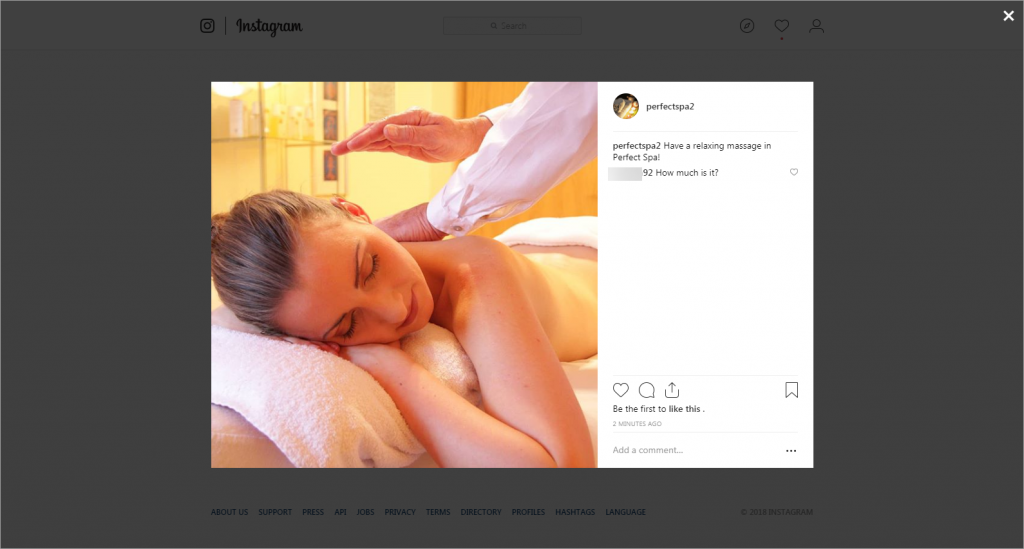
When a customer comments on your Instagram post:
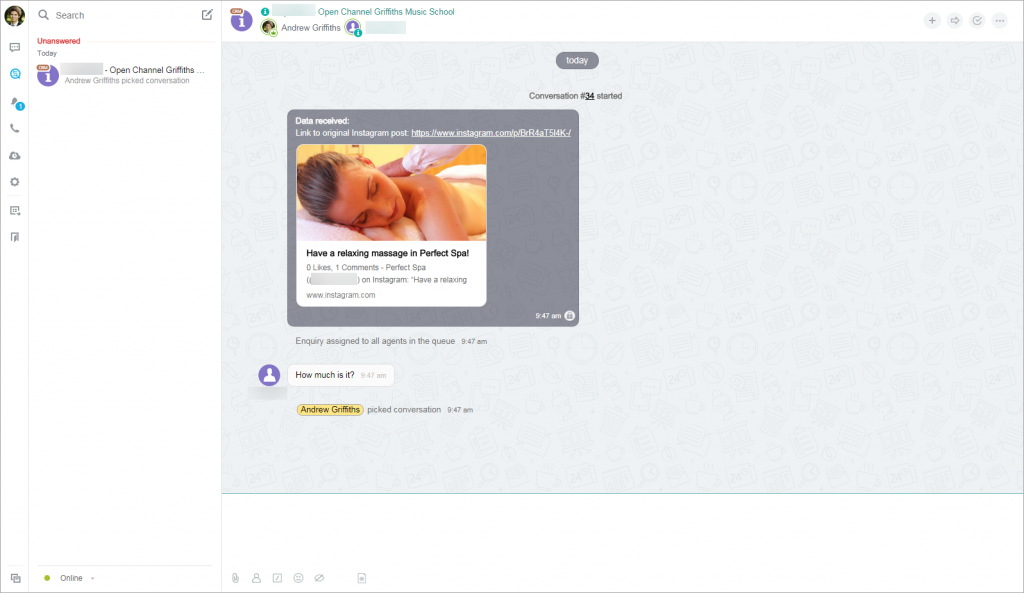
- The message appears in Bitrix24 Messenger.
- A user from the queue responds to the comment.
- The conversation is saved in CRM.
- If the customer is new, Bitrix24 automatically creates a lead.
Important notes
- Each Instagram post comment creates a separate chat and is saved in CRM.
- Comments on ads are not sent to Open Channels.
- This integration works only with post comments. To process direct messages, connect the Instagram Direct channel.
- Bitrix24 receives comments in real time.
- Facebook authorization remains active for 60 days. To change connection settings later, log in again as the Facebook Page administrator.
- Only new comments are added to CRM.
- You can send up to 60 replies per hour.
- Instagram limits comments to 300 characters. Longer replies are split into several messages.
- Replies can include up to four hashtags (#). Comments with a larger number of hashtags won't appear on Instagram.
- Only one link is allowed per reply.
- Avoid writing replies in all capital letters.
- You can mention Instagram users in replies.
- Messages from Instagram Direct are not processed due to API limitations.
- You can delete messages in this Open Channel.
- Automatic actions configured for Open Channels do not apply to this channel.