In Bitrix24, you can create invoice and estimate templates in just a few steps. Select a document type, and the system generates the template automatically.
Create a template
The steps are the same for invoices and estimates. Here’s how to create an invoice template:
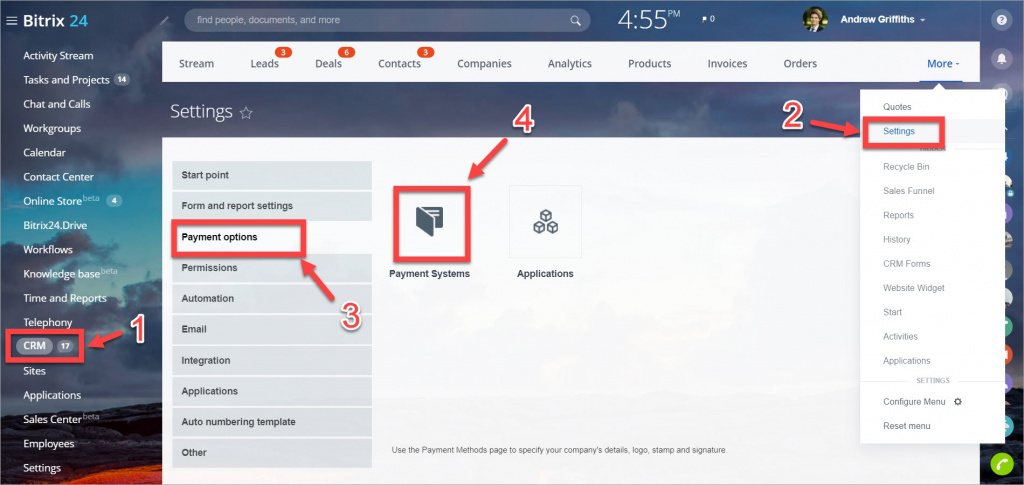
- Go to CRM > Settings > Payment options > Payment Systems.
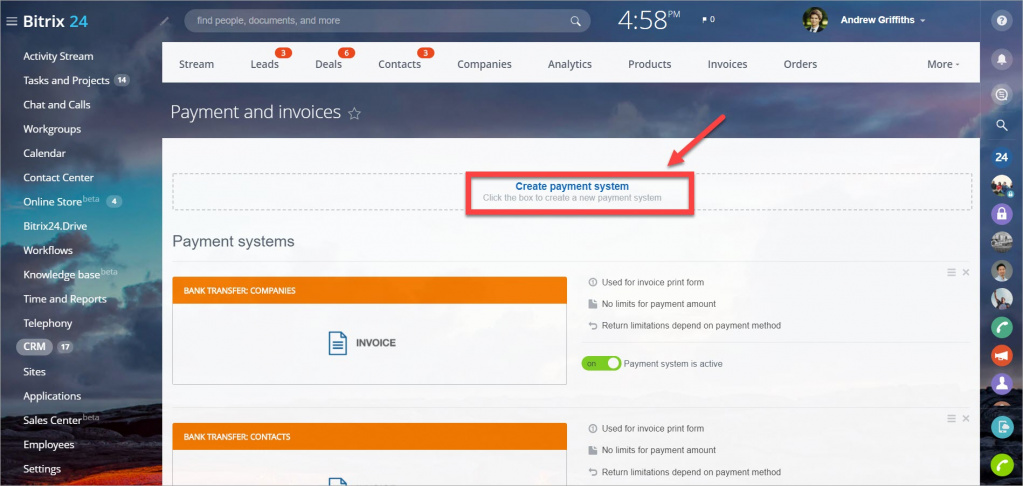
- Click Create payment system.
- Enter a name and description for the template.
- Select a handler (Invoice or Estimate).
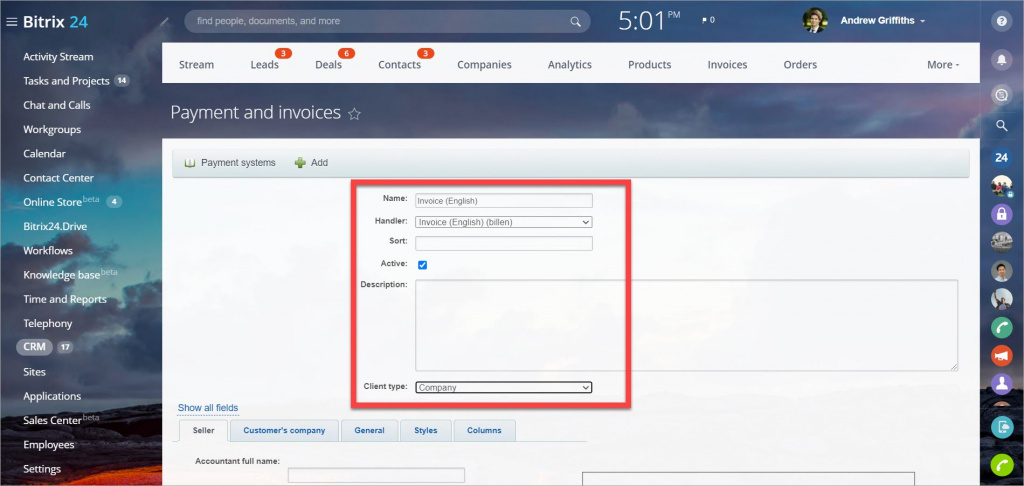
You can create templates in different languages. Choose the language in the handler settings.
In the Client type field, select who the template is for: a contact or a company.
Configure template fields
Customize how your template looks. A preview appears on the right side of the screen.
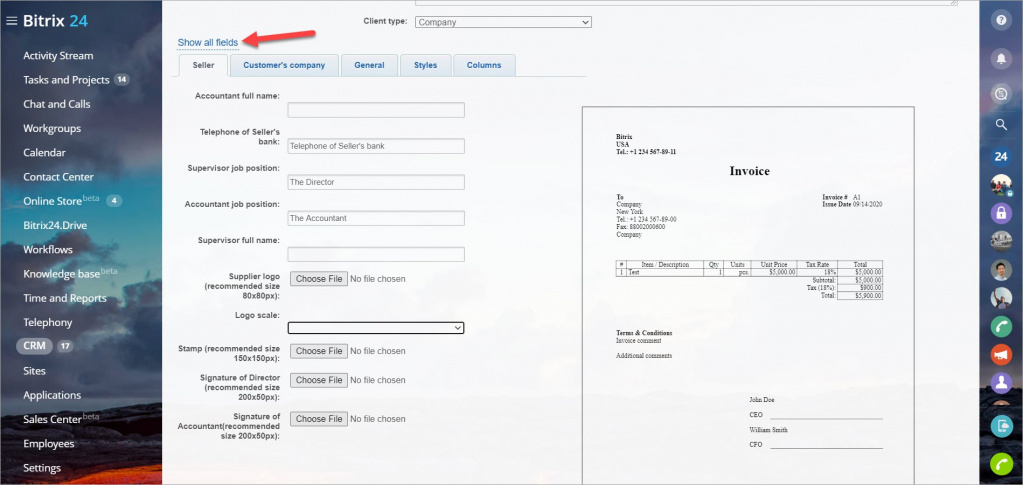
Click Show all fields to edit any field.
- Open the Seller tab to add details like job titles, logo, stamp, and signatures.
- Use the Customer’s company tab to enter customer information.
- In the General tab, set the document title and add comments. You can also turn the Show summary option on or off.
- In the Styles section, adjust the design and upload a background image.
- In the Columns section, choose which columns and product properties to include.
Use a template
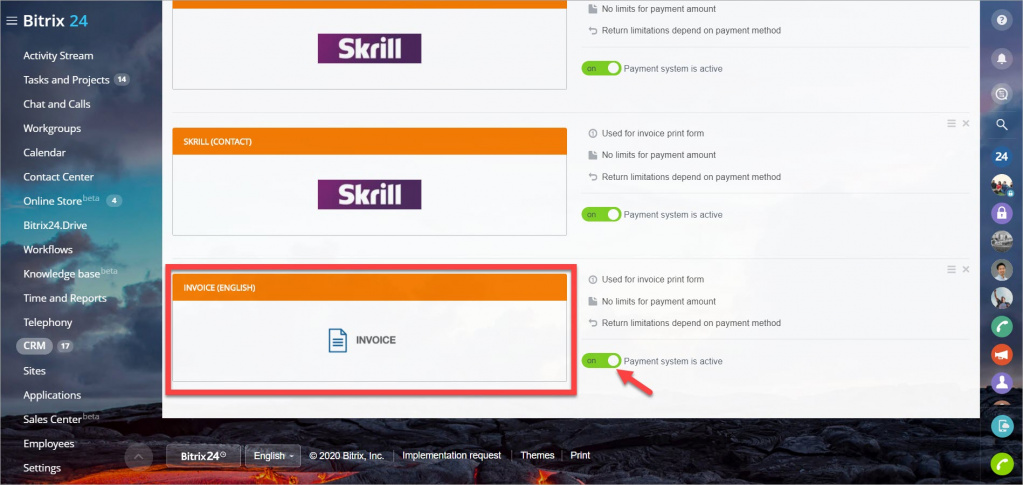
After you save the template, it appears in the list of payment systems. Make sure it’s active.
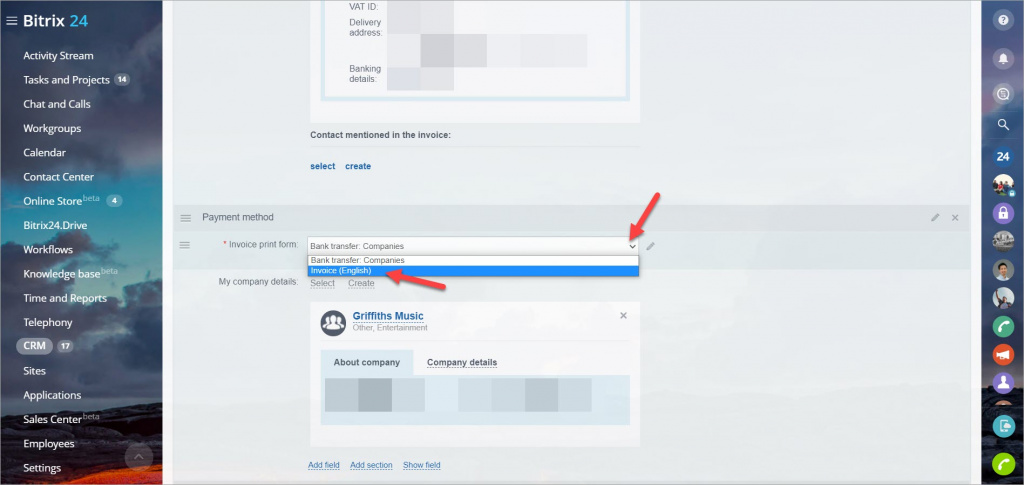
- When creating an invoice, select the template in the Payment method section.
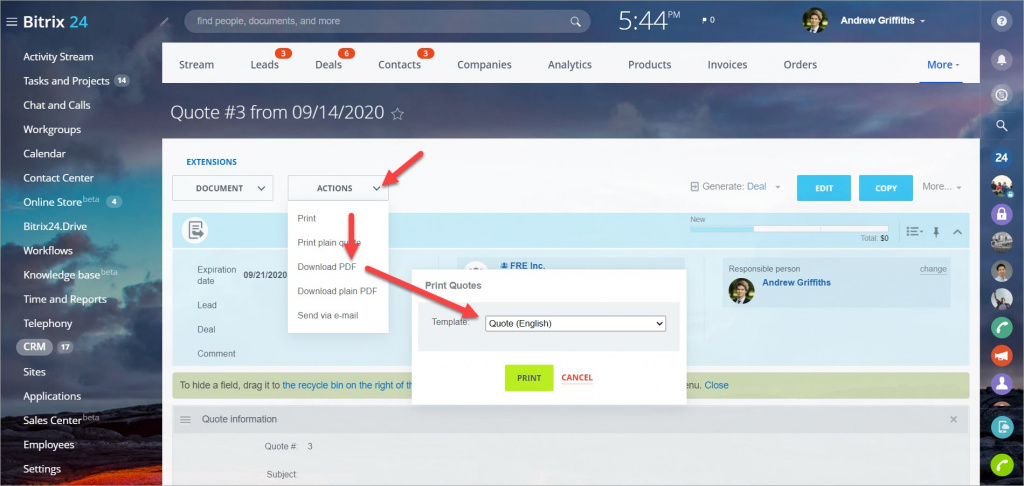
- For estimates, choose a template when sending or printing: Actions > Download PDF > select a template.