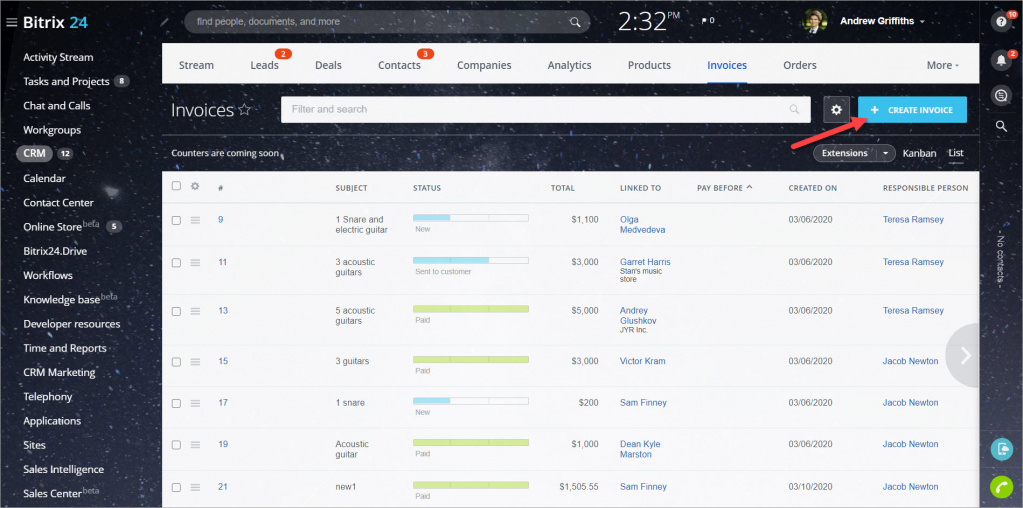
After you close a deal, create an invoice.
Invoice statuses
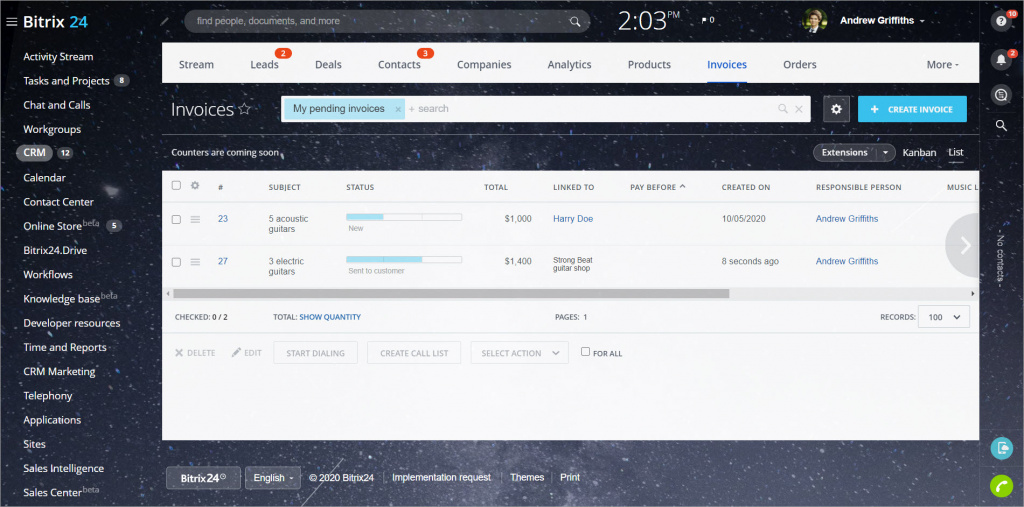
Invoices in Bitrix24 have different statuses that reflect their progress.
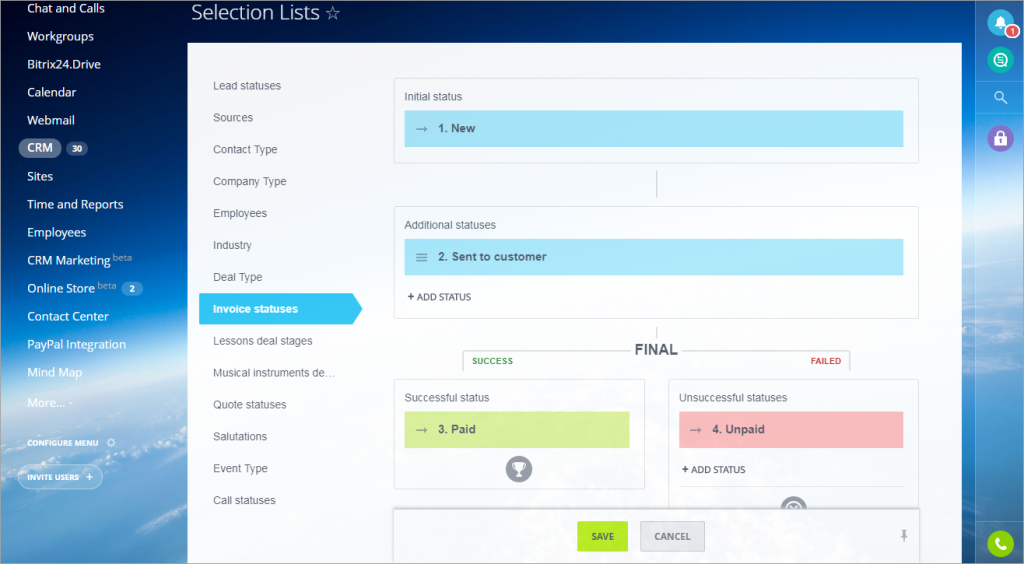
When you create an invoice, it is set to New.
After you send it to a customer, the status changes to Sent to customer.
The final statuses are Paid and Unpaid. You can customize invoice statuses in CRM > Settings > Start point > Statuses and Dropdowns > Invoice statuses.
Statuses and dropdowns (selection lists)
List view, kanban and reports view
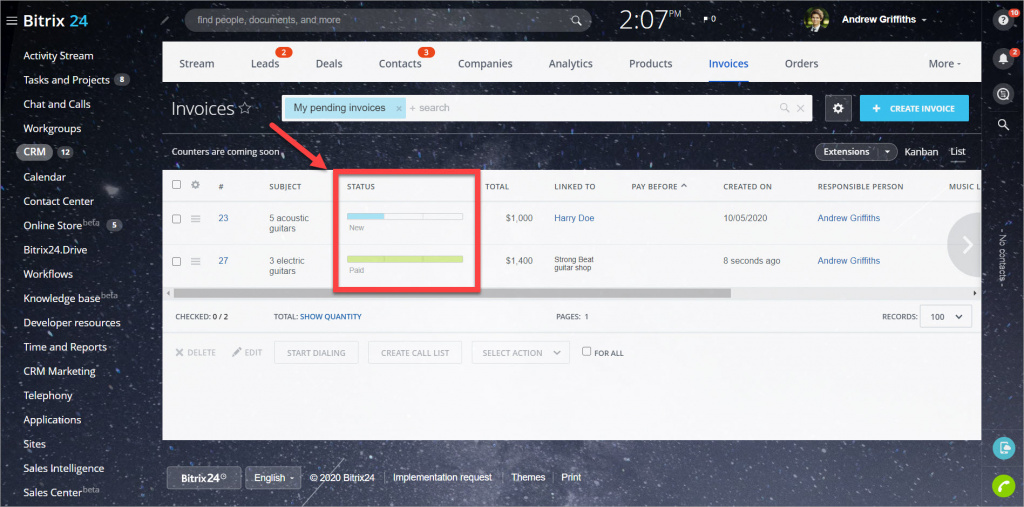
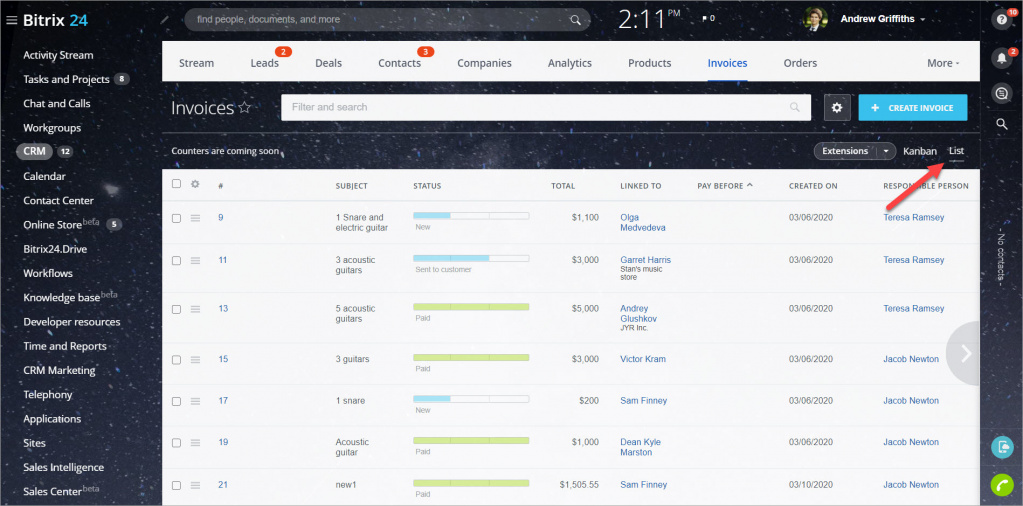
To view invoices as a list, go to CRM > Invoices > List.
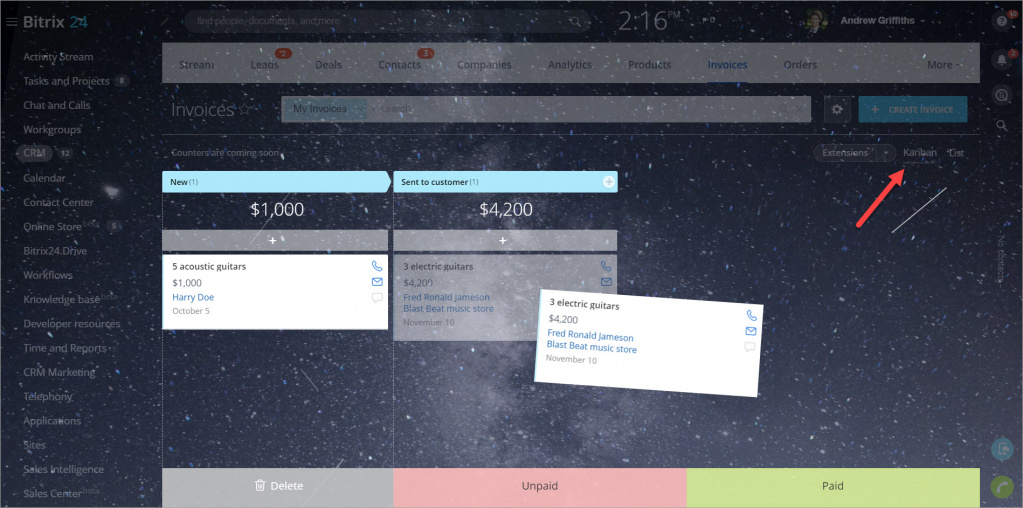
You can also switch to the Kanban view to track invoices by status.
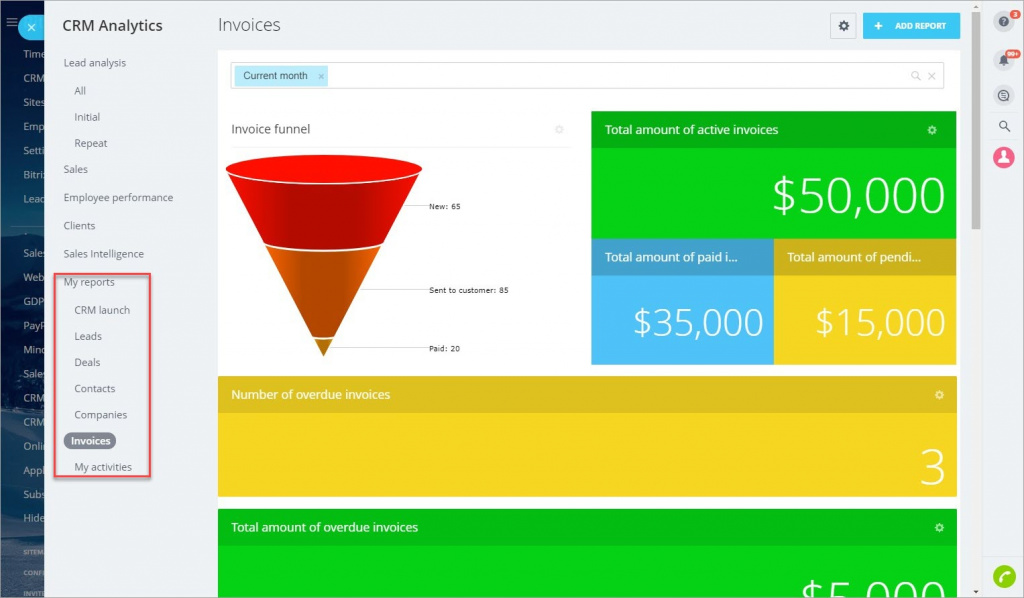
To open reports, go to CRM Analytics > My reports > Invoices.
Invoice analytical reports (dashboards)
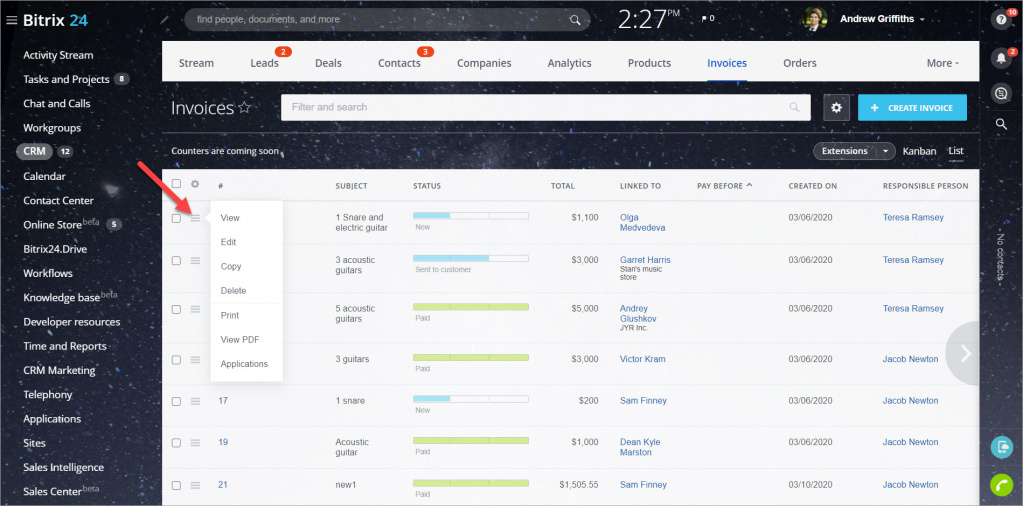
Available actions
Open the actions menu to view, edit, copy, or delete an invoice.
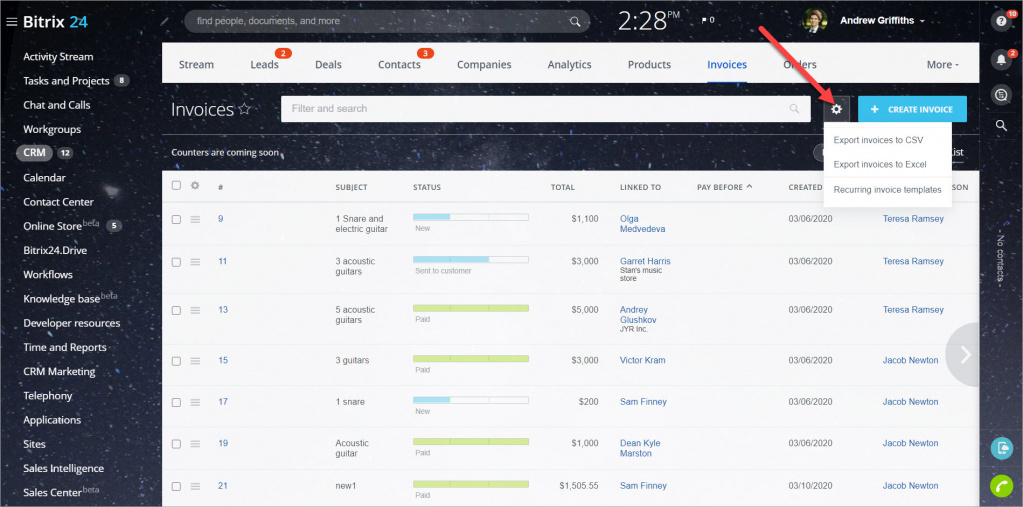
Use the gear icon to export invoices or manage recurring invoice templates.
Export CRM data and Recurring Invoices
To create a new invoice, click Create invoice.