
Connect Microsoft Power BI to Bitrix24
In the BI analytics section, you can connect your analytics system and export data from Bitrix24. Then you can build reports in Microsoft Power BI, publish them to your account, and share them with your team.
Follow these steps to connect Microsoft Power BI.
Step 1. Install Microsoft Power BI Desktop
Download and install the free Microsoft Power BI Desktop app:
Microsoft Power BI Desktop app.
Step 2. Get your connection data
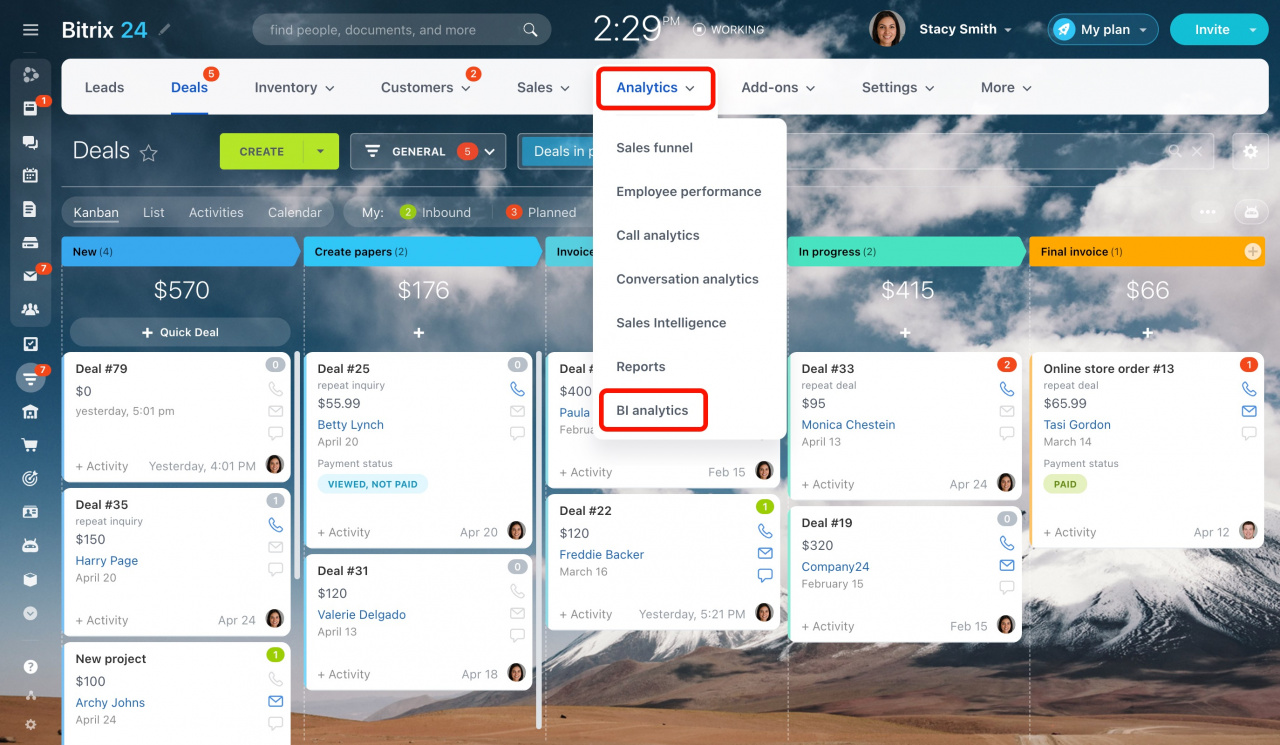
In Bitrix24, go to:
CRM > Analytics > BI analytics
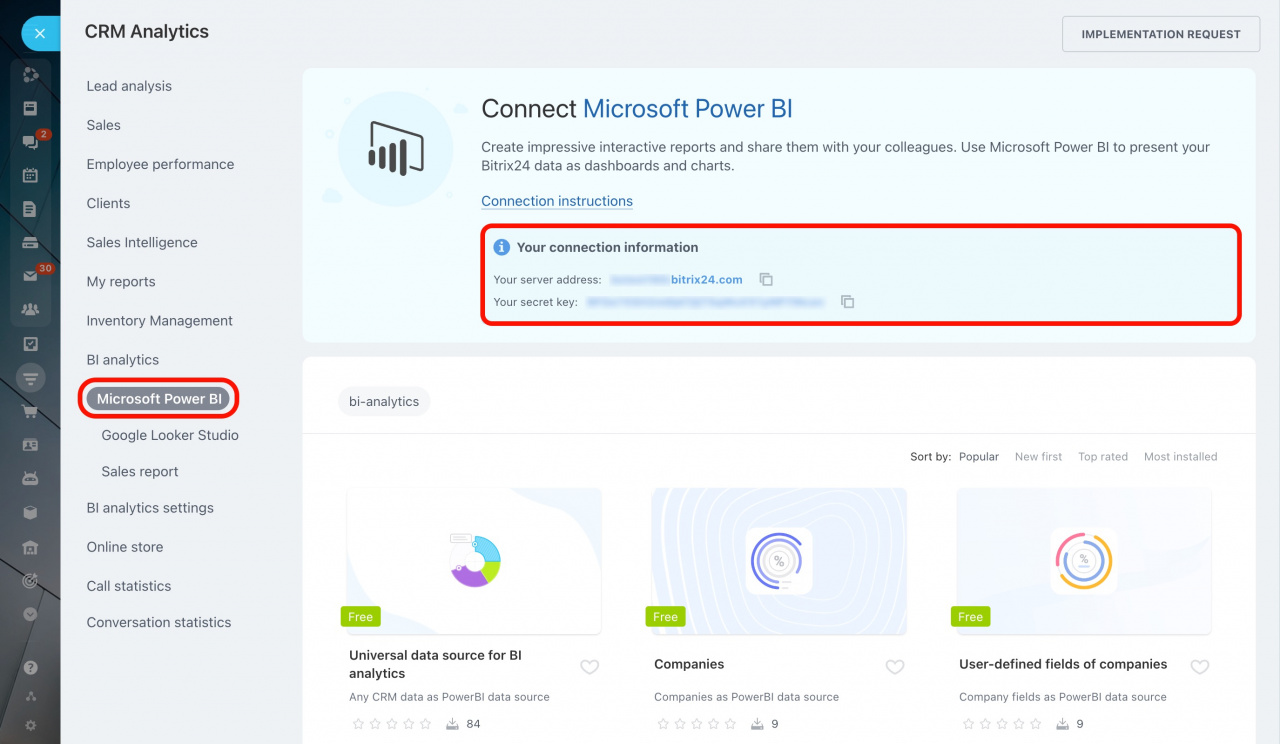
Open the Microsoft Power BI tab and copy your connection data.
You will need:
- Server address
- Secret key
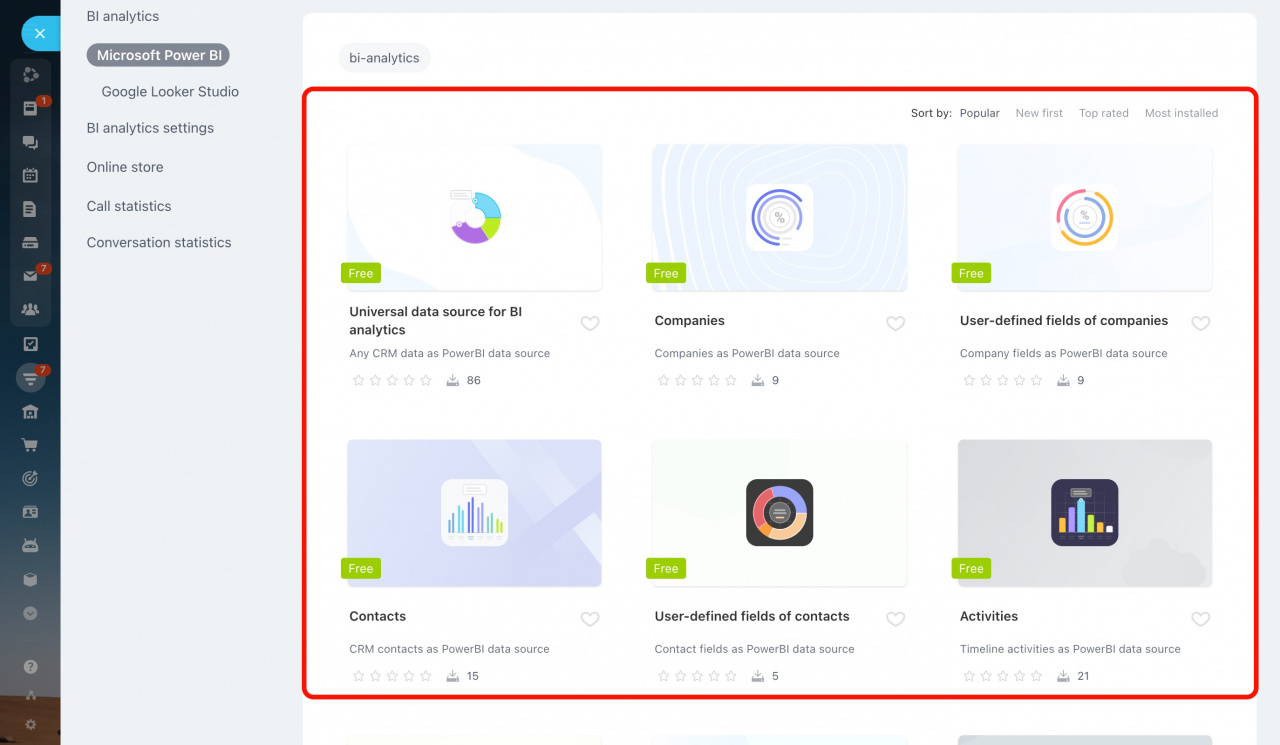
Step 3. Download a report template
Scroll down and choose a report template.
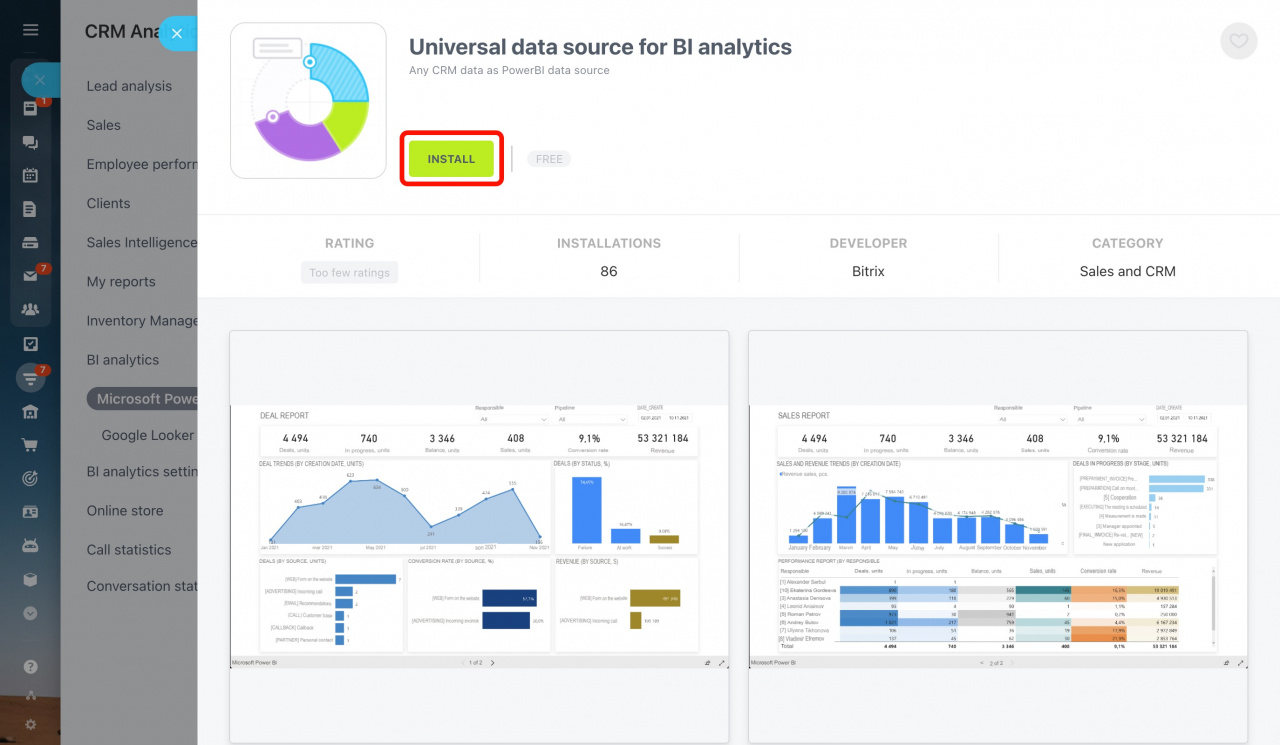
For example, you can use the Universal data source for BI analytics template. It includes BI connector fields for:
- Leads
- Deals
- Smart processes
- Other CRM entities
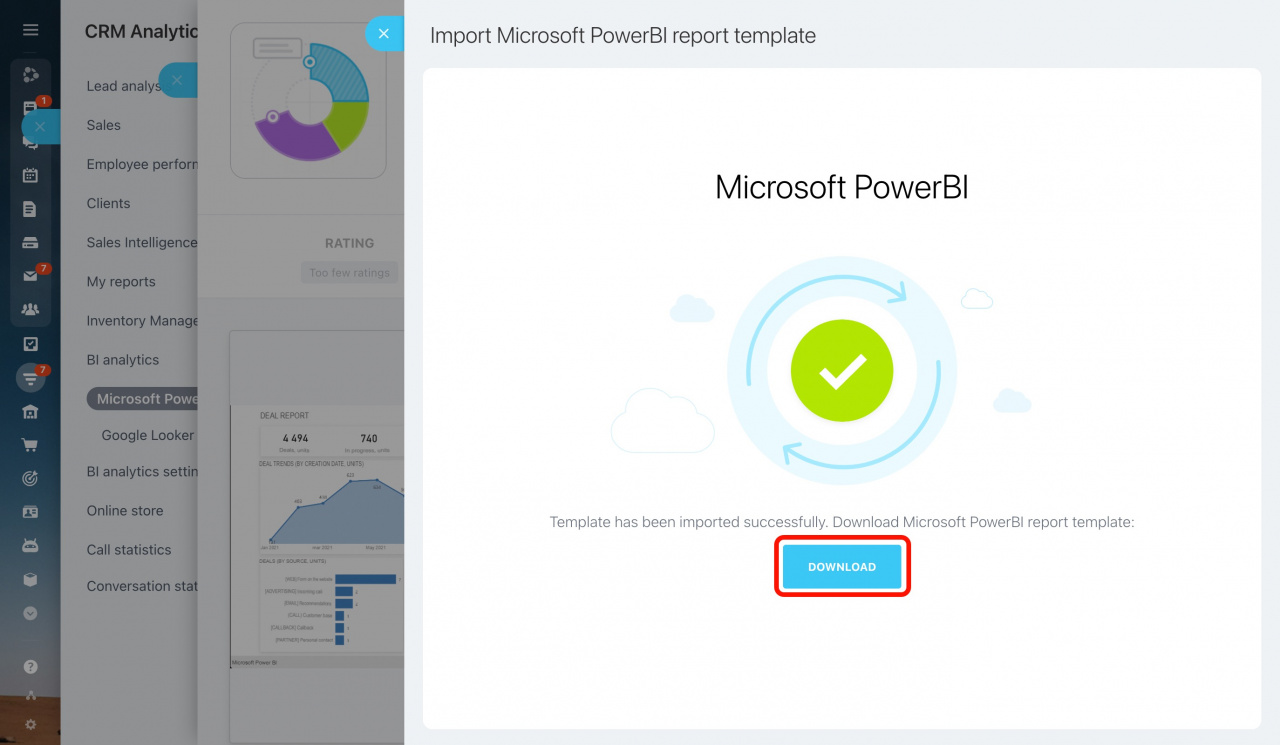
When the import finishes, click Download.
Step 4. Connect Power BI
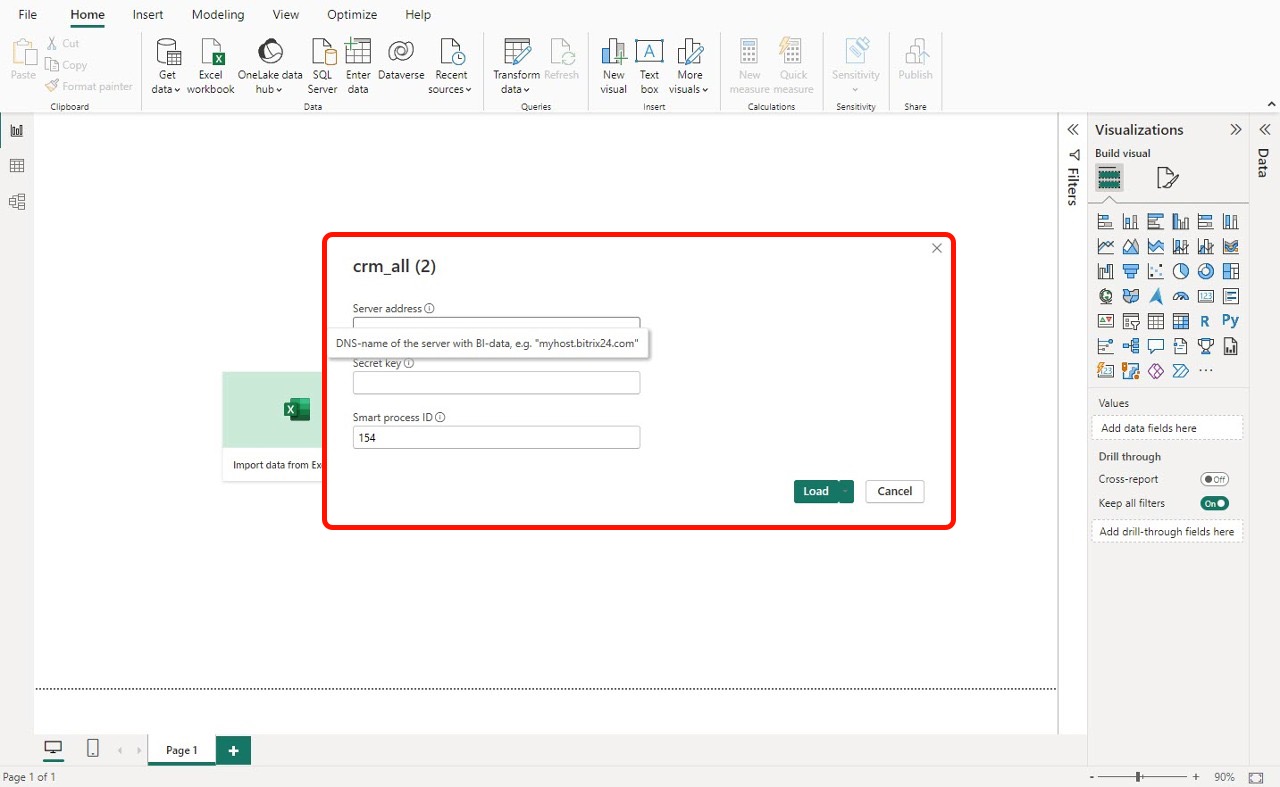
Open the downloaded Power BI Desktop file.
Enter the server address and secret key from the connection data section, then click Load.
The Universal data source template also supports SPA data. To load it, enter the smart process ID in the required field.
Learn where to find the SPA ID:
Where to find the SPA ID
Templates are examples only. Before you use them in production, update the settings to avoid reaching BI connector limits.
We recommend limiting the date range before you upload data.
Reduce the number of uploaded rows
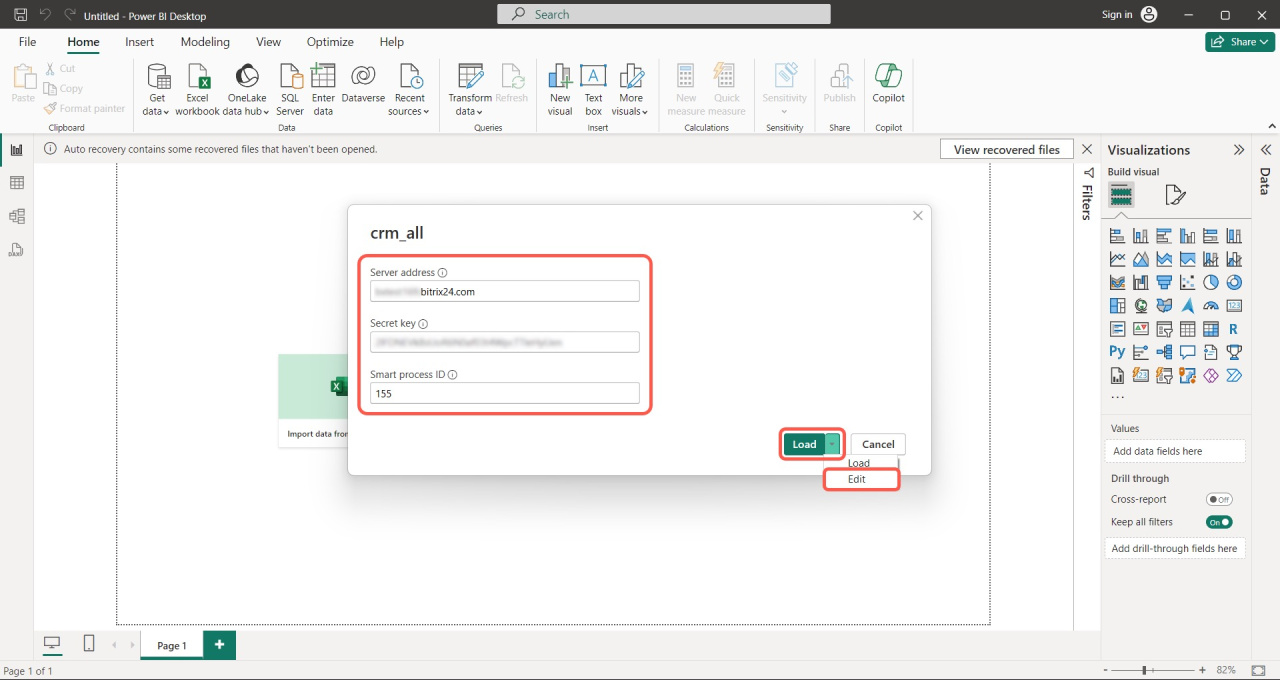
- Enter the account address and secret key.
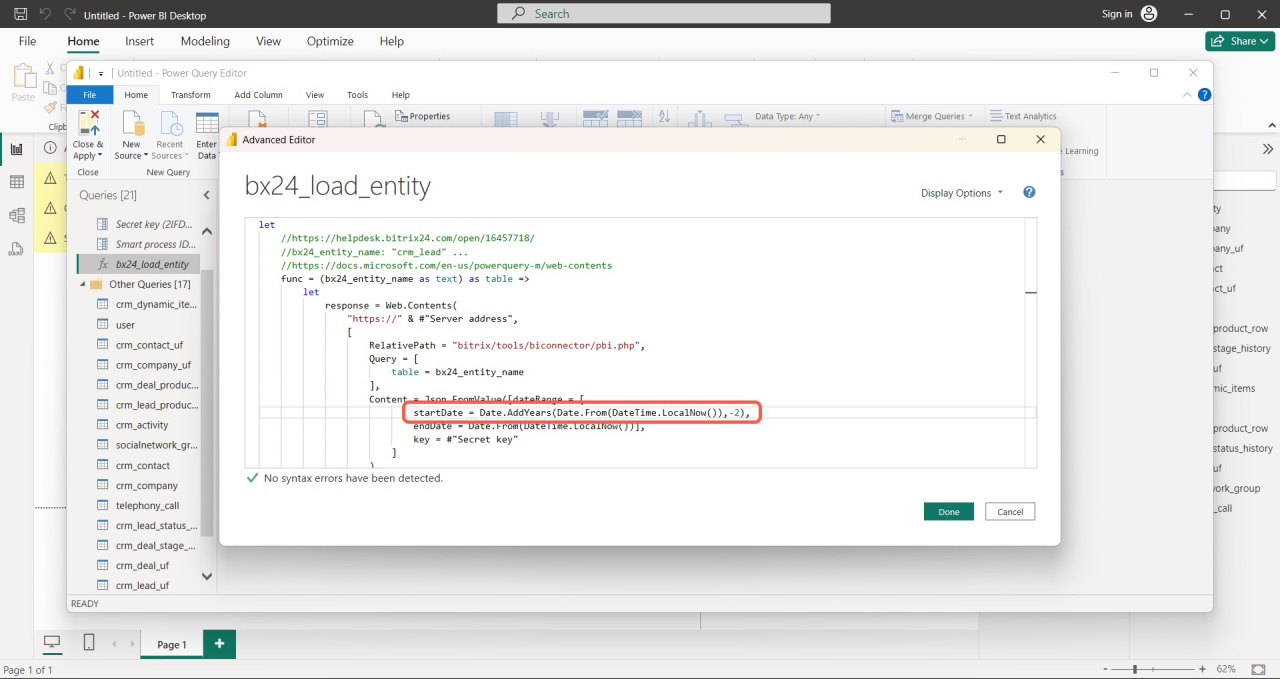
- Click Load > Edit.
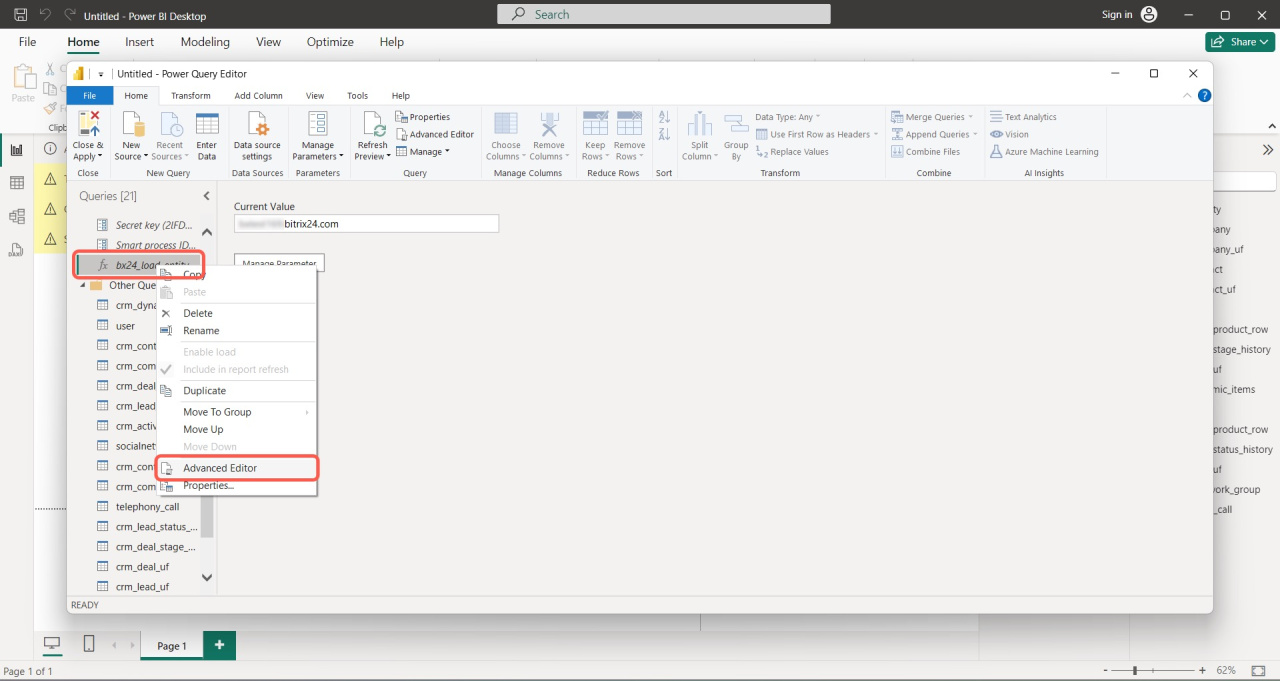
- Right-click
bx24_load_entity. - Select Advanced Editor.
In the editor window, set the date range for the data request.
For example:
- Enter
-2to load data from the last two years.
Publish the report to the cloud
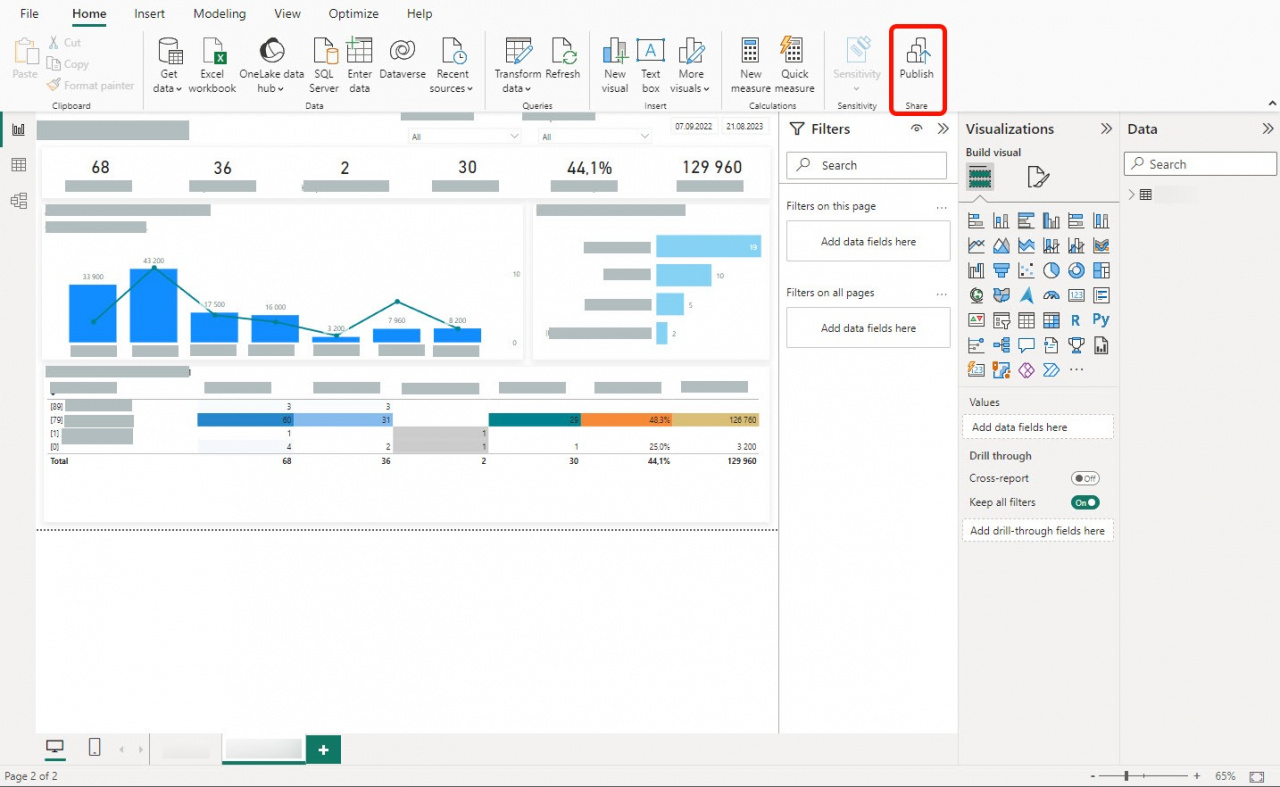
Click Publish in Power BI Desktop.
Then sign in to the Power BI cloud service.
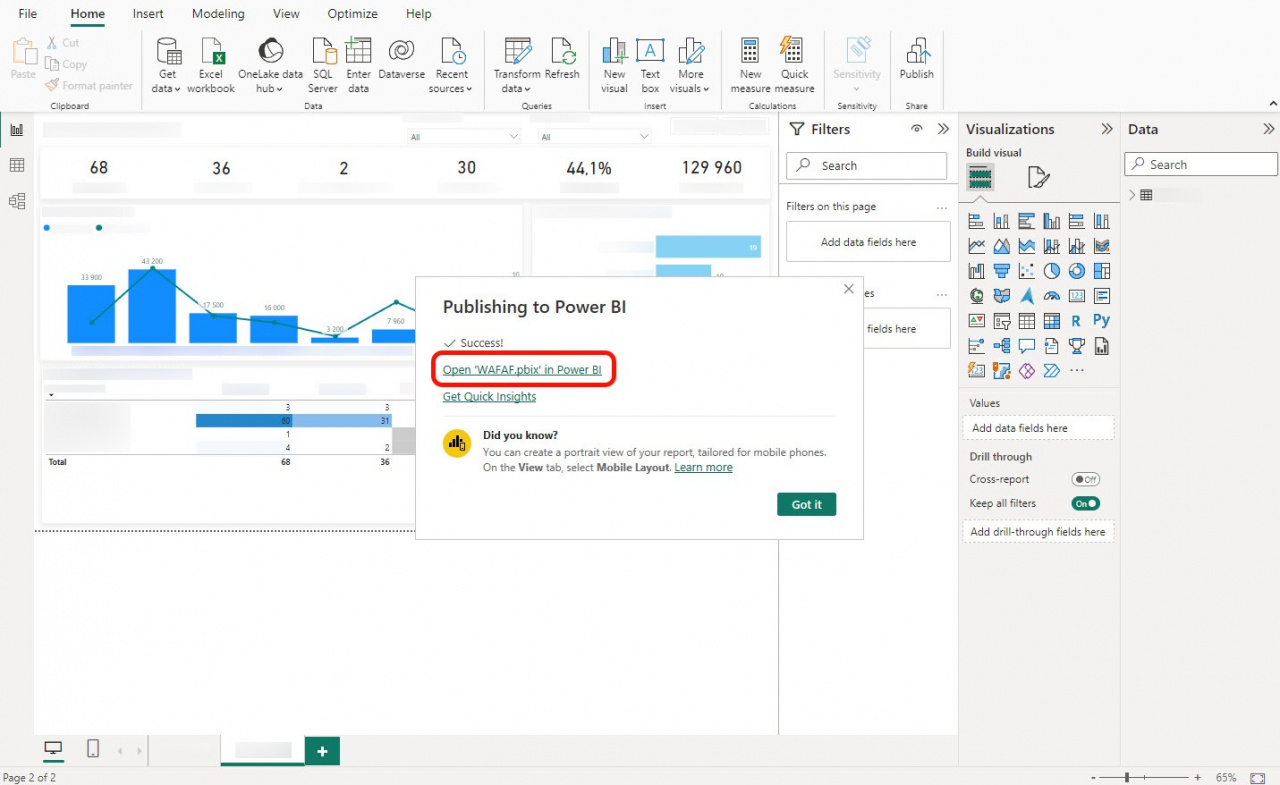
Wait until the report finishes publishing. Then click Open report in Power BI.
You will be redirected to the Power BI cloud service.
Share the report
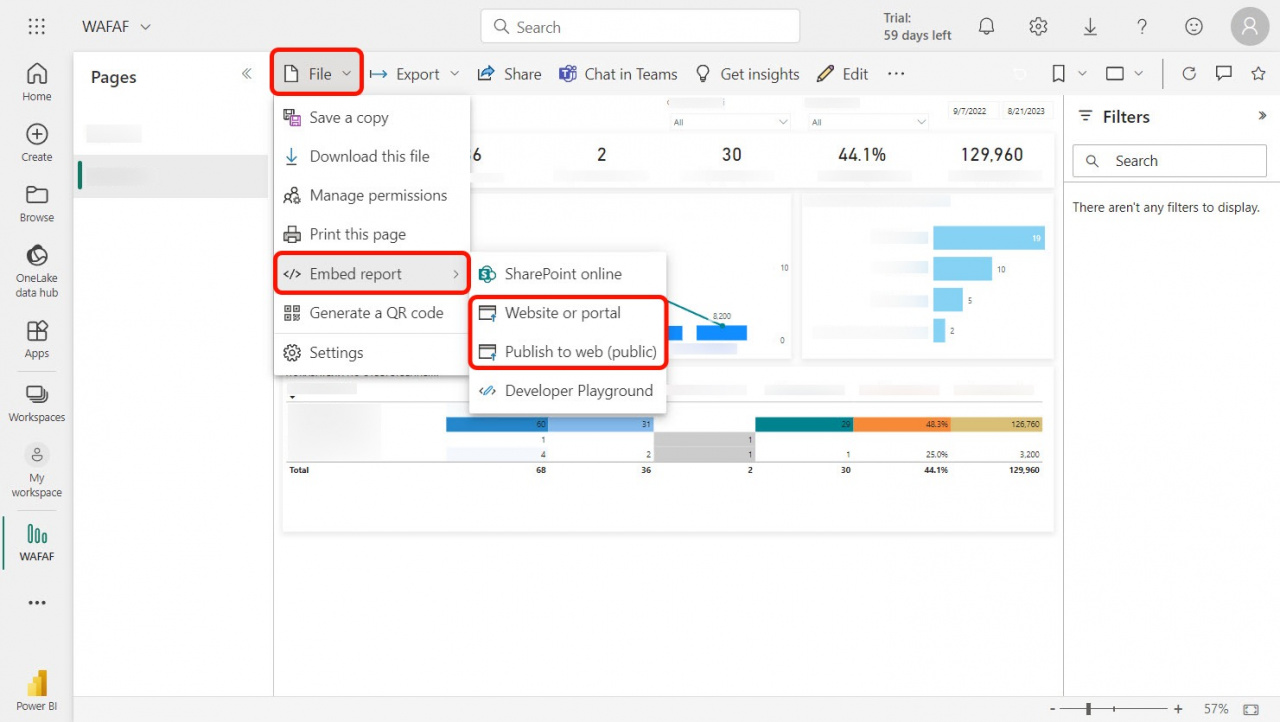
In Power BI, open:
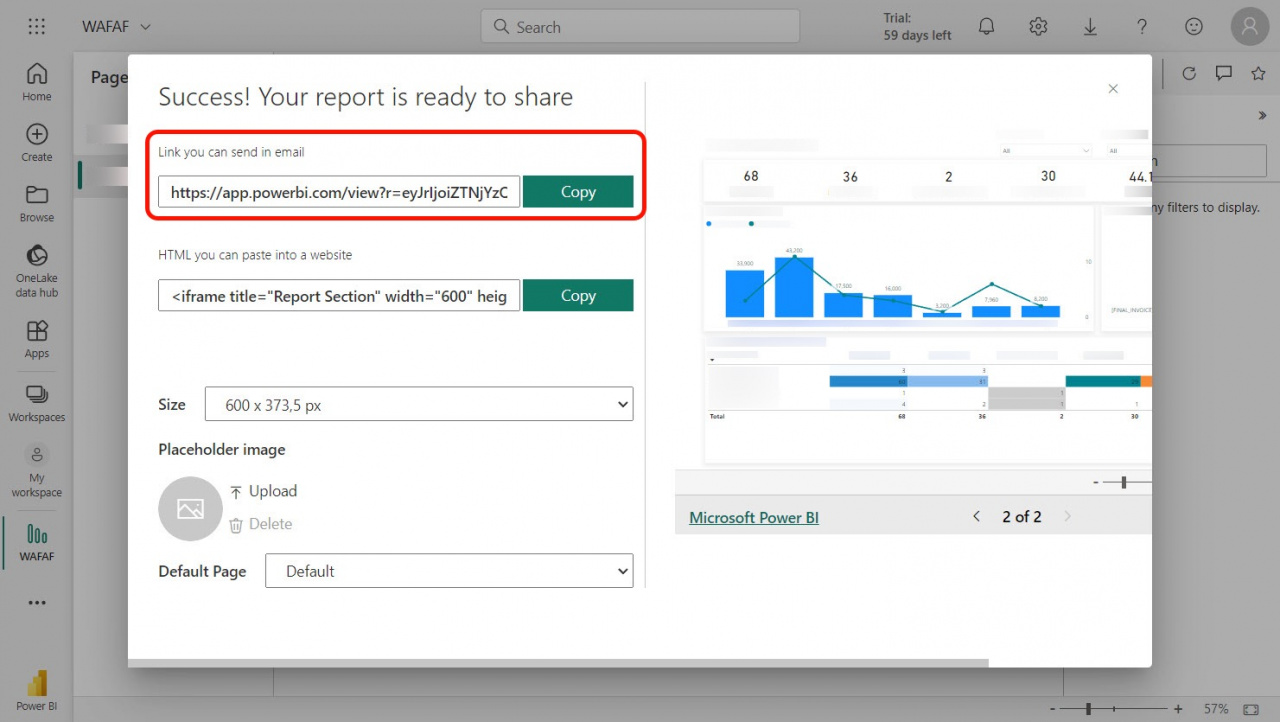
File > Embed report > Publish to web (public)
Important
If you use the Publish to web (public) option, search engines may index the report. Users may also find it in public search results.
You can also publish the report to a Website or portal.
In this case:
- Only company employees can access the report.
- You need a paid Power BI plan.
Copy the generated report link.
Step 5. Add your report to Bitrix24
In Bitrix24, open:
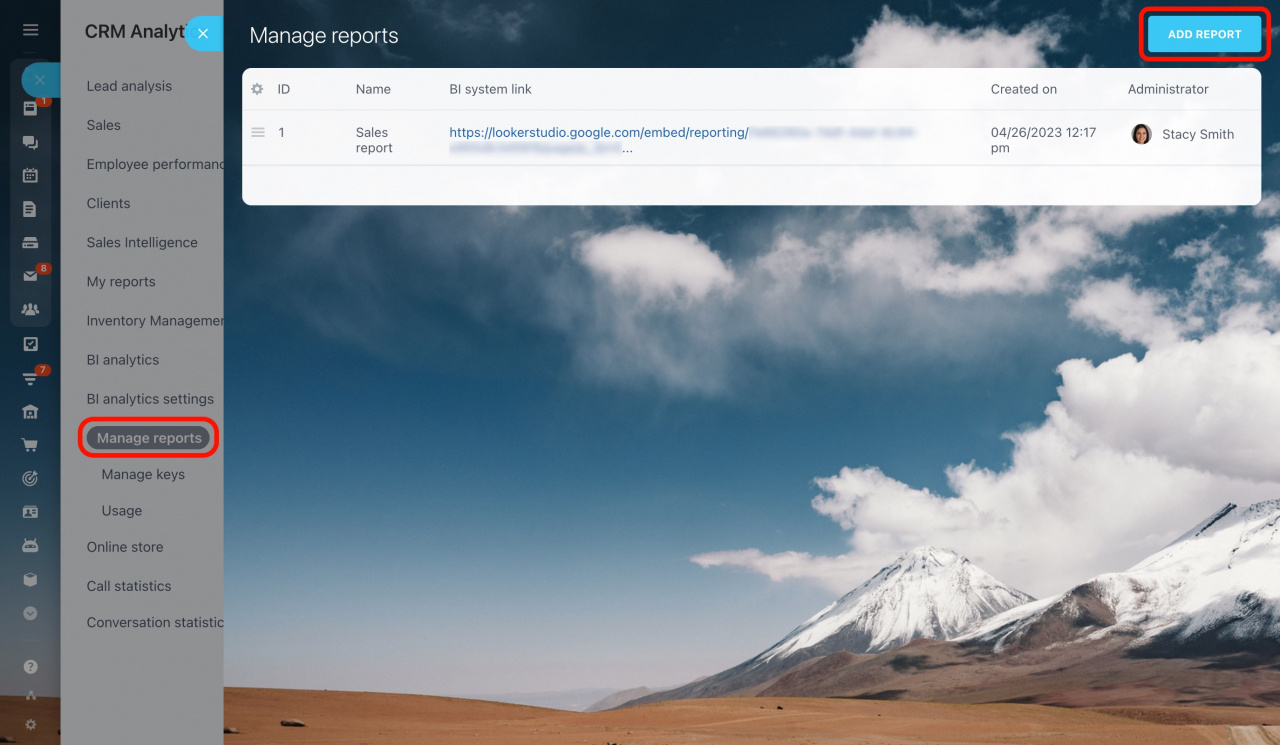
BI analytics > Manage reports
Click Add report.
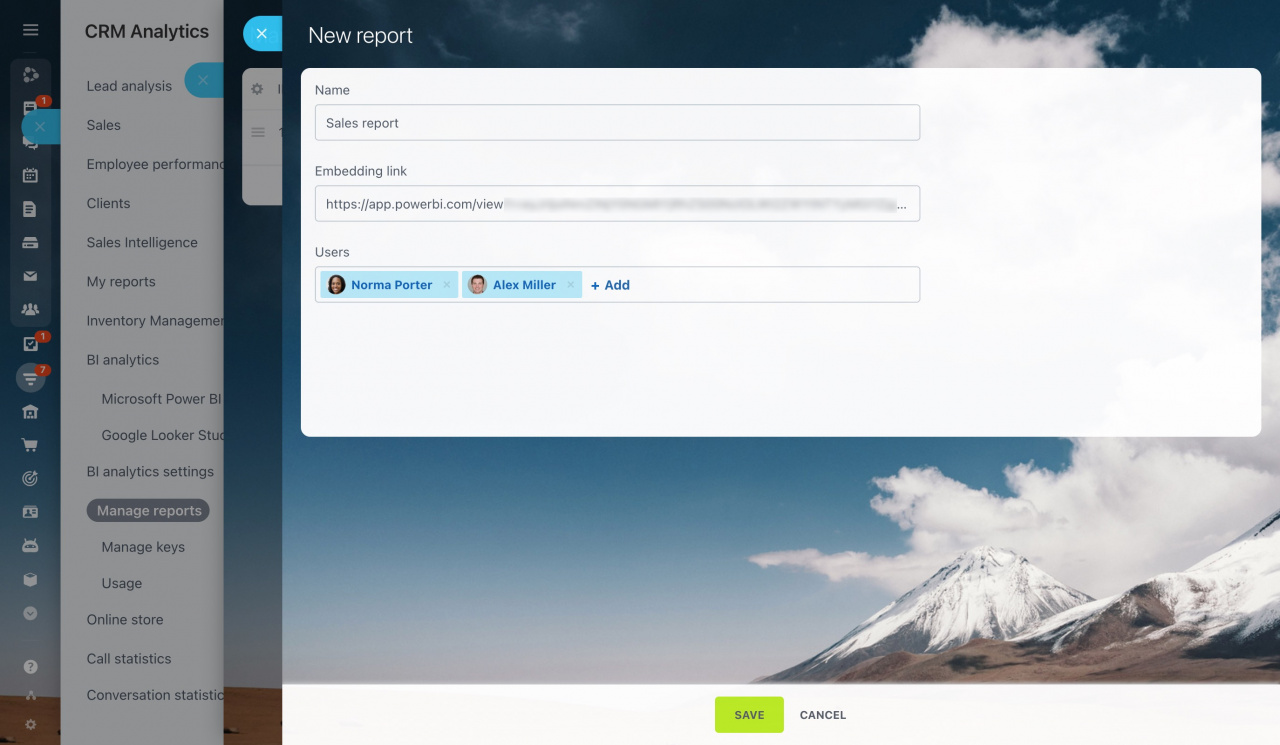
Enter:
- Report title
- Report link
- Users who can access the report
After that:
- The report appears in the report list.
- Users with access also see it in the left menu.
FAQ
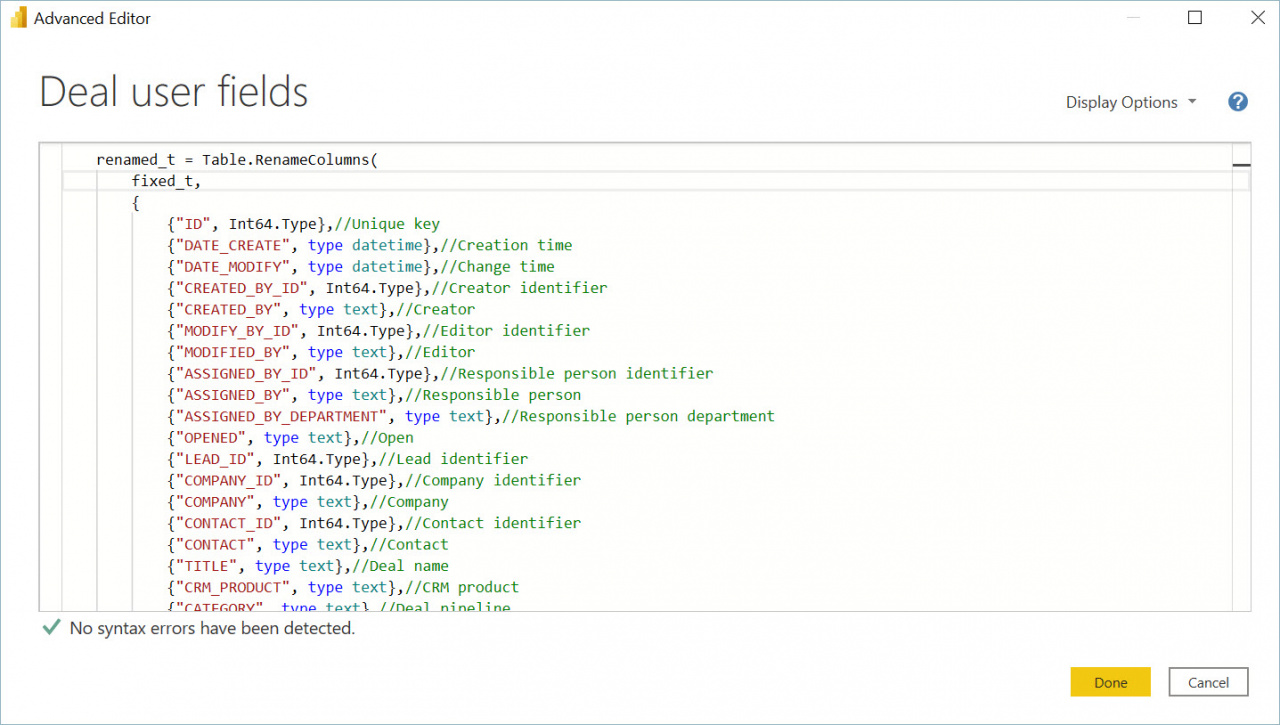
How to set column data types in Power BI
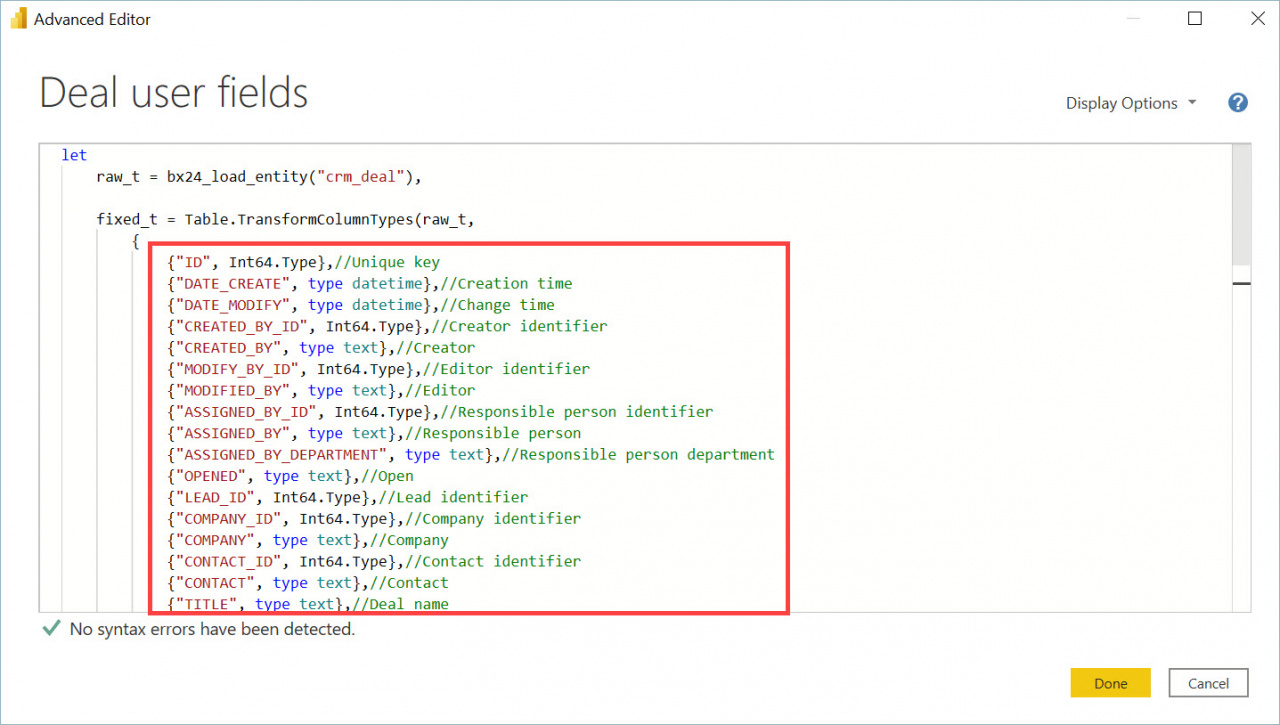
When you install a Microsoft Power BI template, the Transform Data section already includes predefined column types.
In the Advanced Editor, you can:
- Remove unused types
- Copy types for other entities
- Rename columns
How to refresh report data in Power BI
Open the Power BI cloud service:
- Go to My Workspace > All
- Select your report dataset and click Schedule refresh.
- Turn on Keep your data up to date and configure the refresh schedule.
- You can also refresh the data manually at any time.